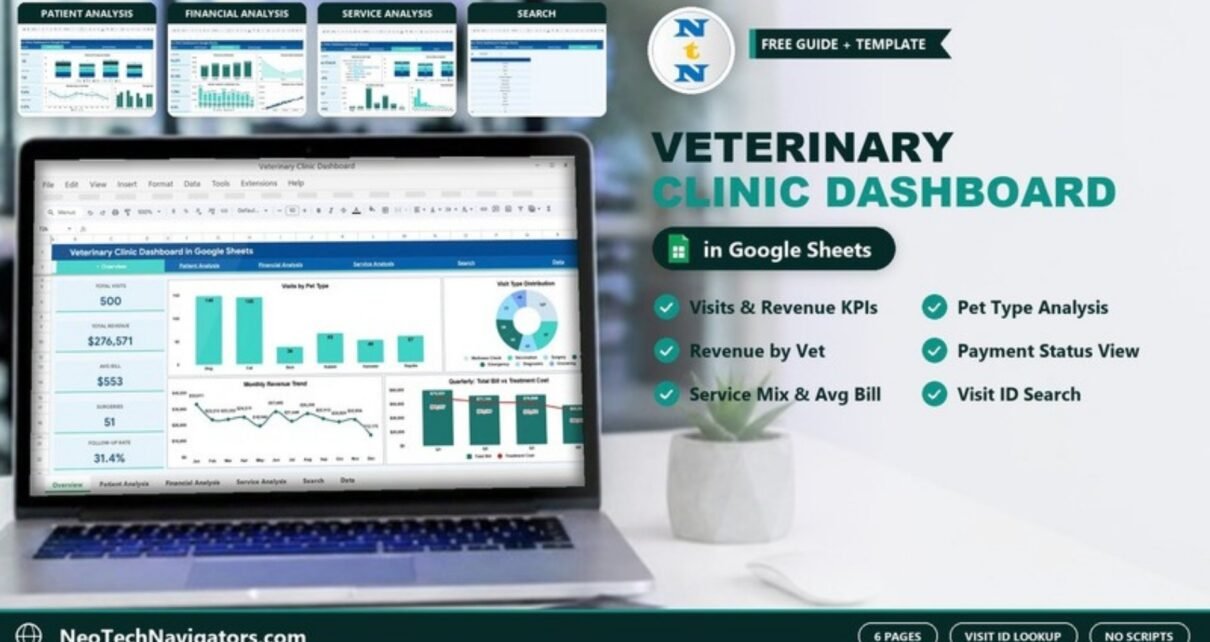
The Veterinary Clinic Dashboard in Google Sheets turns a simple visit log into a six-page analytics file for an animal clinic. It shows visits, revenue, treatment and medication costs, payment status and veterinarian workload, and it lets you pull up any single visit by its Visit ID.
It is built for practice owners, clinic managers and front-desk leads who keep their records in a spreadsheet and want clear monthly numbers without buying practice-management software. Everything runs on native Google Sheets formulas and charts, so there are no scripts or add-ons to set up. You enter visits in the Data sheet and every KPI card and chart recalculates.
🎥 Watch the Video Tutorial
Get the Veterinary Clinic Dashboard
What the Veterinary Clinic Dashboard in Google Sheets Solves
Most small clinics already record every visit somewhere: a booking sheet, an invoice book or a basic spreadsheet. The trouble is turning that log into answers. Which pet types bring in the most revenue? How much of this month’s billing is still pending or waiting on insurance? Which visit types carry the highest average bill? How many patients need a follow-up?
This dashboard answers those questions from one Data sheet. A navigation bar at the top of every page (Overview, Patient Analysis, Financial Analysis, Service Analysis, Search and Data) lets you move between views in one click.
KPI Cards on Each Page
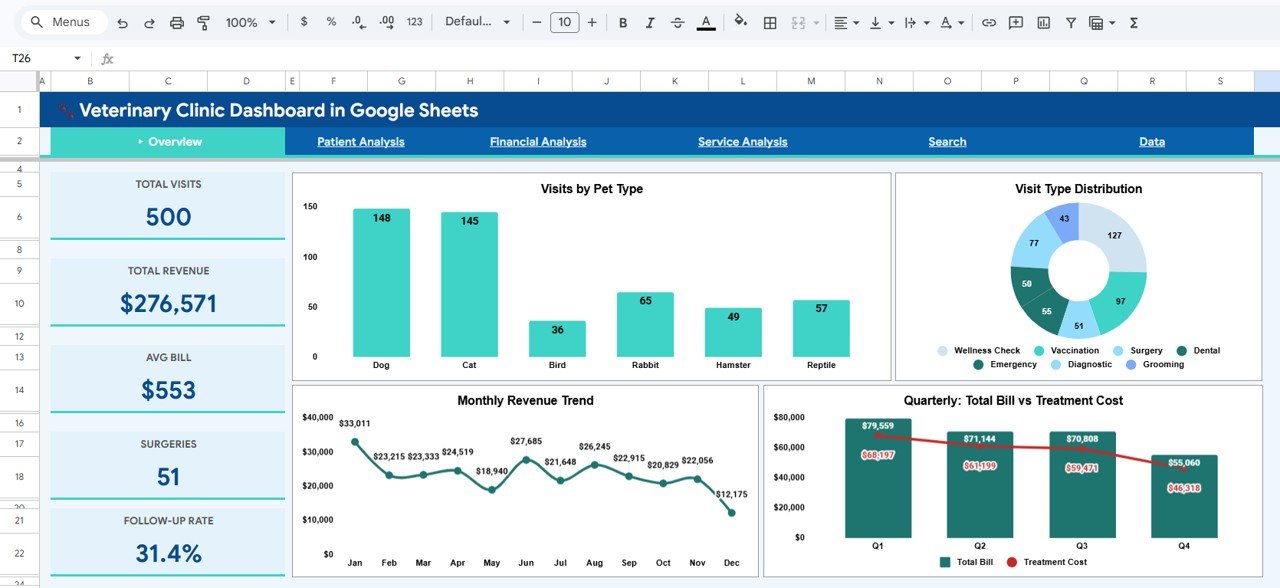
Each analysis page opens with four or five KPI cards. The values below are from the sample data of 500 visits that ships with the template.
| Page | KPI card | Sample value | What it tells you |
|---|---|---|---|
| Overview | Total Visits | 500 | Number of visit records |
| Total Revenue | $276,571 | Sum of Total Bill across all visits | |
| Avg Bill | $553 | Total Revenue ÷ Total Visits | |
| Surgeries | 51 | Visits with the Surgery visit type | |
| Follow-Up Rate | 31.4% | Share of visits marked Follow-Up Required = Yes (157 of 500) | |
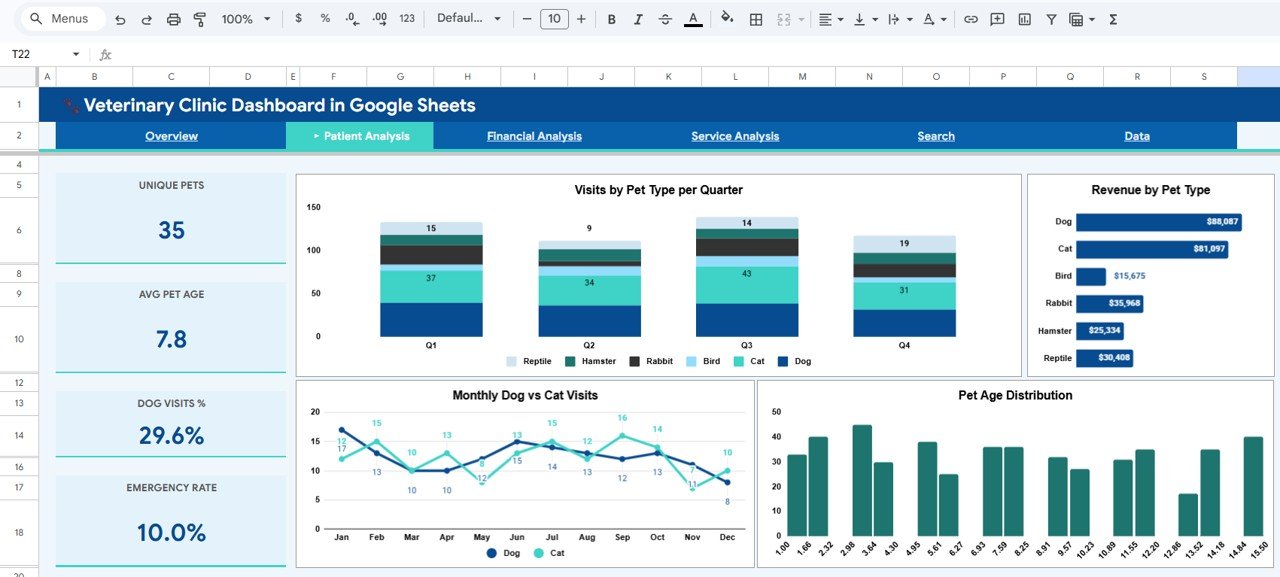
| Patient Analysis | Unique Pets | 35 | Distinct pets in the data |
| Avg Pet Age | 7.8 | Average of the Pet Age column | |
| Dog Visits % | 29.6% | Dog visits ÷ all visits (148 of 500) | |
| Emergency Rate | 10.0% | Emergency visits ÷ all visits (50 of 500) | |
| Financial Analysis | Total Revenue | $276,571 | Same total as the Overview |
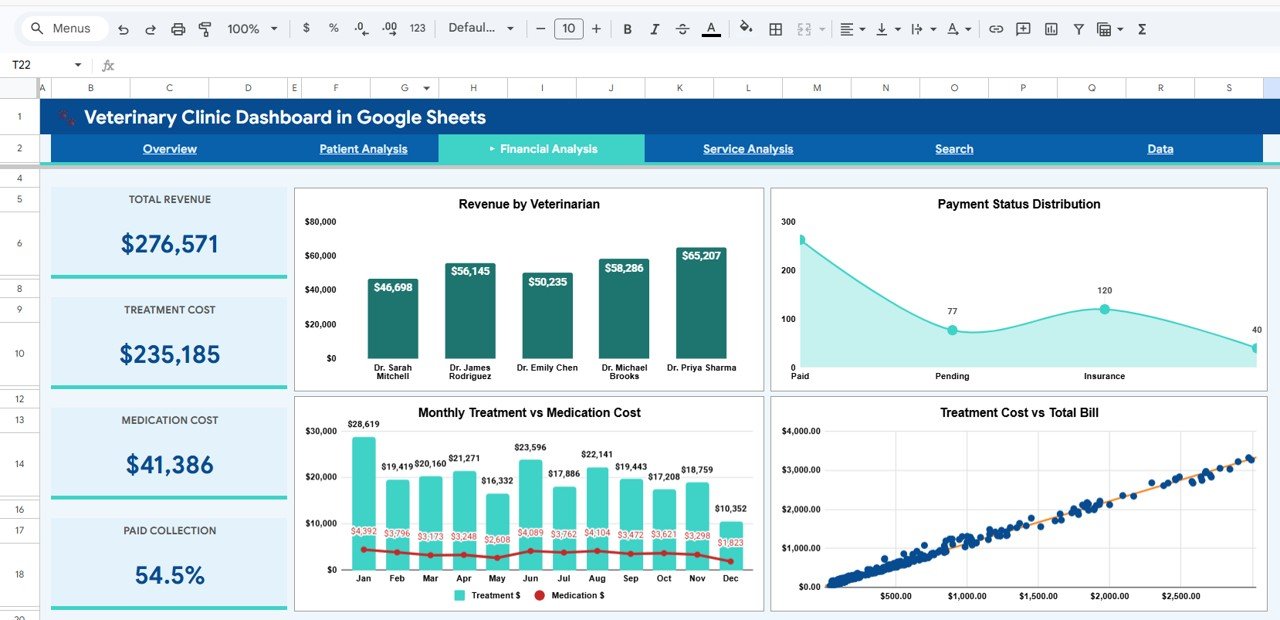
| Treatment Cost | $235,185 | Sum of the Treatment Cost column | |
| Medication Cost | $41,386 | Sum of the Medication Cost column | |
| Paid Collection | 54.5% | How much of the billing is already in the Paid status | |
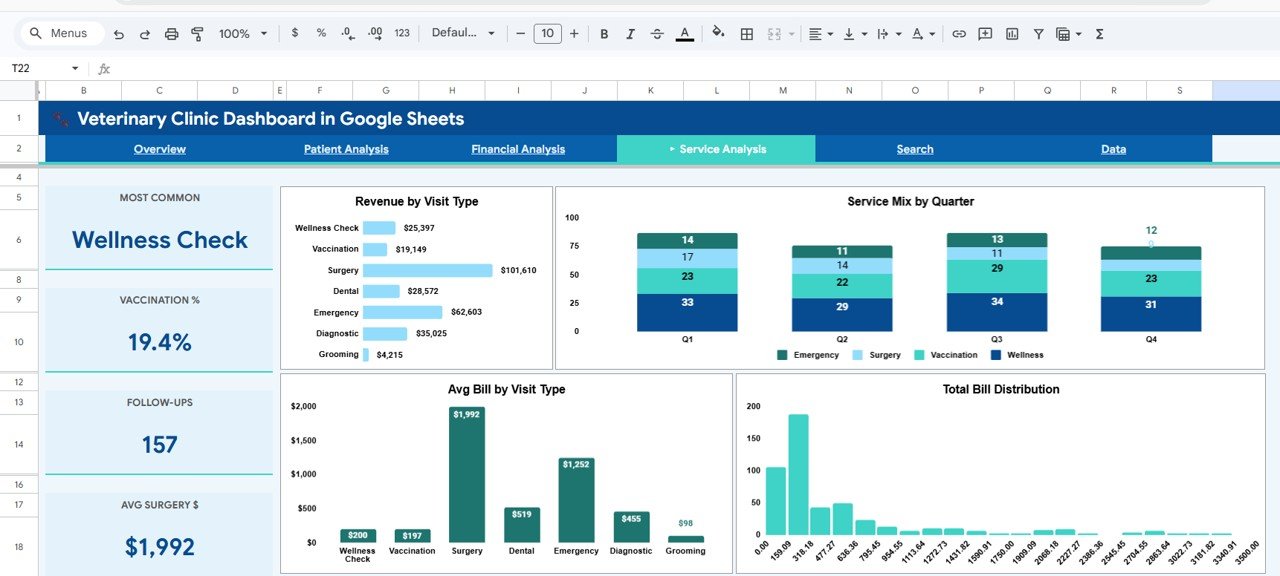
| Service Analysis | Most Common | Wellness Check | The visit type with the most visits |
| Vaccination % | 19.4% | Vaccination visits ÷ all visits (97 of 500) | |
| Follow-Ups | 157 | Visits that need a follow-up | |
| Avg Surgery $ | $1,992 | Surgery revenue ÷ surgery visits |
In the sample file, Treatment Cost plus Medication Cost equals Total Revenue ($235,185 + $41,386 = $276,571). In other words, each visit’s Total Bill is its treatment charge plus its medication charge.
The Six Pages Explained
1. Overview
The Overview page is the clinic’s one-screen summary. Next to the five KPI cards are four charts:
- Visits by Pet Type: Dog 148, Cat 145, Bird 36, Rabbit 65, Hamster 49 and Reptile 57 in the sample data.
- Visit Type Distribution: a donut chart covering Wellness Check, Vaccination, Surgery, Dental, Emergency, Diagnostic and Grooming.
- Monthly Revenue Trend: a January to December line chart. In the sample it peaks at $33,011 in January.
- Quarterly: Total Bill vs Treatment Cost: columns for billing with a line for treatment cost, Q1 to Q4.
2. Patient Analysis
This page looks at who your patients are. Visits by Pet Type per Quarter stacks each species by quarter, so seasonal swings stand out. Revenue by Pet Type ranks species by income; in the sample, dogs ($88,087) and cats ($81,097) lead by a wide margin. Monthly Dog vs Cat Visits compares your two largest patient groups month by month, and Pet Age Distribution shows how patient ages are spread.
3. Financial Analysis
The financial view breaks revenue and costs down. Revenue by Veterinarian compares the five vets in the sample: Dr. Sarah Mitchell, Dr. James Rodriguez, Dr. Emily Chen, Dr. Michael Brooks and Dr. Priya Sharma. Payment Status Distribution counts visits by status (Paid, Pending, Insurance and Partial). Monthly Treatment vs Medication Cost tracks both charges month by month, and Treatment Cost vs Total Bill is a scatter chart that shows how closely the final bill follows the treatment charge.
4. Service Analysis
Use this page to judge your service mix and pricing. Revenue by Visit Type shows that Surgery ($101,610) and Emergency ($62,603) earn the most in the sample, even though Wellness Check is the most common visit. Service Mix by Quarter stacks Emergency, Surgery, Vaccination and Wellness visits per quarter. Avg Bill by Visit Type ranges from $98 for Grooming to $1,992 for Surgery. Total Bill Distribution is a histogram of bill sizes, so you can see that most visits fall in the lower price bands.
5. Search
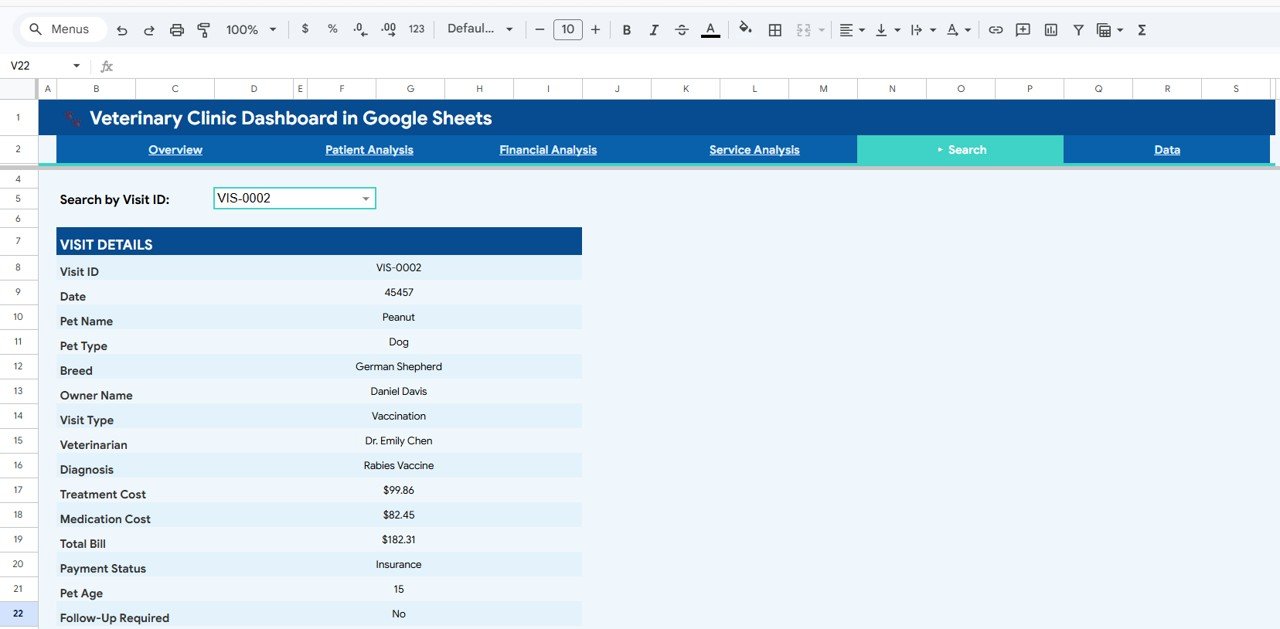
The Search page is a visit lookup. Pick a Visit ID from the Search by Visit ID dropdown (for example VIS-0002) and the Visit Details panel fills in: Visit ID, Date, Pet Name, Pet Type, Breed, Owner Name, Visit Type, Veterinarian, Diagnosis, Treatment Cost, Medication Cost, Total Bill, Payment Status, Pet Age and Follow-Up Required. It is the quickest way to answer a client’s billing question. In the sample screenshot the Date field shows a serial number (45457); apply Format → Number → Date to that cell if yours does the same.
6. Data
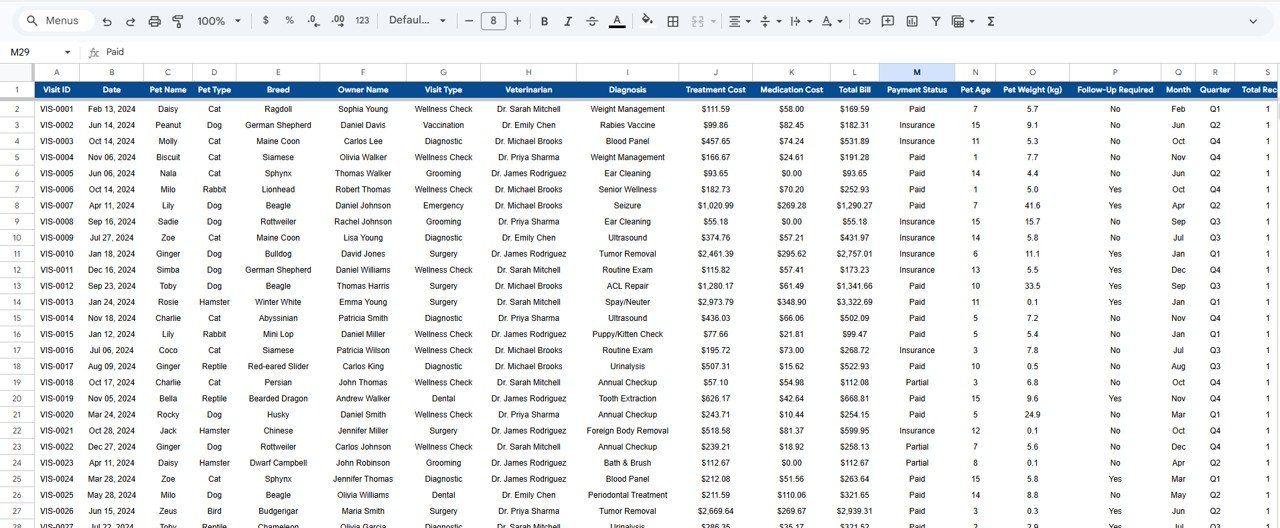
The Data sheet holds one row per visit. Its columns are Visit ID, Date, Pet Name, Pet Type, Breed, Owner Name, Visit Type, Veterinarian, Diagnosis, Treatment Cost, Medication Cost, Total Bill, Payment Status, Pet Age, Pet Weight (kg) and Follow-Up Required, followed by helper columns such as Month and Quarter that feed the charts.
How to Use It with Your Own Clinic Data
- Open the copy link from the PDF guide and choose File → Make a copy to save the dashboard to your own Google Drive.
- Go to the Data sheet and clear the sample rows. Keep the header row exactly as it is.
- Paste or type your visits, one row per visit. Use a consistent Visit ID format (such as VIS-0001) so the Search dropdown stays tidy.
- Keep category values consistent: the same spelling for each pet type, visit type, veterinarian and payment status. “Dr. Chen” and “Dr. Emily Chen” would be counted as two vets.
- Enter costs as plain numbers, and make sure Total Bill equals Treatment Cost plus Medication Cost.
- Check that the helper columns (Month, Quarter) fill down for your new rows.
- Open the Overview. The KPI cards and charts now show your clinic’s numbers. Then use Search to spot-check a few visits.
Real-World Use Cases
- Monthly owner review: a two-vet small-animal practice opens the Overview and Financial pages at month-end to see revenue, the Pending and Insurance share, and how each vet’s revenue compares.
- Service pricing check: a clinic manager compares Avg Bill by Visit Type with the time each service takes. A low-priced but common visit type may need a price review or a package.
- Follow-up and front-desk work: reception filters the Data sheet for Follow-Up Required = Yes to plan reminder calls, and uses the Search page to answer billing questions while the client is on the phone.
Best Practices
- Update weekly. Add new visits at least once a week so the monthly trend never falls behind.
- Use data validation. Add dropdowns (Data → Data validation) on Pet Type, Visit Type, Veterinarian and Payment Status to stop spelling variants.
- Protect the dashboard pages. Use Data → Protect sheets and ranges so staff can only edit the Data sheet.
- Share view-only with partners. Owners and partners usually need to read the numbers, not change them.
- Review Pending and Insurance monthly. They are the visits whose revenue is not yet in the bank.
If you would like to build dashboards like this yourself, the Excel Pivot Tables & Dashboards course on NextGenTemplates Academy covers the same summary-and-chart techniques step by step.
Limitations: Who Should Not Use It
- It is an analytics file, not practice-management software. There is no appointment calendar, medical record history, inventory or online booking.
- Data entry is manual (or copy-paste from your existing system). Nothing syncs automatically.
- The file has no location field, so a multi-branch group would need one copy per branch or an added column.
- Google Sheets is not a certified clinical records system. Keep sensitive client details to what you need for reporting.
Related Dashboards
If you prefer target-versus-actual tracking, see the Veterinary Clinic KPI Dashboard in Google Sheets. For grooming and boarding businesses, the Pet Care KPI Dashboard is a closer fit. Related healthcare examples include the Hospital Operations KPI Dashboard and the Chiropractic Clinic KPI Dashboard.
Related templates: the same dashboard is available as a Veterinary Clinic Dashboard in Excel and a Veterinary Clinic Dashboard in Power BI.
Frequently Asked Questions
What KPIs does the Veterinary Clinic Dashboard in Google Sheets track?
The Overview shows Total Visits, Total Revenue, Avg Bill, Surgeries and Follow-Up Rate. The analysis pages add Unique Pets, Avg Pet Age, Dog Visits %, Emergency Rate, Treatment Cost, Medication Cost, Paid Collection, Most Common visit type, Vaccination %, Follow-Ups and Avg Surgery $.
Do I need formulas or scripts to use it?
No. The formulas and charts are already built. You replace the sample rows in the Data sheet with your own visits and the pages recalculate. There is no Apps Script or add-on.
Can I add more pet types, visit types or veterinarians?
Yes. Type the new values in the Data sheet and they flow into the charts. Keep spelling consistent so each category is counted once.
How do I look up a single visit?
Open the Search page and pick the Visit ID from the dropdown. The panel shows all the visit details, including diagnosis, costs, payment status and whether a follow-up is required.
Can several staff members use it at the same time?
Yes. It is a normal Google Sheets file, so you can share it with your team. Give edit access only to the people who enter visits, and view access to everyone else.
Is there an Excel or Power BI version?
Yes. NextGenTemplates has the Veterinary Clinic Dashboard in Excel and in Power BI as well, if your clinic works in those tools.
Wrapping Up
If your clinic already logs visits in a spreadsheet, the Veterinary Clinic Dashboard in Google Sheets turns that log into clear monthly answers: visit volume, revenue by pet and service, payment status, follow-ups and vet workload. Make a copy, paste in last month’s visits and check the Overview. You will see within minutes whether it fits the way your clinic works.
Get the Veterinary Clinic Dashboard
📅 Last updated: October 2026