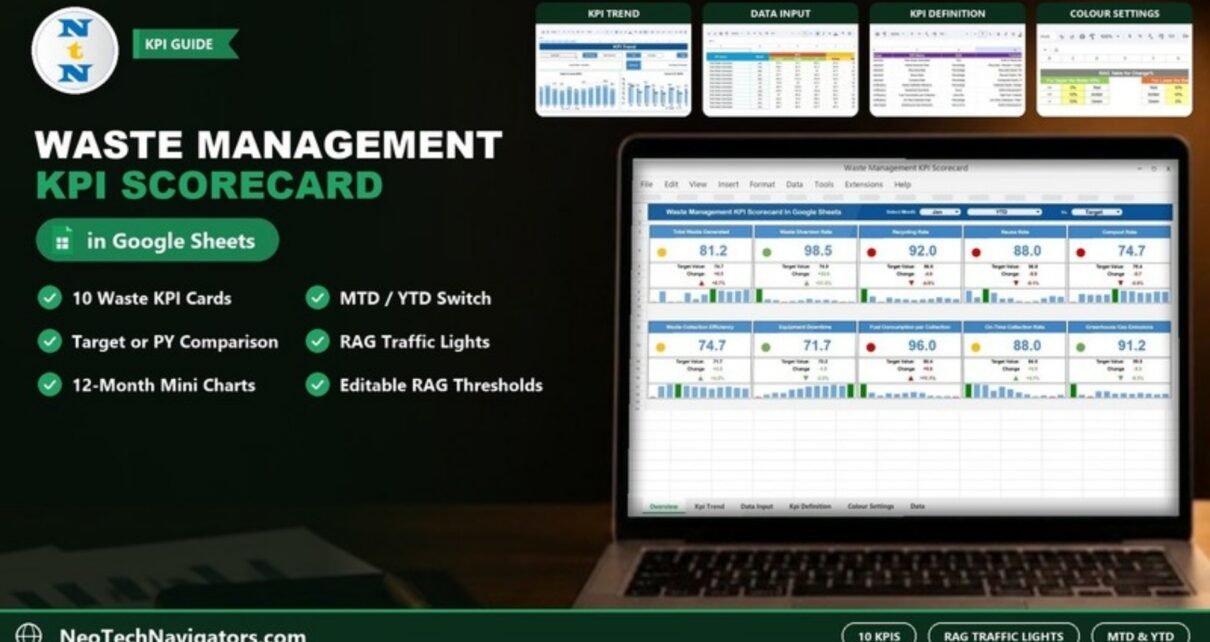
The Waste Management KPI Scorecard in Google Sheets is a one-page monthly scorecard for waste and recycling operations. It tracks 10 KPIs, from Total Waste Generated and Recycling Rate to Fuel Consumption per Collection and Greenhouse Gas Emissions. Each KPI gets a card with the actual value, the target, the change, a traffic-light dot, an up or down arrow and a 12-month mini chart.
It is built for municipal waste departments, facility and sustainability managers, waste contractors and ESG analysts who report monthly figures and want a clear, shareable view without a BI license. This guide explains the five sheets, lists all 10 KPIs with their real formulas, shows how the traffic-light rules work with a worked example, and walks you through loading your own data.
🎥 Watch the Video Tutorial
Get the Waste Management KPI Scorecard
What Problem Does This Scorecard Solve?
Waste operations produce numbers from several places: weighbridge tickets for tonnage, recycling and compost logs, vehicle fuel records, maintenance downtime and emissions estimates. Each month someone has to pull these together, compare them with targets and explain what changed. Without a fixed format, that report looks different every month and the trend is hard to see.
The scorecard gives you one fixed format. You enter monthly actual, target and previous-year values once, and the dashboard shows all 10 KPIs side by side with colour-coded status. Managers can see in a few seconds which areas are on track and which need attention.
The 10 KPIs in the Waste Management KPI Scorecard in Google Sheets
These come straight from the template’s KPI Definition sheet. UTB means “Upper the Better” and LTB means “Lower the Better”.
| # | KPI | Group | Unit | Formula (from the template) | Better when |
|---|---|---|---|---|---|
| 1 | Total Waste Generated | Waste Reduction | Tons | SUM of Waste Generated | Lower (LTB) |
| 2 | Waste Diversion Rate | Waste Reduction | Percentage | (Recycled + Reused + Composted) / Total Waste | Higher (UTB) |
| 3 | Recycling Rate | Waste Reduction | Percentage | Recycled Waste / Total Waste | Higher (UTB) |
| 4 | Reuse Rate | Waste Reduction | Percentage | Reused Waste / Total Waste | Higher (UTB) |
| 5 | Compost Rate | Waste Reduction | Percentage | Composted Waste / Total Waste | Higher (UTB) |
| 6 | Waste Collection Efficiency | Operational Efficiency | Percentage | Collected Waste / Scheduled Collection | Higher (UTB) |
| 7 | Equipment Downtime | Operational Efficiency | Hours | SUM of Equipment Downtime | Lower (LTB) |
| 8 | Fuel Consumption per Collection | Operational Efficiency | Liters/Ton | Total Fuel / Collected Waste | Lower (LTB) |
| 9 | On-Time Collection Rate | Operational Efficiency | Percentage | (On-Time Collections / Total Collections) * 100 | Higher (UTB) |
| 10 | Greenhouse Gas Emissions | Environmental Impact | Tons of CO₂ | SUM of Emissions from Waste | Lower (LTB) |
The KPIs fall into three groups. Waste Reduction (KPIs 1–5) covers how much waste you create and divert. Operational Efficiency (KPIs 6–9) covers how well the collection service runs. Environmental Impact (KPI 10) covers emissions.
Sheet-by-Sheet Walkthrough
1. Dashboard Sheet
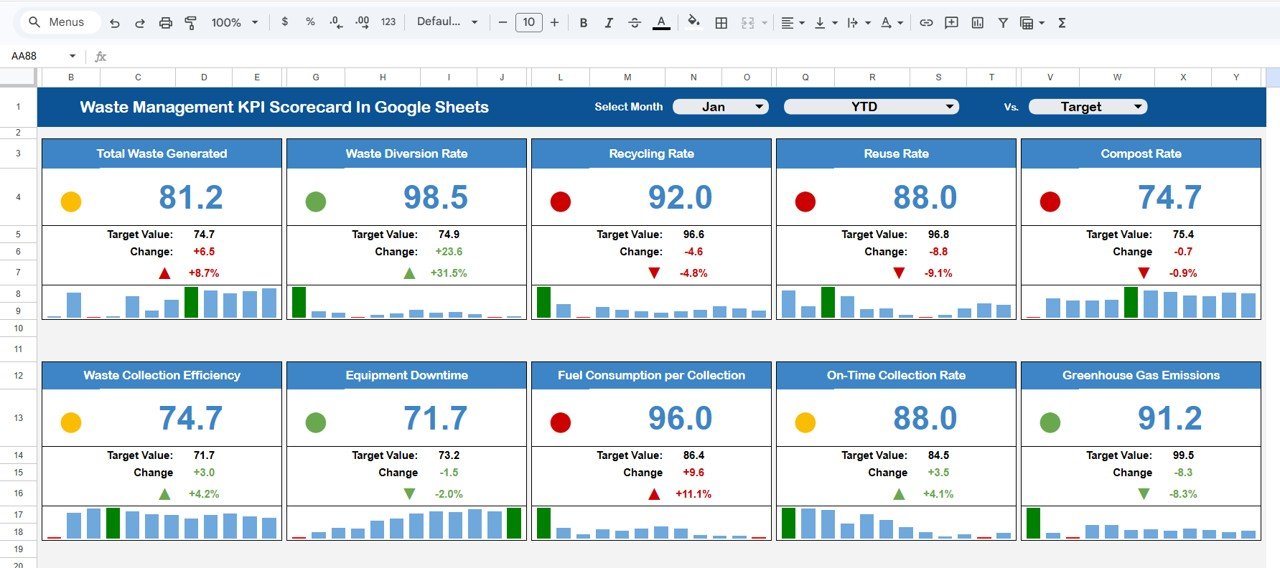
The header has three dropdowns:
- Select Month: Jan in the screenshot.
- MTD / YTD: switches every card between month-to-date and year-to-date. YTD is shown.
- Vs.: the comparison basis. Target is shown, and the Data Input sheet also stores previous-year (PY) values.
Below the header there are ten KPI cards in two rows. Each card shows:
- The KPI name and the large actual value
- Target Value and Change (actual minus target)
- Change % with a green or red up or down arrow
- A traffic-light dot (green, amber or red) driven by the Colour Settings rules
- A small 12-month column chart so you can see the pattern behind the number
2. KPI Trend Sheet
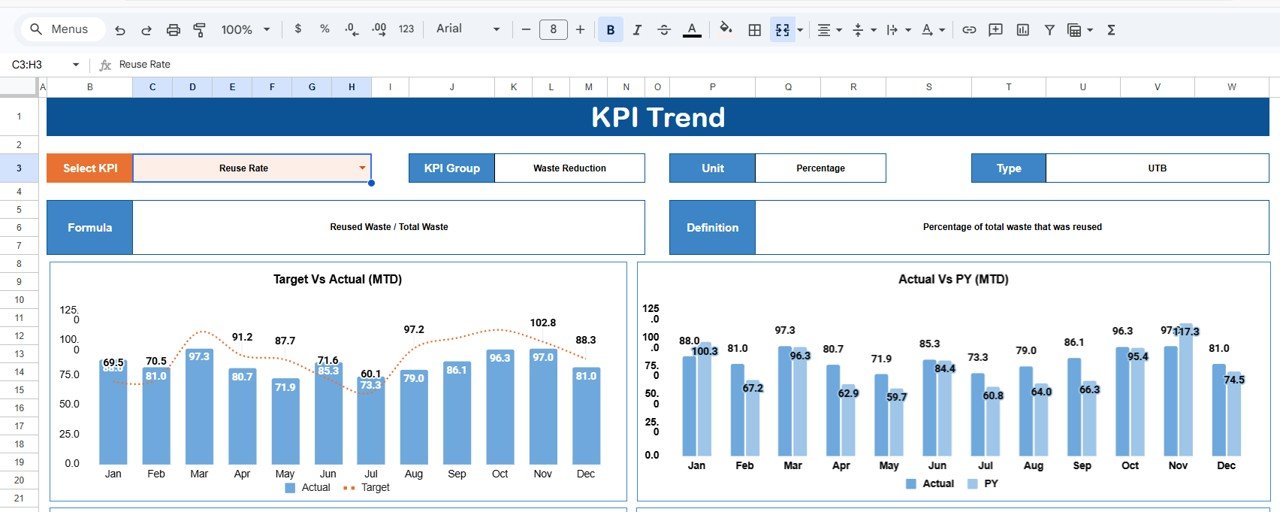
Choose a KPI in the Select KPI dropdown in cell C3. The sheet shows its KPI Group, Unit, Type, Formula and Definition, followed by monthly charts. The screenshot shows Reuse Rate (Waste Reduction, Percentage, UTB, “Reused Waste / Total Waste”) with a Target Vs Actual (MTD) chart and an Actual Vs PY (MTD) chart for January to December.
3. Data Input Sheet
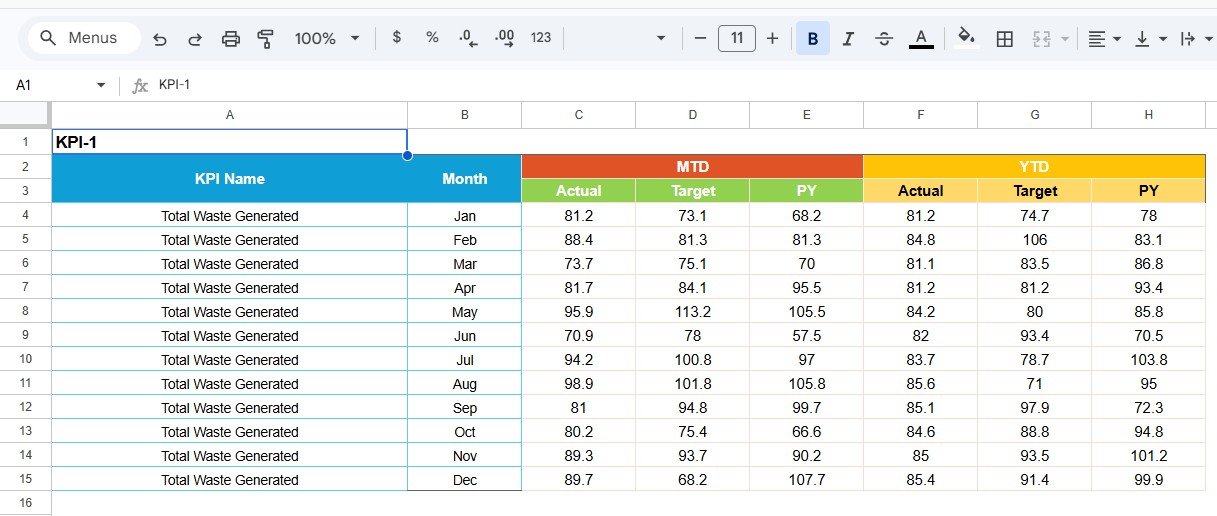
All the numbers go here. Each KPI has its own block (KPI-1, KPI-2 and so on) with one row per month and six value columns: MTD Actual, MTD Target, MTD PY, YTD Actual, YTD Target and YTD PY. In the sample, Total Waste Generated for January has a YTD Actual of 81.2 and a YTD Target of 74.7, which are the figures shown on the dashboard card.
4. KPI Definition Sheet
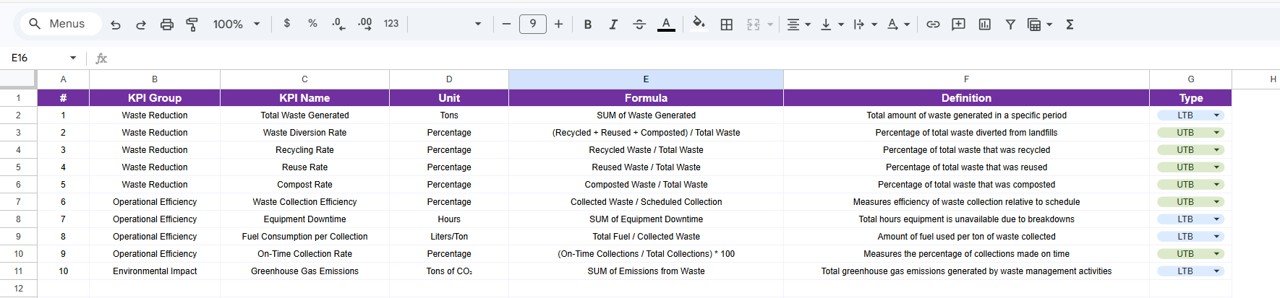
This is the reference list behind the scorecard, with each KPI’s group, name, unit, formula, definition and type (UTB or LTB, chosen from a dropdown). If your organisation measures a KPI differently, update it here first so the whole team works from the same definition.
5. Colour Settings Sheet
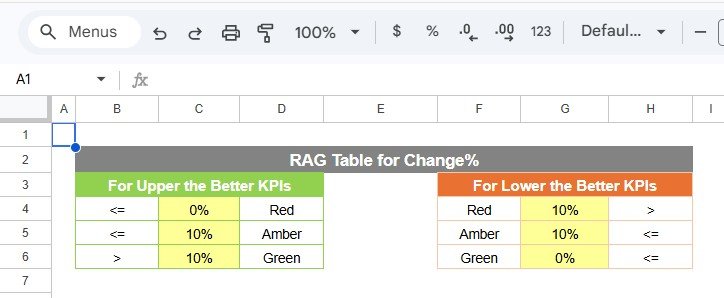
The RAG Table for Change% controls the traffic-light dots. There are separate rules for each KPI type:
- Upper the Better KPIs: Change% ≤ 0% is Red, ≤ 10% is Amber, > 10% is Green.
- Lower the Better KPIs: Change% > 10% is Red, ≤ 10% is Amber, ≤ 0% is Green.
You can change the 0% and 10% thresholds to suit your own tolerance.
Worked Example: Reading Two Cards
With January, YTD and Target selected, the Total Waste Generated card shows:
Actual      = 81.2
Target      = 74.7
Change      = 81.2 - 74.7 = +6.5
Change %    = 6.5 / 74.7  = +8.7%
Total Waste Generated is LTB, so producing more waste than the target is bad. That is why the arrow is red. A +8.7% change is above 0% but not above 10%, so under the LTB rule the dot is amber.
Now compare Waste Diversion Rate: actual 98.5 against a target of 74.9 gives a change of +23.6, or +31.5%. This KPI is UTB and the change is above 10%, so the arrow is green and the dot is green. On the same card row, Recycling Rate (−4.8%), Reuse Rate (−9.1%) and Compost Rate (−0.9%) are all UTB KPIs below target, so they show red dots.
The sample values are placeholder data, so treat them as a demonstration of the logic, not as benchmarks.
How to Use It With Your Own Data
- Make a copy of the Google Sheet (File > Make a copy).
- On KPI Definition, check each formula and type against how you measure it. For example, decide whether Waste Collection Efficiency uses tons or pickups.
- On Data Input, enter monthly targets and last year’s values for each KPI block.
- After each month closes, enter the MTD and YTD actuals for that month.
- On Colour Settings, adjust the RAG thresholds if 10% is too loose or too strict for you.
- Open Dashboard, choose the month, MTD or YTD, and the comparison basis. Then use KPI Trend to look into any red cards.
If your raw tonnage sits in a log, rate KPIs are simple ratios. For example, with recycled, reused and composted tons in columns C, D and E and total tons in B:
Waste Diversion Rate = SUM(C2:E2) / B2
Recycling Rate       = C2 / B2
If you want to build summary sheets and dashboards like this yourself, the Excel Pivot Tables & Dashboards course on NextGenTemplates Academy covers the method step by step, and the ideas carry over to Google Sheets.
Real-World Use Cases
- Municipal solid waste department: Reports diversion, on-time collection and fuel use to the city council each month, using the YTD view to show progress against annual targets.
- Private waste contractor: Watches Equipment Downtime and Fuel Consumption per Collection to find vehicles or routes that cost more than they should.
- Corporate sustainability team: Tracks Total Waste Generated, Recycling Rate and Greenhouse Gas Emissions across a site as part of ESG reporting.
For a chart-heavy version of the same topic, see the Waste Management KPI Dashboard in Google Sheets. If recycling is your main focus, the Recycling KPI Scorecard in Google Sheets goes into more depth. For office-level waste, try the Office Waste Management Dashboard.
Best Practices
- Use one source for tonnage. Weighbridge or hauler invoices are better than estimates, and the same source every month keeps trends honest.
- Set targets from history. Base them on last year’s actuals plus a realistic improvement.
- Review YTD for strategy and MTD for operations. A bad month inside a good year needs a different response from a slipping year.
- Document emission factors. If you estimate CO₂, note the method on the KPI Definition sheet so the number can be checked.
- Lock the formula areas. Use Data > Protect sheets and ranges so only the Data Input sheet is editable by most users.
Other KPIs Worth Tracking (Not Included in the Template)
Depending on your operation, you may want to add some of these yourself on the KPI Definition and Data Input sheets. They are not part of the template’s 10 KPIs:
- Waste generated per capita or per employee
- Recycling contamination rate
- Cost per ton collected or disposed
- Landfill tipping fees as a share of operating cost
Limitations: Who Should Not Use It
- It is a monthly scorecard, not a route planner or fleet tracking system.
- You enter monthly totals by hand. There is no live link to weighbridges, GPS or telematics.
- Large organisations that need site-by-site drill-down for many facilities may prefer one copy per site or a broader environmental KPI scorecard feeding a BI tool.
Related templates: Working in Excel? The Waste Management KPI Scorecard in Excel covers the same topic for desktop users.
Frequently Asked Questions
How many KPIs are in the Waste Management KPI Scorecard?
Ten: Total Waste Generated, Waste Diversion Rate, Recycling Rate, Reuse Rate, Compost Rate, Waste Collection Efficiency, Equipment Downtime, Fuel Consumption per Collection, On-Time Collection Rate and Greenhouse Gas Emissions.
How are the traffic-light colours decided?
They follow the RAG Table on the Colour Settings sheet. For Upper the Better KPIs, a change above 10% is green and 0% or below is red. For Lower the Better KPIs, the rule is reversed. Values in between are amber.
Can I switch between monthly and yearly views?
Yes. The dashboard header has an MTD/YTD dropdown next to the month selector, and every card updates when you change it.
What is the difference between Waste Diversion Rate and Recycling Rate?
Recycling Rate counts only recycled waste. Waste Diversion Rate counts recycled, reused and composted waste together, each divided by total waste.
Can I add my own KPIs?
Yes. Add the KPI on the KPI Definition sheet and give it a block on the Data Input sheet. The dashboard has ten card slots, so adding more means changing the layout or replacing an existing KPI.
Does it need Excel or any add-on?
No. It runs in Google Sheets in your browser and can be shared with your team using normal Google Drive permissions.
Wrapping Up
The Waste Management KPI Scorecard in Google Sheets puts 10 waste reduction, operational and emissions KPIs on one page, with clear rules for colour and direction and a trend sheet for the detail. Check the definitions, load last year’s numbers and your targets, and you will have a monthly report that looks the same every time and is easy to explain.
Get the Waste Management KPI Scorecard
📅 Last updated: October 2026