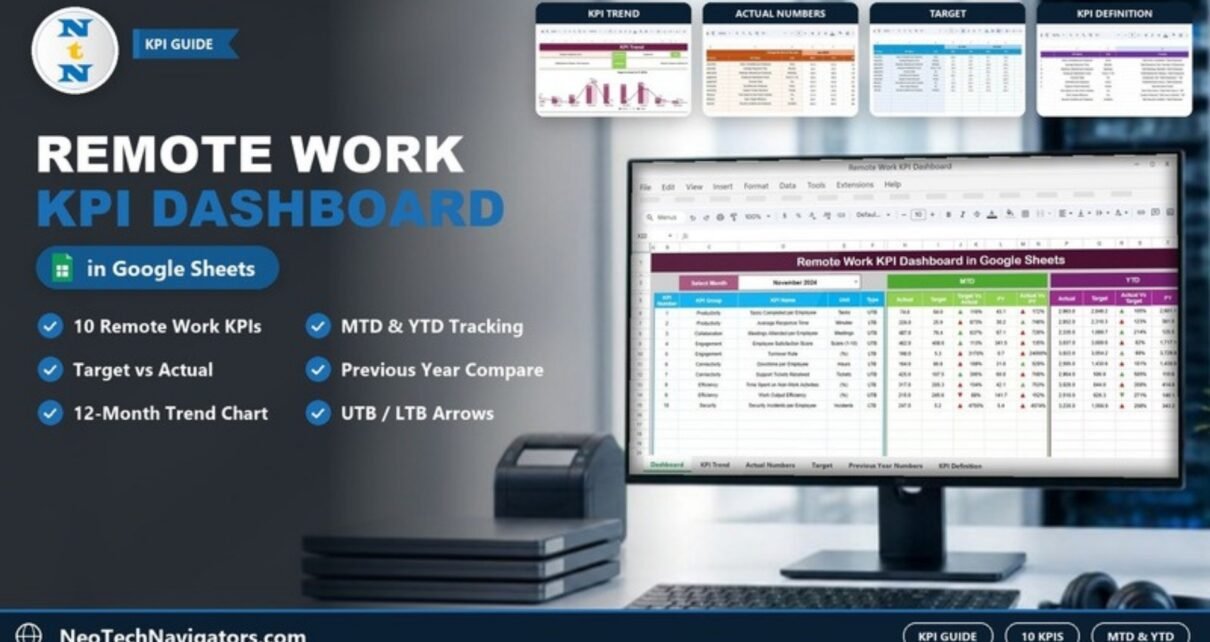
The Remote Work KPI Dashboard in Google Sheets tracks ten remote-work KPIs – from Tasks Completed per Employee to Security Incidents per Employee – and compares each one against its target and the previous year, for the selected month (MTD) and for the year to date (YTD).
It is built for HR leaders, operations managers and team leads who run remote or hybrid teams and want one monthly scorecard instead of numbers scattered across project, chat and ticketing tools. Below you will find the full KPI list with formulas, how each of the six sheets works, a worked example using the sample numbers, and step-by-step setup with your own data.
🎥 Watch the Video Tutorial
Get the Remote Work KPI Dashboard
Why Use a Remote Work KPI Dashboard in Google Sheets?
When people are not in the same office, managers lose the informal signals they used to rely on. You cannot see who is overloaded, whether response times are slipping, or whether connectivity problems are eating into the working day. A KPI dashboard replaces guesswork with a small set of agreed numbers that everyone reviews every month. The value comes from three comparisons: this month against target, this month against the same month last year, and the same two comparisons for the year to date.
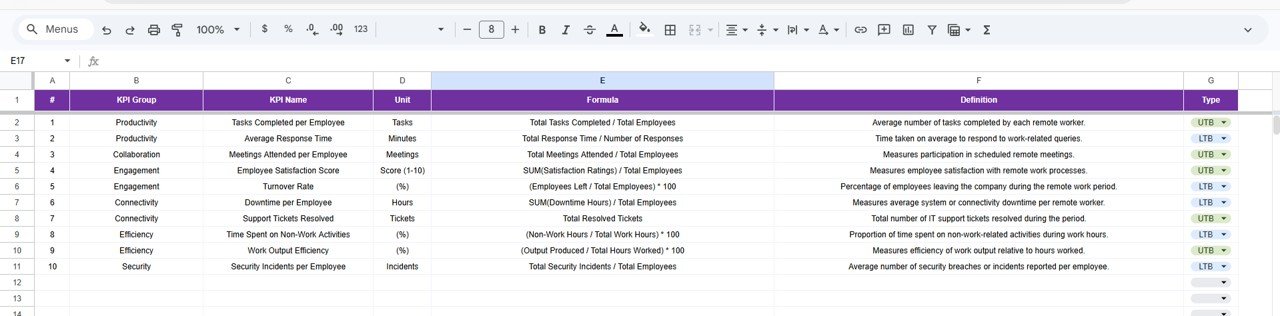
The 10 KPIs in the Template
These KPIs come straight from the template’s KPI Definition sheet. UTB means “upper the better” (higher is good) and LTB means “lower the better”.
| # | KPI (group) | Unit | Formula | Better when |
|---|---|---|---|---|
| 1 | Tasks Completed per Employee (Productivity) | Tasks | Total Tasks Completed / Total Employees | Higher (UTB) |
| 2 | Average Response Time (Productivity) | Minutes | Total Response Time / Number of Responses | Lower (LTB) |
| 3 | Meetings Attended per Employee (Collaboration) | Meetings | Total Meetings Attended / Total Employees | Higher (UTB) |
| 4 | Employee Satisfaction Score (Engagement) | Score (1-10) | SUM(Satisfaction Ratings) / Total Employees | Higher (UTB) |
| 5 | Turnover Rate (Engagement) | % | (Employees Left / Total Employees) * 100 | Lower (LTB) |
| 6 | Downtime per Employee (Connectivity) | Hours | SUM(Downtime Hours) / Total Employees | Lower (LTB) |
| 7 | Support Tickets Resolved (Connectivity) | Tickets | Total Resolved Tickets | Higher (UTB) |
| 8 | Time Spent on Non-Work Activities (Efficiency) | % | (Non-Work Hours / Total Work Hours) * 100 | Lower (LTB) |
| 9 | Work Output Efficiency (Efficiency) | % | (Output Produced / Total Hours Worked) * 100 | Higher (UTB) |
| 10 | Security Incidents per Employee (Security) | Incidents | Total Security Incidents / Total Employees | Lower (LTB) |
How the Six Sheets Work
1. Dashboard sheet
Pick a month in the Select Month dropdown in cell D3 (the sample shows November 2024). The sheet then lists all ten KPIs with their KPI Number, KPI Group, KPI Name, Unit and Type, followed by two blocks:
- MTD – Actual, Target, Target vs Actual, PY (previous year) and Actual vs PY.
- YTD – Actual, Target, Actual vs Target, PY and Actual vs PY.
Conditional formatting adds green and red up/down arrows to the comparison columns so you can see at a glance which KPIs are on track.
2. KPI Trend sheet
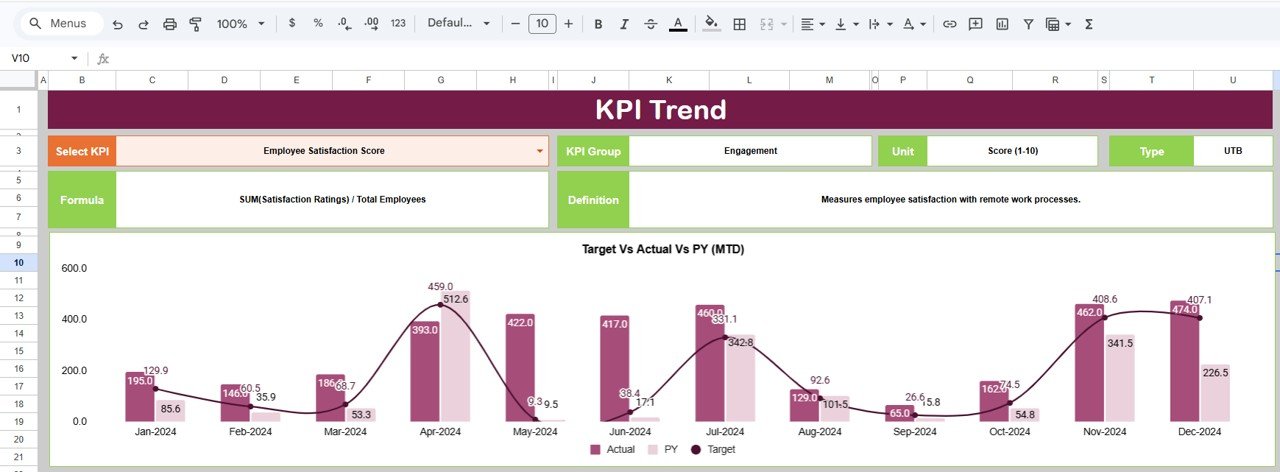
Choose a KPI in the Select KPI dropdown in cell C3. The sheet shows its KPI Group, Unit, Type, Formula and Definition, plus a Target Vs Actual Vs PY (MTD) chart from Jan-2024 to Dec-2024. In the screenshot, Employee Satisfaction Score is selected: Engagement group, Score (1-10), UTB, formula SUM(Satisfaction Ratings) / Total Employees.
3. Actual Numbers sheet
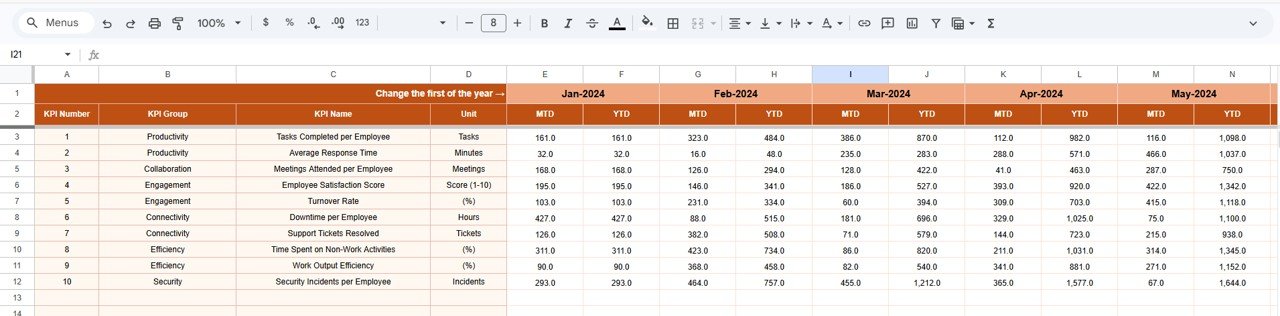
This is where you enter actual results. Each month has an MTD and a YTD column for every KPI. The first month of the year is set in cell E1 (next to the label “Change the first of the year”), and the month headers – Jan-2024, Feb-2024 and so on – follow from it, so the template works for any financial year start.
4. Target sheet
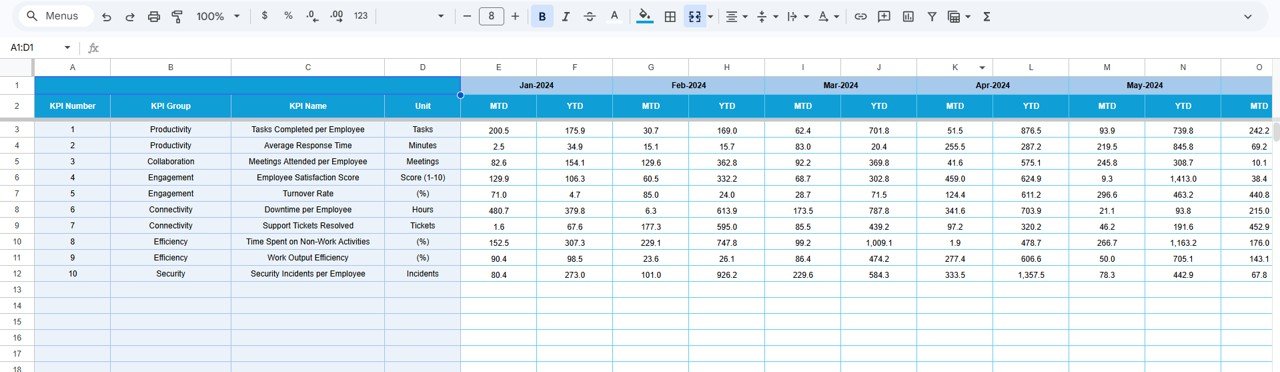
Same layout as the actuals: one MTD and one YTD target per KPI per month. Setting realistic monthly targets here is what makes the Target vs Actual percentages meaningful.
5. Previous Year Numbers sheet
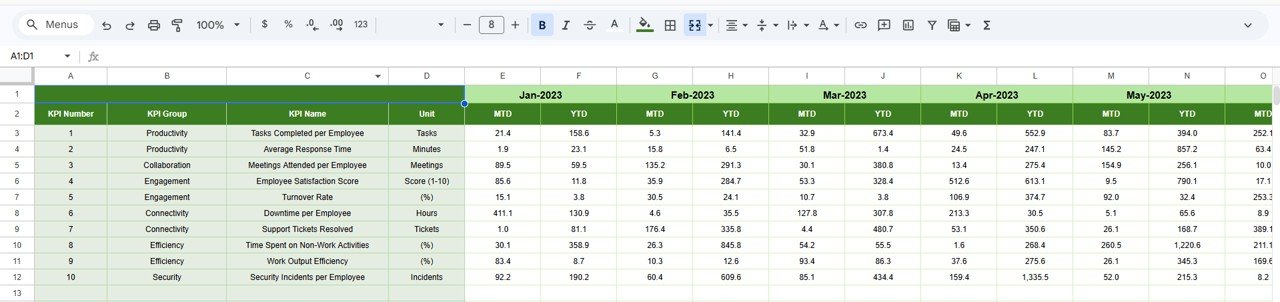
Enter last year’s values (Jan-2023 onward in the sample) in the same MTD/YTD layout. The dashboard uses them for the PY and Actual vs PY columns.
6. KPI Definition sheet
The reference list for every KPI: #, KPI Group, KPI Name, Unit, Formula, Definition and Type (UTB or LTB, chosen from a dropdown). Edit this sheet first if you want to rename or replace a KPI.
Worked Example: Reading the November 2024 Numbers
Take Tasks Completed per Employee (UTB) for November 2024 in the sample file:
- MTD Actual = 74.0, MTD Target = 64.0, MTD PY = 43.1
Target vs Actual = Actual / Target = 74.0 / 64.0 = 115.6%  → shown as 116%
Actual vs PY     = Actual / PY     = 74.0 / 43.1 = 171.7%  → shown as 172%
The team beat both its target and last year’s figure on a “higher is better” KPI, and the Target vs Actual cell shows a green up arrow. Now compare Work Output Efficiency (UTB): Actual 215.0 against Target 245.6 gives 87.5%, shown as 88% with a red down arrow – the team missed its target that month.
For a “lower is better” KPI the logic flips. Average Response Time has an MTD Actual of 226.0 minutes against a target of 25.9, so Target vs Actual reads 873% – far above target, which is bad for an LTB KPI, so the arrow is red.
How to Use It With Your Own Data
- Make a copy of the file (File → Make a copy).
- Review the KPI Definition sheet. Keep, rename or replace KPIs so they match what your team can actually measure, and set each Type to UTB or LTB.
- Set the first month of your year in cell E1 of the Actual Numbers sheet.
- Enter targets for every KPI and month in the Target sheet.
- Enter last year’s values in the Previous Year Numbers sheet (leave blank if you have none – the PY columns will simply be empty).
- Each month, enter MTD and YTD actuals in the Actual Numbers sheet from your project, HR, IT and survey data.
- Select the month in D3 on the Dashboard and review the arrows with your team; use the KPI Trend sheet to dig into any red KPI.
Real-World Use Cases
1. Monthly remote-team review
An operations manager opens the Dashboard in the monthly meeting, filters to the current month and discusses only the KPIs with red arrows.
2. IT and connectivity health
An IT lead watches Downtime per Employee, Support Tickets Resolved and Security Incidents per Employee together to judge whether home-working setups need investment.
3. HR engagement tracking
HR uses the KPI Trend chart for Employee Satisfaction Score and Turnover Rate to see whether a new remote-work policy improved engagement over the year.
Best Practices
- Agree how each number is measured (for example, which tool supplies response time) before you start, and do not change it mid-year.
- Enter data on a fixed day each month so MTD values are comparable.
- Set targets per month rather than copying one figure across the year, especially for seasonal KPIs.
- Use KPIs for team-level improvement, not to micro-monitor individuals.
- Protect the Dashboard and KPI Trend sheets (Data → Protect sheets and ranges) so only the input sheets are editable.
Limitations
The dashboard does not pull data automatically from tools such as Jira, Slack or your HR system – you enter the monthly numbers yourself. It reports at team or organisation level, not per employee. And because each KPI is entered as a single monthly figure, you need to calculate it from your source data first using the formula in the KPI Definition sheet.
Related Dashboards and Guides
For employee-level productivity, see the Employee Productivity Tracking KPI Dashboard in Google Sheets. Engagement is covered in more depth in the Workforce Engagement Dashboard, and team results in the Team Performance Dashboard in Google Sheets. To manage the paperwork side of remote work, use the Employee Remote Work Agreement Tracker.
Prefer another tool? The template is also available as the Remote Work KPI Dashboard in Excel and in Power BI.
If you want to understand the formulas behind MTD, YTD and target comparisons, the Excel AI Mastery: 100 Formulas course on NextGenTemplates Academy covers lookups and calculations like these in structured lessons.
Frequently Asked Questions
Which KPIs are included in the Remote Work KPI Dashboard in Google Sheets?
Ten: Tasks Completed per Employee, Average Response Time, Meetings Attended per Employee, Employee Satisfaction Score, Turnover Rate, Downtime per Employee, Support Tickets Resolved, Time Spent on Non-Work Activities, Work Output Efficiency and Security Incidents per Employee.
What do UTB and LTB mean?
UTB (upper the better) means a higher value is good, such as Work Output Efficiency. LTB (lower the better) means a lower value is good, such as Turnover Rate or Downtime per Employee.
How is Target vs Actual calculated?
It is Actual divided by Target. In the sample, Tasks Completed per Employee for November 2024 is 74.0 against a target of 64.0, which shows as 116%.
Can I change the KPIs?
Yes. Edit the KPI Definition sheet – name, group, unit, formula, definition and UTB/LTB type – then enter matching values in the Actual, Target and Previous Year sheets.
Does my year have to start in January?
No. Set the first month of your year in cell E1 of the Actual Numbers sheet and the month headers follow from it.
Does the dashboard collect data from remote-work tools automatically?
No. You enter monthly MTD and YTD values yourself, which keeps the file simple and works with any combination of tools.
Wrapping Up
The Remote Work KPI Dashboard in Google Sheets gives remote and hybrid teams a clear monthly scorecard: ten defined KPIs, targets, last year’s comparison and a trend chart for each one. Start by confirming the KPI list fits your team, enter this year’s targets, and review the first month’s arrows together at your next team meeting.
Get the Remote Work KPI Dashboard in Google Sheets
📅 Last updated: October 2026