Most people who track their weight give up on the spreadsheet long before they give up on the habit, and the reason is almost always the same: the arithmetic. Week-on-week change, running total, percentage of the way to a target – three columns that have to be right every single time, or the whole file stops being trustworthy. The Weight Loss Tracker in Google Sheets removes that problem by making those columns formulas. It is a single-tab build: 1 headline card, 4 charts, 16 log columns of which 5 calculate themselves, 15 sample check-ins to overwrite, and 2 supporting tabs. Setup takes roughly 2 minutes, and there is nothing to install.Weight Loss Tracker in Google Sheets
Get the Weight Loss Tracker in Google Sheets
Before anything else: this template is a record-keeping and charting tool. It does not give dietary, medical or fitness advice, it does not recommend a target weight, a calorie number or a rate of change, and it promises no outcome of any kind. Every figure in it is one you type in yourself. If you are planning or changing a diet or exercise programme, talk to a qualified healthcare professional.Weight Loss Tracker in Google Sheets
Key Features of the Weight Loss Tracker in Google Sheets
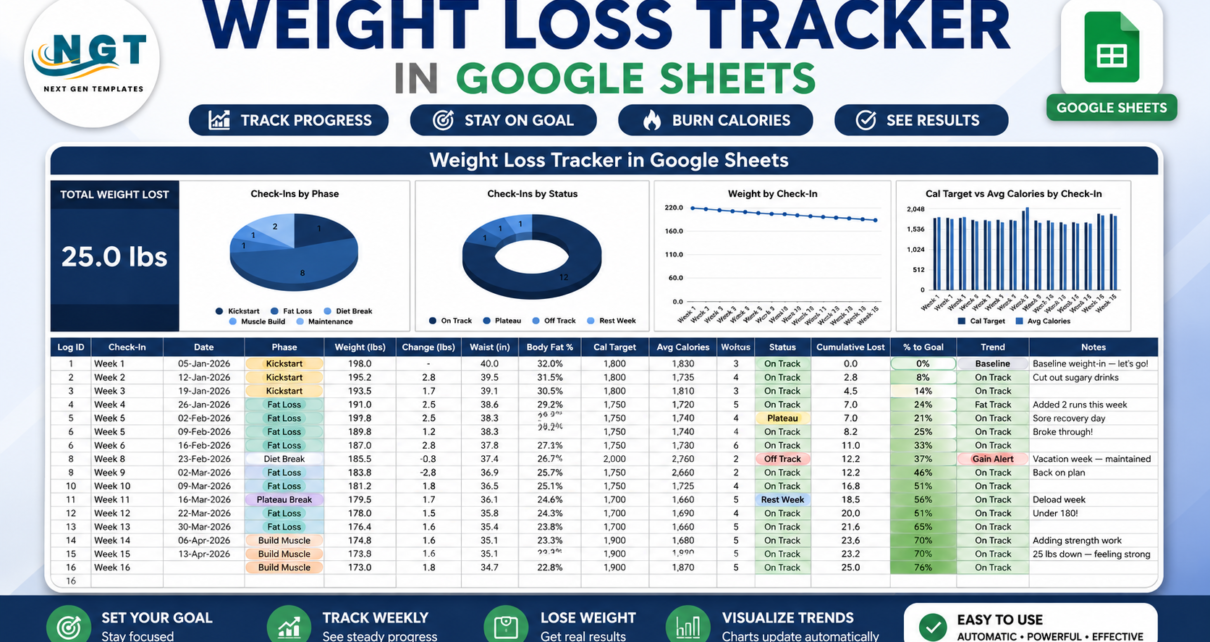
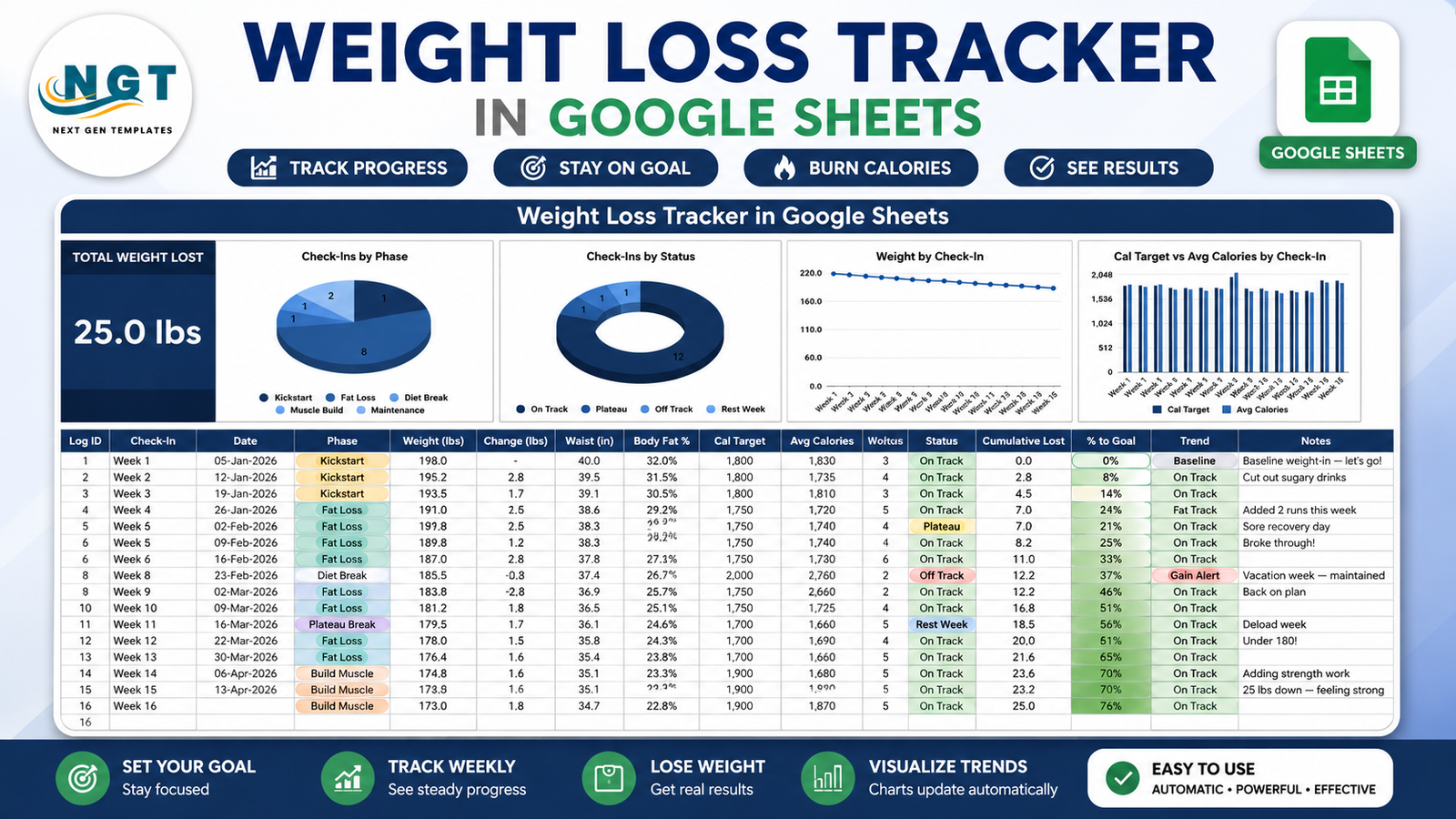
- One KPI card, Total Weight Lost. It reads your first logged weight minus your latest one. In the shipped sample data that is 25.0 lbs across 15 weekly check-ins. Add a row and the number moves.Weight Loss Tracker in Google Sheets
- Four charts, all wired to the log columns directly. No pivot tables, no hidden helper ranges – the charts read rows 16 to 1000 with the built-in Aggregate option, so a new weigh-in appears without a refresh step.Weight Loss Tracker in Google Sheets
- Five automatic columns. Log ID, Change (lbs), Cumulative Lost, % to Goal and Trend are formulas. You never touch them.Weight Loss Tracker in Google Sheets
- A baseline convention that avoids a common bug. The first row is tagged Baseline rather than showing a meaningless change of zero; from row two onward, Change compares against the previous entry.
- Auto-expanding dropdowns. Phase and Status read the List tab, rows 2 to 500. Type a new label therWeight Loss Tracker in Google Sheetse and it appears in the dropdown immediately – no re-running data validation.
- Conditional shading on % to Goal. The cell fills white through green as the value climbs toward the target you set.Weight Loss Tracker in Google Sheets
- Units are yours. The header says Weight (lbs), but log kilograms and rename it and every formula still works, because they only subtract and compare what you enter.Weight Loss Tracker in Google Sheets
Dashboard Pages Explanation
Tab 1 – Tracker
Everything visible sits here. A navy title banner runs across the top. Below it, on the left, the Total Weight Lost card. To its right, four charts in a row:
- Check-Ins by Phase – a pie counting weigh-ins per phase label. The sample uses Kickstart, Fat Loss, Diet Break, Plateau Break and Build Muscle, split 3 / 8 / 1 / 1 / 2.
- Check-Ins by Status – a donut counting weigh-ins per status: On Track, Plateau, Off Track and Rest Week, split 12 / 1 / 1 / 1 in the sample.Weight Loss Tracker in Google Sheets
- Weight by Check-In – a line chart of the weight column against the check-in labels, week 1 through week 15.Weight Loss Tracker in Google Sheets
- Cal Target vs Avg Calories by Check-In – paired columns comparing the two numbers you enter each week. The template supplies neither; it only draws what is in the cells.
Under the charts, the log table begins at row 16. Its columns are Log ID, Check-In, Date, Phase, Weight (lbs), Change (lbs), Waist (in), Body Fat %, Cal Target, Avg Calories, Workouts, Status, Cumulative Lost, % to Goal, Trend and Notes. Phase and Status render as coloured chips, and the % to Goal column carries the green gradient.Weight Loss Tracker in Google Sheets
Tab 2 – List
The settings tab. A highlighted Goal Weight cell holds your own target, and below it are the Phase and Status option lists that feed the two dropdowns. Because the validation rules point at ranges rather than a fixed list, editing this tab is the only place you ever need to go to change vocabulary.Weight Loss Tracker in Google Sheets
Tab 3 – Explore More Templates
An index tab from NextGenTemplates with a WELCOME15 coupon and links across the Google Sheets, Excel, Power BI and HTML ranges. It is a catalogue page, not part of the tracking logic – delete it if you would rather not see it.Weight Loss Tracker in Google Sheets
Weight Loss Tracker in Google Sheets vs. an Excel Log vs. a Paid Fitness App – Feature Comparison
| Point of comparison | Weight Loss Tracker in Google Sheets | Excel weigh-in workbook | Paid fitness or nutrition app |
|---|---|---|---|
| Cost | One-off purchase, currently 6.99 | Needs an Excel licence, from roughly 70 a year | Commonly 9 to 15 per month, per person |
| Platform | Google Sheets in any browser | Microsoft Excel, desktop first | Vendor app on iOS and Android |
| Setup time | About 2 minutes | 30 to 90 minutes if you build the charts | 10 minutes plus account creation |
| Real-time sharing with a coach | Native Google Sheets sharing | OneDrive co-authoring only | Usually a paid coach add-on |
| Mobile access | Free Google Sheets app | Excel mobile, limited editing | Strongest here by design |
| Customisable fields | Rename or add any column | Yes, if you redo the formulas | Rarely – fields are fixed |
| Share with a link | Yes | Attachment or OneDrive link | Export or screenshot |
| Year-1 cost for a household of 5 | 6.99 total | Around 100 for Microsoft 365 Family | 540 to 900 |
| Who holds the weigh-in history | You, in your own Drive | You, on your own disk | The vendor; export quality varies |
| Charts included | 4, already built | None until you make them | Vendor-designed, not editable |
Who Should Use This Template
It suits anyone who weighs in on a fixed schedule and wants the totals handled for them: people who already keep a spreadsheet and are tired of dragging formulas down; anyone who shares numbers with a personal trainer or dietitian and wants one live link instead of monthly screenshots; and people who would rather keep body measurements in their own Google Drive than in a third-party account.
It is the wrong tool if you want food logging with a barcode scanner or a nutrition database – there is no food library here. It will not sync from a smart scale or a fitness band; every row is typed. And it holds one person’s history per file, so a coach tracking a roster of clients needs a different build.
Real-World Use Cases
A 15-week training block. Priya logs every Monday and tags each stretch of weeks with a phase. At the end of the block, Check-Ins by Phase shows how the season actually divided up – eight weeks of Fat Loss, two of Build Muscle – which is rarely what the plan on paper said. Her coach reads the Weight by Check-In line before each session.
Monthly appointments with a dietitian. Daniel shares the sheet with view access and fills waist and body fat percentage alongside weight. Because Cumulative Lost and Change are formulas, nothing needs recalculating before an appointment, and his dietitian opens the same live file rather than a stale PDF.
A two-person household. The Alvarez partners each copied the template into a shared Drive folder and kept separate Phase vocabularies. The Notes column carries the context – Vacation week, Deload week – which is what makes an Off Track or Rest Week row readable six months later.
Advantages of the Weight Loss Tracker in Google Sheets
- Nothing to maintain. The charts read the data columns straight, so there is no helper table to extend when the log grows past its first year.
- Honest by construction. Every number is one you typed. There is no algorithm quietly adjusting a target behind the scenes.
- Fast to hand over. One Google Sheets share link replaces a monthly export-and-email routine.
- Cheap to run. A one-off purchase against a per-month subscription, and the file keeps working whether or not you keep buying anything.
- Portable vocabulary. Phase and Status are just text on a List tab, so the same file works for a cut, a maintenance stretch or a general health log without redesign.
Opportunities for Improvement
Being straight about the limits: there is no device sync, so a smart scale reading still has to be typed in. There is no food or exercise database. The chip display style on the Phase and Status dropdowns has to be switched on by hand because Google Sheets does not yet expose that setting to Apps Script – it is a ten-second job, described in the guide and in the Google Docs Editors Help page on data validation. And the file is built around one person’s history; multi-person tracking means one copy each.
Best Practices
- Weigh in under the same conditions. Same day, same time, same scale. Consistency is what makes a line chart of your own numbers readable at all.
- Use the Notes column generously. A row that reads Off Track means nothing in six months; a row that reads Off Track plus Vacation week means something.
- Set the goal weight once, then leave it. Changing the target mid-log rewrites the % to Goal history and makes the shading misleading.
- Add new columns to the right of Notes. Inserting inside the existing block is the one change that can disturb the formulas and chart ranges.
- Keep one file per person. Duplicating the whole spreadsheet is cheaper than trying to bolt a name column onto a layout that assumes one history.
- Do not read the charts as clinical information. They are a picture of what you logged, nothing more.
Explore Relevant Templates
- Workout Log Tracker in Google Sheets – a session-by-session training log that sits naturally beside this weigh-in sheet.
- Gym Personal Records (PR) Tracker in Google Sheets – lift-by-lift personal bests over time.
- Gym Membership Tracker in Google Sheets – for the business side: members, renewals and attendance.
- Fitness and Wellness Dashboard in Google Sheets – a multi-page analytics build for studios and coaches.
- Hydration Tracker Checklist in Google Sheets – a lightweight daily water log.
- Savings Goal Tracker in Google Sheets – the same goal-progress pattern, applied to money.
If you want to build logs like this yourself, the NextGenTemplates Academy learning paths walk through the spreadsheet skills step by step, with practice files.
Get the Weight Loss Tracker in Google Sheets
Frequently Asked Questions
Does the template tell me what to weigh or how much to eat?
No. Goal weight, Cal Target and Avg Calories are all values you enter. The file stores, totals and charts them and offers no recommendation. It is not a substitute for advice from a qualified healthcare professional.
What is actually in the download?
A PDF containing a Make a Copy link plus the setup notes. Click the link and a private, fully editable Google Sheets copy lands in your own Drive.
Do I need a paid Google Workspace account?
No. A free Google account covers the copy, the charts and the dropdowns.
Can I track in kilograms?
Yes. Log kg and rename the Weight (lbs) header. Change, Cumulative Lost and % to Goal are all differences and ratios, so they behave identically.
Will the charts pick up a new weigh-in automatically?
Yes. All four read rows 16 to 1000 of the data columns directly, so a new row is included the moment you type it.
Why are my Phase and Status cells plain text instead of coloured chips?
Apps Script cannot set the chip display style yet. Select column D, then Data, Data validation, click the rule, Advanced options, Display style, Chip. Repeat for column L.
Can I share the sheet with a trainer without letting them edit it?
Yes – use the standard Google Sheets Share dialog and give them Viewer or Commenter access.
About the Author
Built by PK – Microsoft Certified Professional with 15+ years of Excel, Google Sheets, and Power BI experience. Founder of NextGenTemplates, reaching 300K+ subscribers across YouTube channels. Every template is hand-built and tested before release.
Conclusion
The Weight Loss Tracker in Google Sheets does one job and does it without ceremony: it keeps a weekly weigh-in log honest and draws four charts from it, with five columns calculating themselves so the file stays correct however long you keep it. It offers no advice and makes no promises – the numbers are yours, and so is the file. If that is the tool you want, you can get the Weight Loss Tracker in Google Sheets here and be logging in about two minutes. For more Google Sheets walkthroughs, subscribe at youtube.com/@NeoTechNavigators.