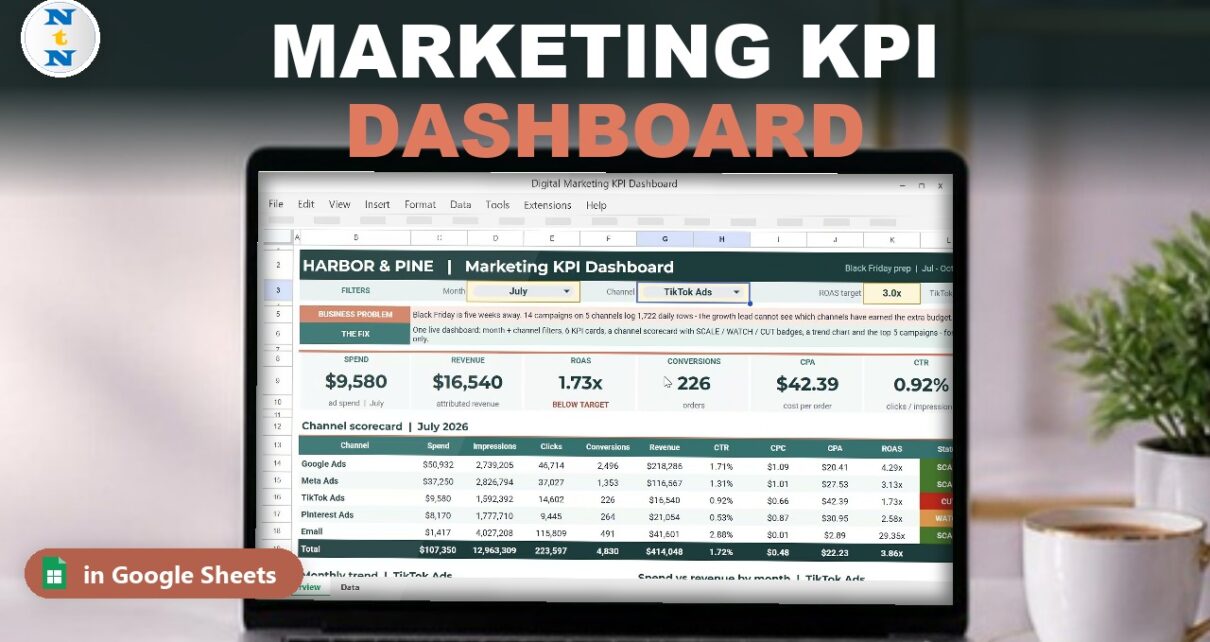
Black Friday is five weeks away and the growth lead has to decide which ad channels earn the extra budget. The answer is hidden in 1,722 rows of daily ad data. In this tutorial you build a free marketing KPI dashboard in Google Sheets that reads all of it and tells you, channel by channel, SCALE, WATCH or CUT. You use SUMIFS, mixed cell references, IF, conditional formatting, a dropdown, a chart and a QUERY top 5. Formulas only: no Apps Script, no add-ons.
⬇️ Join Free on Skool & Download the Practice File
Free membership · takes 1 minute · the file is in Classroom → Free Downloads from YouTube
Google Sheets · opens a Make a copy page · Practice + Solution + data sheets · no add-ons
Watch the Video Tutorial
Video Overview
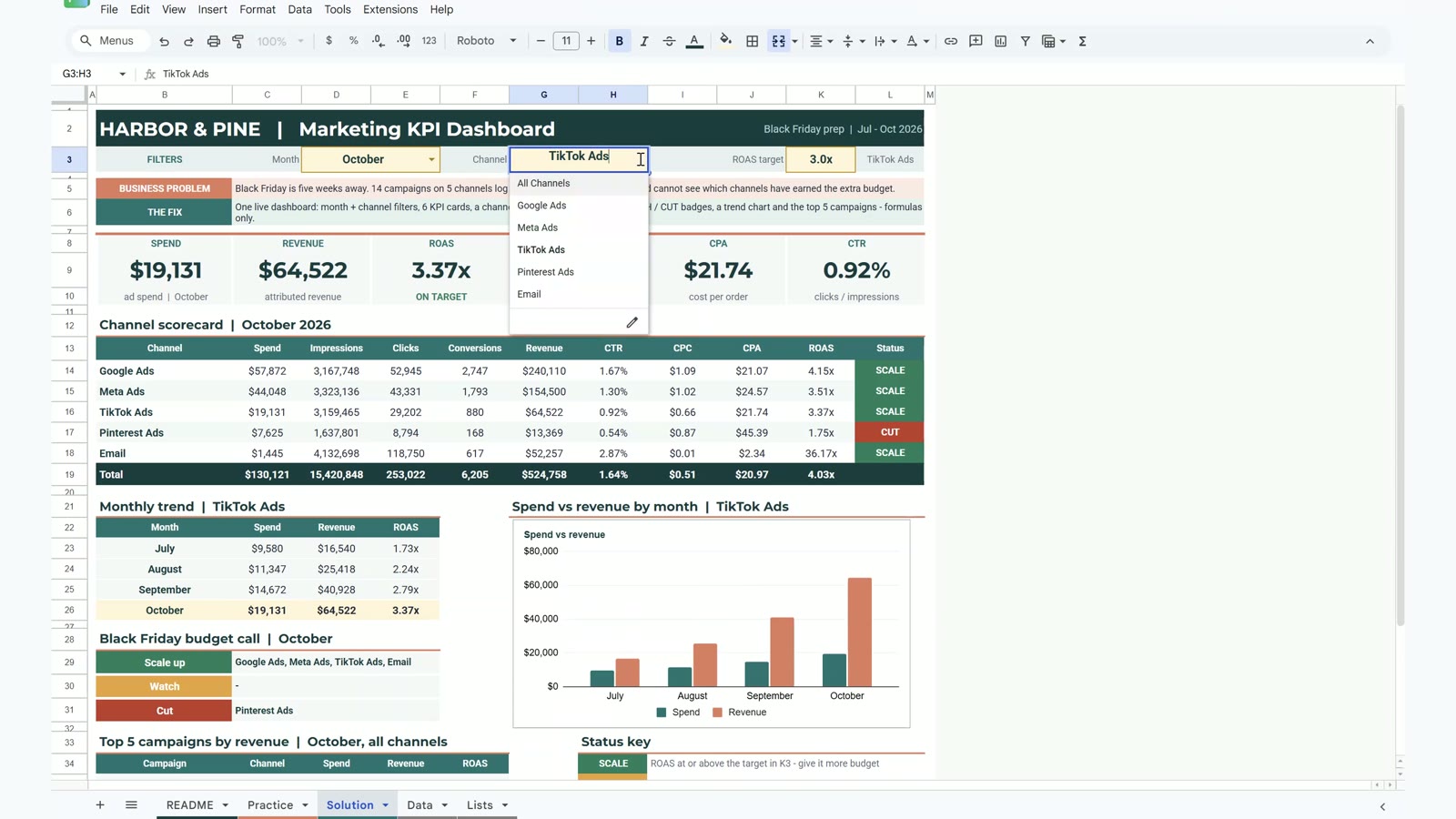
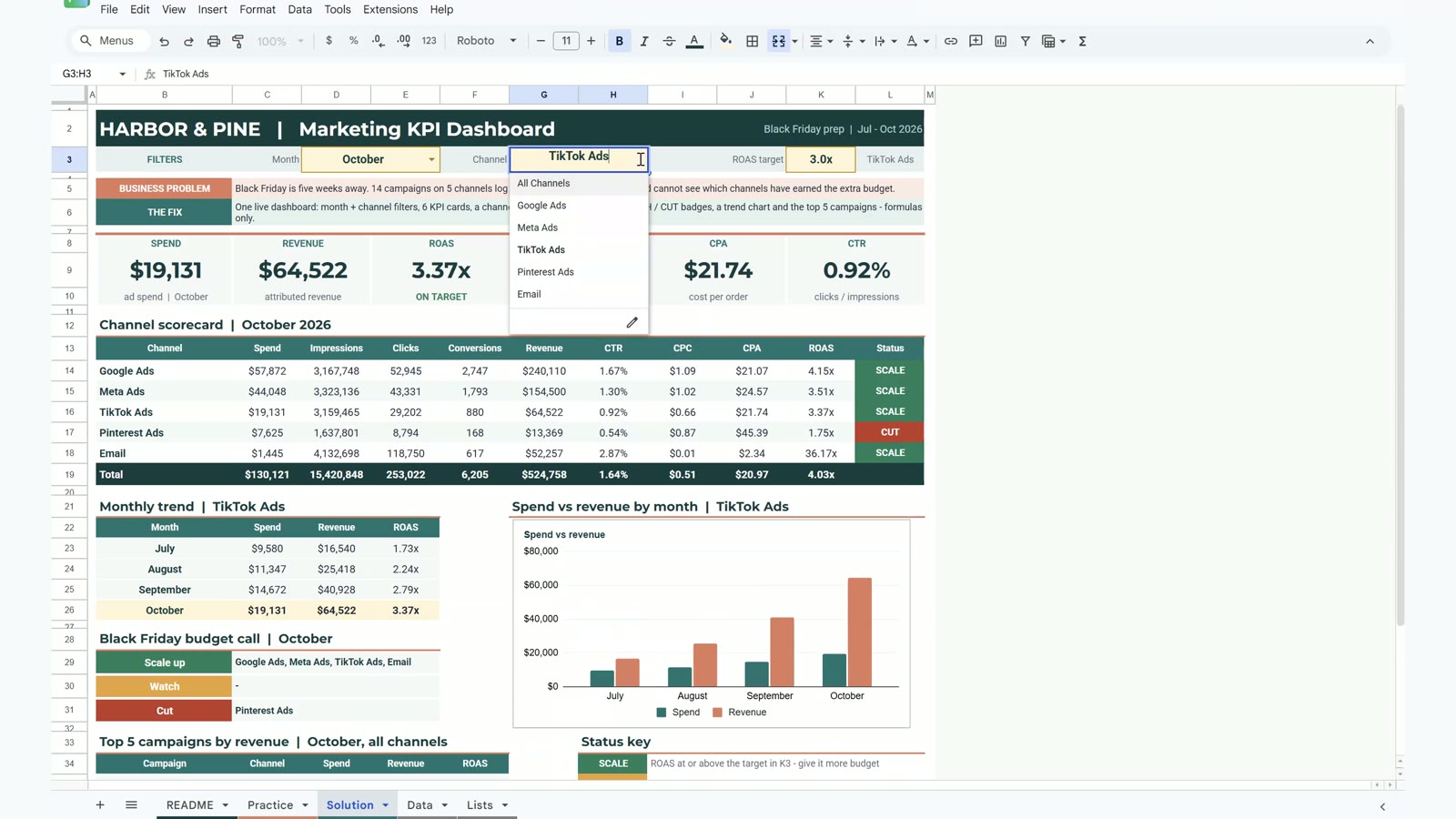
The 11-minute video builds the dashboard on the free practice file for the fictional online shop Harbor & Pine: 14 campaigns on 5 channels (Google Ads, Meta Ads, TikTok Ads, Pinterest Ads and Email), one row per campaign per day from July to October 2026. Step 1 adds the month and channel dropdowns and a star wildcard for All Channels. Step 2 fills six KPI cards with SUMIFS. Step 3 builds the channel scorecard with a single mixed-reference SUMIFS. Step 4 adds the SCALE, WATCH and CUT status with colours. Step 5 builds the monthly trend, a highlighted month and a chart. The bonus adds a top 5 campaigns table with QUERY and ends with the payoff: TikTok earned its Black Friday budget, Pinterest lost it.
Marketing KPI Dashboard in Google Sheets: What You Will Build
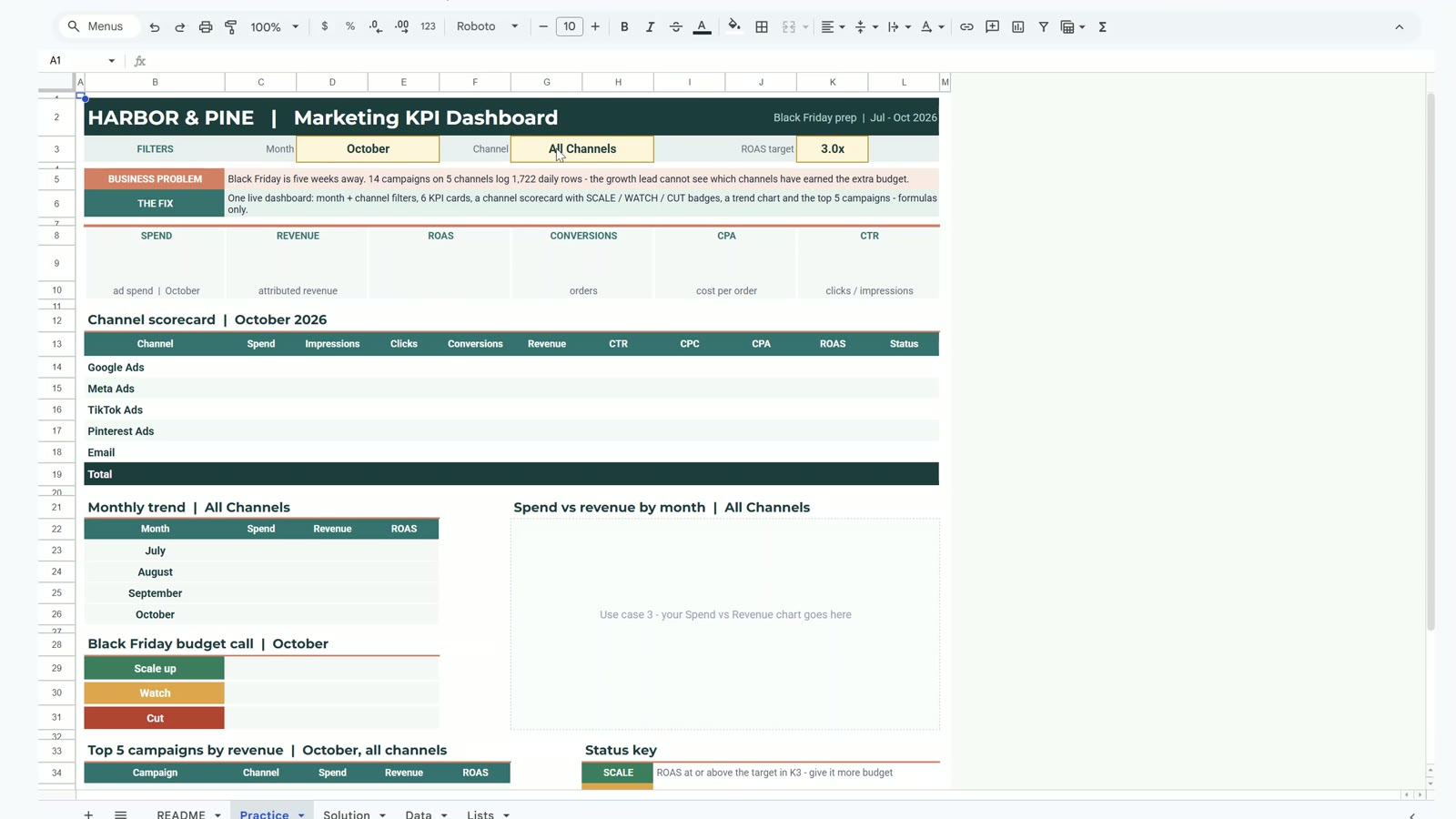
- Filters for month (July to October), channel (All Channels plus five) and a ROAS target of 3x.
- Six KPI cards: Spend, Revenue, ROAS, Conversions, CPA and CTR, with an ON TARGET or BELOW TARGET label under ROAS.
- A channel scorecard with spend, impressions, clicks, conversions, revenue, CTR, CPC, CPA, ROAS and a coloured status.
- A budget call box that writes itself: which channels to scale up, watch or cut.
- A monthly trend with the picked month highlighted and a spend vs revenue column chart.
- A top 5 campaigns table built with one QUERY formula.
The Practice File
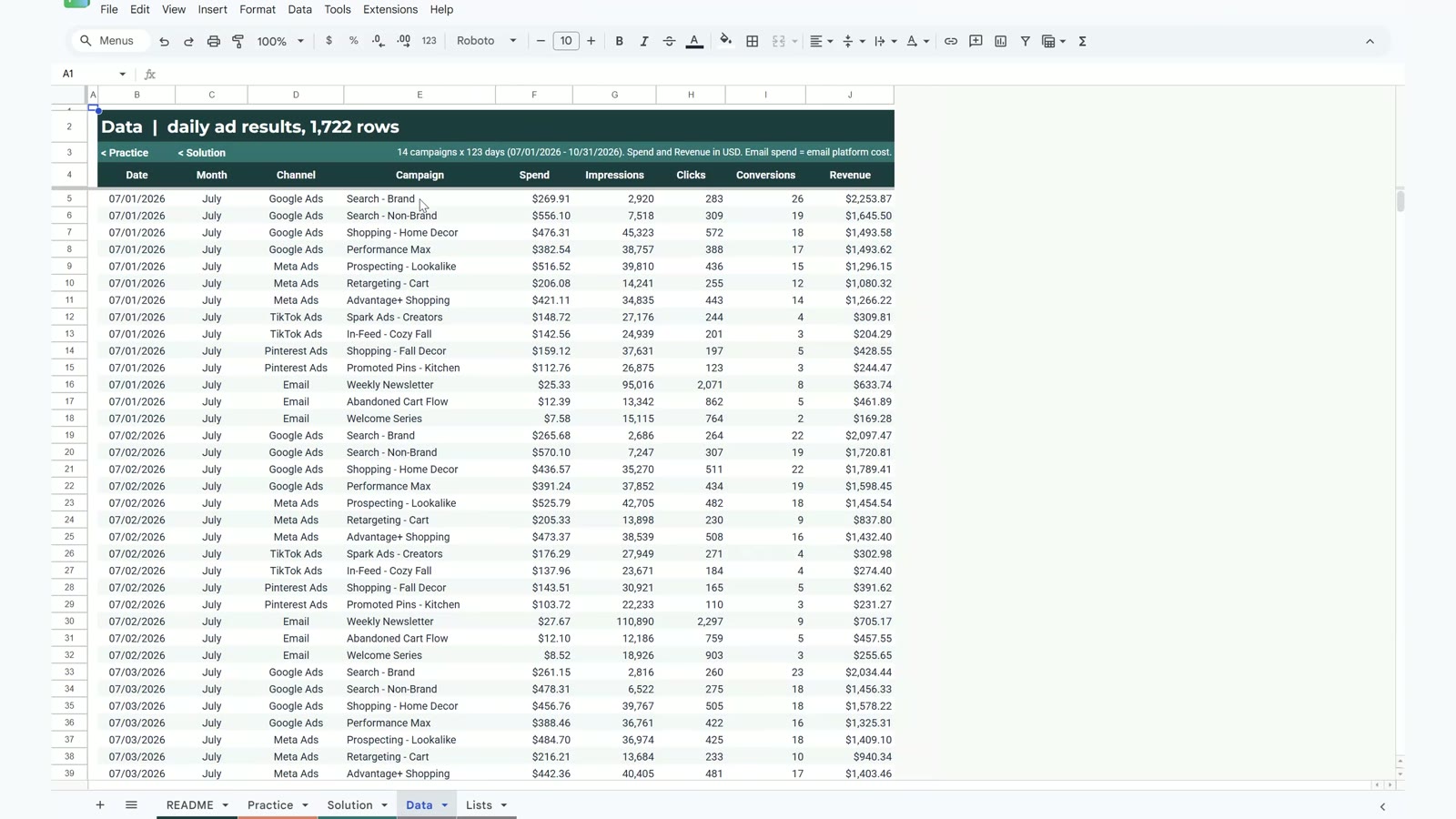
The free file opens a Make a copy page, so you get your own editable Google Sheet. The Practice sheet has the layout, the filter bar and the headers, with the cards, scorecard, trend and top 5 empty. The Solution sheet has the finished dashboard to compare with. The Data sheet has one row per campaign per day (Date, Month, Channel, Campaign, Spend, Impressions, Clicks, Conversions and Revenue) and the Lists sheet holds the months and channels for the dropdowns.
Step 1: Month and Channel Dropdowns
Select D3 (the month cell), open Data › Data validation › Add rule, choose Dropdown (from a range), enter Lists!B5:B8 and click Done. Do the same for the channel cell G3 with Lists!D5:D10, which gives All Channels plus the five channels.
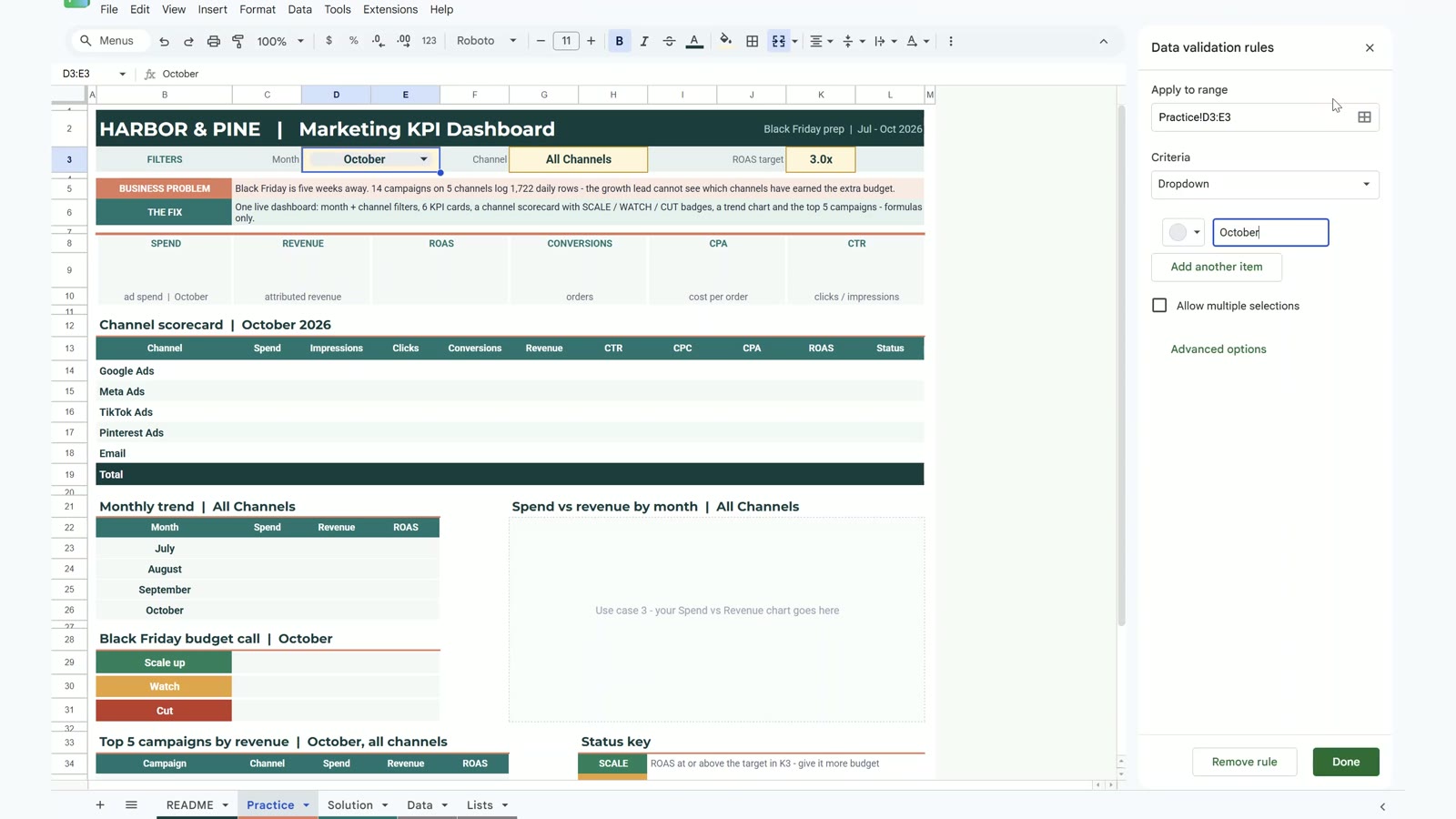
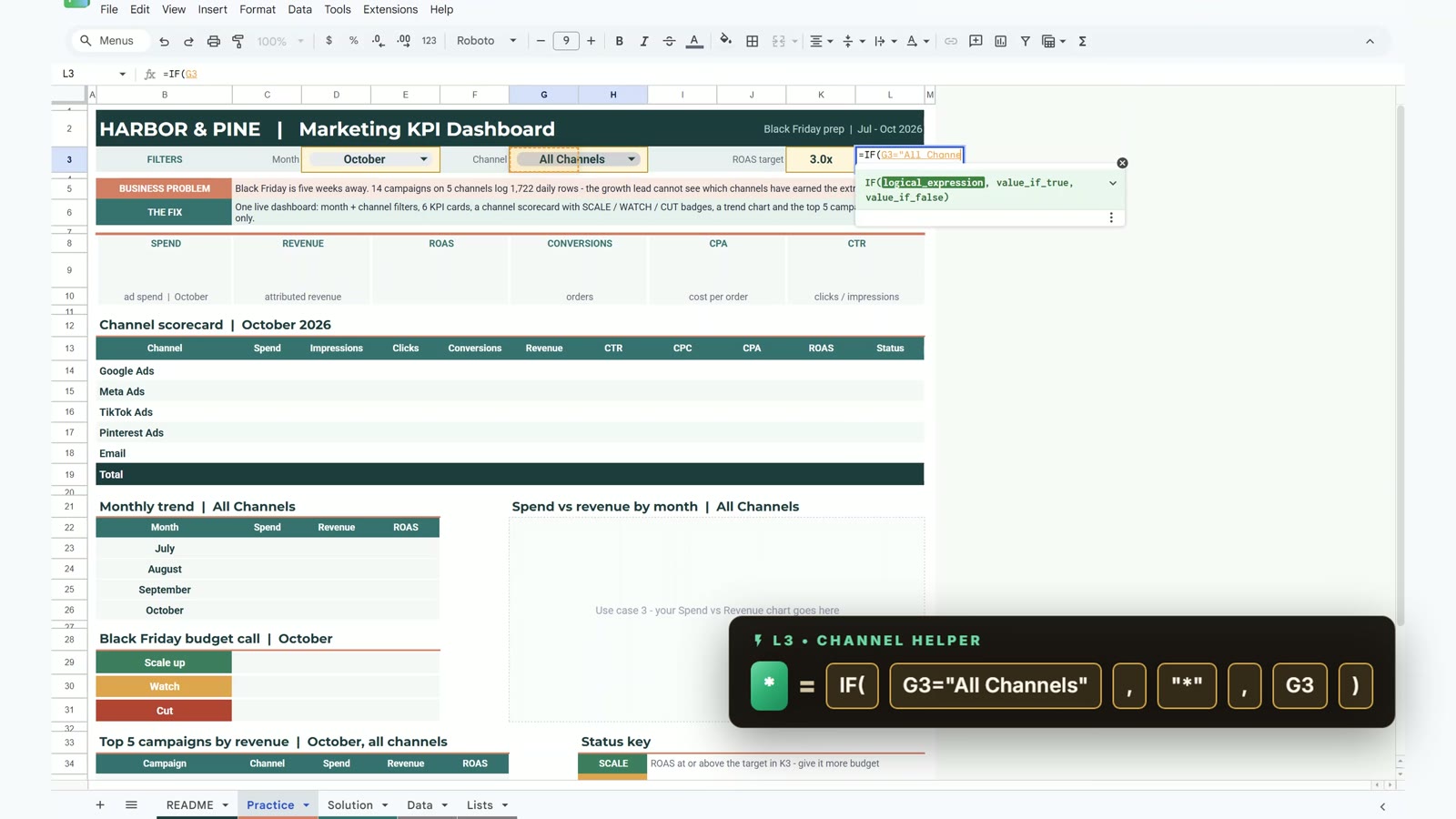
The tricky part: the Data sheet has no row called All Channels, so SUMIFS cannot filter on it. In L3 type:
=IF(G3="All Channels","*",G3)In SUMIFS the star * is a wildcard that matches every channel name, so L3 holds either one channel or a star. Every formula below reads L3, never G3.
Step 2: Six KPI Cards with SUMIFS
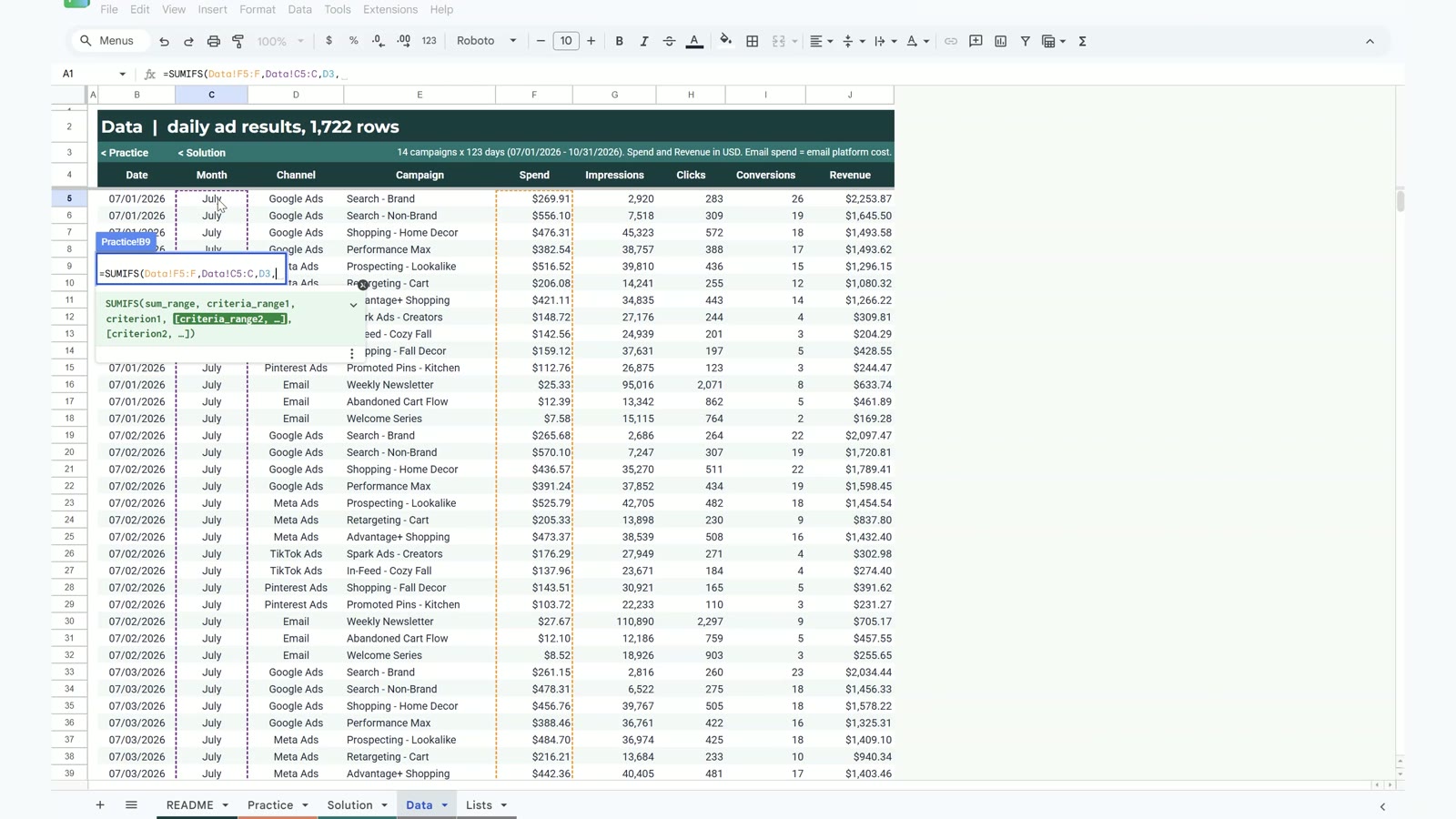
In B9 sum the Spend column (F) where the Month column (C) equals D3 and the Channel column (D) equals L3:
=SUMIFS(Data!F5:F,Data!C5:C,D3,Data!D5:D,L3)October with All Channels gives $130,121. Copy the formula text into the next cards and change only the sum range. The ratio cards divide the cards you already have:
B9  Spend        =SUMIFS(Data!F5:F,Data!C5:C,D3,Data!D5:D,L3)
C9  Revenue      =SUMIFS(Data!J5:J,Data!C5:C,D3,Data!D5:D,L3)
E9  ROAS         =C9/B9
G9  Conversions  =SUMIFS(Data!I5:I,Data!C5:C,D3,Data!D5:D,L3)
I9  CPA          =B9/G9
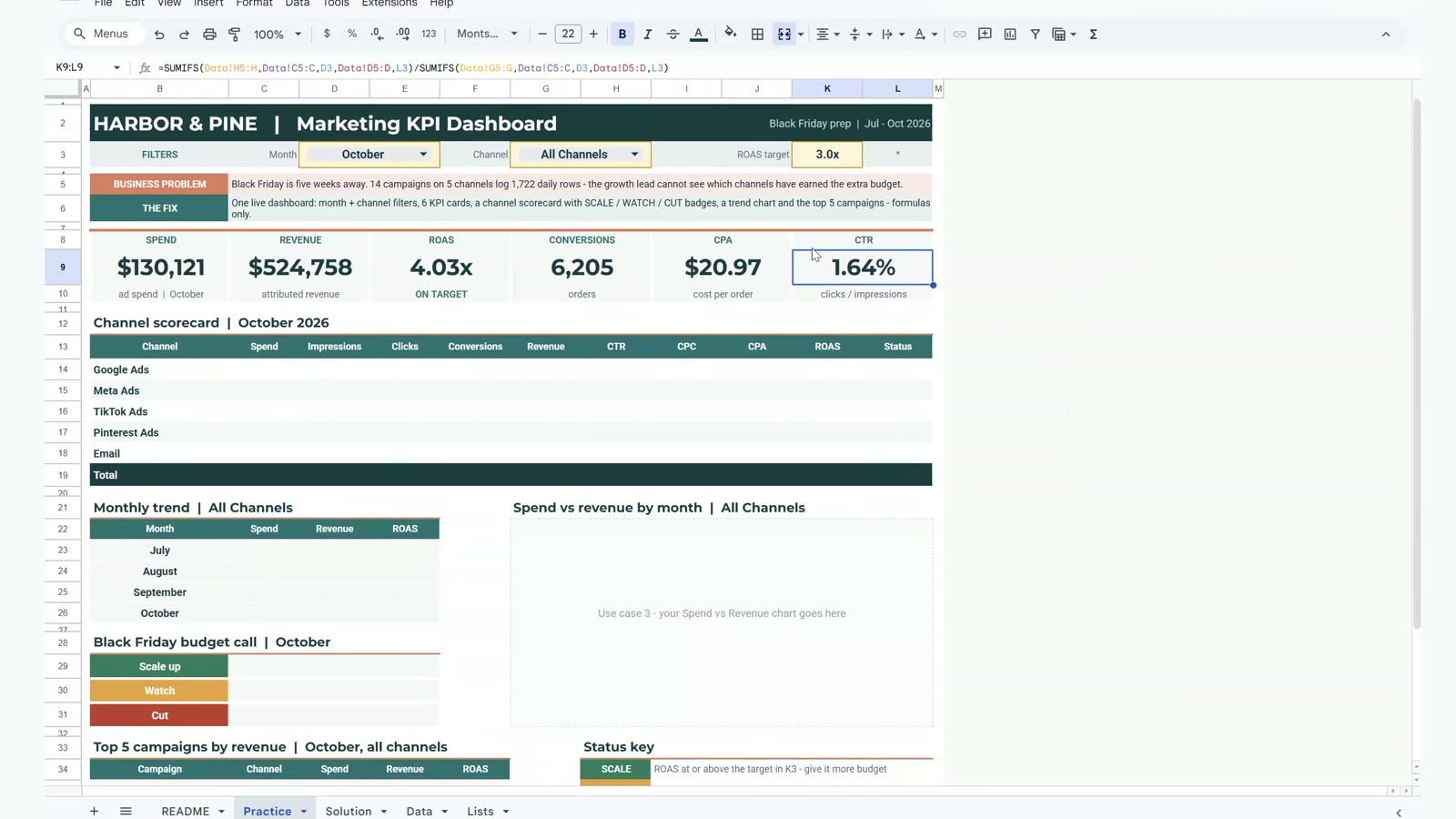
K9  CTR          =SUMIFS(Data!H5:H,Data!C5:C,D3,Data!D5:D,L3)/SUMIFS(Data!G5:G,Data!C5:C,D3,Data!D5:D,L3)
October shows revenue $524,758, ROAS 4.03x (the label under it turns green, ON TARGET), 6,205 conversions, CPA $20.97 and CTR 1.64%.
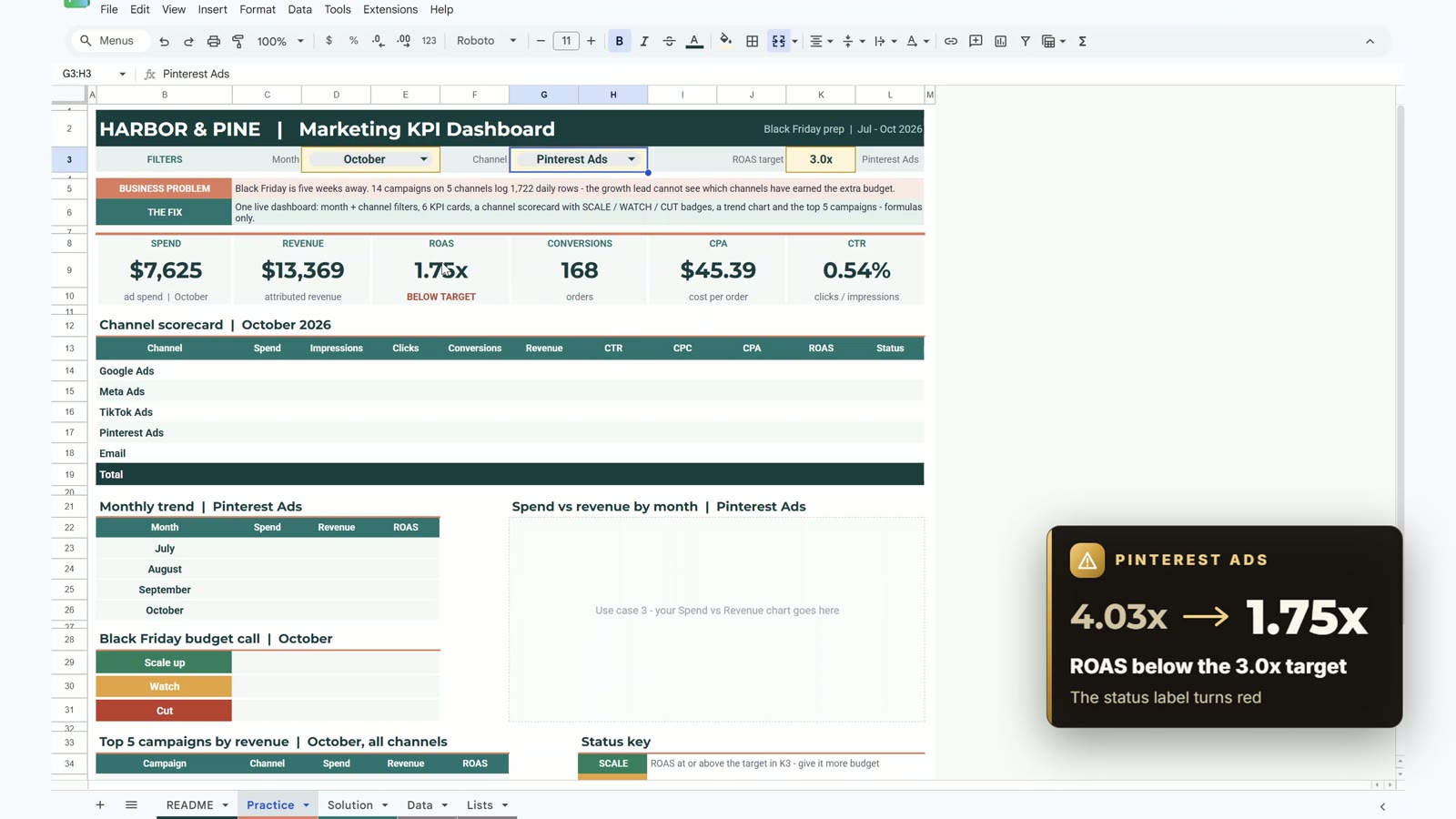
Test the filter: pick Pinterest Ads and ROAS falls to 1.75x with a red BELOW TARGET label. Then switch back to All Channels.
Step 3: Channel Scorecard with One SUMIFS
One formula fills 25 cells. In C14 type:
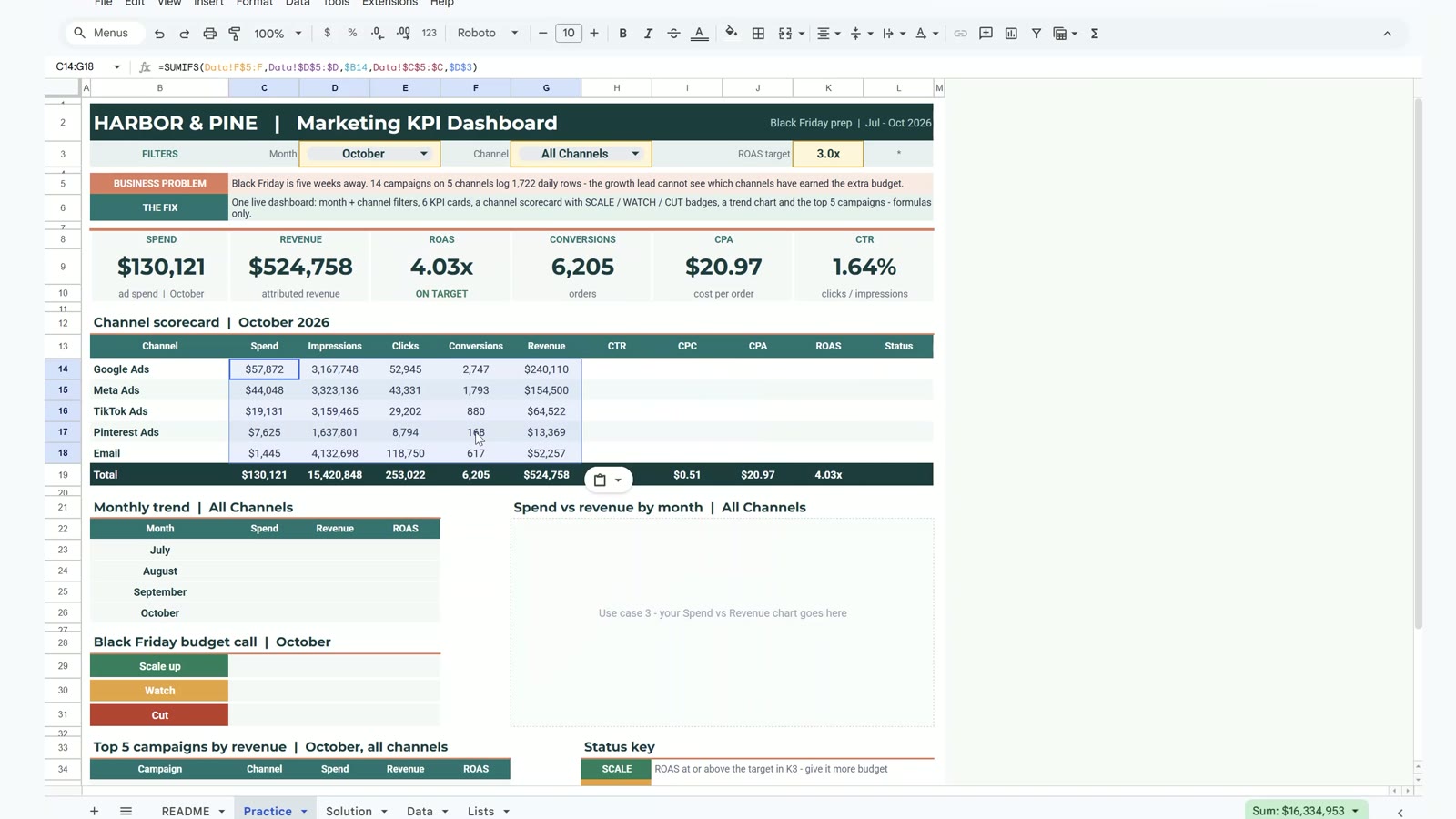
=SUMIFS(Data!F$5:F,Data!$D$5:$D,$B14,Data!$C$5:$C,$D$3)Why these dollar signs? F$5 keeps the row but lets the column move, so Spend becomes Impressions, Clicks, Conversions and Revenue in the same order as the Data sheet. $B14 keeps the channel name and $D$3 always points to the month. Copy C14, select C14:G18 and paste. Then add the ratios in row 14 and copy them down to row 18:
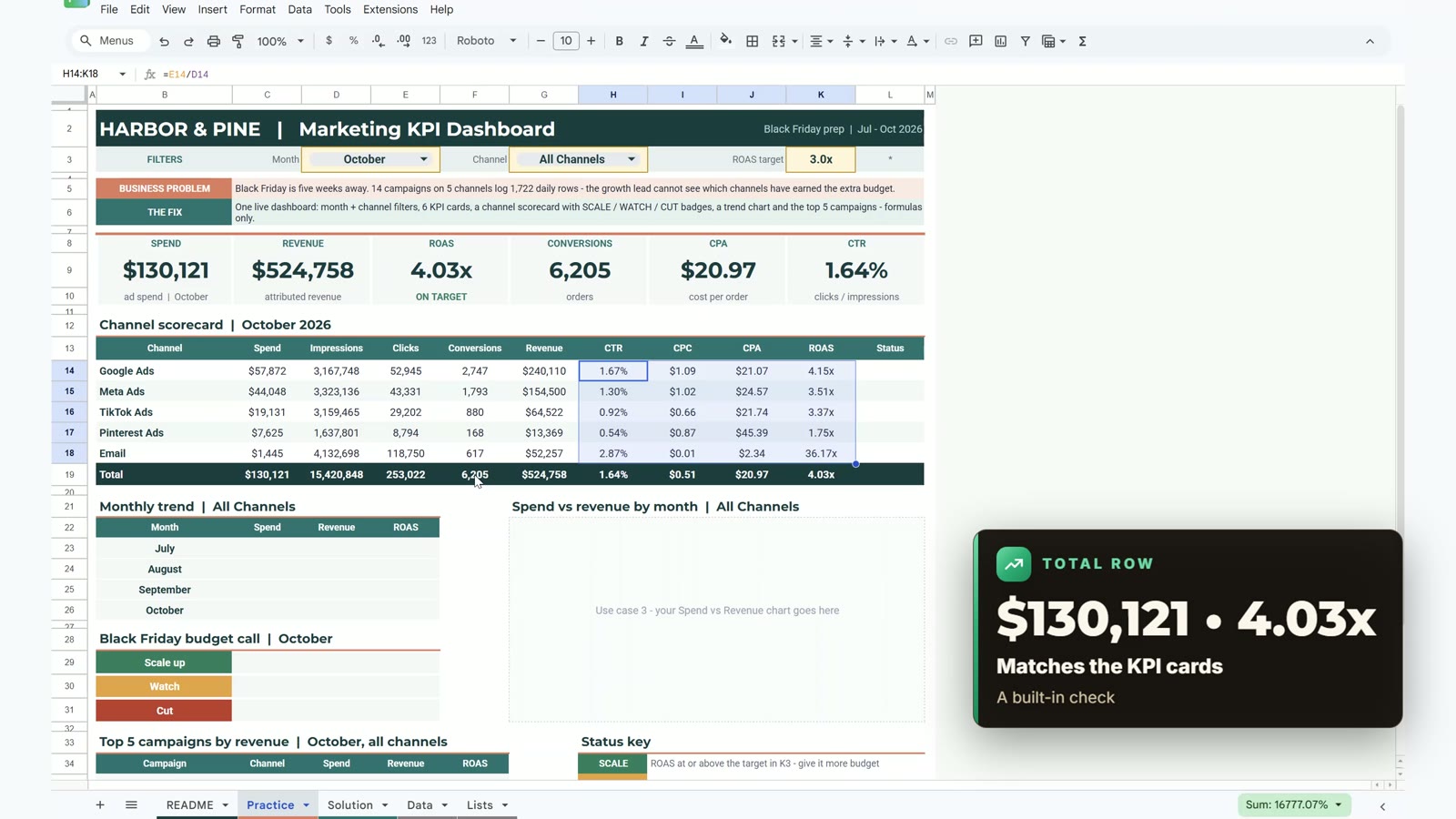
H14  CTR   =E14/D14
I14  CPC   =C14/E14
J14  CPA   =C14/F14
K14  ROAS  =G14/C14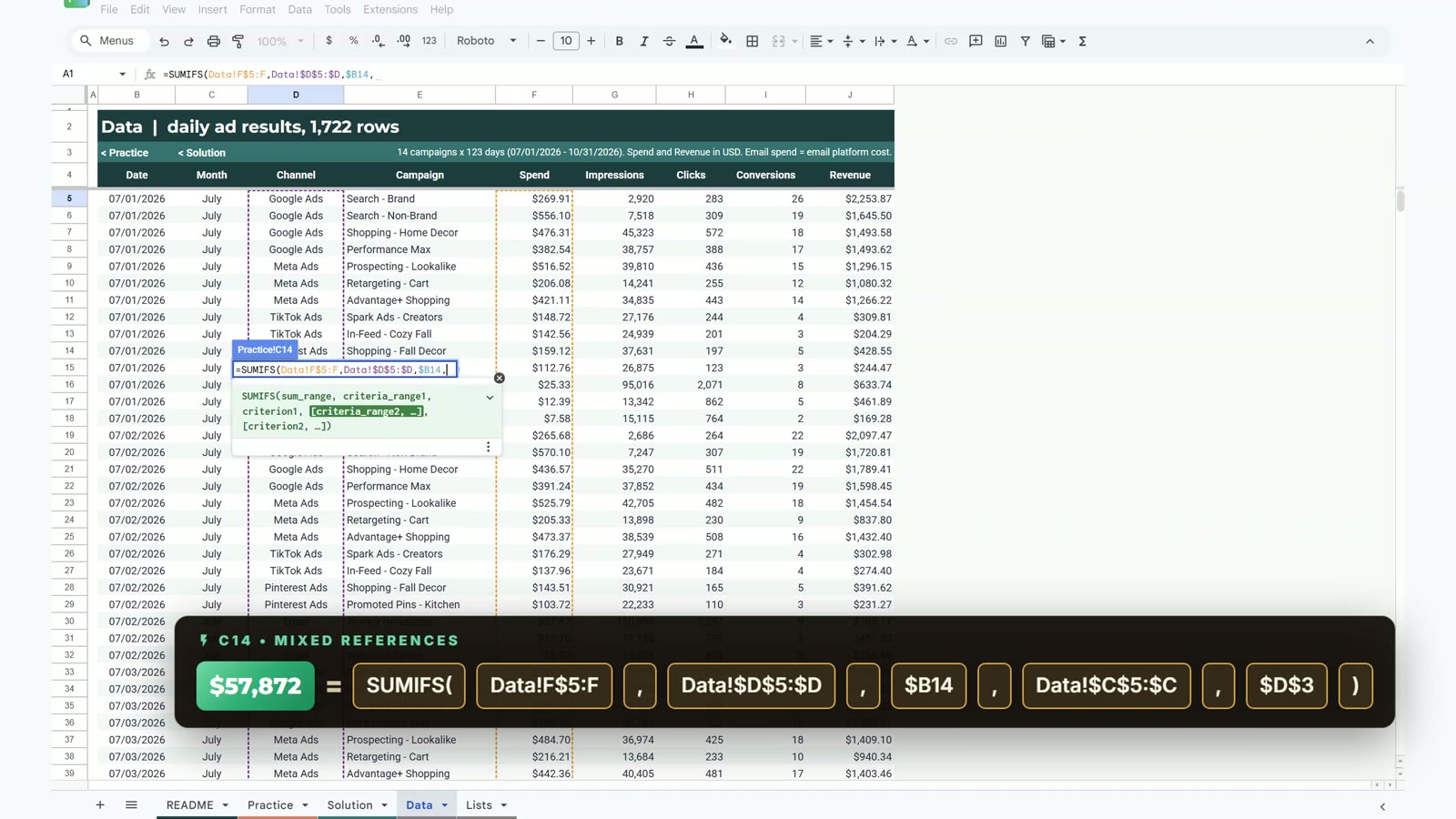
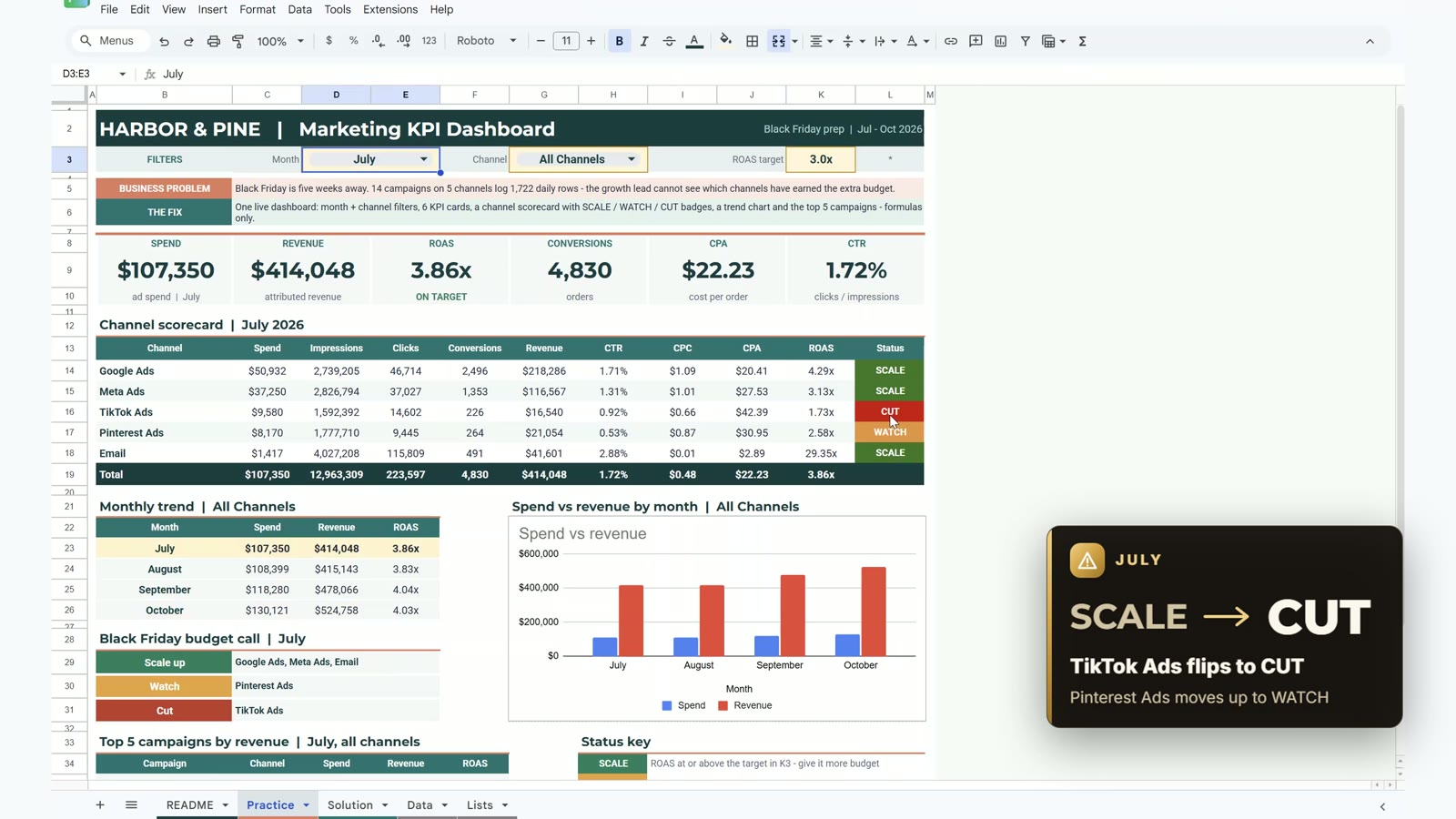
The total row fills in by itself and matches the cards: $130,121 spend and 4.03x ROAS.
Step 4: Scale, Watch or Cut Status
In L14 compare each channel’s ROAS with the target in K3 and with 2x:
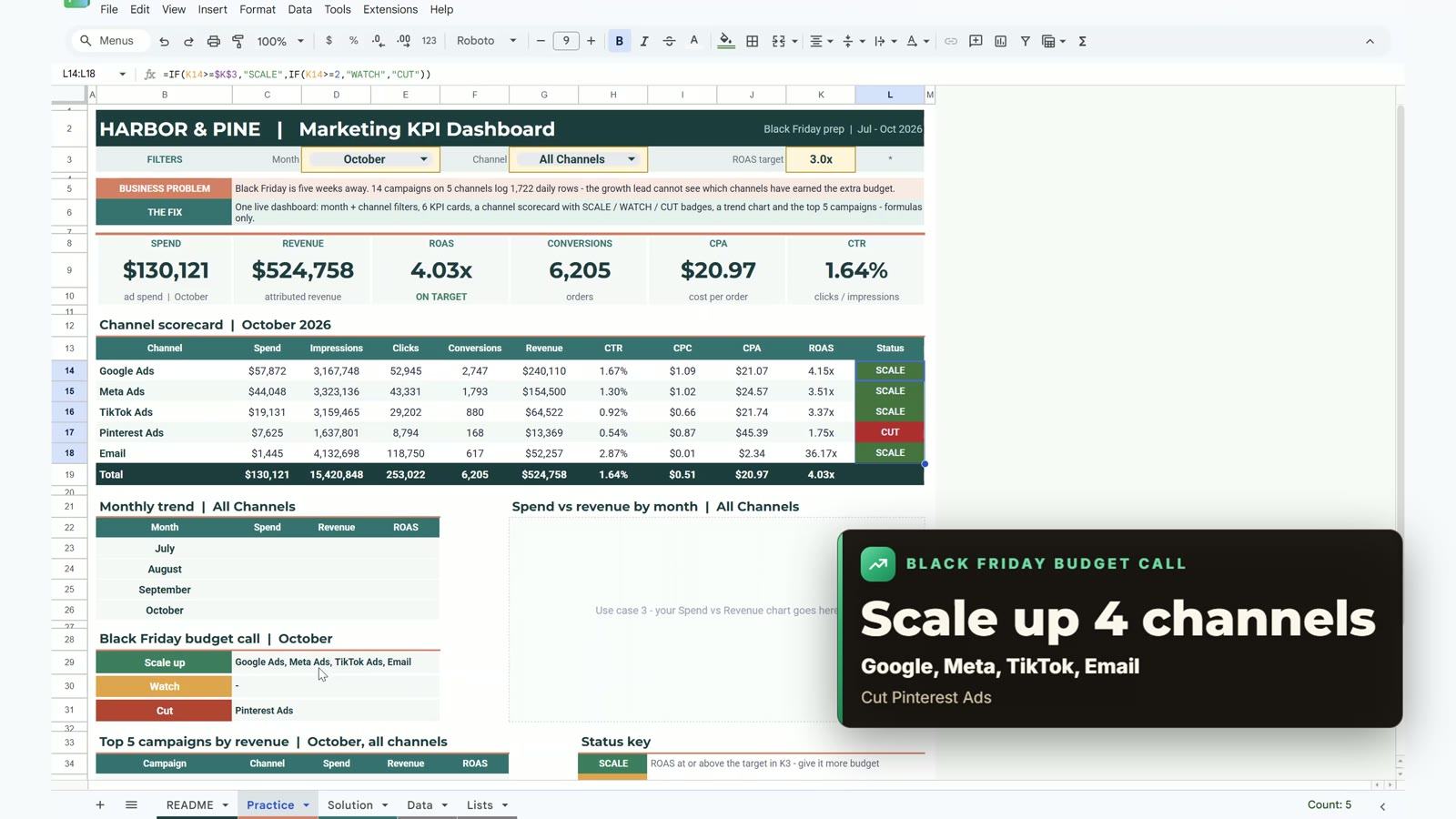
=IF(K14>=$K$3,"SCALE",IF(K14>=2,"WATCH","CUT"))Copy it down to L18. Then select L14:L18, open Format › Conditional formatting and add three rules with Text is exactly: SCALE in green with white text, WATCH in amber and CUT in red.
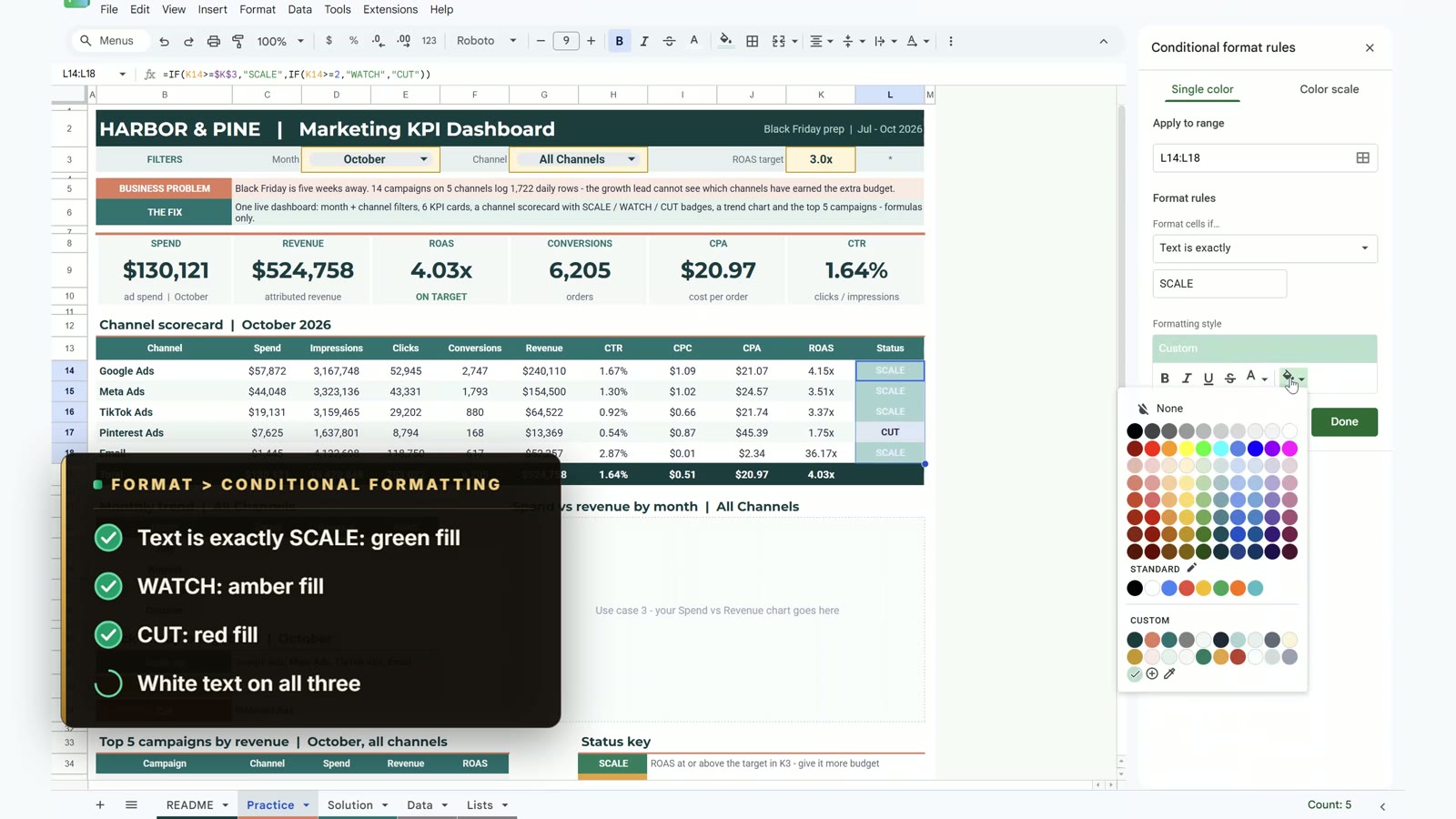
The budget call box now writes itself. In October it says: scale up Google Ads, Meta Ads, TikTok Ads and Email, cut Pinterest Ads. Email shows about 36x ROAS only because its spend is just the platform cost.
Step 5: Monthly Trend and Chart
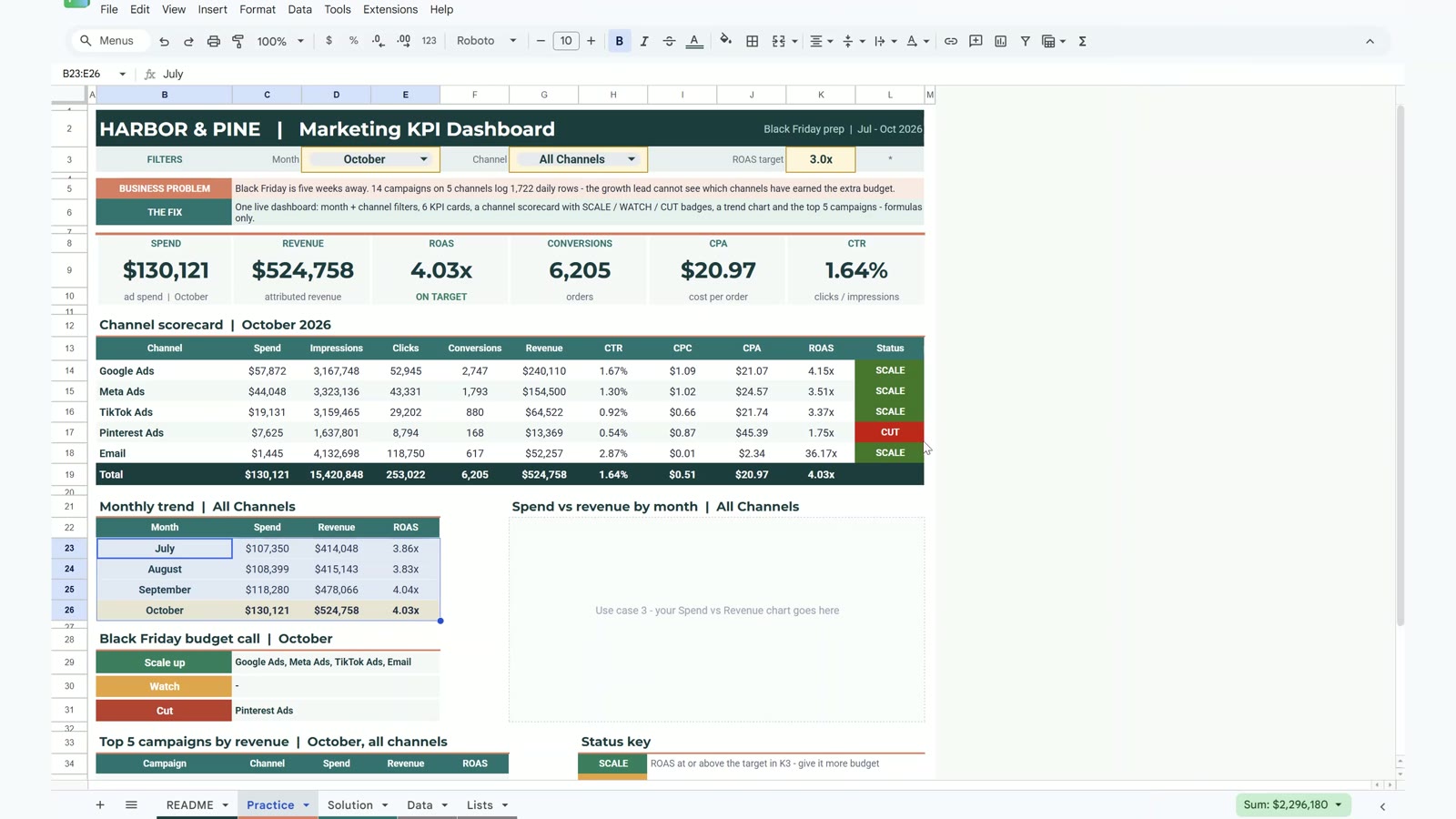
The trend table lists July to October and follows the channel filter. In the first row:
C23  =SUMIFS(Data!$F$5:$F,Data!$C$5:$C,$B23,Data!$D$5:$D,$L$3)
D23  =SUMIFS(Data!$J$5:$J,Data!$C$5:$C,$B23,Data!$D$5:$D,$L$3)
E23  =D23/C23
Copy the row down to row 26. To highlight the picked month, select B23:E26, open Conditional formatting, choose Custom formula is and enter:
=$B23=$D$3Use a light yellow fill and bold text. Trap: without the dollar sign before B only the first column lights up. With it, every cell in the row checks the month in column B and the whole row turns yellow.
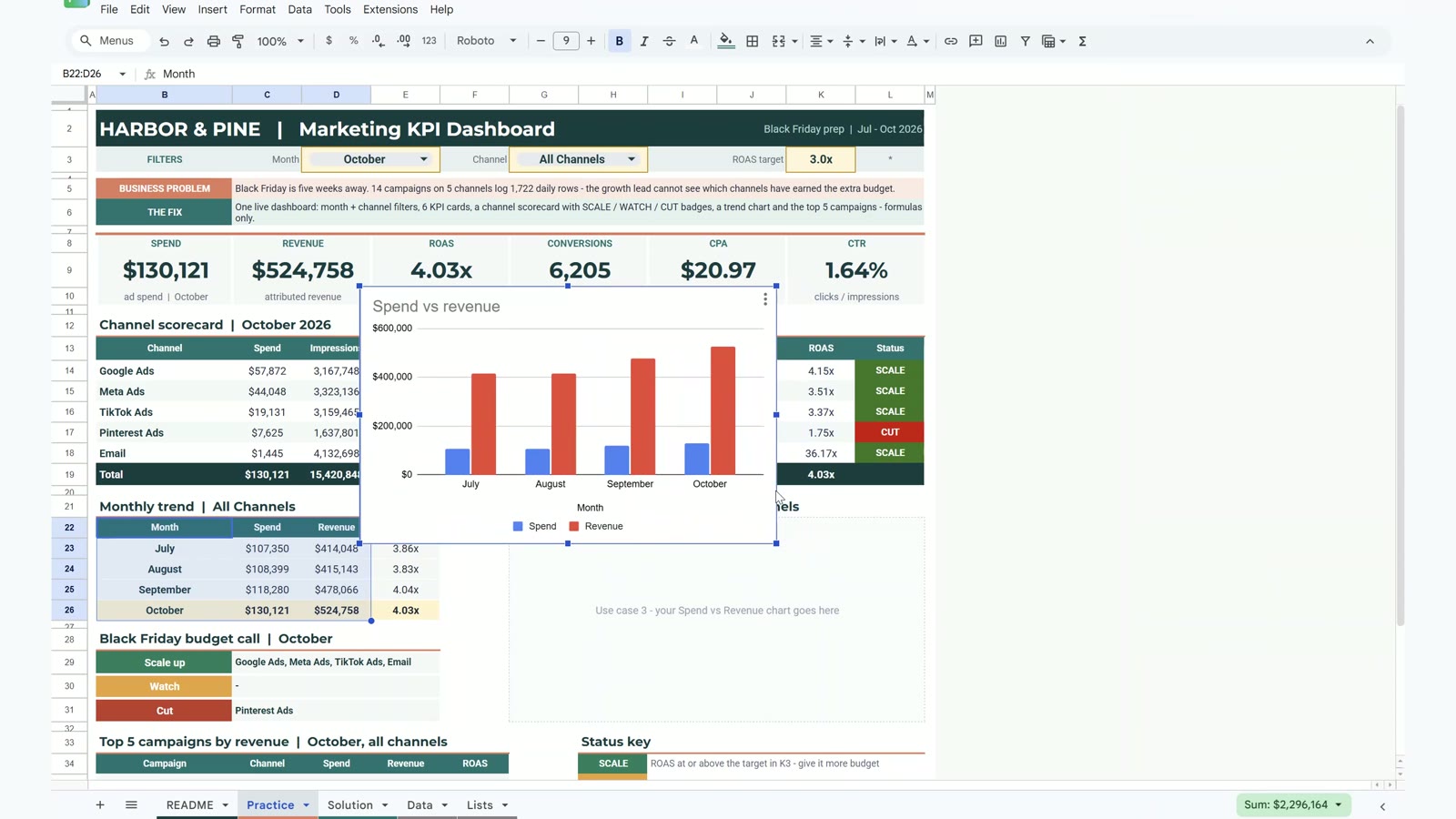
For the chart select B22:D26, choose Insert › Chart and the column chart, set the title to Spend vs revenue, put the legend at the bottom and drag the chart over the dashed box.
Bonus: Top 5 Campaigns with QUERY
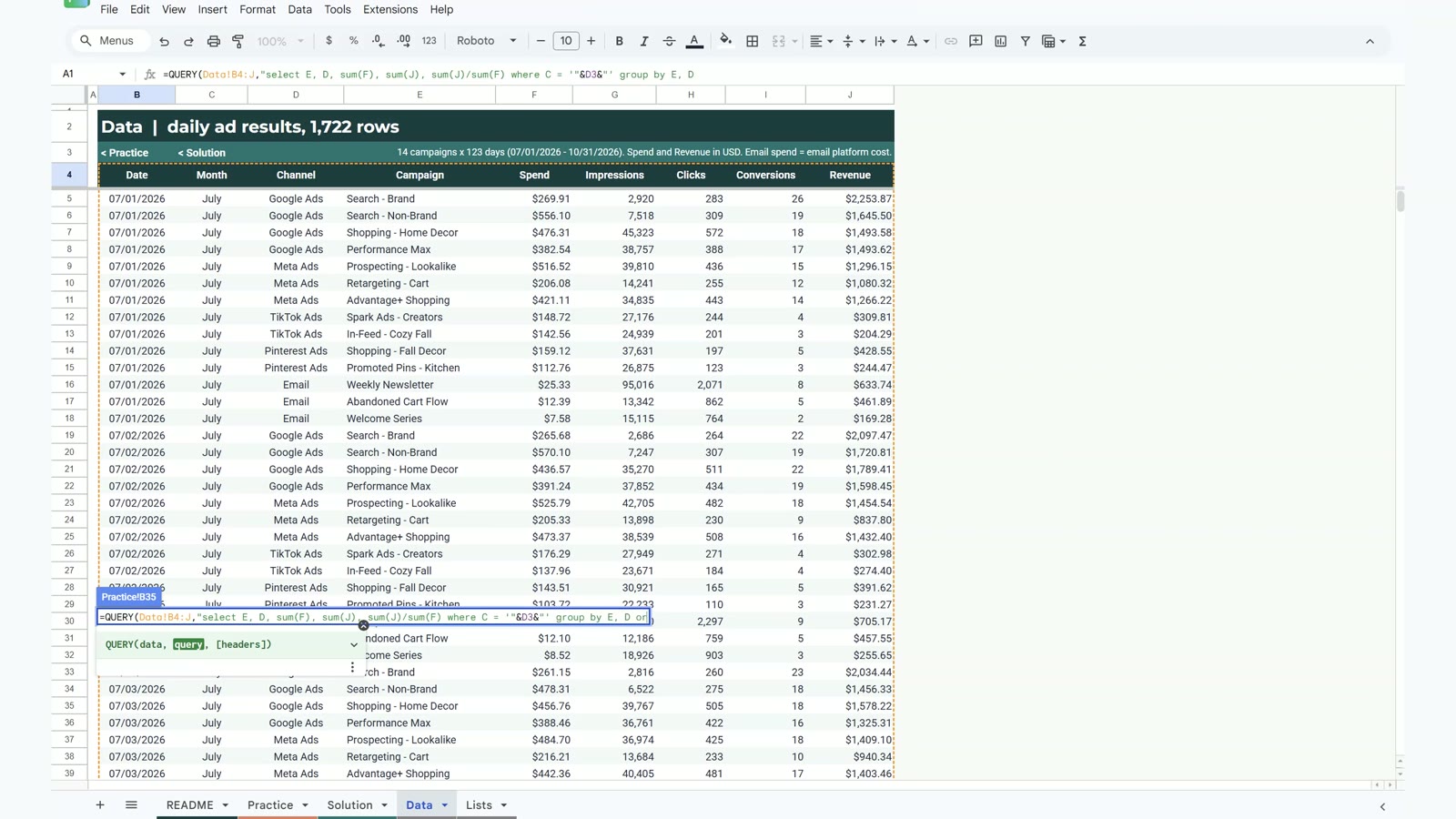
In B35 one QUERY formula ranks the five best campaigns of the picked month by revenue:
=QUERY(Data!B4:J,"select E, D, sum(F), sum(J), sum(J)/sum(F) where C = '"&D3&"' group by E, D order by sum(J) desc limit 5 label E '', D '', sum(F) '', sum(J) '', sum(J)/sum(F) ''",1)Text inside a QUERY needs single quotes around the month, so you type an apostrophe, a double quote and the ampersand before D3. The label ... '' part removes the header row QUERY adds, so the results sit under your own header. October leads with Search – Brand on Google: $71,763 revenue.
The Payoff: TikTok Earned Its Budget
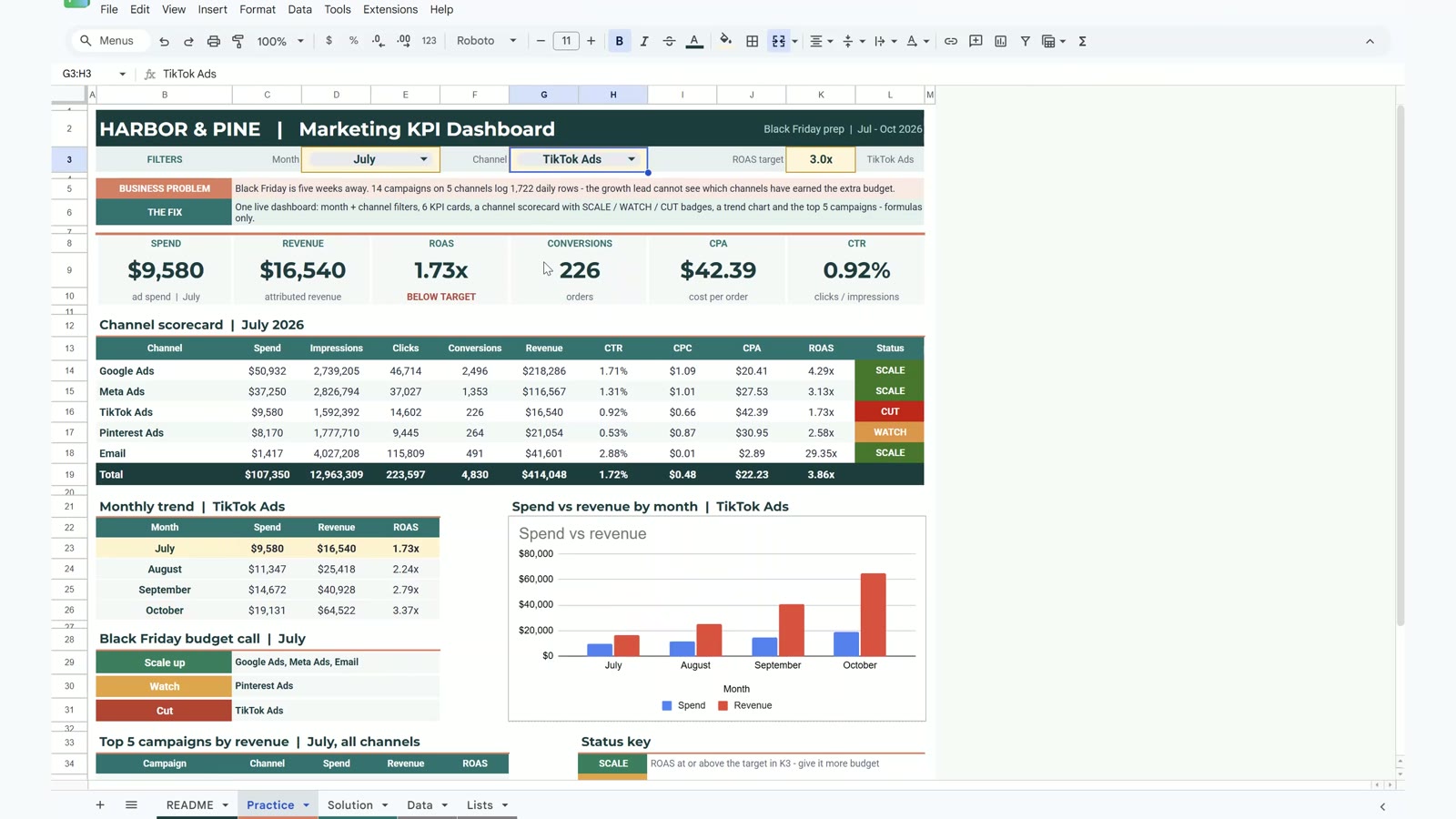
Switch the month back to July. TikTok Ads flips from SCALE to CUT and Pinterest Ads moves up to WATCH, and the budget call rewrites itself. Now set the channel to TikTok Ads: in July ROAS was 1.73x, below target, and in October it is 3.37x, on target. TikTok revenue climbs every month, from $16,540 in July to $64,522 in October. TikTok earned its Black Friday budget, and Pinterest lost it.
Free Dashboard vs the Ready-Made Version
| Need | This free dashboard | Digital Marketing KPI Dashboard in Google Sheets |
|---|---|---|
| Filters, KPI cards, scorecard, status, trend, chart, top 5 | Yes | Yes |
| Ready-made layout with extra marketing reports | – | Yes |
| Price | Free | Paid |
Tips
- Point every formula at L3, not G3, so All Channels keeps working.
- Copy the formula text from B9 into the other cards and change only the column letter.
- Press F4 carefully on the scorecard: lock the row of the sum range, the channel column and the month cell.
- Pick dropdown values by clicking the option, not by typing.
- Use the Solution sheet to compare your formulas whenever a number looks different.
- Google’s QUERY function help page explains the query language in detail.
Want It Ready-Made?
This free dashboard is perfect to learn the idea. For the complete version see the Digital Marketing KPI Dashboard in Google Sheets on NextGenTemplates.com. If you also work in Excel, the full video course Excel Pivot Tables & Dashboards: Basic to Advanced teaches dashboards step by step. More on this site: the budget dashboard in Google Sheets, the school dashboard in Google Sheets and the loan and EMI tracker in Google Sheets.
Frequently Asked Questions
How do I build a marketing KPI dashboard in Google Sheets?
Keep one row per campaign per day on a Data tab, then build a dashboard tab with month and channel dropdowns, SUMIFS cards for spend, revenue, conversions, ROAS, CPA and CTR, a channel scorecard, a trend table with a chart and a QUERY top 5. This tutorial builds all of it with formulas only.
Is this marketing dashboard template free?
Yes. The practice file opens a Make a copy page in Google Sheets. It has a Practice sheet to build along with the video, a finished Solution sheet, a Data sheet with 1,722 rows of ad data and a Lists sheet for the dropdowns.
How do I show all channels with SUMIFS when there is no All Channels row?
Add a helper cell with =IF(G3="All Channels","*",G3). In SUMIFS the star is a wildcard that matches every channel name, so the same formula works for one channel or for all of them.
Why do the scorecard formulas use mixed references like F$5 and $B14?
The dollar sign locks what must not move. F$5 locks the row but lets the column change from spend to impressions, clicks, conversions and revenue. $B14 keeps the channel column and $D$3 locks the month, so one formula fills all 25 cells.
How are Scale, Watch and Cut decided?
With =IF(K14>=$K$3,"SCALE",IF(K14>=2,"WATCH","CUT")): a channel at or above the ROAS target of 3x scales, between 2x and the target is a watch, below 2x is a cut. Three conditional formatting rules colour the labels green, amber and red.
Why does only the first column of my month highlight turn yellow?
The custom formula is missing the dollar sign before B. Use =$B23=$D$3 so every cell in the row checks the month in column B and the whole row lights up.
Why is the text in my QUERY formula failing?
Text inside a QUERY needs single quotes around the value. Write where C = '"&D3&"' so the month from D3 is passed as text. Use label … '' to remove the header row QUERY adds.
Download the Practice File
Make your own copy of the practice file and build the marketing KPI dashboard along with the video.
⬇️ Join Free on Skool & Download the Practice File
Free membership · takes 1 minute · the file is in Classroom → Free Downloads from YouTube
Google Sheets · opens a Make a copy page · Practice + Solution + data sheets · no add-ons
About the Author
PK (Priyendra Kumar) runs NeoTech Navigators, PK: An Excel Expert and NextGenTemplates.com, and builds Google Sheets and Excel tools for small businesses. Harbor & Pine and its ad data are fictional, and every number in this tutorial comes from the Solution sheet of the free file.
Conclusion
A marketing KPI dashboard in Google Sheets needs no add-ons or scripts. A star wildcard makes All Channels work, SUMIFS fill the cards, one mixed-reference formula fills the scorecard, IF and conditional formatting give the SCALE, WATCH and CUT status, a trend table with a chart shows the direction and QUERY ranks the top 5 campaigns.