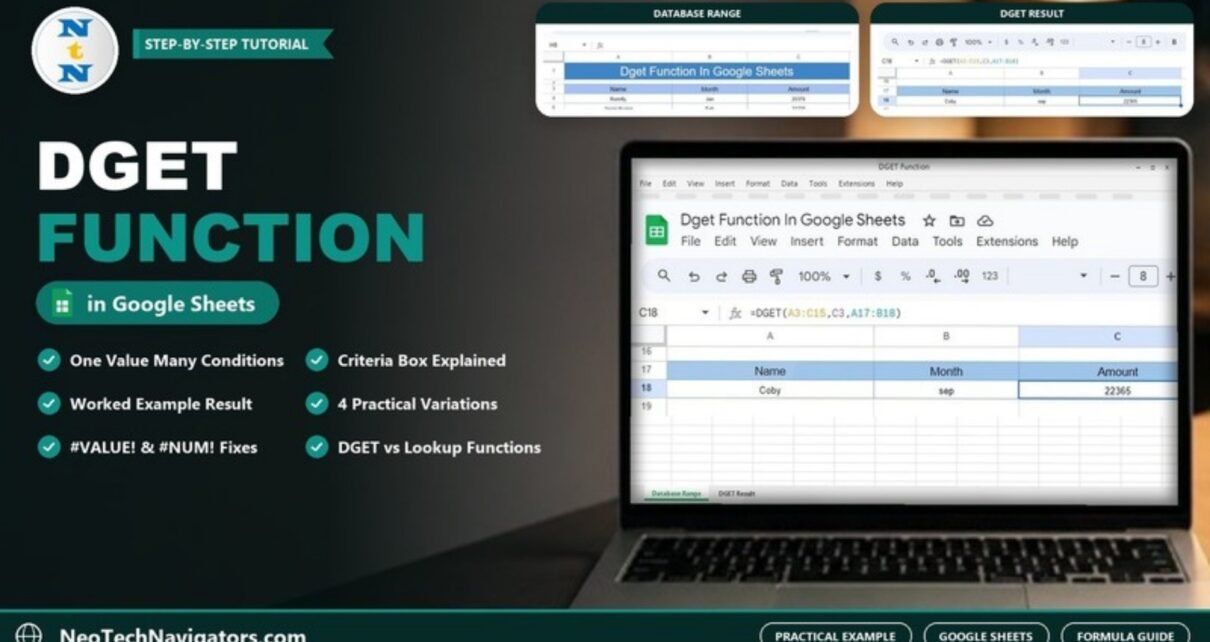
The DGET function in Google Sheets pulls exactly one value out of a table based on conditions you write in a small criteria box. It behaves like a mini database query: tell it where the table is, which column you want back and which conditions a row must meet, and it returns the single matching value.
In this practical example we use a 12-row list of Name, Month and Amount and ask DGET for Coby’s amount in September. You will get the syntax, a step-by-step walkthrough, the result (22365), four useful variations, the two errors DGET is known for and when another function is a better choice. It suits anyone who keeps records in a table and needs one precise figure from it.
The Sample Data
The table sits in A3:C15: headers Name, Month and Amount in row 3, then one row per month from Romilly (Jan, 20376) to Kylo Holden (Dec, 22224).

DGET Syntax
=DGET(database, field, criteria)| Argument | What it means | In this example |
|---|---|---|
database |
The whole table, including the header row. | A3:C15 |
field |
The column to return: a header cell, the header text in quotes, or the column number within the table. | C3 (Amount) |
criteria |
A small range with header names on the first row and the conditions underneath. | A17:B18 |
Worked Example: Coby’s Amount in September
Step 1: Build the criteria box
Below the table, type the headers Name and Month in A17 and B17. They must match the table headers exactly. In row 18 enter the conditions: Coby in A18 and sep in B18. Text criteria are not case-sensitive, so “sep” matches “Sep”.
Step 2: Enter the formula
In C18 enter:
=DGET(A3:C15, C3, A17:B18)Step 3: Read the result
DGET scans the table for a row where Name is Coby and Month is Sep, finds row 12, and returns the Amount: 22365.

How DGET Reads the Criteria Range
- Conditions on the same row are AND. Name = Coby and Month = Sep must both be true.
- Conditions on different rows are OR. Add a second criteria row and DGET accepts a row that meets either line (but it still has to find only one match).
- Comparison operators are allowed. Under an Amount header you can type
>23000or<=21000. - Keep criteria text clean. A trailing space in “Coby ” or a misspelt month is enough to make DGET miss the row.
4 Practical Variations
1. Return a different column
Ask for the name instead of the amount. Change the criteria box to a single condition, Month in A17 and Dec in A18 (clear B17:B18), then use:
=DGET(A3:C15, "Name", A17:A18)Result: Kylo Holden.
2. Use a column number as the field
=DGET(A3:C15, 3, A17:B18) returns the same 22365 with the original Coby / sep criteria, because Amount is the third column of the database.
3. Search with a number condition
Put the header Amount in a criteria cell and >23000 below it. =DGET(A3:C15, "Name", criteria) returns Ross Guerra, the only row with an amount above 23,000 (23476).
4. Make the lookup interactive
Turn A18 and B18 into drop-downs with Insert > Drop-down, listing the names and months. Anyone can then pick a person and month and C18 updates instantly.
Common DGET Errors and Fixes
| Error | Cause | Fix |
|---|---|---|
| #VALUE! (no match) | No row meets the criteria, often due to a typo, an extra space, or a header in the criteria box that does not match the table. | Check spelling and headers; wrap with IFERROR(DGET(…), "Not found"). |
| #NUM! (more than one match) | Several rows meet the criteria, for example >22500 matches both Milla Gibbons (22757) and Ross Guerra (23476). |
Add another condition to narrow it to one row, or use FILTER to return all matches. |
| Wrong or empty result | The database range starts below the header row. | Always include the headers, e.g. A3:C15, not A4:C15. |
DGET vs Other Lookup Functions
| Function | Best for | Returns |
|---|---|---|
| DGET | Several conditions kept visible in a criteria box | Exactly one value, or an error |
| VLOOKUP / XLOOKUP | A single lookup key | The first match |
| INDEX + MATCH | Flexible lookups in any direction | The first match |
| FILTER | Returning every matching row | All matches |
If you only need one key, a VLOOKUP or INDEX with MATCH is often simpler. DGET shines when the conditions need to be easy for others to see and change.
Where the DGET Function in Google Sheets Is Useful
DGET is at its best when one table holds many similar records and you need a single answer that depends on two or three facts at once. A few everyday examples:
- Payroll and commissions: return the amount paid to one employee in one month from a year-long payment log, exactly like the Coby and September example.
- Price lists: fetch the price of a product for a given size and colour, where neither column is unique on its own.
- Student records: pull one student’s score for a specific subject and term from a combined marks register.
- Inventory checks: find the stock level of an item in a particular warehouse when the same item code appears in several locations.
In each case the criteria box doubles as a small input panel. Colleagues change the values in the criteria cells and read the answer, without needing to understand the formula. Because DGET deliberately refuses to return a value when two rows match, it also acts as a quiet data-quality check: a #NUM! result tells you the table holds duplicate records that you may want to clean up.
Tips for Using DGET
- Copy the header cells from the table into the criteria box rather than retyping them, so they always match.
- Keep the criteria box away from the table rows, or a growing table may run into it.
- DGET belongs to a family of database functions that share the same criteria logic. Once you are comfortable with it, try DMIN and DMAX to find the smallest or largest value that meets your conditions.
- Trim stray spaces in the data with Data > Data cleanup > Trim whitespace before you search.
To practise more functions like this in a structured way, the 100 formulas course on NextGenTemplates Academy walks through lookup and database functions with exercises.
Frequently Asked Questions
Is DGET case-sensitive?
No. In the example the criteria cell holds “sep” in lower case and DGET still matches “Sep” in the table.
Why does DGET return #NUM!?
More than one row meets your criteria. DGET is designed to return a single value, so add another condition until only one row qualifies, or switch to FILTER.
Can DGET use OR conditions?
Yes. Place each alternative on its own row of the criteria range. Remember the combined result must still point to exactly one row.
Can the criteria box be on another sheet?
Yes. Point the criteria argument at the other sheet, for example =DGET(A3:C15, C3, Lookup!A1:B2). Keeping it on a separate tab is a tidy way to build a simple lookup panel.
Does DGET work in Excel?
Yes. Excel has DGET with the same arguments and the same #VALUE! and #NUM! behaviour.
Wrapping Up
=DGET(A3:C15, C3, A17:B18) found Coby’s September amount of 22365 by checking two conditions at once. Set up a criteria box next to your own table, start with one exact match like this, then try the number conditions and drop-downs above to turn it into a small lookup tool.
📅 Last updated: October 2026