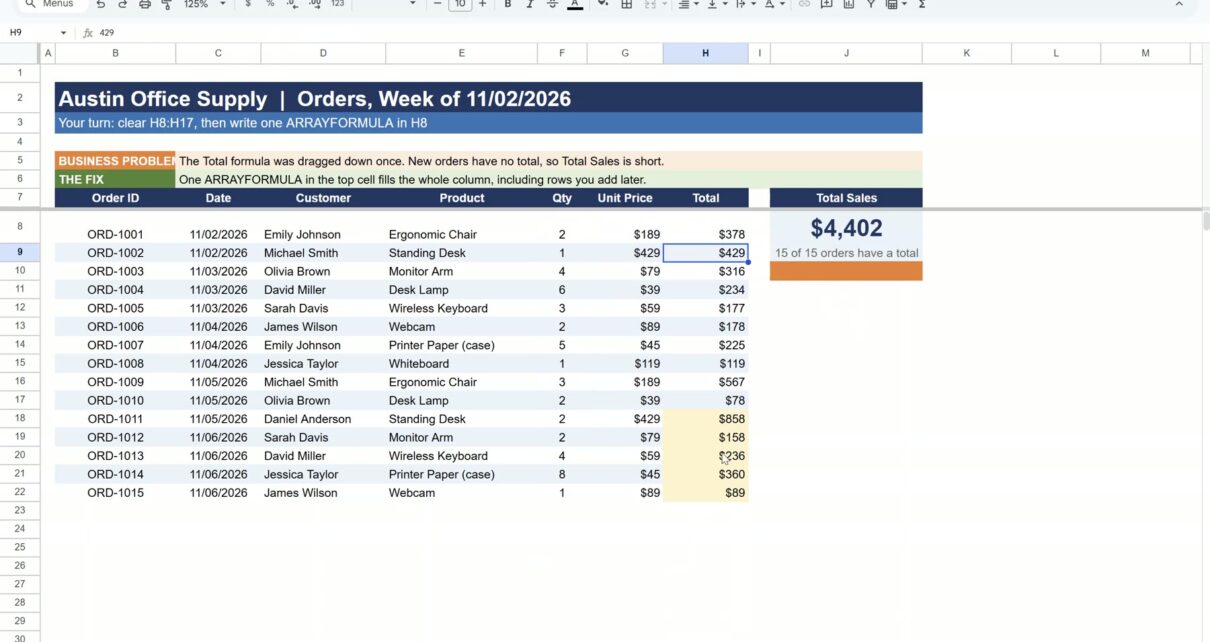
Someone drags the Total formula down an order sheet, five new orders come in, and nobody drags it again. Those rows have no total, so Total Sales is short and nobody notices. Google Sheets ARRAYFORMULA fixes that for good. You write one formula in the top cell and it fills the whole column, including every row you add later.
In this quick tutorial we use an office supply order sheet with 15 fictional orders. Only 10 have a total, so Total Sales shows $2,701. One ARRAYFORMULA brings it to $4,402 for all 15, and a new order gets its total the moment you type it.
The whole trick in 44 seconds.
⬇️ Join Free on Skool & Download the Practice File
Free membership · takes 1 minute · the file is in Classroom → Free Downloads from YouTube
What Does ARRAYFORMULA Do in Google Sheets?
A normal formula works on one row, so you copy it down to every row. ARRAYFORMULA works on whole ranges at once. Give it F8:F instead of F8 and it returns one answer for every row in that range, spilling the results down the column. Because the range is open (no end row), any order you add below is already covered.
How to Use ARRAYFORMULA for an Order Total Column (5 Steps)
Open the practice sheet, click Make a copy, and go to the Practice tab. The Solution tab has the finished version if you want to check your work.
Step 1: Spot the missing totals
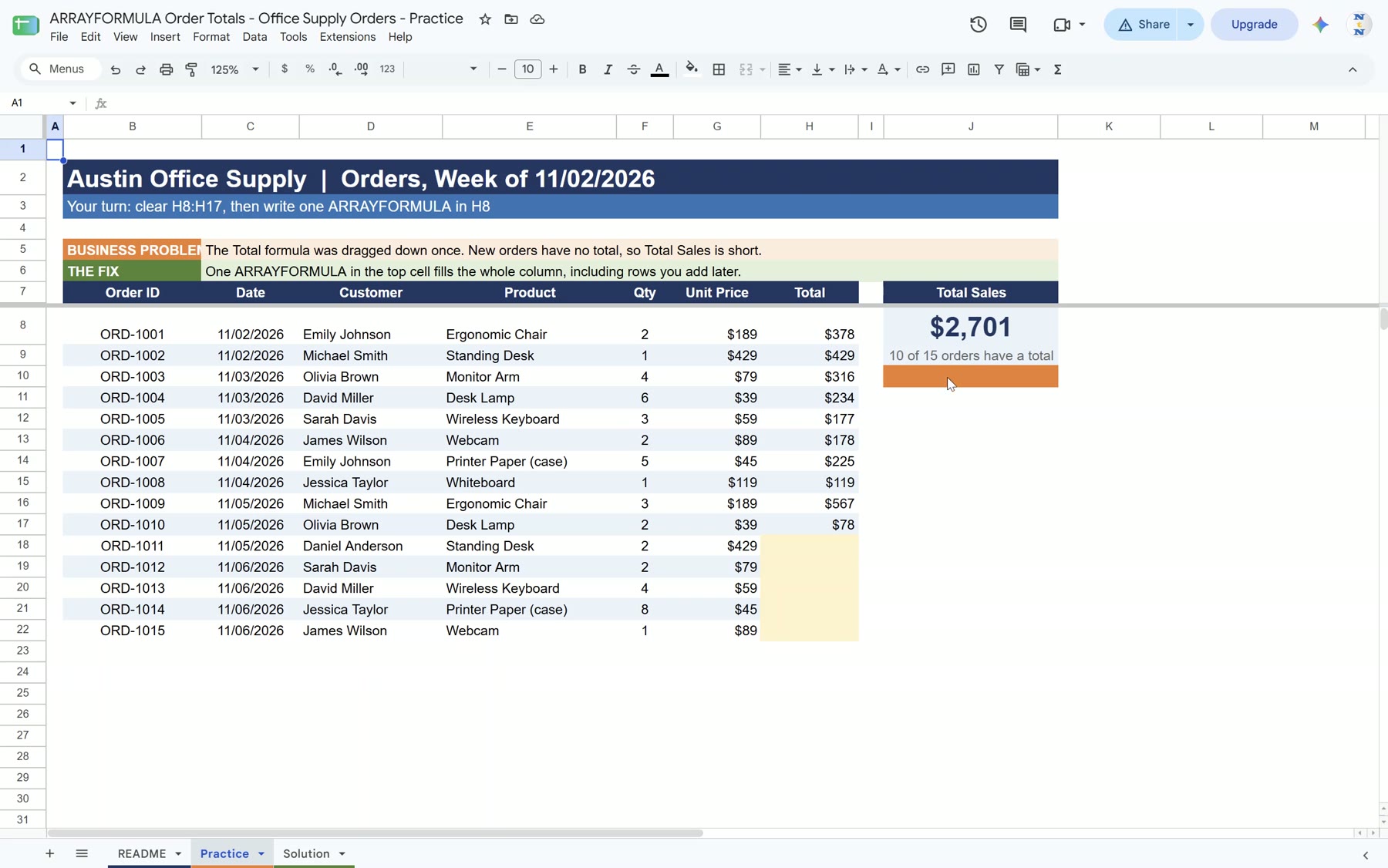
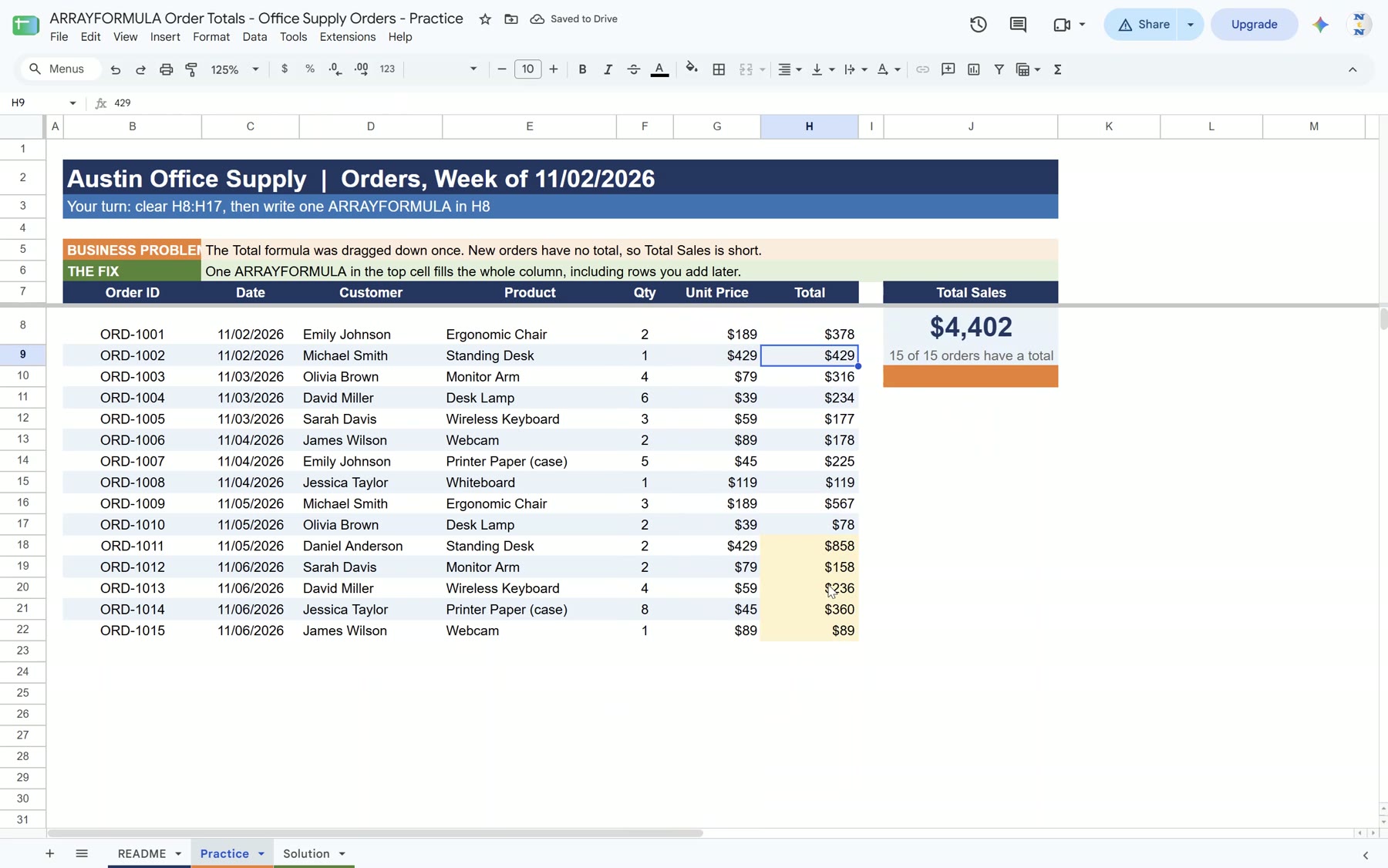
The orders sit in B8:H22: Order ID, Date, Customer, Product, Qty, Unit Price and Total. H8:H17 hold a dragged formula, but H18:H22 are empty. The Total Sales card in J8 shows $2,701, and the note under it says only 10 of 15 orders have a total.
Step 2: Clear the old dragged formulas
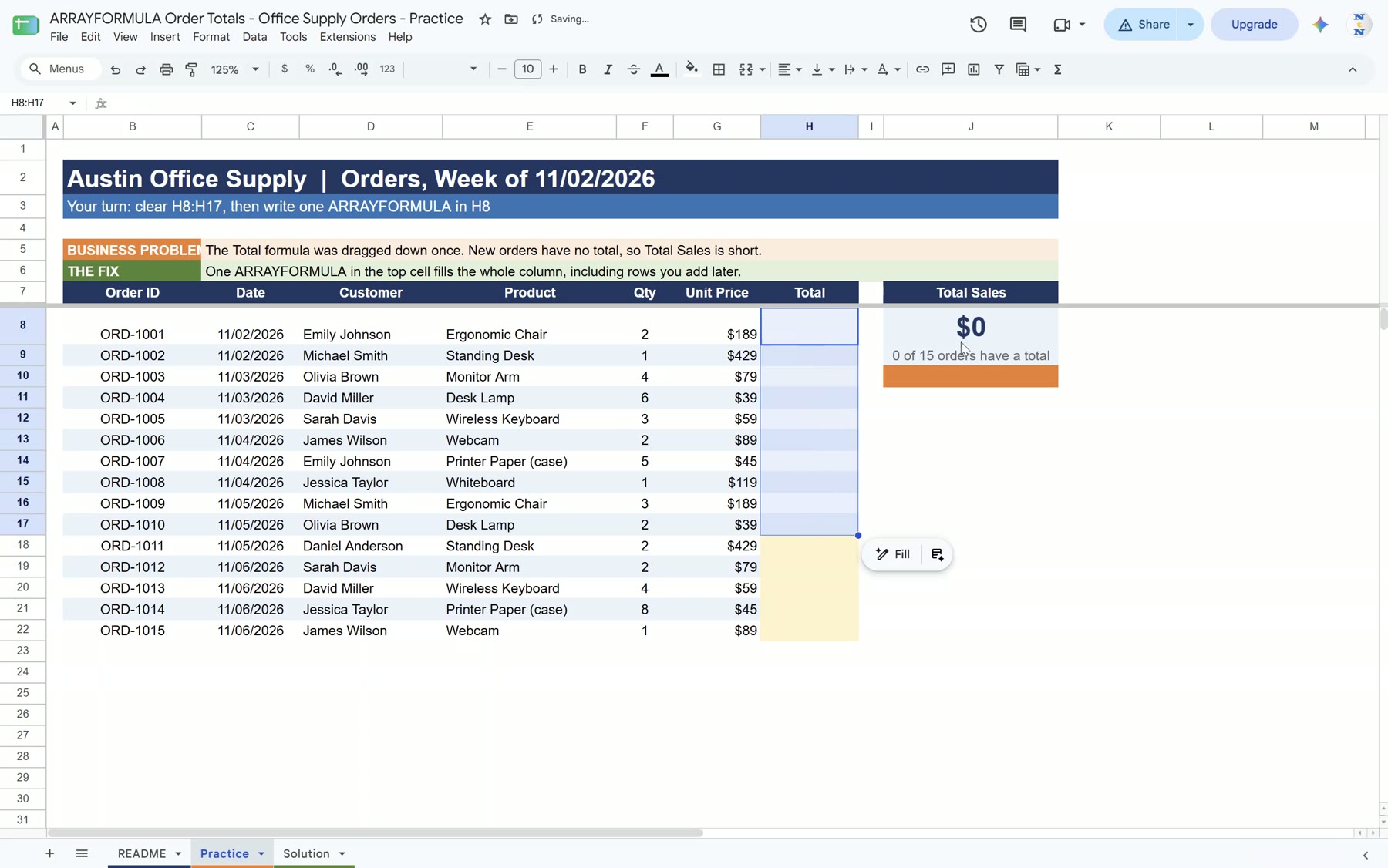
Select H8:H17 and press Delete. The column is now empty and Total Sales drops to $0. Do not skip this. If any old value is left under H8, ARRAYFORMULA has nowhere to spill and shows a #REF! error (“Array result was not expanded”).
Step 3: Write one ARRAYFORMULA in H8
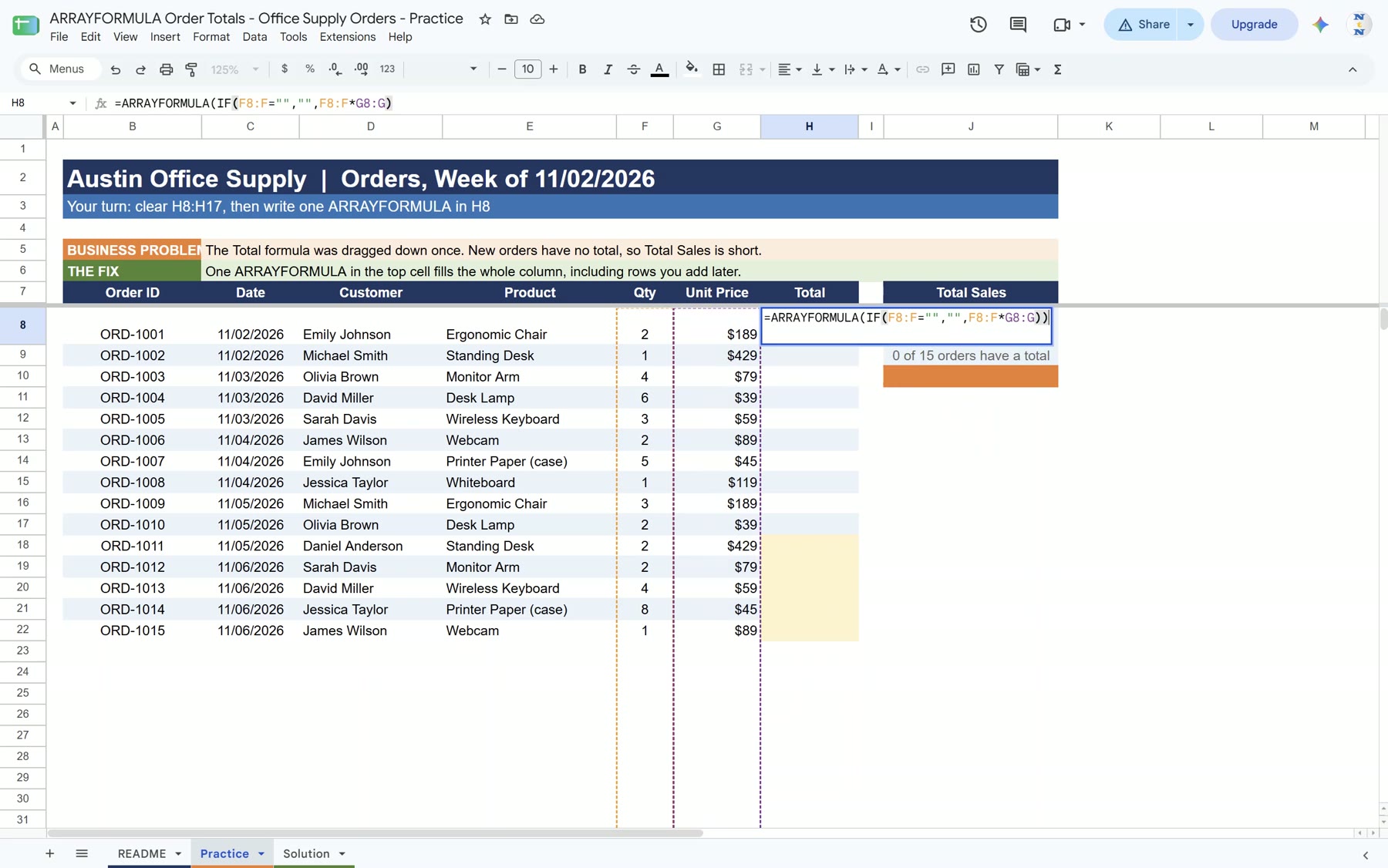
Click H8 and type:
=ARRAYFORMULA(IF(F8:F="","",F8:F*G8:G))Read it from the inside out. F8:F*G8:G multiplies quantity by unit price for every row. The IF part leaves a row blank when its quantity is blank, so the empty rows below your orders stay clean instead of showing 0.
Step 4: Press Enter and check the totals
Press Enter. All 15 orders get a total at once and J8 jumps to $4,402, with 15 of 15 orders counted. Click any cell below H8 and the formula bar shows a plain value. Only H8 holds the formula.
Step 5: Add a new order
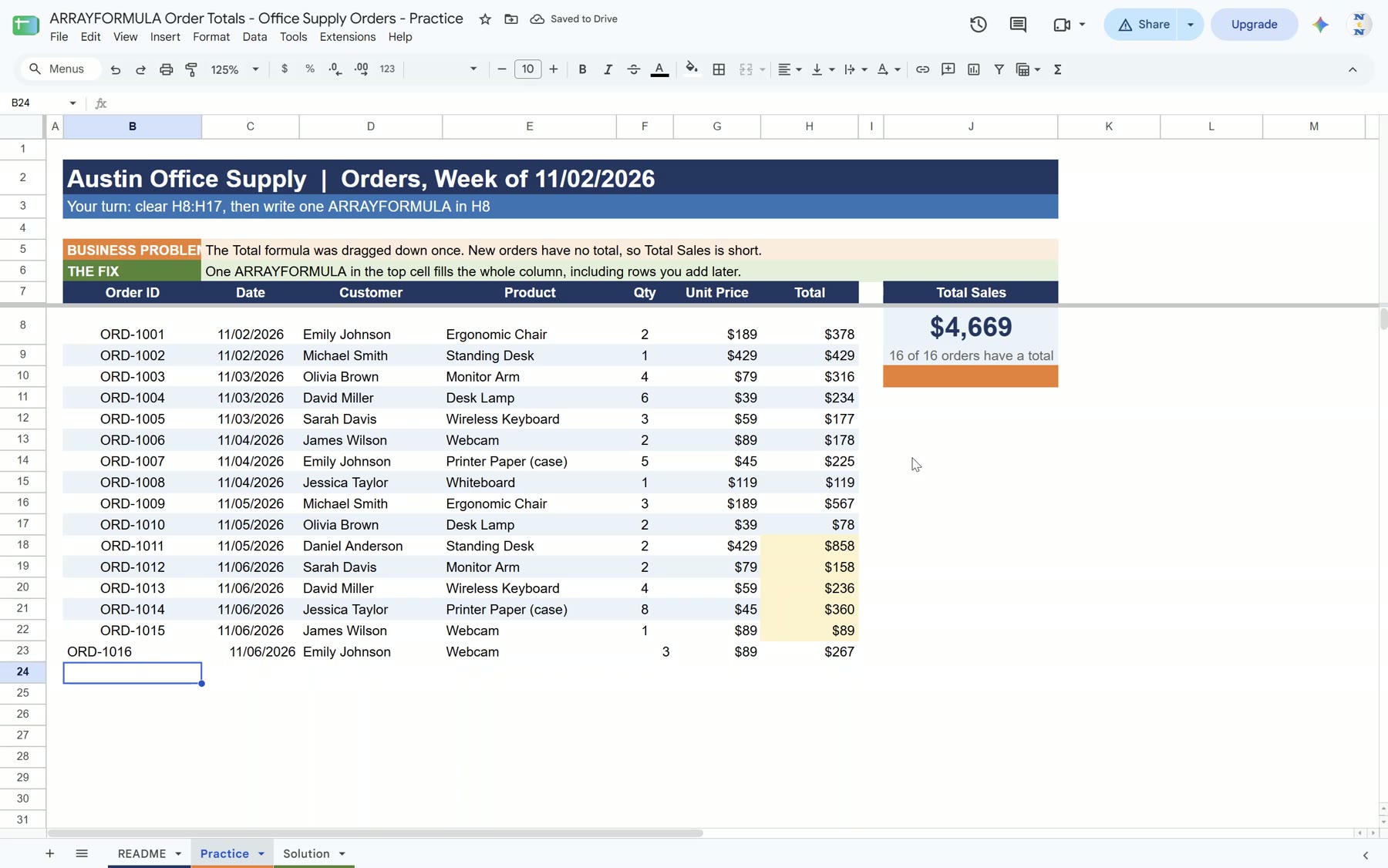
Type a new order in row 23: ORD-1016, 11/06/2026, Emily Johnson, Webcam, 3, $89. You do not touch column H. The total of $267 appears by itself and Total Sales becomes $4,669 for 16 of 16 orders.
Google Sheets ARRAYFORMULA Tips
- Keep the column empty: never type over a cell below the ARRAYFORMULA. One typed value breaks the whole column with #REF!.
- Use open ranges: F8:F covers every future row. A closed range like F8:F22 stops at row 22.
- Blank rows stay blank: the IF check returns “” for rows with no quantity, so the empty rows below your orders do not fill up with $0.
Want a ready-made version? See our Office Supply Order Tracker in Google Sheets, the Sales Order Tracker in Google Sheets, or another ARRAYFORMULA example in the employee shift scheduler.
Frequently Asked Questions
What is ARRAYFORMULA in Google Sheets?
It is a wrapper that lets a formula work on whole ranges instead of single cells. One ARRAYFORMULA in the top cell returns a result for every row, so you never drag the formula down.
Why does my ARRAYFORMULA show #REF! “Array result was not expanded”?
A cell in the spill area already has a value or an old formula. Clear the column below the ARRAYFORMULA and the error goes away.
How do I stop ARRAYFORMULA showing 0 in empty rows?
Wrap the math in IF: =ARRAYFORMULA(IF(F8:F=””,””,F8:F*G8:G)). Rows with no quantity stay blank.
Does ARRAYFORMULA work with new rows?
Yes, as long as you use an open range such as F8:F. Any row you add below is calculated straight away.