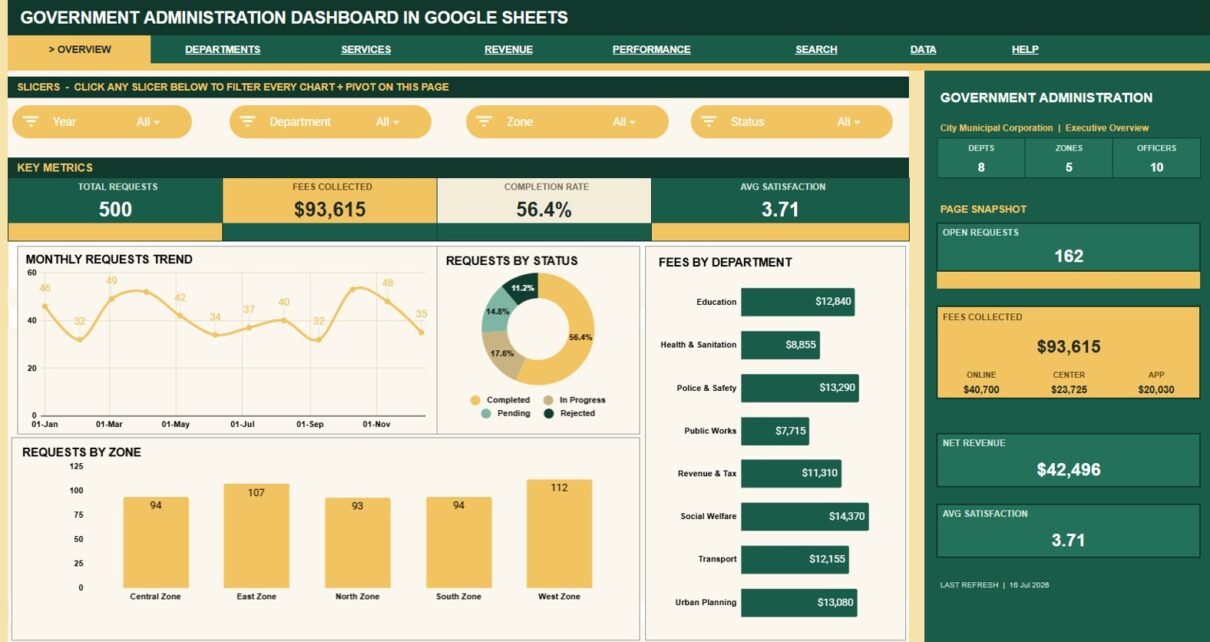
The Government Administration Dashboard in Google Sheets is built for teams that need a practical way to review public-service requests, department performance, fee collection, processing cost, zones, officers and citizen satisfaction without moving into a large paid system. The template includes 5 analysis pages with 20 charts, 9 Overview KPIs, four slicers on every page, a Request ID search sheet and a structured Data sheet so teams can replace the sample records with their own administration data.
For local offices, municipal departments, service desks and public administration teams, the biggest reporting problem is usually not a lack of data. It is that request records are scattered, hard to summarise and slow to explain in meetings. This dashboard gives those records a cleaner reporting layer so users can check workload, compare departments, review service channels and look up a specific request quickly.
🎥 Watch the Video Tutorial
Get the Government Administration Dashboard
Key Features of the Government Administration Dashboard in Google Sheets
- 7 working tabs: Overview, Departments, Services, Revenue, Performance, Search and Data, plus a Help tab, all linked from a navigation bar.
- 9 Overview KPIs: Total Requests, Fees Collected, Completion Rate, Avg Satisfaction, Depts, Zones, Officers, Open Requests and Net Revenue.
- 20 charts: four on each analysis page, covering request volume, status, fees, costs, service types, zones, officers, processing days, channels and satisfaction.
- Slicers on every page: Year plus three page-specific fields such as Department, Zone, Status, Service Type, Channel, Priority or Month.
- Page snapshot panel: a side panel on each page repeats the key totals — for example Fees Collected with separate Online, Center and App figures.
- Request ID lookup: select one Request ID and instantly view the matching details in a clean search sheet.
- Editable source data: add new rows in the same format to keep charts, cards and lookup views connected.
KPIs Used in the Dashboard
The values below come from the 500 sample requests shown in the screenshots, so you can check each calculation.
| KPI | What it measures | How it is calculated | Sample value | Better when |
|---|---|---|---|---|
| Total Requests | Workload in the filtered period | Count of Request IDs | 500 | Context metric |
| Fees Collected | Money collected from services | Sum of Fee Collected | $93,615 | Higher |
| Completion Rate | Share of requests closed | Completed ÷ Total Requests (282 ÷ 500) | 56.4% | Higher |
| Open Requests | Unresolved work | In Progress + Pending requests | 162 | Lower |
| Rejection Rate | Requests turned down | Rejected ÷ Total Requests (56 ÷ 500) | 11.2% | Lower |
| Avg Satisfaction | Citizen rating of the service | Average of Satisfaction | 3.71 | Higher |
| Avg Processing Days | Turnaround time | Average of Processing Days | 8.9 days | Lower |
| Net Revenue | Fees left after processing cost | Fees Collected − Processing Cost ($93,615 − $51,119) | $42,496 | Higher |
| Avg Fee / Request | Average fee per request | Fees Collected ÷ Total Requests | $187.23 | Context metric |
Dashboard Pages Explanation
1. Overview Page
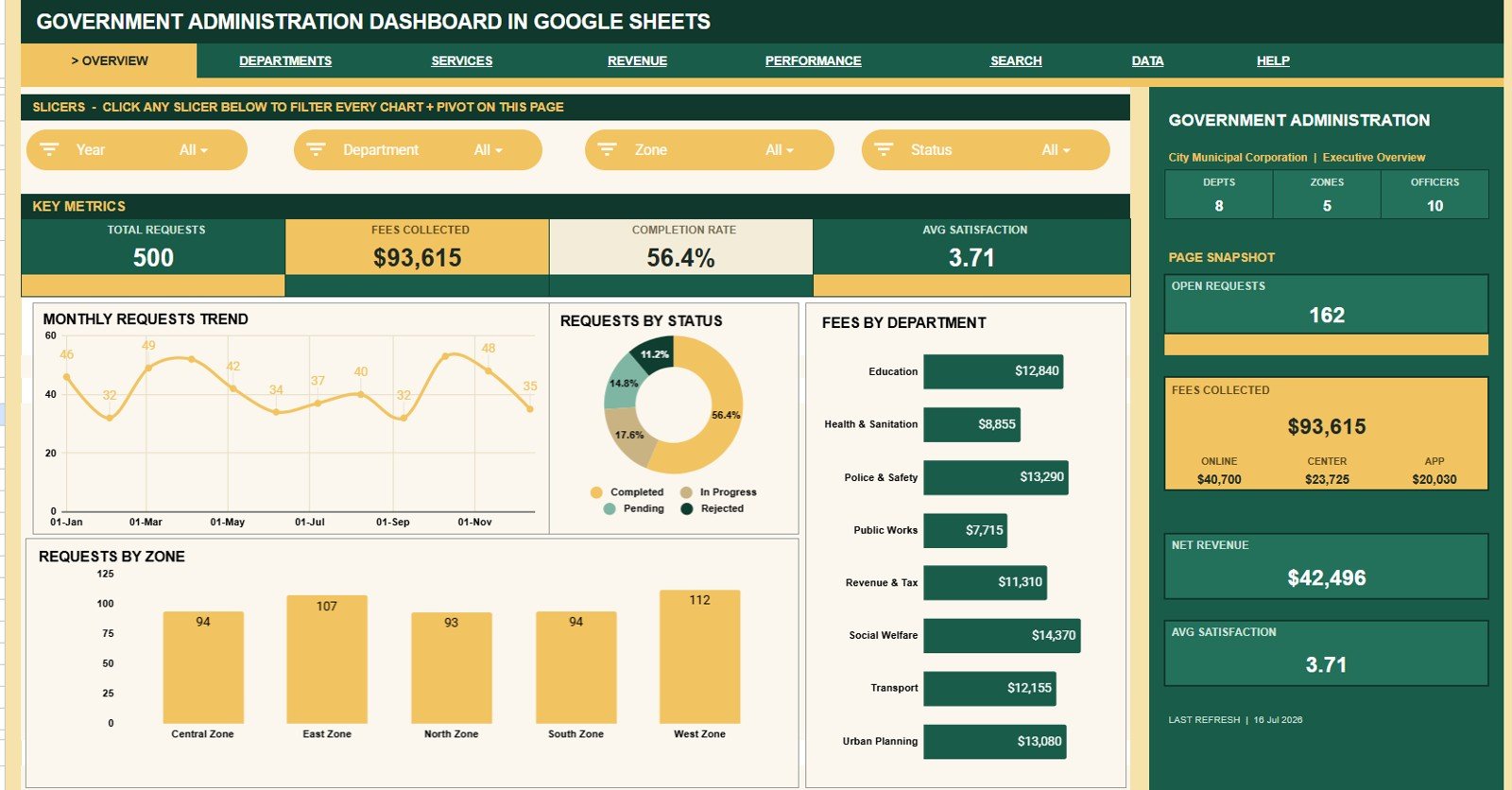
The Overview page is the main control room. Key Metrics cards show Total Requests, Fees Collected, Completion Rate and Avg Satisfaction, while the side panel adds Depts, Zones, Officers, Open Requests and Net Revenue. Slicers for Year, Department, Zone and Status filter every chart on the page.
- Monthly Requests Trend — request volume across months, so busy periods and seasonal pressure are easy to spot.
- Requests by Status — Completed, In Progress, Pending and Rejected, showing how much work is still active.
- Fees by Department — fee collection across the eight departments, from Education to Urban Planning.
- Requests by Zone — request distribution across Central, East, North, South and West zones.
2. Department Analysis
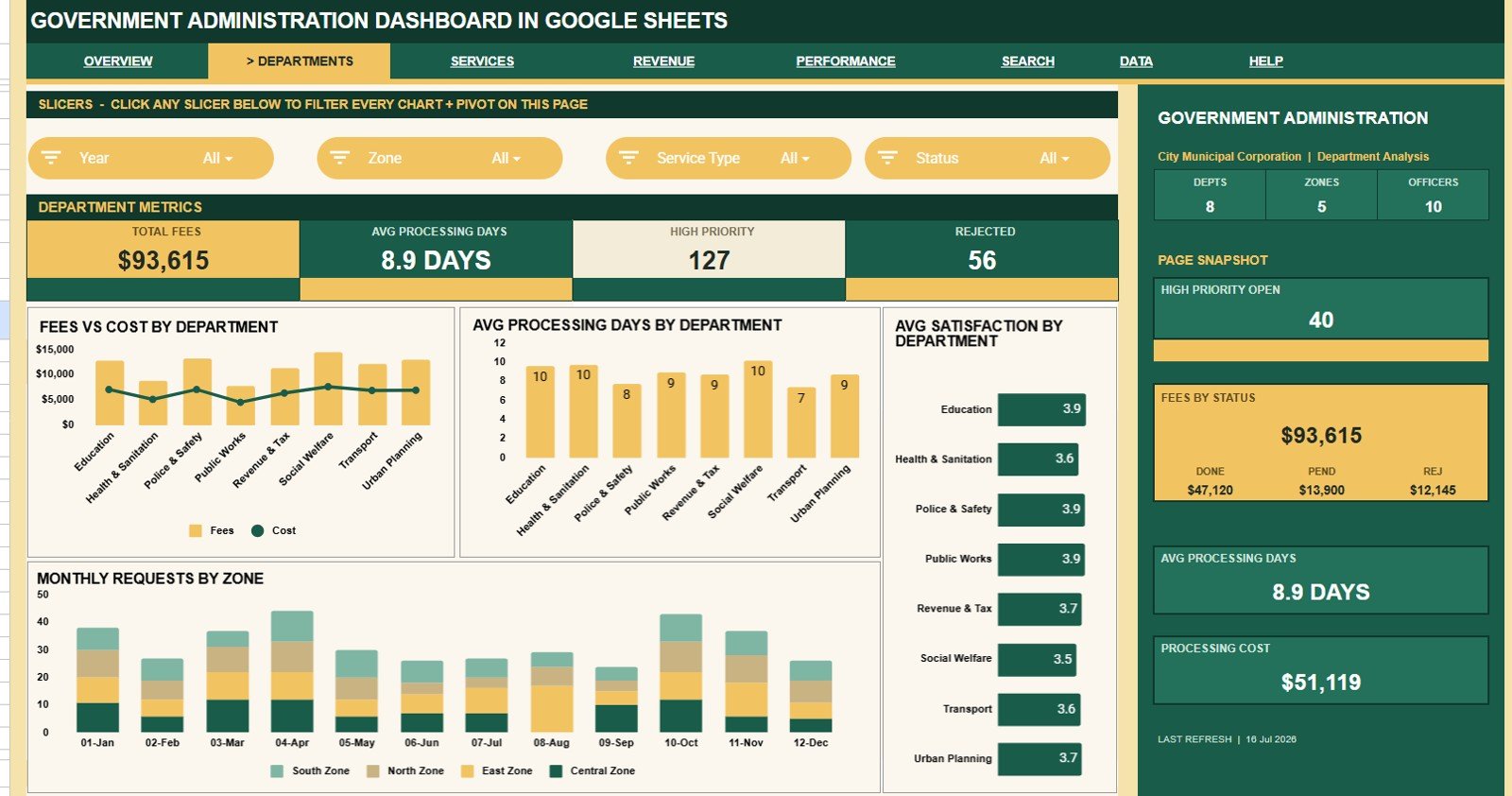
The Departments tab is for managers comparing performance by department. Its metrics row shows Total Fees, Avg Processing Days, High Priority and Rejected, with slicers for Year, Zone, Service Type and Status.
- Fees vs Cost by Department — collected fees against processing cost for each department.
- Avg Processing Days by Department — which departments take longer and may need workflow review.
- Avg Satisfaction by Department — where service quality is strong and where it needs attention.
- Monthly Requests by Zone — whether specific zones are gaining workload over time.
3. Service Analysis
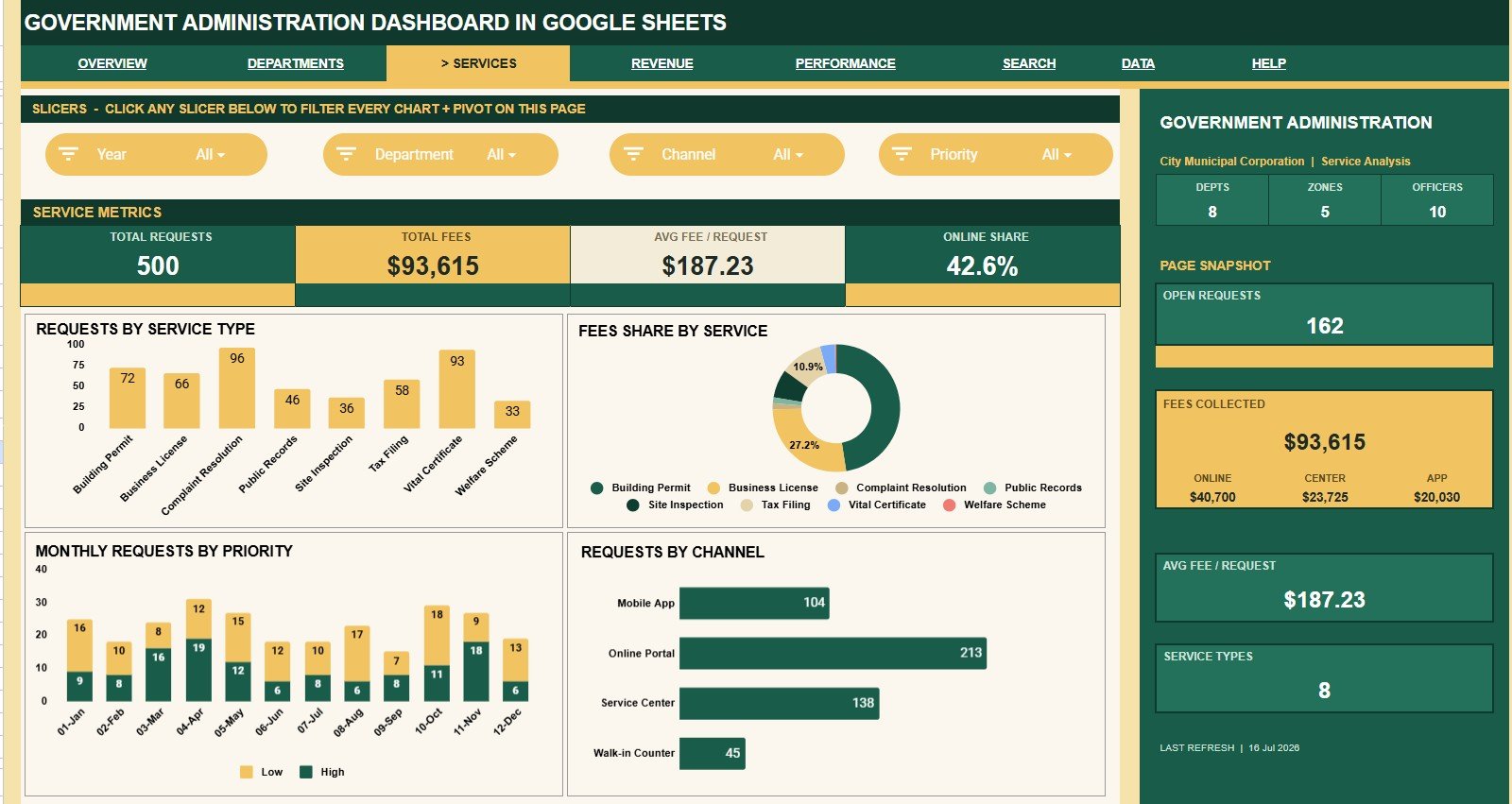
The Services tab focuses on the types of requests people submit. Metrics show Total Requests, Total Fees, Avg Fee / Request and Online Share (42.6%), with slicers for Year, Department, Channel and Priority.
- Requests by Service Type — demand across eight services such as Building Permit, Business License, Complaint Resolution and Vital Certificate.
- Fees Share by Service — which services contribute the most collections.
- Monthly Requests by Priority — how high- and low-priority requests move month by month.
- Requests by Channel — Mobile App, Online Portal, Service Center and Walk-in Counter.
4. Revenue Analysis
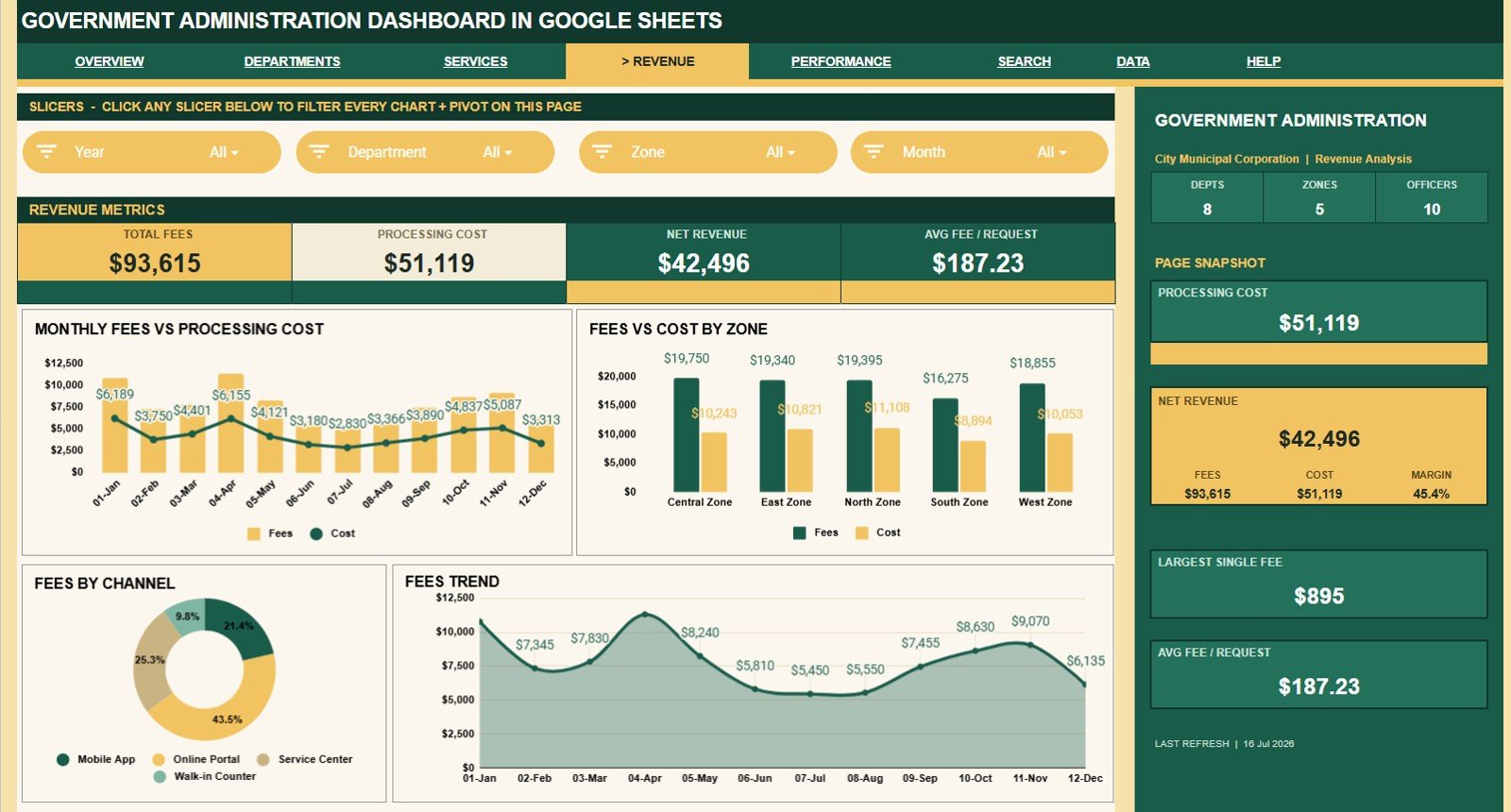
The Revenue tab is built for fee, cost and net revenue review. Metrics show Total Fees, Processing Cost, Net Revenue and Avg Fee / Request, and the side panel adds the net margin (45.4% in the sample) and the Largest Single Fee. Slicers are Year, Department, Zone and Month.
- Monthly Fees vs Processing Cost — whether higher collections also bring higher cost.
- Fees vs Cost by Zone — zones with strong revenue contribution and zones where cost needs review.
- Fees by Channel — the financial value of each intake channel.
- Fees Trend — a clear monthly fee line for budget conversations.
5. Performance Analysis
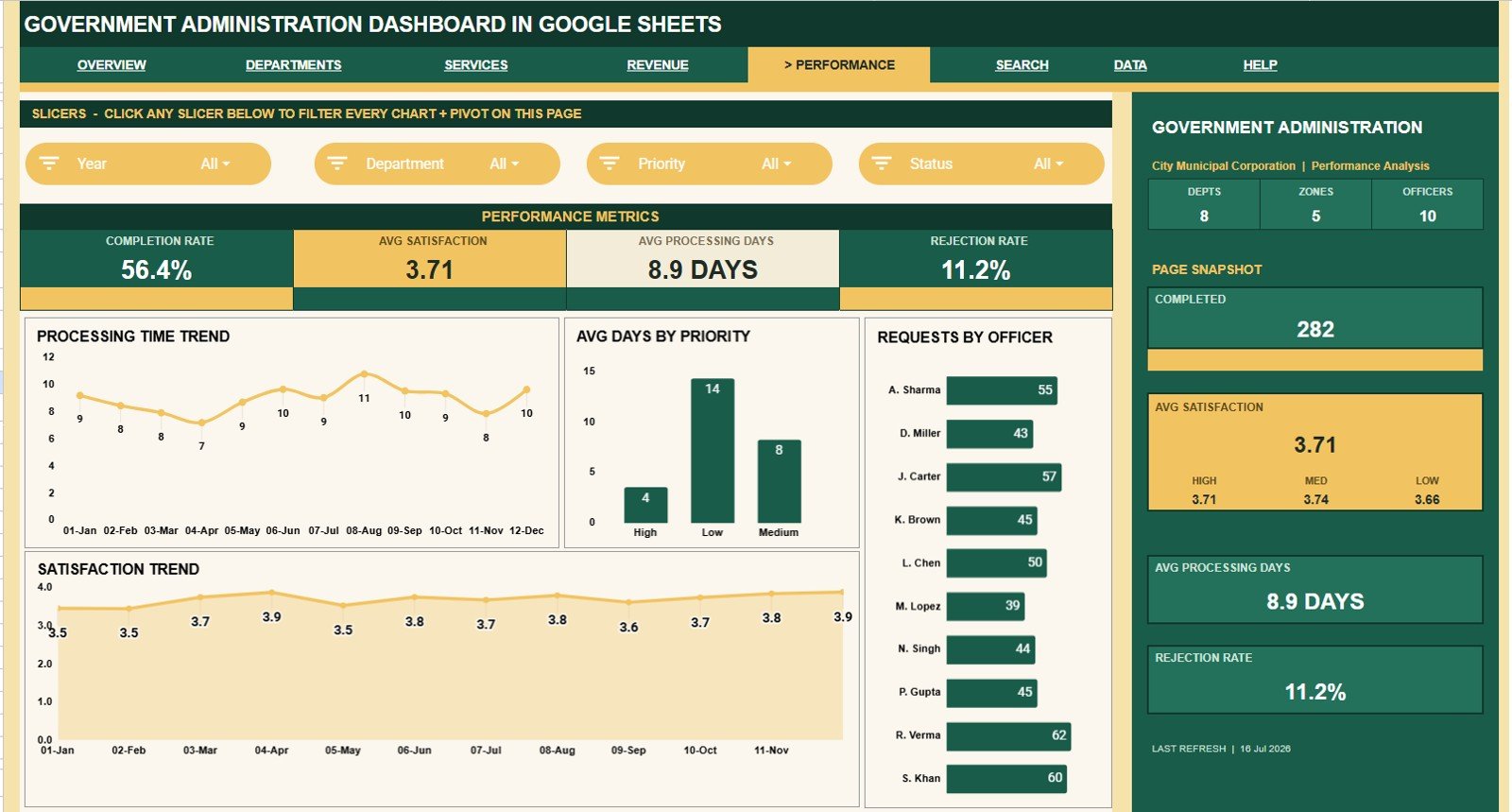
The Performance tab monitors turnaround time, officer workload, priority handling and satisfaction. Metrics show Completion Rate, Avg Satisfaction, Avg Processing Days and Rejection Rate, with slicers for Year, Department, Priority and Status.
- Processing Time Trend — whether delays are shrinking or growing month by month.
- Avg Days by Priority — confirms that urgent work moves faster; in the sample, High priority averages 4 days against 14 for Low.
- Requests by Officer — workload balance across the ten officers.
- Satisfaction Trend — whether service experience is improving as volume changes.
6. Search Sheet
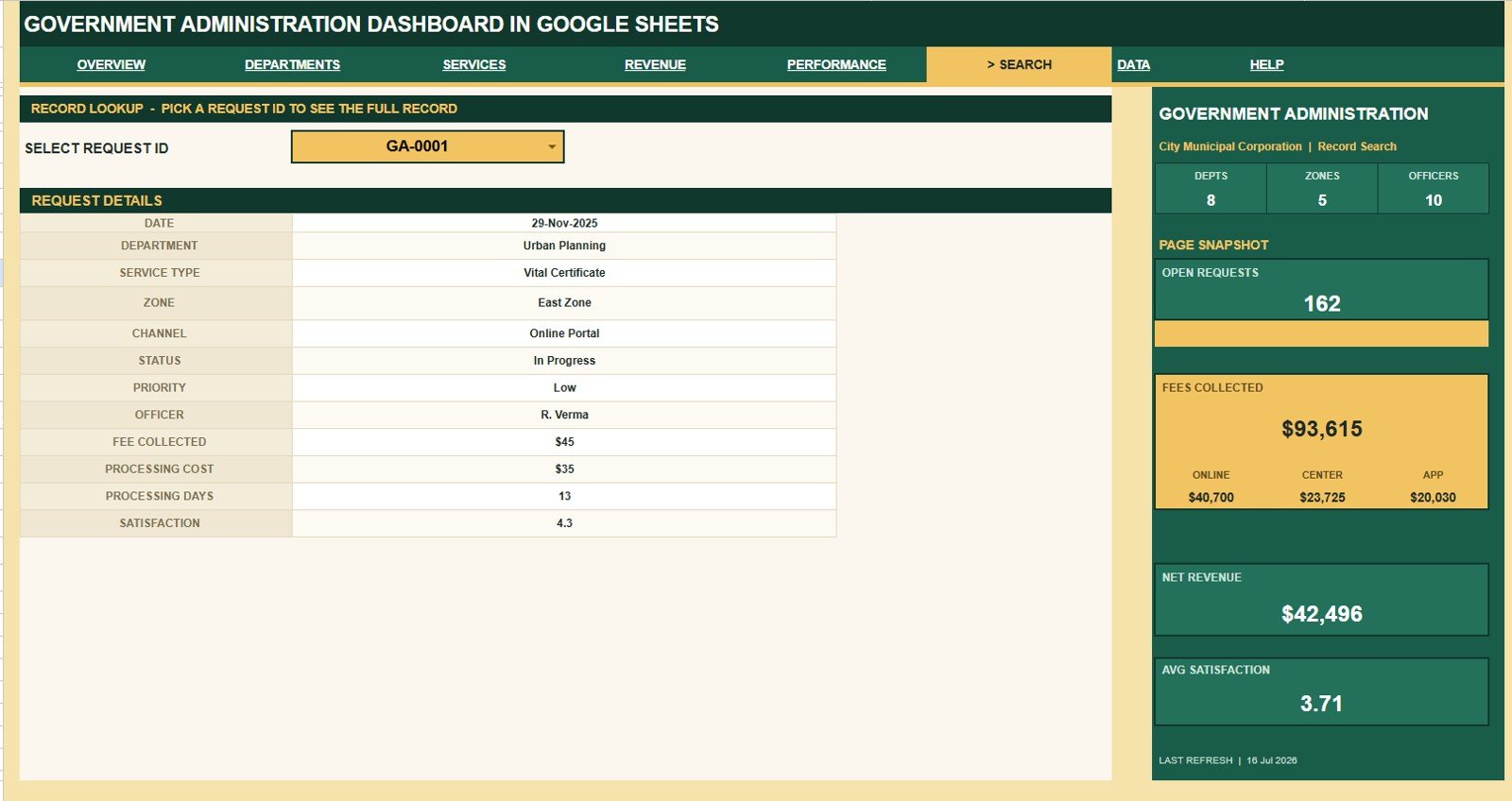
The Search sheet lets users select a Request ID and instantly view the matching Date, Department, Service Type, Zone, Channel, Status, Priority, Officer, Fee Collected, Processing Cost, Processing Days and Satisfaction. Instead of scrolling through rows, a supervisor can answer a record-level question in seconds.
7. Data Sheet
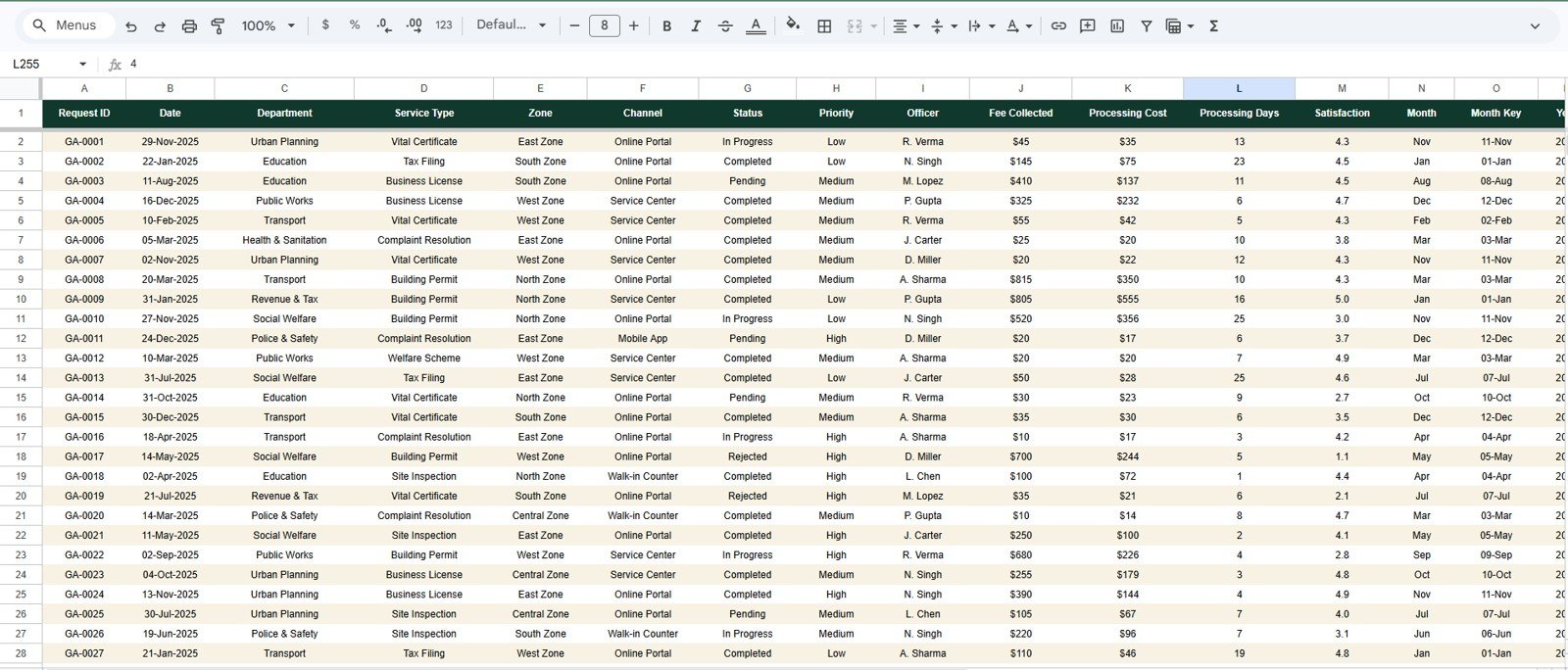
The Data sheet is the foundation of the dashboard. Its columns include Request ID, Date, Department, Service Type, Zone, Channel, Status, Priority, Officer, Fee Collected, Processing Cost, Processing Days, Satisfaction, Month, Month Key and Year. Add records in the same format so pages, cards, charts, slicers and the Search sheet keep working.
How to Use It With Your Own Data
- Make your own copy of the Google Sheet.
- Replace the sample rows in the Data sheet with your request records, keeping the same column order.
- Use consistent names for departments, zones, service types, channels, statuses, priorities and officers.
- Open the Overview page and check that Total Requests matches your row count.
- Use the slicers on each page to review a single department, zone or month before meetings.
Government Administration Dashboard in Google Sheets vs. Microsoft Excel Dashboard vs. Paid Government SaaS — Feature Comparison
| Feature | Government Administration Dashboard in Google Sheets | Microsoft Excel Dashboard | Paid Government SaaS |
|---|---|---|---|
| Cost model | One-time template purchase | Template or workbook cost plus license needs | Recurring subscription, contract or implementation cost |
| Setup speed | Copy the sheet and replace sample data | Open workbook and replace sample data | Usually requires configuration and onboarding |
| Collaboration | Google Drive sharing and live editing | Cloud sharing depends on setup | Role-based access depends on plan |
| Dashboard filtering | Slicers inside Google Sheets | Slicers or filters in Excel | Vendor-specific filters |
| Customization | Editable formulas, charts and sheet structure | Editable formulas, charts and workbook structure | Limited by vendor configuration |
| Request ID lookup | Included Search sheet | Possible with formulas | Usually included as a record view |
| Best fit | Spreadsheet-first government reporting teams | Teams standardised on Excel | Teams needing workflow automation, portals and compliance controls |
Who Should Use This Template
- Municipal administration teams tracking public-service requests.
- Government departments that need a simple monthly dashboard.
- Service desk supervisors reviewing open requests and completion rates.
- Zone managers comparing request volume and processing trends.
- Finance teams reviewing fees, processing cost and net revenue.
- Small public-sector teams that need reporting before they invest in a full SaaS platform.
Real-World Use Cases
Weekly administration review: A department head opens the Overview page to check Total Requests, Open Requests, Completion Rate and Avg Satisfaction before the weekly meeting.
Monthly revenue discussion: A finance officer uses Revenue Analysis to compare fees and processing cost by month, zone and channel.
Department performance check: A manager uses Department Analysis to find departments with longer processing days or lower satisfaction scores.
Citizen request lookup: A service desk user selects a Request ID in the Search sheet to retrieve the full record quickly.
Advantages of the Government Administration Dashboard in Google Sheets
- Low barrier to entry: teams familiar with spreadsheets can begin using the template quickly.
- Clear page structure: separate tabs keep overview, department, service, revenue, performance, lookup and data work organised.
- Fast filtering: slicers make it easy to inspect filtered views during meetings. Google’s Sheets help documentation explains how slicers filter tables, charts and pivot tables.
- Record-level lookup: the Search sheet reduces time spent scrolling through raw data.
- Team sharing: Google Sheets works naturally with Google Drive permissions for viewing and editing.
Limitations to Know Before You Buy
This dashboard is a reporting template, not a full government operations platform. Teams that need citizen portals, automated ticket routing, audit logs, payment processing, approvals, document storage or complex role permissions will eventually need a dedicated system or a custom app.
The template also depends on consistent data entry. If records are missing status, zone, department, officer, fee, cost or satisfaction values, the dashboard will be less reliable. A simple internal data-entry rule keeps the reporting clean.
Best Practices
- Keep one consistent row format in the Data sheet.
- Update request records on a fixed schedule, such as daily or weekly.
- Review open requests before public meetings or internal performance reviews.
- Protect formula areas if multiple users will edit the file.
- Create a backup copy before major customisation.
Want to understand how the summaries and charts behind a dashboard like this are built? The Excel Pivot Tables & Dashboards course on NextGenTemplates Academy covers the same reporting logic in structured lessons.
Explore Relevant Templates
For related public-sector reporting, see the Municipal Services Dashboard in Google Sheets, the Government Citizen Services Performance Dashboard in Google Sheets, the Public Safety Dashboard in Google Sheets, the Public Sector KPI Dashboard in Google Sheets and the general Administration Dashboard in Google Sheets.
Also available as: Government Administration Dashboard in Power BI · Government Administration KPI Dashboard in Excel
Frequently Asked Questions
What is the Government Administration Dashboard in Google Sheets?
It is a Google Sheets dashboard template for tracking public administration request data, including departments, services, zones, channels, statuses, priorities, officers, fees, costs, processing days, satisfaction and net revenue.
How many pages and charts are included?
Seven working tabs — Overview, Departments, Services, Revenue, Performance, Search and Data — plus a Help tab. The five analysis pages hold four charts each, 20 in total.
What KPI cards are shown on the Overview page?
Total Requests, Fees Collected, Completion Rate, Avg Satisfaction, Depts, Zones, Officers, Open Requests and Net Revenue.
Can I filter the dashboard?
Yes. Each page has four slicers — Year plus fields such as Department, Zone, Status, Service Type, Channel, Priority or Month — that filter every chart on that page.
Is this a full case-management system?
No. It is a Google Sheets reporting dashboard. It does not replace a citizen portal, workflow approval system, payment system or official case-management platform.
Can I customise the template?
Yes. After creating your own copy you can edit formulas, charts, labels and layout. Make a backup before major changes.
About the Author
Dashboard templates on NeoTechNavigators are created by PK, a Microsoft Certified Professional with 15+ years of Excel, Google Sheets and Power BI experience, whose tutorials help spreadsheet users build practical dashboards for business, operations, finance, HR and administration reporting.
Wrapping Up
The Government Administration Dashboard in Google Sheets is a practical option for public administration teams that want structured request reporting, financial visibility, performance tracking and quick lookup inside a familiar spreadsheet. With five analysis pages, 20 charts, nine Overview KPIs, slicers and a clean Data sheet, it turns raw request records into meeting-ready insight. Load a month of your own requests and review it at your next team meeting.
Get the Government Administration Dashboard
📅 Last updated: October 2026