The Student Loan Repayment Tracker in Google Sheets is built for borrowers who want one calm, editable place to monitor student loan balances, servicers, repayment status and payoff progress. Student loans are often spread across several accounts, interest rates and repayment plans, so even a simple question like “How much is left?” can take longer than it should.
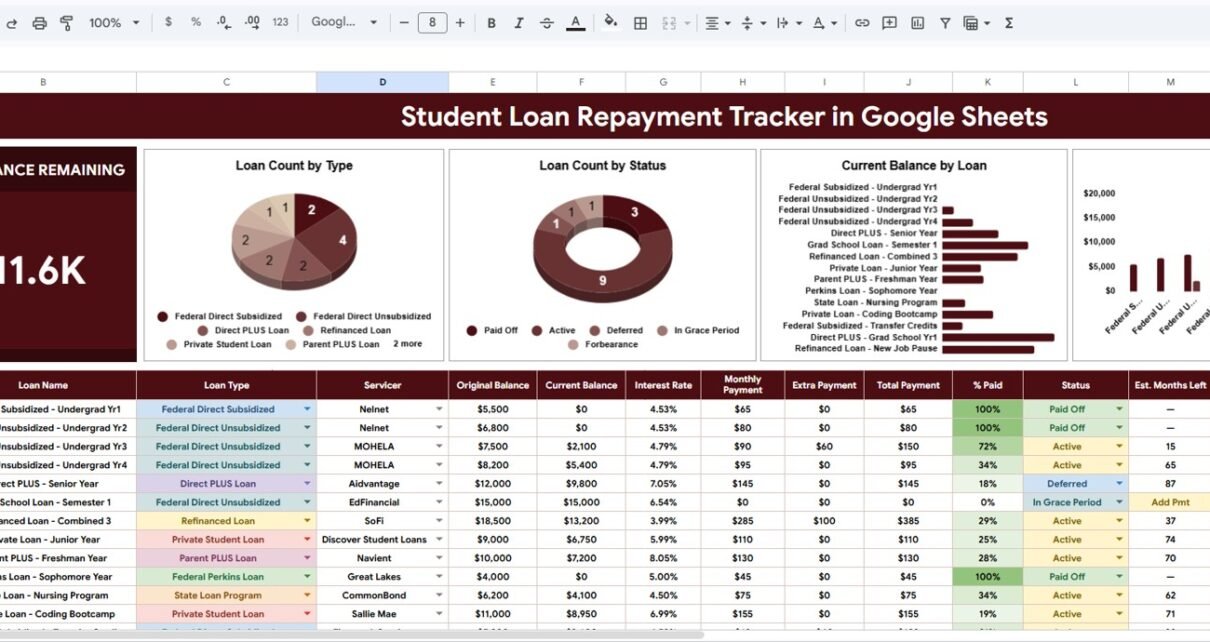
The tracker gives you a Total Balance Remaining card, four charts and a loan register on one Overview sheet, plus a Setup Lists sheet that keeps loan types, statuses and servicers consistent. Because it runs in Google Sheets, you can update it from your browser, share a copy with a partner or advisor, and adjust it without paying for another finance app.
🎥 Watch the Video Tutorial
Get the Student Loan Repayment Tracker
Key Features of the Student Loan Repayment Tracker in Google Sheets
The tracker is designed around the information borrowers usually need to review: original balance, current balance, interest rate, payments, loan type, servicer and repayment status. Instead of keeping those details in scattered notes, you keep them in one register that is easy to filter, review and update.
- Total Balance Remaining card: the amount still left to repay across all loans ($111.6K in the sample data).
- Loan Count by Type: how many loans fall under each loan type.
- Loan Count by Status: how many loans are Active, Deferred, In Grace Period, in Forbearance or Paid Off.
- Current Balance by Loan: remaining balance for each individual loan, so large payoff targets stand out.
- Original vs Current balance chart: starting balance next to today’s balance for every loan.
- Loan register with payoff estimates: interest rate, monthly and extra payment, % paid, estimated months left and estimated payoff date for each loan.
- Setup Lists: dropdown sources for Loan Type, Status and Servicer.
What Is Inside the Tracker
Overview Page
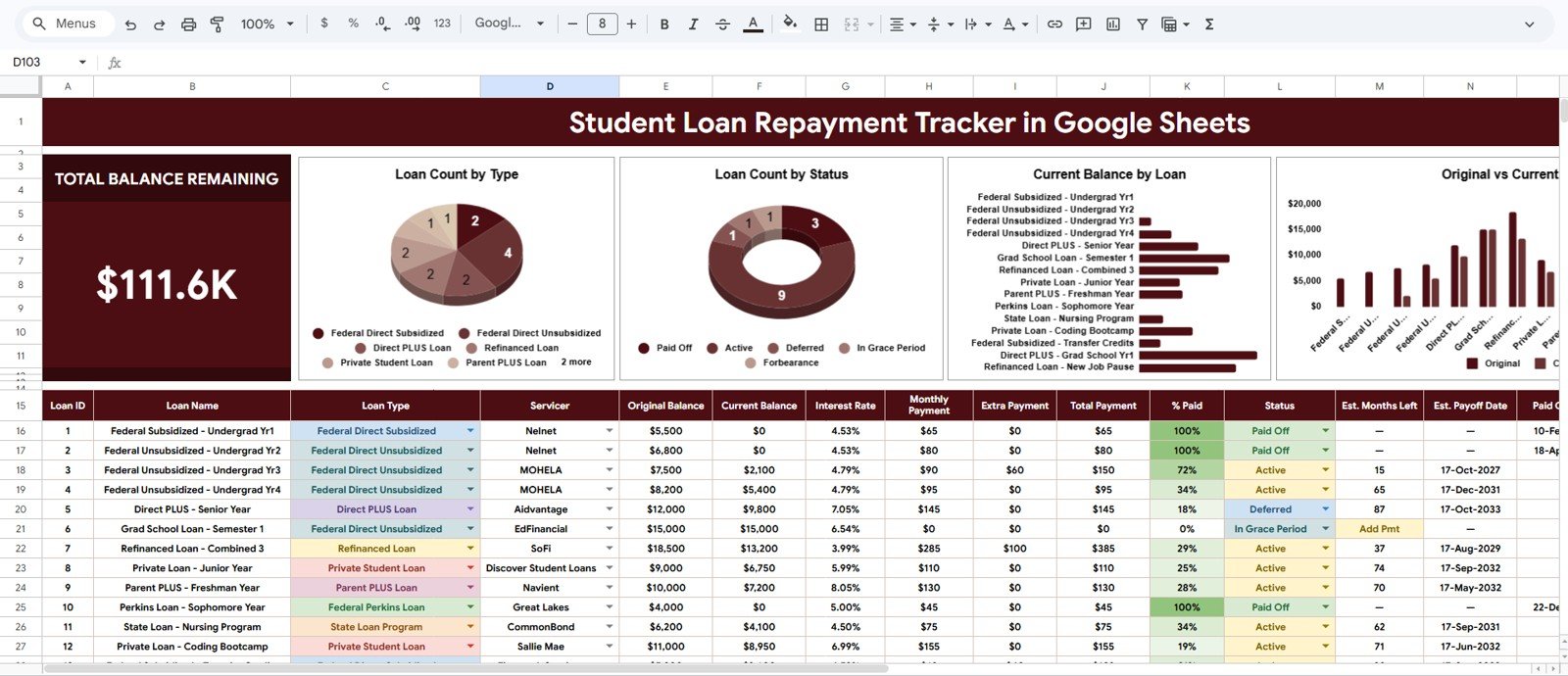
The Overview page gives you the fastest read on your repayment picture. The Total Balance Remaining card sits on the left, and the four charts run across the top: Loan Count by Type, Loan Count by Status, Current Balance by Loan and Original vs Current balance by loan.
Below the charts is the loan register, one row per loan. Its columns are:
| Column | What it holds |
|---|---|
| Loan ID, Loan Name | A number and a descriptive name, e.g. “Federal Unsubsidized – Undergrad Yr3” |
| Loan Type, Servicer | Dropdowns fed by the Setup Lists sheet |
| Original Balance, Current Balance | What you borrowed and what you owe today |
| Interest Rate | The loan’s rate, e.g. 4.53% |
| Monthly Payment, Extra Payment, Total Payment | Your regular payment, any extra amount, and the two added together |
| % Paid | How much of the original balance has been repaid |
| Status | Active, Deferred, In Grace Period, Forbearance or Paid Off |
| Est. Months Left, Est. Payoff Date | The tracker’s estimate of when the loan will be cleared at the current payment |
| Paid Off date (last column) | A date filled in only for loans with the Paid Off status |
A Worked Example From the Sample Data
Take loan 3, “Federal Unsubsidized – Undergrad Yr3”, serviced by MOHELA at 4.79%:
- Original Balance $7,500, Current Balance $2,100.
- % Paid = (Original − Current) ÷ Original = ($7,500 − $2,100) ÷ $7,500 = 72%, which is exactly what the row shows.
- Total Payment = Monthly Payment $90 + Extra Payment $60 = $150.
- At that payment the tracker estimates 15 months left and a payoff date in October 2027.
% Paid        = (Original Balance - Current Balance) / Original Balance
Total Payment = Monthly Payment + Extra Payment
Compare loan 4 (Federal Unsubsidized – Undergrad Yr4): $8,200 original, $5,400 current, so 34% paid, with no extra payment and 65 months left. Seeing the two rows side by side makes the effect of an extra payment easy to understand. A loan In Grace Period with no payment entered shows “Add Pmt” instead of an estimate, which reminds you to fill in the payment once it starts.
If you want to calculate a monthly payment from the rate and term yourself, our guide to calculating monthly loan payments with the PMT function shows the formula step by step.
Setup Lists
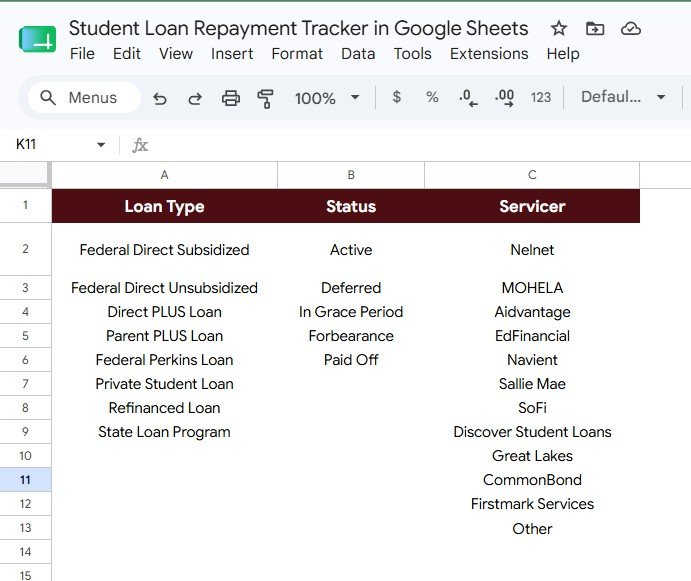
The Setup Lists sheet holds the dropdown options so every entry uses the same spelling, which keeps the charts clean:
- Loan Type: Federal Direct Subsidized, Federal Direct Unsubsidized, Direct PLUS Loan, Parent PLUS Loan, Federal Perkins Loan, Private Student Loan, Refinanced Loan and State Loan Program.
- Status: Active, Deferred, In Grace Period, Forbearance and Paid Off.
- Servicer: Nelnet, MOHELA, Aidvantage, EdFinancial, Navient, Sallie Mae, SoFi, Discover Student Loans, Great Lakes, CommonBond, Firstmark Services and Other.
You can edit any of these lists to match your own loans.
How to Use It With Your Own Loans
- Make your own copy of the tracker in Google Drive.
- Check the Setup Lists sheet and add any loan type or servicer you need.
- Replace the sample rows in the loan register with your loans, one row per loan, using figures from your latest servicer statements.
- Enter the interest rate, monthly payment and any extra payment for each loan.
- Update Current Balance once a month and review the Overview charts.
Google Sheets Tracker vs Excel vs a Paid Finance App
| Feature | Google Sheets tracker | Excel workbook | Paid finance app |
|---|---|---|---|
| Browser access | Yes, through Google Drive | Depends on setup | Usually yes |
| Editable structure | Fully editable in your copy | Fully editable | Often limited |
| Ongoing subscription | None for the template | None for a workbook | Often monthly or annual |
| Dashboard charts | Included | Built manually | Varies by app |
| Payoff estimates | Months left and payoff date per loan | Built manually | Varies by app |
| Privacy control | You control your copy | You control your file | Depends on the provider |
| Best fit | Borrowers who want flexible manual tracking | Advanced spreadsheet users | Users who want automatic syncing |
Who Should Use This Template
The tracker is useful for graduates, parents helping with education debt, couples planning a shared payoff strategy, and anyone juggling several loans across servicers. It is especially handy when you are preparing a monthly budget, comparing loans before making extra payments, or documenting balances for a conversation with a partner or financial coach.
It is not a servicer portal, repayment-plan calculator or refinancing tool, and it does not give financial advice. It does not connect to banks or servicers, so balances are entered by hand.
Real-World Use Cases
- Monthly repayment review: update balances once a month and check that Total Balance Remaining is moving down.
- Comparing loans: use Current Balance by Loan, interest rate and Est. Months Left to see which loans will take longest to clear.
- Servicer organisation: keep track of which servicer handles each loan so statements and payment portals are easy to find.
- Status monitoring: see at a glance which loans are deferred, in forbearance or in a grace period so none are forgotten.
Best Practices
- Update the tracker on the same day each month so comparisons stay consistent.
- Set up the lists before entering loans so chart labels stay clean.
- Compare spreadsheet balances against official servicer statements regularly; the statement is always the source of truth.
- Make a backup copy before adding major custom formulas or new sections.
- If you share the file, give view-only access unless the other person needs to edit.
For broader money planning, pair this tracker with our Debt Repayment Checklist in Google Sheets, the Debt Management KPI Dashboard or the step-by-step guide on making a budget tracker in Google Sheets. If you want to get more comfortable with the formulas behind trackers like this, the Excel AI Mastery: 100 Formulas course on NextGenTemplates Academy covers them with practice files.
Related templates: Debt Payoff (Snowball) Tracker in Google Sheets and Loan EMI Repayment Tracker in Google Sheets.
Frequently Asked Questions
Is this student loan tracker an automated loan app?
No. It is a Google Sheets template. You enter and update your loan data manually, which keeps you in control of what is stored in your copy.
Can I track both federal and private student loans?
Yes. The Loan Type list already includes federal types (Direct Subsidized, Direct Unsubsidized, Direct PLUS, Parent PLUS, Perkins) as well as Private Student Loan, Refinanced Loan and State Loan Program, and you can add your own.
Does the tracker estimate my payoff date?
Yes. Each loan row shows Est. Months Left and Est. Payoff Date based on the balance and payments you enter. Treat it as a planning estimate and confirm details with your servicer.
Can I customise the servicer list?
Yes. The Setup Lists sheet has a Servicer column you can edit, and the dropdowns in the loan register update to match.
Can I share the tracker with someone else?
Yes. Since it runs in Google Sheets, you can use Google Drive sharing controls to choose who can view or edit your copy.
About the Author
Built by PK, a Microsoft Certified Professional with 15+ years of Excel, Google Sheets and Power BI experience and founder of NextGenTemplates. NeoTechNavigators publishes practical spreadsheet guides for individuals, small businesses and teams.
Wrapping Up
Student loan repayment is easier to manage when the important details are visible. The Student Loan Repayment Tracker in Google Sheets keeps balances, interest rates, payments, statuses, servicers and payoff estimates in one editable workbook, with charts that show progress at a glance. Make a copy, enter your loans from your latest statements, and review it once a month.
Get the Student Loan Repayment Tracker
📅 Last updated: October 2026