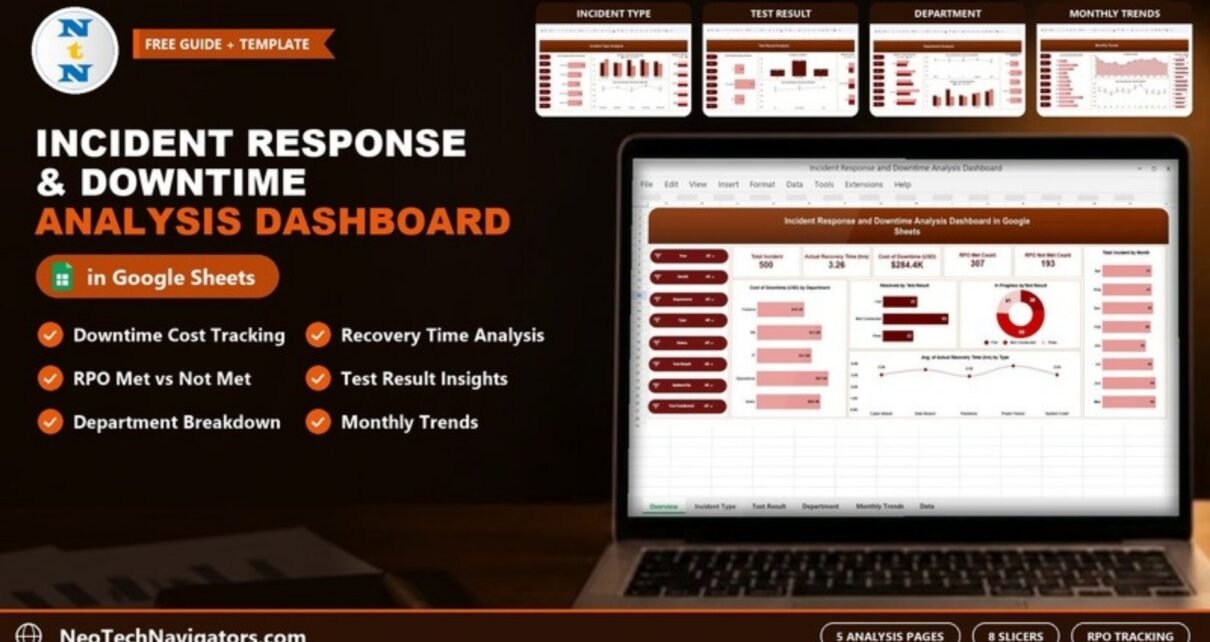
The Incident Response and Downtime Analysis Dashboard in Google Sheets turns an incident log into five interactive analysis pages. You can see how many incidents happened, how long recovery took, what the downtime cost, and how often the Recovery Point Objective (RPO) was met. Results break down by incident type, department, recovery test result and month.
It suits IT operations managers, business-continuity and disaster-recovery leads, security teams and operations heads who review incidents each month and need a shared view without a dedicated ITSM reporting module. Eight slicers on every page let you filter the view: Year, Month, Department, Type, Status, Test Result, Updated By and Test Conducted.
This guide walks through each page using the real sample figures, explains what the numbers tell you, and shows how to load your own incident records.
Get the Incident Response and Downtime Dashboard
What Problem Does This Dashboard Solve?
Most teams record incidents somewhere: a ticket queue, an email thread or a simple log. Far fewer can answer follow-up questions quickly:
- Which incident type costs us the most?
- Which department recovers slowest?
- Do incidents with a tested recovery plan really recover better?
An incident response and downtime analysis dashboard answers these by summarising every incident record in the same way: count, recovery time, cost, RPO outcome and status. It then lets you slice that summary any way you need.
Inside the Incident Response and Downtime Analysis Dashboard in Google Sheets: Page by Page
1. Overview
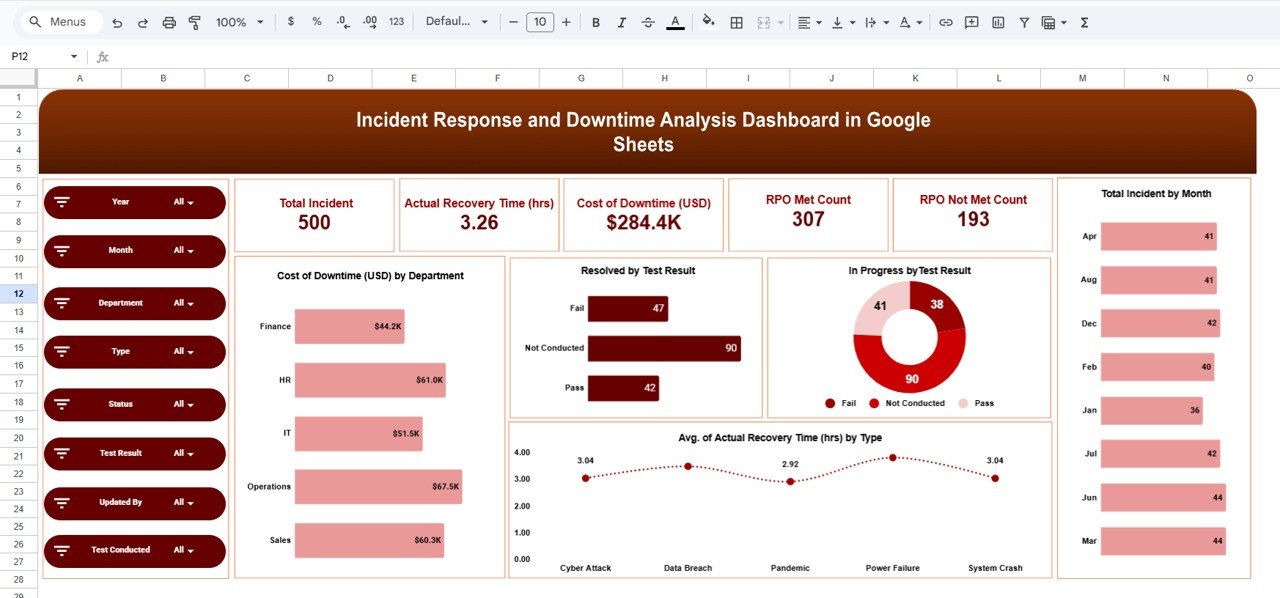
Five KPI cards sit across the top. In the sample data they read:
- Total Incident: 500
- Actual Recovery Time (hrs): 3.26
- Cost of Downtime (USD): $284.4K
- RPO Met Count: 307
- RPO Not Met Count: 193
Below the cards are five charts:
- Cost of Downtime (USD) by Department
- Resolved by Test Result
- In Progress by Test Result (a doughnut)
- Avg. of Actual Recovery Time (hrs) by Type
- Total Incident by Month
2. Incident Type Analysis
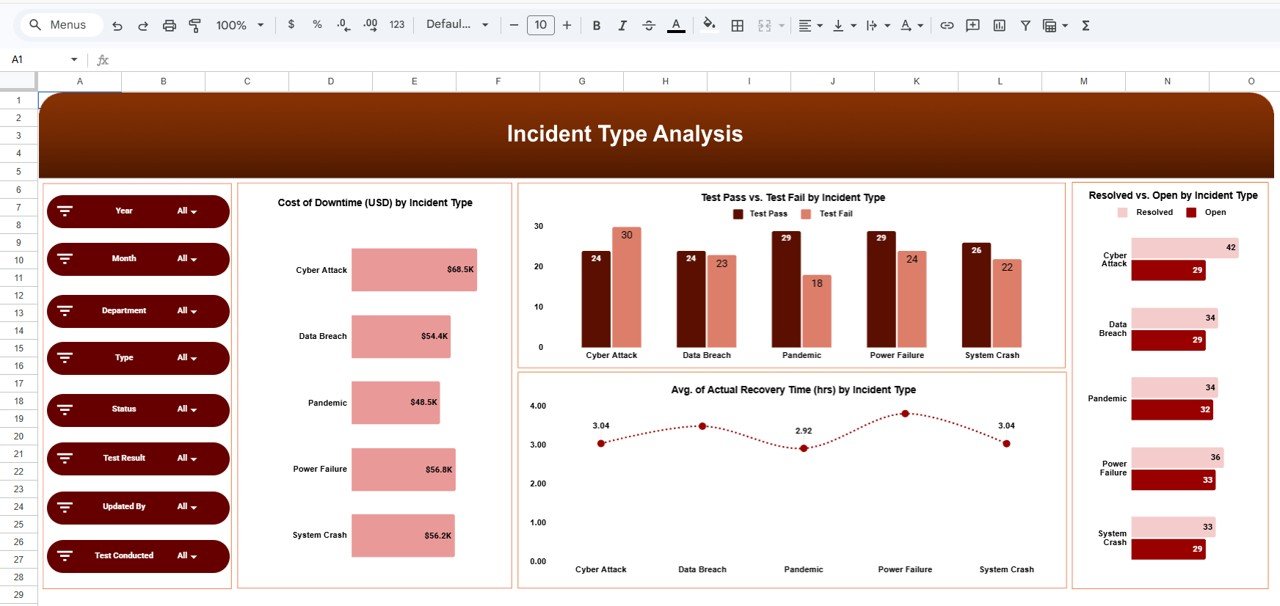
This page compares the five incident types in the sample: Cyber Attack, Data Breach, Pandemic, Power Failure and System Crash. Its four charts are:
- Cost of Downtime (USD) by Incident Type
- Test Pass vs. Test Fail by Incident Type
- Avg. of Actual Recovery Time (hrs) by Incident Type
- Resolved vs. Open by Incident Type
In the sample, Cyber Attack is the costliest type at $68.5K, and it is also the only type with more failed tests (30) than passed tests (24).
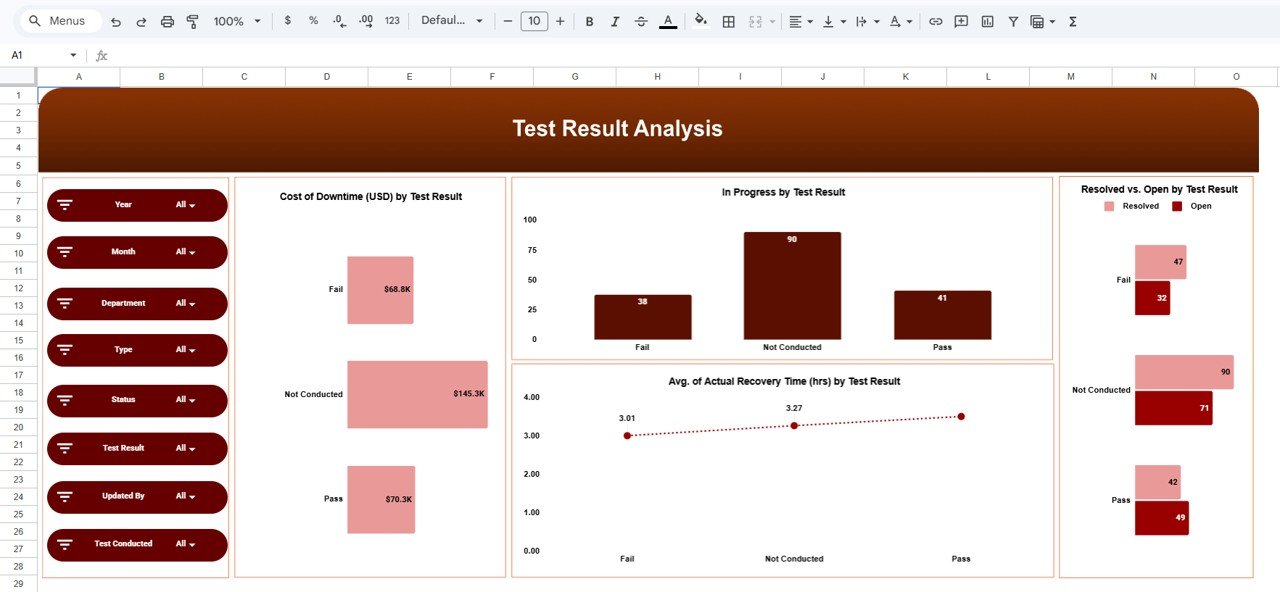
3. Test Result Analysis
This page groups incidents by recovery test outcome: Pass, Fail or Not Conducted. Its charts show:
- Cost of Downtime (USD) by Test Result
- In Progress by Test Result
- Avg. of Actual Recovery Time (hrs) by Test Result
- Resolved vs. Open by Test Result
The sample makes a strong case for testing. Incidents where no test was conducted account for $145.3K of the $284.4K total downtime cost, more than Fail ($68.8K) and Pass ($70.3K) combined.
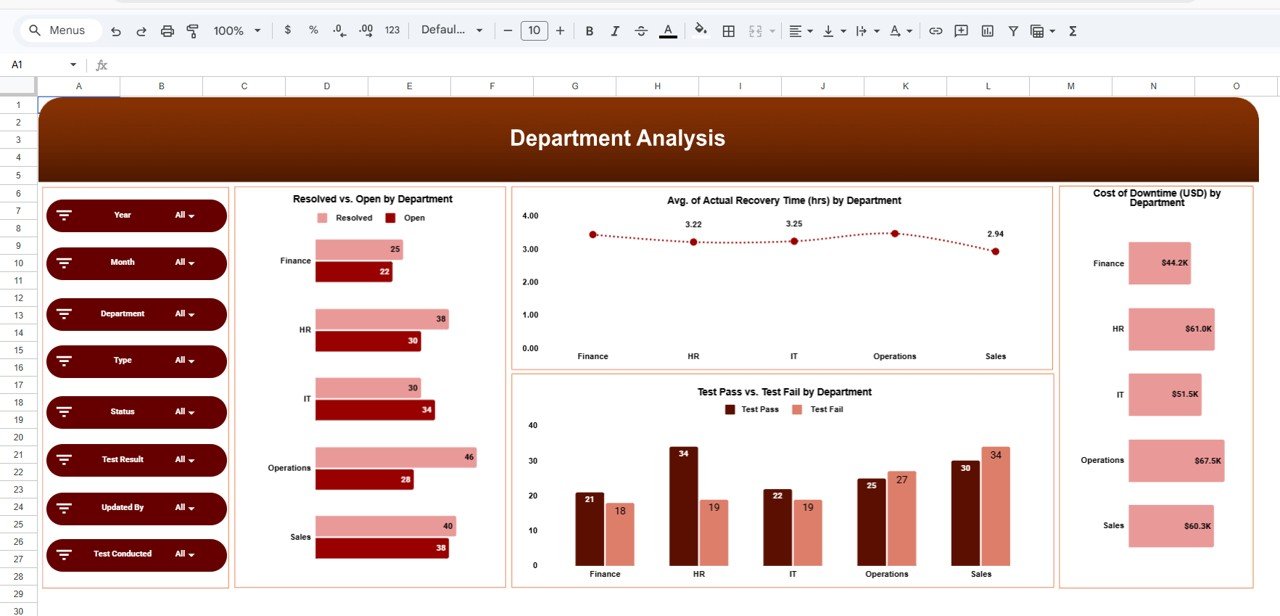
4. Department Analysis
This page compares Finance, HR, IT, Operations and Sales using four charts:
- Resolved vs. Open by Department
- Avg. of Actual Recovery Time (hrs) by Department
- Test Pass vs. Test Fail by Department
- Cost of Downtime (USD) by Department
In the sample, Operations has the highest downtime cost ($67.5K) and Finance the lowest ($44.2K). IT is the only department with more open incidents (34) than resolved ones (30).
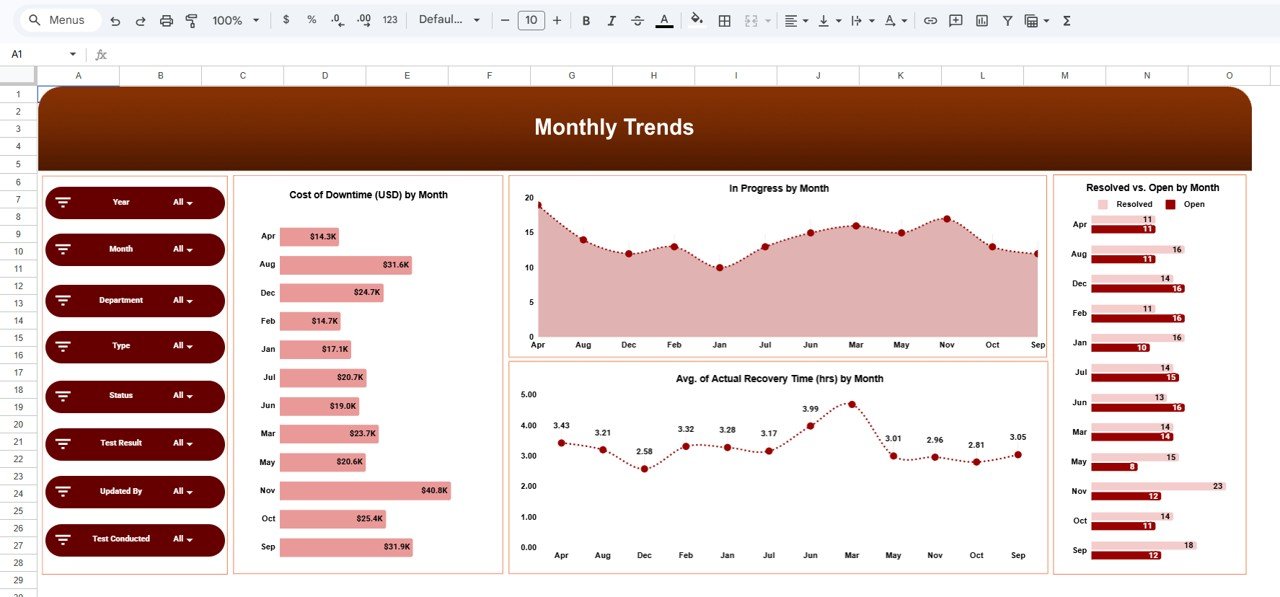
5. Monthly Trends
This page plots four views by month:
- Cost of Downtime (USD) by Month
- In Progress by Month
- Avg. of Actual Recovery Time (hrs) by Month
- Resolved vs. Open by Month
In the sample, November has the highest downtime cost ($40.8K), and average recovery time ranges from 2.58 hours (Dec) to about 4.7 hours (Mar).
Key Metrics at a Glance
| Metric | What it tells you | Sample value | Better when |
|---|---|---|---|
| Total Incident | Number of incident records in the current filter | 500 | Lower |
| Actual Recovery Time (hrs) | Average hours taken to recover | 3.26 | Lower |
| Cost of Downtime (USD) | Total cost of downtime across incidents | $284.4K | Lower |
| RPO Met Count | Incidents where data loss stayed within the RPO | 307 | Higher |
| RPO Not Met Count | Incidents where the RPO was missed | 193 | Lower |
A useful extra ratio is the RPO attainment rate. The dashboard doesn’t show it as a card, but you can calculate it from the two RPO counts:
RPO attainment = RPO Met Count / Total Incident
               = 307 / 500 = 61.4%
The status charts add up cleanly too. In the sample, 179 incidents are Resolved, 152 are Open and 169 are In Progress, for a total of 500.
How to Use It With Your Own Data
- Open the template in Google Sheets. After purchase, open the file in Google Sheets and work in your own copy saved to your Google Drive.
- Find the incident records behind the charts. The five dashboard pages summarise a table of sample incidents. Note the fields the slicers use (Year, Month, Department, Type, Status, Test Result, Updated By, Test Conducted) and the measures: recovery time, downtime cost and RPO met or not met.
- Map your incident log. Match your own columns to the template’s columns. Keep category names consistent, for example always “Power Failure” and never “power outage”.
- Replace the sample rows. Paste your records over the sample data without changing the column headers.
- Check the Overview. Confirm Total Incident equals your record count, then use the slicers to explore.
- Review monthly. Use Monthly Trends in the monthly service review and Test Result Analysis in DR planning meetings.
Real-World Use Cases
- Disaster-recovery programme review: A business-continuity lead uses Test Result Analysis to show leadership how much downtime cost comes from systems with no recovery test.
- Monthly IT service review: An IT manager filters by Department to see which teams have the biggest open backlog and slowest recovery.
- Security incident reporting: A security lead filters Type to Cyber Attack and Data Breach to report cost, recovery time and RPO outcomes for security incidents only.
Best Practices
- Record cost the same way every time. Decide what counts as downtime cost (lost revenue, staff time, SLA credits) and apply it to every incident.
- Close records promptly. Status drives the Resolved, Open and In Progress charts, so stale statuses make the backlog look worse than it is.
- Log test results honestly. “Not Conducted” is useful information, not something to hide.
- Use Updated By for accountability. Filter by it to see which records each owner maintains.
- Watch month ordering. In the sample, the month charts list months alphabetically (Apr, Aug, Dec, Feb…) rather than in calendar order, so read the labels carefully when you look for a trend.
Limitations: Who Should Not Use It
- It analyses incidents you have already logged. It is not a ticketing, paging or monitoring system.
- There is no automatic feed from ITSM tools, so records are pasted or entered manually.
- Very large incident histories (tens of thousands of rows) will slow a Google Sheets file. A BI tool suits that scale better.
Related Templates and Guides
For security-specific KPIs, see the Cyber Incident Response KPI Dashboard and the Cybersecurity Incident KPI Dashboard. General operations teams may prefer the Incident Management Dashboard. To track network health alongside incidents, use the Network Performance KPI Dashboard, and for service-level reporting see the IT SLA Compliance and Ticket Monitoring Dashboard.
If you want to build slicer-driven dashboards like this yourself, the Excel Pivot Tables & Dashboards course on NextGenTemplates Academy covers the techniques step by step.
Frequently Asked Questions
What does the Incident Response and Downtime Analysis Dashboard track?
It tracks total incidents, average actual recovery time in hours, cost of downtime in USD, and RPO met and not-met counts. It breaks these down by incident type, test result, department and month across five pages.
What is RPO and why does the dashboard count it?
RPO (Recovery Point Objective) is the maximum amount of data loss, measured in time, that a business accepts after an incident. Counting incidents where the RPO was met or missed shows whether your backup and recovery setup really protects data.
Which filters are available?
Every page has slicers for Year, Month, Department, Type, Status, Test Result, Updated By and Test Conducted.
Can I add my own incident types or departments?
Yes. Use your own values in the incident data, then check the charts and slicers after loading to confirm the new categories appear. Keep the spelling consistent so each category shows up only once.
Does it connect to ServiceNow, Jira or other ITSM tools?
No. It works from rows in Google Sheets. You can export incidents from your tool to CSV and paste them in.
Who is this dashboard best suited for?
IT operations, business-continuity, security and operations teams that log incidents and want a clear monthly view of cost, recovery time and RPO results without buying a separate reporting tool.
Wrapping Up
The Incident Response and Downtime Analysis Dashboard in Google Sheets helps you go beyond counting incidents to understanding them: which types cost most, which departments lag, and how much untested recovery plans really cost you. Load your incident log, start with the Overview, and bring the Test Result Analysis page to your next DR review.
Get the Incident Response and Downtime Analysis Dashboard
📅 Last updated: October 2026