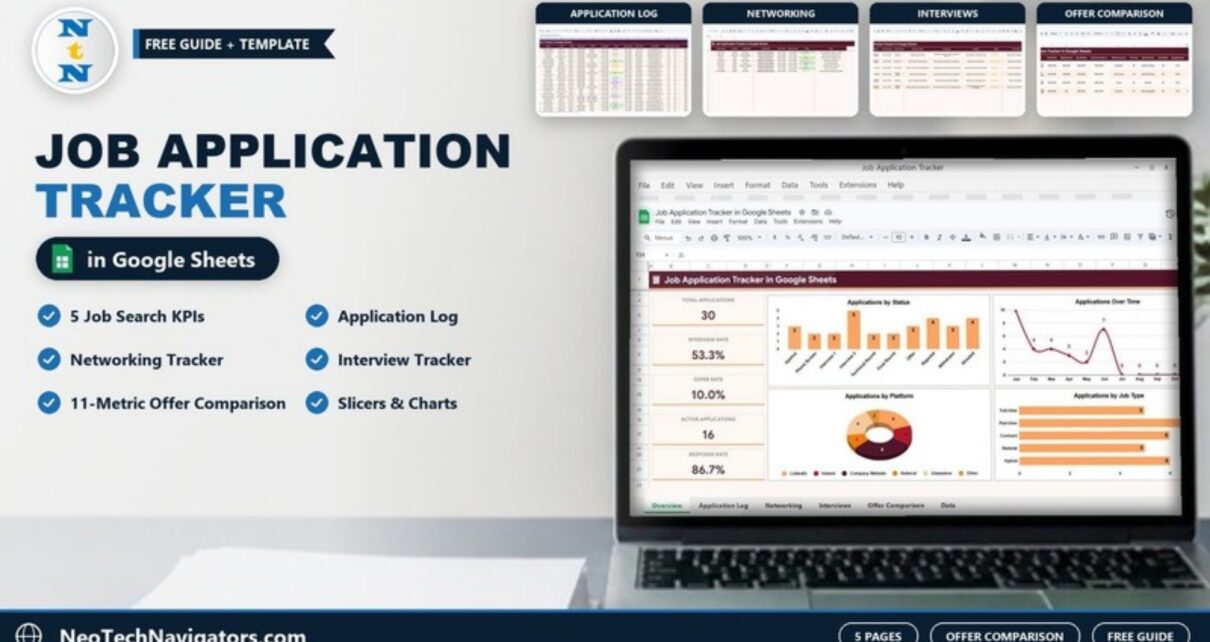
A Job Application Tracker in Google Sheets keeps your whole job search in one place: every application, every recruiter contact, every interview and every offer. When you are sending ten or twenty applications a week, it is easy to forget where you applied, miss a follow-up date or accept an offer without comparing it properly. A structured tracker fixes that.
This guide walks through a ready-made tracker with five pages: an Overview dashboard with five KPI cards and four charts, an Application Log, a Networking Tracker, an Interview Tracker and an Offer Comparison sheet. It is useful for fresh graduates, mid-career professionals and career changers alike, and you will also find how to set it up, how to read the KPIs, and when a simpler list is enough.
Get the Job Application Tracker in Google Sheets
Why Track Job Applications in Google Sheets?
A job search is a pipeline, just like a sales funnel. Applications go in, a percentage get responses, some become interviews and a few become offers. Tracking it in Google Sheets gives you three practical benefits:
- Nothing slips: follow-up dates, contact details and notes sit next to each application.
- You learn what works: charts by platform and job type show which channels you are using most and where your applications end up.
- It is easy to share: a mentor or career coach can view the same file from any device.
The Five KPIs That Measure Your Job Search
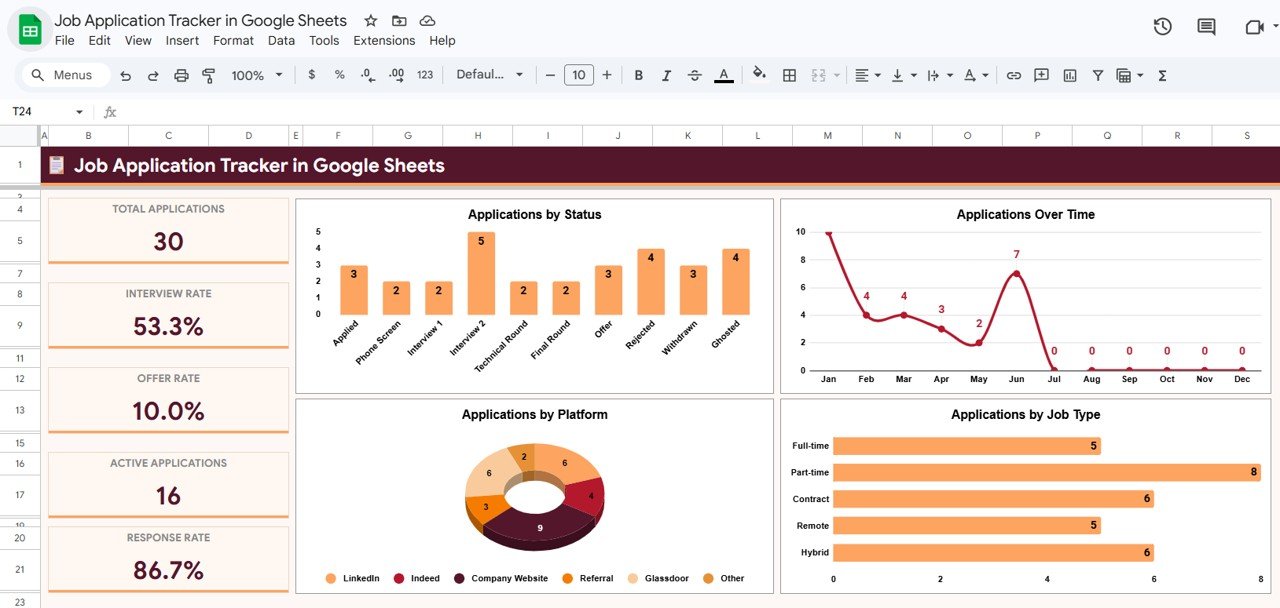
The Overview page shows five KPI cards. The sample file has 30 applications, and the numbers below are taken from it, so you can see how each card adds up.
| KPI | What it measures | How the sample number adds up | Better when |
|---|---|---|---|
| Total Applications | Number of jobs you have applied for | Count of rows in the Application Log (30) | Steady and consistent, not just high |
| Interview Rate | Share of applications that moved past the Applied stage into the interview process | Applications at Phone Screen, Interview 1, Interview 2, Technical Round, Final Round or Offer ÷ Total Applications (16 ÷ 30 = 53.3%) | Higher |
| Offer Rate | Share of all applications that turned into an offer | Applications with Status Offer ÷ Total Applications (3 ÷ 30 = 10.0%) | Higher |
| Active Applications | Positions still in progress | Applications at Applied, Phone Screen, Interview 1, Interview 2, Technical Round or Final Round, i.e. not yet at Offer, Rejected, Withdrawn or Ghosted (16) | Healthy pipeline, enough to keep options open |
| Response Rate | Share of applications where the company did not go silent | Applications not marked Ghosted ÷ Total Applications (26 ÷ 30 = 86.7%) | Higher |
A low response rate usually points to your CV or targeting. A good interview rate but a low offer rate points to interview preparation, which is exactly what the Interview Tracker page helps with.
The Five Pages of the Tracker
1. Overview Dashboard
The Overview page is the summary of your search. Next to the five KPI cards are four charts:
- Applications by Status – Applied, Phone Screen, Interview 1, Interview 2, Technical Round, Final Round, Offer, Rejected, Withdrawn and Ghosted.
- Applications Over Time – applications per month from Jan to Dec, so you can see whether momentum is dropping.
- Applications by Platform – LinkedIn, Indeed, Company Website, Referral, Glassdoor and Other.
- Applications by Job Type – Full-time, Part-time, Contract, Remote and Hybrid.
The Overview also includes slicers, so you can filter the dashboard and focus on one slice of your search.
2. Application Log
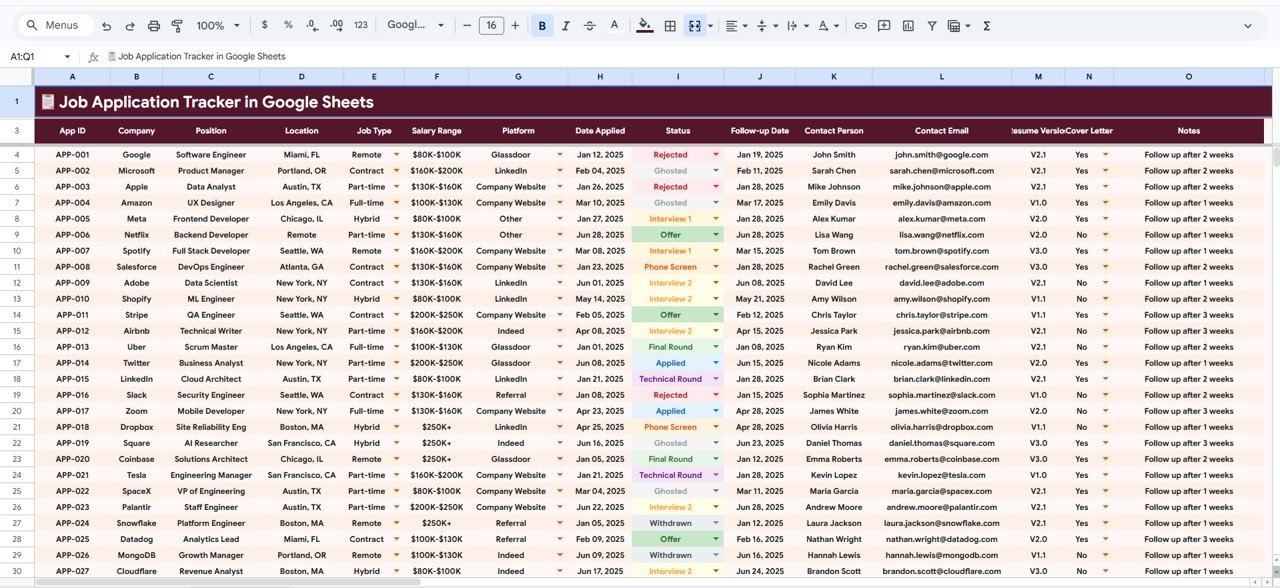
The Application Log is where every application is recorded, one row each. Its columns are App ID (APP-001, APP-002 and so on), Company, Position, Location, Job Type, Salary Range, Platform, Date Applied, Status, Follow-up Date, Contact Person, Contact Email, Resume Version, Cover Letter and Notes. Job Type, Platform, Status and Cover Letter are dropdowns, and the Status cells are colour-coded. The Follow-up Date column is the one to check daily, because it shows which follow-ups are due.
3. Networking Tracker
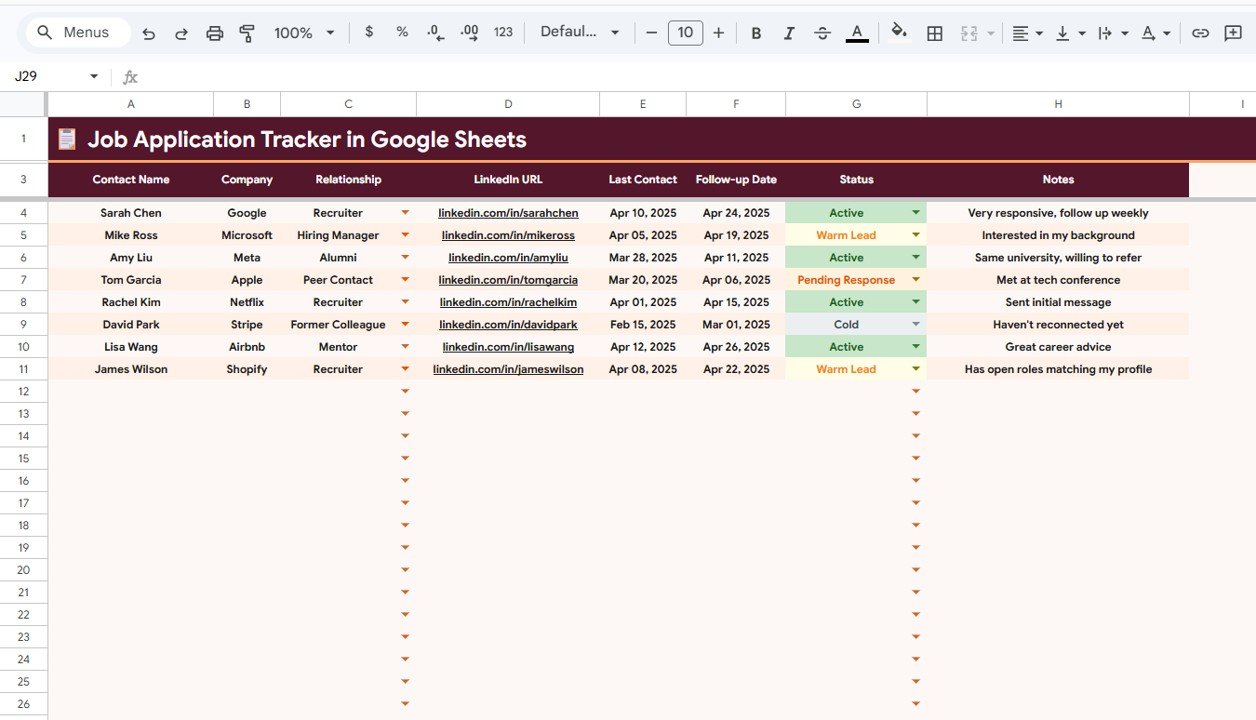
Many roles are filled through referrals, so the Networking Tracker treats contacts as seriously as applications. Its columns are Contact Name, Company, Relationship (for example Recruiter, Hiring Manager, Alumni, Peer Contact, Former Colleague or Mentor), LinkedIn URL, Last Contact, Follow-up Date, Status (Active, Warm Lead, Pending Response or Cold) and Notes. Use the follow-up date to plan regular, polite check-ins rather than reaching out only when you need something.
4. Interview Tracker
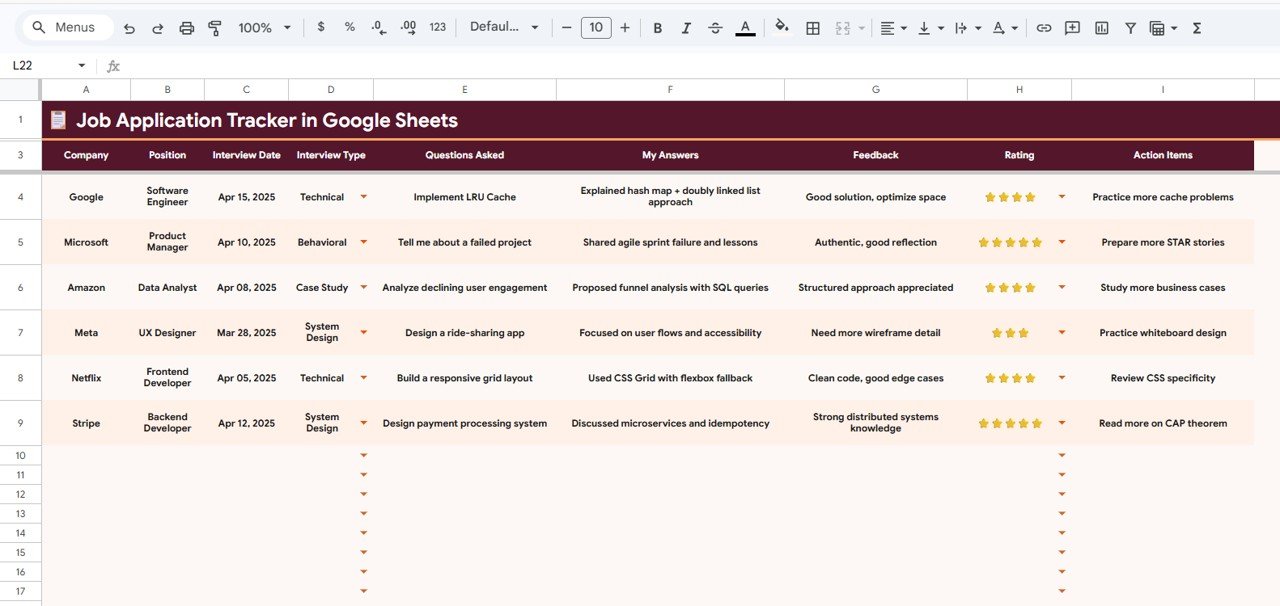
The Interview Tracker turns every interview into preparation for the next one. It records Company, Position, Interview Date, Interview Type (Technical, Behavioral, Case Study or System Design in the sample), Questions Asked, My Answers, Feedback, a star Rating and Action Items. After a few interviews you will have a personal bank of real questions and your best answers.
5. Offer Comparison
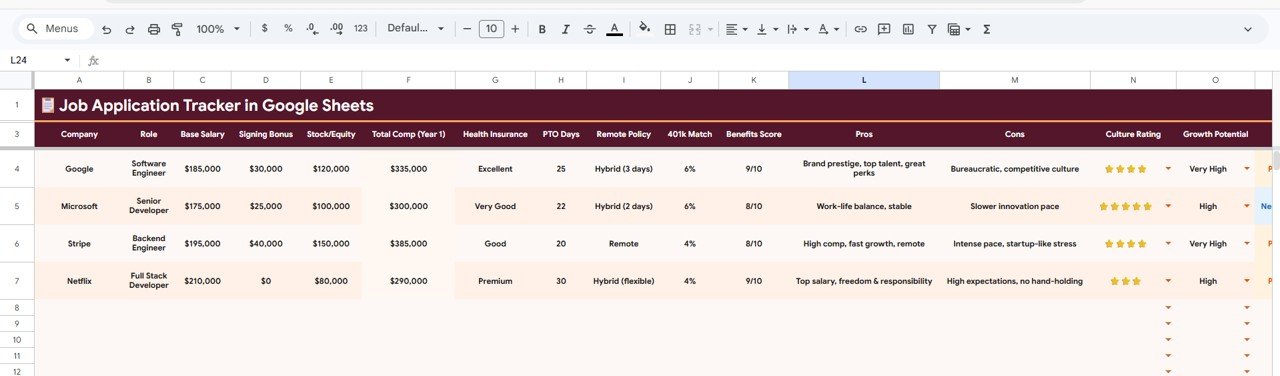
When offers arrive, the Offer Comparison sheet lines them up by company and role across 11 metrics: Base Salary, Signing Bonus, Stock/Equity, Total Comp (Year 1), Health Insurance, PTO Days, Remote Policy, 401k Match, Benefits Score, Culture Rating and Growth Potential, with free-text Pros and Cons columns alongside. In the sample, Total Comp (Year 1) is base salary plus signing bonus plus stock (for example $185,000 + $30,000 + $120,000 = $335,000). Seeing offers side by side helps you judge the whole package, not just the headline salary.
How to Set Up the Tracker with Your Own Data
- After purchase, open the PDF guide and use the link to make an editable copy in your Google Drive.
- Clear the sample rows in the Application Log, Networking Tracker, Interview Tracker and Offer Comparison sheets.
- Use the Status dropdown values (Applied, Phone Screen, Interview 1, Interview 2, Technical Round, Final Round, Offer, Rejected, Withdrawn, Ghosted) so the charts and KPI cards count correctly.
- Log each new application the day you send it, including platform, job type, salary range and a follow-up date.
- After each interview, add the questions, your answers, feedback and a rating within 24 hours while details are fresh.
- Check the Overview dashboard once a week and adjust where you apply based on the status, platform and job type charts.
Three Real-World Ways to Use It
- Graduate job hunt: a final-year student applies through several job boards and referrals, then compares the Platform column with the Status column to see that referrals reach interview stages more often, and shifts effort accordingly.
- Career change: a professional moving from operations into data analysis uses the Interview Tracker to collect technical and case-study questions and spot gaps in their answers.
- Senior role with multiple offers: a candidate with two offers uses the Offer Comparison sheet and realises the lower base salary comes with better equity, PTO and growth.
Best Practices
- Update daily. Five minutes at the end of the day keeps the dashboard accurate.
- Review weekly. Look at the trend of applications over time and your interview rate, not just the total count.
- Network proactively. Use the Networking Tracker before roles are advertised, not only after.
- Debrief after every interview. Recorded questions and feedback are the most valuable data in the file.
- Compare offers holistically. Use all 11 metrics and the pros and cons before you accept.
- Share carefully. Give a mentor view access; avoid public links because the file contains salary details.
Limitations and Who Should Not Use It
This tracker is designed for individual job seekers. It does not send email reminders, connect to job boards or sync with Google Calendar, so follow-up dates rely on you checking the sheet. Recruiters managing many candidates need an applicant tracking system instead, such as our Recruitment Applicant Tracking System web app or the Recruitment Pipeline Dashboard in Google Sheets. If you apply for only a handful of roles, a simple list may be enough.
Template vs. Simple Spreadsheet vs. Job Search Apps
| Option | Strengths | Weaknesses |
|---|---|---|
| Blank spreadsheet list | Free, quick to start | No KPIs, charts or interview and offer structure |
| Job Application Tracker in Google Sheets | Five structured pages, KPI cards, charts, offer comparison, you own the data | Manual data entry, no automatic reminders |
| Job search apps and browser extensions | Can save postings automatically | Data sits on another platform; limited analysis and offer comparison |
Related Templates and Guides
Pair the tracker with the Skill Development Checklist in Google Sheets to plan the skills your target roles ask for, and keep your daily search routine organised with the Daily Habits Tracker Checklist. On NextGenTemplates you can also find a Career Planning Checklist in Excel and a Job Application Form Template for Word and Google Docs.
Many of the roles you apply for will list spreadsheet skills. If you want to strengthen them in a structured way while you search, the learning paths on NextGenTemplates Academy take you from basics to dashboards step by step.
Frequently Asked Questions
What is the best way to track job applications in Google Sheets?
Use one row per application with company, position, platform, date applied, status and a follow-up date, then summarise it with counts and rates. The Job Application Tracker adds separate pages for networking, interviews and offers, plus an Overview dashboard that does the summarising for you.
What is a good interview rate for job applications?
It varies widely by industry, seniority and how targeted your applications are. Rather than chasing a benchmark, track your own rate over time. If it improves after you tailor your CV, the change worked.
Can I use the tracker to prepare for interviews?
Yes. The Interview Tracker records the interview type, questions asked, your answers, feedback, a rating and action items for each company, which becomes a personal question bank for future interviews.
How does the Offer Comparison sheet work?
It places offers side by side across 11 metrics: base salary, signing bonus, stock/equity, total compensation for year one, health insurance, PTO days, remote policy, 401k match, benefits score, culture rating and growth potential, plus pros and cons for each offer.
Do I need technical skills to use it?
No. It runs in Google Sheets with no macros or add-ons. You copy the file, replace the sample rows with your own and the charts and KPI cards update.
Can I share the tracker with a career coach?
Yes. Use Google Drive sharing to give your coach view or comment access so they can see your progress and interview notes.
Wrapping Up
A job search goes better when you can see it. The Job Application Tracker in Google Sheets gives you a clear pipeline, five KPIs that show where you are losing momentum, an interview log that makes each conversation better than the last, and a fair way to compare offers. Make your copy, log this week’s applications, and review the Overview page every Friday.
Get the Job Application Tracker in Google Sheets
📅 Last updated: October 2026