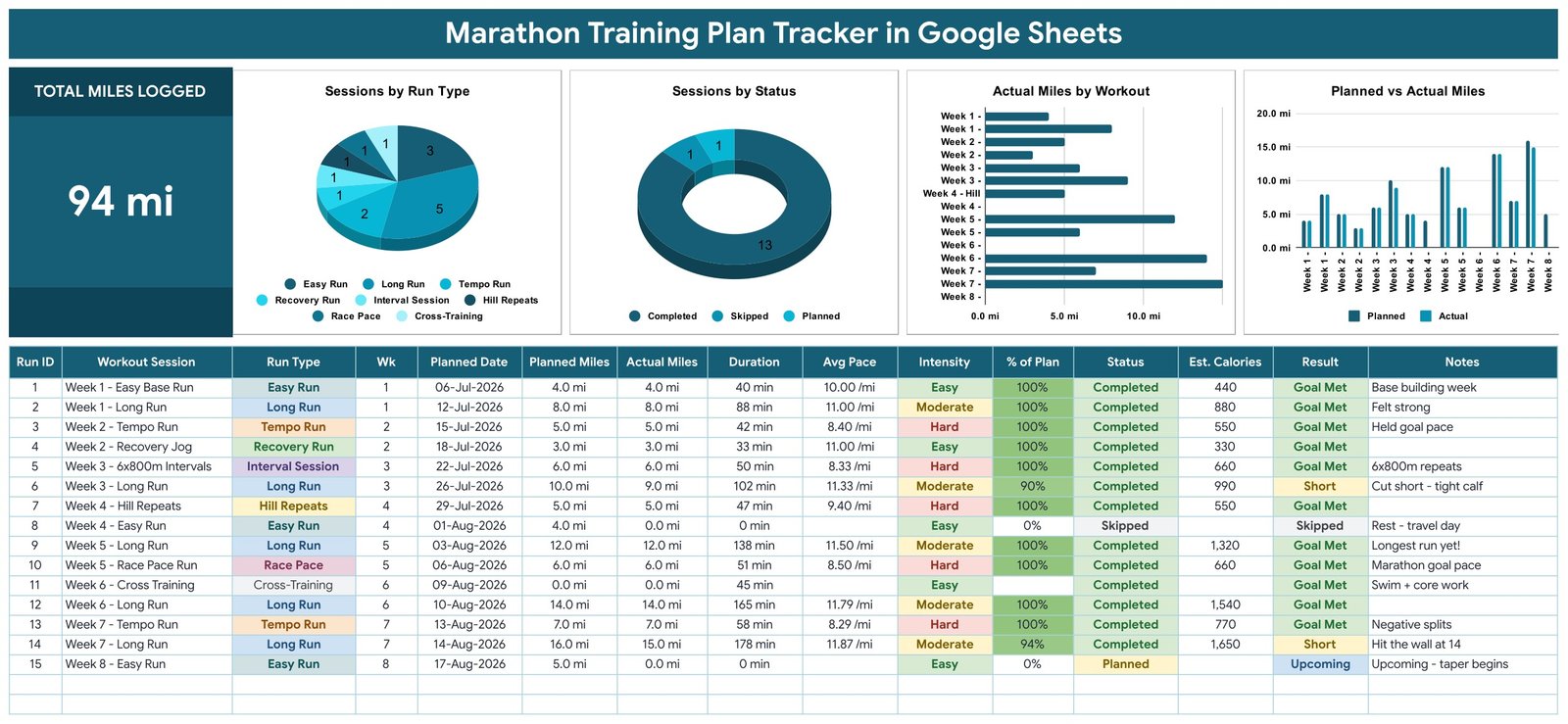
The Marathon Training Plan Tracker in Google Sheets records 15 fields for every training session, calculates 5 of those 15 automatically, and feeds 1 headline card and 4 charts from a single table on one page. It ships with 15 sample sessions spread across 8 training weeks, and every one of them is demo data you delete before you start. Setup takes under 10 minutes.
Marathon build-ups generate a lot of small facts – what you were meant to run, what you actually ran, how long it took, how it felt – and most of them evaporate if nobody writes them down. Watch apps store the GPS trace but rarely answer “which weeks did I hit in full?” in one glance. This Google Sheets marathon training log is the plain, editable place to keep those facts, in a spreadsheet you own outright.
A note before we go further: this is a logging and charting template. It records what you type. It is not medical or coaching advice, it does not prescribe a training plan, and it makes no claim about injury risk, race times or performance outcomes.
Get the Marathon Training Plan Tracker in Google Sheets
Key Features of the Marathon Training Plan Tracker
- Fifteen columns per session – Run ID, Workout Session, Run Type, Wk, Planned Date, Planned Miles, Actual Miles, Duration, Avg Pace, Intensity, % of Plan, Status, Est. Calories, Result and Notes.
- Eight fields you type, five that calculate – you enter the session, run type, week, date, planned and actual miles, duration, intensity and status. Run ID, Avg Pace, % of Plan, Est. Calories and Result look after themselves.
- A Result column that reads itself – Goal Met, Short, Missed, Skipped or Upcoming, derived from your Status and your mileage rather than typed by hand.
- Eight run types built in – Easy Run, Long Run, Tempo Run, Recovery Run, Interval Session, Hill Repeats, Race Pace and Cross-Training, each with its own colour.
- Auto-expanding dropdowns – Run Type, Intensity and Status read the List tab across rows 2 to 500, so a value added there shows up in the dropdown with no re-setup.
- Charts wired straight to the columns – all four read rows 16 to 1000 using the built-in Aggregate option, with no hidden helper tables anywhere in the file.
- Miles or kilometres – edit the header labels and the number formats and Avg Pace switches to min/km.
Template Structure – Every Sheet Explained
The file is one working page plus two support tabs. Everything you touch day to day lives on the first sheet.
Page 1: Tracker Dashboard and Session Log
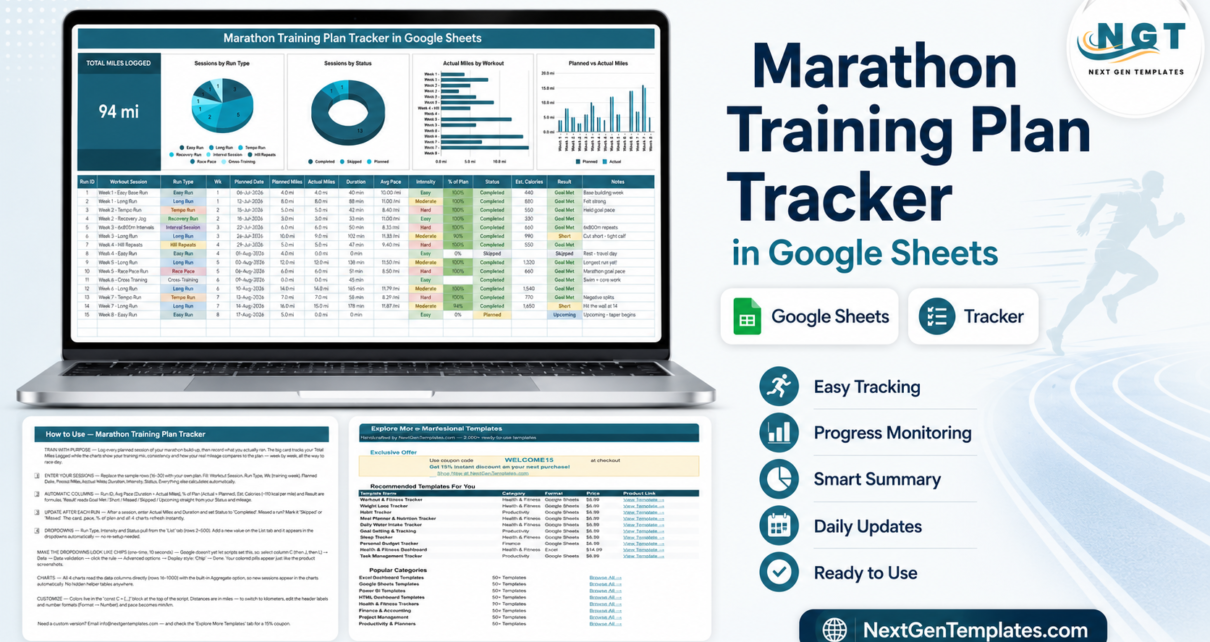
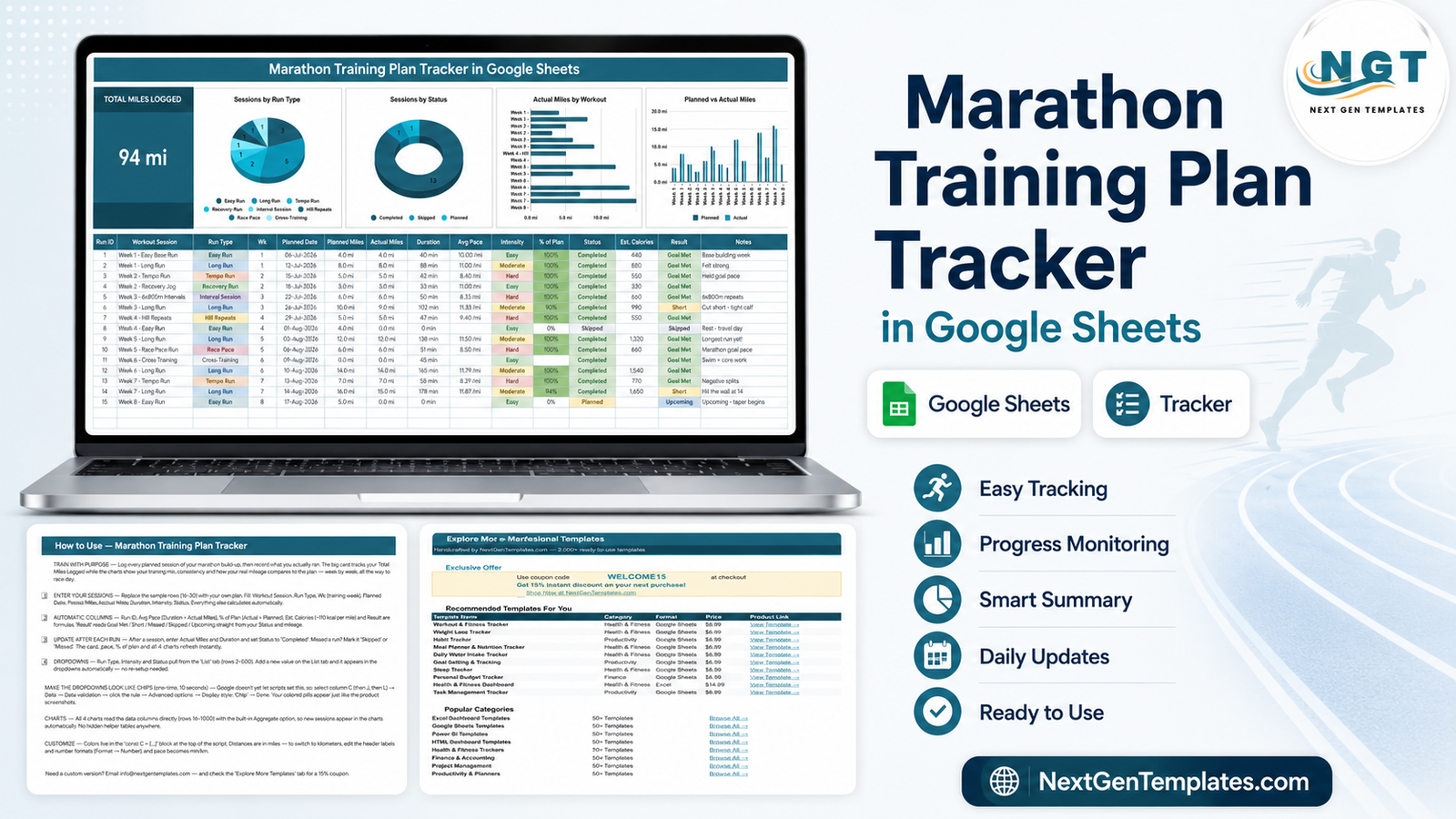
The Total Miles Logged card sits top-left – 94 mi in the sample data – and sums the Actual Miles column. Four charts run along the top beside it: Sessions by Run Type, Sessions by Status, Actual Miles by Workout and Planned vs Actual Miles. Below them, the 15-column session table holds the log itself, with coloured chips marking Run Type, Intensity, Status and Result so a week’s shape is readable at a glance.
Page 2: How to Use
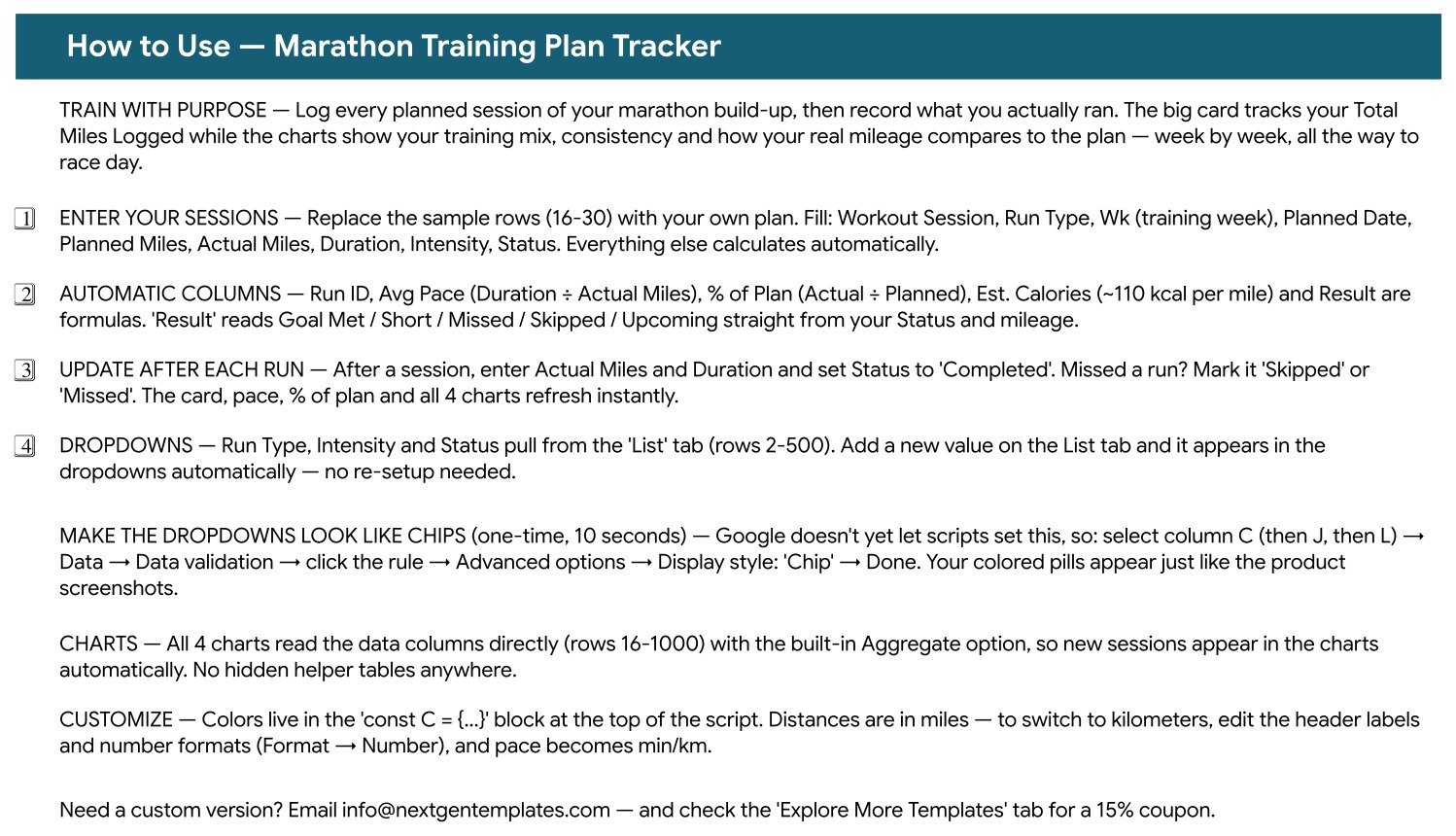
A built-in instructions sheet, so the guidance travels with the file. It covers the four setup steps, which columns are formulas and what each one calculates, how the List tab dropdowns expand on their own, the 10-second Data validation trick that turns the dropdowns into coloured chips, and where the colour palette lives in the script if you want to restyle the whole tracker.
Page 3: Explore More Templates
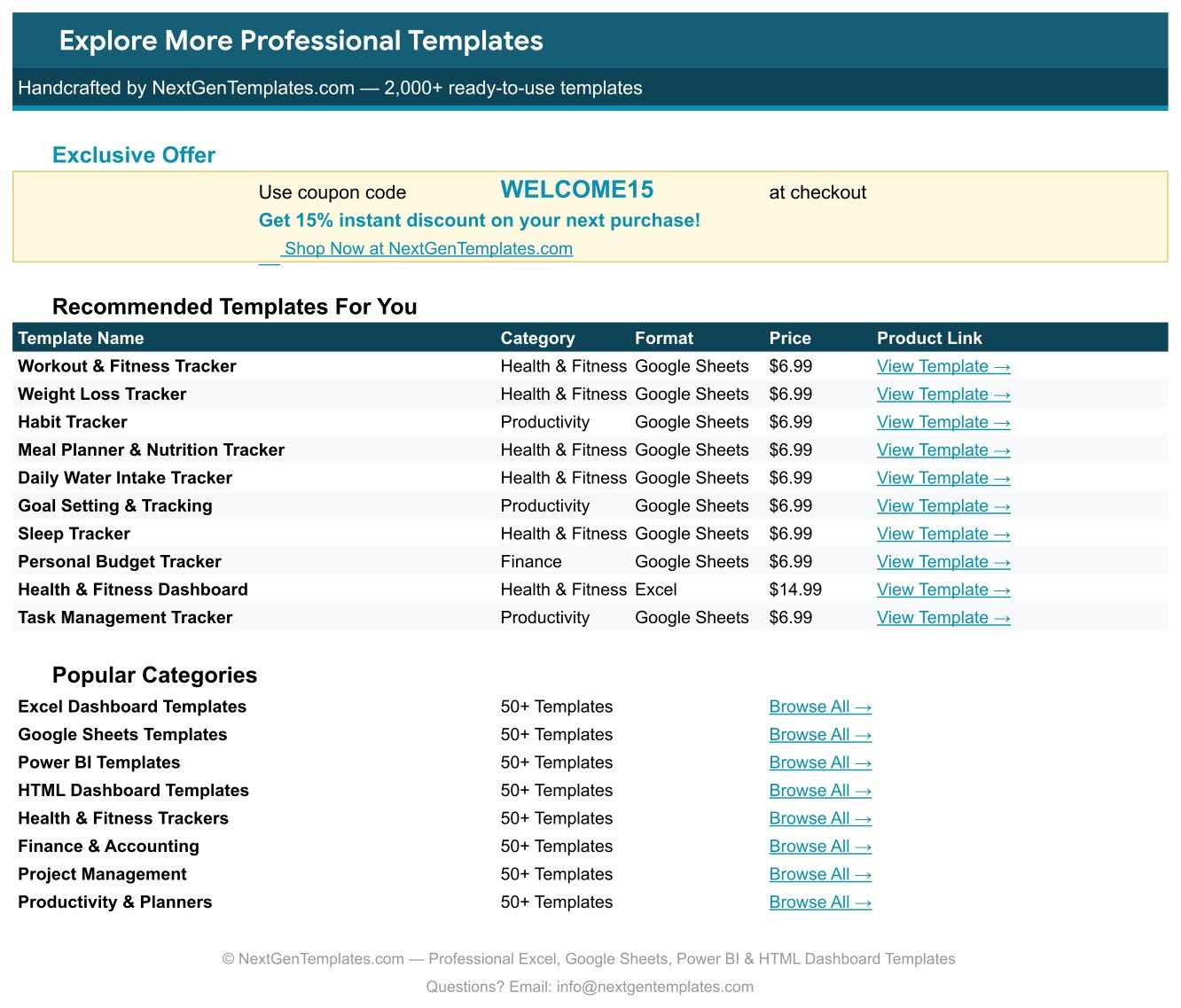
A directory tab carrying a WELCOME15 coupon code for 15% off your next purchase, ten recommended templates with category, format, price and a link each, and eight category shortcuts into the wider NextGenTemplates catalogue.
The List tab
Not a screenshot-worthy page, but the one that makes the dropdowns work. Run Type, Intensity and Status each read a column here across rows 2 to 500. Google’s own data validation documentation explains the underlying rule if you want to extend it to other columns.
Marathon Training Plan Tracker vs. an Excel Training Log vs. Strava Premium / TrainingPeaks – Feature Comparison
| Feature | Marathon Training Plan Tracker in Google Sheets | Excel training log | Strava Premium / TrainingPeaks |
|---|---|---|---|
| Cost | $6.99 one-time ✔ | $0-15 one-time, or an Office licence | $12-20 / user / month |
| Platform | Google Sheets, browser or mobile app ✔ | Desktop Excel, file-based | Vendor app and website |
| Setup time | Under 10 minutes ✔ | Hours if you build the charts yourself | Minutes, but an account is required |
| Real-time collaboration | Native Google Sheets sharing ✔ | Only via OneDrive co-authoring | Follower feeds, not shared editing |
| Mobile access | Google Sheets mobile app ✔ | Excel mobile, limited chart editing | ✔ Native mobile app |
| Customisable fields | Every column and dropdown is yours ✔ | ✔ Fully editable | Fixed schema |
| Share with a link | Yes, one link ✔ | File attachment or cloud link | Profile link only |
| You own the raw data | It is your spreadsheet ✔ | ✔ Yes | Export required |
| Year-1 cost at 5 users | $6.99 total ✔ | $0-75 plus licences | $720-1,200 |
For runners who want their own training log in a spreadsheet they control, without a monthly subscription, the Marathon Training Plan Tracker sits in the sweet spot.
Who Should Use This Template
Perfect for:
- Runners in a marathon build-up who want every session written down in one place
- Anyone already following a plan from a coach, club or book and needing somewhere to record what actually happened
- Spreadsheet-comfortable runners who would rather keep raw data in Google Sheets than inside a vendor’s app
- Club members and pace groups who want to share one log with a single link
- Buyers who prefer a one-time purchase over a monthly subscription
Not a fit if:
- You want a training plan or coaching advice – this file records data, it does not tell you what to run
- You expect automatic sync from Garmin, Strava or a GPS watch – every row here is typed in by hand
- You need GPS routes, heart-rate zones, elevation profiles or power data
- You are looking for medical, injury or nutrition guidance – that is a conversation for a qualified professional
- You need a multi-user database with accounts and permissions rather than a spreadsheet
Real-World Use Cases
Maya is 14 weeks out from her first marathon. Her plan came from a book, so on a Sunday evening she types the coming week’s sessions into the tracker, then fills in Actual Miles and Duration after each run. The Planned vs Actual Miles chart shows her which weeks she logged in full and which she cut short, and the Notes column carries the human detail – “Felt strong”, “Cut short – tight calf”, “Hit the wall at 14”.
Dev coaches a six-person club pace group. He keeps one copy of the tracker per runner in a shared Drive folder and glances at the Sessions by Status donut before each group session, so he already knows who logged what before the conversation starts.
Rina is on her fourth marathon and cares about the mix. The Sessions by Run Type pie tells her how her logged sessions split across Easy Run, Long Run, Tempo Run, Recovery Run, Interval Session, Hill Repeats, Race Pace and Cross-Training – a breakdown her watch app never puts in front of her directly.
Advantages of the Marathon Training Plan Tracker
The clearest advantage is cost shape. A $6.99 one-time purchase against $12-20 a month means the tracker has paid for itself before your first long run, and it keeps working after the race when a lapsed subscription would have locked you out of your own history.
The second is that five of the fifteen columns do their own arithmetic. Avg Pace, % of Plan, Est. Calories, Run ID and Result are formulas, so the per-session typing stays down to eight fields – low enough that you will still do it in week 12 when motivation is thinner than it was in week 2.
The third is ownership. It is an ordinary Google Sheet: no add-ons, no connected accounts, no API permissions. You can add columns, change the dropdowns, restyle the colours, export it, or hand a copy to someone else. If you already use the Running Log & Mileage Tracker in Google Sheets, the two sit side by side comfortably – one for the marathon block, one for everyday mileage.
Opportunities for Improvement
Honesty first: every entry is manual. There is no Garmin, Strava or Apple Health sync, and if you want that, this is the wrong template. Adding a run takes maybe twenty seconds, but it is twenty seconds you have to spend.
The charts read rows 16 to 1000, which is roughly two years of daily running – generous for one marathon block, but worth knowing if you keep a single sheet for a decade. The Est. Calories column uses a flat estimate of about 110 kcal per mile; it is a rough scale indicator, not a physiological measurement, and nothing in the file claims otherwise.
The dropdown chips also need one manual step. Google Sheets does not yet let a script set the chip display style, so the colour pills you see in the screenshots take a 10-second trip through Data, then Data validation, then Advanced options. The How to Use page walks through it.
Best Practices
- Enter the plan first, results later. Fill the Planned Date and Planned Miles for a whole week up front, leaving Actual Miles blank. Status stays Planned until the run happens, which keeps the Planned vs Actual chart honest.
- Use Status faithfully. Completed, Skipped, Missed and Planned drive both the donut and the Result column. A skipped run marked Completed quietly corrupts everything downstream.
- Write in the Notes column. “Cut short – tight calf” is the field you will actually reread months later; no chart can reconstruct it.
- Extend the List tab rather than the validation rules. A new run type belongs on the List tab, where it flows into the dropdown by itself.
- Keep one sheet per training block. Duplicating the file for each marathon keeps the charts readable and makes past build-ups easy to compare.
Explore Relevant Templates
The closest neighbour is the Running Log & Mileage Tracker in Google Sheets, built for everyday runs and cumulative mileage without the planned-versus-actual structure. For the hours around your training, the Sleep Tracker in Google Sheets and the Daily Steps Tracker in Google Sheets use the same one-page pattern. Cyclists cross-training through a marathon block often add the Cycling Training Log Tracker in Google Sheets, and the 30-Day Fitness Challenge Tracker in Google Sheets suits shorter blocks.
If you want a broader, multi-page view rather than a single log, the Fitness and Wellness Dashboard in Google Sheets and the Sports and Recreation Dashboard in Google Sheets are the natural step up. The full Google Sheets Trackers range is worth a browse too.
Want to build skills like this step by step? The NextGenTemplates Academy learning paths walk through tracker building with practice files.
Get the Marathon Training Plan Tracker in Google Sheets
Frequently Asked Questions
What does the Marathon Training Plan Tracker actually track?
The Marathon Training Plan Tracker records 15 fields per session: Run ID, Workout Session, Run Type, Wk, Planned Date, Planned Miles, Actual Miles, Duration, Avg Pace, Intensity, % of Plan, Status, Est. Calories, Result and Notes. One card totals your logged miles and four charts summarise the table.
Does this template give me a marathon training plan?
No. The Marathon Training Plan Tracker is a logging and charting template, not medical or coaching advice. The 15 rows it ships with are sample data you delete. Bring your own plan from a coach, club or book, and use this file to record what you actually ran.
How long does setup take?
Under 10 minutes. Open the PDF in your download, click the Make a copy link, delete sample rows 16 to 30, and start typing. Formulas, dropdowns and all four charts are already wired up, so no configuration is needed before your first entry.
Does it sync with Garmin, Strava or my watch?
No. The Marathon Training Plan Tracker is a manual log – you type each session yourself. That keeps it an ordinary Google Sheet you fully own and edit, with no connected accounts, add-ons or API permissions attached to it.
Can I use kilometres instead of miles?
Yes. The Marathon Training Plan Tracker ships in miles, but you can switch by editing the header labels and the number formats under Format then Number. Avg Pace then reads as min/km and every calculation carries across unchanged.
How does this compare to Strava Premium or TrainingPeaks?
Those are subscription apps at roughly $12-20 per month, with GPS sync and a fixed data model. The Marathon Training Plan Tracker is a $6.99 one-time spreadsheet you own and share with a link. It has no GPS sync, but its columns and dropdowns are entirely yours to change.
Will new sessions appear in the charts automatically?
Yes. All four charts in the Marathon Training Plan Tracker read the data columns directly across rows 16 to 1000 with the built-in Aggregate option, so a session typed into a new row appears immediately. There are no hidden helper tables to maintain or extend.
About the Author
Built by PK – Microsoft Certified Professional with 15+ years of Excel, Google Sheets and Power BI experience. Founder of NextGenTemplates, reaching 300K+ subscribers across YouTube channels. Every template is hand-built and tested before release.
Conclusion
A marathon build-up is 12 to 20 weeks of small decisions, and the log is what turns them into something you can look back at. The Marathon Training Plan Tracker in Google Sheets keeps 15 fields per session, does the arithmetic on five of them, and shows the shape of your training in one card and four charts – without a subscription and without handing your data to an app.
Once more, plainly: this is a logging template, not medical or coaching advice.
✅ Instant download · One-time payment · No subscription · Lifetime access
Last updated: August 2026