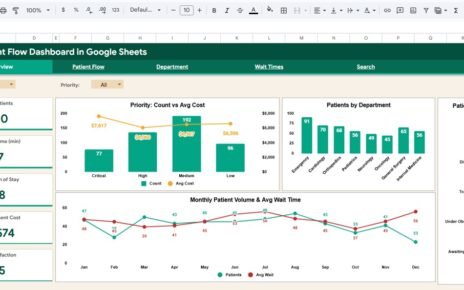
The Medical Practice Dashboard in Google Sheets turns a simple visit log into a clear picture of how a clinic is doing: revenue by department and doctor, visit mix, payment status, insurance income and patient demographics. Everything is driven by one Data sheet, so you enter visits once and the dashboard pages update for you.
It is designed for private practice owners, clinic administrators, practice managers and healthcare consultants who want practical reporting without buying practice management software just for analytics. This guide walks through the Overview, Appointments, Revenue and Patients pages, the Visit ID search, and the data columns, using the real sample figures shown in the template.
🎥 Watch the Video Tutorial
Get the Medical Practice Dashboard
What Problem Does a Medical Practice Dashboard Solve?
Many small clinics already record every visit somewhere: a front-desk register, a billing export or a basic spreadsheet. What they lack is a quick way to answer management questions. Which department brings in the most revenue? How much of last month’s billing is actually paid? Is one doctor carrying far more visits than the others? Which insurance providers matter most?
This template answers those questions from a single visit-level data sheet. It is an analytics and reporting tool, not an electronic health record, and it works best alongside whatever system you use for scheduling and clinical notes.
Template Structure at a Glance
| Tab | Metric cards | Charts | Slicers |
|---|---|---|---|
| Overview | Total Revenue, Total Visits, Avg Bill Amount, Unique Patients | Department Revenue, Visit Type Distribution, Doctor Revenue | Department, Visit Type, Month, Payment Status |
| Appointments | Total Appointments, Emergencies, Follow-ups, Procedures | Visits by Type (Count & Revenue), Monthly Visit Volume, Doctor Visit Count | Department, Doctor, Visit Type, Month |
| Revenue | Total Revenue, Avg Bill, Highest Bill, Paid Revenue | Payment Method Split, Monthly Revenue, Insurance Provider Revenue, Payment Status by Department | Department, Payment Method, Payment Status, Insurance |
| Patients | Total Visits, Male Patients, Female Patients, Avg Patient Age | Patients by Gender, Diagnosis Frequency, Treatment Distribution, Department by Gender | Gender, Department, Diagnosis, Month |
| Search | Patient Visit Lookup: choose a Visit ID and see that visit’s details | ||
| Data | One row per visit; feeds every page | ||
A navigation bar at the top of each page links Overview, Appointments, Revenue, Patients, Search and Instructions, so you can move between tabs with one click.
Overview Page
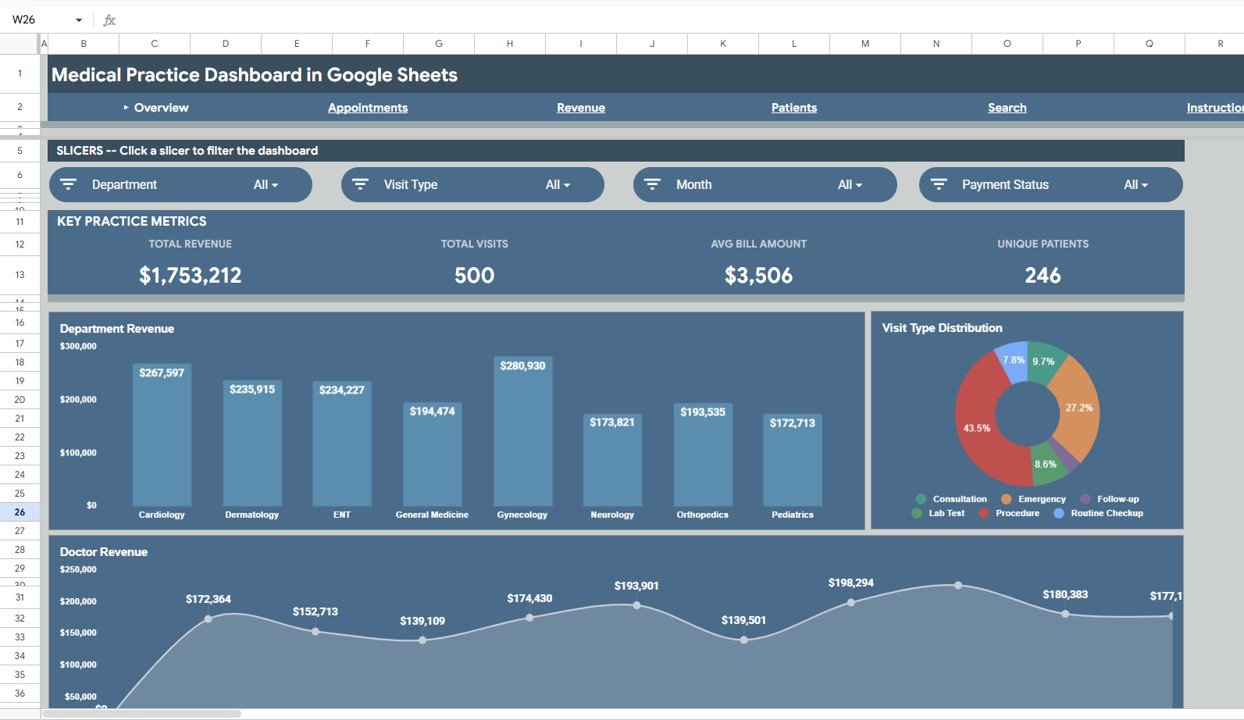
The Overview page opens with a Key Practice Metrics band. With the sample data the cards read:
| Metric | Sample value | What it measures | How it is worked out |
|---|---|---|---|
| Total Revenue | $1,753,212 | Total billed amount for the filtered visits | Sum of the Amount column |
| Total Visits | 500 | Number of visit records | Count of Visit IDs |
| Avg Bill Amount | $3,506 | Average bill per visit | Total Revenue ÷ Total Visits (1,753,212 ÷ 500 ≈ 3,506) |
| Unique Patients | 246 | Distinct patients behind those visits | Distinct count of patients |
Below the cards, Department Revenue compares eight departments: Cardiology, Dermatology, ENT, General Medicine, Gynecology, Neurology, Orthopedics and Pediatrics. Gynecology leads the sample at $280,930, followed by Cardiology at $267,597. Visit Type Distribution splits revenue across Consultation, Emergency, Follow-up, Lab Test, Procedure and Routine Checkup, with Procedure the largest slice at 43.5%. Doctor Revenue plots revenue per doctor as a trend line.
The slicers on this page are Department, Visit Type, Month and Payment Status.
Appointments Page
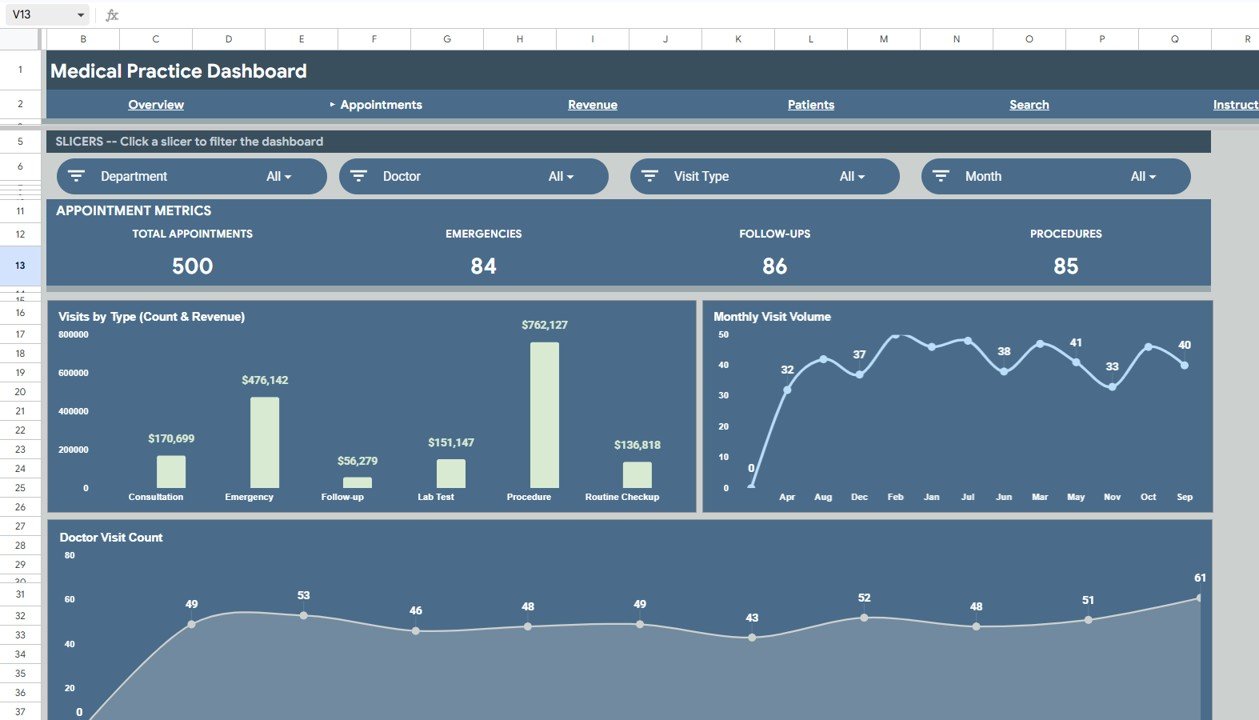
The Appointments page shows Total Appointments (500), Emergencies (84), Follow-ups (86) and Procedures (85). Its charts are:
- Visits by Type (Count & Revenue) – Procedure visits bring in $762,127 and Emergency visits $476,142 in the sample, while Follow-ups bring in $56,279.
- Monthly Visit Volume – visits per month, useful for spotting busy and quiet periods.
- Doctor Visit Count – how many visits each doctor handled, so you can see workload balance.
Slicers here include Doctor, so you can isolate one physician’s appointment pattern.
Revenue Page
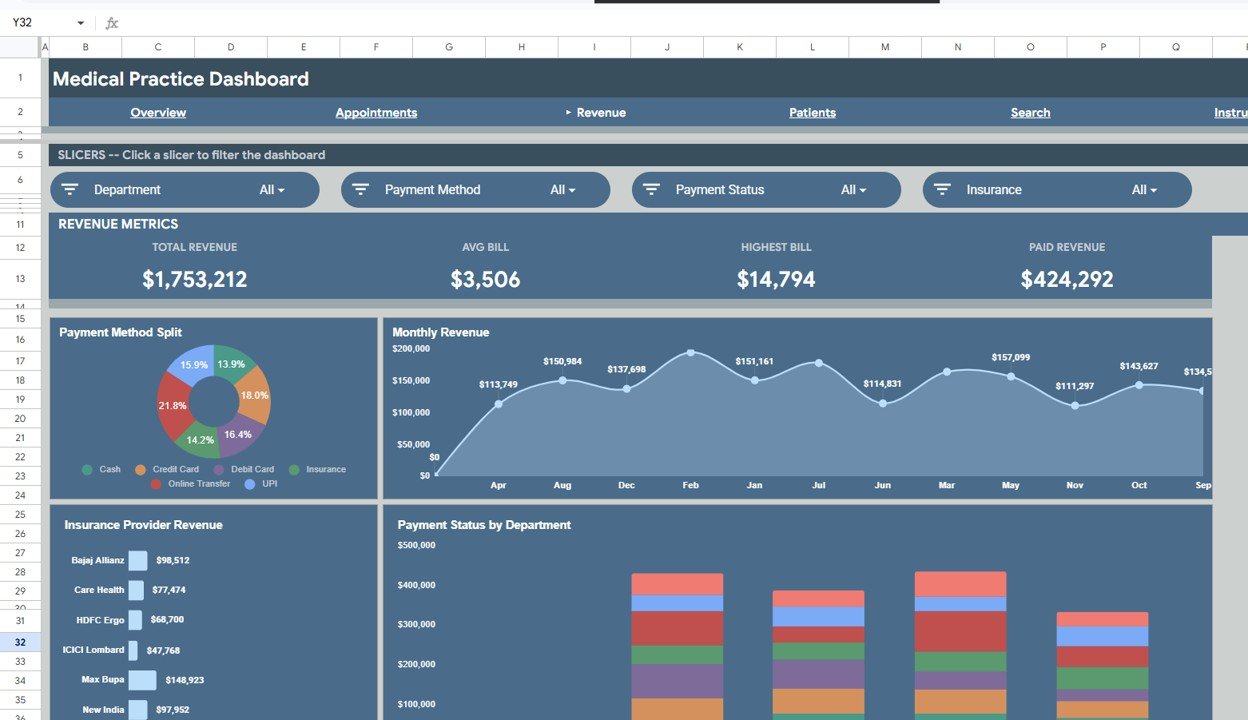
The Revenue page focuses on money. Its cards show Total Revenue ($1,753,212), Avg Bill ($3,506), Highest Bill ($14,794) and Paid Revenue ($424,292).
- Payment Method Split – Cash, Credit Card, Debit Card, Insurance, Online Transfer and UPI.
- Monthly Revenue – billed revenue per month.
- Insurance Provider Revenue – revenue per insurer. The bars visible in the sample include Bajaj Allianz ($98,512), Care Health ($77,474), HDFC Ergo ($68,700), ICICI Lombard ($47,768), Max Bupa ($148,923) and New India ($97,952). The Data sheet also contains Star Health, and visits with no insurer are recorded as Self-Pay.
- Payment Status by Department – stacked columns showing how each department’s billing breaks down by payment status.
The gap between Total Revenue and Paid Revenue is the number most practice managers will watch. In the sample only about a quarter of billed revenue is marked Paid, which is exactly the kind of signal that should trigger a collections review. Filter Payment Status and Insurance to see where the unpaid amounts sit.
Patients Page
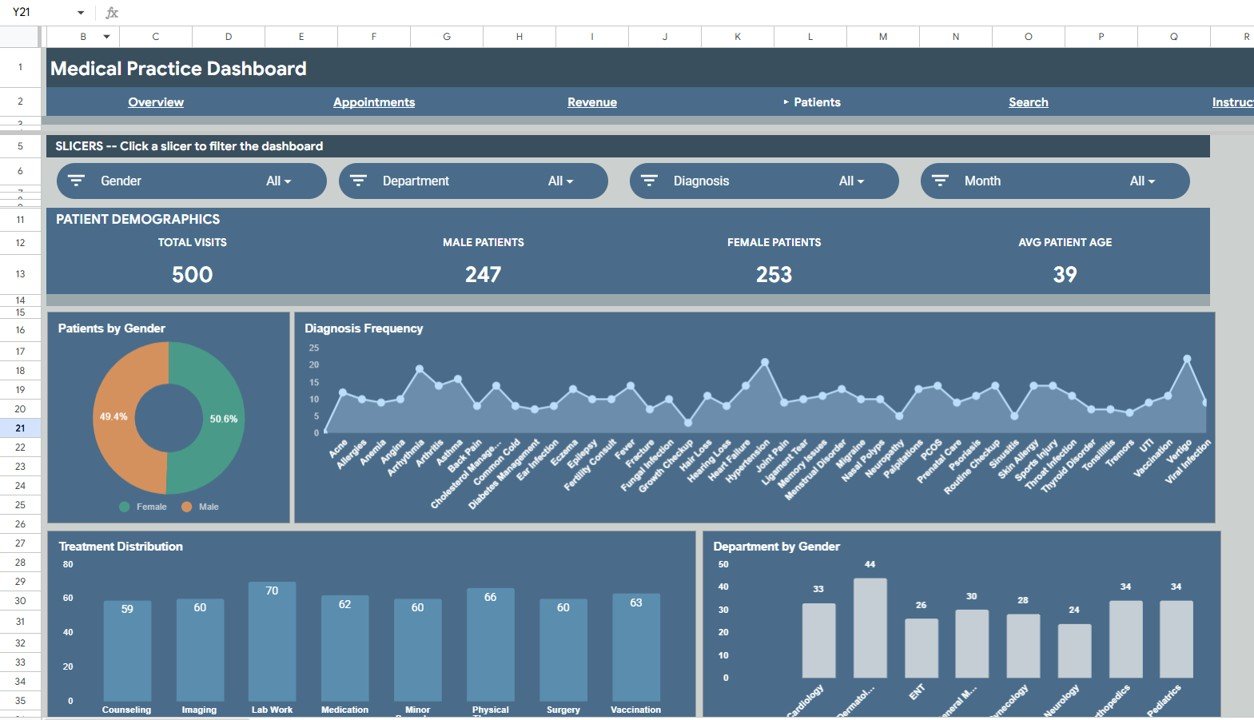
The Patients page shows Total Visits (500), Male Patients (247), Female Patients (253) and Avg Patient Age (39). Charts include Patients by Gender (50.6% female, 49.4% male), Diagnosis Frequency across dozens of recorded diagnoses, Treatment Distribution (Counseling, Imaging, Lab Work, Medication, Minor Procedure, Physical Therapy, Surgery and Vaccination, with Lab Work most common at 70) and Department by Gender.
Clinic owners use this page for resource planning, for example checking whether imaging or physical therapy demand justifies more equipment time or staff hours.
Search Sheet: Patient Visit Lookup
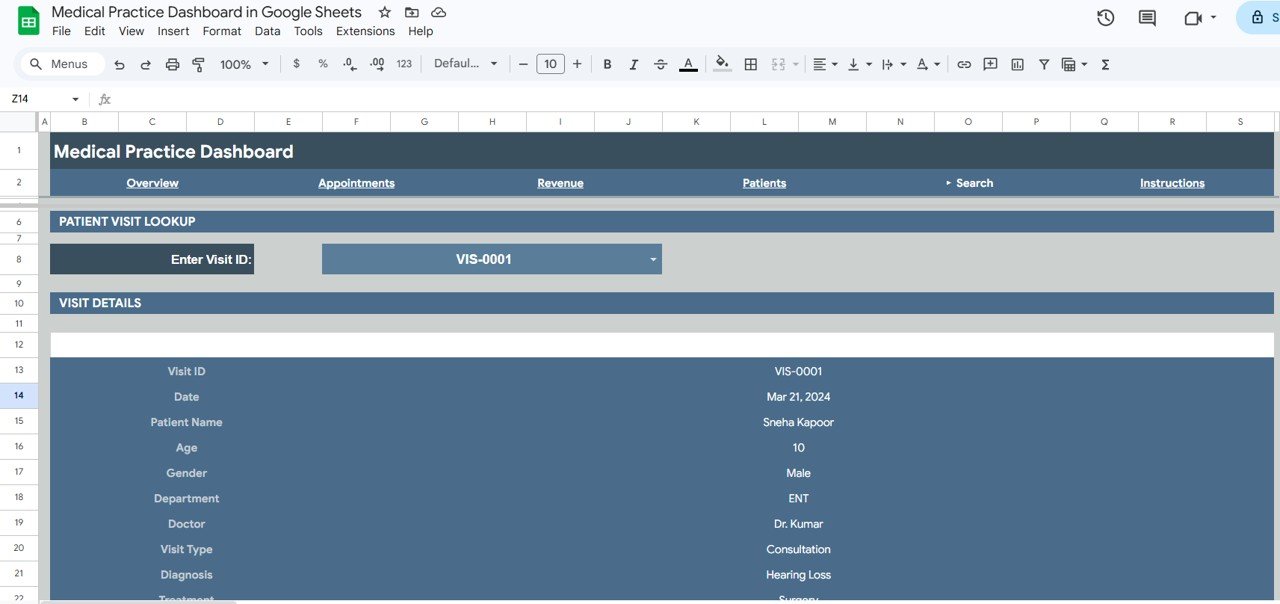
Choose a Visit ID (for example VIS-0001) in the Enter Visit ID drop-down and the Visit Details block fills in the Date, Patient Name, Age, Gender, Department, Doctor, Visit Type, Diagnosis and Treatment for that visit. It saves scrolling through hundreds of rows when the front desk or billing team needs to check a single record.
Data Sheet
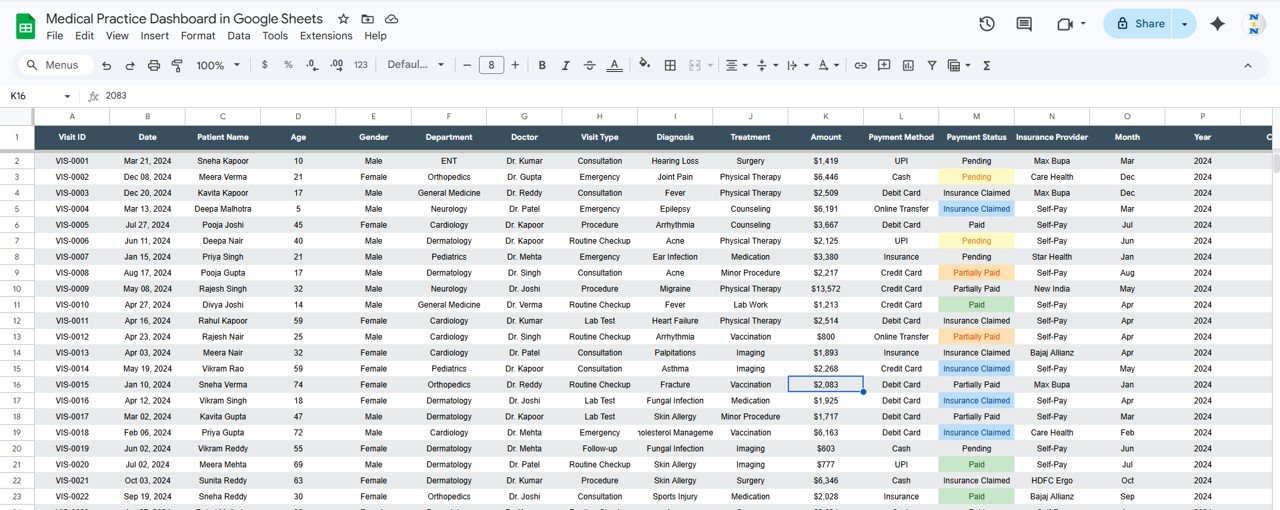
The Data sheet has one row per visit with these columns: Visit ID, Date, Patient Name, Age, Gender, Department, Doctor, Visit Type, Diagnosis, Treatment, Amount, Payment Method, Payment Status, Insurance Provider, Month and Year. Payment Status values in the sample are Paid, Pending, Partially Paid and Insurance Claimed, and Insurance Provider uses Self-Pay when no insurer is involved.
How to Use It With Your Own Clinic Data
- Open the copy link from the PDF guide and save your own editable copy to Google Drive.
- Go to the Data sheet and clear the sample rows, keeping the header row.
- Paste your visit records in the same column order. Give each visit a unique Visit ID.
- Enter dates as real dates and amounts as plain numbers, so the Month, Year and revenue totals calculate correctly.
- Keep department, doctor, visit type and payment status names consistent; “Gen Medicine” and “General Medicine” would appear as two departments.
- Check the Overview: Total Visits should equal the number of rows you pasted.
- Share a view-only link with partners or doctors through Share → General access, and keep edit rights for the person who maintains the data.
Real-World Use Cases
1. Monthly partner meeting
A four-doctor family clinic filters the Overview by Month to compare department and doctor revenue, then reviews the Paid Revenue card on the Revenue page before discussing collections.
2. Insurance follow-up
A billing coordinator sets the Revenue page’s Payment Status slicer to Pending or Insurance Claimed and uses the Insurance slicer to see how much billed revenue sits with each insurer, then follows up on the largest amounts first.
3. Consultant client reporting
A healthcare operations consultant loads a client clinic’s exported visit data into a fresh copy and uses the four pages as the backbone of a practice review.
Best Practices
- Update the Data sheet on a fixed day each week so monthly charts stay comparable.
- Record payment status changes promptly; otherwise Paid Revenue understates collections.
- Store only the patient details you genuinely need for reporting, and avoid clinical notes in the sheet.
- Restrict edit access to one or two people and share everyone else a view-only link.
- Make a dated copy at year-end before clearing the data for the new year.
Limitations and Who Should Not Use It
- It is not an EHR, scheduling or claims system. Data is pasted or typed in; there is no automatic connection to practice management software.
- Patient data is sensitive. If you handle protected health information, check your obligations (for example HIPAA in the US) and use a Google Workspace setup and sharing settings that meet them. The template itself provides no compliance guarantee.
- Hospitals and large groups with tens of thousands of visits a year will find Google Sheets slow; the Power BI version handles larger data better.
Template vs. Plain Spreadsheet vs. Practice Management Software
| Need | Plain spreadsheet | This dashboard | Practice management software |
|---|---|---|---|
| Visit-level revenue reporting | Manual formulas and charts | Ready-made pages and slicers | Built in |
| Insurance and payment status view | Manual | Revenue page | Built in |
| Scheduling, EHR, claims | No | No | Yes |
| Recurring subscription | No | No (one-time purchase) | Usually yes |
| Best for | Very simple tracking | Small clinics wanting analytics | Full clinical and billing workflow |
Related Guides and Templates
For hospital-scale flow metrics, see the Hospital Patient Flow Dashboard in Google Sheets. Broader healthcare reporting is covered in our Healthcare Dashboard in Google Sheets and Healthcare Management Dashboard guides. Specialist clinics may prefer the Chiropractic Clinic KPI Dashboard or the Veterinary Clinic Dashboard in Google Sheets.
Related templates: the same dashboard is available as the Medical Practice Dashboard in Excel and the Medical Practice Dashboard in Power BI.
If you would like to build this kind of report yourself, the Pivot Tables and Dashboards course on NextGenTemplates Academy teaches the summary tables, slicers and charts behind it.
Frequently Asked Questions
What metrics does the Medical Practice Dashboard in Google Sheets show?
The Overview shows Total Revenue, Total Visits, Avg Bill Amount and Unique Patients. The Appointments, Revenue and Patients pages add their own cards, such as Emergencies, Highest Bill, Paid Revenue and Avg Patient Age.
Can I filter by doctor or department?
Yes. Department is a slicer on every analysis page, and Doctor is a slicer on the Appointments page. Other slicers include Visit Type, Month, Payment Status, Payment Method, Insurance, Gender and Diagnosis.
Does it connect to my EHR or billing software?
No. You export or type visit records into the Data sheet. Once the rows are in place, every page updates.
Is the template HIPAA compliant?
A spreadsheet template cannot be compliant on its own. Compliance depends on your Google Workspace agreement, sharing settings and internal policies. Keep only the data you need and limit access.
Can I add more departments or doctors?
Yes. New names typed into the Data sheet appear in the charts and slicers automatically. Keep spelling consistent.
Does it work on a phone?
Yes, through the Google Sheets app, although the desktop browser gives the best view of the charts.
Wrapping Up
The Medical Practice Dashboard in Google Sheets gives a small clinic a practical view of revenue, visits, payments and patients from one visit log. Load last quarter’s visits, check the Paid Revenue card and the Payment Status by Department chart first, and use what you find to tighten billing and scheduling.
Get the Medical Practice Dashboard in Google Sheets
📅 Last updated: October 2026