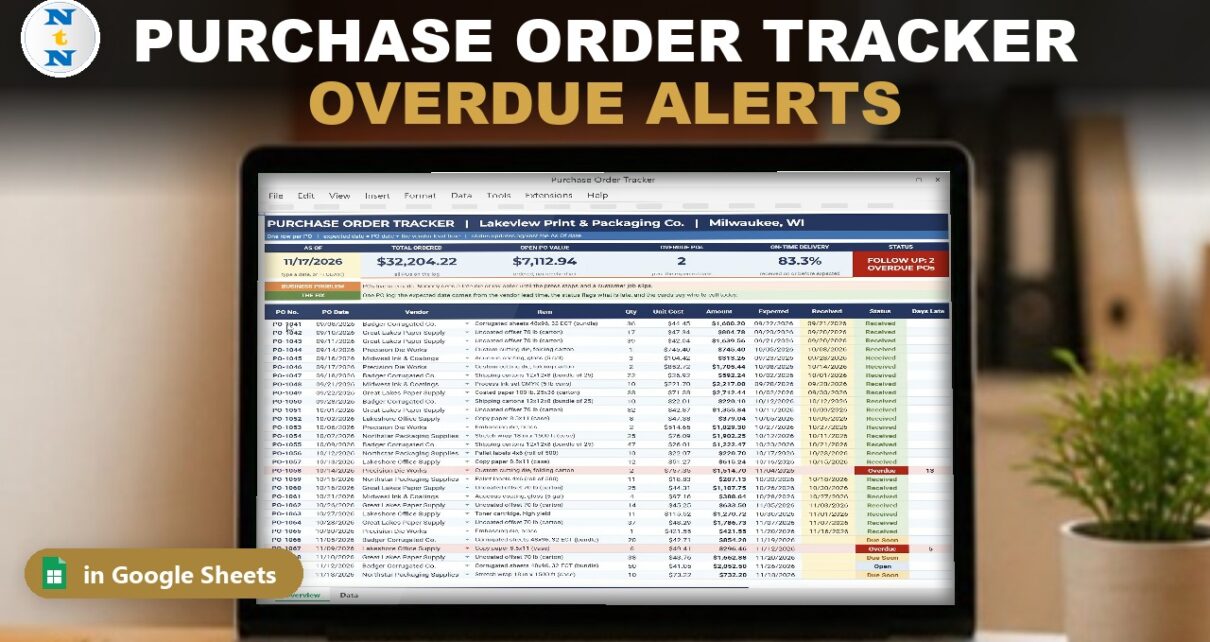
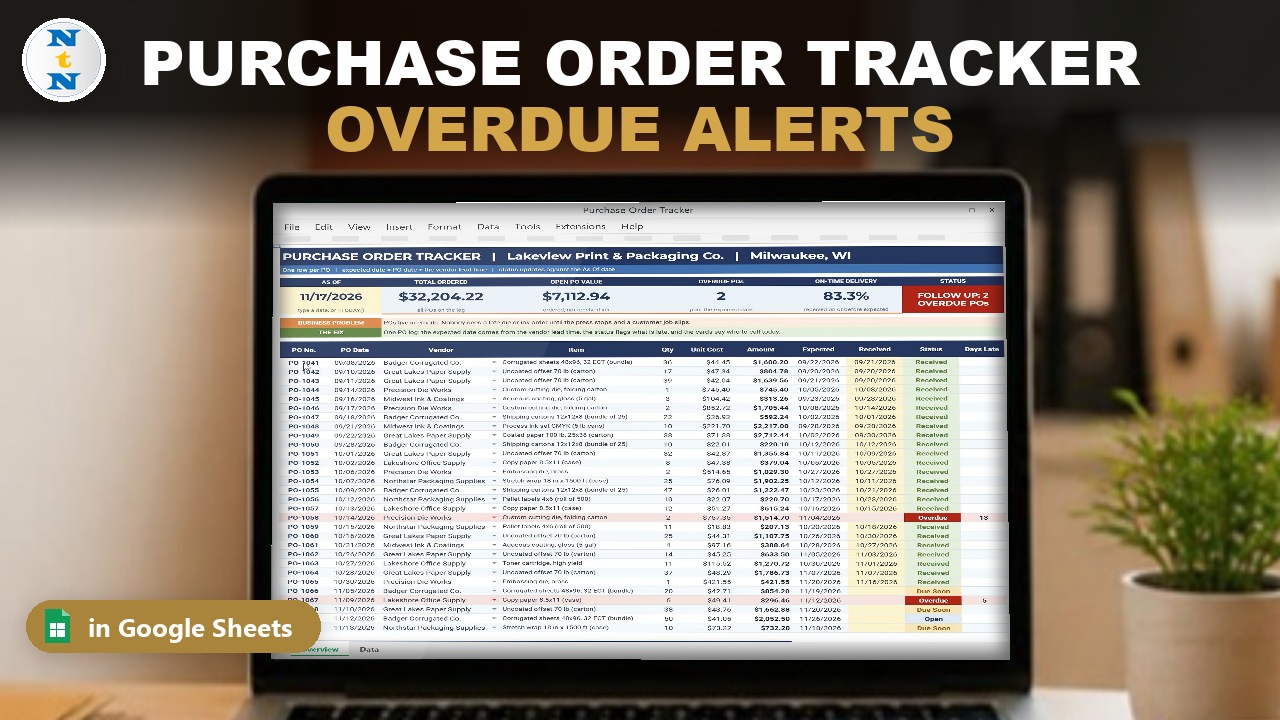
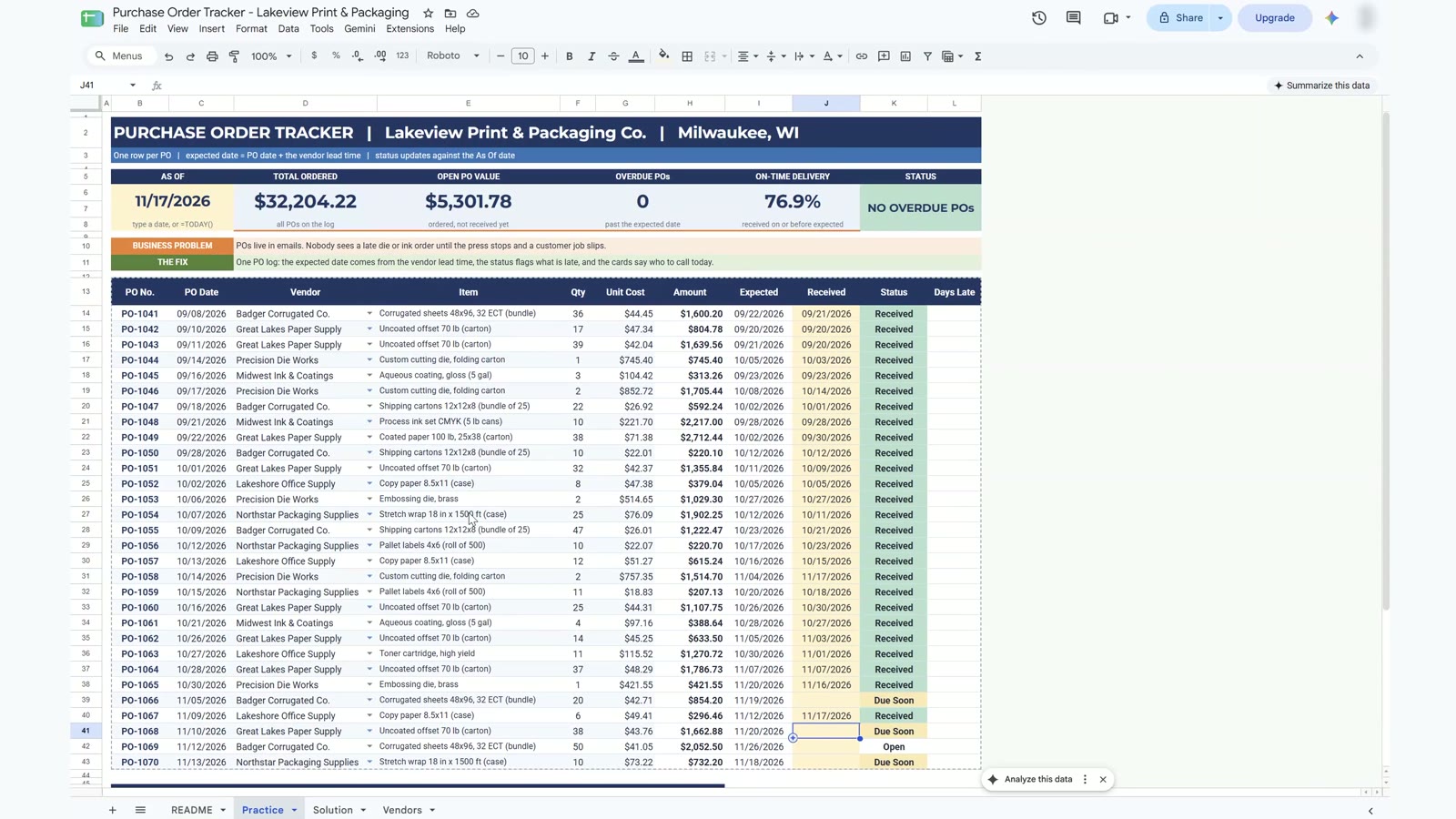
Purchase orders live in emails and nobody notices a late die or ink delivery until the press stops and a customer job slips. This purchase order tracker in Google Sheets puts every PO in one log: the expected date comes from the vendor’s lead time, the status flags what is late, and four cards tell you who to call today. In the 16-minute video you build it from a blank Practice tab for Lakeview Print & Packaging Co., a made-up commercial printer in Milwaukee with 6 vendors and 30 purchase orders. Built-in features and formulas only, no add-ons.
⬇️ Join Free on Skool & Download the Practice File
Free membership · takes 1 minute · the file is in Classroom → Free Downloads from YouTube
Google Sheets · free · includes Practice and Solution tabs
Watch the Video Tutorial
Video Overview
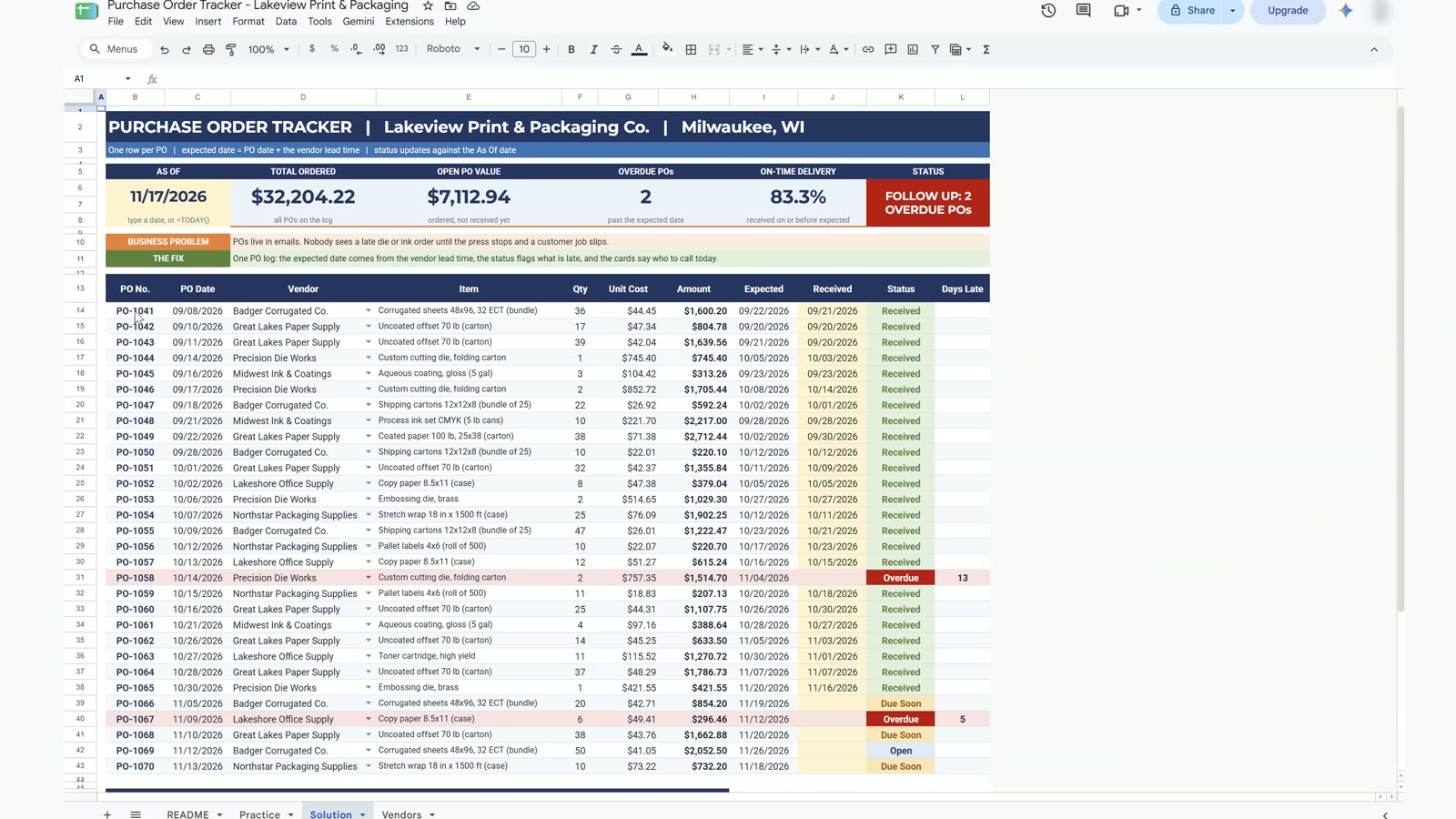
The video opens with the finished tracker: four cards (Total Ordered $32,204.22, Open PO Value $7,112.94, Overdue POs 2 and On-Time Delivery 83.3%), a red alert badge and two highlighted late orders. Then you build it in nine steps: a vendor dropdown, the amount, the expected date from vendor lead time, the status, days late, status colours, the four cards, the follow-up alert box and the vendor summary. At the end both late deliveries arrive and the red alert turns green.
What You Will Build
- A PO log with a vendor dropdown, so nobody types a vendor name differently.
- Expected dates that come from each vendor’s lead time.
- An automatic status: Received, Overdue, Due Soon or Open, with colours and red overdue rows.
- Four KPI cards, an alert box and a vendor summary showing who to call first.
Step 1: Vendor Dropdown
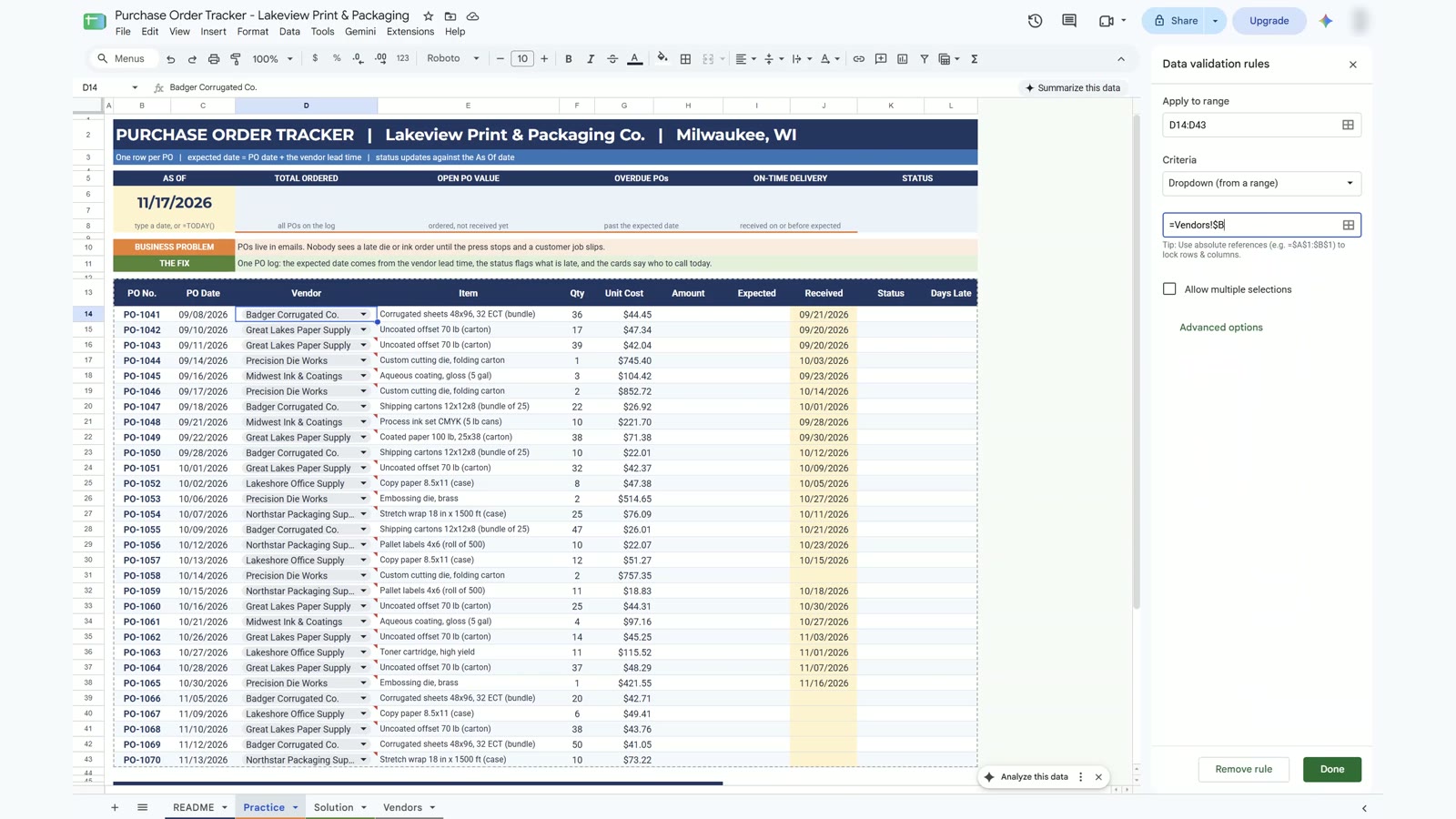
Select the vendor column (D14:D43), choose Data, then Data validation, pick Dropdown (from a range) and point it at the vendor names on the Vendors tab. Set invalid data to Reject the input. The vendor names now match the Vendors tab exactly, which the lookups need later.
Step 2: Amount
Quantity times unit cost, left blank for an empty row. PO-1041 gives $1,600.20. Double-click the fill handle to copy it down.
=IF(F14="","",F14*G14)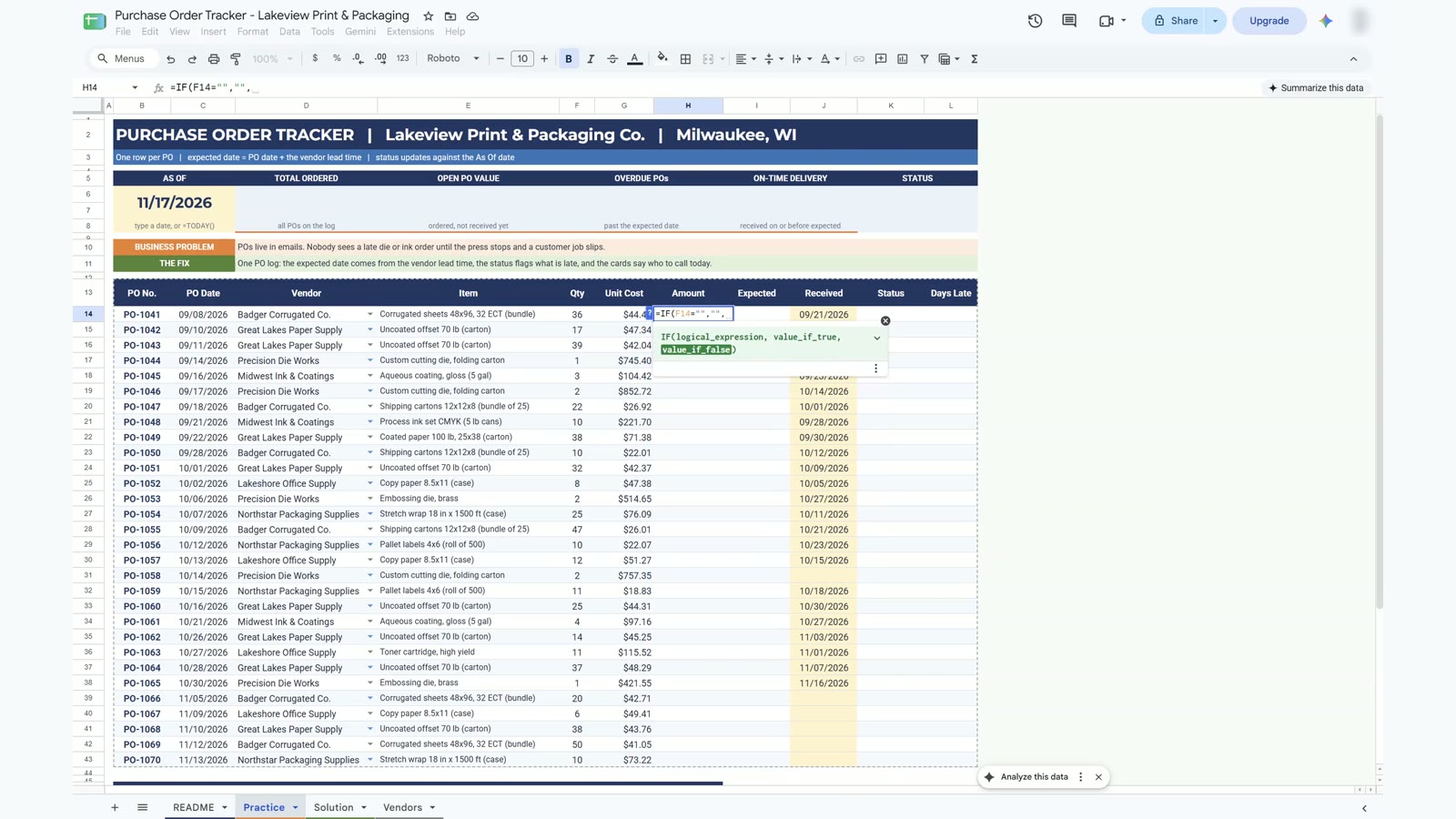
Step 3: Expected Date from the Vendor Lead Time
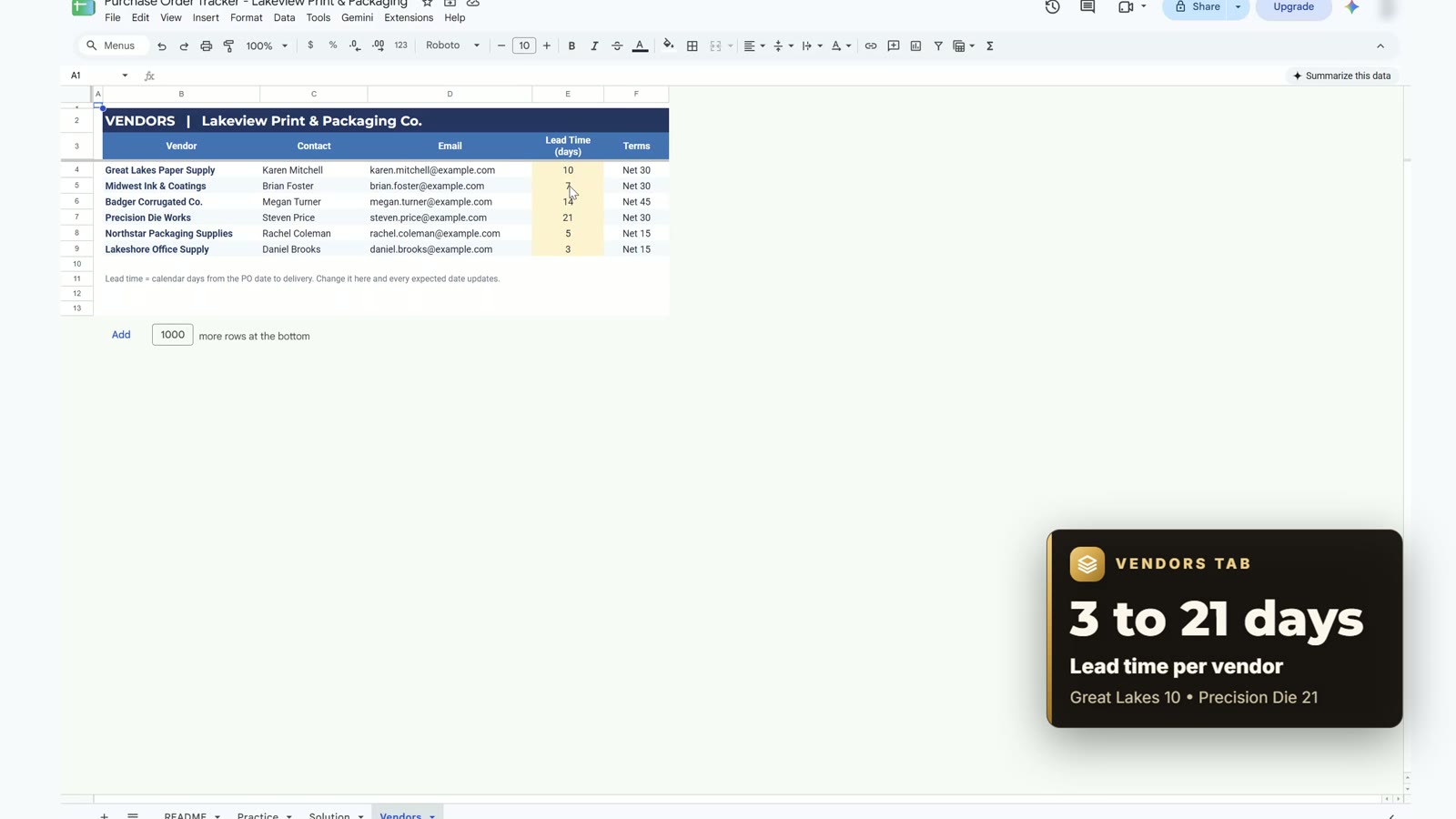
An order date is not a delivery date: the vendor’s lead time decides when it should arrive. XLOOKUP finds the vendor’s lead time on the Vendors tab and adds it to the PO date. PO-1041 was ordered on 09/08 with Badger Corrugated (14 days), so it is expected on 09/22/2026. If a number such as 46287 shows up, format the column as a date.
=IF(D14="","",C14+XLOOKUP(D14,Vendors!$B$4:$B$9,Vendors!$E$4:$E$9))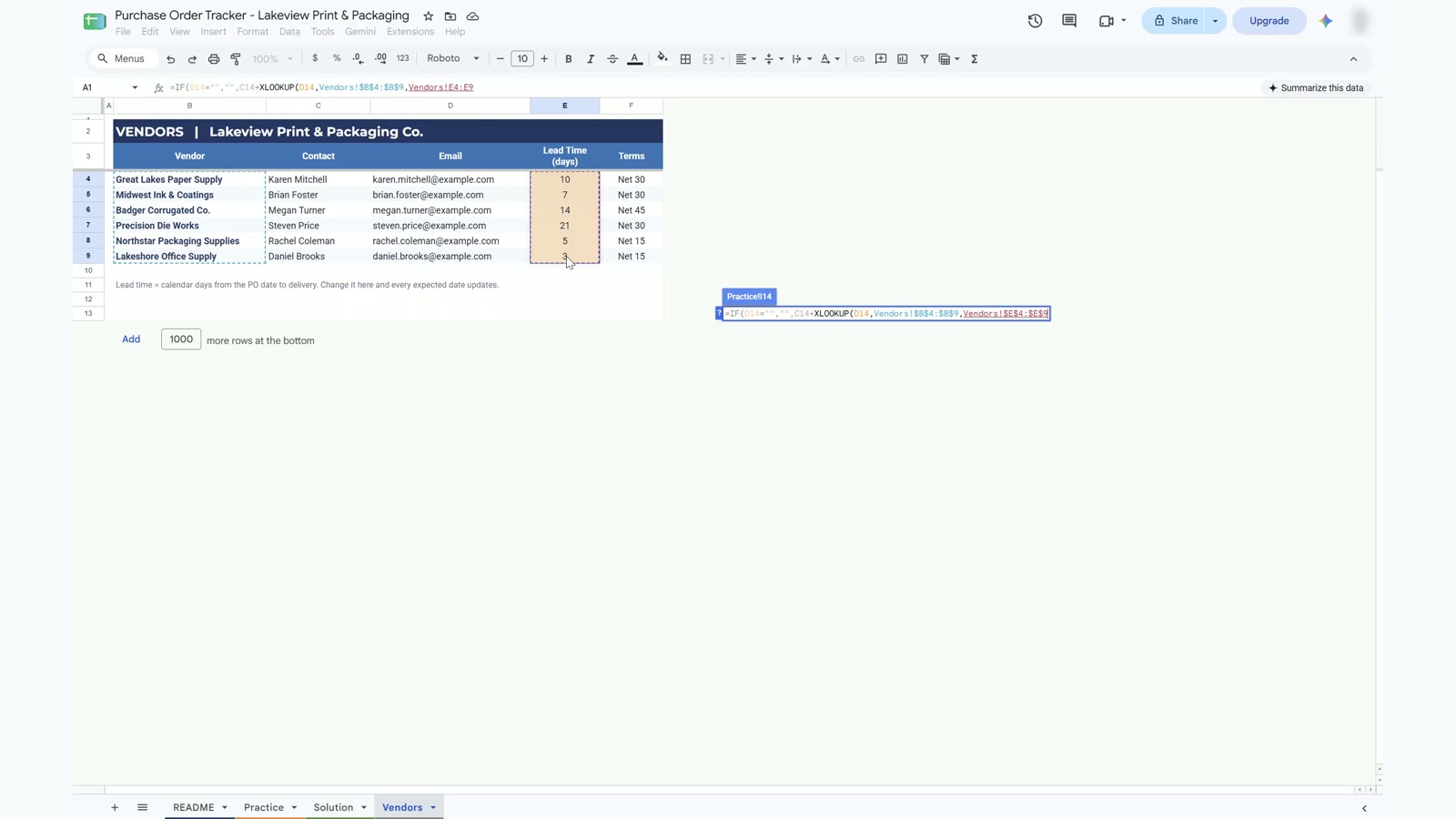
Step 4: Status
The order of the tests is the lesson: Received first, then late, then due within 7 days, and everything else is Open. The result is 24 Received, 2 Overdue, 3 Due Soon and 1 Open.
=IF(D14="","",IF(J14<>"","Received",IF($B$6>I14,"Overdue",IF(I14-$B$6<=7,"Due Soon","Open"))))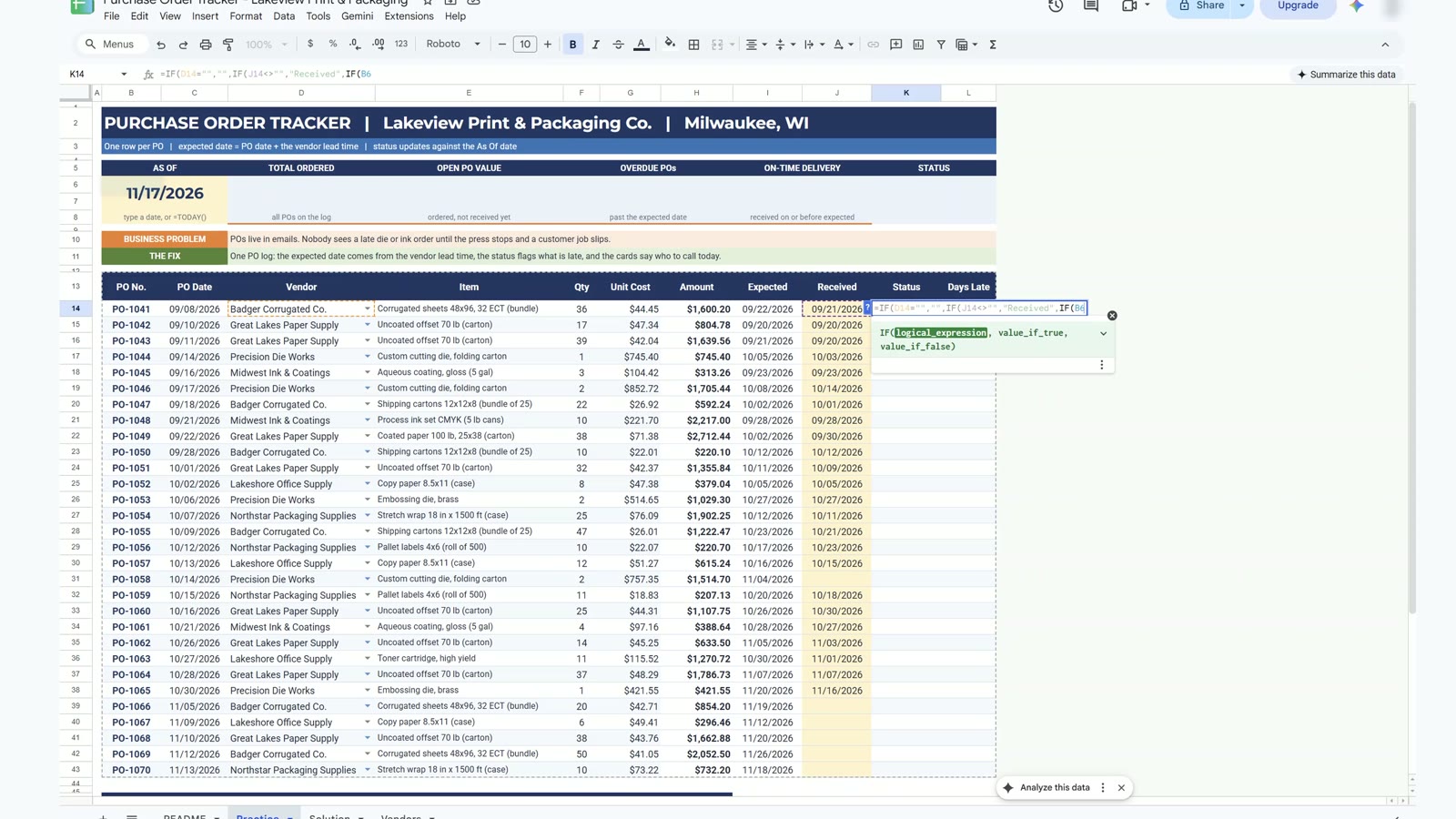
Step 5: Days Late
Show how late an overdue order is, and lock the As Of date with $ so it does not move when you fill down. PO-1058 is 13 days late and PO-1067 is 5 days late.
=IF(K14="Overdue",$B$6-I14,"")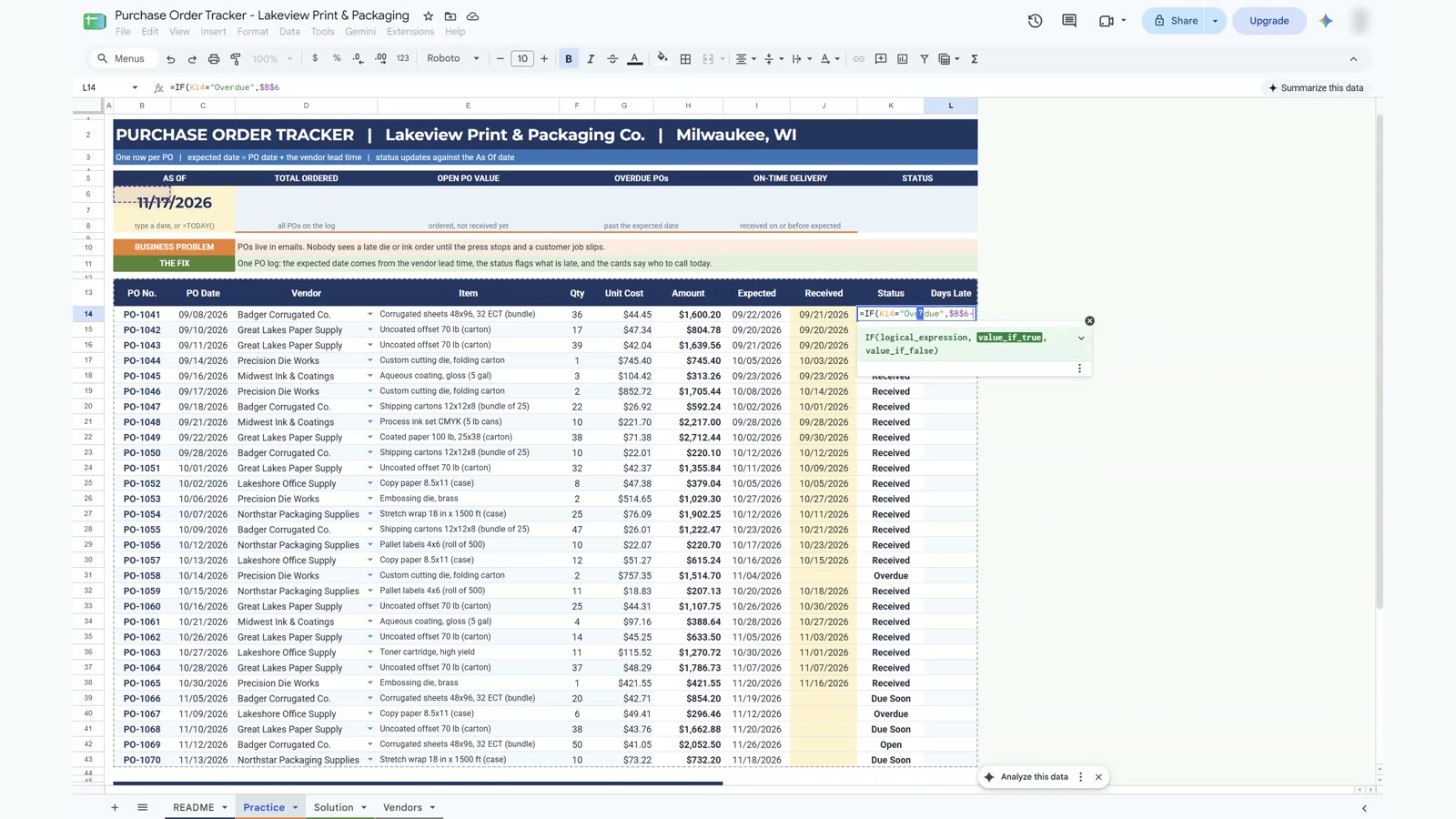
Step 6: Status Colours and Overdue Rows
Select the status column, open Format, then Conditional formatting, and add one rule per word with Text is exactly: red for Overdue, amber for Due Soon, blue for Open and green for Received. Then add a custom formula rule on the whole table so an overdue row turns light red. The $ before K is the part people forget: it locks the column so each row looks at its own status.
=$K14="Overdue"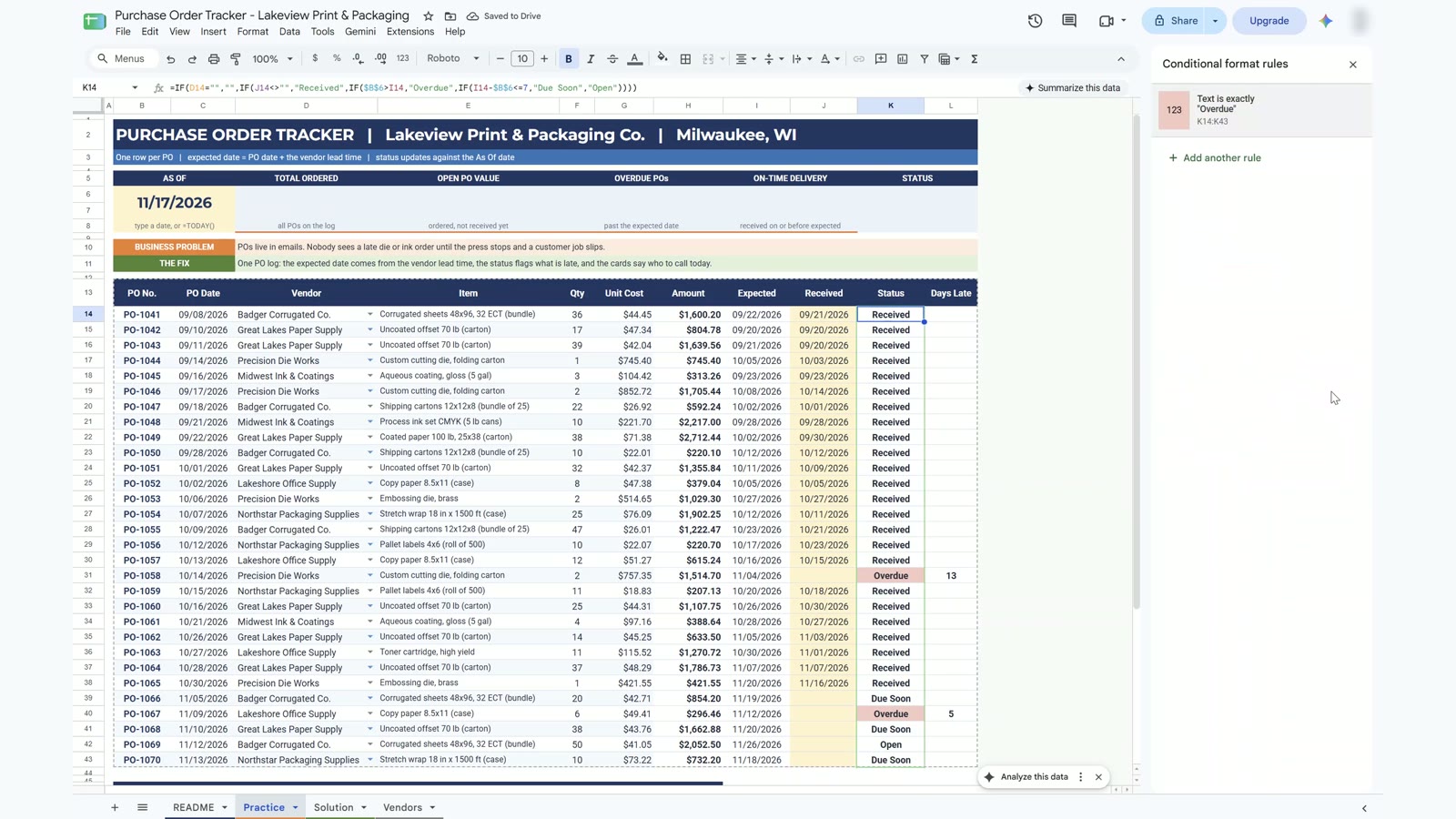
Step 7: The Four KPI Cards
Each card is one formula: total ordered with SUM, open PO value with SUMIFS on everything not Received, overdue POs with COUNTIF, and on-time delivery with SUMPRODUCT (20 of 24 received orders arrived on or before the expected date, 83.3%).
=SUMIFS(H14:H43,K14:K43,"<>Received")=COUNTIF(K14:K43,"Overdue")=SUMPRODUCT((J14:J43<>"")*(J14:J43<=I14:I43))/COUNT(J14:J43)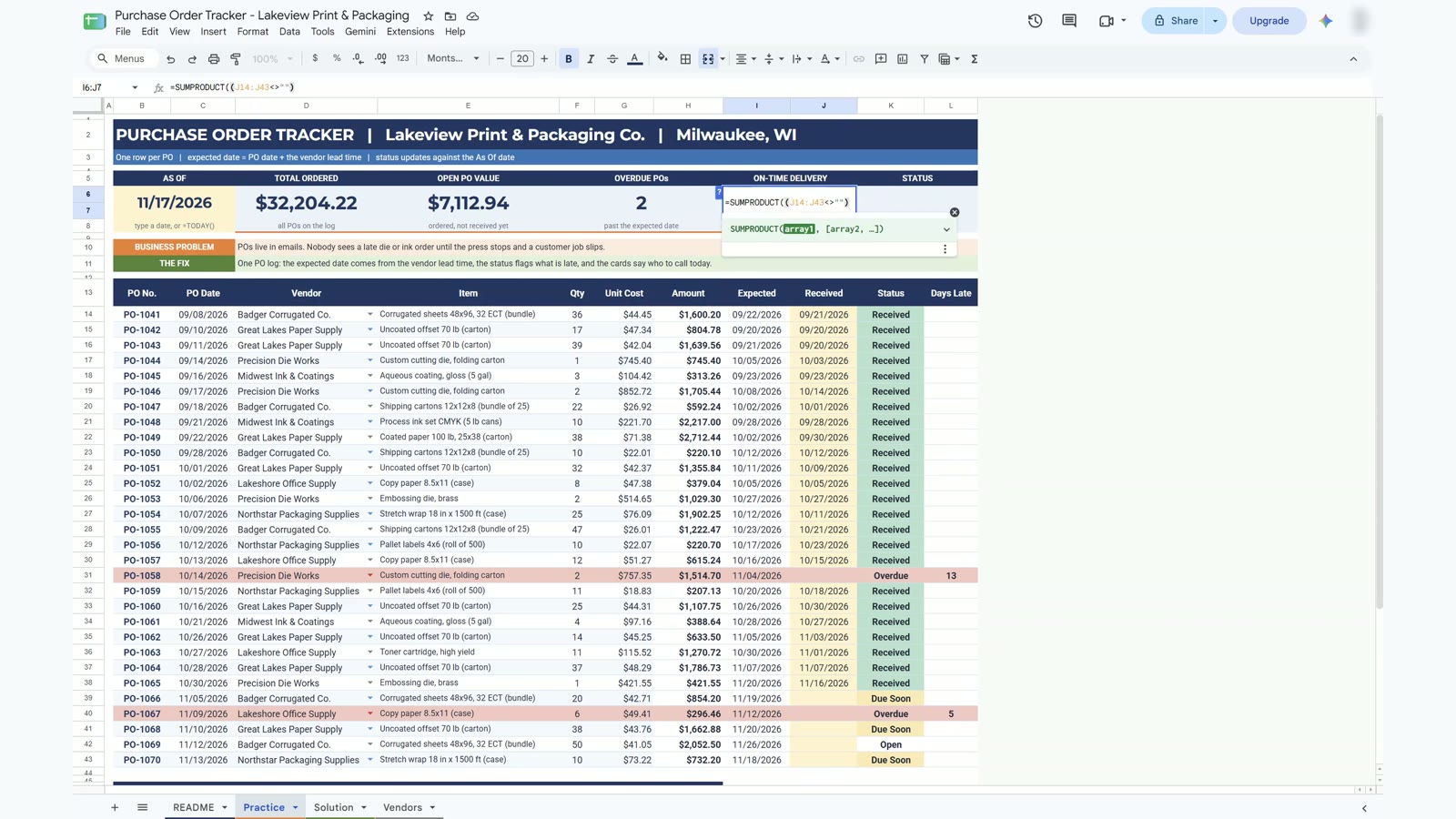
Step 8: The Follow-Up Alert Box
One formula writes the message, and two conditional formatting rules colour it: green when there is nothing overdue and red when there is.
=IF(F6=0,"NO OVERDUE POs","FOLLOW UP: "&F6&" OVERDUE POs")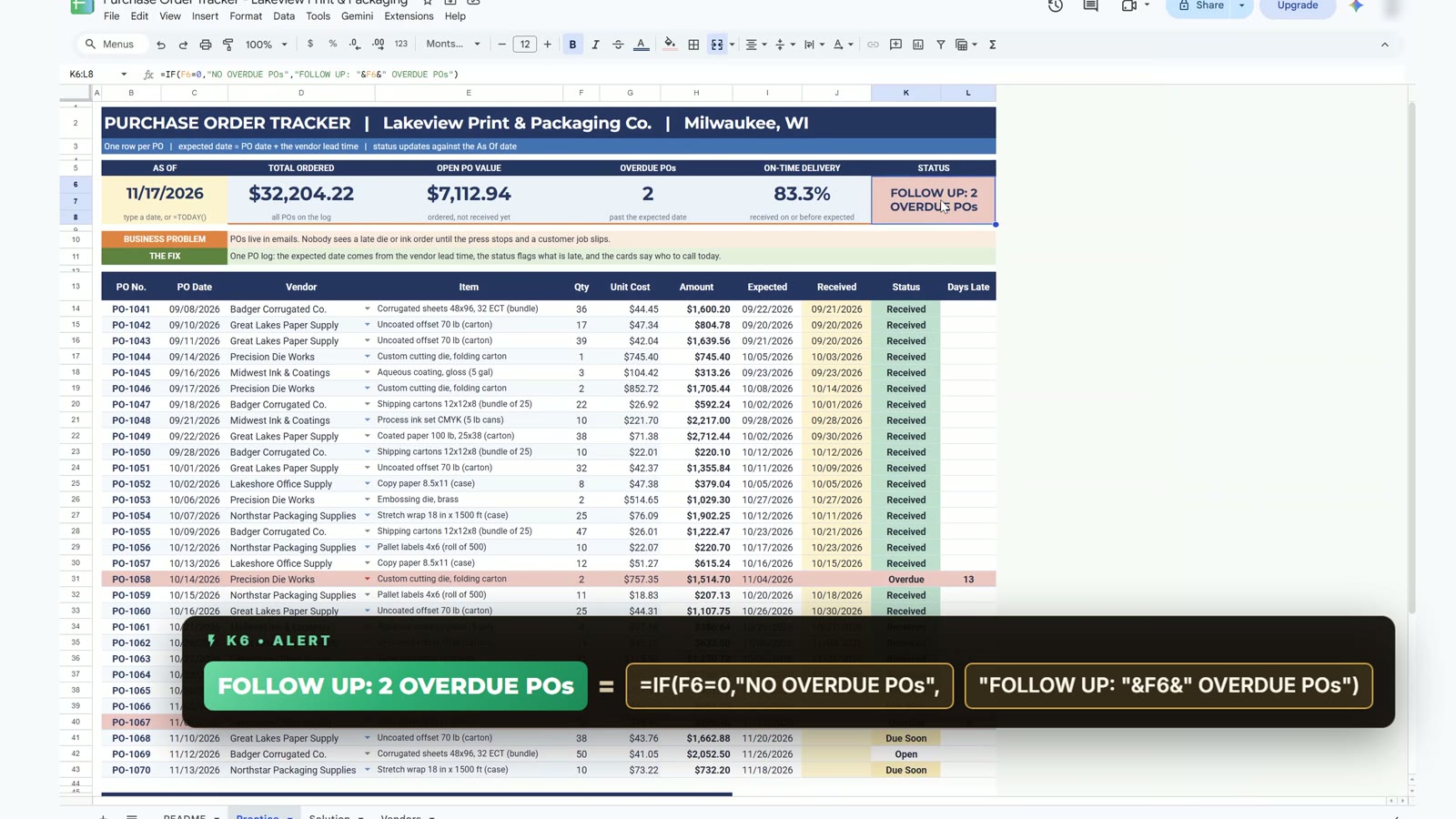
Step 9: Vendor Summary
For each vendor, total spend with SUMIFS, number of POs with COUNTIF, open value and overdue count. Great Lakes Paper Supply is the biggest vendor at $11,703.48 over 8 POs, while Precision Die Works and Lakeshore Office Supply each have one overdue order: those are the two calls to make first.
=SUMIFS($H$14:$H$43,$D$14:$D$43,D48)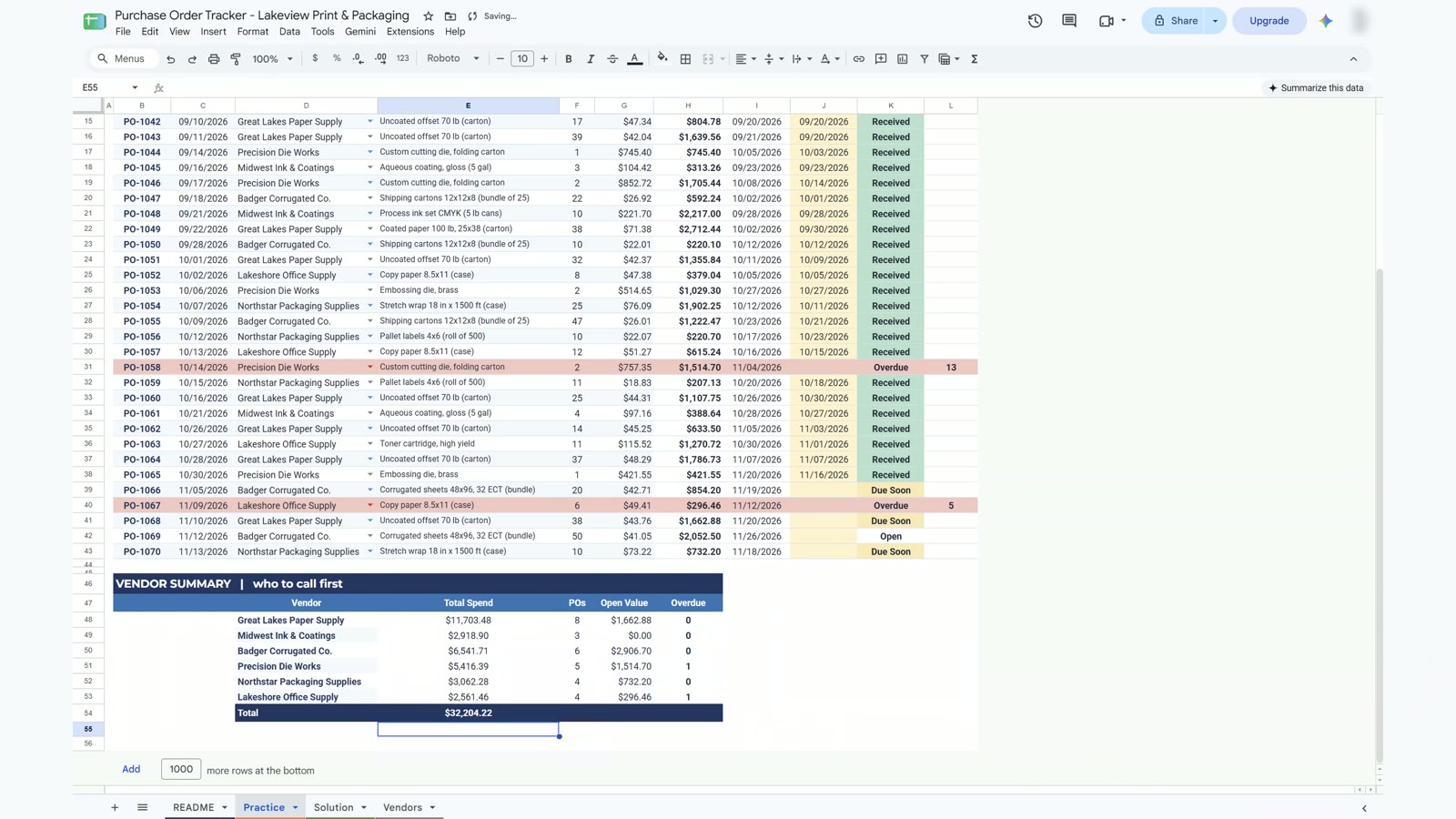
Test It: Both Late Deliveries Arrive
Type 11/17/2026 in the Received column for PO-1058 and PO-1067. Overdue drops to 0, the badge turns green with NO OVERDUE POs, and open value falls to $5,301.78. On-time delivery also drops to 76.9%, because those two orders arrived late. The metric stays honest.
Download the Free Purchase Order Tracker
Open the Google Sheet and choose File, then Make a copy. It has a README, the Practice tab to build along, the finished Solution tab and the Vendors tab. Prefer Excel? Download the offline copy.
⬇️ Join Free on Skool & Download the Practice File
Free membership · takes 1 minute · the file is in Classroom → Free Downloads from YouTube
Google Sheets · free
⬇️ Join Free on Skool & Download the Practice File
Free membership · takes 1 minute · the file is in Classroom → Free Downloads from YouTube
Excel copy of the practice sheet
Want the Full System?
The free tracker covers the PO log and overdue alerts. If you need approvals, vendor records and reports, see the Purchase Order and Vendor Management System Web App from Next Gen Templates. To learn Google Sheets step by step, take the Google Sheets Course: Beginner to Advanced.
Frequently Asked Questions
How do I make a purchase order tracker in Google Sheets?
Create a PO log with one row per order (PO number, date, vendor, item, quantity, unit cost), add a Vendors tab with each vendor's lead time, and let formulas work out the amount, the expected delivery date, the status and the days late. Add conditional formatting and four KPI cards. The video builds all of it step by step.
How does the tracker know when an order is due?
The expected date is the PO date plus the vendor's lead time, looked up from the Vendors tab with XLOOKUP. If a vendor's lead time changes, every expected date for that vendor changes with it.
How does a PO become Overdue?
The Status formula checks in order: if there is a received date it says Received, if the As Of date is past the expected date it says Overdue, if the expected date is within 7 days it says Due Soon, and otherwise Open. The order of the tests is what makes it work.
Should I use TODAY() for the As Of date?
In the sample file the As Of date is typed in (11/17/2026) so the numbers match the video. In your own copy, replace it with =TODAY() and the statuses update every day.
Is the purchase order tracker free?
Yes. The Google Sheet copy and the offline practice file are free. The Practice tab is for building along, and the Solution tab is the finished version to compare with.
What if I need purchase approvals, vendor records and reports?
The free tracker covers the PO log and overdue alerts. For a full system with vendor management, see the Purchase Order and Vendor Management System Web App from Next Gen Templates.
More Google Sheets tutorials are on the NeoTech Navigators blog and the YouTube playlist.
More Google Sheets tutorials
- Gantt Chart in Google Sheets: Auto Timeline, Progress Bars & Today Line (Free Template)
- Quote and Estimate Template in Google Sheets: Auto Totals, Tax and PDF (Free Template)
- 10 Google Sheets Formulas for Work: Build One Real Sales Report (Free Practice File)
- Business Expense Tracker in Google Sheets: Free Template with Monthly Summary and Chart
- Asset Tracking System Web App
- Task Management Tracker in Google Sheets 2026: Build a Project Task Tracker Step by Step