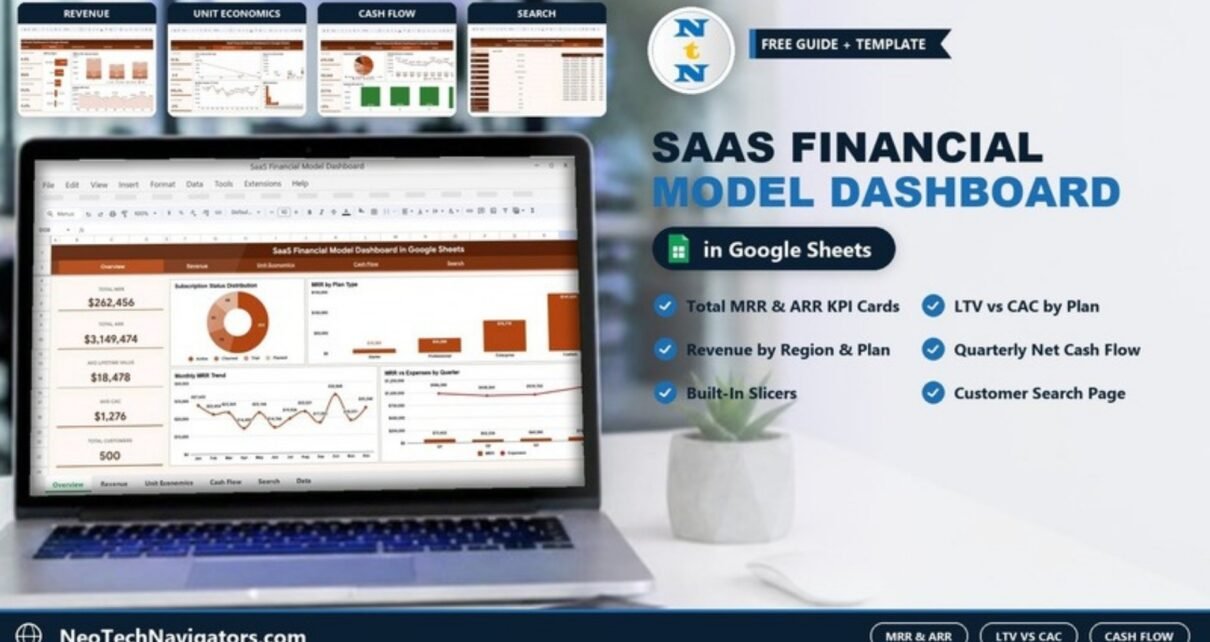
The SaaS Financial Model Dashboard in Google Sheets turns customer-level subscription data into a clear view of recurring revenue, unit economics and cash flow. It is built for SaaS founders, finance leads and startup operators who want to see MRR, ARR, LTV, CAC and customer counts in one place without paying for a separate analytics tool.
Inside the SaaS financial model dashboard you get four analysis pages (Overview, Revenue, Unit Economics and Cash Flow), each with its own column of KPI cards, a Search page for individual customer records, and a structured Data sheet. The product listing also includes filtering by Plan Type, Region, Industry and Subscription Status, and everything is driven by ordinary Google Sheets formulas, so there are no macros or add-ons to install.
🎥 Watch the Video Tutorial
Get the SaaS Financial Model Dashboard
Why a SaaS Business Needs Its Own Financial Dashboard
A subscription business is judged on different numbers from a traditional company. Revenue arrives in small monthly amounts, customers can leave at any time, and the cost of winning a customer is paid up front while the revenue comes in over months or years. That makes three questions central:
- Is recurring revenue growing? (MRR and ARR, by plan and region)
- Are we acquiring customers profitably? (LTV compared with CAC, by plan)
- Can we afford our growth? (revenue versus expenses and net cash flow by quarter)
Most early-stage teams try to answer these from a billing export and a handful of ad-hoc charts that break every month. This template gives those answers a fixed structure so the same view is ready for every board meeting, investor update or budget review.
The KPIs on the Overview Page
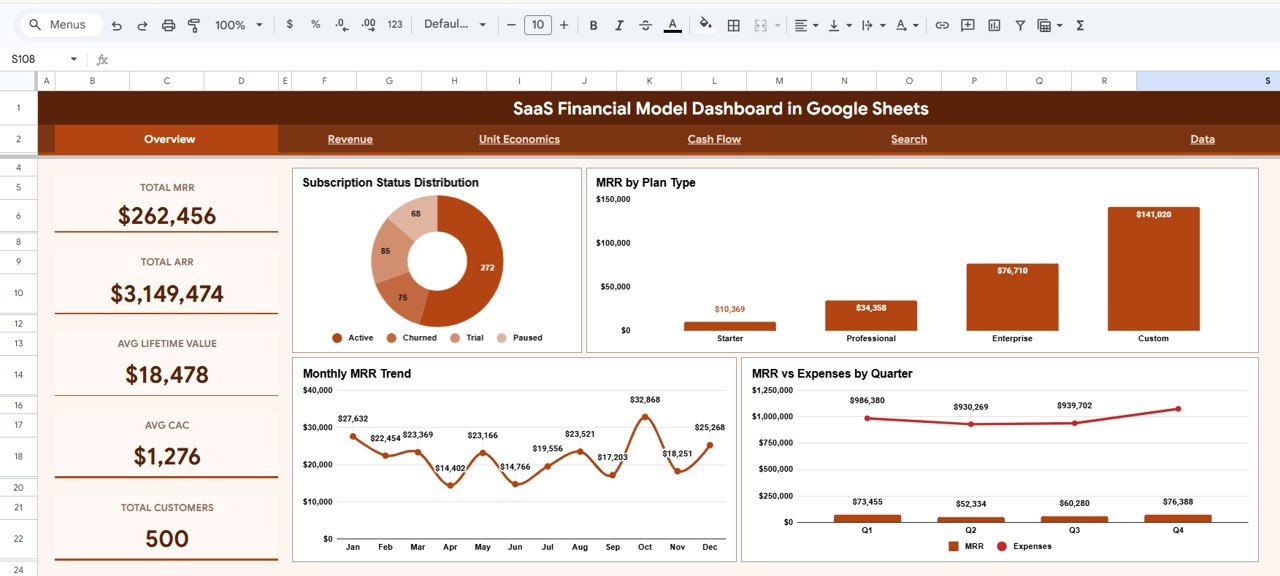
Five KPI cards sit down the left side of the Overview page. The table below explains each one and shows the value it displays with the sample data (500 customer records), so you can check that your own data reconciles.
| KPI card | What it measures | How it is calculated | Sample value | Better when |
|---|---|---|---|---|
| Total MRR | Monthly recurring revenue across the records | Sum of the MRR column | $262,456 | Higher |
| Total ARR | Annualised recurring revenue | Sum of the ARR column (each record’s ARR is its MRR × 12) | $3,149,474 | Higher |
| Avg Lifetime Value | Average revenue a customer brings over their lifetime | Average of the LTV column | $18,478 | Higher |
| Avg CAC | Average cost to acquire one customer | Average of the CAC column | $1,276 | Lower |
| Total Customers | Number of customer records | Count of records | 500 | Higher |
KPI Cards on the Other Pages
The Revenue, Unit Economics and Cash Flow pages each carry four more cards. The sample values reconcile with the Overview totals, which is a quick way to understand how each one is built.
| Page | KPI card | Sample value | How the sample value is derived |
|---|---|---|---|
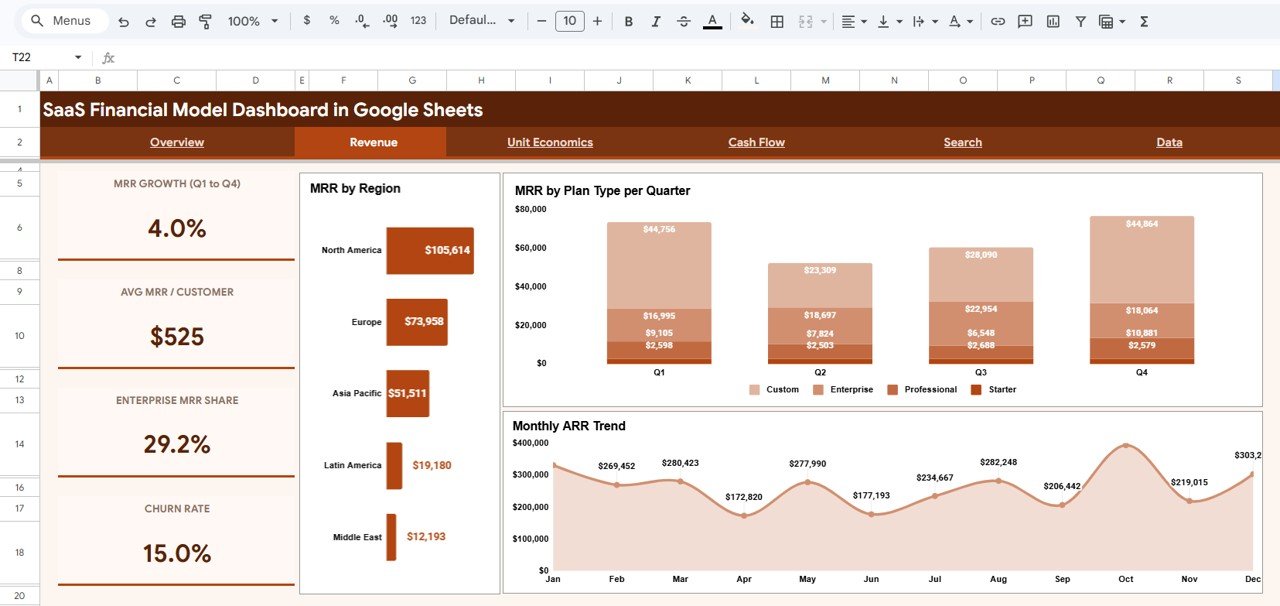
| Revenue | MRR Growth (Q1 to Q4) | 4.0% | Q4 MRR $76,388 vs Q1 MRR $73,455 |
| Revenue | Avg MRR / Customer | $525 | $262,456 ÷ 500 customers |
| Revenue | Enterprise MRR Share | 29.2% | Enterprise MRR $76,710 ÷ $262,456 |
| Revenue | Churn Rate | 15.0% | 75 Churned records ÷ 500 |
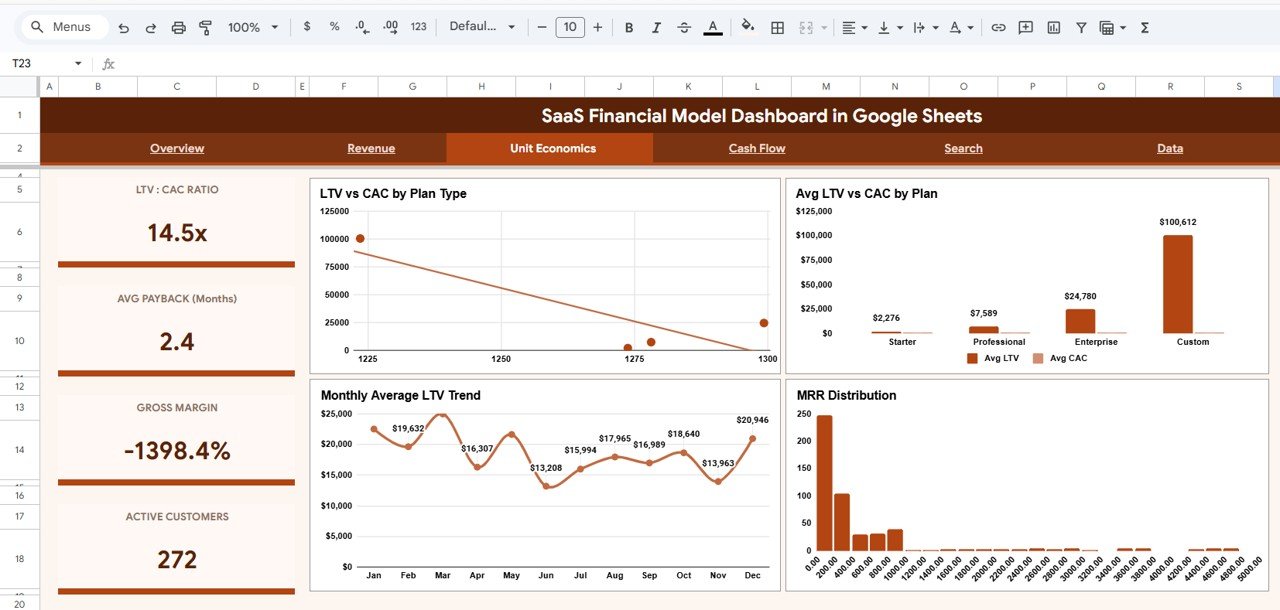
| Unit Economics | LTV : CAC Ratio | 14.5x | Avg LTV $18,478 ÷ Avg CAC $1,276 |
| Unit Economics | Avg Payback (Months) | 2.4 | Avg CAC $1,276 ÷ Avg MRR per customer $525 |
| Unit Economics | Gross Margin | -1398.4% | (Total MRR − Total Expenses) ÷ Total MRR |
| Unit Economics | Active Customers | 272 | Records with status Active |
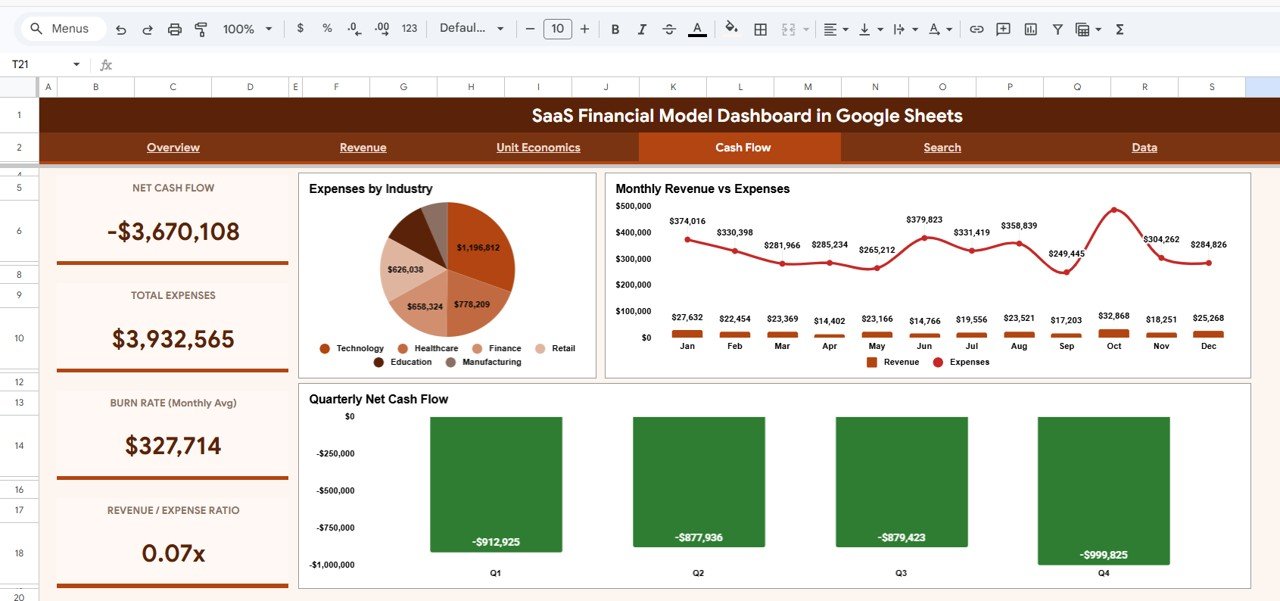
| Cash Flow | Net Cash Flow | -$3,670,108 | Total MRR $262,456 − Total Expenses $3,932,565 |
| Cash Flow | Total Expenses | $3,932,565 | Sum of the Monthly Expense column |
| Cash Flow | Burn Rate (Monthly Avg) | $327,714 | Total Expenses ÷ 12 months |
| Cash Flow | Revenue / Expense Ratio | 0.07x | Total MRR ÷ Total Expenses |
The negative gross margin and net cash flow are simply a result of the randomly generated sample data, where monthly expenses per record are much larger than MRR. Once you load your own numbers these cards show your real position.
Worked Example: Reading LTV Against CAC
With the sample data, the Overview shows an Avg Lifetime Value of $18,478 and an Avg CAC of $1,276. The ratio is:
LTV : CAC = 18,478 / 1,276 = 14.48 → 14.5xThat is exactly the 14.5x shown on the LTV : CAC Ratio card of the Unit Economics page. A ratio around 3:1 or better is a widely used rule of thumb for healthy SaaS acquisition, so if one plan in your own data falls near or below 1:1, the Avg LTV vs CAC by Plan chart will make that gap obvious, and the usual responses are to lower acquisition cost for that plan, raise its price, or steer marketing toward a higher-ratio plan. In the Data sheet LTV is column J and CAC is column I, so you can reproduce the ratio with:
=IFERROR(AVERAGE(Data!J2:J)/AVERAGE(Data!I2:I),0)SaaS Financial Model Dashboard Pages Explained
1. Overview
Next to the KPI cards, four charts summarise the business: Subscription Status Distribution (Active 272, Churned 75, Trial 85 and Paused 68 in the sample), MRR by Plan Type (Starter, Professional, Enterprise and Custom), Monthly MRR Trend (January to December) and MRR vs Expenses by Quarter.
2. Revenue
The Revenue page goes deeper into where recurring revenue comes from. Its cards show MRR Growth (Q1 to Q4), Avg MRR / Customer, Enterprise MRR Share and Churn Rate. MRR by Region compares North America, Europe, Asia Pacific, Latin America and Middle East, MRR by Plan Type per Quarter shows how each tier contributes over time, and Monthly ARR Trend tracks the annualised line you would show investors.
3. Unit Economics
This page answers “which customers are worth acquiring?”. Its cards show LTV : CAC Ratio, Avg Payback (Months), Gross Margin and Active Customers. LTV vs CAC by Plan Type and Avg LTV vs CAC by Plan compare value against acquisition cost for each tier, Monthly Average LTV Trend shows whether customer value is rising, and the MRR Distribution histogram shows how many records fall into each MRR band.
4. Cash Flow
The Cash Flow page focuses on sustainability. Its cards show Net Cash Flow, Total Expenses, Burn Rate (Monthly Avg) and Revenue / Expense Ratio. Expenses by Industry splits costs across Technology, Healthcare, Finance, Retail, Education and Manufacturing, Monthly Revenue vs Expenses shows whether each month is cash-positive, and Quarterly Net Cash Flow gives the quarter-by-quarter position that drives runway conversations.
5. Search
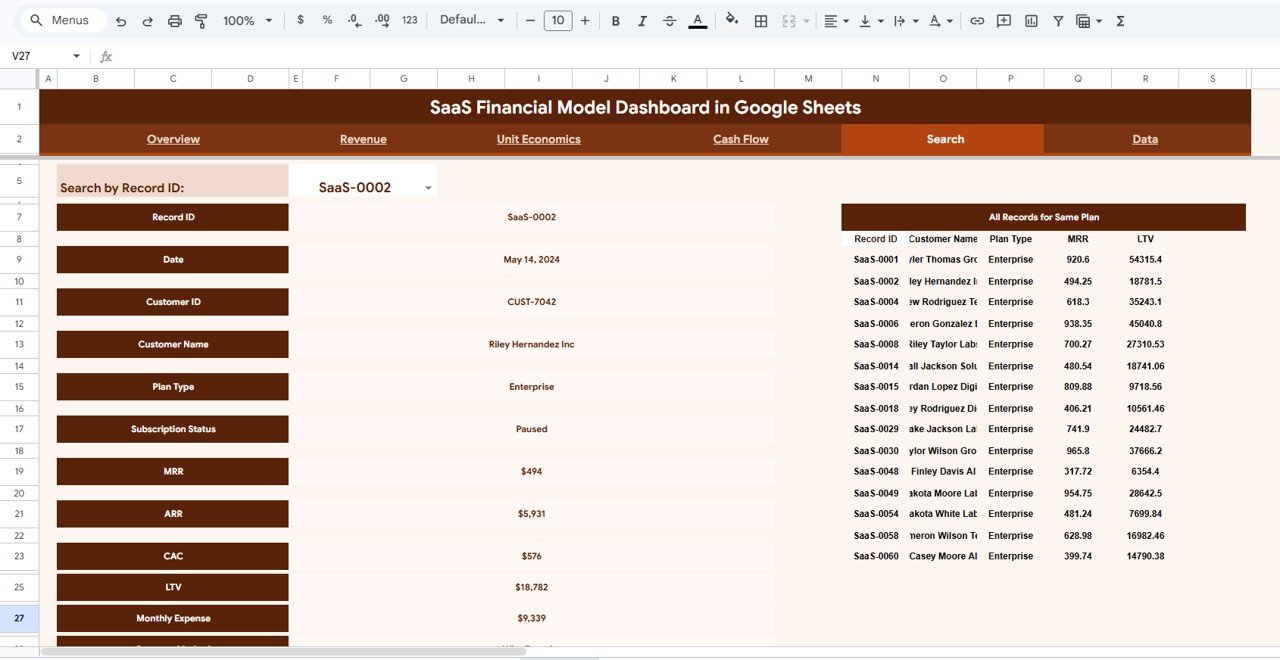
Pick a value in the Search by Record ID drop-down (for example SaaS-0002) and the page shows that customer’s details: Record ID, Date, Customer ID, Customer Name, Plan Type, Subscription Status, MRR, ARR, CAC, LTV and Monthly Expense. Alongside it, the All Records for Same Plan list shows Record ID, Customer Name, Plan Type, MRR and LTV for every record on the same plan, which is useful for benchmarking one account against its cohort.
6. Data Sheet
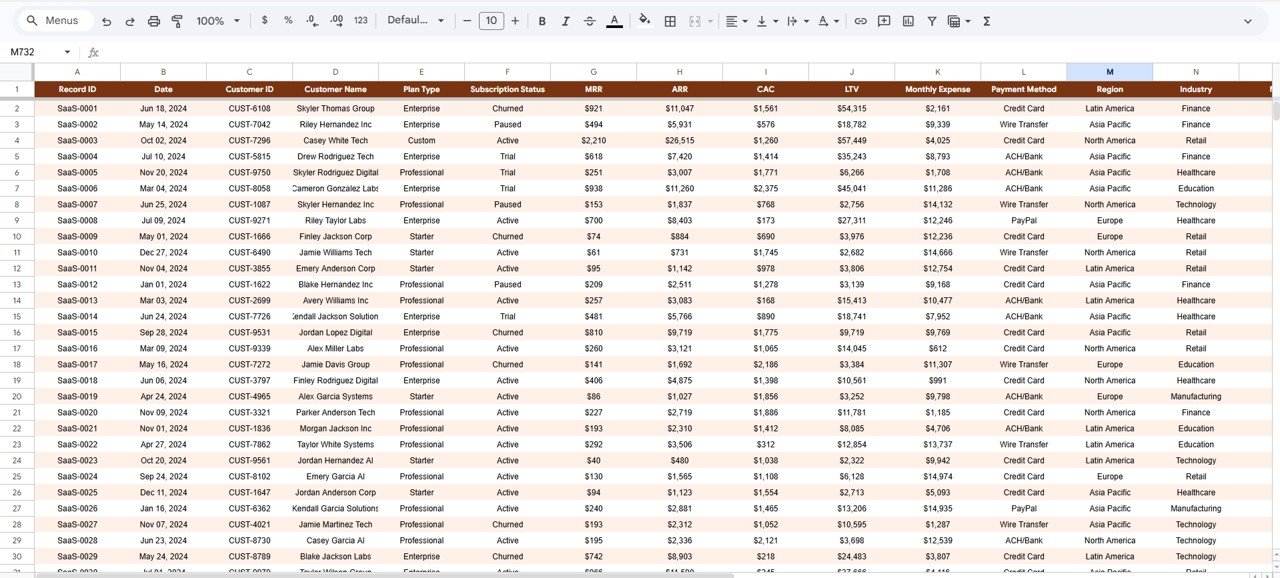
Each row is one customer record. The columns run Record ID, Date, Customer ID, Customer Name, Plan Type, Subscription Status, MRR, ARR, CAC, LTV, Monthly Expense, Payment Method, Region and Industry. Subscription Status uses Active, Churned, Trial and Paused; Payment Method uses values such as Credit Card, Wire Transfer, ACH/Bank and PayPal. Replace the sample rows with your own data in the same column layout and every card and chart updates.
How to Use It With Your Own Data
- Copy the template to your Google Drive using the link in the PDF guide that comes with your purchase.
- Export your subscription data from your billing system (Stripe, Chargebee, Razorpay or a manual list) with one row per customer record.
- Calculate CAC and LTV per record if your export does not include them. A simple LTV estimate is average monthly revenue per customer divided by monthly churn rate.
- Paste into the Data sheet in the same column order, keeping Plan Type, Subscription Status, Region and Industry spelled consistently.
- Check the Overview cards against your billing totals to confirm nothing was dropped.
- Filter the views for each audience, for example Enterprise plans only for a sales review.
Real-World Use Cases
- Seed-stage founder: updates the Data sheet at month end and shares a view-only link with investors instead of building a new deck chart every month.
- Finance lead at a growing SaaS: uses Unit Economics to show that one plan has a weak LTV:CAC ratio and moves paid acquisition budget to a better-performing tier.
- Agency or consultant: keeps one copy per client to review subscription health and cash flow in monthly calls.
Best Practices
- Update monthly, on the same day. MRR and ARR trends are only meaningful when every period is complete.
- Keep plan names consistent. “Enterprise”, “enterprise” and “ENTERPRISE” become three separate bars.
- Watch LTV:CAC by plan, not just overall. A healthy average can hide one loss-making tier.
- Review quarterly net cash flow before committing to new hires or larger campaigns.
- Share view-only access with investors and advisers so nobody edits the source data by accident.
Limitations and Who Should Not Use It
This is a reporting dashboard built on the records you enter, not a forecasting model. It does not project future MRR, model scenarios or calculate churn cohorts on its own, and it does not connect to your billing system automatically. If you need driver-based forecasts, a three-statement model or live billing integration, use a dedicated SaaS metrics platform or a full financial model alongside it. For teams that want a clean, shareable view of historical SaaS performance, the spreadsheet approach is simple and transparent.
Related Templates and Guides
For more subscription analytics on NeoTech Navigators, see the SaaS Metrics Dashboard in Google Sheets, the SaaS MRR & Churn Tracker for churn analysis, the SaaS Financial Performance Dashboard, the browser-based SaaS Financial Model Dashboard in HTML, and the Cash Flow Dashboard in Google Sheets.
Prefer another tool? The same model is available as the SaaS Financial Model Dashboard in Excel and in Power BI.
If you want to learn how dashboards like this are built, from summarising data to designing KPI cards and charts, the Excel Pivot Tables & Dashboards course on NextGenTemplates Academy covers the techniques with structured lessons.
Frequently Asked Questions
What is a SaaS financial model dashboard?
It is a reporting view that summarises subscription data into SaaS metrics such as MRR, ARR, LTV, CAC, customer count and cash flow, so founders and finance teams can see growth, unit economics and runway at a glance.
How do I track MRR and ARR in Google Sheets?
Keep one row per customer record with its monthly recurring revenue and ARR, then sum each column. This template does that for you and charts the results by plan, region and month.
What is a good LTV to CAC ratio?
Around 3:1 is a commonly used benchmark. Below 1:1 means you spend more to win a customer than they bring in. The Unit Economics page shows the overall ratio on a card and compares Avg LTV with Avg CAC by plan in a chart.
Does the dashboard calculate churn?
Yes, at a simple level. The Revenue page has a Churn Rate card (Churned records as a share of all records, 15.0% in the sample) and the Overview shows the split across Active, Churned, Trial and Paused. There is no cohort or month-by-month retention page, so pair it with a churn tracker for deeper analysis.
Do I need coding skills?
No. You paste your data into the Data sheet; the formulas and charts are already built.
Can I share it with investors?
Yes. Use Google Sheets sharing to give view-only access, or present the relevant page in a meeting.
Wrapping Up
The SaaS Financial Model Dashboard in Google Sheets gives you a dependable monthly view of recurring revenue, unit economics and cash flow without extra software. Load your subscription records, check the totals against billing, and use the Unit Economics and Cash Flow pages to decide where to spend next.
Get the SaaS Financial Model Dashboard
📅 Last updated: October 2026