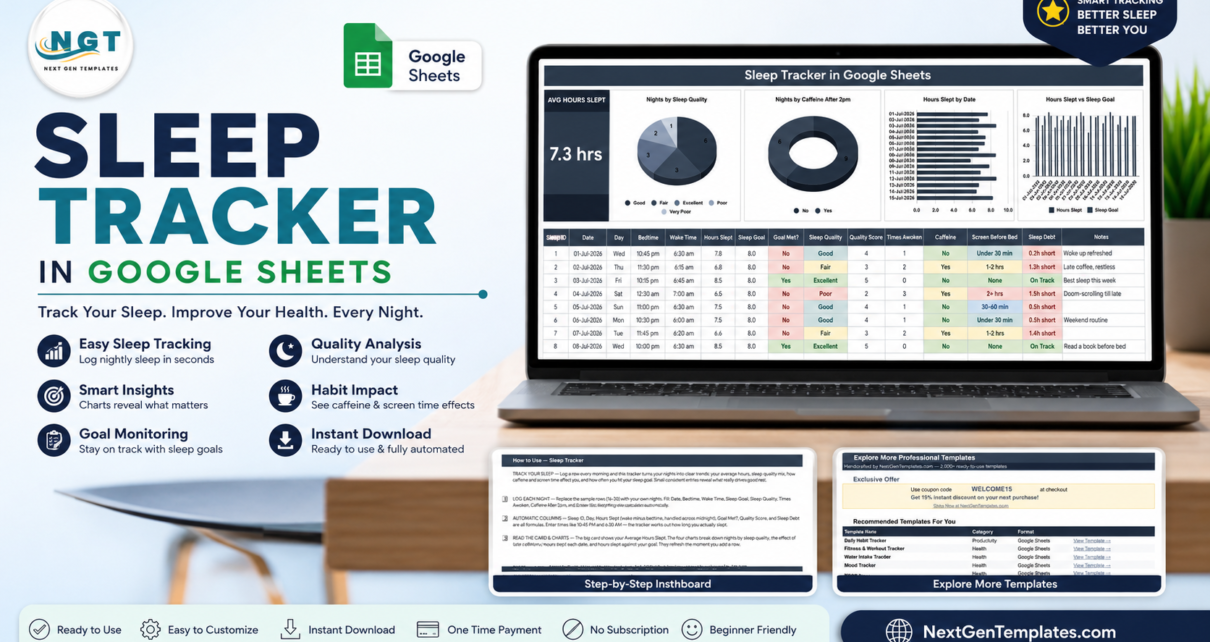
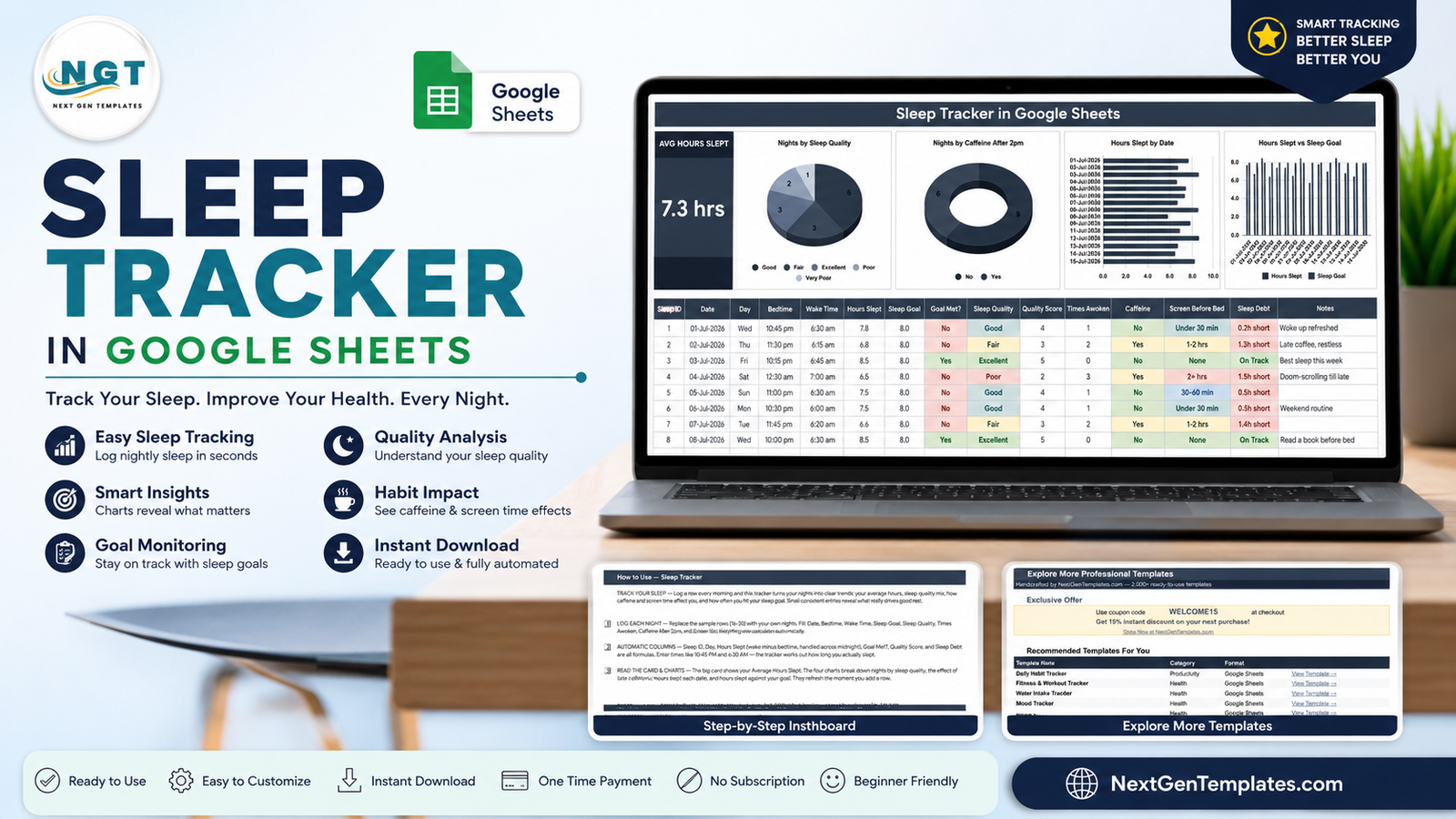
Most people who decide to “pay attention to their sleep” last about four nights. Not because the idea is wrong, but because the tool gets in the way: an app wants an account, a wearable wants charging, and a blank spreadsheet wants an evening of formula writing before it shows you anything. The Sleep Tracker in Google Sheets removes that friction. It is one tab, 15 columns, four charts and a single large card, with 15 sample nights already filled in so you can see it working before you type a thing. You log a row each morning; the sheet does the arithmetic.
One thing up front: this is a logging and charting template, not medical advice. It does not diagnose anything, it does not measure anything, and it does not tell you how long you should sleep. It records what you type and draws charts from it. That is the whole promise.
Get the Sleep Tracker in Google Sheets
Key Features of the Sleep Tracker in Google Sheets
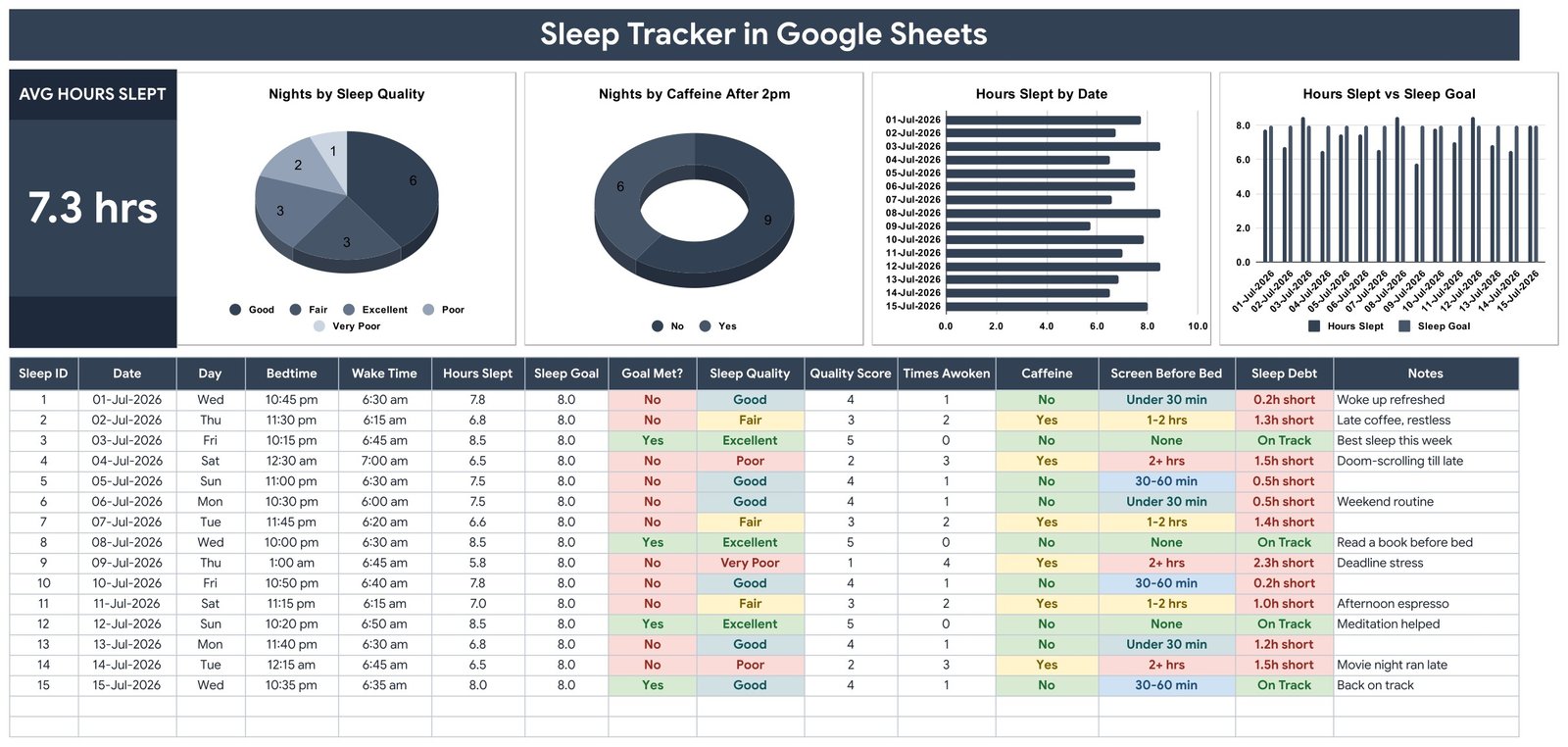
- An Average Hours Slept card – one number covering every night in the log, sitting to the left of the charts.
- Four charts across the top – Nights by Sleep Quality, Nights by Caffeine After 2pm, Hours Slept by Date, and Hours Slept vs Sleep Goal.
- Six columns that fill themselves – Sleep ID, Day, Hours Slept, Goal Met?, Quality Score and Sleep Debt are formulas.
- Bedtimes after midnight handled properly – a 1:00 am bedtime with a 6:45 am wake time returns 5.8 hours, not a negative figure.
- Your Sleep Goal, not ours – the sample rows carry 8.0 as a placeholder; type your own and every goal-related column follows it.
- Three dropdown columns – Sleep Quality, Caffeine After 2pm and Screen Before Bed, all sourced from an editable List tab.
- Conditional colour – quality, caffeine, screen time and sleep debt shade themselves, so a rough patch is obvious at a glance.
- Charts that grow with the data – they read rows 16-1000 of the columns directly using the built-in Aggregate option, with no hidden helper tables.
- A Notes column – “late coffee, restless”, “read a book before bed”, “deadline stress”. Usually the column that explains the chart.
Sheet Pages Explained
Sleep Tracker – the main page
Everything you actually use is on this one tab. The Average Hours Slept card anchors the left, the four charts run across the rest of the top row, and the log sits underneath. The columns, in order: Sleep ID, Date, Day, Bedtime, Wake Time, Hours Slept, Sleep Goal, Goal Met?, Sleep Quality, Quality Score, Times Awoken, Caffeine, Screen Before Bed, Sleep Debt and Notes.
Quality Score is worth calling out. Sleep Quality is a word – Excellent, Good, Fair, Poor, Very Poor – and words cannot be averaged or plotted, so the sheet converts them to 5 down to 1 in the next column. Sleep Debt does something similar in the other direction: it turns the gap between Hours Slept and your Sleep Goal into a readable “1.3h short” or “On Track”.
How to Use – the instructions that ship with the file
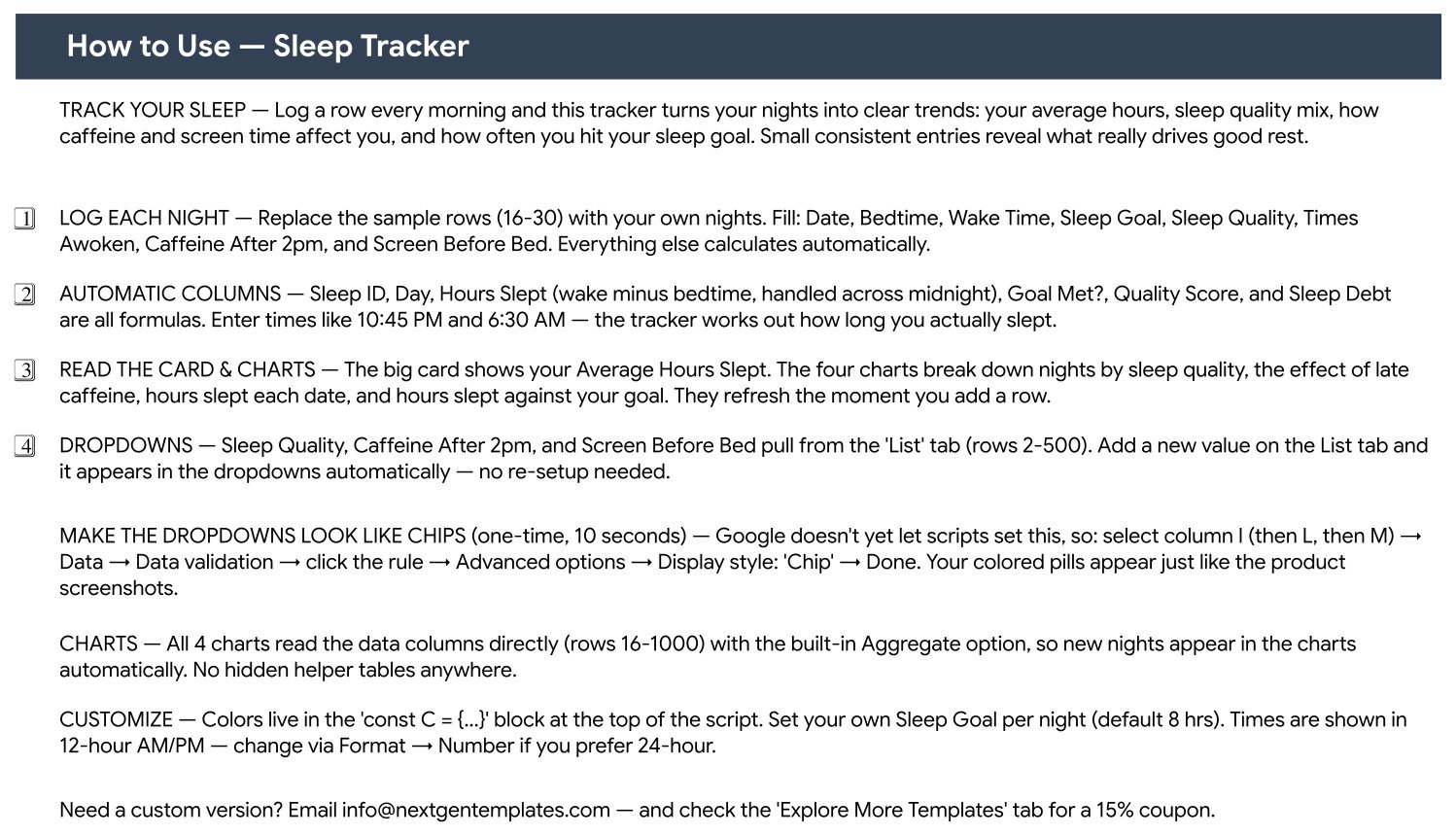
The second tab is the manual, written into the workbook rather than attached as a separate document. It covers the four setup steps, which columns are automatic, how the charts are wired, how the dropdowns read the List tab, and the one-time trick for turning those dropdowns into the coloured chips you can see in the screenshots: select the column, then Data, Data validation, click the rule, Advanced options, Display style Chip. Google’s own data validation documentation covers the same setting if you want the fuller reference.
List – where the dropdowns come from
Sleep Quality, Caffeine After 2pm and Screen Before Bed all read rows 2-500 of this tab. Add a value and it appears in the dropdown straight away. If “Fair” is not a word you would use, change it. If you want screen-time bands of your own rather than the shipped None / Under 30 min / 30-60 min / 1-2 hrs / 2+ hrs, edit them here and nothing else breaks.
Explore More Templates
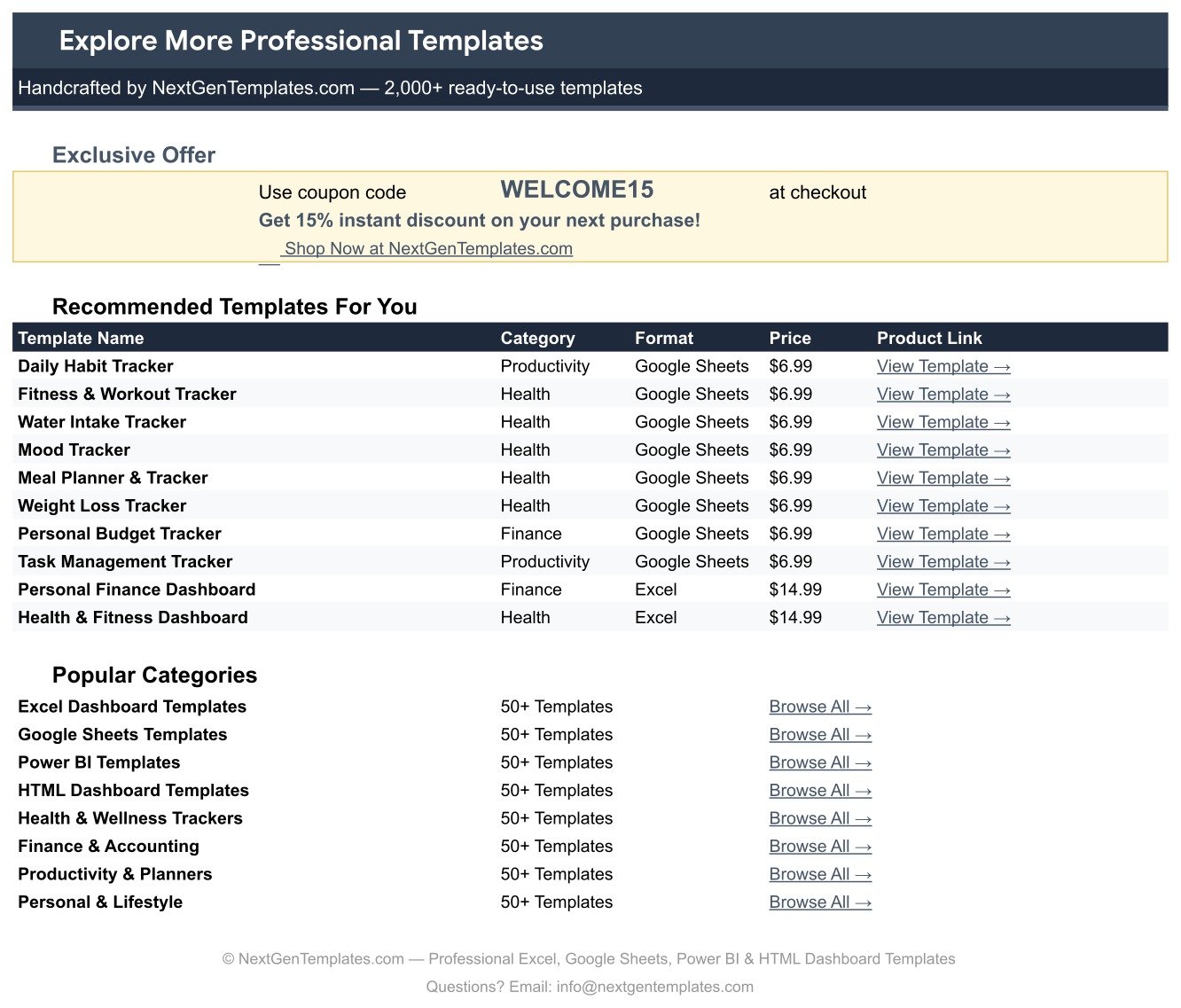
The final tab carries the WELCOME15 coupon for 15% off a future purchase, a short table of related trackers, and links into the wider catalogue.
Sleep Tracker in Google Sheets vs. an Excel Sleep Log vs. a Paid Sleep App – Feature Comparison
| Sleep Tracker in Google Sheets | DIY Excel sleep log | Paid sleep app subscription | |
|---|---|---|---|
| Cost | 6.99 one-off | Free, but you build it | 4-10 per month, per person |
| Platform | Google Sheets in any browser or the app | Desktop Excel or Microsoft 365 | Phone app plus vendor cloud |
| Setup time | About 2 minutes | An evening of formulas and charts | Minutes, plus an account |
| Real-time collaboration | Yes, native | Only through OneDrive co-authoring | Rarely – accounts are personal |
| Mobile access | Yes | Limited in mobile Excel | Yes |
| Customisable fields | Add any column you like | Yes | No – the fields are fixed |
| Share with link | Yes | Send the file or a cloud link | Usually not |
| Year-1 cost for 5 people | 6.99 total | Your time, five times over | 240-600 |
| Needs a wearable | No – you type what you observed | No | Often yes |
| Who holds the data | Your own Google Drive | Your own disk | The vendor |
Who Should Use This Template
It suits anyone who wants a plain written record of their own nights in a file they control. Shift workers, whose schedules make an app’s weekly average meaningless. Students and parents through a rough stretch, who want the record rather than a score. Anyone asked to keep a log for a few weeks before an appointment – the Bedtime, Wake Time, Times Awoken and Notes columns are exactly the sort of thing that is easier to hand over than to remember. And anyone already keeping a water intake or workout log in the same format who wants one more tab in the same style.
It is not for you if you expect data to arrive on its own. There is no watch, ring or phone integration – every value is typed by hand, which is exactly what keeps the file yours and free of accounts and permissions.
Real-World Use Cases
A nurse on rotating shifts. Bedtimes swing between 10 pm and 3 am. She logs the shift in Notes, and Hours Slept vs Sleep Goal makes it plain which rotations leave her short – something a single weekly average would flatten into nothing.
A runner in a training block. He keeps the sleep log next to his mileage tracker and marks long-run days in Notes. Nights by Sleep Quality gives him a straight count of how his rest looked over twelve weeks.
Someone preparing for an appointment. Four weeks of bedtimes, wake times and Times Awoken, typed each morning and printed from one tab. No interpretation, no score – just the record, in the patient’s own words.
Advantages of the Sleep Tracker in Google Sheets
- Nothing to learn. If you can type a time into a cell, you can use it. The formulas stay out of your way.
- The numbers are visible. Every calculation is a spreadsheet formula you can click on and read – no black box deciding what your night was worth.
- It survives edits. Add columns, rename dropdown values, change the goal – the charts read the data columns directly, so they keep working.
- It costs once. A one-off 6.99 against 50-120 a year for a subscription that owns the data.
- Portable. Download it as .xlsx, print it, share it by link, or keep it entirely private in your own Drive.
Opportunities for Improvement
An honest list. The tracker has no device sync, so a missed morning is a missing row – the discipline is yours. The chip-style dropdown colours need that one-time manual step, because Apps Script cannot currently set the chip display style. The charts are deliberately simple counts and totals rather than rolling averages, which keeps them readable but means a weekly or monthly view is something you would add yourself with a pivot table. And, worth saying again, nothing here interprets your data. It counts and it plots; the meaning is not the spreadsheet’s job.
Best Practices
- Log at the same time each day. First thing in the morning, while the night is still fresh, beats reconstructing three days later.
- Set your own Sleep Goal first. Replace the placeholder 8.0 before you start, so Goal Met? and Sleep Debt mean something to you.
- Use Notes generously. The pattern usually lives there – late espresso, a film that overran, a deadline.
- Keep the dropdown wording consistent. Type values through the dropdown rather than free-hand, or the quality chart splits across near-duplicates.
- Give it a few weeks. Four nights is noise. A month of rows is when the charts start to look like anything.
- Keep one sheet per person. Copy the file rather than sharing rows – the average card covers the whole log.
Explore Relevant Templates
- Water Intake Tracker in Google Sheets
- Calorie & Macro Tracker in Google Sheets
- Daily Steps Tracker in Google Sheets
- 30-Day Fitness Challenge Tracker in Google Sheets
- Fitness and Wellness Dashboard in Google Sheets
- Or browse the whole Google Sheets tracker range.
If you would like to learn the spreadsheet techniques behind a tracker like this, the NextGenTemplates Academy learning paths include practice files you can follow along with.
Get the Sleep Tracker in Google Sheets
Frequently Asked Questions
Is this medical advice?
No. It is a spreadsheet for recording and charting what you observed about your own nights. It does not diagnose, treat or assess anything, and it makes no recommendation about how much sleep you should get. For anything health-related, speak to a qualified professional.
Does the template tell me how long I should sleep?
No. You enter your own Sleep Goal, and Goal Met?, Sleep Debt and the goal chart simply compare your logged hours against that number. The 8.0 in the sample rows is a placeholder so the demo data has something to compare against.
Can it read my smartwatch or phone?
No. Every value is typed in by hand, on purpose – no accounts, no permissions, no third-party sync.
How are hours calculated across midnight?
The Hours Slept formula subtracts across midnight, so a 12:30 am bedtime with a 7:00 am wake time returns 6.5 hours rather than a negative number.
How many nights can it hold?
The charts and formulas are built out to row 1000, which is roughly two and a half years of nightly entries. You can extend the ranges if you outlast that.
Can I use it in Excel instead?
You can download the copy as .xlsx and the log and formulas come across. The chip-style dropdowns are a Google Sheets feature and will render as plain validated cells.
How do I get the template?
Buy the Sleep Tracker in Google Sheets, open the PDF in your download, and click the Make a copy link. The tracker lands in your own Google Drive, ready to edit.
About the Author
Built by PK – Microsoft Certified Professional with 15+ years of Excel, Google Sheets, and Power BI experience. Founder of NextGenTemplates, reaching 300K+ subscribers across YouTube channels. Every template is hand-built and tested before release.
Conclusion
The strength of this tracker is how little it asks of you. One row a morning, six columns filled in by formula, four charts that redraw as you type, and a file that lives in your own Drive rather than a vendor’s. It will not interpret your nights or tell you what they mean – it is a log and a set of charts, nothing more, and it is not medical advice. But a month of honest rows is a far better starting point for a conversation, with yourself or with a professional, than a vague sense that last week was bad.
Get the Sleep Tracker in Google Sheets and start tonight. For more Google Sheets walkthroughs and template tutorials, subscribe at youtube.com/@NeotechNavigators.