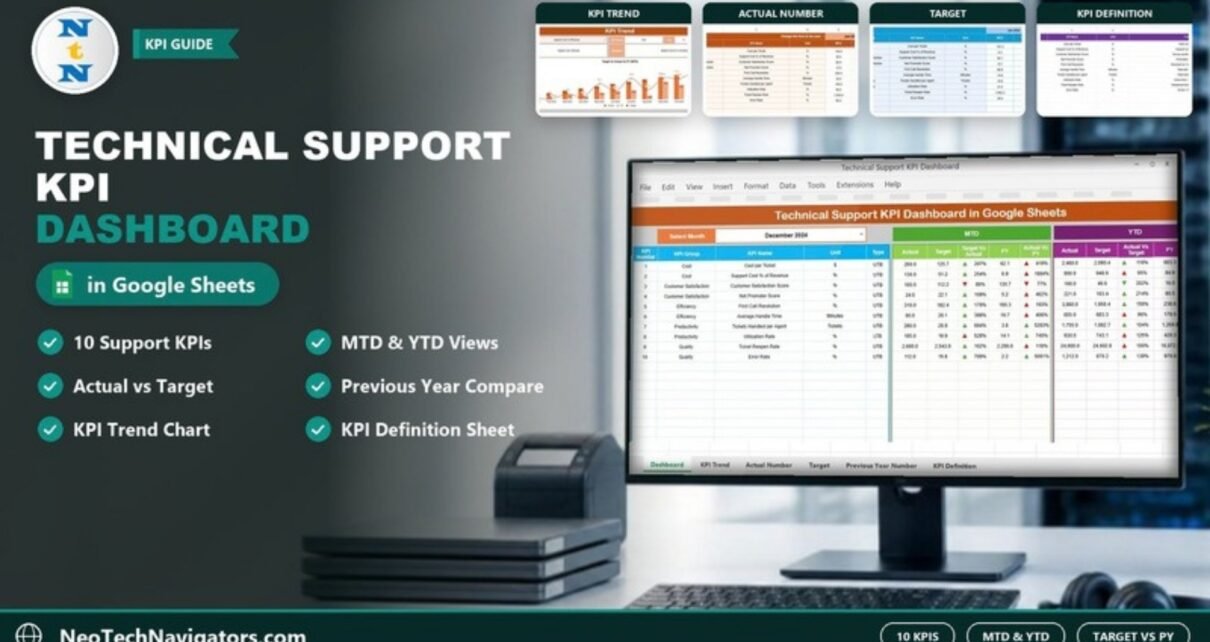
The Technical Support KPI Dashboard in Google Sheets tracks 10 support KPIs, from Cost per Ticket and First Call Resolution to Ticket Reopen Rate and Error Rate, for any month you choose. For each KPI it shows Month-to-Date (MTD) and Year-to-Date (YTD) actuals next to the target and the previous year, with green and red arrows so you can see at a glance what is on track.
It is built for IT service desk leads, technical support managers and operations heads who report support performance every month and want a clean, formula-driven view without paying for a BI tool. Below you will find every sheet, the full KPI list with formulas, a worked example using the sample numbers, setup steps, use cases and honest limitations.
🎥 Watch the Video Tutorial
Get the Technical Support KPI Dashboard
What Problem Does This Dashboard Solve?
Support data usually lives in a ticketing tool, a cost report and a satisfaction survey, and the monthly review becomes a copy-paste exercise. Managers end up comparing numbers by eye, and nobody is sure whether “better than last year” really means better against target.
This dashboard puts the monthly numbers for all 10 KPIs into three simple input sheets (Actual, Target and Previous Year) and calculates the comparisons for you. You pick a month and immediately see which KPIs beat their target, which slipped against last year and how the year is tracking overall.
Sheets Inside the Technical Support KPI Dashboard
| Sheet | What it shows | What you do there |
|---|---|---|
| Dashboard | All 10 KPIs with MTD and YTD Actual, Target, PY and % comparisons with arrows | Select the month |
| KPI Trend | One KPI’s group, unit, type, formula, definition and a monthly Target vs Actual vs PY chart | Select the KPI |
| Actual Number | Monthly MTD and YTD actuals for each KPI | Enter actual values; set the first month of the year |
| Target | Monthly MTD and YTD targets | Enter targets |
| Previous Year Number | Last year’s MTD and YTD values | Enter prior-year values |
| KPI Definition | KPI master list: group, name, unit, formula, definition, type | Edit or add KPIs |
The 10 KPIs Included
These are the KPIs exactly as they appear in the KPI Definition sheet. “Type” is the template’s direction setting: UTB means Upper the Better and LTB means Lower the Better.
| KPI | Group | Unit | What it measures | Formula | Type in template |
|---|---|---|---|---|---|
| Cost per Ticket | Cost | $ | Cost incurred per ticket | Total cost / Tickets | UTB |
| Support Cost % of Revenue | Cost | % | Support cost as % of revenue | Support cost / Revenue | UTB |
| Customer Satisfaction Score | Customer Satisfaction | % | Customer satisfaction rating | Survey positive / Total survey | UTB |
| Net Promoter Score | Customer Satisfaction | % | Likelihood to recommend | Promoters – Detractors | UTB |
| First Call Resolution | Efficiency | % | Issues solved on first call | Resolved on 1st call / Total calls | UTB |
| Average Handle Time | Efficiency | Minutes | Average time per call | Total talk time / Calls | UTB |
| Tickets Handled per Agent | Productivity | Tickets | Tickets resolved per agent | Total tickets / Agents | UTB |
| Utilization Rate | Productivity | % | Agent utilization % | Active time / Available time | LTB |
| Ticket Reopen Rate | Quality | % | Percentage of tickets reopened | Reopened tickets / Total tickets | UTB |
| Error Rate | Quality | % | Error percentage in tickets | Errors / Total tickets | UTB |
Tip: the Type column drives the arrow colours. In most support teams, Cost per Ticket, Support Cost % of Revenue, Average Handle Time, Ticket Reopen Rate and Error Rate are “lower is better”, and Utilization Rate is usually “higher is better” up to a healthy limit. Before you load real data, review the Type for each KPI in the KPI Definition sheet and change it to match how your team judges performance.

Dashboard Sheet: The Monthly Overview
Select a month from the dropdown at the top (cell D3 in the template, December 2024 in the sample). The table then shows, for each KPI:
- MTD: Actual, Target, Target vs Actual, PY and Actual vs PY.
- YTD: Actual, Target, Actual vs Target, PY and Actual vs PY.
Green and red arrows next to each percentage show whether the result is good or bad according to the KPI’s Type.

Worked example: reading one row
Take Cost per Ticket for December 2024 in the sample:
- MTD Actual = 260.0, MTD Target = 125.7, MTD PY = 62.1
- Target vs Actual = Actual ÷ Target = 260.0 ÷ 125.7 ≈ 207%
- Actual vs PY = Actual ÷ PY = 260.0 ÷ 62.1 ≈ 419%
Target vs Actual % = MTD Actual / MTD Target
Actual vs PY %     = MTD Actual / MTD PY
Now look at Customer Satisfaction Score: MTD Actual 100.0 against a target of 112.2 gives 89%, shown with a red down arrow because the result is below target on an Upper the Better KPI. Utilization Rate, the only LTB KPI, shows 105.0 against a target of 19.8 (528%) with a red arrow, because a higher value counts as worse for that type.
KPI Trend Sheet: One KPI in Depth
Choose a KPI from the dropdown (cell C3). The sheet fills in its KPI Group, Unit, Type, Formula and Definition and draws a Target Vs Actual Vs PY (MTD) chart for every month of the year.
In the screenshot, Support Cost % of Revenue is selected: group Cost, unit %, formula “Support cost / Revenue”. December shows Actual 130.0, Target 51.2 and PY 6.9, the same numbers you see in row 2 of the dashboard.

Input Sheets: Actual, Target and Previous Year
Actual Number
Enter the first month of your year in the header cell (marked “Change the first of the year”, cell E1), and the month columns follow from it. For each month, type the MTD and YTD actual for every KPI. In the sample, the YTD figures are running totals of the MTD values: Cost per Ticket is 150.0 in January, 160.0 in February (YTD 310.0) and 170.0 in March (YTD 480.0).

Target
The Target sheet has the same layout. Enter the MTD and YTD target for each KPI and month.

Previous Year Number
Enter last year’s MTD and YTD values (2023 in the sample) so the dashboard can calculate Actual vs PY.

How to Use It With Your Own Data
- Review the KPI list in the KPI Definition sheet. Rename, remove or add KPIs, and set each Type to UTB or LTB.
- Set the first month of your financial or calendar year in the Actual Number sheet.
- Enter targets for each month in the Target sheet.
- Enter last year’s values in the Previous Year Number sheet. If you have no history yet, leave it blank and focus on Target vs Actual.
- Each month, add actuals from your ticketing and cost reports: MTD for the month and the running YTD.
- Select the month on the Dashboard and review the red arrows first.
- Drill into problem KPIs on the KPI Trend sheet to see whether the issue is new or a pattern.
Real-World Use Cases
Monthly service desk review
An IT service desk lead updates actuals on the first working day of the month, then opens the dashboard in the review meeting. The team discusses only the KPIs with red arrows and agrees on actions.
SaaS customer support reporting
A support manager at a software company uses Customer Satisfaction Score, Net Promoter Score and First Call Resolution to show leadership how support quality is trending against last year.
Outsourced support vendor check
A company that outsources level-1 support keeps one copy of the dashboard per vendor and compares Cost per Ticket and Tickets Handled per Agent against contract targets.
Best Practices
- Fix the KPI Types before entering data, so arrows mean what your team expects.
- Use one source of truth for each KPI (for example, your ticketing tool for ticket counts).
- Set realistic targets based on at least a few months of history.
- Update data on the same day each month so comparisons are fair.
- Look at YTD as well as MTD; one bad month does not always mean a bad year.
- Write short notes on why a KPI moved, so the next review has context.
Who Should Not Use This Dashboard (Limitations)
- Not a ticketing tool. It does not log tickets or calculate KPIs from raw ticket data; you enter monthly KPI values.
- No agent-level view. All KPIs are team totals. If you need per-agent scorecards, you will need another sheet or tool.
- No live integration. Data from Zendesk, Freshdesk, Jira or similar tools must be copied in or imported separately.
- Real-time monitoring of queues and SLAs during the day needs your helpdesk tool’s own dashboards; this template is for monthly reporting.
Related Templates and Guides
If you want a different KPI set for the same team, compare this with the tech support efficiency KPI dashboard and the helpdesk efficiency KPI dashboard. To capture the tickets themselves, see the IT helpdesk ticket tracker in Google Sheets. Customer-facing teams may prefer the customer service KPI dashboard or the call center KPI scorecard.
Related templates: if your team works outside Google Sheets, see the Technical Support KPI Dashboard in Excel and the Technical Support KPI Dashboard in Power BI on NextGenTemplates.
If you want to build dashboards like this yourself, the Excel Pivot Tables and Dashboards course on NextGenTemplates Academy walks through summarising data and building KPI reports step by step.
Frequently Asked Questions
Which KPIs does the technical support dashboard track?
Ten KPIs: Cost per Ticket, Support Cost % of Revenue, Customer Satisfaction Score, Net Promoter Score, First Call Resolution, Average Handle Time, Tickets Handled per Agent, Utilization Rate, Ticket Reopen Rate and Error Rate.
What do MTD and YTD mean here?
MTD (Month-to-Date) is the value for the selected month. YTD (Year-to-Date) is the cumulative value from the first month of your year up to the selected month.
Can I add my own KPIs?
Yes. Add the KPI in the KPI Definition sheet with its group, unit, formula, definition and type, then enter its actual, target and previous-year values in the input sheets.
What do UTB and LTB mean?
UTB stands for Upper the Better and LTB for Lower the Better. The type decides whether a value above target shows a green or a red arrow.
Can I use a financial year that starts in April?
Yes. Set the first month of the year in the Actual Number sheet, and the month columns follow from it.
Does it connect to my helpdesk software?
No. You enter or paste monthly KPI values. You can automate imports separately, but the template itself has no connector.
Wrapping Up
The Technical Support KPI Dashboard in Google Sheets turns three simple input sheets into a clear monthly scorecard for 10 support KPIs, with MTD, YTD, target and previous-year comparisons in one view. Set your KPI types, enter targets and history, and update actuals once a month to get a review-ready dashboard every time.
Get the Technical Support KPI Dashboard
📅 Last updated: October 2026