Legal Compliance Tracker in Google Sheets dashboard with compliance KPI cards and charts shown on a laptop
Templates

Legal Compliance Tracker in Google Sheets

The Legal Compliance Tracker in Google Sheets gives legal, HR, audit and operations teams one shared place to record every compliance task, see who owns it, and spot overdue or high-risk items before they become a problem. Instead of chasing status updates over email, you update a single Data sheet and the dashboard refreshes on its own.

This guide is for compliance officers, HR managers, small-business owners and audit coordinators who need a simple, low-cost way to stay audit-ready. Inside the template you get three sheets: a Tracker dashboard with five KPI cards and three charts, a Search sheet for instant lookups, and a Data sheet that stores every compliance record.

Below you will find a walkthrough of each sheet, a table of the KPIs it tracks, step-by-step instructions for loading your own data, real-world use cases and honest limitations.

🎥 Watch the Video Tutorial

Get the Legal Compliance Tracker

What Problem Does a Legal Compliance Tracker Solve?

Compliance work is spread across laws, regulations, internal policies, licences and audit requirements. Each obligation has a due date, an owner, a department, a priority and a level of risk. When those details live in personal to-do lists, inboxes and paper files, three things go wrong:

  • Deadlines slip because nobody sees the full list of upcoming due dates.
  • Ownership is unclear, so two people work on the same task while another is forgotten.
  • Audits become stressful because evidence of completed checks has to be gathered at the last minute.

A legal compliance tracker fixes this by putting every task in one structured table and summarising it on a dashboard. Google Sheets is a good home for it: several people can edit at the same time, and the file is available on any device with a browser.

Inside the Legal Compliance Tracker in Google Sheets

The template is organised into three sheets. All dashboard numbers are pulled from the Data sheet, so you only ever type information in one place.

1. Tracker Sheet (Dashboard)

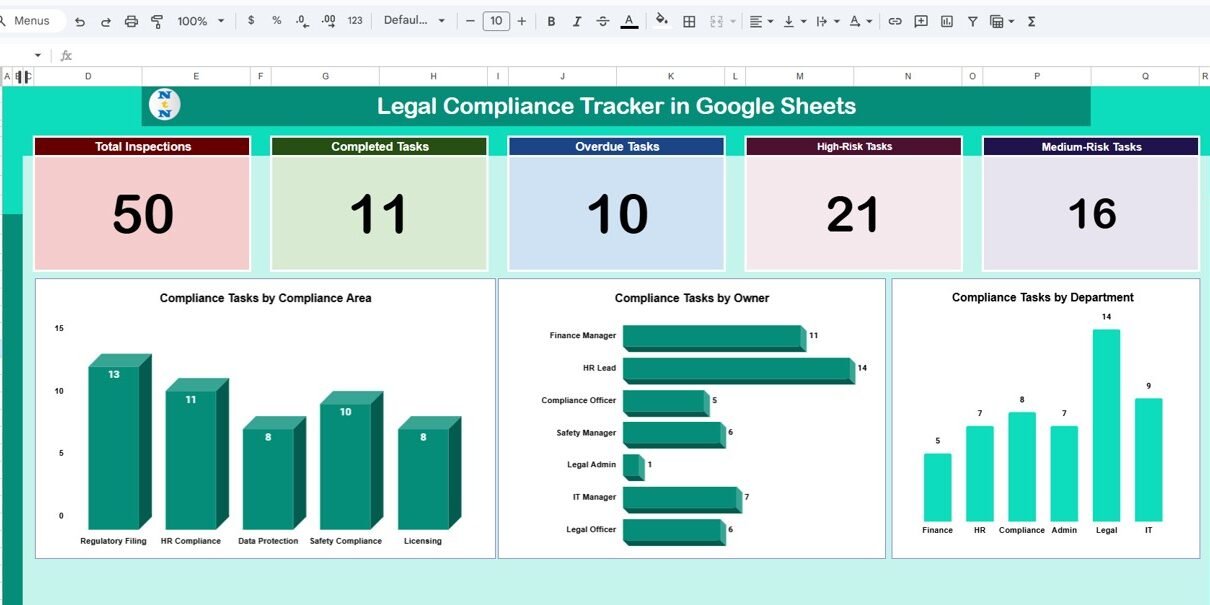
The Tracker sheet is the summary view you open every morning. Five KPI cards sit across the top. The numbers in brackets are from the sample data shown in the screenshot below:

  • Total Inspections (50) – the number of compliance task rows recorded in the Data sheet.
  • Completed Tasks (11) – tasks with the Status Completed.
  • Overdue Tasks (10) – tasks with the Status Overdue.
  • High-Risk Tasks (21) – tasks with the Risk Level High.
  • Medium-Risk Tasks (16) – tasks with the Risk Level Medium.

Below the cards, three charts show how the workload is distributed:

  • Compliance Tasks by Compliance Area – Regulatory Filing, HR Compliance, Data Protection, Safety Compliance and Licensing in the sample data.
  • Compliance Tasks by Owner – Finance Manager, HR Lead, Compliance Officer, Safety Manager, Legal Admin, IT Manager and Legal Officer.
  • Compliance Tasks by Department – Finance, HR, Compliance, Admin, Legal and IT.
Tracker tab with five compliance KPI cards and charts by compliance area, owner and department
Tracker sheet: KPI cards and charts by compliance area, owner and department

2. Search Sheet

When an auditor asks about one specific obligation, you do not want to scroll through hundreds of rows. The Search sheet (Search by Search Keyword and Field Name) works in two steps: pick a column in the Select Column dropdown (for example Priority, Status, Owner or Compliance Area) and type a value in Search Keyword (for example High). Matching records appear in a results table with all ten columns, and the Total Record box shows how many rows matched (23 high-priority tasks in the example below).

Search tab filtering compliance tasks by keyword and by field name
Search sheet: pick a column, type a keyword and see the matching tasks

3. Data Sheet

The Data sheet is the single source of truth. Each row is one compliance task, and most columns use dropdown chips so entries stay consistent. The columns are:

Column What to enter
A – S.No Serial number of the task
B – Compliance Area Regulatory Filing, HR Compliance, Data Protection, Safety Compliance or Licensing
C – Compliance Task The obligation, e.g. Annual Tax Return, GDPR Audit, Fire Safety Drill
D – Owner The role accountable for the task, e.g. Finance Manager or Compliance Officer
E – Due Date The deadline for completion
F – Status Completed, In Progress, Pending or Overdue
G – Priority High, Medium or Low
H – Risk Level High, Medium or Low
I – Department Finance, HR, Compliance, Admin, Legal or IT
J – Comments A short note such as Filed on time, Review ongoing or Missed deadline
Data sheet listing compliance tasks with owner, department, due date, status and risk level
Data sheet: one row per compliance task

KPIs Tracked on the Dashboard

KPI What it measures How it is calculated Better when
Total Inspections Volume of compliance tasks recorded Count of task rows in the Data sheet Complete coverage of your obligations
Completed Tasks Work finished Count of rows where Status = Completed Higher
Overdue Tasks Missed deadlines Count of rows where Status = Overdue Lower
High-Risk Tasks Exposure to serious penalties Count of rows where Risk Level = High Lower (or all completed)
Medium-Risk Tasks Moderate exposure Count of rows where Risk Level = Medium Lower

If you want to build similar counts yourself, Status sits in column F and Risk Level in column H of the Data sheet, so a simple pattern is:

=COUNTIF(Data!F:F,"Overdue")
=COUNTIFS(Data!H:H,"High",Data!F:F,"<>Completed")

The second formula counts high-risk tasks that are still open, which is often the single most useful number for a compliance manager.

How to Use It with Your Own Data

  1. Make your copy. After purchase, open the file and use File > Make a copy so you have your own editable version in Google Drive.
  2. List your obligations. Before typing, gather your statutory filings, licence renewals, policy reviews, training requirements and audit checks.
  3. Clear the sample rows on the Data sheet, keeping the header row and any formulas intact.
  4. Enter one task per row with its compliance area, task, owner, due date, status, priority, risk level and department. Pick values from the dropdowns so the charts group correctly.
  5. Check the Tracker sheet. The KPI cards and charts update as soon as new rows are added.
  6. Share the file with Share > Editor for task owners and Viewer for leadership.
  7. Review weekly. Update statuses, move finished tasks to Completed and use the Search sheet to prepare for audits.

Real-World Use Cases

Small business licence and filing calendar

An owner of a 20-person company records tax filings, licence renewals, fire safety drills and audit reviews in the Data sheet. The Overdue card becomes an early warning, and the Search sheet answers “which licensing tasks are still pending?” in seconds.

HR policy compliance

An HR team tracks compliance training, policy updates and employee contract reviews by department. The chart by department shows which teams carry the most open items, so reminders go to the right managers.

Internal audit preparation

An audit coordinator assigns each control check to an owner with a priority and risk level. Before the audit, searching the Risk Level column for High gives a quick list to review, and the Comments column records where each item stands.

Best Practices

  • Keep the dropdown lists tidy. If you add a new compliance area, owner or department, add it to the dropdown via Data > Data validation so labels stay consistent.
  • One owner per task. Shared ownership usually means no ownership.
  • Review high-risk items weekly and medium-risk items monthly.
  • Use the Comments column for short status notes or where supporting evidence is stored, so audits are faster.
  • Protect the header and formula ranges with Data > Protect sheets and ranges to avoid accidental edits.
  • Keep a history. Copy the Data sheet at quarter-end so you can compare compliance trends over time.

Who Should Not Use This Template

The tracker is a spreadsheet, not a full governance, risk and compliance (GRC) platform. It is not the right fit if you need automated regulatory content updates, document version control with e-signatures, detailed role-based permissions or integrations with ticketing systems. Very large organisations with thousands of obligations across many legal entities will usually outgrow it. For small and mid-sized teams, however, it covers the essentials at a fraction of the cost.

Possible extensions if you are comfortable customising: reminder emails with Google Apps Script, a Google Form for submitting new tasks, or a risk heat map that combines likelihood and impact.

Related Compliance Guides and Templates

If you are building a complete compliance toolkit, these NeoTech Navigators guides cover the other pieces: the legal compliance checklist in Google Sheets for step-by-step checks, the legal compliance calendar for scheduling deadlines across the year, the compliance audit tracker for audit findings, the legal compliance dashboard for management reporting, and the legal document review tracker for contract and document workflows.

Related template on NextGenTemplates: Compliance Audit Tracker in Google Sheets.

If you would like to learn how dashboards like this are built, with charts, summaries and KPI cards, the Pivot Tables and Dashboards course on NextGenTemplates Academy walks through the techniques step by step.

Frequently Asked Questions

What does the Legal Compliance Tracker in Google Sheets monitor?

It records compliance tasks with their compliance area, owner, due date, status, priority, risk level, department and comments, then summarises them as five KPI cards and three charts on the Tracker sheet.

Can I add my own compliance areas and departments?

Yes. Add the new values to the dropdown lists in the Data sheet and the charts pick them up. Keep the spelling consistent so each category is counted once.

How are overdue tasks identified?

Overdue tasks are counted from the Status column, which uses Completed, In Progress, Pending and Overdue. Review due dates regularly and set a task to Overdue when its deadline passes without completion.

Can several people update the tracker at the same time?

Yes. Google Sheets supports real-time multi-user editing, so task owners can update their own rows while managers watch the dashboard.

Do I need advanced spreadsheet skills to use it?

No. You only enter data in the Data sheet. The formulas and charts are already set up.

Is this a replacement for legal advice?

No. The tracker organises and monitors your compliance tasks; deciding which obligations apply to your business is still a job for qualified legal or compliance professionals.

Wrapping Up

A legal compliance tracker turns scattered obligations into a clear, shared list with owners, deadlines, priorities and risk levels. With the Tracker dashboard, Search sheet and Data sheet working together, you can see overdue and high-risk tasks at a glance and walk into audits with your records already organised. Start by listing your obligations, load them into the Data sheet, and make a weekly review part of your routine.

Get the Legal Compliance Tracker in Google Sheets

📅 Last updated: October 2026

PK
Written by PK (Priyendra Kumar)
Microsoft Certified Professional with 15+ years in data analysis, dashboards and automation. Creator of PK: An Excel Expert and NeoTech Navigators on YouTube. About the author
Tested in the real tool · Last reviewed October 9, 2026
PK
Meet PK, the founder of NeotechNavigators.com! With over 15 years of experience in Data Visualization, Excel Automation, and dashboard creation. PK is a Microsoft Certified Professional who has a passion for all things in Excel. PK loves to explore new and innovative ways to use Excel and is always eager to share his knowledge with others. With an eye for detail and a commitment to excellence, PK has become a go-to expert in the world of Excel. Whether you're looking to create stunning visualizations or streamline your workflow with automation, PK has the skills and expertise to help you succeed. Join the many satisfied clients who have benefited from PK's services and see how he can take your data analysis skills to the next level!
https://neotechnavigators.com