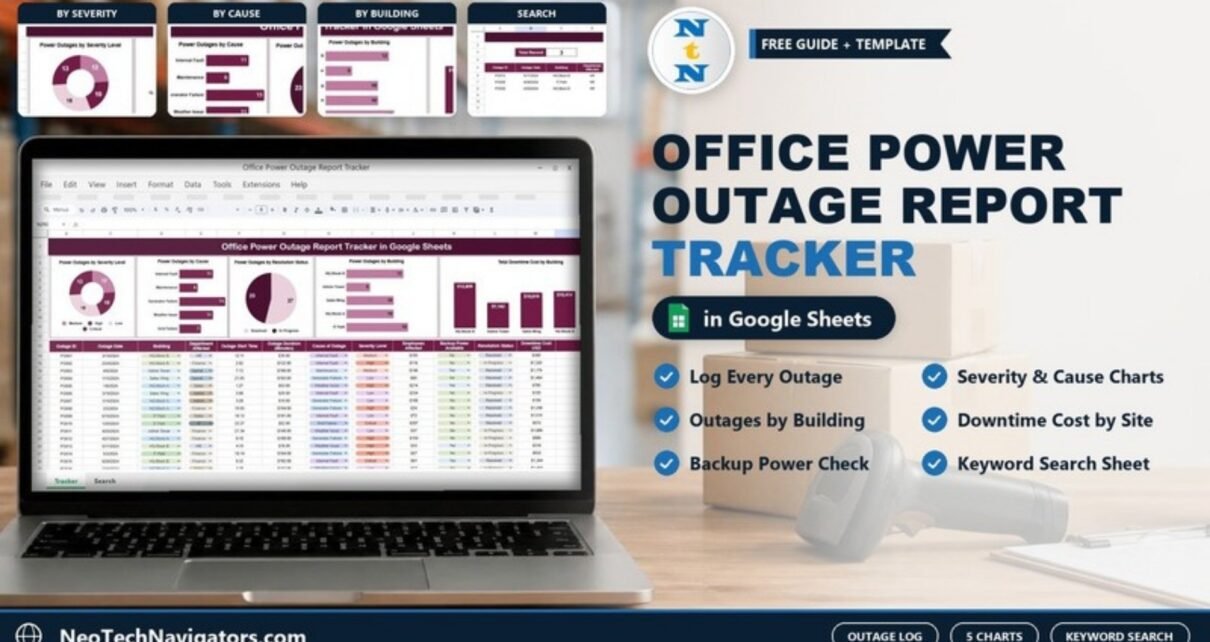
The Office Power Outage Report Tracker in Google Sheets is a ready-made log for every power cut across your office buildings. You record each outage in one row, and five charts above the table immediately show outages by severity, cause, resolution status and building, plus the total downtime cost for each building. A separate Search sheet finds any incident by keyword.
It is designed for facility managers, office administrators, IT infrastructure teams and operations leads. These teams need a clear record of when power failed, who was affected, whether backup power worked and what the downtime cost. Everything runs in Google Sheets, so several people can log incidents in the same shared file.
🎥 Watch the Video Tutorial
Get the Power Outage Report Tracker
Why Track Office Power Outages at All?
A single power cut can stop work for a whole department, interrupt servers and network equipment, and cost real money in lost hours. When outages are reported only by phone or email, nobody can answer basic questions later. Which building fails most often? Is the generator the weak point or the grid? How much did last quarter’s outages cost?
A structured log answers these questions. Once every incident is recorded the same way, patterns become visible. You can then justify a UPS upgrade, a generator service contract or an electrical inspection with numbers instead of anecdotes.
What Is Inside the Office Power Outage Report Tracker in Google Sheets
The file has two working areas:
- Tracker sheet: the outage log with five charts across the top.
- Search sheet: “Search by Search Keyword and Field Name”, for pulling up matching incidents.
The outage log: columns you fill in
| Column | What to enter | Sample values |
|---|---|---|
| Outage ID | A unique reference for the incident | PO001, PO002 |
| Outage Date | Date the outage happened | 3/10/2024 |
| Building | Building affected (dropdown) | HQ Block A, HQ Block B, Admin Tower, Sales Wing, IT Park |
| Department Affected | Team that lost power (dropdown) | HR, Finance, Operations, Sales, Admin, IT |
| Outage Start Time | Time the power went off | 12:11 |
| Outage Duration (Minutes) | How long it lasted | 30, 132, 196 |
| Cause of Outage | Root cause (dropdown) | Internal Fault, Maintenance, Generator Failure, Weather Issue, Grid Failure |
| Severity Level | Impact rating (dropdown) | Low, Medium, High, Critical |
| Employees Affected | Number of people impacted | 155 |
| Backup Power Available | Whether a UPS or generator covered it | Yes / No |
| Resolution Status | Current state (dropdown) | Resolved, In Progress |
| Downtime Cost USD | Estimated cost of the outage | $300, $1,176 |
| Remarks | Any notes | Free text |
The colour-coded dropdown chips keep entries consistent. That matters, because the charts group by these exact values.
The five charts
- Power Outages by Severity Level: a doughnut split into Low, Medium, High and Critical, so urgent incidents stand out.
- Power Outages by Cause: a bar chart of root causes. In the 50 sample incidents, Generator Failure leads with 15, followed by Internal Fault and Weather Issue (11 each), Grid Failure (7) and Maintenance (6).
- Power Outages by Resolution Status: a pie of Resolved (27) vs. In Progress (23) in the sample, showing how much is still open.
- Power Outages by Building: incident count for each site. IT Park has 13, HQ Block B 12, HQ Block A and Sales Wing 10 each, and Admin Tower 5.
- Total Downtime Cost by Building: the financial view. IT Park leads with $14,649, then HQ Block B ($12,859), HQ Block A ($10,414), Sales Wing ($10,019) and Admin Tower ($7,162).

Worked Example: Reading Cost Per Outage
Raw totals can mislead. IT Park has the highest total cost, but it also has the most incidents. To compare buildings fairly, divide each building’s cost by its outage count:
Cost per outage = Total Downtime Cost by Building / Power Outages by Building

IT Park:      $14,649 / 13 = $1,127
HQ Block B:   $12,859 / 12 = $1,072
HQ Block A:   $10,414 / 10 = $1,041
Sales Wing:   $10,019 / 10 = $1,002
Admin Tower:   $7,162 /  5 = $1,432
Admin Tower has the fewest outages but the highest cost per incident. That is worth investigating, perhaps because more people sit there or because backup power is missing. You can add this as a helper column or a small summary table with a formula such as:
=SUMIF(D:D,"Admin Tower",M:M)/COUNTIF(D:D,"Admin Tower")In the sample layout, Building is in column D and Downtime Cost USD is in column M. Adjust the letters if you move columns in your copy.
Search by Keyword and Field Name
The Search sheet has a Select Column dropdown, a Search Keyword box and a Total Record count. In the screenshot, choosing Department Affected and typing hr returns 3 HR outages. Two were in HQ Block B and one in IT Park, two were caused by Grid Failure and one by a Weather Issue. This is the quickest way to prepare for an audit, answer a manager’s question or review one building before a maintenance visit.

How to Use It With Your Own Data
- Make a copy of the template (File > Make a copy) and delete the sample rows.
- Edit the dropdown lists (Data > Data validation) so Building and Department Affected match your real sites and teams.
- Log each outage as soon as it happens, even if you only know the date, building and start time. Fill in duration, cause and cost later.
- Agree on a cost method, for example affected employees × hours lost × average hourly cost, so Downtime Cost USD is comparable across rows.
- Change Resolution Status to Resolved only after the root cause is fixed, not just when power returns.
- Review the five charts monthly and use the Search sheet to drill into any building or cause that stands out.
Real-World Use Cases
- Multi-building corporate campus: compare HQ blocks and annexes to decide where to invest in backup power first.
- IT infrastructure team: link outages to server-room incidents and show leadership the cost of not having a UPS.
- Co-working or business-park operator: keep an incident history per building to share with tenants and the utility provider.
Best Practices
- Define severity in writing. For example, Critical means the whole building lost power for more than an hour. That way every person rates incidents the same way.
- Always fill Backup Power Available. It shows whether your UPS and generators actually work when needed.
- Use Remarks for the utility ticket number or electrician’s notes.
- Review open incidents weekly. A long-running In Progress item usually means nobody owns it.
- Protect the header row and chart area (Data > Protect sheets and ranges) so the layout stays intact.
Limitations: When This Tracker Is Not Enough
This is a manual log. It does not read data from smart meters, building-management systems or UPS units, and it does not send alerts on its own. Downtime cost is only as accurate as the method you use to estimate it. If you need real-time monitoring or automated SLA escalation, use a dedicated facilities or monitoring platform and keep this sheet for reporting and history.
Related Guides
To track the repair side, see the Facility Maintenance & Renovation Tracker and the IT System Maintenance Calendar. For broader reporting, the Facility Services Dashboard and the IT Infrastructure KPI Dashboard work well alongside this log. Security-related incidents fit better in the IT Security Incident Report Tracker.
If you want to build your own summary charts from a log like this, the Pivot Tables & Dashboards course on NextGenTemplates Academy walks through turning raw rows into clear charts.
Frequently Asked Questions
What does the Office Power Outage Report Tracker record?
Each row records the outage ID, date, building, department affected, start time, duration in minutes, cause, severity, employees affected, backup power availability, resolution status, downtime cost and remarks.
Can I add more buildings or causes?
Yes. Add the new values to the dropdown lists under Data > Data validation, then use them in new rows. Check that the charts’ data ranges still cover them.
How should I calculate downtime cost?
A common approach is employees affected × outage hours × average loaded hourly cost, plus any equipment damage. Use the same method for every row so buildings stay comparable.
Does the tracker send alerts for critical outages?
Not by itself. You could add email notifications with Google Apps Script, but the template is a log and reporting tool.
Can several people log outages at once?
Yes. It is a Google Sheets file, so you can share edit access with facility and IT staff and everyone works in the same copy.
Wrapping Up
Power cuts are easier to prevent once you can see which buildings, causes and gaps in backup power are behind them. The Office Power Outage Report Tracker in Google Sheets gives you a consistent log, five charts and a keyword search in one shared file. Start by loading last quarter’s incidents. The cost-by-building chart alone often shows where to act first.
Get the Power Outage Report Tracker
📅 Last updated: October 2026