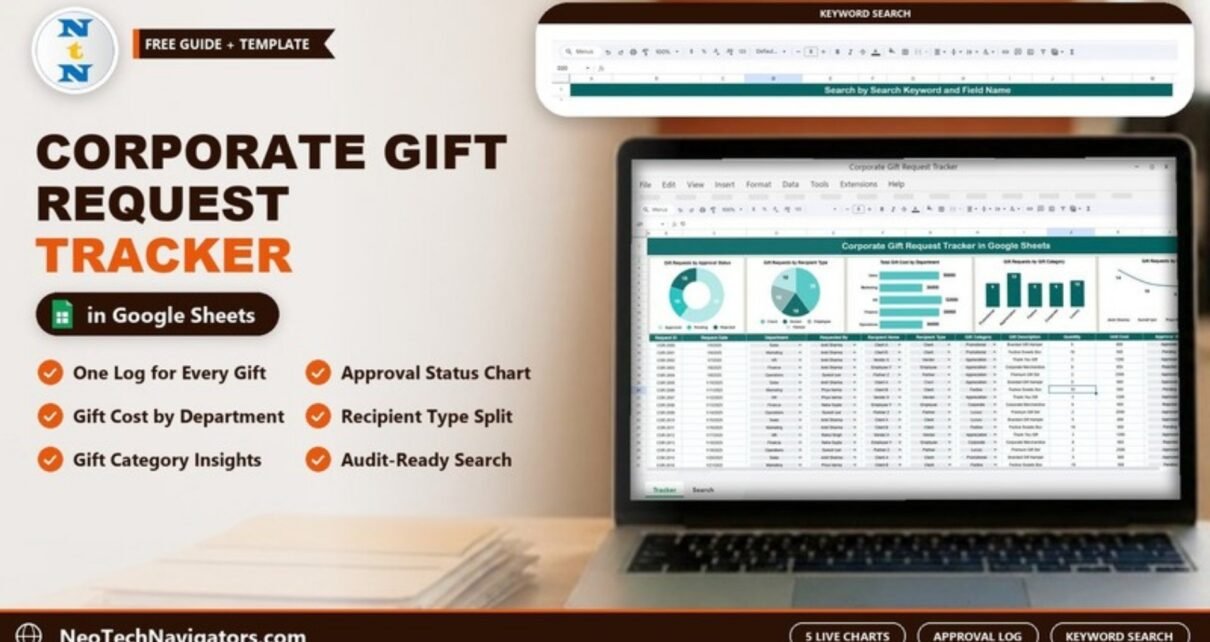
The Corporate Gift Request Tracker in Google Sheets gives admin, HR and finance teams one shared log for every gift request: who asked, which department, who the gift is for, what it is, how much it costs and whether it was approved. Five charts on the same sheet summarise approvals, recipients, spend by department, gift categories and the most active requesters.
This guide is for office administrators, HR teams, finance controllers and anyone who signs off on client or employee gifts. You will see how the tracker is laid out, what each chart shows, how the keyword search works, how to set it up with your own data, and where its limits are.
🎥 Watch the Video Tutorial
Get the Corporate Gift Request Tracker
Why Corporate Gift Requests Need a Tracker
Corporate gifting looks small until you add it up. Festive hampers for clients, thank-you gifts for vendors, rewards for employees and branded merchandise for partners can come from five departments at once, each with its own email thread. Without a single record, it is hard to answer simple questions:
- How many gift requests are still waiting for approval?
- Which department has spent the most on gifts this year?
- Are we gifting clients far more than partners or employees?
- Who raises the most requests, and are they within policy?
- Can we show an auditor who approved a specific gift?
A shared tracker answers these in seconds and gives finance and compliance teams a clear trail.
What Is Inside the Corporate Gift Request Tracker
| Part | What it shows | What you do there |
|---|---|---|
| Chart panel | Approval status, recipient type, total gift cost by department, gift category and requested by | Read the summary; charts refresh from the data |
| Tracker table | One row per gift request, from Request ID through cost and approval details | Log new requests and update approval status |
| Search sheet | Matching records for a chosen column and keyword, with a Total Record count | Select a column and type a keyword |
The Tracker Sheet: Columns Explained
Each request gets its own row. The sample data uses Request IDs such as CGR-2000 and dates from January 2025. The main columns are:
- Request ID and Request Date.
- Department: Sales, Marketing, HR, Finance and Operations in the sample.
- Requested By: the employee who raised the request (for example Amit Sharma, Priya Verma, Suresh Iyer, Neha Gupta and Rahul Singh in the sample).
- Recipient Name and Recipient Type: Client, Vendor, Employee or Partner.
- Gift Category: Promotional, Appreciation, Festive, Corporate or Luxury.
- Gift Description: for example Branded Gift Hamper, Festive Sweets Box, Thank You Gift, Corporate Merchandise or Premium Gift Set.
- Quantity and Unit Cost.
- Approval Status: Approved, Pending or Rejected.
- Approved By: who signed off the request, plus a Total Gift Cost field that the search sheet also lists and the department cost chart summarises.
Department, requester, recipient type, category and status use dropdowns, which keeps the values clean for the charts.

The Five Charts and What They Tell You
The sample file holds 50 gift requests. Here is what each chart shows with that data.
1. Gift Requests by Approval Status
A donut chart with Approved (30), Pending (10) and Rejected (10). Check it daily or weekly: a growing Pending slice means approvals are stuck.
2. Gift Requests by Recipient Type
A pie chart with Client (20), Vendor (10), Employee (10) and Partner (10). It shows where your gifting effort is going and whether it matches your relationship priorities.
3. Total Gift Cost by Department
A bar chart of total gift spend for each department (Sales, Marketing, HR, Finance and Operations), with the total printed next to each bar. This is the chart finance will look at first when comparing gifting against budget, and a quick way to see which department is driving most of the cost.
4. Gift Requests by Gift Category
A column chart with Promotional 9, Appreciation 13, Festive 9, Corporate 9 and Luxury 10. If Luxury gifts rise, it may be time to review your gift policy limits.
5. Gift Requests by Requested By
A line chart of requests per person. In the sample, Amit Sharma raised 14, Suresh Iyer 10, Priya Verma 9 and Neha Gupta 9. It helps managers spot frequent requesters and check that requests are spread fairly.
Search by Search Keyword and Field Name
The search sheet lets you pull every request that matches a value in one column. Pick the column in Select Column, type the value in Search Keyword, and the matching rows appear below with a Total Record count.
In the example, searching the Department column for “hr” returns 10 records, all Thank You Gifts to Vendor X in the Appreciation category. That kind of pattern is exactly what an auditor or finance reviewer wants to see quickly.

How to Use It With Your Own Data
- Make your own copy of the file in Google Drive with File > Make a copy.
- Edit the dropdown lists for Department, Requested By, Recipient Type and Gift Category so they match your organisation.
- Clear the sample rows while keeping the header row and dropdown setup.
- Log each request as it arrives, with Request ID, date, requester, recipient, gift description, quantity and unit cost.
- Set Approval Status to Pending on entry, then change it to Approved or Rejected when a decision is made, and record who approved it.
- Review the charts weekly for pending approvals and monthly for spend by department.
- Use the search sheet when a manager or auditor asks about a department, requester or category.
Real-World Use Cases
Festive season gifting
Before Diwali, Christmas or year-end, Sales and Marketing submit dozens of client gift requests. The admin team logs them in one place, finance checks the department cost chart against budget, and pending requests are cleared before the order deadline.
Vendor and partner appreciation
Procurement and HR send thank-you gifts to vendors after a project. The recipient type chart shows whether vendor gifting is growing faster than planned, and the search sheet lists every vendor gift for review.
Compliance and audit review
Many companies cap gift values for clients and government contacts. The tracker gives compliance a list of every gift, its cost and its approver, which makes policy checks much faster.
Best Practices
- Log the request before the gift is ordered, not after.
- Keep gift categories and recipient types standard across departments.
- Agree on a value limit for each recipient type and flag anything above it.
- Review Pending requests at least once a week.
- Give edit access only to the admin or finance team; share a view-only link with managers.
- Archive the previous year’s rows to a separate tab before starting a new year.
Who Should Not Use This Tracker (Limitations)
- No built-in approval emails. Approvers are not notified automatically; you update the status yourself or add Apps Script.
- No budget limit check. The tracker shows spend by department but does not stop a request that goes over budget.
- No purchase ordering. It records gift requests; it does not place orders or manage vendor invoices.
- High-volume gifting programmes with thousands of recipients may be better served by dedicated gifting or procurement software.
Related Templates and Guides
If gifts are part of a recognition programme, the employee recognition award request tracker is a natural companion. For other spend requests that need sign-off, see the budget request and approval tracker. Teams that also handle sponsorships and donations can use the corporate sponsorship request tracker and the corporate donation request tracker. For policy exceptions, such as a gift above the usual limit, the corporate policy exception request tracker keeps a clean record.
If you want to go further with structured spreadsheet lessons, the learning paths on NextGenTemplates Academy cover the basics through to building your own trackers and reports.
Frequently Asked Questions
What is a corporate gift request tracker?
It is a shared spreadsheet that records every gift request with department, requester, recipient, gift details, cost and approval status, so teams can control spend and keep an audit trail.
Can I change the gift categories and departments?
Yes. Edit the dropdown lists to match your company. Keep the spelling consistent so the charts group requests correctly.
Does the tracker send approval emails?
No. Approval status is updated manually. If you need automatic emails, you can add a Google Apps Script or a form-based workflow on top.
Can I set a gift budget per department?
The template shows total gift cost by department but has no budget limit column. You can add a budget column and a simple comparison formula yourself.
Can several people use it at once?
Yes. It is a Google Sheets file, so multiple users can work in it at the same time, with access controlled through normal sharing settings.
Is it useful for audits?
Yes. Each request has an ID, date, requester, cost and approval status, and the search sheet lets you pull all records for a department or person quickly.
Wrapping Up
Gifting builds relationships, but only when it stays transparent and within budget. The Corporate Gift Request Tracker in Google Sheets gives you one log for every request, five charts for approvals and spend, and a search sheet for quick audits. Start by editing the dropdowns for your departments, log new requests as they arrive and review pending approvals every week.
Get the Corporate Gift Request Tracker
📅 Last updated: October 2026