The School Admin Dashboard in Google Sheets brings exam scores, attendance and fee collection into one file, so a school office can see academic, attendance and finance figures side by side instead of in three separate spreadsheets.
It is built for principals, school administrators, academic coordinators and accounts staff at small and mid-sized schools. Inside are four dashboard pages (Overview, Academics, Attendance and Finance), a Student Record Lookup on the Search page, an Instructions tab and a single Data sheet. Each dashboard page has its own set of slicers and a row of headline metrics.
Below, we go through every page using the figures from the sample file, show how the key metrics are calculated, and explain how to load your own school records.
🎥 Watch the Video Tutorial
Get the School Admin Dashboard
What Problem Does a School Admin Dashboard Solve?
Many schools keep marks in one sheet, attendance in another and fee receipts in a third. When the principal asks “which grade has the most overdue fees?” or “how is attendance in Section D this month?”, someone has to combine those files by hand.
This dashboard works from one table in which every row holds a student’s exam result, attendance status and a fee entry. The four dashboard pages summarise that table, and the slicers let you narrow it to a grade, section, subject, teacher, fee type or month. The sample file holds 500 records across Grades 1 to 10, Sections A to D and eight subjects.
Navigation and Pages
A navigation bar across the top links Overview, Academics, Attendance, Finance, Search and Instructions. The Data sheet sits behind them as the single source.
| Page | Slicers | Headline metrics | Charts |
|---|---|---|---|
| Overview | Grade, Section, Subject, Month | Total Records, Avg Score, Total Fees, Attendance Rate % | 4 |
| Academics | Grade, Subject, Exam Type, Teacher | Overall Avg Score, Highest Score, Lowest Score, Total Exams | 4 |
| Attendance | Grade, Section, Status, Month | Total Present, Total Absent, Total Late, Attendance Rate | 4 |
| Finance | Grade, Fee Type, Fee Status, Month | Total Fees, Fees Collected, Fees Pending, Fees Overdue | 4 |
| Search | Student ID drop-down | Full record details | None |
Overview Page
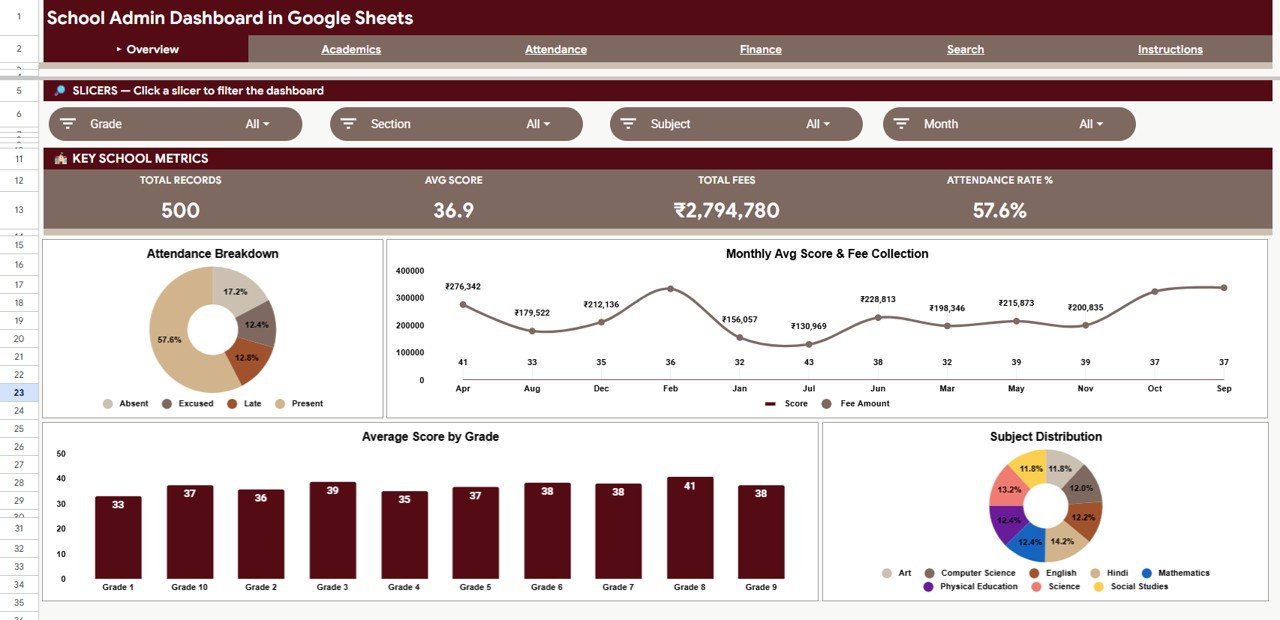
The Key School Metrics row shows Total Records (500), Avg Score (36.9), Total Fees (₹2,794,780) and Attendance Rate % (57.6%). The four charts are:
- Attendance Breakdown: Present 57.6%, Absent 17.2%, Late 12.8% and Excused 12.4%.
- Monthly Avg Score & Fee Collection: fee amount and average score for each month.
- Average Score by Grade: from 33 (Grade 1) to 41 (Grade 8).
- Subject Distribution: share of records across Art, Computer Science, English, Hindi, Mathematics, Physical Education, Science and Social Studies.
Academics Page
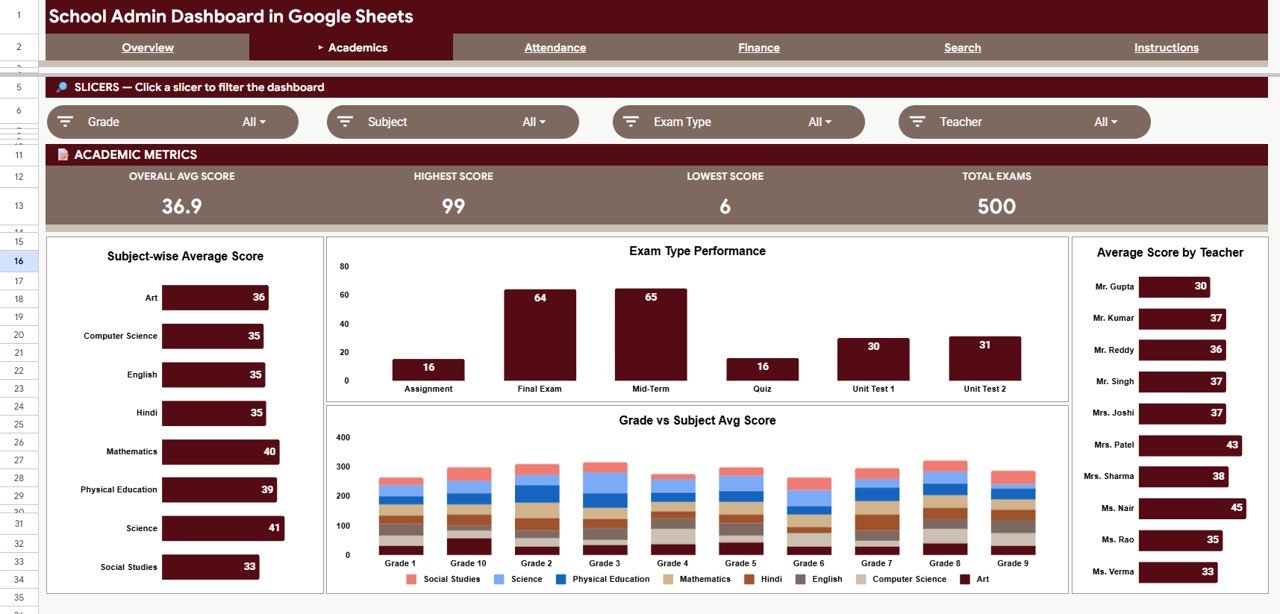
The Academic Metrics row shows Overall Avg Score (36.9), Highest Score (99), Lowest Score (6) and Total Exams (500). Charts:
- Subject-wise Average Score: Science (41) and Mathematics (40) are highest; Social Studies (33) is lowest.
- Exam Type Performance: Assignment 16, Final Exam 64, Mid-Term 65, Quiz 16, Unit Test 1 30 and Unit Test 2 31.
- Grade vs Subject Avg Score: a stacked view of subject averages within each grade.
- Average Score by Teacher: from 30 (Mr. Gupta) to 45 (Ms. Nair).
Important when reading these numbers: the scores are raw marks, and the Max Score differs by exam (25, 50 or 100 in the sample). That is why Final Exam and Mid-Term averages look much higher than Quiz and Assignment. Compare like with like by filtering on one Exam Type, or add a percentage column (Score ÷ Max Score) if you want a common scale.
Attendance Page
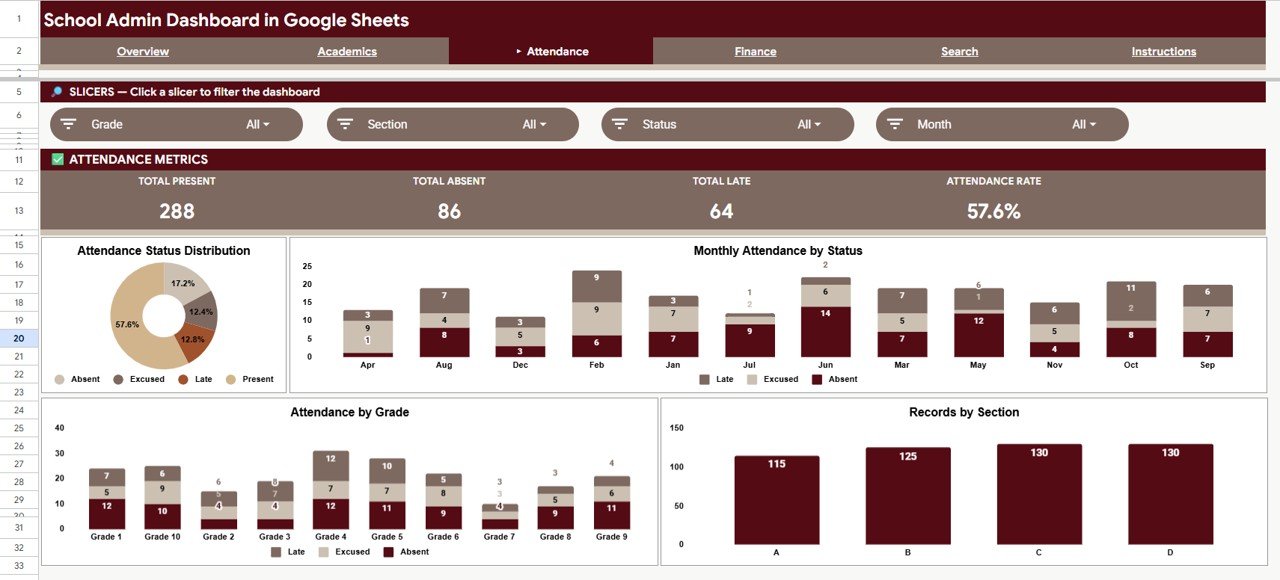
The Attendance Metrics row shows Total Present (288), Total Absent (86), Total Late (64) and Attendance Rate (57.6%). Charts:
- Attendance Status Distribution (Present, Absent, Late, Excused)
- Monthly Attendance by Status: Late, Excused and Absent counts per month.
- Attendance by Grade: the same three statuses for each grade.
- Records by Section: A 115, B 125, C 130 and D 130.
Finance Page
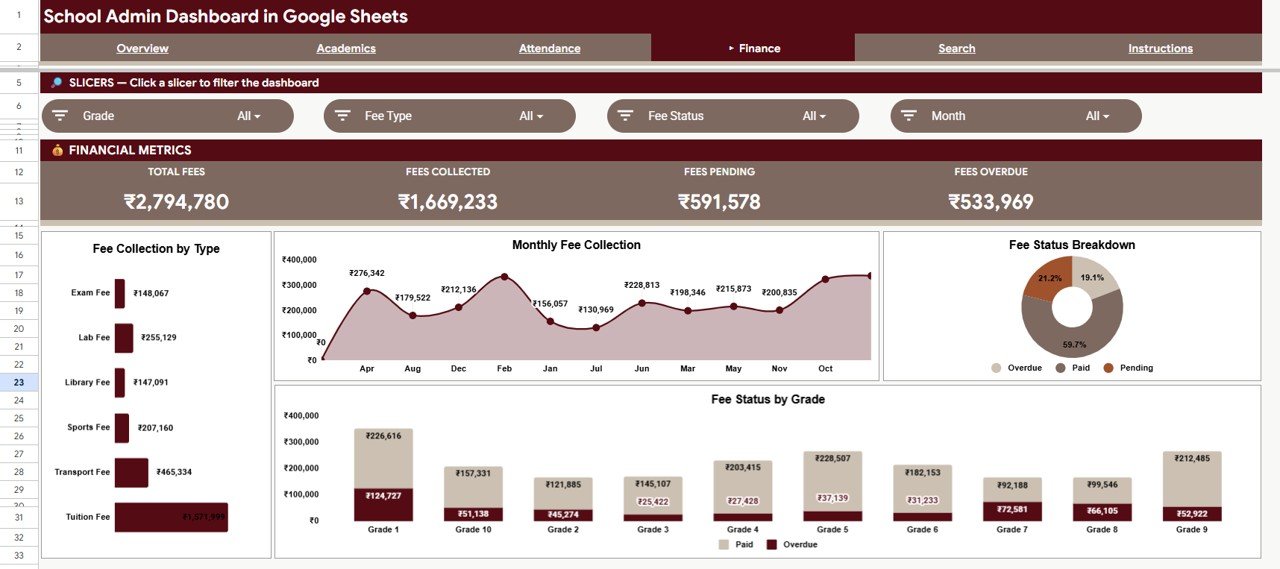
The Financial Metrics row shows Total Fees (₹2,794,780), Fees Collected (₹1,669,233), Fees Pending (₹591,578) and Fees Overdue (₹533,969). Charts:
- Fee Collection by Type: Tuition Fee is by far the largest (₹1,571,999), followed by Transport Fee (₹465,334), Lab Fee, Sports Fee, Exam Fee and Library Fee.
- Monthly Fee Collection: fee amount by month.
- Fee Status Breakdown: Paid 59.7%, Pending 21.2% and Overdue 19.1%.
- Fee Status by Grade: paid and overdue amounts for each grade; Grade 1 carries the largest overdue amount (₹124,727).
How the Key Metrics Are Calculated
| Metric | What it measures | Calculation | Sample check | Better when |
|---|---|---|---|---|
| Attendance Rate | Share of records marked Present | Present records ÷ Total Records | 288 ÷ 500 = 57.6% | Higher |
| Avg Score | Average raw marks | Average of the Score column | 36.9 | Higher |
| Total Fees | All fees billed in the data | Fees Collected + Fees Pending + Fees Overdue | 1,669,233 + 591,578 + 533,969 = 2,794,780 | Context metric |
| Collection rate (Paid share) | Share of fees already received | Fees Collected ÷ Total Fees | 1,669,233 ÷ 2,794,780 ≈ 59.7% | Higher |
| Fees Overdue | Fees marked Overdue | Sum of Fee Amount where Fee Status is Overdue | ₹533,969 | Lower |
Search Page: Student Record Lookup
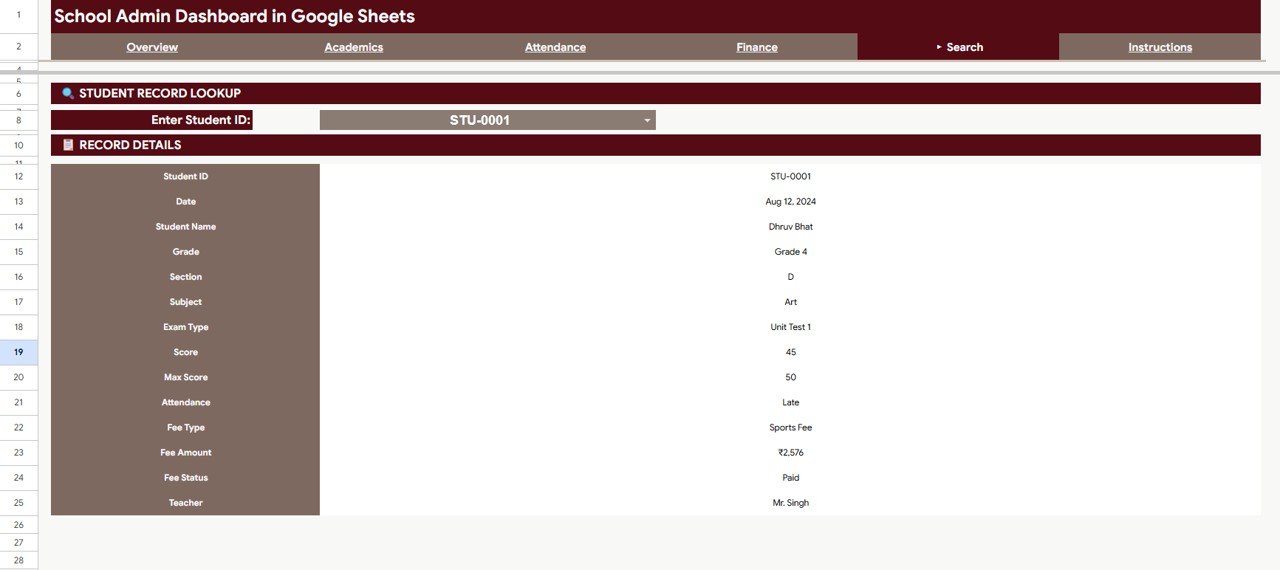
Choose a value in Enter Student ID and the Record Details panel shows Student ID, Date, Student Name, Grade, Section, Subject, Exam Type, Score, Max Score, Attendance, Fee Type, Fee Amount, Fee Status and Teacher. In the screenshot, STU-0001 returns a Grade 4, Section D Art record from Unit Test 1 with 45 out of 50, marked Late, and a paid Sports Fee of ₹2,576 taught by Mr. Singh.
Data Sheet
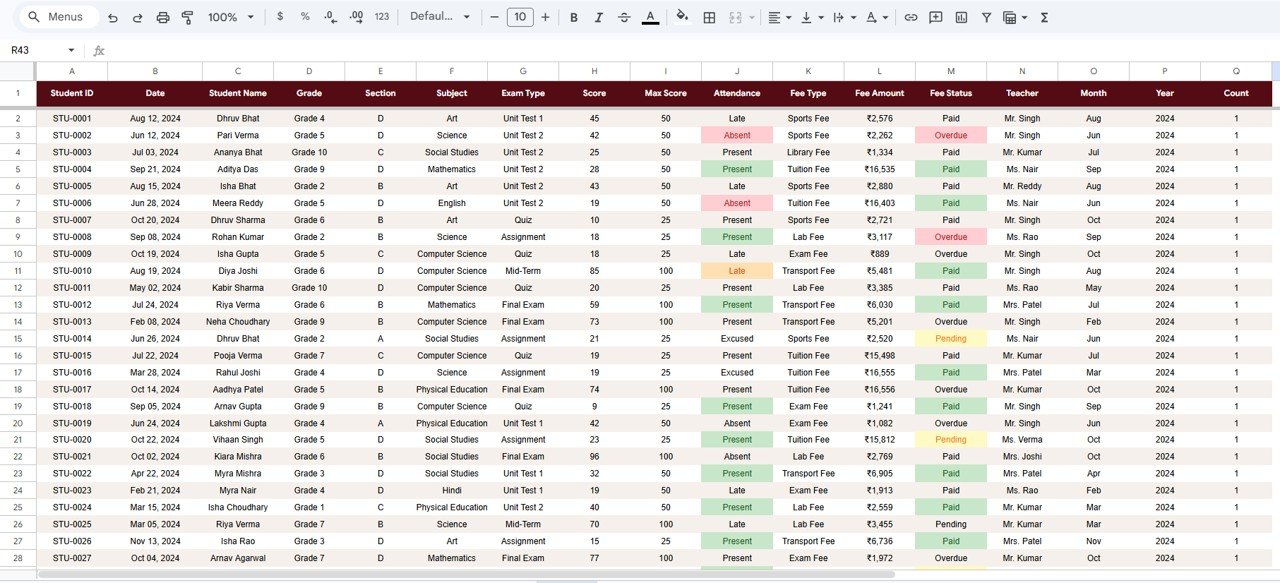
The Data sheet columns are Student ID, Date, Student Name, Grade, Section, Subject, Exam Type, Score, Max Score, Attendance, Fee Type, Fee Amount, Fee Status, Teacher, Month, Year and Count. In the sample, some Attendance and Fee Status cells are highlighted in colour (for example, Absent and Overdue in red, Present and Paid in green, Pending in yellow), while others are left plain.
How to Use the School Admin Dashboard in Google Sheets with Your Own Data
- Make your own copy of the Google Sheets file and read the Instructions tab.
- Open the Data sheet and keep the header row and column order unchanged.
- Enter or paste your records: one row per student assessment with its attendance status and fee entry.
- Use the same labels as the sample for Attendance (Present, Absent, Late, Excused) and Fee Status (Paid, Pending, Overdue).
- Fill Month, Year and Count the same way as the sample rows so the monthly charts and counts work.
- Check that Total Records on the Overview matches the number of rows you entered.
- Use the slicers on each page to review one grade, section or month at a time.
Want to understand how pivot-based dashboards like this are put together? The Pivot Tables & Dashboards course on NextGenTemplates Academy covers it step by step.
Real-World Use Cases
Weekly principal review
Check Attendance Rate and Fees Overdue on Monday morning, then open the Attendance page filtered by the previous month to spot sections with many absences.
Fee follow-up by the accounts office
Filter the Finance page by Fee Status = Overdue and use Fee Status by Grade to decide which class teachers to ask for help with reminders.
Parent-teacher meetings
Use the Student Record Lookup to pull a record during the meeting instead of searching the Data sheet.
Best Practices
- Do not insert or move columns in the Data sheet; the charts and metrics depend on the fixed layout.
- Use drop-down lists for grade, section, subject, teacher, fee type and status to avoid spelling variants.
- Update on a fixed day each week, and use File > Version history to review changes when several staff edit the file.
- Share dashboard pages view-only with staff who only need to read them, since the file contains student data.
- Start a new copy for each academic year to keep the file fast.
Limitations: Who Should Not Use It
- It is a reporting dashboard, not a school management system. It does not issue report cards, receipts or parent messages.
- There is no parent or student portal; access is through Google Sheets sharing only.
- Scores are raw marks, so mixing exams with different maximum marks needs care (see the Academics section).
- Large multi-campus groups that need integrations with an SIS, LMS or payment gateway will need dedicated software.
If you need a full web-based system instead, see the School Management System Web App. For narrower dashboards and trackers, try the Student Academic Performance Dashboard in Google Sheets, the School Fee Due Calendar in Google Sheets or the Secondary Schools Dashboard in Google Sheets. Schools that prefer desktop Excel can use the School Admin Dashboard in Excel.
Frequently Asked Questions
What does the School Admin Dashboard in Google Sheets track?
Exam scores, attendance status and fee collection, summarised on Overview, Academics, Attendance and Finance pages with a Student Record Lookup.
How is the Attendance Rate calculated?
Present records divided by total records. In the sample, 288 ÷ 500 = 57.6%.
Can I filter by grade, section or teacher?
Yes. Each page has its own slicers, including Grade, Section, Subject, Month, Exam Type, Teacher, Status, Fee Type and Fee Status depending on the page.
Can I use a currency other than rupees?
Yes. The sample uses ₹; change the number format of the fee cells and cards to your currency.
Do I need Excel or any add-on?
No. It runs in Google Sheets in a browser with a Google account. An Excel version is sold separately.
Can several staff members use it at the same time?
Yes. Google Sheets supports simultaneous editing; control who can edit the Data sheet through sharing settings.
Wrapping Up
The School Admin Dashboard in Google Sheets gives a school office one place to watch scores, attendance and fees, with slicers on every page and a quick student lookup. Load your records into the Data sheet, confirm the totals, and make the Overview and Finance pages part of your weekly routine.
Get the School Admin Dashboard
📅 Last updated: October 2026