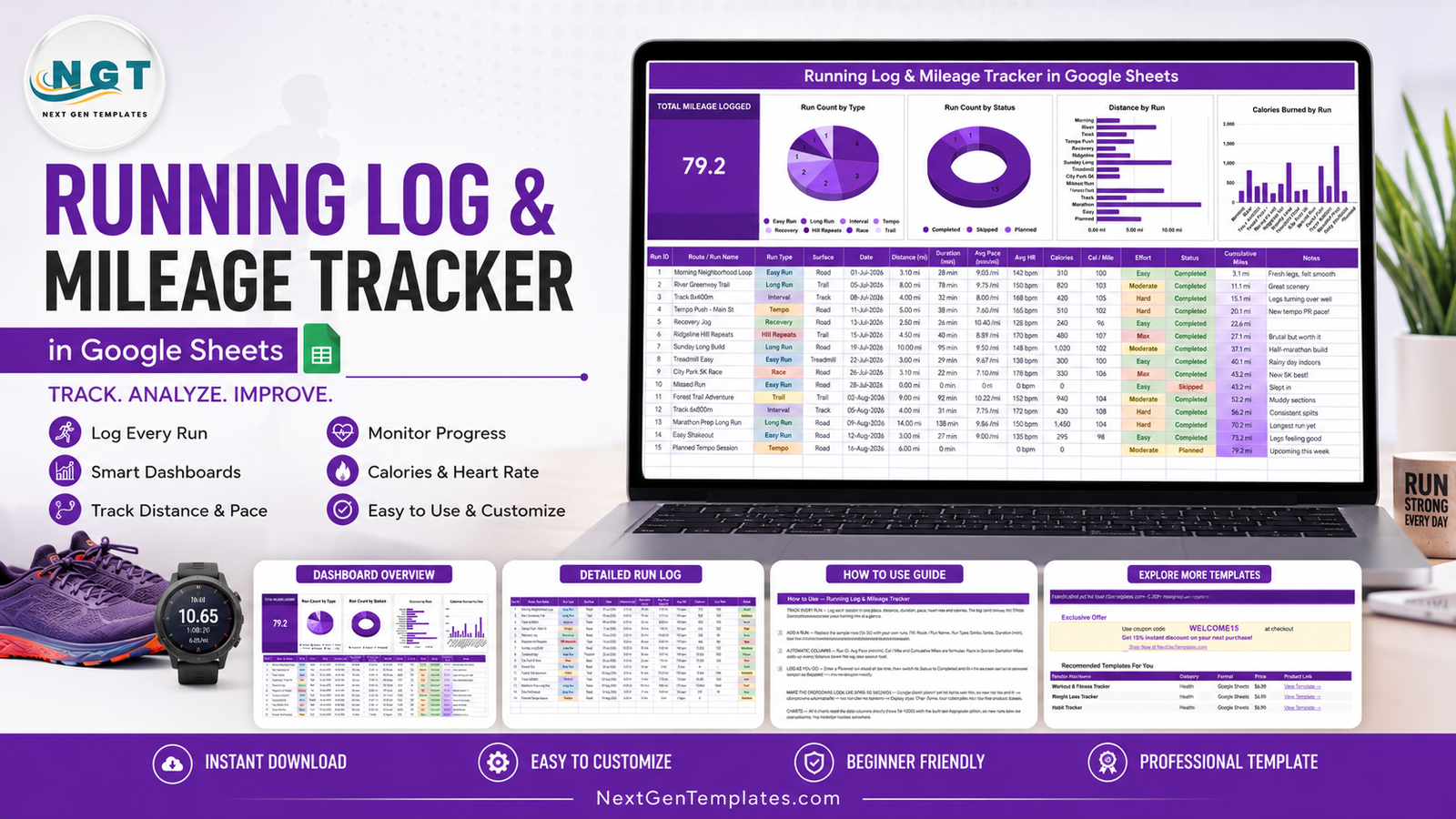
A running log only works if logging a run takes less time than the run’s warm-up. The Running Log & Mileage Tracker in Google Sheets is built around that: six fields typed per session, four columns that fill themselves, one card that shows your total mileage, and four charts that redraw the moment you hit Enter. The sample file that ships with it holds 15 runs across 8 run types and 4 surfaces, totalling 79.2 miles, with 13 sessions Completed, 1 Skipped and 1 Planned – enough to see exactly how every column behaves before you clear it.
This post walks through what is on each page, what the tracker does and does not do, and how to get it running in your own Drive. One thing to say plainly up front: this is a logging and charting template, not medical or coaching advice. It records numbers you type and totals them. It does not prescribe training, interpret heart rate, or tell you anything about your health.
Get the Running Log & Mileage Tracker in Google Sheets
Key Features of the Running Log & Mileage Tracker
- A single TOTAL MILEAGE LOGGED card. The cumulative distance of every run in the log, rendered large on the left of the page. In the sample it reads 79.2.Running Log & Mileage Tracker in Google Sheets
- Four charts wired straight to the data. Run Count by Type, Run Count by Status, Distance by Run and Calories Burned by Run. None of them sit on top of a hidden helper table – they read the log columns directly through the built-in Aggregate option, so a new row appears in all four at once.Running Log & Mileage Tracker in Google Sheets
- A 15-column log. Run ID, Route / Run Name, Run Type, Surface, Date, Distance (mi), Duration (min), Avg Pace (min/mi), Avg HR, Calories, Cal / Mile, Effort, Status, Cumulative Miles and Notes.Running Log & Mileage Tracker in Google Sheets
- Four columns that calculate themselves. Run ID numbers each row, Avg Pace is Duration divided by Distance, Cal / Mile is Calories divided by Distance, and Cumulative Miles adds every distance down the log so your season total is always the last value in the column.Running Log & Mileage Tracker in Google Sheets
- Four dropdown columns fed from a List tab. Run Type, Surface, Effort and Status all pull from rows 2 to 500 of a separate tab, so adding a value means typing it once, not editing a validation rule.Running Log & Mileage Tracker in Google Sheets
- Eight run types out of the box: Easy Run, Long Run, Interval, Tempo, Recovery, Hill Repeats, Race and Trail. Four surfaces: Road, Trail, Track and Treadmill. Four effort levels: Easy, Moderate, Hard and Max.
- A three-state Status column. Planned, Completed and Skipped, so the same sheet holds both what you intend to do and what you actually did.
- Ranges through row 1000. Roughly three years of daily running before you need to extend anything.
Tracker Pages Explained
Page 1 – The Running Log
This is the page you live on. A purple title banner runs across the top, with the TOTAL MILEAGE LOGGED card anchored to the left and the four charts spread across the rest of the width.
Run Count by Type is a pie: in the sample it splits 4 Easy Runs, 3 Long Runs, 2 Intervals, 2 Tempos, and one each of Recovery, Hill Repeats, Race and Trail. It is the quickest way to see whether a training block has quietly become all easy miles. Run Count by Status is a donut reading 13 Completed, 1 Skipped, 1 Planned. Distance by Run is a horizontal bar chart with one bar per session, labelled by run name – the 14.00 mi Marathon Prep Long Run towers over the 2.50 mi Recovery Jog. Calories Burned by Run is a column chart over the same sessions.
Underneath sits the log table. Run Type, Surface, Effort and Status render as coloured chips, which is what makes a 15-row table scannable: Completed reads green, Skipped reads red, Max effort reads red, Easy reads green.
One detail worth noticing in the sample: row 10 is a Missed Run with 0.00 mi, 0 min, 0 bpm and Status = Skipped. Cumulative Miles holds flat at 43.2 across that row rather than breaking. Skipped sessions stay in the record without polluting the totals.
Page 2 – How to Use
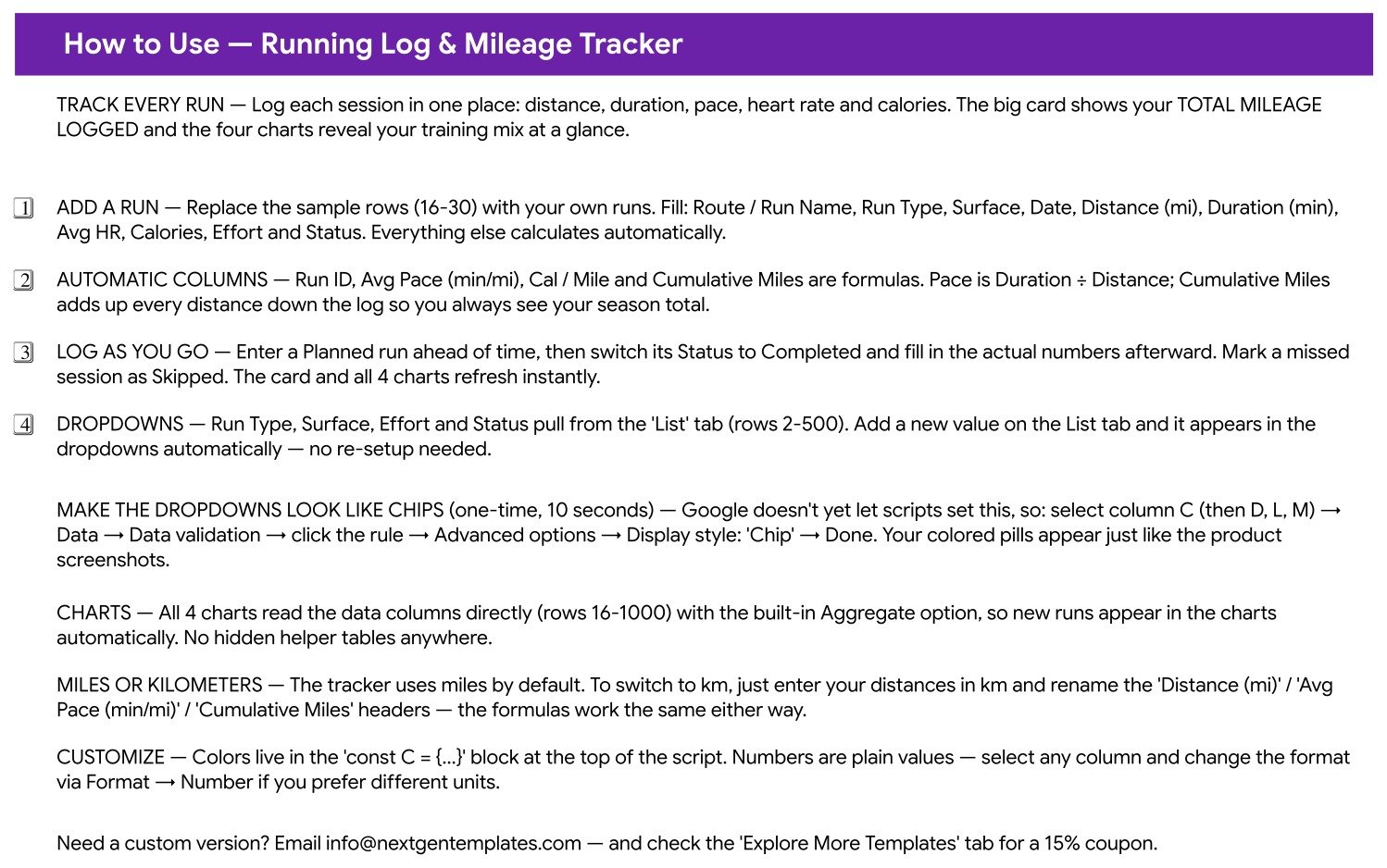
A single-screen setup guide that ships inside the file, so the instructions never get separated from the template. It covers adding a run, which four columns are formulas, the Planned-to-Completed workflow, how the List tab drives the dropdowns, the one-time step for turning dropdowns into coloured chips, switching from miles to kilometres, and where the colour constants live if you want a different palette.
Page 3 – Explore More Templates
A WELCOME15 coupon worth 15% off your next purchase, a recommended-templates table, and category links back to the NextGenTemplates catalogue.
The List tab
Four columns of dropdown values across rows 2 to 500. Add “Fartlek” to the run type column and it is in the dropdown on your next click. Nothing else needs touching.
Running Log Tracker vs. Excel vs. a Paid Running App – Feature Comparison
| This Google Sheets tracker | Excel running log | Paid running app | |
|---|---|---|---|
| Cost | $6.99 once | $6.99-$15 once, plus Office | $12-$20 per month |
| Platform | Google Sheets, browser or mobile | Microsoft Excel | Vendor app plus web |
| Setup time | Under 5 minutes | 10-15 minutes | Account, device pairing, permissions |
| Real-time sharing with a coach | Yes, share the link | Only via OneDrive | Yes, inside the vendor’s network |
| Mobile access | Free Sheets app | Excel mobile | Native app |
| Customisable fields | Any column you want | Any column you want | Fixed by the vendor |
| Year-1 cost at 5 users | $6.99 | $6.99 plus licences | $720-$1,200 |
| You own the raw data file | Yes, it is your Drive | Yes | Export only, vendor format |
| Works without a GPS watch | Yes, manual entry | Yes | Usually watch-first |
| Route maps and elevation | No | No | Yes |
Who Should Use This Template
It suits you if you want a permanent, plain record of your own runs that lives in a file you control; if you run on a treadmill or without a watch and enter numbers by hand; if you keep a training diary and would rather not maintain the mileage total yourself; if you share a log with a coach or a running partner and want a link rather than an account; or if you have ever lost history to an app you stopped paying for.
It is the wrong tool if you want automatic sync from a Garmin, Apple Watch or Strava – every row here is typed in. It has no route maps, no elevation profiles and no segment leaderboards. It does not prescribe sessions, and it will not interpret your heart rate or effort for you. If those are what you are shopping for, a dedicated running platform is the honest answer.
Real-World Use Cases
Priya, building toward a half marathon. Every session goes in with a Run Type, and she checks the Run Count by Type pie at the end of each week. Cumulative Miles gives her the block total without a calculator, and the Notes column carries the things a number cannot – “legs turning over well”, “muddy sections”.
Marcus, treadmill and road, no watch. He reads distance, duration and calories off the treadmill console and types them in. The Cal / Mile column gives him one consistent figure to set a treadmill session next to a road run, which the raw calorie number alone never does.
Dana, sharing with her running club coach. The sheet stays in her Drive; her coach has a view-only link. He reads the Effort chips, the Notes and the Distance by Run chart. No account, no invitation to a platform, no export step.
Advantages of the Running Log & Mileage Tracker
- Nothing is hidden. No helper tables behind the charts, no lookup sheets you are afraid to touch. Every number on the page traces back to a column you can see.
- Six fields per run. Route, type, surface, date, distance, duration. Everything else is optional or automatic.
- It works offline-first in the sense that matters – no device, no pairing, no vendor. A phone browser and the free Sheets app are the whole stack.Running Log & Mileage Tracker in Google Sheets
- Planned and actual live in one table. You are not maintaining a plan in one place and a log in another.Running Log & Mileage Tracker in Google Sheets
- Unit-agnostic formulas. Pace is Duration divided by Distance whichever unit you feed it, so switching to kilometres is a header rename, not a rebuild.
- Your data outlives the template. It is a Google Sheet in your own Drive. Export it, copy it, share it, keep it for a decade.Running Log & Mileage Tracker in Google Sheets
Opportunities for Improvement
Worth knowing before you buy, so nothing surprises you:
- The coloured chips need one manual step. Google Sheets does not yet expose chip display style to Apps Script, so the dropdowns arrive as plain text until you set them. It is about ten seconds per column and the How to Use page spells it out.Running Log & Mileage Tracker in Google Sheets
- No device sync. Every row is typed or pasted. If you want automatic import, this is not it.Running Log & Mileage Tracker in Google Sheets
- Charts and formulas stop at row 1000. Generous, but not infinite – you would extend the ranges yourself past that point.
- Weekly and monthly rollups are not built in. The charts are per-run, not per-week. Adding a pivot table on the log gives you weekly mileage in a couple of minutes if you want it.
- The headers say miles. Switching to kilometres works perfectly, but you rename three headers by hand.Running Log & Mileage Tracker in Google Sheets
Best Practices
- Log the run the same day. A tracker that gets caught up on Sunday stops being a record and starts being a guess.Running Log & Mileage Tracker in Google Sheets
- Enter next week as Planned. Then all you do afterwards is flip Status to Completed and fill in the actuals.
- Keep Skipped rows. Deleting missed sessions makes the log look tidier and tells you less. The Status donut is more useful when it is honest.
- Use Notes properly. “Rainy day indoors”, “new tempo PR pace” – context you will not reconstruct in six months from a pace figure.
- Keep run type names stable. Every chart groups on those exact strings, so “Long Run” and “long run” split into two slices.Running Log & Mileage Tracker in Google Sheets
- Set the chips once, on day one. The table is dramatically easier to scan afterwards.
- Make a copy before restructuring. If you plan to add columns, duplicate the sheet first – see the Google Sheets Editors Help guidance on copying and sharing files.Running Log & Mileage Tracker in Google Sheets
Explore Relevant Templates
- Marathon Training Plan Tracker in Google Sheets – the closest neighbour. Plan the block there, log the sessions here.
- Cycling Training Log Tracker in Google Sheets – the same structure for rides.
- Daily Steps Tracker in Google Sheets – everyday movement on non-running days.
- Workout Log Tracker in Google Sheets – the strength work between runs.
- Fitness and Wellness Dashboard in Google Sheets – a multi-page dashboard if a single log is not enough.
Want to build skills like this step by step? The NextGenTemplates Academy learning paths cover tracker building with practice files.
Get the Running Log & Mileage Tracker in Google Sheets
Frequently Asked Questions
Does this give me a training plan or medical advice?
No. It is a logging and charting template. It records the runs you type in and totals them. It does not prescribe sessions, interpret heart rate, or offer medical, coaching or injury-related advice. Talk to a qualified professional for that.Running Log & Mileage Tracker in Google Sheets
Will it sync with my Garmin, Apple Watch or Strava?
No. There is no automatic import – you enter each run by hand or paste an export into the columns. The upside is that it works identically whether or not you own a watch.Running Log & Mileage Tracker in Google Sheets
Can I use kilometres instead of miles?
Yes. Enter your distances in km and rename the “Distance (mi)”, “Avg Pace (min/mi)” and “Cumulative Miles” headers. The formulas are unit-agnostic.Running Log & Mileage Tracker in Google Sheets
Why are my dropdowns plain text rather than coloured chips?
Chip display style cannot be set by a script yet. Select column C, then Data → Data validation → click the rule → Advanced options → Display style: Chip. Repeat for D, L and M.Running Log & Mileage Tracker in Google Sheets
How many runs will it hold?
The charts and formulas run through row 1000, which is about three years of daily running.
Can I add my own run types or surfaces?
Yes. The List tab feeds every dropdown across rows 2 to 500. Type a new value there and it appears immediately.Running Log & Mileage Tracker in Google Sheets
What is in the download?
A PDF containing the “Make a copy” link for the Google Sheet. Click it and the tracker becomes a file in your own Drive that only you can edit.
About the Author
Built by PK – Microsoft Certified Professional with 15+ years of Excel, Google Sheets, and Power BI experience. Founder of NextGenTemplates, reaching 300K+ subscribers across YouTube channels. Every template is hand-built and tested before release.Running Log & Mileage Tracker in Google Sheets
Conclusion
If you already keep a running log somewhere – a notes app, a paper diary, a spreadsheet you rebuilt twice – the Running Log & Mileage Tracker in Google Sheets is a short path from that to something that totals itself and draws its own charts. Six fields per run, four automatic columns, one mileage card, four charts, and a file that stays yours whatever happens to any app.
And once more, because it matters: this is a logging template, not medical or coaching advice.
Instant download · One-time payment · No subscriptionRunning Log & Mileage Tracker in Google Sheets
Last updated: August 2026