PowerPoint Designer is the AI-powered feature in Microsoft PowerPoint that looks at the text and pictures on your slide and suggests finished, professional layouts in seconds. Instead of moving boxes, picking fonts and cropping images by hand, you type your content, open Designer and click the design idea you like.
This guide shows where to find PowerPoint Designer, how to use it step by step with a real example slide, what kind of content it works best with, how to turn automatic suggestions on or off, and what to do when Designer shows no ideas. It is written for students, teachers and professionals who need good-looking slides quickly.
🎥 Watch the Video Tutorial
What Is PowerPoint Designer?
PowerPoint Designer (shown as Designer, and in some versions as Design Ideas) is a built-in service for Microsoft 365 subscribers. It reads what is on the current slide, such as a title, bullet points, a picture or a date list, and generates several complete layouts with matching images, colours and arrangement. You pick one and it is applied to the slide instantly. Nothing is final: you can still edit every text box and picture afterwards.
Step-by-Step: Design a Slide with Designer
Step 1: Add your content
Start with a slide that uses a standard layout and type your content. In the example, the title slide simply says “Artificial Intelligence in Robotics Process Automation” on a plain white background.
Step 2: Open Designer
On the Home tab, click Designer at the right-hand end of the ribbon. In some versions the button is on the Design tab instead. The Designer pane opens on the right with a list of design ideas.

For the example title, Designer suggested a layout with a photo of a robotic hand over a circuit-style surface, a dark layout with the title inside a white circle, and a purple layout with the title on a coloured panel.
Step 3: Browse and pick an idea
Scroll through the pane to see all the ideas, then click one. The slide changes immediately. If you do not like it, click another idea or press Ctrl + Z to go back.

Step 4: Fine-tune the result
Adjust the font size, swap the picture with Change Picture (right-click the image) or edit the text as usual. Designer gives you the layout; you keep full control of the content.
What Designer Can Do with Different Content
| Content on the slide | What Designer typically suggests |
|---|---|
| Title only (title slide) | Full-slide layouts with a matching background photo, shapes and colour scheme |
| Title plus one or more pictures | Arrangements that crop and place the pictures attractively around the text |
| Bullet list | Layouts that turn the list into a graphic with icons or shapes |
| Dates or steps in order | Timeline or process-style layouts |
Workflow: Designing a Whole Deck with Designer
Designer works on one slide at a time, so a simple routine keeps a full presentation consistent:
- Write first, design later. Type all titles and bullet points for the deck before opening Designer, so you are not distracted by visuals while you plan the message.
- Design the title slide first. The idea you pick there sets the look you will want to repeat.
- Go slide by slide. Select each slide in the thumbnail pane and choose an idea from the Designer pane that matches the title slide’s colours.
- Add pictures where they help. Insert a relevant image on content slides and reopen Designer to get layouts that place it well.
- Review in Slide Sorter. Use View > Slide Sorter to check the whole deck at once and replace any slide that looks out of place.
Turn Automatic Design Ideas On or Off
Designer can show ideas automatically whenever you add content. To control this:
- Go to File > Options > General.
- In the PowerPoint Designer section, tick or untick Automatically show me design ideas.
- Click OK.
Even with automatic ideas switched off, you can always open the pane manually with the Designer button.
Why Is Designer Not Showing Any Ideas?
| Cause | Fix |
|---|---|
| Not a Microsoft 365 version or not signed in | Sign in with your Microsoft 365 account and update Office |
| No internet connection | Connect to the internet; ideas are generated online |
| More than one slide selected | Select a single slide in the thumbnail pane |
| Custom template or non-standard layout | Try a built-in theme and a standard layout such as Title Slide or Title and Content |
| Too many extra shapes or objects on the slide | Remove extra shapes, or test Designer on a fresh slide with just text and a picture |
Best Practices for Better Designer Results
- Keep text short. A clear title and three to five short bullets give Designer room to create a clean layout.
- Use good pictures. High-resolution images produce much better layouts than small or blurry ones.
- Look at several ideas. The first suggestion is not always the best; scroll the full pane before choosing.
- Stay consistent. Use the same theme across the deck so the ideas Designer gives each slide match each other.
- Check readability. Make sure text over photos has enough contrast, especially for projected presentations.
Limitations
- It requires a Microsoft 365 subscription and an internet connection.
- Ideas are based on the slide’s content, so very busy slides may get few or no suggestions.
- It designs one slide at a time; for a whole deck, apply it slide by slide.
- It improves layout and visuals, not the message itself. You still need clear content.
More PowerPoint Tutorials
- Use ChatGPT to speed up PowerPoint creation
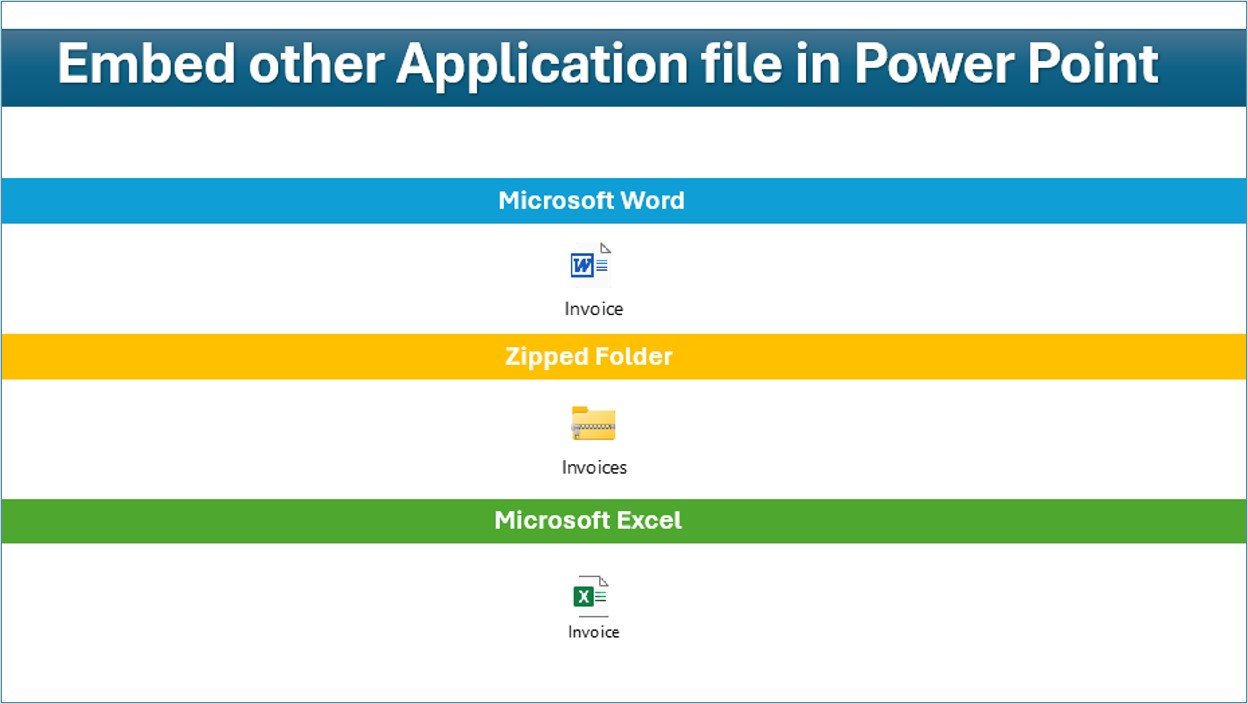
- How to embed files into PowerPoint
- Data-driven 3D container chart in PowerPoint
- How to use Copilot in Windows 11
Frequently Asked Questions
Where is the Designer button in PowerPoint?
In current Microsoft 365 versions it is at the right end of the Home tab. In some versions it is on the Design tab and may be called Design Ideas.
Is PowerPoint Designer free?
It is included with Microsoft 365 subscriptions. One-time-purchase versions of PowerPoint do not include it.
Can I undo a design idea?
Yes. Press Ctrl + Z, or simply click another idea in the Designer pane.
Does Designer change my text?
No. It changes layout, pictures, shapes and colours, but your words stay the same and remain fully editable.
How do I stop Designer from opening automatically?
Go to File > Options > General and untick Automatically show me design ideas.
Why does Designer show no ideas for my slide?
Usually because you are offline, more than one slide is selected, or the slide uses a custom template or many extra objects. Try a single slide with a standard layout.
Wrapping Up
PowerPoint Designer turns a plain slide into a polished one in a couple of clicks: add your content, click Designer, choose an idea and fine-tune it. Try it on your next title slide, then use it on content slides with pictures and lists to build a consistent, professional deck in far less time.
If you present data, the ready-made Data Driven 3D Container Chart in PowerPoint from NextGenTemplates is another way to make your slides stand out.
Get the 3D Container Chart for PowerPoint
📅 Last updated: October 2026