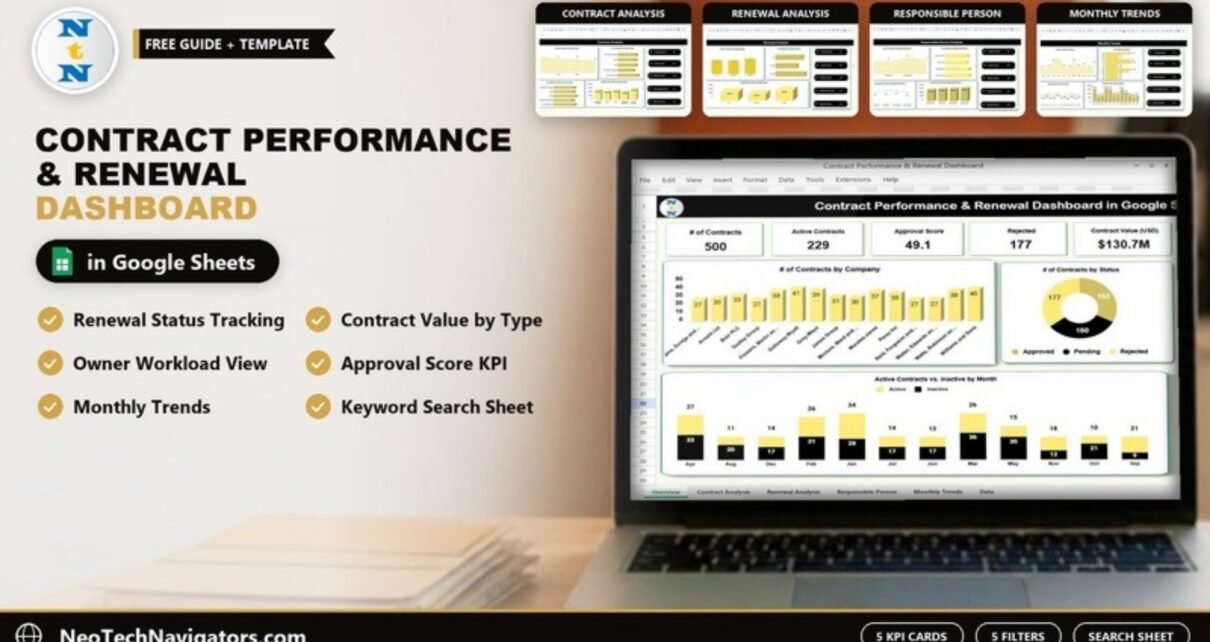
The Contract Performance & Renewal Dashboard in Google Sheets gives contract managers one place to see how many contracts they hold, how much they are worth, which ones are approved or rejected, and which renewals are due or already overdue. It reads every contract from a single data sheet and turns it into five analysis pages plus a search page.
It is built for procurement teams, legal and compliance staff, operations managers and small-business owners who juggle vendor, lease, NDA and employment agreements. Below you will find each page explained with the real sample numbers, the data columns you need, and a step-by-step guide to loading your own contracts.
🎥 Watch the Video Tutorial
Get the Contract Performance & Renewal Dashboard
Why Contract Renewal Tracking Needs a Dashboard
Contracts tend to live in email threads, shared drives and signed PDFs. The details that matter day to day, such as the renewal due date, the owner and the approval status, are easy to lose. The usual result is a renewal that slips past its date, an auto-renewal nobody meant to keep, or a vendor agreement that no one can find during an audit.
A dashboard does not replace your contract documents. It gives you a live register of the key facts about each one, so you can answer questions like “How many contracts are overdue for renewal and how much value is tied up in them?” in seconds rather than hours.
What Is Inside the Template
| Sheet | What it shows |
|---|---|
| Overview | 5 KPI cards, # of Contracts by Company, # of Contracts by Status, Active Contracts vs. Inactive by Month |
| Contract Analysis | Active contracts, contract count, average approval score and contract value by Contract Type |
| Renewal Analysis | Active contracts, contract count and contract value by Renewal Status (Due, Not Due, Overdue) |
| Responsible Person Analysis | Active contracts, contract count, average approval score and contract value by owner |
| Monthly Trends | Active contracts, contract count, average approval score and contract value by month |
| Search | Search by keyword within a chosen column, with a Total Record counter |
| Data | The contract register that feeds every page |
Every dashboard page has the same five drop-down filters on the right: Company Name, Contract Type, Renewal Status, Responsible Person and Approval Status.
Overview Sheet: The Contract Portfolio at a Glance

The five KPI cards
| KPI card | Sample value | What it tells you | Better when |
|---|---|---|---|
| # of Contracts | 500 | Total contract records in the current filter | Context only |
| Active Contracts | 229 | How many of those contracts are currently active | Context only |
| Approval Score | 49.1 | The average approval score across the filtered contracts | Higher |
| Rejected | 177 | Contracts whose Approval Status is Rejected | Lower |
| Contract Value (USD) | $130.7M | Total of the Contract Value (USD) column | Context only |
Overview charts
- # of Contracts by Company – contract count for each company, such as Arnold Ltd, Blair PLC, Gray-Mayo and Galloway-Wyatt (the largest in the sample with 41).
- # of Contracts by Status – a donut split by Approval Status: Approved 163, Pending 160, Rejected 177. Together they add up to the 500 contracts on the first card.
- Active Contracts vs. Inactive by Month – stacked columns for each month, showing how many active and inactive contracts fall in that month.
Contract Analysis Sheet
This page breaks the portfolio down by the five contract types in the sample: Employment Contract, Lease, NDA, Partnership Agreement and Service Agreement.

- # of Contracts by Contract Type – Service Agreement is the largest group (109), followed by Employment Contract (102) and NDA (101).
- Contract Value (USD) by Contract Type – Service Agreements carry the most value at $30.4M.
- Avg. Approval Score by Contract Type – NDAs score highest at 52.2; Partnership Agreements lowest at 46.2.
- Active Contracts by Contract Type – an area chart of active contracts per type.
Reading these together helps you spot, for example, a contract type that carries a lot of value but scores poorly on approval, which is a good place to tighten your review process.
Renewal Analysis Sheet
This is the page to check every week. It groups contracts by Renewal Status, which in the template has three values: Due, Not Due and Overdue.

| Renewal Status | # of Contracts | Active Contracts | Contract Value (USD) |
|---|---|---|---|
| Due | 172 | 74 | $43.9M |
| Not Due | 141 | 73 | $34.4M |
| Overdue | 187 | 82 | $52.5M |
In the sample, Overdue is the largest group by both count and value. In a real portfolio that would be the first list to work through: filter Renewal Status to Overdue, then use the Responsible Person filter to hand each owner their own list.
Responsible Person Analysis Sheet
Every contract needs an owner. This page compares the four owners in the sample data: Abigail Shaffer, Allison Hill, Daniel Wagner and Noah Rhodes.

- # of Contracts by Responsible Person – Daniel Wagner and Noah Rhodes each manage 130 contracts, Abigail Shaffer 123 and Allison Hill 117.
- Contract Value (USD) by Responsible Person – Noah Rhodes holds the most value at $34.6M.
- Avg. Approval Score by Responsible Person – Daniel Wagner leads at 53.2; Noah Rhodes is lowest at 45.6.
- Active Contracts by Responsible Person – how many active contracts each owner is currently looking after.
Managers use this page to balance workload and to see whose contracts need extra support before renewal time.
Monthly Trends Sheet

The Monthly Trends page shows Active Contracts by Month, # of Contracts by Month, Avg. Approval Score by Month and Contract Value (USD) by Month. In the sample, January and March have the most contracts (62 each), February has the highest value ($16.7M), and the approval score peaks in July (60.4) and dips in May (42.1). Use it to plan review capacity for busy months.
Search Sheet: Find Any Contract Fast

The Search sheet is titled Search by Search Keyword and Field Name. Choose a field in the Select Column drop-down (for example Renewal Status), type a keyword, and the matching rows are listed below with a Total Record counter. It is handy during audits, vendor calls or when someone asks “Which NDAs does Allison Hill own?”
Data Sheet: The Contract Register

The data sheet holds one row per contract. The visible columns are:
- Contract ID (CN-1000, CN-1001 and so on)
- Company Name
- Contract Type
- Contract Start Date
- Contract End Date
- Renewal Due Date
- Renewal Status (Due, Not Due, Overdue)
- Contract Value (USD)
- Responsible Person
- Approval Status (Approved, Pending, Rejected)
Further columns to the right feed the approval score and monthly charts. Keep their headers as they are when you replace the data.
How to Use It With Your Own Contracts
- Make a personal copy with File → Make a copy.
- Open the Data sheet and clear the sample rows, leaving the header row in place.
- Paste or type your contracts, one per row. Give each a unique Contract ID.
- Enter dates as real dates (for example 2026-03-15), not text, so the monthly charts group them correctly.
- Use the same spelling every time for Contract Type, Renewal Status, Responsible Person and Approval Status. The filters and charts treat “NDA” and “N.D.A.” as two different items.
- Update Renewal Status as dates approach, so the Renewal Analysis page stays accurate.
- Open the Overview page, leave all filters on All, and check that # of Contracts matches the number of rows you entered.
If you would like Renewal Status to update itself, you can add a helper formula based on the Renewal Due Date. One simple approach (adjust the 30-day window to your policy):
=IF(F2<TODAY(),"Overdue",IF(F2-TODAY()<=30,"Due","Not Due"))Here F2 is the Renewal Due Date. This is an optional addition, not part of the template as shipped.
Real-World Use Cases
1. Procurement renewal calendar
A procurement lead filters Renewal Status to Due each Monday, sorts by value and assigns follow-ups, so no high-value vendor agreement auto-renews without review.
2. Legal team workload review
A legal manager uses the Responsible Person page to see that two owners carry 130 contracts each and rebalances new agreements towards the person with fewer.
3. Audit preparation
Before an internal audit, the finance team uses the Search sheet to pull every Rejected or Pending contract for a given company and checks the supporting documents.
Best Practices
- Agree on what the approval score means in your organisation and score every contract the same way.
- Review the Renewal Analysis page weekly and the Monthly Trends page once a month.
- Keep a link to the signed contract file in an extra column so the dashboard points to the source document.
- Restrict edit access to the people who maintain the Data sheet; share the dashboard view with everyone else.
- Archive expired contracts to a separate tab once a year so the active portfolio stays clear.
Limitations and Who Should Not Use It
- It is a register and reporting tool, not a contract lifecycle management system. It does not store documents, handle e-signatures or send reminder emails.
- Renewal Status is a data field; unless you add a formula like the one above, someone has to update it.
- Large legal departments with thousands of contracts, clause libraries and approval workflows will be better served by dedicated CLM software.
Related Guides and Templates
For a simpler register without the analysis pages, see our Contract Management Tracker in Google Sheets. If you mainly need deadline control, the Contract Expiry and Compliance Dashboard and the Contract Renewal Checklist in Google Sheets are good companions. Teams focused on risk can compare it with the Contract Risk & Status Intelligence Dashboard, and supplier managers may also like the Vendor Performance Dashboard in Google Sheets.
Related template: the Contract Management Dashboard in Google Sheets on NextGenTemplates.
If you want to learn how dashboards like this are built, the Pivot Tables and Dashboards course on NextGenTemplates Academy walks through summarising data and building charts step by step.
Frequently Asked Questions
What renewal statuses does the dashboard use?
The sample data uses three: Due, Not Due and Overdue. The Renewal Analysis page shows count, active contracts and value for each.
Which filters are available?
Every dashboard page has five drop-down filters: Company Name, Contract Type, Renewal Status, Responsible Person and Approval Status.
Can I add my own contract types?
Yes. Type the new contract type in the Data sheet and it will appear in the Contract Type filter and charts. Keep the spelling consistent.
Does the dashboard send renewal reminders?
No. It shows which contracts are due or overdue, but it does not send emails. You can add Google Sheets notification rules or a calendar process alongside it.
How do I find a single contract quickly?
Use the Search sheet: choose a column in Select Column, type your keyword, and the matching contracts are listed with a Total Record count.
Do I need advanced spreadsheet skills?
No. Entering rows in the Data sheet and using the drop-down filters is all that daily use requires.
Wrapping Up
The Contract Performance & Renewal Dashboard in Google Sheets turns a list of contracts into a clear picture of value, approvals, ownership and renewal risk. Load your current contracts, check the Overdue group on the Renewal Analysis page first, and make the weekly renewal review a habit.
Get the Contract Performance & Renewal Dashboard in Google Sheets
📅 Last updated: October 2026