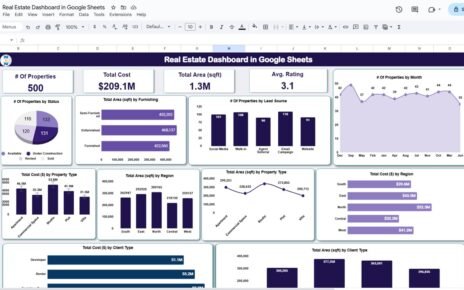
The Real Estate Sales Performance Dashboard in Google Sheets turns a list of property records into a one-page view of your portfolio: how many properties you have, their total cost, total area, average customer rating, and how all of that splits by status, region, lead source, property type, furnishing and client type.
It is built for real estate agencies, developers, brokers and sales managers who already keep property data in a spreadsheet and want clear reporting without buying a CRM. In this guide you will see each sheet of the template (Dashboard, Search, Data and Support), the real numbers from the sample file, and how to switch it over to your own listings.
🎥 Watch the Video Tutorial
Get the Real Estate Sales Performance Dashboard
Why Use a Real Estate Sales Performance Dashboard in Google Sheets?
Most property teams have the data but not the view. Listings sit in one tab, agent notes in another, and every month someone builds the same pivot tables again. A dashboard answers the recurring questions instantly:
- Which region carries the highest total cost and the largest area?
- Which lead source (Email Campaign, Agent Referral, Walk-in, Social Media or Website) brings in the most properties?
- How is the portfolio split between Under Construction, Rented, Sold and Available?
- Which client types – First-time Buyer, Investor, Renter or Developer – account for the most value?
Because it is a Google Sheets file, the whole team can work in it at once and every chart reflects the latest rows.
Dashboard Sheet: KPI Cards and Charts
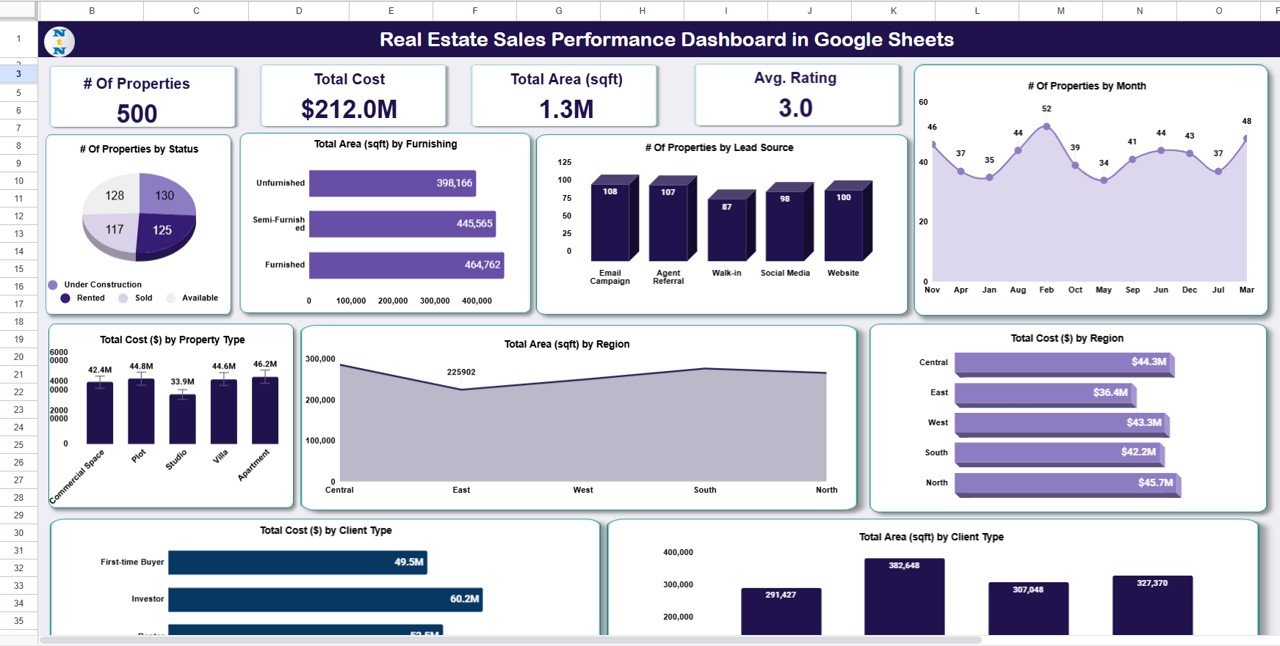
The Dashboard sheet is the main page. Four KPI cards sit across the top and nine charts fill the rest of the page.
KPI cards
| KPI card | What it measures | How it is calculated | Sample value |
|---|---|---|---|
| # Of Properties | Number of property records | Count of Property IDs in the Data sheet | 500 |
| Total Cost | Combined value of all properties | Sum of the Cost column | $212.0M |
| Total Area (sqft) | Combined floor area | Sum of the Area (sqft) column | 1.3M |
| Avg. Rating | Average customer rating | Average of Customer Rating (1-5) | 3.0 |
Charts on the dashboard
- # Of Properties by Status – a 3D pie across Under Construction, Rented, Sold and Available (the four slices in the sample are 130, 125, 117 and 128).
- Total Area (sqft) by Furnishing – Furnished 464,762, Semi-Furnished 445,565 and Unfurnished 398,166 sqft.
- # Of Properties by Lead Source – Email Campaign 108, Agent Referral 107, Website 100, Social Media 98 and Walk-in 87.
- # Of Properties by Month – an area chart of listings per month.
- Total Cost ($) by Property Type – Apartment $46.2M, Plot $44.8M, Villa $44.6M, Commercial Space $42.4M and Studio $33.9M.
- Total Area (sqft) by Region – area across Central, East, West, South and North.
- Total Cost ($) by Region – North $45.7M, Central $44.3M, West $43.3M, South $42.2M and East $36.4M.
- Total Cost ($) by Client Type – led by Investor at $60.2M.
- Total Area (sqft) by Client Type – area split across the four client types.
A quick check: the five lead-source bars add up to 500, the same as the # Of Properties card, and the five property-type values add up to roughly $212M, matching Total Cost.
Search Sheet: Filter Records by Any Field
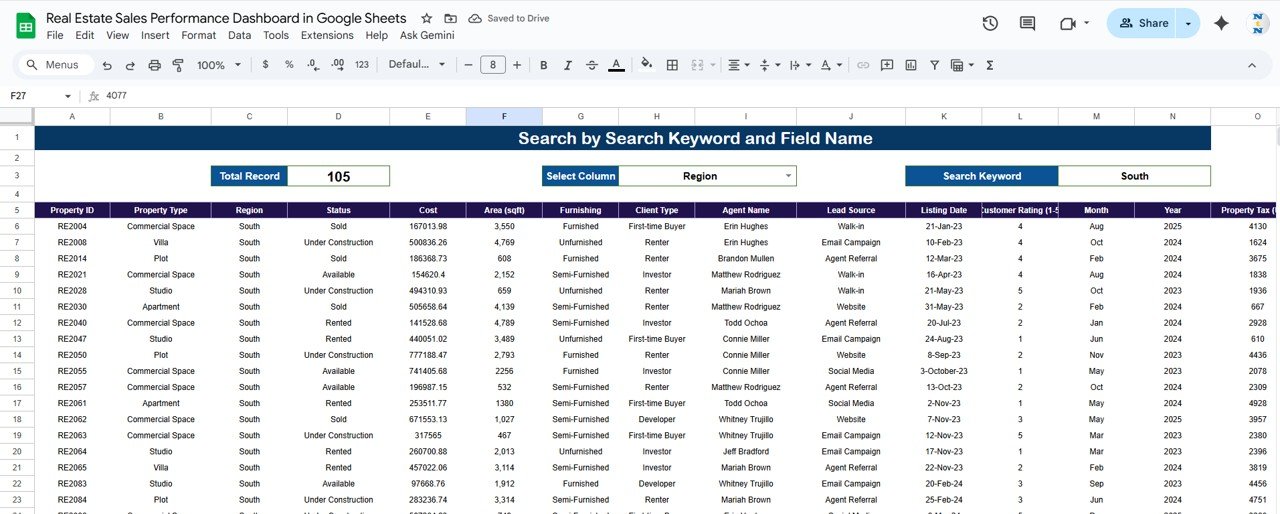
The Search sheet, titled Search by Search Keyword and Field Name, lets you pick a field in Select Column and type a value in Search Keyword. The matching records appear below with every column, and a Total Record box shows the count.
In the sample, choosing Region and typing South returns 105 records, starting with RE2004 (Commercial Space, Sold, First-time Buyer, Walk-in). Other useful searches are Status = Available for your open inventory, or Lead Source = Agent Referral to review referral deals.
Data Sheet: The Records Behind Every Chart
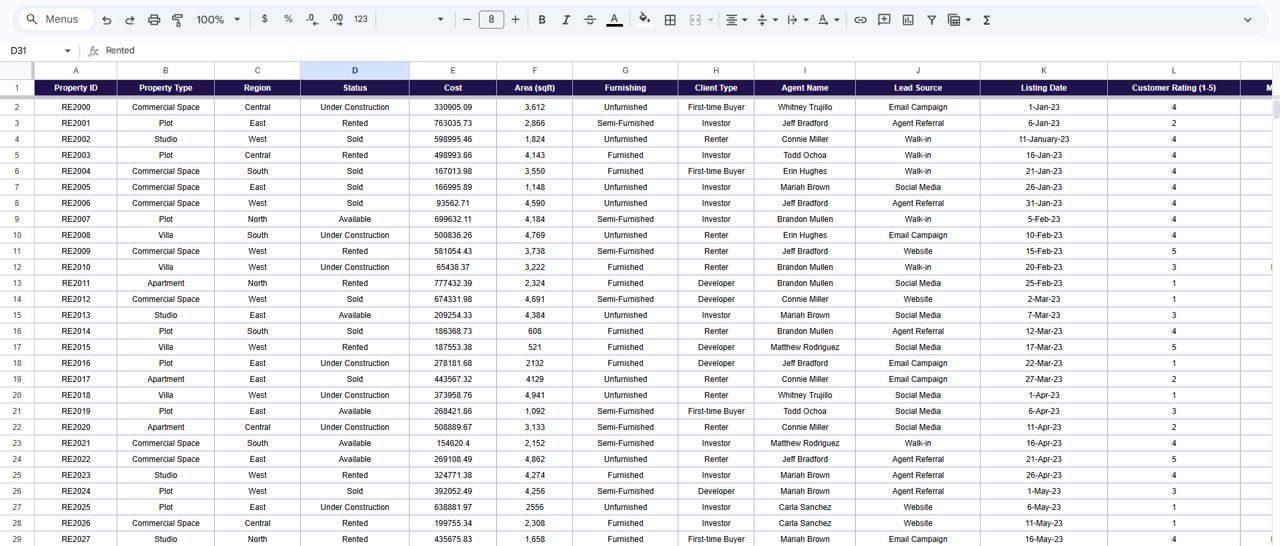
The Data sheet holds one row per property. The columns visible in the template are:
- Property ID (RE2000, RE2001 …), Property Type (Commercial Space, Plot, Studio, Villa, Apartment) and Region
- Status, Cost, Area (sqft) and Furnishing
- Client Type, Agent Name, Lead Source and Listing Date
- Customer Rating (1-5), Month, Year and a property tax column
Every KPI card and chart reads from this sheet, so it is the only place you need to type data.
Support Sheet: Behind-the-Scenes Calculations
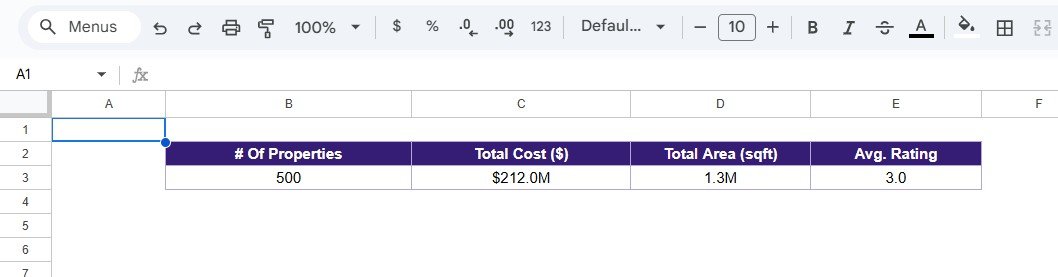
The Support sheet holds the summary block that feeds the KPI cards – # Of Properties, Total Cost ($), Total Area (sqft) and Avg. Rating – along with the lists used for dropdowns and validation. You do not need to edit it; leave it as it is so the dashboard keeps working.
How to Use It With Your Own Data
- Make a copy of the file (File → Make a copy) and keep the original as a backup.
- Clear the sample rows in the Data sheet, keeping the header row exactly as it is.
- Enter or paste your properties – one row each, with a unique Property ID.
- Use the same category names for Status, Region, Furnishing, Client Type and Lead Source, or update them consistently everywhere if your business uses different labels.
- Fill Month and Year for every row so the month chart groups correctly.
- Open the Dashboard sheet and check that the # Of Properties card equals your row count.
- Use the Search sheet to pull lists for weekly sales meetings.
Real-World Use Cases
1. Agency sales review
A brokerage uses the Lead Source chart each month to decide whether to spend more on email campaigns or agent referral incentives.
2. Developer portfolio check
A developer with projects in several regions compares Total Cost by Region with Total Area by Region to see where value per square foot is highest.
3. Rental and resale mix
A property manager watches the Status pie to keep the right balance of Rented, Sold, Available and Under Construction units.
Best Practices
- Update the Data sheet at least weekly so the cards reflect the current pipeline.
- Never reuse a Property ID; duplicates inflate the counts.
- Keep Cost in one currency and Area in one unit (sqft).
- Protect the Dashboard and Support sheets (Data → Protect sheets and ranges) so only the Data sheet is editable.
- Collect Customer Rating the same way every time (for example, a 1–5 survey after closing).
Limitations
This is a reporting dashboard, not a CRM. It does not track leads through stages, schedule site visits or send follow-ups. It also does not calculate profit or commission, because the data holds cost but no sale price or margin. If you need agent-level performance, look at an agent-focused dashboard instead.
Related Dashboards and Guides
For agent-level reporting, see the Real Estate Agent Dashboard in Google Sheets. If you manage a held portfolio rather than sales, the Real Estate Property Portfolio Performance Dashboard is a closer fit. Target-based tracking is covered in the Real Estate KPI Scorecard in Google Sheets, and a broader overview is in the Real Estate Dashboard in Google Sheets guide. To keep a simple listing register, try the Real Estate Property Tracker.
If you want to build dashboards like this yourself, the Excel Pivot Tables & Dashboards course on NextGenTemplates Academy teaches the summary-and-chart approach step by step.
Frequently Asked Questions
What does the Real Estate Sales Performance Dashboard in Google Sheets show?
Four KPI cards (# Of Properties, Total Cost, Total Area and Avg. Rating) and nine charts covering status, furnishing, lead source, month, property type, region and client type.
Which property statuses does it use?
The sample data uses Under Construction, Rented, Sold and Available.
Can I use my own regions and property types?
Yes. Replace the sample values in the Data sheet with your own, and keep each name spelled the same way in every row so the charts group correctly.
How do I find all properties in one region?
Go to the Search sheet, choose Region in Select Column and type the region name in Search Keyword. In the sample, South returns 105 records.
Does the dashboard track agent performance?
The Data sheet has an Agent Name column, which you can search, but the dashboard charts focus on status, region, lead source, property type, furnishing and client type rather than agents.
Do I need formulas to update it?
No. You only enter rows in the Data sheet; the cards and charts recalculate on their own.
Wrapping Up
The Real Estate Sales Performance Dashboard in Google Sheets gives your team a single, shared view of the portfolio – counts, cost, area, rating and the splits that matter for sales decisions. Load your current listings into the Data sheet, check the cards against your own totals, and use the lead source and region charts in your next sales review.
Get the Real Estate Sales Performance Dashboard
📅 Last updated: October 2026