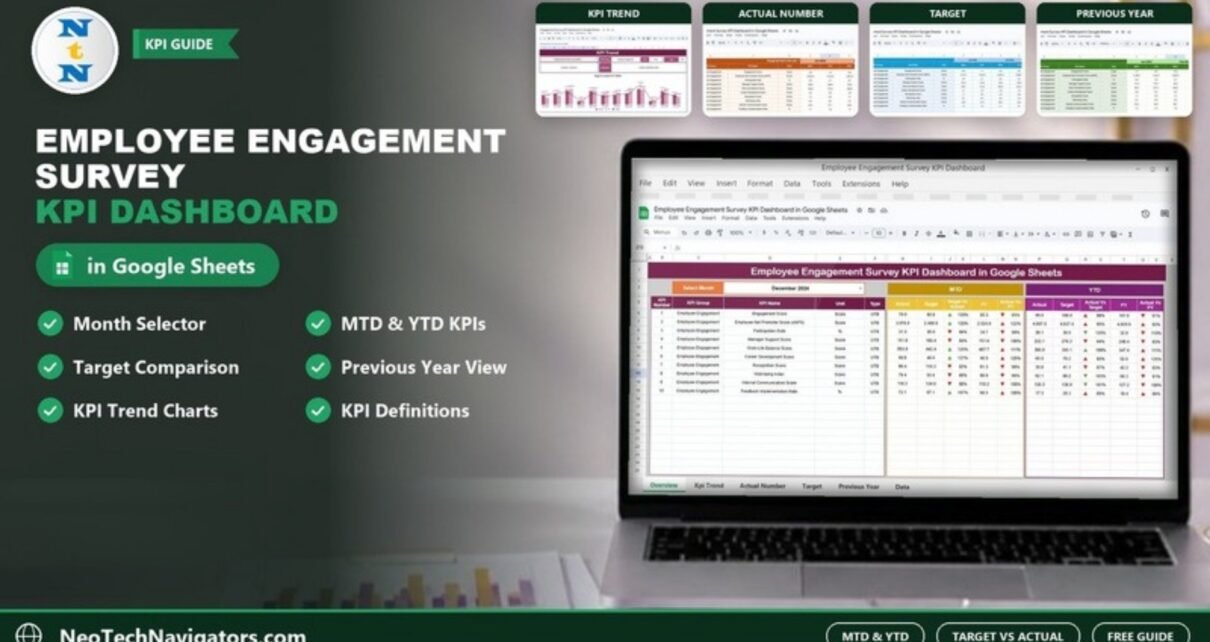
Most organisations run engagement surveys, but the results often end up in scattered spreadsheets that nobody revisits. The Employee Engagement Survey KPI Dashboard in Google Sheets fixes that by turning monthly survey scores into a single view of month-to-date and year-to-date performance, compared against targets and last year.
It is built for HR teams, people managers and leadership groups who want a clear engagement scorecard without buying HR analytics software. The template tracks 10 engagement KPIs across six connected tabs: a main Dashboard, a KPI Trend page, three input sheets (Actual Number, Target and Previous Year Number) and a KPI Definition sheet. You choose a month from a dropdown and every figure updates.
🎥 Watch the Video Tutorial
Get the Employee Engagement Survey KPI Dashboard
What Problem Does an Employee Engagement Survey Dashboard Solve?
Survey tools are good at collecting answers and weak at showing progress over time. HR teams typically export results each month, paste them into a new file and build one-off charts. That makes it hard to answer the questions leaders actually ask:
- Is engagement better or worse than last month and last year?
- Are we hitting the targets we set at the start of the year?
- Which engagement areas are slipping and need action now?
An employee engagement survey KPI dashboard answers all three from one place. Because the KPIs, targets and definitions live in the same file, every manager reads the numbers the same way.
What Is Inside the Template: 6 Worksheet Tabs
1. Dashboard (Main Page)
This is the executive view. Select the reporting month from the Select Month dropdown in cell D3 (December 2024 in the sample) and all 10 KPIs update for that month. Each row shows the KPI Number, KPI Group, KPI Name, Unit and Type, followed by two blocks:
- MTD: Actual, Target, Target Vs Actual, PY and Actual Vs PY.
- YTD: Actual, Target, Actual Vs Target, PY and Actual Vs PY.
Each comparison is shown as a percentage with a coloured arrow icon beside it. Because every KPI in the sample is Upper the Better, a percentage above 100% means the actual is ahead of target or last year. Read the percentage itself rather than relying on the arrow colour alone, and a leadership review takes minutes rather than an afternoon.

2. KPI Trend
Pick any KPI from the Select KPI dropdown in cell C3 to see its KPI Group, Unit, Type, Formula and Definition, together with month-wise Target Vs Actual Vs PY charts showing Actual and PY columns with a Target line for each month. Use it when one number on the dashboard looks unusual and you want to see whether it is a one-month dip or a steady decline.

3. Actual Number
This is where survey results go. Set the first month of your year in cell E1 (labelled “Change the first of the year”), then enter MTD and YTD actual values for each KPI month by month. It is the single source of truth that feeds the Dashboard and KPI Trend pages.

4. Target
Enter MTD and YTD targets for every KPI here, in the same month-by-month layout. Targets let the dashboard show whether each engagement area is on track, not just whether it moved.

5. Previous Year Number
Store last year’s MTD and YTD figures in the same layout (2023 months in the sample) to unlock year-over-year comparison and to measure whether improvement initiatives actually worked.

6. KPI Definition
The reference sheet lists each KPI Group, KPI Name, Unit, Formula, Definition and Type (UTB for Upper the Better, LTB for Lower the Better). It keeps everyone interpreting the scores the same way and is where you rename or add KPIs to suit your own survey.

The 10 Employee Engagement KPIs in the Template
All 10 KPIs sit in the Employee Engagement group and are set as UTB (Upper the Better). The formulas and definitions below are taken from the KPI Definition sheet.
| KPI | Unit | Formula | Definition | Better when |
|---|---|---|---|---|
| Engagement Score | Score | Avg of engagement responses | Average score from engagement questions | Higher (UTB) |
| Employee Net Promoter Score (eNPS) | Score | Promoters – Detractors | Loyalty & satisfaction metric | Higher (UTB) |
| Participation Rate | % | Respondents / Total * 100 | Employee participation rate | Higher (UTB) |
| Manager Support Score | Score | Avg of manager support responses | Perceived support from managers | Higher (UTB) |
| Work-Life Balance Score | Score | Avg of work-life responses | Balance between job & personal life | Higher (UTB) |
| Career Development Score | Score | Avg of career responses | Growth opportunities perception | Higher (UTB) |
| Recognition Score | Score | Avg of recognition responses | Recognition by peers or managers | Higher (UTB) |
| Well-being Index | Score | Avg of wellness responses | Overall mental & physical well-being | Higher (UTB) |
| Internal Communication Score | Score | Avg of communication responses | Quality of internal communication | Higher (UTB) |
| Feedback Implementation Rate | % | Implemented / Suggested * 100 | Rate of implemented feedback | Higher (UTB) |
The KPI Definition sheet is editable, so you can rename these KPIs to match the questions in your own survey. If you add a metric where a lower number is better (for example a measure of intent to leave), set its Type to LTB so the comparisons are read the right way.
How to Use It with Your Own Data
- After purchase, make a copy of the Google Sheet in your own Drive (File > Make a copy).
- Open KPI Definition and rename, add or remove KPIs so they match your survey. Fill in the group, unit, formula, definition and UTB/LTB type.
- On Actual Number, set the first month of your financial or survey year in cell E1.
- Enter your monthly targets on Target and last year’s results on Previous Year Number.
- After each survey cycle, add the month’s MTD and YTD actuals on Actual Number.
- Go to Dashboard, pick the month in cell D3 and review the comparison percentages. Use KPI Trend to investigate any KPI that moved sharply.
- Share the file with managers as Viewer so they can read results without editing the inputs.
Real-World Use Cases
- Quarterly leadership review: an HR business partner opens the dashboard, selects the quarter’s last month and walks the team through YTD vs target, focusing discussion on the two or three KPIs that sit furthest below 100%.
- Measuring an initiative: after launching a recognition programme, a company compares this year’s Recognition Score with the Previous Year Number sheet to see whether the change moved the score.
- Pulse surveys in a growing startup: a 60-person team runs a short monthly pulse and logs Participation Rate, Manager Support Score and Well-being Index, giving founders an early signal before engagement problems show up as resignations.
Best Practices
- Keep survey questions and scales the same between cycles, otherwise trends stop being comparable.
- Set realistic targets based on last year’s baseline rather than round numbers.
- Watch Participation Rate alongside the scores; a high score from 20% of staff tells you little.
- Review the dashboard on a fixed monthly date and agree one action for the weakest KPI.
- Share results back with employees and track it through Feedback Implementation Rate. People answer future surveys more honestly when they see something happen.
If you want to build dashboards like this yourself, the Excel Pivot Tables and Dashboards course on NextGenTemplates Academy covers the summarising and charting techniques step by step.
Who Should Not Use This Template
- It is not a survey tool. You collect responses in Google Forms or your survey platform and enter the summarised scores here.
- It tracks KPIs at the organisation level. If you need a full breakdown by department, location and manager from raw responses, a data-driven dashboard is a better fit.
- Inputs are manual each month. Teams that want results flowing in automatically from an HRIS will need extra setup.
Related HR Dashboards and Trackers
For a wider view of HR performance, see the HR KPI Dashboard in Google Sheets and the HR KPI Scorecard in Google Sheets. If you work from individual survey responses, the Employee Satisfaction Survey Tracker and the Employee Satisfaction Dashboard are good companions, and the Employee Wellness KPI Dashboard covers the wellbeing side.
Prefer Excel? The same layout is available as the Employee Engagement Survey KPI Dashboard in Excel.
Frequently Asked Questions
Who should use an employee engagement survey KPI dashboard?
HR teams, people managers and leadership groups who run regular engagement or pulse surveys and want to track results against targets and last year in one place.
Which KPIs does the template track?
Ten: Engagement Score, Employee Net Promoter Score (eNPS), Participation Rate, Manager Support Score, Work-Life Balance Score, Career Development Score, Recognition Score, Well-being Index, Internal Communication Score and Feedback Implementation Rate.
Can I change the KPIs?
Yes. Edit the KPI Definition sheet to rename, add or remove KPIs and set each one as UTB (Upper the Better) or LTB (Lower the Better).
Does it support both MTD and YTD tracking?
Yes. The dashboard shows month-to-date and year-to-date Actual, Target and PY values side by side, with percentage comparisons, for the month you select in cell D3.
Do I need Apps Script or add-ons?
No. The template runs on standard Google Sheets features such as dropdowns, formulas, charts and conditional formatting.
Is employee survey data safe in Google Sheets?
Google Sheets is as safe as your sharing settings. Keep inputs restricted to HR, share the dashboard as view-only, and enter summarised scores rather than individual answers.
Wrapping Up
An engagement survey only pays off when its results are tracked and acted on. This Google Sheets dashboard gives you one month selector, MTD and YTD comparisons for 10 engagement KPIs against targets and last year, and a shared definition for every KPI, so the conversation moves from “what do the numbers say” to “what do we do next”.
Get the Employee Engagement Survey KPI Dashboard
📅 Last updated: October 2026