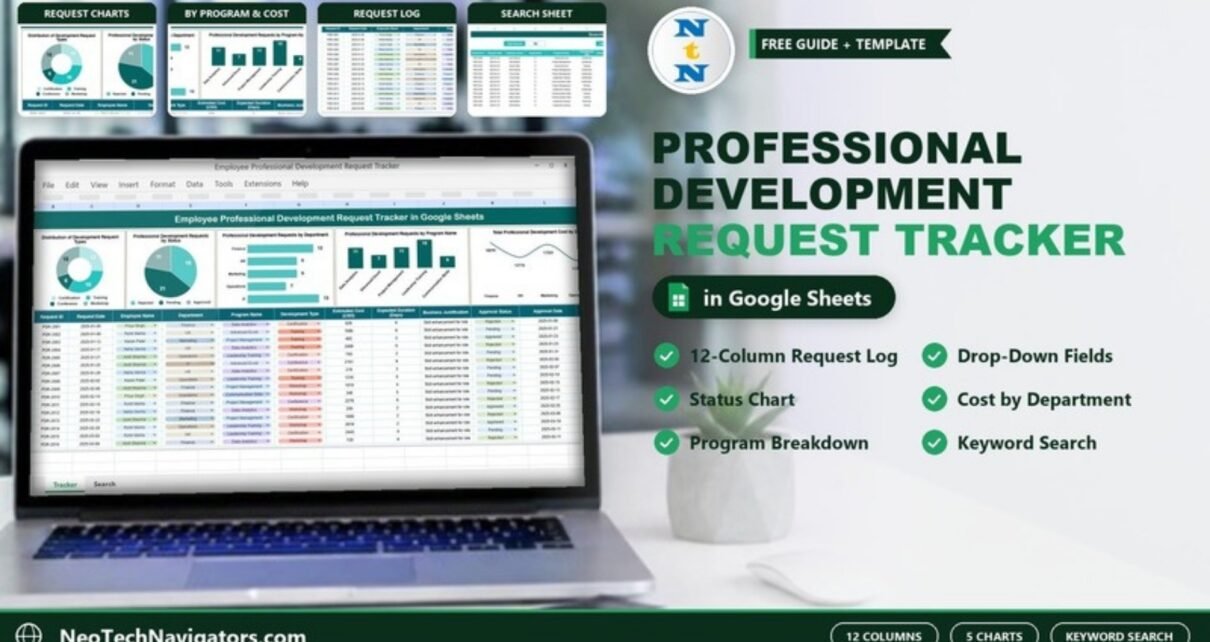
Requests for courses, certifications, conferences and workshops tend to arrive by email, chat and hallway conversations, and soon nobody knows what was approved, what is still pending or how much each department is spending. The Employee Professional Development Request Tracker in Google Sheets puts every request in one table, shows five live summary charts above it, and adds a search sheet that filters records by any column.
It is built for HR teams, learning and development (L&D) coordinators, department heads and finance reviewers who need a simple, shared approval log rather than a full learning management system. Inside you get the main tracker with 12 columns and drop-down fields, five charts (request types, status, department, program and cost by department), and a Search by Search Keyword and Field Name sheet.
🎥 Watch the Video Tutorial
Get the Professional Development Request Tracker
Why Use a Professional Development Request Tracker in Google Sheets?
Without a central log, three things go wrong. Employees wait weeks for an answer because nobody owns the request. Managers approve similar programs for different people at different prices. And at budget time, nobody can say how much each department actually asked for. A request tracker fixes this by giving every request an ID, a status and a cost, and by summarising the whole list in charts that update as you type.
Google Sheets is a practical home for this log. HR, managers and finance can work in the same file at the same time, the version history shows who changed a status and when, and sharing settings let you give reviewers edit access while others only view. There is nothing to install, and the file can grow with your process: you can add columns such as Actual Cost or Manager later without rebuilding anything.
The Tracker Sheet: 12 Columns
Each row is one request. The sample file contains 50 requests numbered PDR-2001 to PDR-2050. Several columns use drop-down chips so entries stay consistent.
| Column | What you enter | Sample value |
|---|---|---|
| Request ID | Unique reference for the request | PDR-2001 |
| Request Date | Date the request was submitted | 2025-01-05 |
| Employee Name | Requester (drop-down) | Priya Singh |
| Department | Finance, HR, Marketing, Operations or IT (drop-down) | Finance |
| Program Name | Data Analytics, Advanced Excel, Project Management, Leadership Training or Communication Skills (drop-down) | Data Analytics |
| Development Type | Certification, Training, Conference or Workshop (drop-down) | Certification |
| Estimated Cost (USD) | Expected cost of the program | 828 |
| Expected Duration (Days) | Length of the program | 6 |
| Business Justification | Why the program is needed | Skill enhancement for role |
| Approval Status | Approved, Pending or Rejected (drop-down) | Rejected |
| Approval Date | Date of the decision or review | 2025-01-08 |
| Remarks | Any notes from the reviewer | (blank) |
The Five Summary Charts
Above the table, five charts summarise every row. With the 50 sample requests they show:
- Distribution of Development Request Types – Training 16, Workshop 15, Certification 13 and Conference 6.
- Professional Development Requests by Status – Pending 21, Rejected 18 and Approved 11.
- Professional Development Requests by Department – IT 13, Finance 12, HR 9, Marketing 9 and Operations 7.
- Professional Development Requests by Program Name – Leadership Training 15, Data Analytics 11, Project Management 11, Advanced Excel 7 and Communication Skills 6.
- Total Professional Development Cost by Department – Finance $18,299, Marketing $17,329, IT $14,412, HR $12,776 and Operations $11,362.
The status chart is the one to watch: in the sample, 21 of 50 requests (42%) are still pending, which signals an approval backlog.

Search by Keyword and Field Name
The search sheet has two inputs: Select Column (a drop-down of the tracker’s columns) and Search Keyword. A Total Record box shows how many rows match, and the matching requests are listed below with all columns. In the example, selecting Department and typing “it” returns 13 IT requests.
Typical searches:
- Approval Status + “Pending” to build this week’s review list.
- Employee Name + a person’s name before a performance conversation.
- Program Name + “Leadership” to see who has already asked for leadership training.

How a keyword search like this works
You do not need to build anything, but if you are curious, a column-and-keyword search in Google Sheets can be written with FILTER and SEARCH. For example, if your requests sit in columns B to M of a sheet named Tracker (Department in column E) and the keyword is typed in cell M3, this lists every row whose Department contains the keyword:
=FILTER(Tracker!B:M, ISNUMBER(SEARCH(M3, Tracker!E:E)))SEARCH is not case-sensitive, which is why typing “it” finds “IT”. This is a general example for learning purposes, not a copy of the template’s own formula.
A Simple Approval Workflow to Follow
The tracker works best with a clear, repeatable process. A workflow that suits most small and mid-sized teams looks like this:
- Submit: the employee or their manager adds a row with status Pending, the program, the estimated cost and a short justification.
- Review: once a week, HR searches for Pending requests and checks each one against the department’s remaining budget.
- Decide: the reviewer sets Approved or Rejected, enters the Approval Date and explains any rejection in Remarks.
- Report: at month-end, the cost-by-department chart goes into the HR or finance update.
How to Use It With Your Own Data
- Make a copy of the file in your Google Drive and delete the sample rows (keep the header).
- Update the drop-down lists so they match your departments, employees and approved program catalogue.
- Log each new request with the next Request ID, the Request Date, the program, development type, estimated cost and expected duration.
- Ask requesters for a one-line Business Justification so reviewers can decide quickly.
- When a decision is made, set Approval Status and Approval Date, and add Remarks if needed.
- Review the charts weekly: clear the Pending backlog and compare cost by department with your budget.
- Use the search sheet whenever someone asks about a specific employee, department or program.
Real-World Use Cases
- Quarterly L&D budget review: finance uses the cost-by-department chart to see that Finance and Marketing requested the most and adjusts allocations.
- Weekly approval meeting: HR searches Approval Status = Pending and works through the list in one sitting.
- Training vendor negotiation: with Leadership Training requested 15 times, L&D can negotiate a group rate instead of paying for individual enrolments.
Best Practices
- Set a response target. For example, decide every request within 10 working days, and check the Request Date against the Approval Date.
- Write specific justifications. “Needed for the Q3 reporting automation project” is more useful than a generic phrase.
- Keep the drop-downs tidy. Add new programs to the list instead of typing free text.
- Restrict editing. Let employees submit through a manager or a form, and keep edit access to HR.
- Record the reason for rejections in Remarks so employees know what to change next time.
Limitations: Who Should Not Use It
- It is an approval log, not a learning management system. It does not host courses, track attendance or issue certificates.
- Costs are estimates. If you need actual spend versus budget, add an Actual Cost column or use a separate budget tracker.
- There are no automatic email alerts. Pending requests need a regular manual review.
- The sample data uses three statuses: Approved, Pending and Rejected. If your process has other stages, such as marking a program as completed, add that value to the Approval Status drop-down.
Related Guides and Templates
To decide which requests deserve approval, start with a Training Needs Assessment Tracker in Google Sheets. Once programs are approved, the Training Enrolment Tracker and the Training Completion Certification Tracker cover the next steps. For a management view, see the Training and Development Dashboard in Google Sheets and the Employee Training Effectiveness Dashboard.
If you would like to write search formulas like FILTER and SEARCH yourself, the 100 formulas course on NextGenTemplates Academy is a structured way to learn lookup and filter formulas.
Frequently Asked Questions
What columns does the tracker include?
Request ID, Request Date, Employee Name, Department, Program Name, Development Type, Estimated Cost (USD), Expected Duration (Days), Business Justification, Approval Status, Approval Date and Remarks.
Which approval statuses are used?
The sample uses Approved, Pending and Rejected. You can add more values to the drop-down if your process needs them.
How does the search work?
Choose a column in Select Column, type a keyword, and the sheet lists every matching request with a Total Record count.
Can I change the departments and programs?
Yes. Edit the drop-down options and enter your own values; the charts group by whatever you enter.
Can it show training spend by department?
Yes. The Total Professional Development Cost by Department chart sums Estimated Cost (USD) for each department.
Is Google Sheets suitable for employee data?
It is fine for this kind of request log if you limit sharing to the people who need it and avoid storing sensitive personal details.
Wrapping Up
A professional development programme works best when requests get fair, fast and visible decisions. The Employee Professional Development Request Tracker in Google Sheets gives every request an ID, a status and a cost, summarises them in five charts and makes any record easy to find. Load your current requests, clear the pending backlog, and use the cost chart in your next budget discussion.
Get the Employee Professional Development Request Tracker
📅 Last updated: October 2026