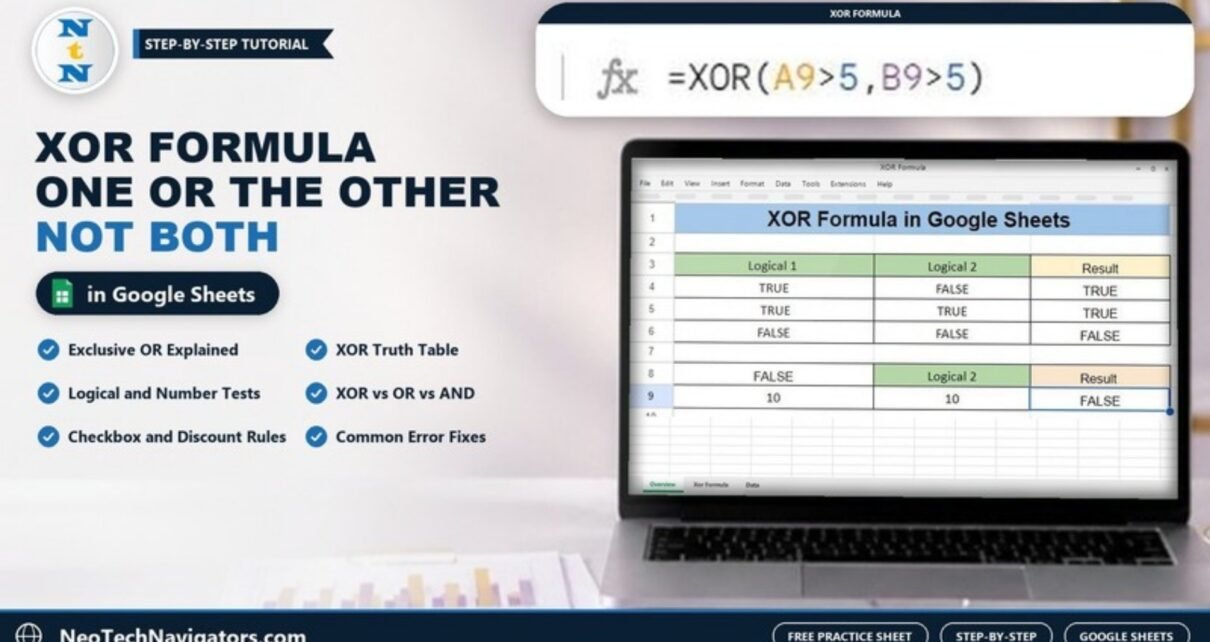
The XOR formula in Google Sheets answers a specific question: is exactly one of these conditions true? XOR stands for “exclusive OR”. It returns TRUE when one condition is true and the other is false, and FALSE when both are true or both are false. That makes it ideal for “one or the other, but not both” rules.
This step-by-step guide is for anyone who builds checks, approvals or validation columns in Google Sheets. You will see the syntax, a truth table, the worked examples from the practice sheet (including one row that teaches a useful lesson about text values), and practical variations with numbers, checkboxes and more than two conditions.
XOR Syntax
=XOR(logical_expression1, [logical_expression2, ...])| Argument | What it means |
|---|---|
| logical_expression1 | A TRUE/FALSE value, a cell that holds one, or a test such as A9>5. |
| logical_expression2, … | Optional further conditions. With more than two, XOR returns TRUE when an odd number of them are TRUE. |
XOR truth table for two conditions
| Condition 1 | Condition 2 | OR | XOR |
|---|---|---|---|
| TRUE | FALSE | TRUE | TRUE |
| FALSE | TRUE | TRUE | TRUE |
| TRUE | TRUE | TRUE | FALSE |
| FALSE | FALSE | FALSE | FALSE |
The only difference from OR is the third row: when both conditions are true, OR says TRUE but XOR says FALSE.
Example 1: XOR with Logical Values
The practice sheet has Logical 1 in column A, Logical 2 in column B and Result in column C, with data in rows 4 to 6. In C4, enter the formula below and fill it down to C6:
=XOR(A4,B4)
- Row 4: TRUE and FALSE. Exactly one is true, so XOR returns TRUE.
- Row 5: two genuine TRUE values should return FALSE. In the practice file the cell shows TRUE because A5 contains the text ” TRUE” (with a leading space) rather than a logical value, so XOR does not count it and only B5’s TRUE is seen. Retype A5 as TRUE and the result changes to FALSE.
- Row 6: FALSE and FALSE. Neither is true, so XOR returns FALSE.
Row 5 is a good reminder: a value that looks like TRUE is not always the logical TRUE. Use =ISLOGICAL(A5) to check; it returns FALSE for text.
Example 2: XOR with Numbers and Comparisons
XOR can test comparisons directly. In row 9 of the practice sheet, A9 and B9 both contain 10. The formula in C9 checks whether exactly one of them is greater than 5:
=XOR(A9>5,B9>5) Both values are above 5, so XOR returns FALSE.
Both 10s are greater than 5, so both tests are TRUE and XOR returns FALSE. If B9 were 3, only the first test would be TRUE and the result would be TRUE.
Practical Variations
1. Exactly one discount applied
A business rule might allow either a coupon or a loyalty discount, but not both. With “Yes”/”No” in columns C and D:
=IF(XOR(C2="Yes",D2="Yes"),"OK","Check")“OK” means exactly one discount; “Check” flags rows with none or both.
2. Checkboxes
Insert checkboxes with Insert > Checkbox. A ticked box is TRUE, so =XOR(B2,C2) tells you whether exactly one box in the row is ticked.
3. More than two conditions
With three or more arguments, XOR returns TRUE when an odd number are true:
=XOR(TRUE,TRUE,TRUE)This returns TRUE (three is odd). If you need “exactly one of three”, use =COUNTIF(B2:D2,TRUE)=1 instead, because XOR also returns TRUE for three.
4. A shorter check for two values
For two real logical values, “not equal” gives the same answer as XOR:
=A4<>B4XOR reads more clearly in a formula that others will maintain, and it scales to more than two conditions.
5. Flag mismatched answers
Compare a target and an actual flag, for example “planned” and “completed”. =XOR(E2="Planned",F2="Done") is TRUE when a task was planned but not done, or done without being planned.
XOR vs OR vs AND
| Function | Returns TRUE when | Typical use |
|---|---|---|
| AND | All conditions are true | Every requirement must be met |
| OR | At least one condition is true | Any one requirement is enough |
| XOR | An odd number of conditions are true (exactly one, for two conditions) | One or the other, but not both |
Common Errors and Fixes
- XOR gives TRUE when both values look TRUE: one of them is text, as in row 5 of the practice sheet. Check with ISLOGICAL or ISTEXT, then retype the value or convert it with
=TRIM(A5)="TRUE". - Text answers like “Yes” are ignored or cause an error: XOR expects logical values. Turn text into a test first, for example
C2="Yes". - Unexpected TRUE with three conditions: XOR is TRUE for one or three true values. Use COUNTIF when you mean “exactly one”.
- Numbers treated as TRUE: any non-zero number counts as TRUE. Use a comparison such as
A9>5if you mean a threshold.
Tips
- Wrap XOR in IF to show readable labels such as “OK” or “Check” instead of TRUE/FALSE.
- Use data validation or checkboxes for input columns so values stay true logical values.
- Add conditional formatting on the result column to highlight rows that fail the rule.
- Write the rule in plain words next to the column header (for example “exactly one discount allowed”) so other users understand what TRUE and FALSE mean.
To build on this, read the IF function with real-life examples, three powerful IF function tricks, the ISNUMBER function for checking values and the EXACT function for strict text comparisons.
If you want structured lessons on logical functions like IF, AND, OR and XOR, the Excel AI Mastery: 100 Formulas course on NextGenTemplates Academy covers them with exercises, and the same functions work in Google Sheets.
Frequently Asked Questions
What does XOR mean in Google Sheets?
XOR means “exclusive OR”. With two conditions, it returns TRUE when exactly one is true and FALSE when both or neither are true.
What is the difference between XOR and OR?
Both return TRUE when one condition is true. The difference is when both are true: OR returns TRUE, XOR returns FALSE.
Can XOR take more than two arguments?
Yes. It returns TRUE when an odd number of arguments are true, so one or three true values out of three both give TRUE.
Why does XOR(TRUE, TRUE) show TRUE in my sheet?
One of the “TRUE” values is almost certainly text, for example typed with a leading space or apostrophe. XOR does not treat text as a logical value. Retype it or check it with ISLOGICAL.
Does XOR work in Excel too?
Yes. Excel has the same XOR function with the same behaviour, so these formulas carry over directly.
Wrapping Up
XOR is the right tool when a rule says “one or the other, but not both”. In the practice sheet, TRUE with FALSE returned TRUE, FALSE with FALSE returned FALSE, and two values above 5 returned FALSE; the one surprising row came from a TRUE stored as text. Make a copy of the practice sheet with File > Make a copy, fix cell A5, and try the discount and checkbox variations on your own data.
📅 Last updated: October 2026