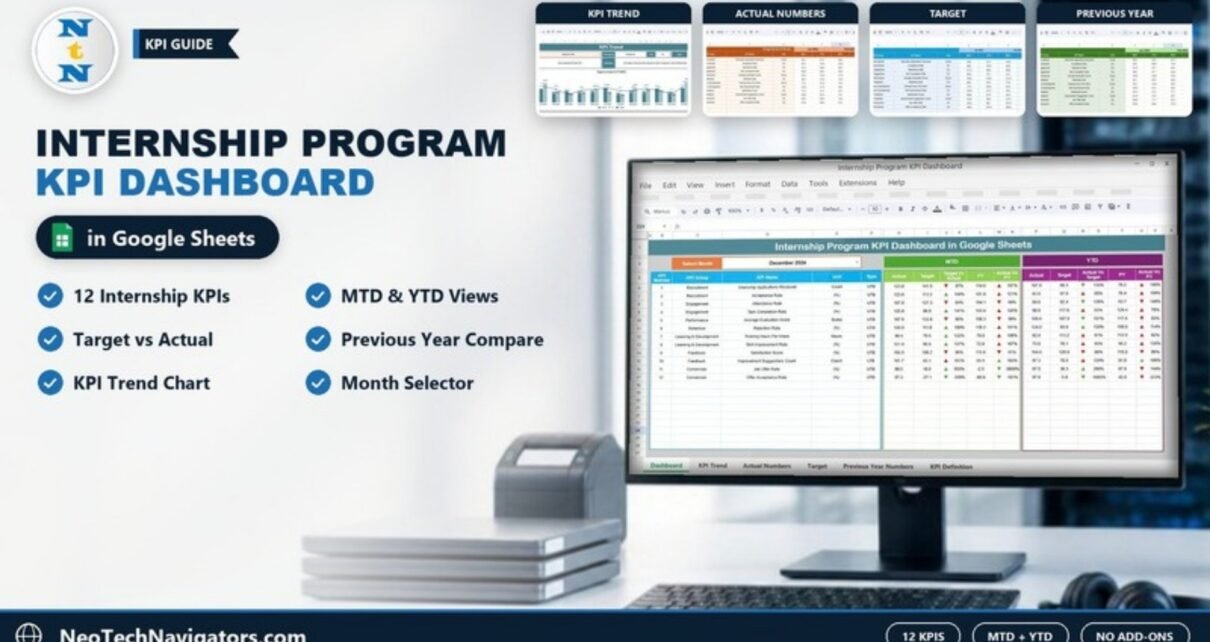
The Internship Program KPI Dashboard in Google Sheets gives HR and learning teams one page to track how an internship program is performing, from applications received to job offers accepted. It covers 12 KPIs in seven groups (Recruitment, Engagement, Performance, Retention, Learning & Development, Feedback and Conversion) and compares each one against target and previous year for the month and year to date.
It is made for HR managers, campus recruitment teams, L&D coordinators and program owners who run internships every year and need to show leadership whether the program is working. You type monthly numbers into three input sheets; the dashboard, trend chart and arrows update on their own.
Below you will find every tab explained, the full KPI list with formulas, a worked example using the sample numbers, setup steps and honest limitations.
🎥 Watch the Video Tutorial
Get the Internship Program KPI Dashboard
Why Measure an Internship Program?
Internships cost money and mentor time. Without numbers, it is hard to answer simple questions: Did more students apply this year? Did interns actually attend and finish their tasks? How many got job offers, and how many accepted? An internship KPI dashboard turns those questions into a monthly scorecard, so you can fix problems during the program instead of after it ends.
Internship Program KPI Dashboard Structure: Six Tabs
| Tab | Purpose |
|---|---|
| Dashboard | All 12 KPIs with MTD and YTD Actual, Target, PY and comparison arrows |
| KPI Trend | Pick one KPI and see its group, unit, type, formula, definition and a 12-month chart |
| Actual Numbers | Enter monthly MTD and YTD actual values |
| Target | Enter monthly MTD and YTD targets |
| Previous Year Numbers | Enter last year’s MTD and YTD values |
| KPI Definition | KPI group, name, unit, formula, definition and type (UTB or LTB) |
1. Dashboard Tab
Choose a month from the Select Month dropdown in cell D3 (the sample shows December 2024). The table then lists each KPI with its number, group, name, unit and type, followed by two blocks:
- MTD: Actual, Target, Target Vs Actual, PY and Actual Vs PY
- YTD: Actual, Target, Actual Vs Target, PY and Actual Vs PY
Up and down arrows next to each percentage show at a glance whether the KPI is ahead of or behind its target and last year.

2. KPI Trend Tab
Select a KPI in cell C3. The tab shows its KPI Group, Unit, Type, Formula and Definition, plus a Target Vs Actual Vs PY (MTD) chart for January to December. In the sample, Attendance Rate is selected: group Engagement, unit (%), type UTB, formula (Days Attended/Total Days)*100.

3. Actual Numbers Tab
This is where you type real results. Each month has an MTD and a YTD column. Set the first month of your year in cell E1 (next to the note “Change the first of the year”), and the month headers follow from there. The sample starts at Jan-2024.

4. Target Tab
Same layout as Actual Numbers, used for your monthly and year-to-date targets.

5. Previous Year Numbers Tab
Enter last year’s figures here (the sample uses Jan-2023 onward) so the dashboard can show Actual Vs PY.

6. KPI Definition Tab
The reference sheet for every KPI: group, name, unit, formula, definition and type. You can edit it to match how your organisation measures each item.

The 12 Internship KPIs
These are the exact KPIs in the template, taken from the KPI Definition sheet. UTB means “upper the better” and LTB means “lower the better”.
| KPI (Group) | What it measures | Formula | Better when |
|---|---|---|---|
| Internship Applications Received (Recruitment) | Total applications received in the period | COUNTA(Applications) | Higher |
| Acceptance Rate (Recruitment) | Share of applicants who accepted the internship offer | (Accepted/Applications)*100 | Higher |
| Attendance Rate (Engagement) | Days attended versus scheduled days | (Days Attended/Total Days)*100 | Higher |
| Task Completion Rate (Engagement) | Assigned tasks completed | (Tasks Completed/Assigned Tasks)*100 | Higher |
| Average Evaluation Score (Performance) | Average supervisor evaluation score | AVERAGE(Evaluation Scores) | Higher |
| Retention Rate (Retention) | Interns who completed the program | (Interns Retained/Total Interns)*100 | Higher |
| Training Hours Per Intern (Learning & Development) | Average training hours per intern | SUM(Training Hours)/Total Interns | Higher |
| Skill Improvement Rate (Learning & Development) | Increase from pre-test to post-test scores | ((Post-Test – Pre-Test)/Pre-Test)*100 | Higher |
| Satisfaction Score (Feedback) | Share of positive intern feedback | (Positive Feedback/Total Feedback)*100 | Higher |
| Improvement Suggestions Count (Feedback) | Number of improvement suggestions from interns | COUNTA(Suggestions) | Lower |
| Job Offer Rate (Conversion) | Interns who received a job offer | (Job Offers/Total Interns)*100 | Higher |
| Offer Acceptance Rate (Conversion) | Job offers accepted | (Offers Accepted/Job Offers)*100 | Higher |
Worked Example: Reading One Row
Take Internship Applications Received for December 2024 on the Dashboard tab. The MTD Actual is 123.0, the Target is 141.5 and the PY is 114.6.
Target Vs Actual = 123.0 / 141.5 = 87%   (down arrow: below target)
Actual Vs PY     = 123.0 / 114.6 = 107%  (up arrow: above last year)
So the program attracted more applications than last December, but not as many as planned. That tells you the pipeline is growing, but outreach may need a push to hit the goal.
The same logic applies to your raw KPI calculations. If an intern scored 60 on a pre-test and 75 on a post-test:
Skill Improvement Rate = ((75 - 60) / 60) * 100 = 25%How to Use It With Your Own Data
- Make a copy of the file with File > Make a copy.
- Review the KPI Definition sheet. Edit names, units, formulas or the UTB/LTB type to match your program.
- On Actual Numbers, set your first month in cell E1.
- Enter monthly MTD and YTD actuals for each KPI. Calculate rates in your HR records first, then type the result.
- Fill the Target and Previous Year Numbers sheets the same way.
- On the Dashboard, pick a month in D3 and review the arrows. Use KPI Trend to explain any KPI that looks off.
The sample numbers are placeholders and some are not realistic (a few targets are negative), so replace all of them before sharing the dashboard.
To get more confident with the formulas behind rates like these, the 100 formulas course on NextGenTemplates Academy covers COUNTA, AVERAGE, SUM and percentage calculations with practice files.
Three Real-World Use Cases
- Summer internship at a mid-size company: HR tracks Attendance Rate and Task Completion Rate weekly to spot disengaged interns early.
- Graduate hiring pipeline: the talent team reports Job Offer Rate and Offer Acceptance Rate to leadership as proof the internship feeds full-time hiring.
- University partnership program: L&D compares Training Hours Per Intern and Skill Improvement Rate year on year to justify the training budget.
Best Practices
- Update the Actual Numbers sheet at the same time each month.
- Agree on definitions with mentors before the program starts, for example what counts as a “positive” feedback response.
- Set realistic targets based on last year’s results, not guesses.
- Read conversion KPIs at the end of the cohort; mid-program they will look low.
- Share view-only access with leadership and keep edit rights with HR.
Limitations and Who Should Not Use It
This is a KPI scorecard, not an intern management system. It does not store individual intern records, attendance logs or evaluation forms; you calculate each KPI elsewhere and enter the monthly result. Teams that want per-intern tracking should start with an internship application tracker in Google Sheets and use this dashboard for the summary. Very small programs with two or three interns may find monthly KPIs too heavy.
Related Templates and Guides
The same dashboard is also available as an Internship Program KPI Dashboard in Excel. For wider HR reporting, see the recruitment KPI dashboard, the HR KPI dashboard and the training and development dashboard in Google Sheets.
Frequently Asked Questions
What KPIs does the Internship Program KPI Dashboard track?
Twelve: Internship Applications Received, Acceptance Rate, Attendance Rate, Task Completion Rate, Average Evaluation Score, Retention Rate, Training Hours Per Intern, Skill Improvement Rate, Satisfaction Score, Improvement Suggestions Count, Job Offer Rate and Offer Acceptance Rate.
What do UTB and LTB mean?
UTB means upper the better (a higher value is good). LTB means lower the better. In this template only Improvement Suggestions Count is LTB.
Can I add or rename KPIs?
Yes. Edit the KPI Definition sheet and keep the same KPI rows in the Actual, Target and Previous Year sheets.
Does the dashboard calculate KPIs from raw intern data?
No. You enter the monthly result for each KPI. The dashboard then handles comparisons, arrows and the trend chart.
Can my program year start in a month other than January?
Yes. Change the start month in cell E1 of the Actual Numbers sheet.
Can mentors and HR work in the file together?
Yes. It is a standard Google Sheets file, so you can share it with edit or view access.
Wrapping Up
The Internship Program KPI Dashboard in Google Sheets gives you a clear monthly view of recruitment, engagement, learning and conversion for your internship program. Set your KPI definitions, enter your actuals, targets and last year’s numbers, and use the arrows and trend chart to decide where the program needs attention.
Get the Internship Program KPI Dashboard
📅 Last updated: October 2026