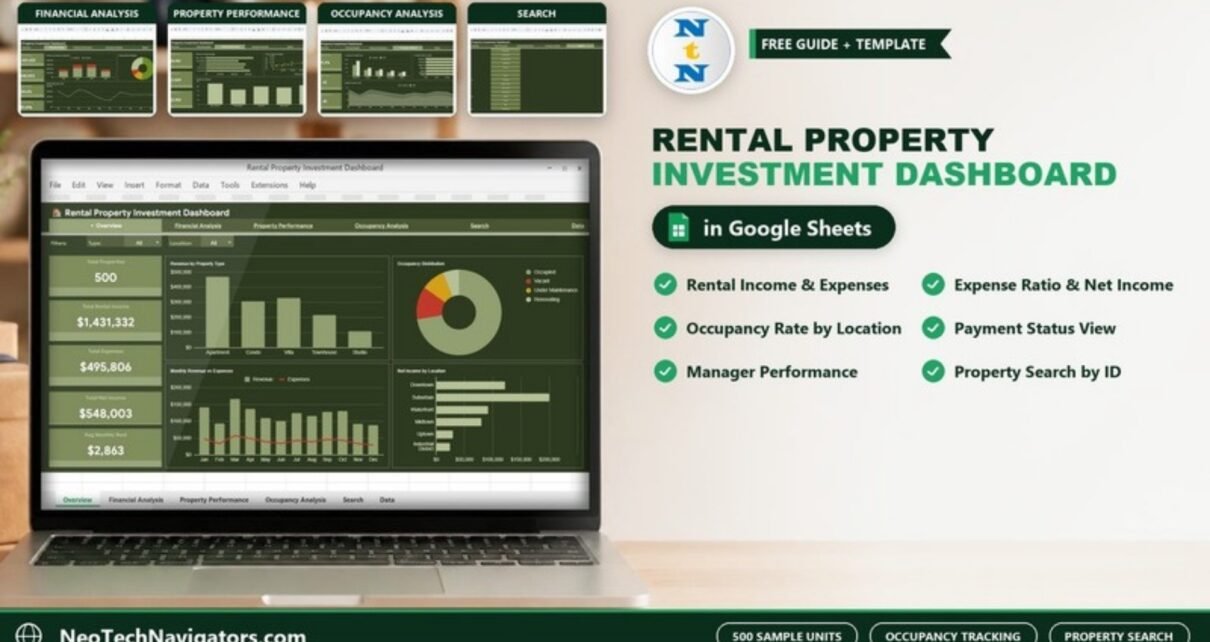
The Rental Property Investment Dashboard in Google Sheets turns a list of rental units into a portfolio report: rental income, expenses, net income, expense ratio, occupancy, payment status and property manager performance, all from one data sheet. In the sample it covers 500 properties with $1,431,332 in rental income and a 72.4% occupancy rate.
It is built for landlords, small real estate investors, property managers and analysts who track units in a spreadsheet and want a clear monthly picture without buying property management software. The file has six tabs (Overview, Financial Analysis, Property Performance, Occupancy Analysis, Search and Data) linked by a navigation bar at the top. Below you will find each page explained with the sample numbers, the main KPIs and how they are calculated, and steps to load your own portfolio.
🎥 Watch the Video Tutorial
Get the Rental Property Investment Dashboard
What Problem Does It Solve?
A rental portfolio generates the same questions every month: How much rent came in? How much did the properties cost to run? Which units are vacant or under maintenance? Which tenants are overdue? Which locations and managers are actually making money?
When the answers sit in a long sheet of units, someone has to filter and total it by hand each time. This dashboard does that work once and keeps it updated. You add or edit rows in the Data tab, and every card and chart reflects the change.
Key Metrics in the Rental Property Investment Dashboard in Google Sheets
These are the KPI cards shown on the dashboard pages, with how each one relates to the data. The sample values come from the screenshots.
| KPI | What it measures | How it is calculated | Sample | Better when |
|---|---|---|---|---|
| Total Properties | Units in the portfolio | Count of rows in Data | 500 | – |
| Total Rental Income | Monthly rent across all units | Sum of Monthly Rent | $1,431,332 | Higher |
| Total Expenses | Running costs | Sum of Monthly Expenses | $495,806 | Lower |
| Total Net Income | What the portfolio actually earns | Sum of the Net Income column | $548,003 | Higher |
| Avg Monthly Rent | Typical rent per unit | Total Rental Income ÷ Total Properties | $2,863 | Higher |
| Expense Ratio | Share of rent consumed by costs | Total Expenses ÷ Total Revenue | 34.6% | Lower |
| Avg Net/Property | Net income per unit | Total Net Income ÷ Total Properties | $1,096 | Higher |
| Occupancy Rate | Share of units occupied | Occupied units ÷ Total Properties | 72.4% | Higher |
| Vacant Units | Units with no tenant | Count where Occupancy Status = Vacant | 62 | Lower |
| Under Maintenance | Units out of service for repairs | Count where Occupancy Status = Under Maintenance | 45 | Lower |
| Rent Spread | Range of rents | Highest Rent − Lowest Rent | $4,961 − $1,009 = $3,952 | – |
Why is Total Net Income ($548,003) lower than rental income minus expenses? Because the Net Income column is calculated per unit: for an occupied unit it is rent minus expenses (PROP-0001: $2,467 − $1,068 = $1,399), while a vacant, renovating or under-maintenance unit earns nothing and shows only its costs as a negative (PROP-0002, renovating: −$695). That is a realistic way to measure a portfolio, because empty units still cost money.
Page 1: Overview
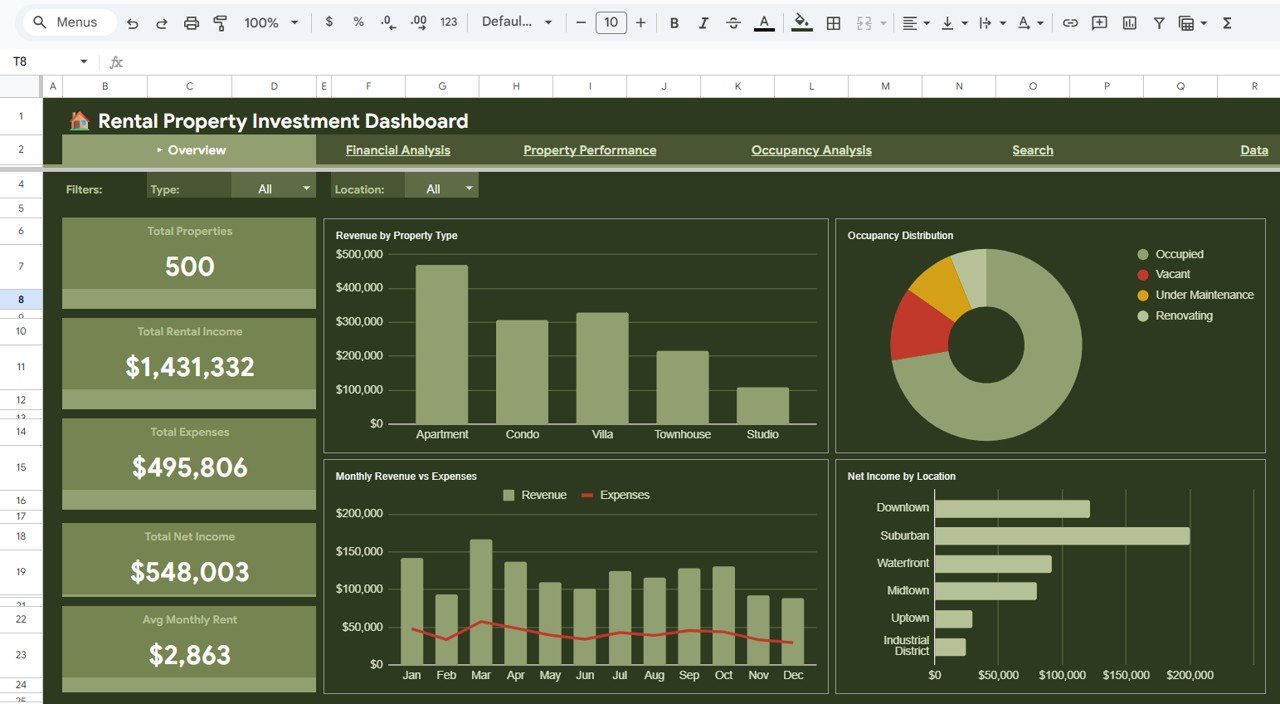
The Overview page has two filters at the top, Type and Location, and five KPI cards down the left: Total Properties, Total Rental Income, Total Expenses, Total Net Income and Avg Monthly Rent. Four charts fill the rest of the page:
- Revenue by Property Type – Apartment, Condo, Villa, Townhouse and Studio; apartments bring in the most revenue in the sample.
- Occupancy Distribution – a donut of Occupied, Vacant, Under Maintenance and Renovating units.
- Monthly Revenue vs Expenses – January to December columns for revenue with an expense line.
- Net Income by Location – Downtown, Suburban, Waterfront, Midtown, Uptown and Industrial District, with Suburban the highest in the sample.
Page 2: Financial Analysis
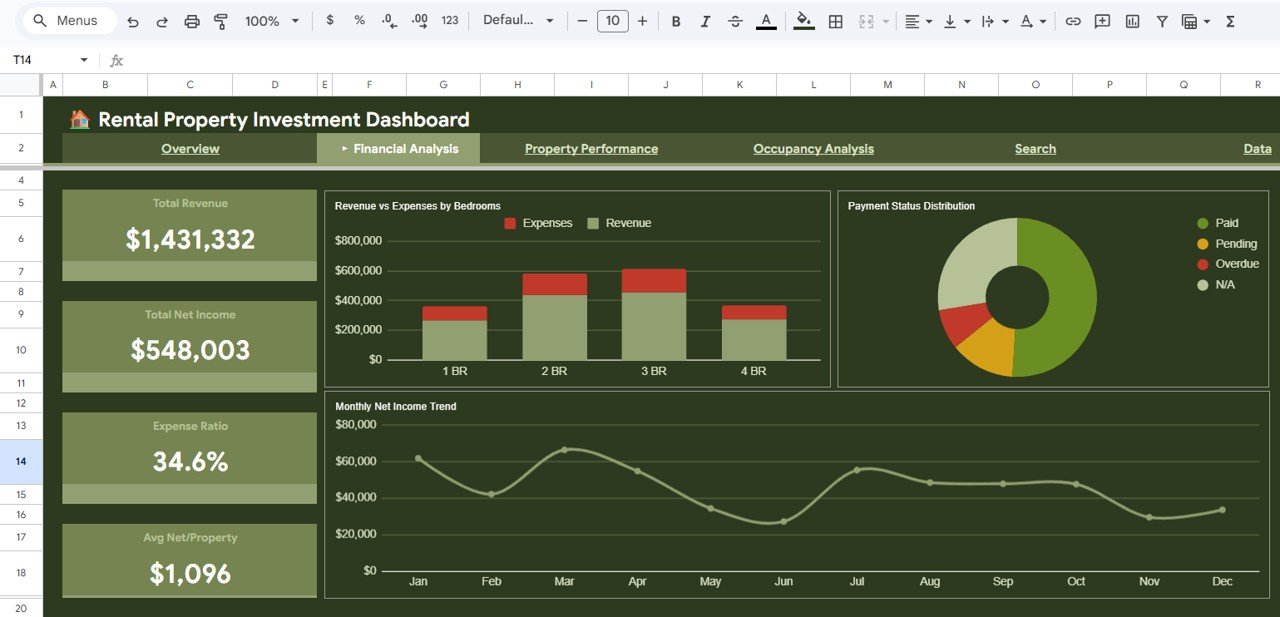
This page focuses on money. Four cards show Total Revenue ($1,431,332), Total Net Income ($548,003), Expense Ratio (34.6%) and Avg Net/Property ($1,096). The charts are:
- Revenue vs Expenses by Bedrooms – stacked columns for 1 BR, 2 BR, 3 BR and 4 BR units; 2 BR and 3 BR units carry the most revenue in the sample.
- Payment Status Distribution – Paid, Pending, Overdue and N/A (N/A applies to units without a tenant).
- Monthly Net Income Trend – a line from January to December that makes weak months easy to spot; in the sample June is the low point.
Page 3: Property Performance
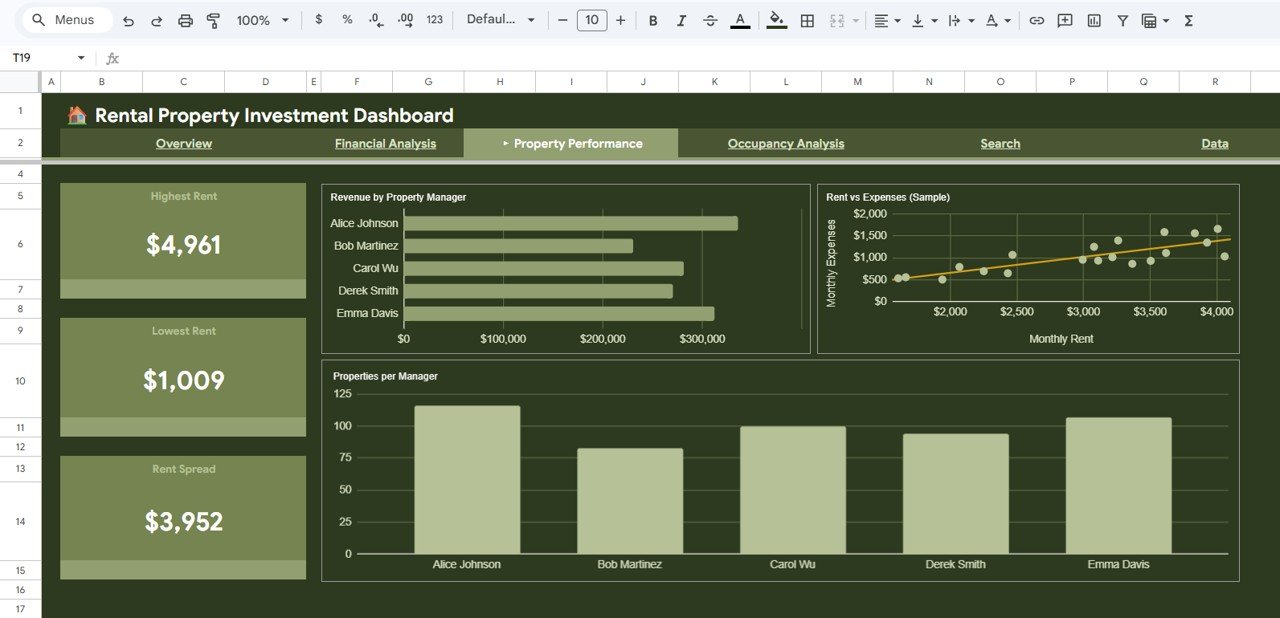
Here the focus moves to rents and managers. Cards show the Highest Rent ($4,961), Lowest Rent ($1,009) and Rent Spread ($3,952). The charts are:
- Revenue by Property Manager for Alice Johnson, Bob Martinez, Carol Wu, Derek Smith and Emma Davis.
- Rent vs Expenses (Sample) – a scatter plot of monthly rent against monthly expenses with a trend line, useful for spotting units whose costs are out of line with their rent.
- Properties per Manager – workload by manager; Alice Johnson handles the most units in the sample.
Page 4: Occupancy Analysis
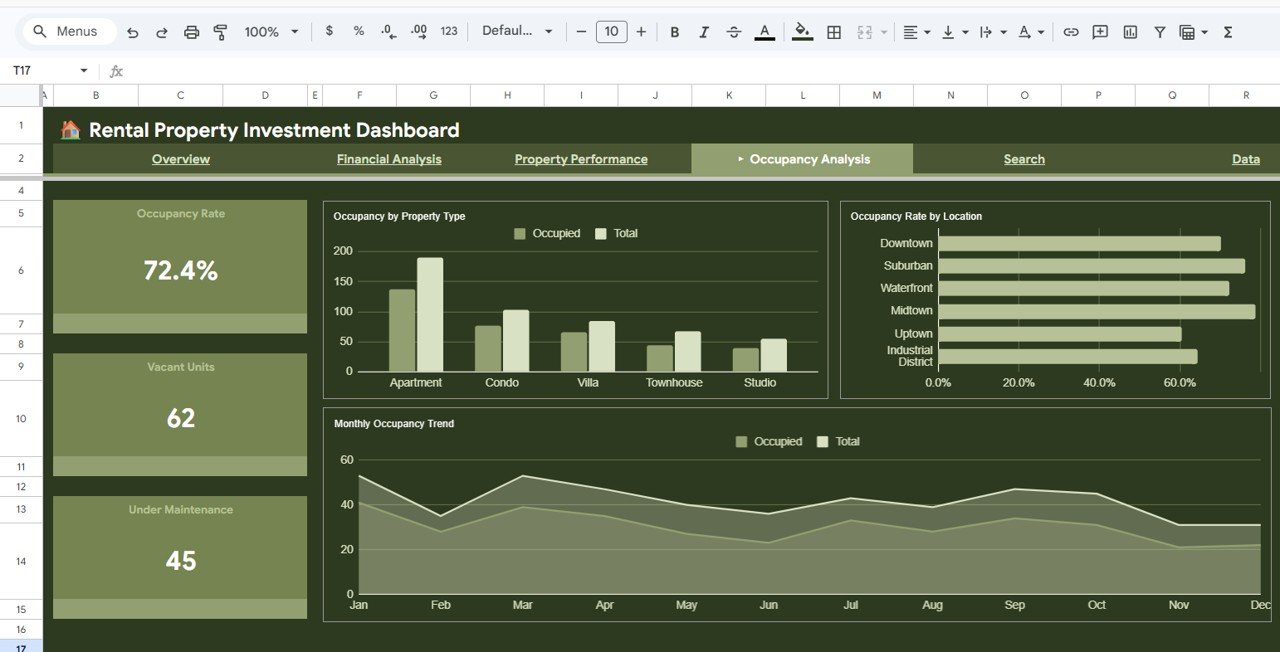
Vacancy is the biggest driver of rental returns, so it gets its own page. Cards show Occupancy Rate (72.4%), Vacant Units (62) and Under Maintenance (45). Charts:
- Occupancy by Property Type – occupied vs total units for each type.
- Occupancy Rate by Location – Midtown and Suburban are the strongest in the sample, Uptown the weakest.
- Monthly Occupancy Trend – occupied vs total by month, which shows seasonal dips (November and December are lower in the sample).
Page 5: Search
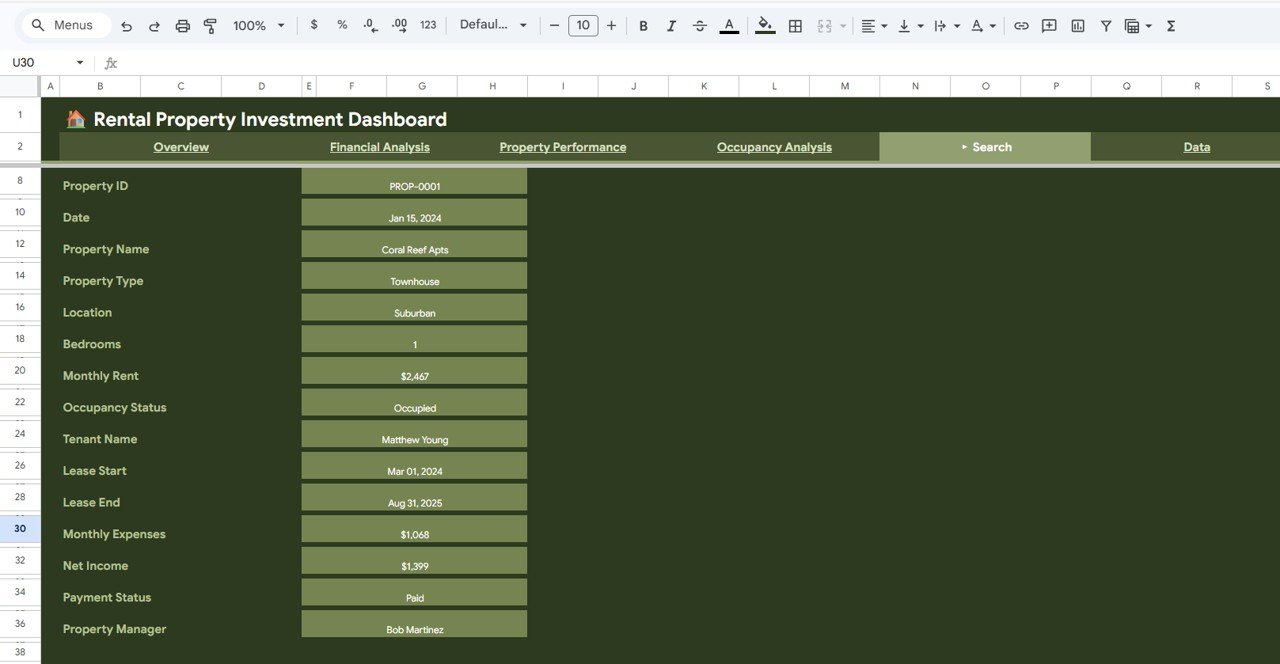
Pick a Property ID and the Search page shows that unit’s full record: Date, Property Name, Property Type, Location, Bedrooms, Monthly Rent, Occupancy Status, Tenant Name, Lease Start, Lease End, Monthly Expenses, Net Income, Payment Status and Property Manager. In the sample, PROP-0001 is Coral Reef Apts, a 1-bedroom townhouse in Suburban rented at $2,467 to Matthew Young (lease Mar 01, 2024 to Aug 31, 2025), managed by Bob Martinez. It is the quickest way to answer a tenant or owner question during a call.
Page 6: Data
The Data tab is the single source for the whole dashboard. Each row is one property with these columns: Property ID, Date, Property Name, Property Type, Location, Bedrooms, Monthly Rent, Occupancy Status, Tenant Name, Lease Start, Lease End, Monthly Expenses, Net Income, Payment Status, Property Manager, Month, Year and Count. Occupancy Status values in the sample are Occupied, Vacant, Renovating and Under Maintenance; Payment Status values are Paid, Pending, Overdue and N/A.
If you add rows yourself and want Net Income to follow the same logic as the sample, a formula like this works (assuming Monthly Rent in G, Occupancy Status in H and Monthly Expenses in L):
=IF(H2="Occupied", G2 - L2, -L2)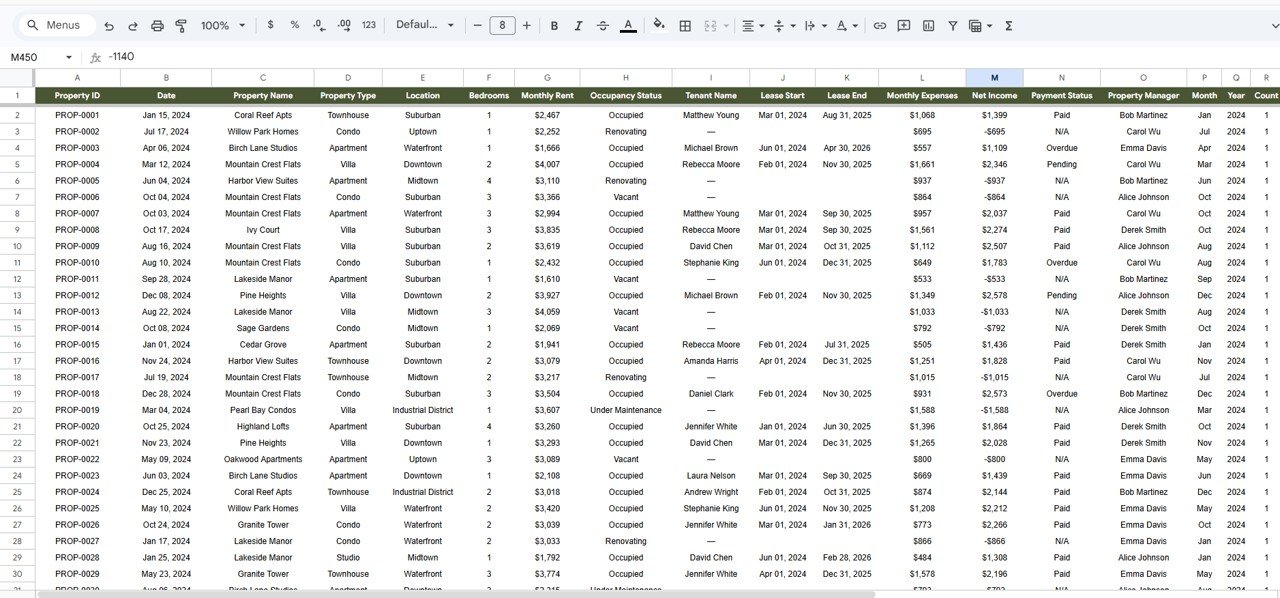
How to Use It With Your Own Portfolio
- Make a copy of the file (File > Make a copy).
- Open the Data tab and note the column order. Do not rename or move the headers.
- Replace the sample rows with your units, one row per property, keeping Property IDs unique.
- Use the same spelling for Property Type, Location, Occupancy Status, Payment Status and manager names.
- Fill Month and Year for each row so the monthly charts place it correctly.
- Check the Overview: Total Properties should equal your number of rows.
- Try the Type and Location filters, then test the Search page with one of your Property IDs.
Real-World Use Cases
- Independent landlord with 20–50 units: reviews the Occupancy Analysis page each month and lists every vacant or under-maintenance unit for action.
- Small property management company: uses Properties per Manager and Revenue by Property Manager to rebalance portfolios between managers.
- Investor reporting: shares a view-only copy with partners so they can see income, expense ratio and occupancy without asking for a spreadsheet each month.
Best Practices
- Update monthly at minimum, ideally after rent collection so Payment Status is accurate.
- Watch the expense ratio trend, not just the number. A slow climb usually means maintenance costs are creeping up.
- Chase “Overdue” first. Filter the Data tab by Payment Status and work through the list.
- Treat Renovating and Under Maintenance separately from Vacant; they need different actions.
- Share view-only with anyone who does not maintain the data.
Limitations
This is an analytics dashboard, not property management software. It does not collect rent, send reminders, store leases or connect to bank feeds, and it does not calculate mortgage payments, depreciation, tax or long-term return measures such as cap rate or cash-on-cash return. You enter monthly figures manually. For a large portfolio that needs accounting and tenant portals, use dedicated software and keep this dashboard for quick visual reporting.
Related Guides and Templates
For a wider portfolio view, see the Real Estate Property Portfolio Performance Dashboard in Google Sheets and the Property Management KPI Dashboard in Google Sheets. If you manage leases closely, the Tenant and Property Management Dashboard in Google Sheets is a good companion, and for short-term lets there is the Vacation Rental KPI Dashboard in Google Sheets. Prefer a browser-based version? Read about the Rental Property Investment Dashboard in HTML.
The same template is also available as a Rental Property Investment Dashboard in Excel and a Power BI version.
If you want to build portfolio reports like this from your own data, the Pivot Tables & Dashboards course on NextGenTemplates Academy teaches the summarising and charting steps.
Frequently Asked Questions
What does the Rental Property Investment Dashboard in Google Sheets track?
Rental income, expenses, net income, expense ratio, average rent, occupancy rate, vacant and under-maintenance units, payment status, and revenue and workload by property manager, across six tabs.
How is the expense ratio calculated?
Total expenses divided by total revenue. In the sample, $495,806 ÷ $1,431,332 = 34.6%. Lower is better.
Why does net income not equal income minus expenses?
Net income is summed per unit. Occupied units contribute rent minus expenses, while vacant, renovating and under-maintenance units contribute only their expenses as a negative, because they earn no rent.
Can I filter by property type or location?
Yes. The Overview page has Type and Location filters at the top, and the Search page lets you look up any single property by its ID.
How many properties can it handle?
The sample holds 500 properties and the product is described as handling hundreds of records. Very large portfolios may feel slower in Google Sheets.
Is it available in Excel or Power BI?
Yes. There are Excel and Power BI versions of the same dashboard on NextGenTemplates, linked above.
Wrapping Up
The Rental Property Investment Dashboard in Google Sheets gives landlords and property managers a monthly answer to the questions that matter: what came in, what it cost, which units are empty and who is behind on rent. Load your own units into the Data tab, check the Overview totals, and make the Occupancy Analysis page part of your monthly review.
Get the Rental Property Investment Dashboard in Google Sheets
📅 Last updated: October 2026