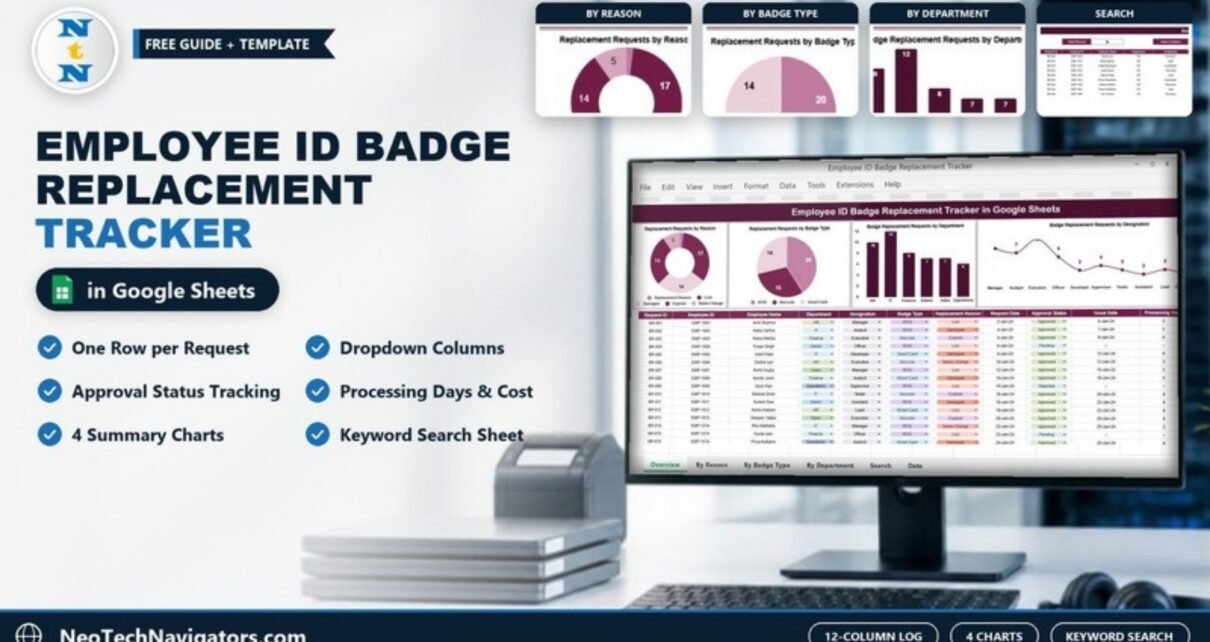
The Employee ID Badge Replacement Tracker in Google Sheets is a ready-made request log for HR, admin and security teams. It records every lost, damaged, expired or renamed ID badge, shows the request volume in four charts, and has a search page that pulls up any department, employee or badge type straight away.
It suits office managers, HR operations staff and facility or security teams who handle badge requests through email or a shared inbox and want one auditable record. This guide covers the 12 columns in the log, the four charts, the Search sheet, how processing days and cost are recorded, and how to set it up for your own organisation.
Everything below is taken from the template’s own screenshots, including the column names, dropdown values and sample figures.
🎥 Watch the Video Tutorial
Get the Employee ID Badge Replacement Tracker
Why Track ID Badge Replacements?
A replacement badge looks like a small admin task, but every request touches security. The old badge has to be deactivated, a new one issued and the cost recorded. When requests arrive by email, chat or a quick word at reception, three problems show up:
- No one can say how many badges were replaced last quarter, or why.
- Pending requests get forgotten, and employees borrow access or wait at the door.
- During an audit there is no clean record showing who asked, who approved and when the new badge was issued.
A shared tracker fixes this with one row per request. Because it is a Google Sheet, HR, admin and security can all work in the same file without extra software.
What Is Inside the Employee ID Badge Replacement Tracker in Google Sheets
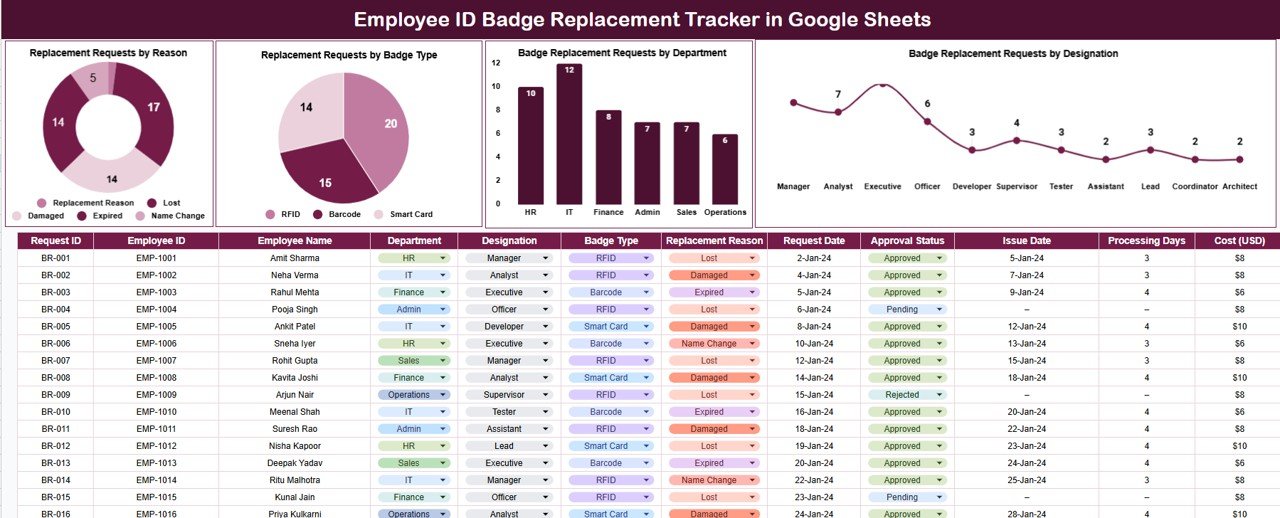
The template has two working areas: the main tracker, with a chart panel above the request log, and a separate Search sheet.
The Request Log: 12 Columns
Each row is one replacement request. The columns are below, with values taken from the sample data.
| Column | What it records | Sample value / options |
|---|---|---|
| Request ID | Unique request reference | BR-001 |
| Employee ID | Staff number | EMP-1001 |
| Employee Name | Person requesting the badge | Amit Sharma |
| Department | Dropdown | HR, IT, Finance, Admin, Sales, Operations |
| Designation | Dropdown | Manager, Analyst, Executive, Officer, Developer, Supervisor, Tester, Assistant, Lead, Coordinator, Architect |
| Badge Type | Dropdown | RFID, Barcode, Smart Card |
| Replacement Reason | Dropdown | Lost, Damaged, Expired, Name Change |
| Request Date | Date the request was raised | 2-Jan-24 |
| Approval Status | Dropdown | Approved, Pending, Rejected |
| Issue Date | Date the new badge was handed over | 5-Jan-24 (shown as “–” if not issued) |
| Processing Days | Days between request and issue | 3 |
| Cost (USD) | Replacement cost | $6 Barcode, $8 RFID, $10 Smart Card in the sample |
The dropdowns keep the data consistent, which matters because the charts and the search both group by these exact values.
The Four Charts
The chart panel at the top of the tracker updates as you add rows:
- Replacement Requests by Reason (doughnut). In the sample, Lost is the most common reason with 17 requests, followed by Damaged and Expired with 14 each, and Name Change with 5.
- Replacement Requests by Badge Type (pie). RFID 20, Barcode 15, Smart Card 14.
- Badge Replacement Requests by Department (column). IT has the most requests (12), then HR (10), Finance (8), Admin (7), Sales (7) and Operations (6).
- Badge Replacement Requests by Designation (line). This shows which roles request replacements most often, from Manager and Executive through to Coordinator and Architect.
The Search Sheet
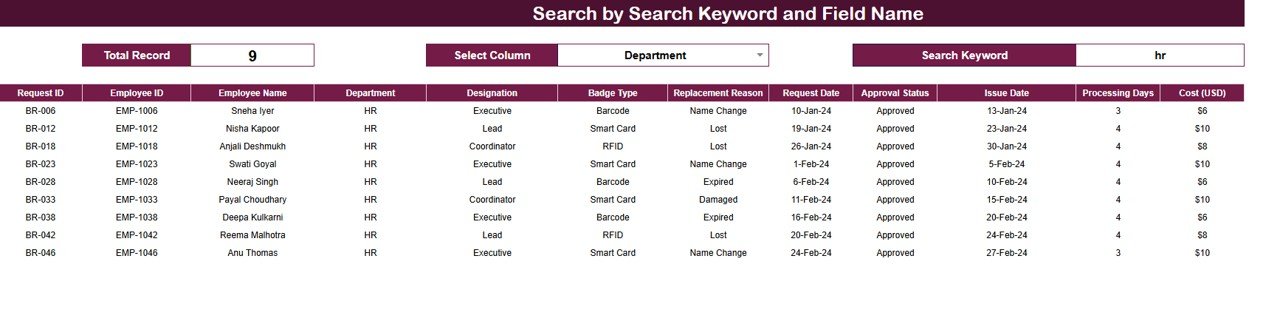
The Search by Search Keyword and Field Name sheet has three controls along the top:
- Select Column: a dropdown for the field to search, such as Department.
- Search Keyword: the text to look for.
- Total Record: the number of matching rows.
In the screenshot, Department is selected and the keyword is “hr” in lower case. The sheet returns 9 matching records with all 12 columns, so the search is not case-sensitive. This is the quickest way to answer questions like “show me every Smart Card replacement” or “list all requests from the IT team” without touching the main log.
Worked Example: Processing Days and Cost
Take request BR-001: an RFID badge reported Lost, requested on 2-Jan-24, approved and issued on 5-Jan-24. Processing Days is the gap between the two dates:
Processing Days = Issue Date - Request Date = 5-Jan-24 - 2-Jan-24 = 3For Pending or Rejected requests there is no issue date, so the sample shows “–” in Issue Date and Processing Days. The Cost column still shows the badge price on those rows (for example $8 for the pending RFID request BR-004). If you extend the sheet and want the same behaviour in your own column, a formula like this works (Request Date in H and Issue Date in J):
=IF(ISNUMBER(J2), J2 - H2, "–")To see total replacement spend, or spend for one badge type, add a small summary cell. Adjust the column letters to match where Badge Type (F), Approval Status (I) and Cost (L) sit in your copy:
=SUMIF(I2:I, "Approved", L2:L)
=SUMIFS(L2:L, F2:F, "Smart Card", I2:I, "Approved")
The Approval Status condition matters because the sample lists a cost against Pending and Rejected rows too, and a plain SUM of the Cost column would count badges that were never issued.
If you would like to understand formulas such as FILTER, SEARCH and SUMIF properly, the Excel AI Mastery: 100 Formulas course on NextGenTemplates Academy explains them with practical examples, and most of them work the same way in Google Sheets.
How to Use It With Your Own Data
- Make a copy of the Google Sheet (File > Make a copy) and clear the sample rows from the request log.
- Edit the dropdown lists to match your organisation (Data > Data validation): your departments, designations, badge types and reasons.
- Log each new request with Request ID, employee details, badge type, reason and request date. Set Approval Status to Pending.
- When the request is approved and the badge is issued, change the status to Approved, add the Issue Date and enter the cost.
- Review the four charts monthly. Use the Search sheet for one-off questions and audits.
- Share the file with edit rights for the admin team only and view rights for everyone else (Share > General access).
Real-World Use Cases
- Corporate office admin: Sees that Lost is the top reason and IT the busiest department, then runs a short badge-care reminder for that team and tracks whether requests fall the next quarter.
- Security audit: The auditor asks for every replacement in the last six months. The admin searches by Department or Badge Type on the Search sheet and shares the result.
- Budget planning: Finance uses the Cost (USD) column to total replacement spend by badge type and decide whether moving to a cheaper or more durable badge makes sense.
If you also manage other access requests, the same approach works in the Office Key Access Request Tracker and the IT System Access Request Tracker. For visitors and temporary passes, see the Office Visitor Request Tracker in Google Sheets.
Best Practices
- Log every request, including rejected ones. Rejections are useful audit evidence too.
- Keep dropdown values short and fixed. “Lost” and “lost badge” would be counted as two different reasons in the charts.
- Record the issue date on the day of hand-over. Otherwise Processing Days is meaningless.
- Deactivate the old badge before issuing the new one. You can add a “Deactivated” column if your access system allows it.
- Back up monthly. Use File > Version history or save a dated copy at month-end.
Limitations: Who Should Not Use It
- It is a log and a report, not an access control system. It does not switch badges on or off.
- There is no automatic approval workflow or email alert. Status changes are made by hand.
- Very large organisations issuing hundreds of badges a week, or needing tight integration with HRIS and door systems, will outgrow a spreadsheet. A full app such as the Access Control and ID Card Management System Web App is a better fit there.
To keep track of the badges and devices each employee holds, pair this tracker with the Employee Asset Management Tracker in Google Sheets.
Frequently Asked Questions
What reasons for replacement does the tracker include?
The sample uses four: Lost, Damaged, Expired and Name Change. You can edit the dropdown to add reasons such as Role Change or Access Upgrade.
Which badge types are supported?
The sample includes RFID, Barcode and Smart Card badges. The list is a normal data validation dropdown, so you can rename or add types.
How does the search work?
Choose a column in Select Column, type a keyword in Search Keyword, and the sheet lists every matching request with a Total Record count. In the sample, searching Department for “hr” returns 9 records.
Can it calculate how long replacements take?
Yes. The Processing Days column shows the days between Request Date and Issue Date, for example 3 days for BR-001. Requests that are still pending show “–”.
Can several people update it at the same time?
Yes. It runs in Google Sheets, so the admin, HR and security teams can work in one file. Use sharing permissions to limit who can edit.
Does it need any technical skills?
No. You only need to enter rows and choose values from dropdowns. Basic Google Sheets knowledge is enough.
Wrapping Up
The Employee ID Badge Replacement Tracker in Google Sheets gives you one record for every badge request, with clear reasons, approval status, processing time and cost, plus charts and a search sheet for audits. Set your dropdowns, log the next request in it, and after a month you will have a picture of where replacements come from.
Get the Employee ID Badge Replacement Tracker
📅 Last updated: October 2026