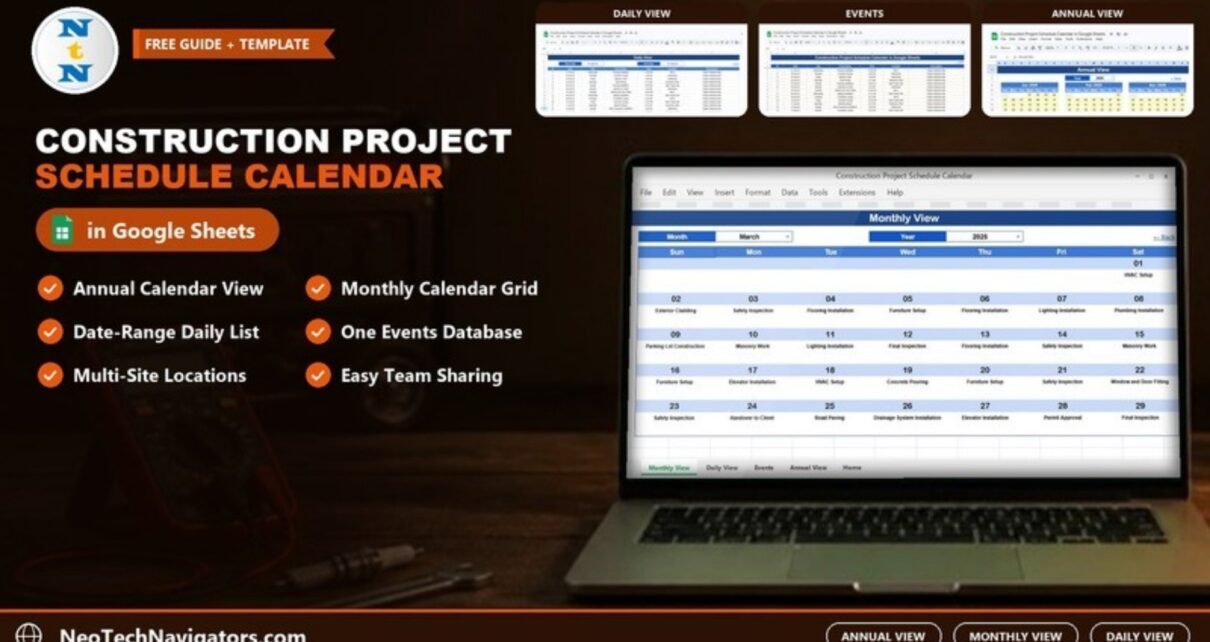
The Construction Project Schedule Calendar in Google Sheets is a shared calendar for site work: inspections, concrete pours, deliveries, installations, permit approvals and client handovers. You enter each activity once in an Events sheet, and it appears in an annual view, a monthly calendar and a date-range list that the whole project team can open on a laptop or phone.
It is aimed at construction project managers, site coordinators, small contractors and developers who need everyone to see the same schedule without buying project management software. The template has five sheets: Home, Annual View, Monthly View, Daily View and Events. This guide explains each one with the sample data, shows how to load your own schedule, and is honest about where a calendar stops and a Gantt chart should take over.
Get the Construction Project Schedule Calendar
Why Use a Construction Project Schedule Calendar in Google Sheets?
On most sites the schedule lives in several places at once: a programme file on the project manager’s laptop, a whiteboard in the site office, and a WhatsApp thread with subcontractors. When a delivery moves, one of those copies is always out of date.
A calendar in Google Sheets keeps one list of dated events and shows it in the views people actually use:
- The client or owner wants the year at a glance.
- The project manager plans month by month.
- The site supervisor needs today’s and this week’s activities with time and location.
Because it is a Google Sheets file, you can share it with view-only access for clients and edit access for the people who maintain the schedule.
Sheet 1: Home
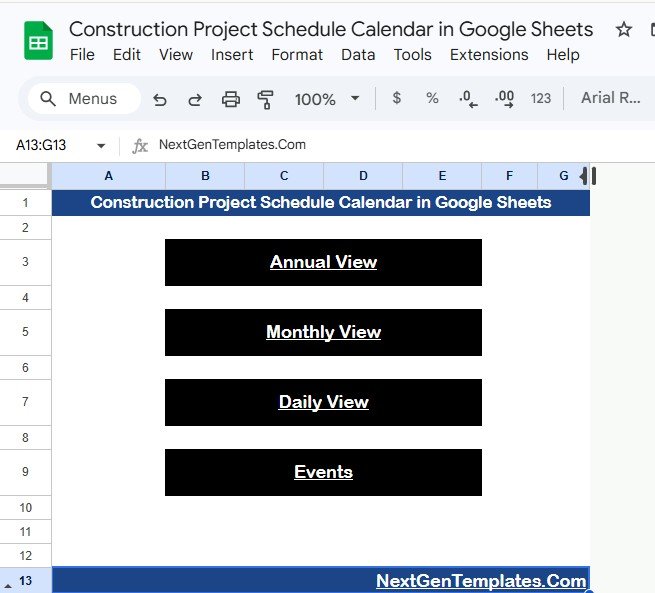
The Home sheet is a simple index with four buttons: Annual View, Monthly View, Daily View and Events. Each view also has a “← Back” link in the top-right corner to return here, so people who are not comfortable with spreadsheets can move around without hunting through tabs.
Sheet 2: Annual View
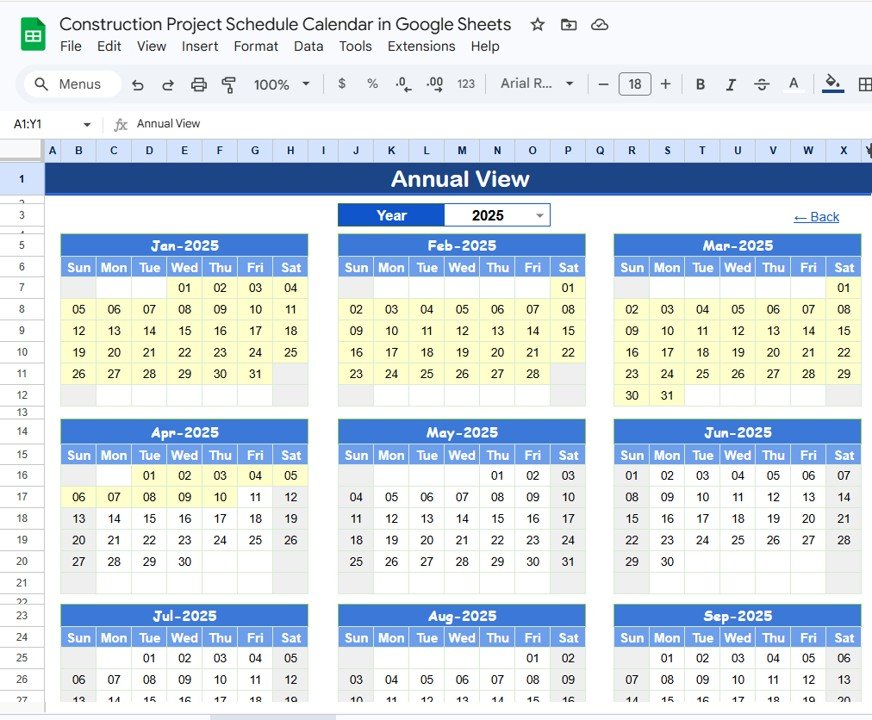
The Annual View shows all twelve months of the selected year on one sheet. Pick the Year from the dropdown at the top (2025 in the sample). According to the product description you can also change the starting month, which helps when a project or financial year does not begin in January, and the starting day of the week.
In the sample, the shaded dates from January to early April 2025 show where the sample events fall, so you can see at a glance which stretch of the year is busy. This is the view to share with a client who asks “what does the year look like?”
Sheet 3: Monthly View
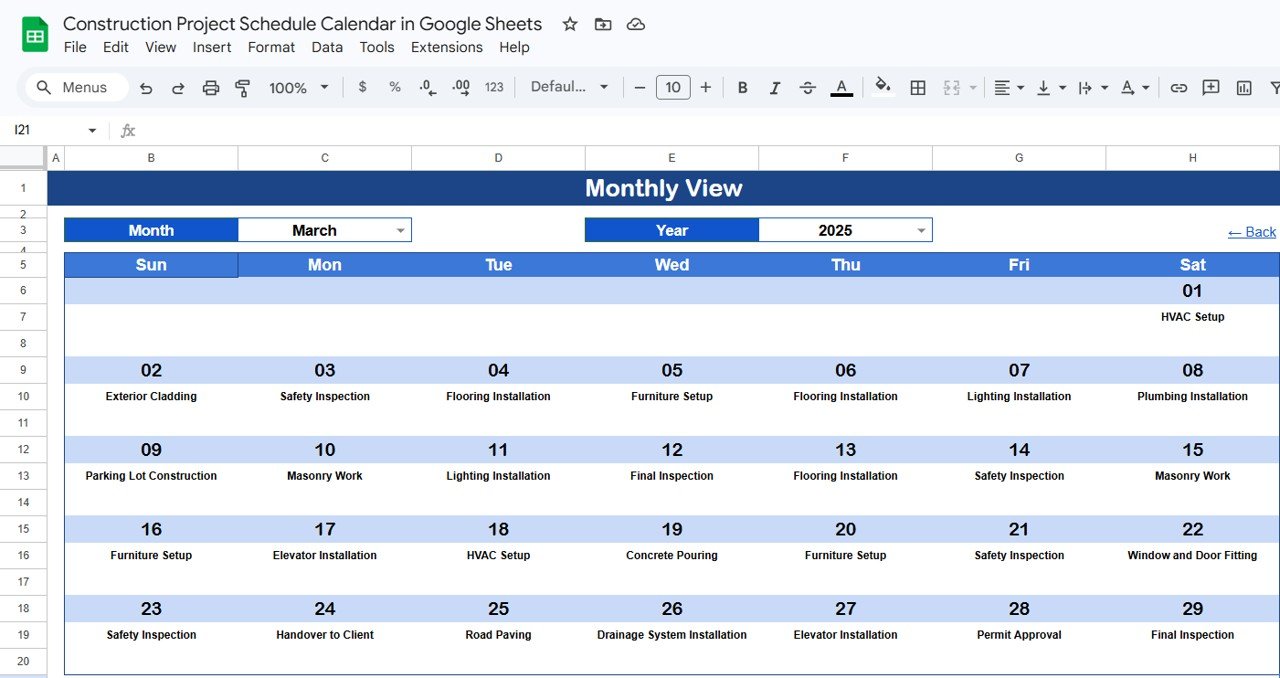
The Monthly View is a classic Sunday-to-Saturday calendar. Choose the Month and Year from the two dropdowns and each date shows its event name. In the March 2025 sample you can read the month’s sequence directly: HVAC Setup on the 1st, Exterior Cladding on the 2nd, Safety Inspection on the 3rd, Elevator Installation on the 17th, Concrete Pouring on the 19th, Handover to Client on the 24th, Permit Approval on the 28th and Final Inspection on the 29th.
The grid shows one event per date. When a date has more than one event, the cell shows “more than 1…”, which is your cue to open the Daily View for the full list.
Sheet 4: Daily View
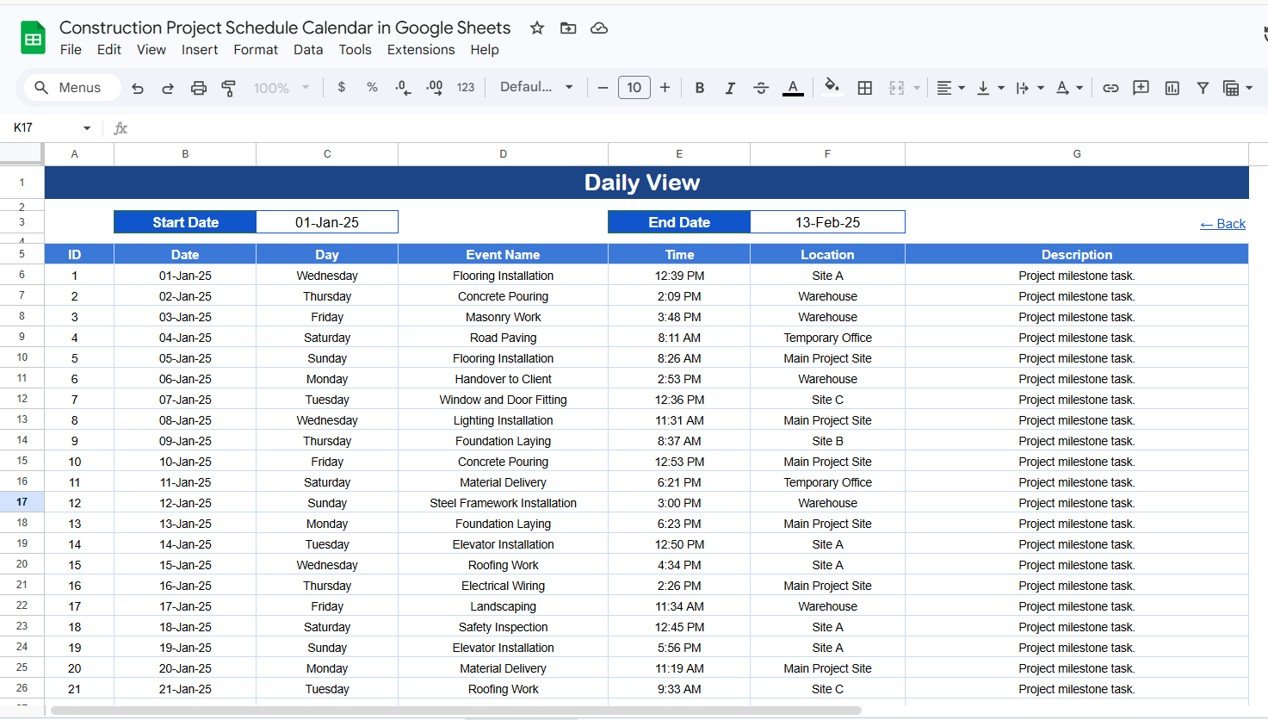
The Daily View lists every event between a Start Date and an End Date with all seven fields: ID, Date, Day, Event Name, Time, Location and Description. Double-click a date cell to open the date picker. The sample range is 01-Jan-25 to 13-Feb-25 and begins with Flooring Installation at Site A (12:39 PM), Concrete Pouring at the Warehouse (2:09 PM) and Masonry Work at the Warehouse (3:48 PM).
This is the most practical view for a morning site briefing: set the range to today, or to the next seven days, and read the list top to bottom.
Sheet 5: Events
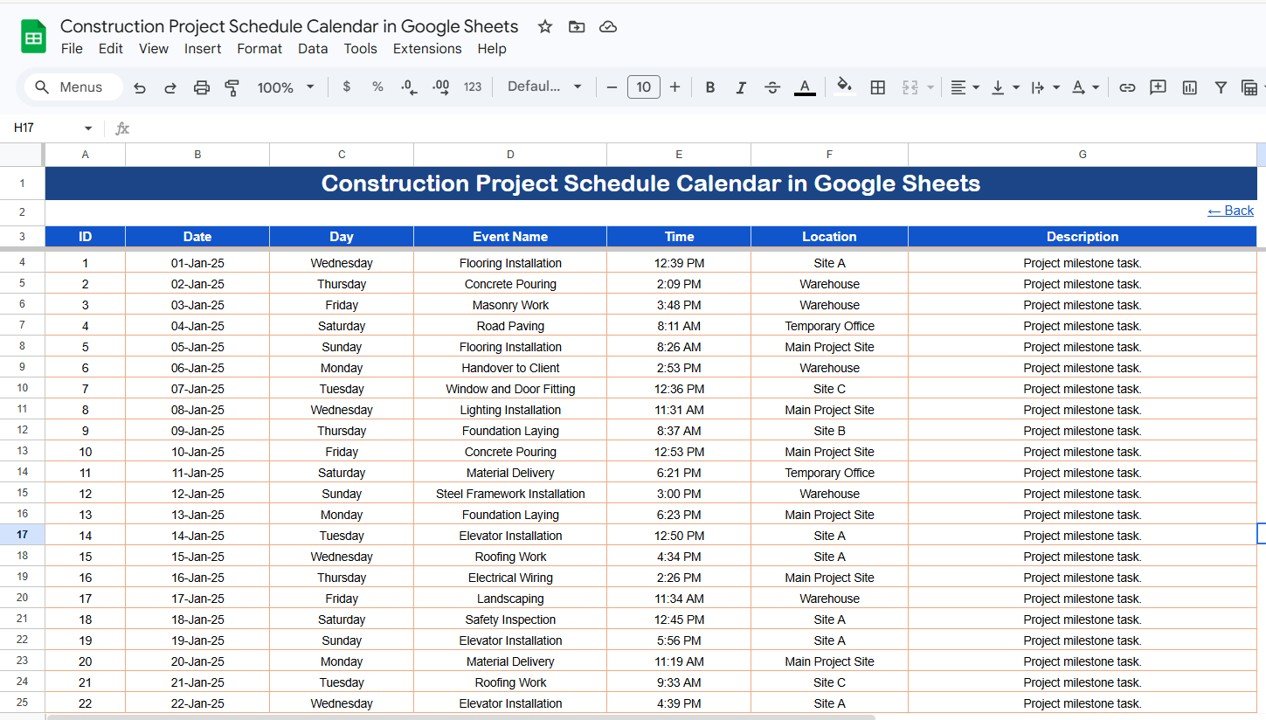
The Events sheet is the database behind all three views. Each row is one activity with these columns:
| Column | What to enter | Sample value |
|---|---|---|
| ID | Generated automatically (per the product description) | 1 |
| Date | Event date | 01-Jan-25 |
| Day | Day of the week | Wednesday |
| Event Name | The activity | Flooring Installation |
| Time | Start time | 12:39 PM |
| Location | Where it happens | Site A |
| Description | Notes for the team | Project milestone task. |
Sample locations include Site A, Site B, Site C, Warehouse, Temporary Office and Main Project Site, and sample activities range from Foundation Laying and Steel Framework Installation to Roofing Work, Electrical Wiring, Landscaping and Material Delivery.
Handy Formulas for the Events Sheet
You do not need formulas to use the template, but a few small ones help if you keep your own helper columns or a summary tab. These are general Google Sheets formulas, written for the Events layout above (dates in column B starting at row 4):
Return the day name for a date:
=TEXT(B4, "dddd")Count how many activities are scheduled in March 2025:
=COUNTIFS(Events!B4:B, ">="&DATE(2025,3,1), Events!B4:B, "<"&DATE(2025,4,1))Count inspections only (any event name containing “Inspection”):
=COUNTIF(Events!D4:D, "*Inspection*")How to Use It With Your Own Schedule
- Make a copy of the file (File > Make a copy).
- Open the Events sheet and clear the sample rows below the header.
- Enter your activities: date, day, event name, time, location and a short description. The ID column fills itself, so leave it alone.
- Use consistent event names (for example always “Safety Inspection”, never “Safety insp.”) so filtering and counting work.
- Go to Annual View and set the Year; then open Monthly View and choose a month to check the entries appear.
- Share the file: Share > add your team with Editor access and clients with Viewer access.
- Each morning, open Daily View, set Start Date and End Date to today (or the week) and review the list.
Calendar vs Gantt Chart vs Project Software
| Need | This calendar | Gantt chart template | Dedicated scheduling software |
|---|---|---|---|
| See dated events by year, month and day | Yes, three views | Partly (bars, not a calendar) | Yes |
| Task durations and dependencies | No | Yes | Yes |
| Critical path and resource levelling | No | No | Yes |
| Share with clients and subcontractors easily | Yes, Google sharing | Yes | Usually needs licences or guest access |
| Learning curve | Very low | Low | Medium to high |
Real-World Use Cases
- Residential build: the project manager logs every inspection, pour and installation and shares the Monthly View with the homeowner each month.
- Small contractor with several sites: the Location column separates Site A, Site B and Site C, and the Daily View becomes the crew allocation list each morning.
- Fit-out or renovation: material deliveries and trade visits are entered as events so the site supervisor knows who is on site and when.
Best Practices
- Update the Events sheet at least weekly, and immediately when a pour or inspection moves.
- Use the Description column for detail such as inspector name, delivery quantity or contact number.
- Give edit access to one or two people only and view access to everyone else.
- Check “more than 1…” dates in the Monthly View; they often hide clashes on the same site.
- Keep a separate copy per project if projects have different clients or confidentiality needs.
Limitations: When This Is Not the Right Tool
This is an event calendar, not a construction programme. It does not model task durations, predecessor and successor links, float, the critical path or resource loading, and it does not send reminders by itself. For complex projects, use it alongside a Gantt chart or dedicated scheduling software and treat the calendar as the communication layer for the site team and the client.
Related Guides and Templates
For a bar-chart view of the same project, see the Construction Project Timeline in Google Sheets or the Project Gantt Chart in Google Sheets. To track cost alongside the schedule, try the Construction Project Cost Dashboard in Google Sheets or the Construction Project Management Dashboard in Google Sheets. For non-construction client work, the Client Project Timeline Calendar in Google Sheets uses a similar approach.
Prefer Excel? There is also a Construction Project Schedule Calendar in Excel.
If you are new to spreadsheets and want to understand the date and lookup formulas behind calendars like this, the learning paths on NextGenTemplates Academy are a good place to start.
Frequently Asked Questions
What sheets are in the Construction Project Schedule Calendar in Google Sheets?
Five: Home (navigation), Annual View, Monthly View, Daily View and Events. All three calendar views read from the Events sheet.
What happens if two activities fall on the same date?
The Monthly View shows one event per date and displays “more than 1…” when there are more. Open the Daily View for that date to see every activity with time and location.
Can my whole site team use it on their phones?
Yes. It is a Google Sheets file, so anyone you share it with can open it in the Google Sheets mobile app. Give view-only access to people who only need to read the schedule.
Can I track several sites in one calendar?
Yes. Use the Location column (for example Site A, Site B, Main Project Site). The Daily View then shows where each activity happens.
Does it replace a Gantt chart or scheduling software?
No. It shows dated events, not durations or dependencies. Use it with a Gantt chart for planning and as the shared calendar for day-to-day coordination.
How do I see only next week’s activities?
Open the Daily View and set the Start Date and End Date to the first and last day of next week. Double-click the date cells to use the calendar picker.
Wrapping Up
The Construction Project Schedule Calendar in Google Sheets keeps one list of site activities and shows it the way each person needs it: the year for the client, the month for the project manager and the day for the site team. Start by entering the next four weeks of inspections, deliveries and installations, share the file with your team, and use the Daily View at your next morning briefing.
Get the Construction Project Schedule Calendar in Google Sheets
📅 Last updated: October 2026