This guide walks you through a simple inventory management system in Google Sheets that tracks stock in and out, shows the closing balance for any date, and flags products that need to be reordered. It is built for small shops, home businesses, stores and teams who want a clear stock register without paying for inventory software.
The file has four tabs: Product Search, Summary, Input Sheet and Product Master. Below you will see what each tab does, a worked example using the real sample numbers in the template, and the formulas you can use to build the same logic yourself with SUMIFS, XLOOKUP and IF.
🎥 Watch the Video Tutorial
Open the Free Inventory Template (Google Sheets)
How This Inventory Management System in Google Sheets Works
The idea is simple: you record every stock movement once, and the sheet does the rest.
- You list your products once in Product Master (ID, name, shelf location and re-order level).
- You log every receipt and every issue in Input Sheet as an In or Out transaction.
- The Summary tab adds up those transactions for the date you choose and shows opening balance, movements, closing balance and whether a reorder is needed.
- The Product Search tab lets you pick one Product ID and see its key details on a single card.
The Four Tabs in the Template
1. Product Master: your product list
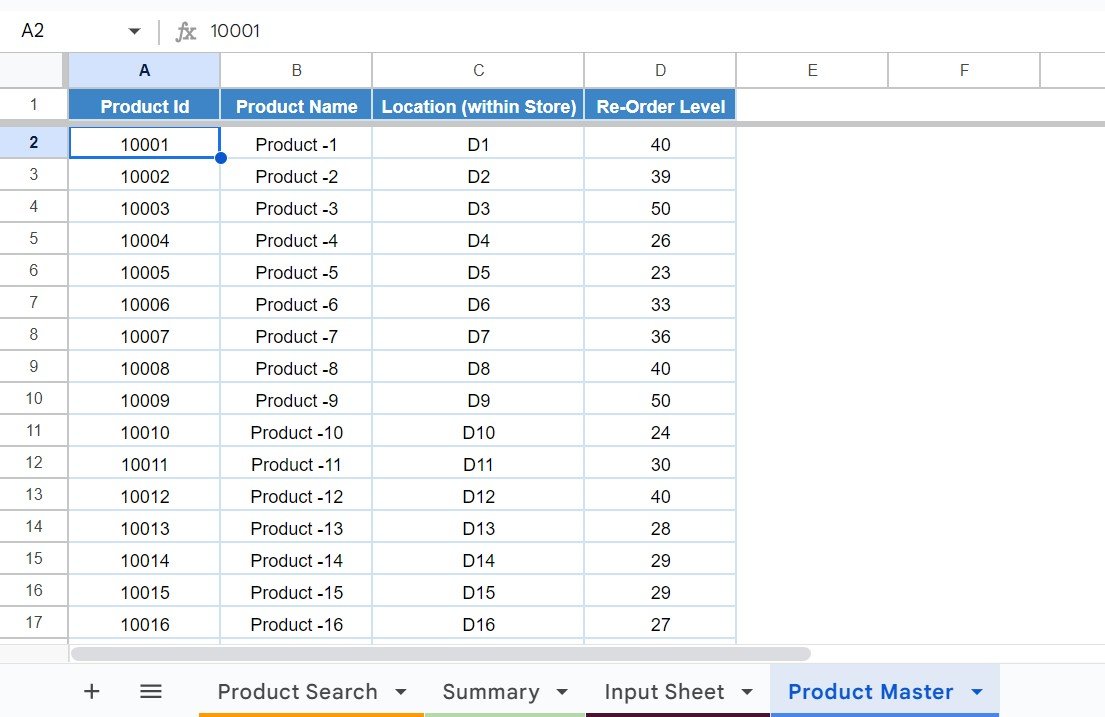
This is the reference table everything else reads from. It has four columns: Product Id, Product Name, Location (within Store) and Re-Order Level. In the sample, products run from 10001 (Product -1) onwards, locations are shelf codes such as D1, D2 and D3, and re-order levels range from about 23 to 50 units.
2. Input Sheet: the transaction log
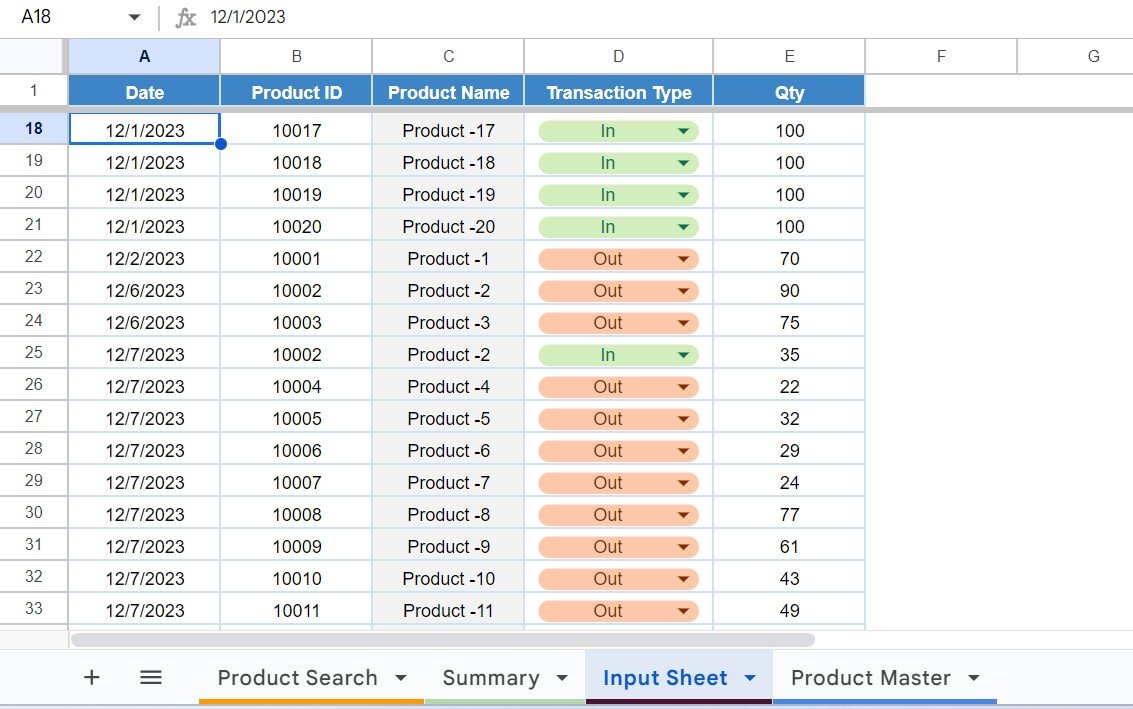
Every stock movement goes here as one row with five columns: Date, Product ID, Product Name, Transaction Type and Qty. Transaction Type is a dropdown with two values, In (stock received) and Out (stock issued or sold), so entries stay consistent. Product Name sits next to each ID so you can confirm the right item.
3. Summary: stock position on any date
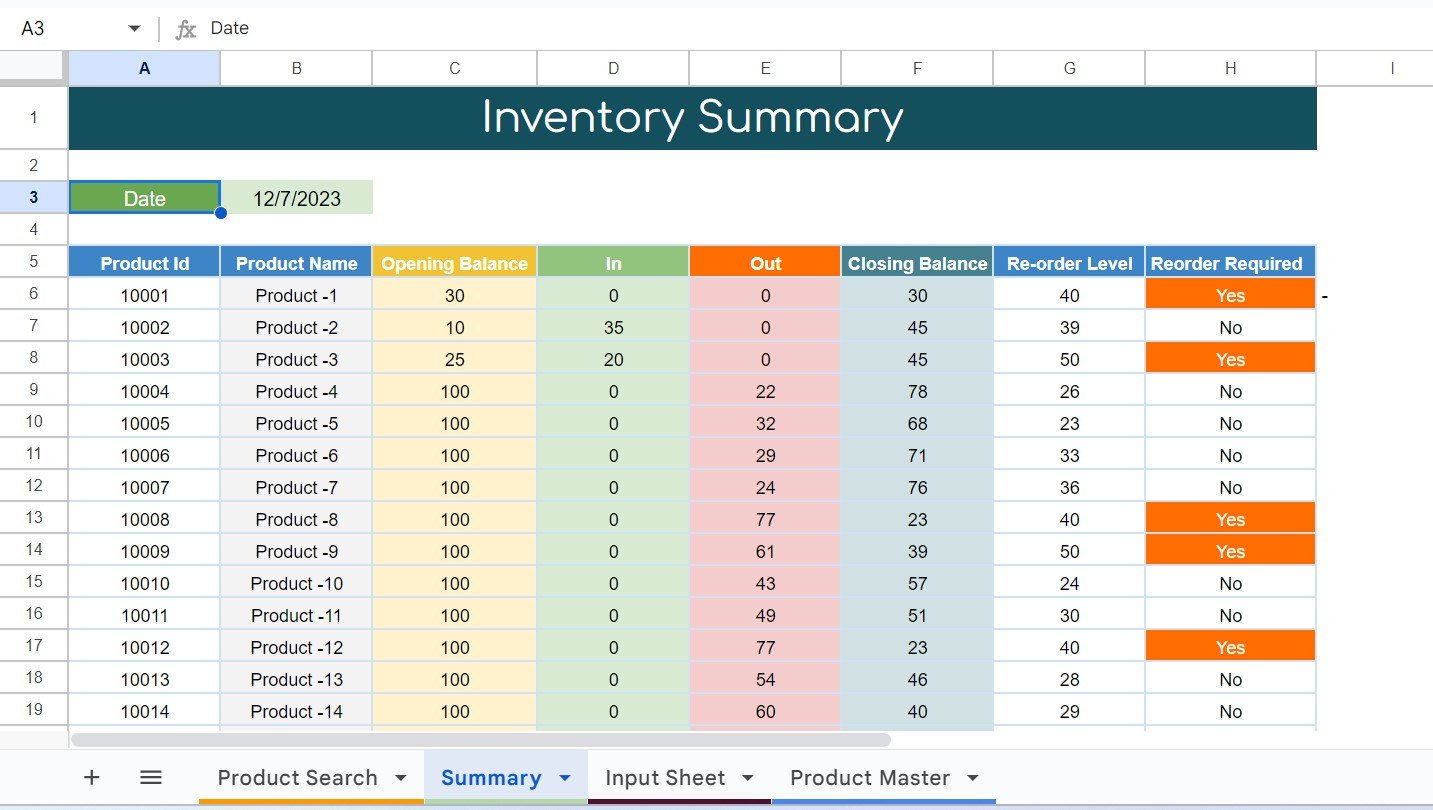
Type a date in cell B3 and the Inventory Summary table recalculates for every product. Its columns are Product Id, Product Name, Opening Balance, In, Out, Closing Balance, Re-order Level and Reorder Required. When a reorder is needed, the Reorder Required cell shows Yes on an orange fill, so it stands out immediately.
4. Product Search: one product at a glance
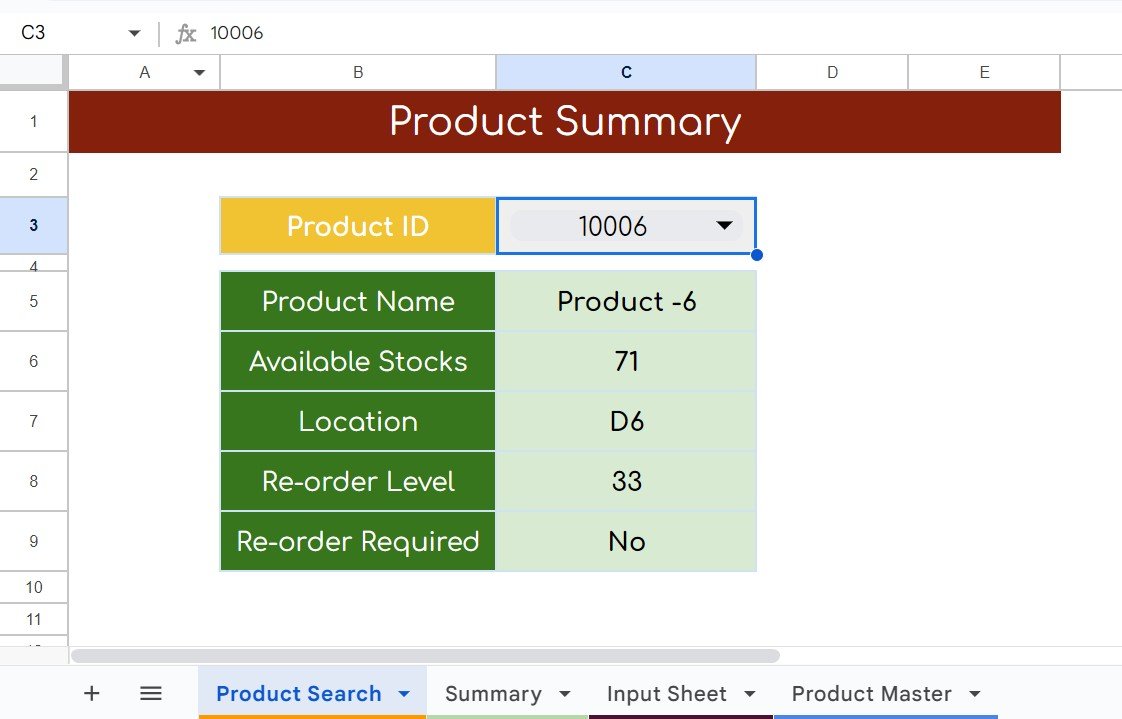
Choose a Product ID from the dropdown in cell C3 and the card shows Product Name, Available Stocks, Location, Re-order Level and Re-order Required. It is handy for a quick answer at the counter without scrolling the full summary.
Worked Example with the Sample Data
Here is how the Summary tab reads for the date 12/7/2023, using rows that are visible in the template:
| Product | Opening Balance | In | Out | Closing Balance | Re-order Level | Reorder Required |
|---|---|---|---|---|---|---|
| Product -1 (10001) | 30 | 0 | 0 | 30 | 40 | Yes |
| Product -2 (10002) | 10 | 35 | 0 | 45 | 39 | No |
| Product -6 (10006) | 100 | 0 | 29 | 71 | 33 | No |
| Product -8 (10008) | 100 | 0 | 77 | 23 | 40 | Yes |
Read Product -2 as a story: before 7 December it had 10 units (stock received earlier, minus the 90 units issued on 12/6/2023). On 12/7/2023 the Input Sheet records 35 units In, so the closing balance is 10 + 35 − 0 = 45. Because 45 is above its re-order level of 39, no reorder is needed.
Product -8 is the opposite case: 100 − 77 = 23 units left, which is below its re-order level of 40, so its Reorder Required cell shows Yes in orange. Product -6 closes at 71, which is exactly the “Available Stocks” figure you see on the Product Search card for ID 10006.
Formulas to Build the Same Logic
If you want to build or extend this system yourself, the following formulas reproduce the numbers above. They assume the Summary table starts in row 6, the date is in B3, and the Input Sheet columns are A = Date, B = Product ID, D = Transaction Type, E = Qty. The downloadable file may use slightly different formulas, but the results match.
Opening Balance (everything before the selected date)
=SUMIFS('Input Sheet'!E:E,'Input Sheet'!B:B,A6,'Input Sheet'!D:D,"In",'Input Sheet'!A:A,"<"&$B$3)
-SUMIFS('Input Sheet'!E:E,'Input Sheet'!B:B,A6,'Input Sheet'!D:D,"Out",'Input Sheet'!A:A,"<"&$B$3)
In and Out on the selected date
=SUMIFS('Input Sheet'!E:E,'Input Sheet'!B:B,A6,'Input Sheet'!D:D,"In",'Input Sheet'!A:A,$B$3)
=SUMIFS('Input Sheet'!E:E,'Input Sheet'!B:B,A6,'Input Sheet'!D:D,"Out",'Input Sheet'!A:A,$B$3)
Closing Balance, Re-order Level and Reorder Required
=C6+D6-E6
=XLOOKUP(A6,'Product Master'!A:A,'Product Master'!D:D)
=IF(F6<G6,"Yes","No")
Product Search card
=XLOOKUP(C3,'Product Master'!A:A,'Product Master'!B:B)
=XLOOKUP(C3,Summary!A:A,Summary!F:F)| Function | What it does here |
|---|---|
| SUMIFS | Adds Qty only for rows that match the product, the transaction type and the date condition |
| “<“&$B$3 | Builds the condition “before the selected date” for the opening balance |
| XLOOKUP | Pulls the name, location or re-order level for a Product ID from Product Master |
| IF | Returns “Yes” when the closing balance falls below the re-order level |
To get the orange highlight, select the Reorder Required column, open Format > Conditional formatting, choose Text is exactly, type Yes and pick an orange fill.
Useful Variations
- Stock value: add a Cost column to Product Master and multiply it by the closing balance with XLOOKUP.
- Month-to-date movement: change the In and Out conditions to a date range, for example
">="&EOMONTH($B$3,-1)+1and"<="&$B$3. - More than one store: add a Location or Warehouse column to the Input Sheet and include it in SUMIFS. Our multi-location inventory management guide shows a full version with transfers.
- Quantity to order:
=MAX(0,G6-F6)shows how many units bring the item back to its re-order level.
Common Errors and Fixes
- Opening balance is 0 for every product: dates in the Input Sheet are stored as text. Select the column and apply Format > Number > Date, then re-type any entries that stay left-aligned.
- #N/A on the Product Search card: the Product ID does not exist in Product Master, or one is a number and the other is text. Keep IDs in the same format in both tabs.
- Totals look too low: a transaction type was typed as “IN ” with a trailing space. Use the dropdown instead of typing.
- Product Name blank on new rows: the lookup formula was not copied down. Extend it to the new rows or convert the log into a table.
Tips for Keeping Your Stock Accurate
- Enter transactions the same day they happen; a stock register is only as good as its latest entry.
- Count physical stock once a month and post any difference as an In or Out adjustment with a note.
- Review re-order levels every quarter for fast-moving items.
- Share the file with Viewer access for people who only need to check stock.
For more ways to work with stock formulas, see how to calculate stock levels in Google Sheets and tracking stock levels and reorder status. If you prefer a visual view, the inventory management dashboard in Google Sheets turns the same kind of data into charts.
If you want to go further with SUMIFS, XLOOKUP and other everyday formulas, the Excel AI Mastery: 100 Formulas course on NextGenTemplates Academy covers them step by step.
Related templates: Inventory Tracker in Google Sheets · Multi-Location Inventory Management in Google Sheets
Frequently Asked Questions
Can Google Sheets be used for inventory management?
Yes. For a small business with a few hundred products, a transaction log plus SUMIFS formulas gives you opening stock, movements, closing stock and reorder alerts without any extra software.
How is the closing balance calculated?
Closing Balance = Opening Balance + In − Out for the selected date. The opening balance is the total of all In minus all Out before that date.
When does the template show “Reorder Required”?
When the closing balance is below the product’s re-order level from Product Master. In the sample, Product -1 closes at 30 against a level of 40, so it shows Yes.
Can I see stock for a past date?
Yes. Change the date in cell B3 of the Summary tab and every balance recalculates as of that day.
How many products can I add?
Add new rows to Product Master and copy the Summary formulas down. Google Sheets handles thousands of rows comfortably; very large logs may slow down full-column formulas.
Can several people use the sheet at the same time?
Yes. Share it from the Share button and give editors access only to the Input Sheet if you want to protect the formulas (Data > Protect sheets and ranges).
Wrapping Up
A transaction log, a product master and a few SUMIFS formulas are all you need to know what is on the shelf and what to reorder. Open the free template, replace the sample products with your own, and start logging today’s In and Out entries.
Open the Free Inventory Template (Google Sheets)
📅 Last updated: October 2026