Typing amounts as words by hand is slow and easy to get wrong, especially in quotations, cheques, agreements and payment letters. This guide shows you how to convert numbers to words automatically using VBA in Microsoft Word with a short macro: select a number, run the macro, and Word writes it out in words for you.
It is written for office staff, accountants, legal and admin teams, and anyone who prepares documents in Word. You get the full macro, a line-by-line explanation, a worked example, ways to change the output (capital letters, ordinal words, cheque-style amounts) and fixes for the errors people usually hit.
🎥 Watch the Video Tutorial
How the Macro Can Convert Numbers to Words in Word
Word already knows how to spell out numbers. It does this through field codes: a formula field such as { = 1234 \* CardText } displays the result in words instead of digits. The macro simply builds that field around the number you selected, so you do not have to type braces and switches yourself.
That is why the result looks like normal text but behaves like a field: you can press Alt+F9 to see the code behind it and F9 to refresh it.
Step 1: Show the Developer Tab

- Open Microsoft Word.
- Go to File > Options > Customize Ribbon.
- In the right-hand list, tick Developer and click OK.
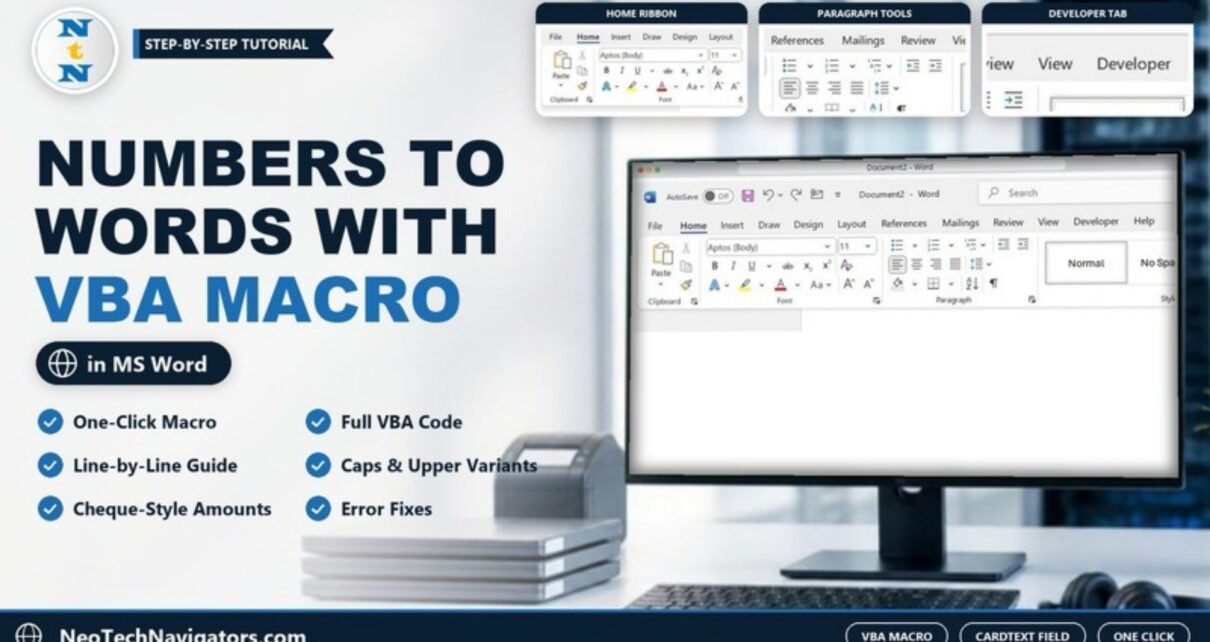
The Developer tab now sits on the ribbon, as in the screenshot above. It gives you the Visual Basic and Macros buttons.
Step 2: Add the Macro
- Click Developer > Visual Basic (or press Alt+F11) to open the VBA Editor.
- In the Project window, right-click Normal (to use the macro in every document) or your current document, then choose Insert > Module.
- Paste the code below into the empty module.
- Close the VBA Editor.
Sub Number_To_Words()

    Dim chr_Count As Integer

    chr_Count = Selection.Characters.Count

    Selection.Fields.Add Range:=Selection.Range, Type:=wdFieldEmpty, _
        PreserveFormatting:=False

    Selection.TypeText Text:="="

    Selection.MoveRight Unit:=wdCharacter, Count:=chr_Count

    Selection.TypeText Text:="\*cardtext"

    Selection.Fields.Update

End Sub
What Each Line Does
| Line | What it does |
|---|---|
Dim chr_Count As Integer |
Creates a variable to hold the length of your selection. |
chr_Count = Selection.Characters.Count |
Counts the characters you selected (for 1234 that is 4). |
Selection.Fields.Add ... wdFieldEmpty |
Wraps the selected number in empty field braces, the same as pressing Ctrl+F9 with text selected. |
Selection.TypeText Text:="=" |
Types an equals sign in front of the number, turning it into a formula field. |
Selection.MoveRight ... Count:=chr_Count |
Moves the cursor past the number so the switch goes after it. |
Selection.TypeText Text:="\*cardtext" |
Adds the CardText format switch, which tells Word to show the result in words. |
Selection.Fields.Update |
Calculates the field so the words appear straight away. |
Step 3: Run It on a Number
- In your document, select only the digits, for example 2024. Do not include a space or the paragraph mark after it.
- Click Developer > Macros (or press Alt+F8).
- Choose Number_To_Words and click Run.
Worked Example
Here is what happens to a few typical numbers. The field code column is what you see after pressing Alt+F9.
| You select | Field the macro builds | Text shown in the document |
|---|---|---|
| 2024 | { =2024\*cardtext } |
two thousand twenty-four |
| 350 | { =350\*cardtext } |
three hundred fifty |
| 125000 | { =125000\*cardtext } |
one hundred twenty-five thousand |
Press Alt+F9 again to go back to the normal view.
Variations: Change How the Words Look
The macro uses one switch, \*cardtext. You can edit the text in the TypeText line to get a different result. Word applies these format switches to field results:
| Switch to type | Result for 1250 | Typical use |
|---|---|---|
\* CardText |
one thousand two hundred fifty | Default, as in the macro |
\* CardText \* Caps |
One Thousand Two Hundred Fifty | Headings, certificates |
\* CardText \* Upper |
ONE THOUSAND TWO HUNDRED FIFTY | Cheques and formal amounts |
\* OrdText |
one thousand two hundred fiftieth | Ranking, anniversaries |
\* DollarText |
one thousand two hundred fifty and 00/100 | Cheque-style amounts with cents |
For example, to get capitalised words, change the line to:
Selection.TypeText Text:=" \* CardText \* Caps"If you want both versions available, copy the whole macro, rename the copy (for example Number_To_Words_Caps) and change only that line.
Make the Macro Faster to Use
- Keyboard shortcut: go to File > Options > Customize Ribbon, click Customize next to Keyboard shortcuts, choose the Macros category, select Number_To_Words and assign a key combination.
- Quick Access Toolbar: under File > Options > Quick Access Toolbar, choose Macros from the list and add it as a one-click button.
- Keep it available: a macro stored in Normal works in every document. If you store it in one document instead, save that file as a Word Macro-Enabled Document (.docm) or the code is lost.
Common Errors and Fixes
| What you see | Likely cause | Fix |
|---|---|---|
| Error! Number cannot be represented in specified format. | CardText only spells out whole numbers up to 999,999. | Use digits for larger amounts, or split the amount (for example “two million” typed by hand plus the rest as a field). |
| A syntax error message instead of words | The selection included something other than plain digits, such as letters, symbols or separators that the formula field cannot read as a number. | Undo, then select only the digits (for example 125000 rather than $125,000). |
| The next word or line disappears into the field | The selection included a trailing space or paragraph mark, so the cursor moved too far. | Undo and reselect just the number. |
| The decimal part does not appear in words | CardText spells out whole numbers only. | Use \* DollarText to show the fraction as /100. |
| Macro does not appear or will not run | Macros are disabled for the file, or it was saved as .docx. | Save as .docm or store the macro in Normal, and allow macros only for files you trust. |
Tips
- Turn the field into plain text: click the result and press Ctrl+Shift+F9. The words stay, the field is removed, and nobody can accidentally change the number later.
- Update after edits: if you change the number inside the field code, press F9 to refresh the words.
- Keep a backup: save your document before running any macro for the first time.
- Use trusted code only: read any macro before you run it. This one only edits the selected text and does not touch other files.
Other Word Guides on NeoTech Navigators
If you work in Word every day, these guides go well with this one: how to convert only selected Word pages to PDF, three easy ways to create a table in MS Word, Word shortcut keys for emojis, arrows and horizontal lines, and how to get a transcript from a video or audio file in Microsoft Word.
Frequently Asked Questions
Can Word convert numbers to words without VBA?
Yes. Press Ctrl+F9 to insert field braces, type =2024 \* CardText inside them and press F9. The macro just does those steps for you in one click.
What is the largest number the macro can convert?
CardText works for whole numbers from 0 to 999,999. Larger numbers show an error message instead of words.
How do I write an amount for a cheque?
Change the switch to \* DollarText to get the cents as a fraction, for example “one thousand two hundred thirty-four and 56/100”. Add \* Upper if you want capital letters.
Does it work in languages other than English?
The words follow the language Word uses for the text, and support varies by language. Test a few numbers in your language before relying on it.
Why does my document now show braces and code?
Field codes are switched on. Press Alt+F9 to switch back to the results view.
Will the words change if I edit the number?
Only after you update the field with F9. If you converted the field to plain text with Ctrl+Shift+F9, it will not change.
Wrapping Up
With one short macro, Word can turn any selected number into words in a second, using its own CardText field. Add the code to your Normal template, assign a keyboard shortcut, and try it on your next quotation or agreement. Once you are comfortable, experiment with the Caps, Upper, OrdText and DollarText switches to match the style your documents need.
📅 Last updated: October 2026