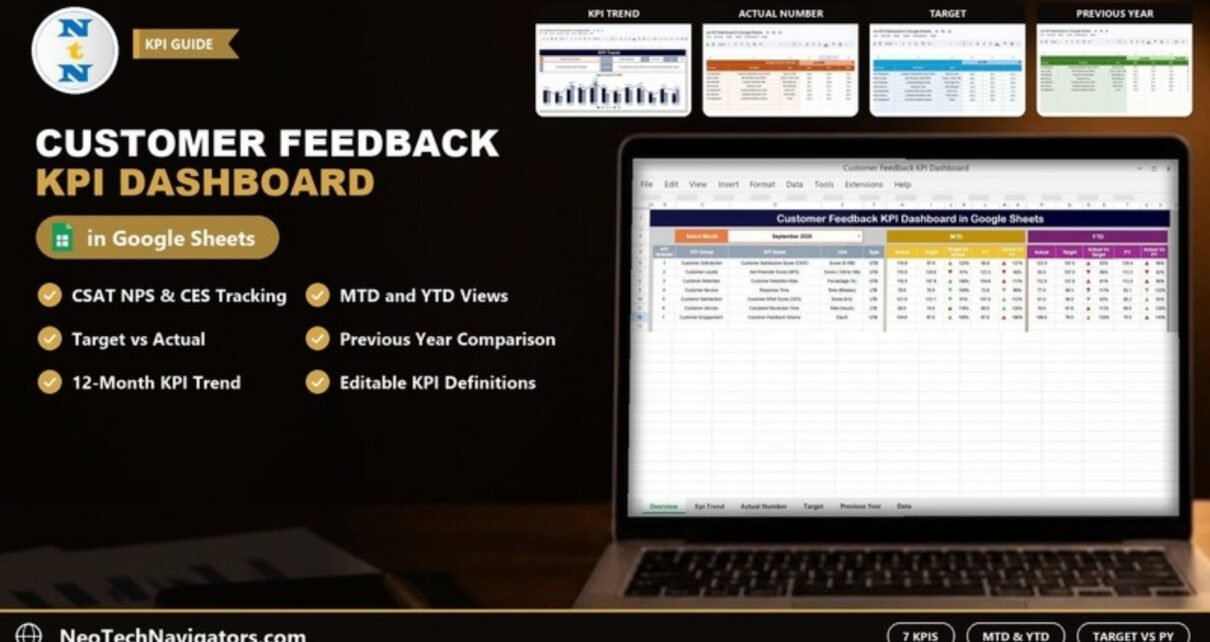
A Customer Feedback KPI Dashboard in Google Sheets gives customer service and CX teams one page to review how satisfied customers are, how loyal they stay and how quickly complaints get handled. You pick a month and the dashboard shows month-to-date (MTD) and year-to-date (YTD) results for each KPI. Every KPI is compared with its target and with the same period last year.
This guide is for support managers, CX leads, small business owners and analysts who already collect survey scores, NPS responses or complaint logs and want a monthly scorecard without buying a BI tool. It walks through the six sheets in the template and the seven KPIs it tracks: CSAT, NPS, Customer Retention Rate, Response Time, CES, Complaint Resolution Time and Customer Feedback Volume. It then covers how to load your own numbers and how to read the arrows.
All the sheet names, KPI names, formulas and sample values below come from the template’s own screenshots, so you know exactly what you are getting.
🎥 Watch the Video Tutorial
Get the Customer Feedback KPI Dashboard
What Problem Does a Customer Feedback KPI Dashboard Solve?
Most teams have plenty of feedback data. The trouble is that it sits in separate places: survey exports, helpdesk reports, review sites and spreadsheets owned by different people. When a manager asks “is customer satisfaction better than last year?”, someone spends an afternoon pulling numbers together, and the answer is out of date by the next meeting.
A KPI dashboard fixes this with a simple routine. Each month you enter one actual value per KPI, and the template keeps the targets and last year’s values next to it. The comparison and the colour-coded arrows are worked out for you, so the monthly review is about what to do next, not about building the report.
If you track individual comments or complaints rather than monthly totals, a record-level tool such as the Customer Feedback Tracker in Google Sheets is a better starting point. The KPI dashboard sits one level above that and summarises results.
The 7 KPIs Tracked in the Template
The KPI Definition sheet lists seven KPIs in four groups. The table below copies the group, unit, formula and type exactly as they appear in the template. UTB means “Upper the Better” and LTB means “Lower the Better”.
| # | KPI | KPI Group | Unit | Formula (from the template) | Better when |
|---|---|---|---|---|---|
| 1 | Customer Satisfaction Score (CSAT) | Customer Satisfaction | Score (0-100) | Sum of CSAT Ratings / Number of Responses x 100 | Higher (UTB) |
| 2 | Net Promoter Score (NPS) | Customer Loyalty | Score (-100 to 100) | Promoters – Detractors | Higher (UTB) |
| 3 | Customer Retention Rate | Customer Retention | Percentage (%) | Retained Customers / Total Customers x 100 | Higher (UTB) |
| 4 | Response Time | Customer Service | Time (Minutes) | Average Time for Response | Lower (LTB) |
| 5 | Customer Effort Score (CES) | Customer Satisfaction | Score (0-5) | Sum of Effort Ratings / Number of Responses | Lower (LTB) |
| 6 | Complaint Resolution Time | Customer Service | Time (Hours) | Average Time to Resolve Complaints | Lower (LTB) |
| 7 | Customer Feedback Volume | Customer Engagement | Count | Count of Feedback Entries | Higher (UTB) |
You can rename, edit or add KPIs on the KPI Definition sheet. Keep the KPI Number, Group, Name and Unit the same on every input sheet so the lookups still match.
Inside the Customer Feedback KPI Dashboard in Google Sheets: Sheet by Sheet
1. Dashboard Sheet
This is the main reporting page. Choose a month from the Select Month dropdown in cell D3 (the sample shows September 2024) and the whole page recalculates. The left block lists KPI Number, KPI Group, KPI Name, Unit and Type. On the right there are two coloured panels:
- MTD: Actual, Target, Target Vs Actual, PY (previous year) and Actual Vs PY
- YTD: Actual, Target, Actual Vs Target, PY and Actual Vs PY
Each comparison column shows a percentage (Actual divided by Target, or Actual divided by PY) next to a small green or red arrow added with conditional formatting. Read the percentage first, then check the KPI’s Type: for a UTB KPI a figure above 100% is good news, and for an LTB KPI such as Complaint Resolution Time a figure above 100% means you are slower than planned. In the sample data the arrow colours do not always follow this rule, so check the arrow logic against your own expectations before you share the dashboard.

2. KPI Trend Sheet
Choose a KPI from the Select KPI dropdown in cell C3. The sheet fills in the KPI Group, Unit, Type, Formula and Definition, then plots a Target Vs Actual Vs PY (MTD) chart for January to December. Actual and PY appear as columns and Target as a line. In the screenshot, Customer Effort Score (CES) is selected, with its formula shown as “Sum of Effort Ratings / Number of Responses”.

3. Actual Number Sheet
This is where your monthly results go. Each month has an MTD and a YTD column, and the seven KPIs are listed down the rows. Set the first month of your year in cell E1 (marked “Change the first of the year”) and the month headers follow from it, which lets you run a financial year that does not start in January.

4. Target Sheet
This sheet uses a similar layout, with two target columns per month for each KPI from Jan-2024 onwards. Fill it once at the start of the year and change it only when your goals change.

5. Previous Year Number Sheet
Last year’s MTD and YTD values go here, starting from Jan-2023 in the sample. These feed the PY and Actual Vs PY columns on the dashboard, so you can see whether a change is a real improvement or just the normal seasonal pattern.

6. KPI Definition Sheet
This is the reference list for every KPI, with its group, name, unit, formula, definition and type (UTB or LTB, chosen from a dropdown). The KPI Trend sheet reads its details from here, so a definition you change here is updated everywhere.

Worked Example: Reading September 2024
With September 2024 selected, the MTD panel shows CSAT at an actual of 119.0 against a target of 97.6. The comparison is a simple ratio:
Target Vs Actual = Actual / Target = 119.0 / 97.6 = 122%
Actual Vs PY     = Actual / PY     = 119.0 / 86.8 = 137%
CSAT is UTB, so 122% of target is a good result, and the Target Vs Actual arrow is a green up arrow. Now look at Complaint Resolution Time: actual 88.0 hours against a target of 74.8, which gives 118%. Here the ratio is above 100% but the result is bad, because more hours is worse for an LTB KPI, and the dashboard shows a red up arrow. Reading every percentage together with the KPI’s Type is the most important habit to build before you share the dashboard.
The sample values are placeholder data. Some of them (a CSAT of 119 on a 0–100 scale, for example) are not realistic and are there only to fill the charts. Replace them with your own results before you use the dashboard for decisions.
How to Use It With Your Own Data
- Make your own copy of the Google Sheet (File > Make a copy) so you are not editing the master.
- Open KPI Definition and check that each formula matches how your team measures it. For example, decide whether NPS uses all survey responses or only one channel.
- On Actual Number, set the first month of your year in cell E1.
- Enter your targets on Target and last year’s numbers on Previous Year Number. If you have no history yet, the PY comparison columns will not be meaningful until you have a year of data.
- Each month, add the MTD and YTD actuals on Actual Number.
- Go to Dashboard, choose the month in D3 and review the arrows. Then open KPI Trend for any KPI that is red.
If your raw survey responses are in another tab, a few helper formulas will produce the monthly actuals. They assume scores sit in column B of a sheet called Responses:
NPS  = (COUNTIF(Responses!B2:B500,">=9") - COUNTIF(Responses!B2:B500,"<=6")) / COUNT(Responses!B2:B500) * 100
CES  = AVERAGE(Responses!C2:C500)
Customer Feedback Volume = COUNTA(Responses!A2:A500)
To filter these by month, wrap the ranges in FILTER() or use COUNTIFS/AVERAGEIFS with a date condition. If you want to build monthly summaries and KPI reports like this yourself, the Excel Pivot Tables & Dashboards course on NextGenTemplates Academy teaches the process step by step, and the same ideas work in Google Sheets.
Real-World Use Cases
- E-commerce support team: Tracks CSAT, Response Time and Complaint Resolution Time each month and uses the red LTB arrows to decide when to add weekend cover.
- SaaS customer success team: Reviews NPS and Customer Retention Rate together in the quarterly business review and uses the Actual Vs PY column to show year-over-year progress to leadership.
- Multi-location service business: Keeps one copy per branch with the same KPI definitions, so branch managers compare like with like.
For broader service metrics, compare this template with the Customer Experience KPI Dashboard in Google Sheets. If complaints are your main focus, see the Customer Complaint Resolution KPI Dashboard.
Best Practices
- Agree definitions first. Write down on the KPI Definition sheet how each KPI is measured before you enter any data.
- Enter data on a fixed day. For example, the third working day of each month, so every month is comparable.
- Read trends, not single months. One red month is a question. Three in a row on the KPI Trend chart is a problem.
- Set targets you can explain. Base them on last year’s actuals plus a realistic improvement, not on round numbers.
- Restrict edit access. Share the sheet as view-only with most people and give edit rights only to whoever enters data.
Limitations: Who Should Not Use This Template
- It does not collect feedback. You still need a survey tool or Google Forms, and you enter monthly results by hand.
- It stores monthly totals, not individual responses, so you cannot drill into a single comment from the dashboard.
- Teams that want sentiment analysis, live helpdesk integration or per-agent scorecards will need a dedicated CX platform or a custom build.
If you need charts of raw responses by channel or category, the Customer Feedback Analysis Dashboard in Google Sheets or the NPS Dashboard in Google Sheets may suit you better.
Related templates: Prefer Excel? The Customer Feedback KPI Dashboard in Excel covers the same topic for desktop users.
Frequently Asked Questions
How many KPIs does the Customer Feedback KPI Dashboard track?
Seven: CSAT, NPS, Customer Retention Rate, Response Time, Customer Effort Score, Complaint Resolution Time and Customer Feedback Volume. You can edit or add KPIs on the KPI Definition sheet.
Does it show both MTD and YTD results?
Yes. The Dashboard sheet has separate MTD and YTD panels. Each panel shows Actual, Target and previous year (PY), plus percentage comparisons with up or down arrows.
How do I read a percentage above 100% for Response Time?
Response Time is a “Lower the Better” (LTB) KPI, so a Target Vs Actual figure above 100% means responses took longer than planned. For “Upper the Better” (UTB) KPIs such as CSAT, a figure above 100% is good. Always read the percentage together with the Type column.
Can my financial year start in a month other than January?
Yes. Change the first month of the year in cell E1 of the Actual Number sheet and the month headers follow from it.
Can I connect Google Forms to it?
Not directly, because the template expects monthly totals. You can collect responses with Google Forms, summarise them by month with COUNTIFS or AVERAGEIFS, and copy the results into the Actual Number sheet.
Is Google Sheets safe for customer feedback data?
The dashboard stores only aggregated monthly numbers, not personal details. Use Google Drive sharing settings to control who can view or edit it.
Wrapping Up
The Customer Feedback KPI Dashboard in Google Sheets turns seven core feedback metrics into a monthly scorecard with targets, last-year comparisons and a Type column that tells you whether higher or lower is better. Start by checking the KPI definitions, load one year of history if you have it, and use the KPI Trend sheet to explain any red arrows in your next review.
Get the Customer Feedback KPI Dashboard
📅 Last updated: October 2026