Requests to change working hours arrive in many ways: an email to a manager, a message in a team chat, a quick word in the corridor. A few weeks later nobody is sure who asked for reduced hours, whether HR signed it off, or when the new schedule started. The Employee Work Hours Adjustment Request Tracker in Google Sheets puts every request in one table, follows it through manager and HR approval, and summarises the whole picture in a row of charts.
This guide explains exactly what the tracker contains – its columns, its charts and its search sheet – and how to start logging your own requests. It is aimed at HR teams, department heads and operations managers who handle flexible-hours, reduced-hours or extra-hours requests and want a clear record without new software.
🎥 Watch the Video Tutorial
Get the Work Hours Adjustment Request Tracker
What Problem the Work Hours Adjustment Request Tracker Solves
A work hours adjustment is any change to an employee’s normal daily hours – working fewer hours for a period, working more hours to cover a deadline, or shifting start and finish times. Each request needs a reason, a start date, a duration and two decisions (the line manager’s and HR’s). When that information sits in inboxes, three problems appear:
- Requests get lost or are approved twice by different people.
- HR cannot see which departments or roles ask for changes most often.
- When payroll or an auditor asks why someone’s hours changed, there is no single record to show.
The tracker fixes this by giving every request a Request ID, a row of structured fields and a visible status, with the charts updating as you fill in the table.
What Is Inside the Tracker
The file has two working areas: the Tracker sheet (charts across the top, the request table below) and a Search sheet.
The Request Table – Column by Column
| Column | What you enter | Example from the sample data |
|---|---|---|
| Request ID | Unique reference for the request | WH001 |
| Request Date | Date the employee asked | 2026-01-01 |
| Employee ID | Staff number | EMP001 |
| Employee Name | Who is asking | Rahul Mehta |
| Department | Picked from a dropdown | IT, Finance, Operations, HR, Admin |
| Job Role | Employee’s role | Software Engineer, HR Manager, Developer, Auditor, Receptionist |
| Current Work Hours | Hours per day today | 9 |
| Requested Work Hours | Hours per day being asked for | 8 |
| Adjustment Type | Picked from a dropdown | Reduced Hours, Increased Hours, Flexible Timing |
| Reason for Adjustment | Short reason | Work-life balance, Project deadline, Child care |
| Effective From | Date the change starts | 12 Jan 2026 (stored as 46034 in the sample) |
| Duration (Days) | How long the change lasts | 25, 60, 90, 120, 180 |
| Manager Approval | Line manager’s decision | Approved, Pending |
| HR Approval | HR’s decision | Approved, Pending |
| Request Status | Overall stage of the request | Approved, In Progress, Submitted |
Because Current Work Hours and Requested Work Hours sit next to each other, you can see the size of each change at a glance – for example, 9 hours down to 8 for a Reduced Hours request, or 8 up to 10 for a peak-workload Increased Hours request.
The Charts Above the Table
The sample file holds 50 requests. The charts summarise them like this:
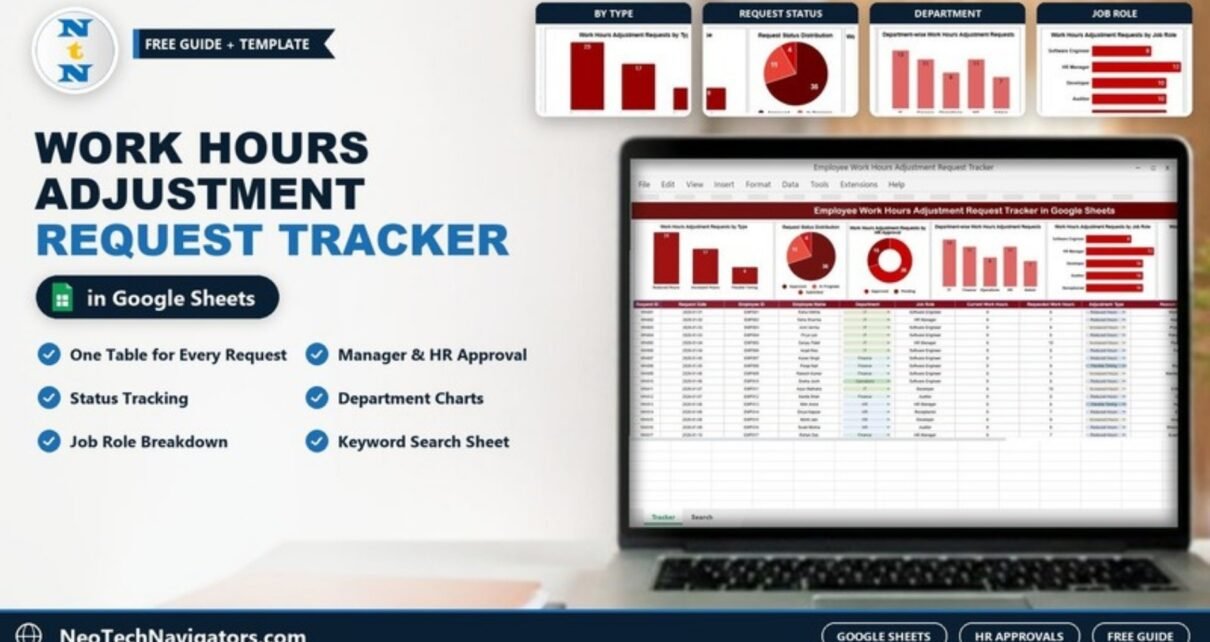
- Work Hours Adjustment Requests by Type – Reduced Hours 25, Increased Hours 17, Flexible Timing 8.
- Request Status Distribution – Approved 35, In Progress 11, Submitted 4.
- Work Hours Adjustment Requests by HR Approval – Approved 35, Pending 15.
- Department-wise Work Hours Adjustment Requests – IT 13, Finance 11, HR 11, Operations 8, Admin 7.
- Work Hours Adjustment Requests by Job Role – HR Manager 12; Developer, Auditor and Receptionist 10 each; Software Engineer 8.
A further approval chart continues to the right of the row (46 requests shown as Approved in the sample).

The Search Sheet
The Search by Search Keyword and Field Name sheet lets you pull out a subset of requests without touching the main table. Choose a column in Select Column, type a value in Search Keyword, and the matching rows appear with a Total Record count. In the sample, choosing Department and typing “hr” returns the 11 HR-department requests with all their details – useful when a department head asks for their team’s list.

How to Use It With Your Own Data
- Make a copy of the file in your Google Drive and keep the original untouched.
- Delete the sample rows in the request table, leaving the header row and the dropdown columns in place.
- Check the dropdown lists. If your departments differ from IT, Finance, Operations, HR and Admin, update them under Data > Data validation before entering requests.
- Log each new request on the day it arrives: Request ID, Request Date, employee details, current and requested hours, Adjustment Type and reason.
- Fill in Effective From and Duration (Days) once the dates are agreed. If Effective From shows a number such as 46034 instead of a date, select the column and apply Format > Number > Date.
- Update Manager Approval, HR Approval and Request Status as decisions are made. The charts refresh on their own.
- Review the charts weekly – a growing Pending slice in the HR Approval chart is your signal to clear the queue.
Real-World Use Cases
- IT or software company: engineers ask for increased hours before a release and reduced hours afterwards. The tracker shows how often each happens and keeps a record for the project manager.
- Finance or audit team: seasonal peaks bring temporary schedule changes. Duration (Days) makes it clear when each arrangement should end.
- Small HR team in a growing business: one shared sheet replaces scattered emails, and the Search sheet answers “show me all of Finance’s requests” in seconds.
Best Practices
- Write down your policy (who can approve, maximum duration, notice period) and keep the dropdown values in line with it.
- Never reuse a Request ID; it is the reference you will quote to the employee and to payroll.
- Keep the reason short and factual, and avoid recording sensitive medical details – “Health reasons” is enough.
- Share the file with edit access only for HR and approvers; give department heads view access.
- At the end of each quarter, compare the Department and Job Role charts with workload – repeated requests from one team may point to a staffing issue.
Limitations – When This Tracker Is Not Enough
- It does not calculate pay. If approved hours change salary or overtime, payroll still needs to process it separately.
- There are no automatic email notifications; approvers update the sheet themselves.
- Employees do not get a submission form out of the box. You can connect a Google Form yourself, but it is not included.
- Organisations with thousands of requests a year or strict audit-trail requirements may need an HRIS with built-in workflows.
Related Guides and Templates
If your requests are about swapping shifts rather than changing hours, the Employee Shift Change Request Tracker in Google Sheets is built for that. To measure the hours people actually work, see how to count work hours in Google Sheets and how to calculate overtime pay in Google Sheets. For day-to-day presence and absence, the Employee Attendance Tracker in Google Sheets and the guide to tracking employee leave days fit alongside this tracker.
Handling requests for extra hours specifically? The Employee Overtime Request Tracker in Google Sheets focuses on overtime approvals.
If you are new to spreadsheets and want to build trackers like this yourself, the structured learning paths on NextGenTemplates Academy are a good place to start.
Frequently Asked Questions
What types of adjustment does the tracker cover?
The Adjustment Type dropdown includes Reduced Hours, Increased Hours and Flexible Timing. You can add more values (for example a compressed week) by editing the dropdown’s data validation list.
What is the difference between HR Approval and Request Status?
Manager Approval and HR Approval record each approver’s decision. Request Status shows the overall stage of the request – Submitted, In Progress or Approved – so you can see at a glance which requests are still moving.
Can employees submit requests themselves?
Not directly in the template. Most teams have employees email or message HR, and HR logs the request. If you want self-service, you can link a Google Form to a sheet and copy entries into the table.
Do the charts update automatically?
Yes. The charts read from the request table, so a new row or a changed status appears in them as soon as you edit the sheet.
Is the tracker suitable for remote and hybrid teams?
Yes. It is a normal Google Sheets file, so HR, managers and approvers can open it from any browser and see the same up-to-date list.
Can I track how long each adjustment lasts?
Yes. Effective From and Duration (Days) together tell you when each change starts and ends, which helps you follow up when a temporary arrangement is due to finish.
Wrapping Up
The Employee Work Hours Adjustment Request Tracker in Google Sheets turns scattered requests into one clear record: who asked, why, for how long, and whether the manager and HR agreed. Copy the file, set your departments in the dropdowns, and log the next request you receive – the charts will start telling you where flexible hours are needed most.
Get the Work Hours Adjustment Request Tracker
📅 Last updated: October 2026