The Field Service KPI Dashboard in Google Sheets helps service managers see, month by month, whether their technicians are fixing jobs first time, responding quickly, keeping costs down and working safely. You select a month and every KPI shows its Month-to-Date (MTD) and Year-to-Date (YTD) Actual against Target and Previous Year, with coloured arrows that flag where you are ahead or behind.
It suits field service managers, facility maintenance teams, HVAC and IT support companies, and anyone who reports technician performance to owners or clients. The file has six tabs: Dashboard, KPI Trend, Actual Number, Target, Previous Year Number and KPI Definition. It ships with six KPIs: First-time Fix Rate, Customer Satisfaction Score (CSAT), Average Response Time, Cost Per Service, Jobs Per Day and Accident Rate.
This guide walks through each sheet, lists the KPIs with their formulas, and shows how to load your own numbers.
🎥 Watch the Video Tutorial
Get the Field Service KPI Dashboard
What Problem Does This Field Service KPI Dashboard Solve?
Field service teams generate a lot of numbers: jobs completed, call-out times, repeat visits, costs per job and safety incidents. They often live in separate job logs and invoices, so a simple question such as “is our response time better than last August?” takes an afternoon to answer.
This template gives those numbers a fixed home. You type monthly actuals, targets and last year’s figures into three input sheets. The Dashboard and KPI Trend sheets then compare them for you, so a weekly or monthly review starts with the answer instead of a spreadsheet hunt.
Sheets Inside the Field Service KPI Dashboard
1. Dashboard Sheet
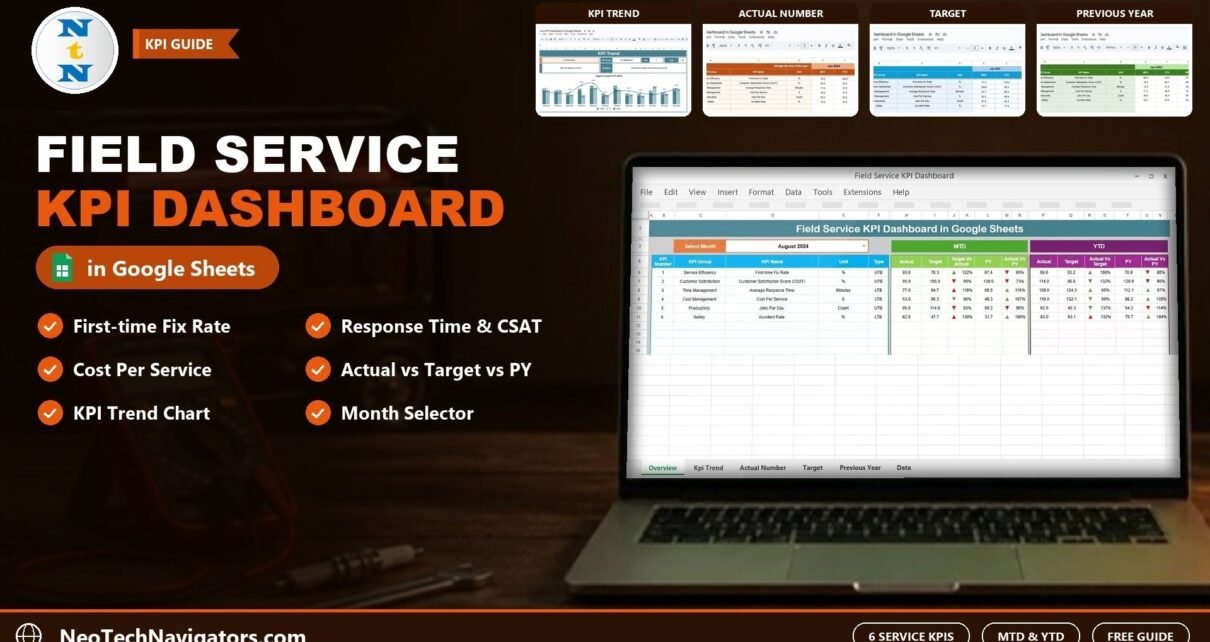
Choose a month in the Select Month drop-down in cell D3 (August 2024 in the screenshot). Each KPI row shows KPI Number, KPI Group, KPI Name, Unit and Type. The MTD block shows Actual, Target, Target Vs Actual, PY and Actual Vs PY; the YTD block shows Actual, Target, Actual Vs Target, PY and Actual Vs PY.
In the target comparison columns the arrow colour takes the KPI type into account, so Cost Per Service at 80% of target (an LTB KPI) shows a green arrow. In the Actual Vs PY columns the sample shows green for any value above last year, including LTB KPIs such as Average Response Time (116%), so read those KPIs against their Type before calling a rise good news.

Reading one row from the screenshot: First-time Fix Rate has an MTD Actual of 93.0 against a Target of 76.3, so Target Vs Actual is 122%. The previous year’s August figure was 97.4, so Actual Vs PY is 95%.
2. KPI Trend Sheet
Select a KPI in the Select KPI drop-down (cell C3). The sheet fills in the KPI Group, Unit, Type, Formula and Definition, and plots a Target Vs Actual Vs PY (MTD) chart for January to December. In the screenshot, Cost Per Service belongs to Cost Management, is measured in $, is an LTB KPI and uses the formula “Total cost / Number of services”.

3. Actual Number Sheet
Enter the actual MTD and YTD values for each KPI and month here. Cell E1 holds the first month of the year (Jan-2024 in the sample); change it and the month headers move with it, which lets you follow a fiscal year.

4. Target Sheet
Enter monthly MTD and YTD targets for each KPI. For LTB KPIs such as Average Response Time, the target is the ceiling you want to stay under.

5. Previous Year Number Sheet
Enter last year’s MTD and YTD values in the same layout (the sample starts at Jan-2023). These drive the PY columns on the Dashboard and the PY bars on the trend chart.

6. KPI Definition Sheet
The central list of KPIs with KPI Group, KPI Name, Unit, Formula, Definition and Type. Type is picked from a drop-down as UTB (Upper the Better) or LTB (Lower the Better).

The 6 Field Service KPIs and Their Formulas
| KPI (Group, Unit) | What it measures | Formula | Better when |
|---|---|---|---|
| First-time Fix Rate (Service Efficiency, %) | Percentage of issues resolved on the first visit | (First-time fixes / Total jobs) * 100 | Higher (UTB) |
| Customer Satisfaction Score (CSAT) (Customer Satisfaction, %) | Average customer feedback score after service completion | Average of customer survey scores | Higher (UTB) |
| Average Response Time (Time Management, Minutes) | Average time taken to respond to service calls | Average time to respond to calls | Lower (LTB) |
| Cost Per Service (Cost Management, $) | Average cost incurred per service job | Total cost / Number of services | Lower (LTB) |
| Jobs Per Day (Productivity, Count) | Number of service jobs completed per day | Total jobs / Number of days | Higher (UTB) |
| Accident Rate (Safety, %) | Frequency of accidents per job | (Accidents / Total jobs) * 100 | Lower (LTB) |
The comparison percentages are plain ratios of Actual to Target and Actual to PY. For Average Response Time in August 2024 (MTD):
Target Vs Actual = Actual / Target = 77.0 / 64.7 = 119%
Actual Vs PY     = Actual / PY     = 77.0 / 66.5 = 116%
Because Average Response Time is LTB, being 19% above target is bad news, and the Target Vs Actual column shows a red arrow. For a UTB KPI a result above 100% is green, as with First-time Fix Rate at 122%. Response time is also 16% slower than last August, which is worth flagging in your review even though the PY column marks it with a green up arrow.
How to Use It With Your Own Field Service Data
- Copy the file to your Google Drive with File > Make a copy.
- Review the KPI Definition sheet. Keep the six KPIs, rename them, or add rows for KPIs your contracts require. Set the Unit and the UTB/LTB type carefully.
- Set the first month of your reporting year in cell E1 of the Actual Number sheet.
- Enter targets for every month on the Target sheet, using your SLA commitments or last year’s results as a guide.
- Enter previous-year values on the Previous Year Number sheet.
- Calculate each month’s actuals from your job log (for example first-time fixes divided by total jobs) and type the MTD and YTD values on the Actual Number sheet.
- Review: pick the month in D3 on the Dashboard, then open KPI Trend for any KPI that is behind target.
Real-World Use Cases
- HVAC service company. The operations manager checks First-time Fix Rate and Cost Per Service each month to see whether better van stock is reducing repeat visits.
- Facility maintenance contractor. Average Response Time and CSAT are shared with the client every month as evidence of SLA performance.
- IT field support team. The team lead watches Jobs Per Day against target to plan technician capacity before busy periods, while Accident Rate stays on the safety agenda.
Spreadsheet KPI Dashboard vs Field Service Software
| Need | This Google Sheets dashboard | Field service management software |
|---|---|---|
| Monthly KPI review vs target and last year | Yes, MTD and YTD | Usually via reports |
| Job scheduling and dispatch | No | Yes |
| Data capture | Monthly totals typed in | Automatic from job records |
| Custom KPIs | Edit the KPI Definition sheet | Depends on the product |
| Sharing | Google Sheets link or view-only access | User accounts |
Best Practices
- Use one definition per KPI. Decide, for example, whether response time is measured from call receipt or from dispatch, and record it in the Definition column.
- Enter data on a fixed day each month so comparisons are like for like.
- Watch LTB KPIs closely. Response time, cost per service and accident rate are the ones clients and insurers ask about, and for these a figure above last year is a warning sign.
- Base targets on history. Use the Previous Year sheet to set realistic targets rather than guesses.
- Look at trends, not single months. Use the KPI Trend sheet in quarterly reviews.
Who Should Not Use This Template (Limitations)
- It does not schedule jobs, dispatch technicians or record individual work orders. Use a work order tracker or field service software for that.
- Numbers are entered manually as monthly totals; nothing is pulled from your job system automatically.
- It shows team-level KPIs, not a per-technician leaderboard.
Related Templates and Guides
To capture the jobs behind these numbers, see the Work Order Request Tracker in Google Sheets and the Equipment Maintenance Log Tracker in Google Sheets. Planned visits fit well in the Maintenance Schedule Calendar in Google Sheets. For other service KPI layouts, compare the Customer Service KPI Dashboard in Google Sheets and the Courier Service KPI Dashboard in Google Sheets.
Related templates: Excel users can use the Field Service KPI Dashboard in Excel.
If you would like to build reports like this yourself, the Excel Pivot Tables and Dashboards course on NextGenTemplates Academy teaches the dashboard skills in structured lessons.
Frequently Asked Questions
Which KPIs are included in the Field Service KPI Dashboard?
Six: First-time Fix Rate, Customer Satisfaction Score (CSAT), Average Response Time, Cost Per Service, Jobs Per Day and Accident Rate. You can edit or add KPIs on the KPI Definition sheet.
How do I calculate First-time Fix Rate?
Divide the jobs fixed on the first visit by total jobs and multiply by 100. For example, 186 first-time fixes out of 200 jobs gives 93%.
What is the difference between MTD and YTD here?
MTD is the value for the selected month only. YTD is the value from the first month of your year up to the selected month. Both are entered on the input sheets and compared on the Dashboard.
Why does a value above 100% of target show a red arrow?
In the target comparison columns, LTB KPIs such as Average Response Time, Cost Per Service and Accident Rate are worse when they are above target, so the arrow is red. For UTB KPIs a value above target is green. The Actual Vs PY arrows in the sample do not follow the type in the same way, so check the Type column when reading them.
Can I start the year in a month other than January?
Yes. Change cell E1 on the Actual Number sheet to your first month and the month headers adjust.
Wrapping Up
The Field Service KPI Dashboard in Google Sheets gives you a simple monthly scorecard for first-time fixes, customer satisfaction, response time, cost, productivity and safety, with comparisons against target and last year. Set up your KPI definitions and targets once, then spend a few minutes each month entering actuals and reviewing the results with your team.
Get the Field Service KPI Dashboard
📅 Last updated: October 2026