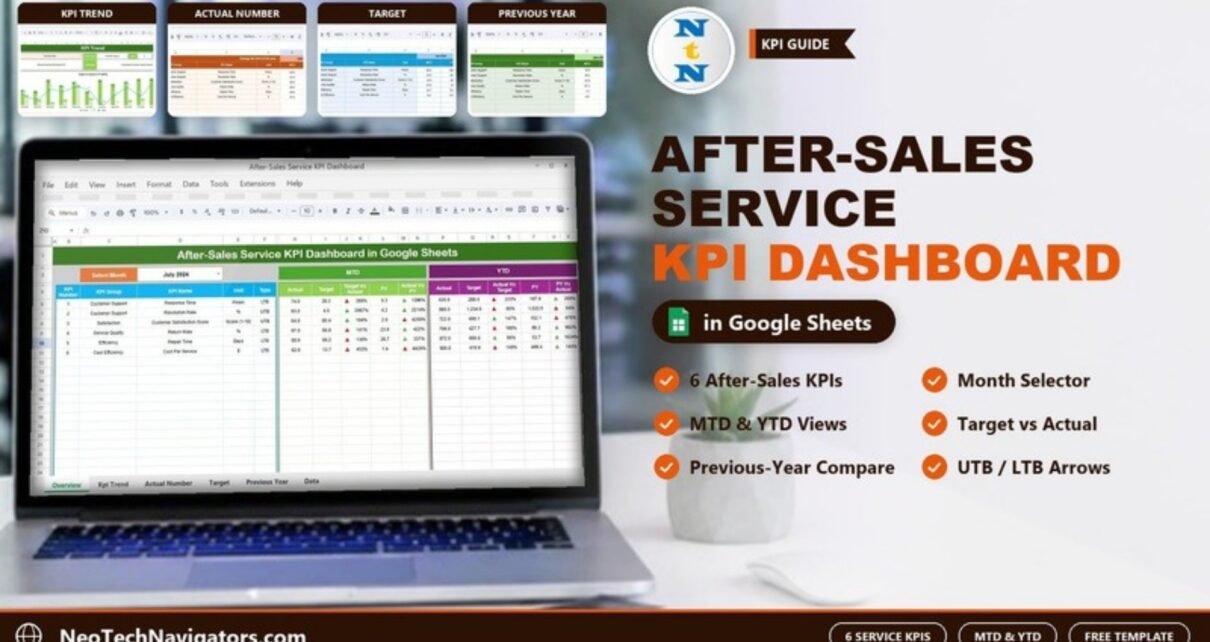
The After-Sales Service KPI Dashboard in Google Sheets helps service managers track what happens after a product is sold: how fast the team responds, how many queries get resolved, how satisfied customers are, how often products come back, how long repairs take and what each service costs. Choose a month, and every KPI shows its MTD and YTD actual against target and against the previous year.
The template has six tabs: Dashboard, KPI Trend, Actual Number, Target, Previous Year Number and KPI Definition. It comes with six ready-made after-sales KPIs. Everything is driven by simple input sheets, so the only thing you maintain is the monthly numbers.
Below is a tour of each sheet, the full KPI list with formulas, a worked example that explains how to read “Lower the Better” KPIs, and setup steps for your own service team.
🎥 Watch the Video Tutorial
Get the After-Sales Service KPI Dashboard
Why Track After-Sales Service KPIs?
For most product businesses, the after-sales experience shapes repeat purchases and reviews more than the sale itself. Slow responses, unresolved queries and repeat repairs all cost money and goodwill. Yet many teams only see these problems when complaints escalate.
A small set of KPIs, reviewed every month against clear targets, changes that. This dashboard gives service teams one shared report instead of numbers scattered across a ticketing tool, a returns log and a spreadsheet of repair jobs.
It suits:
- Customer service and support managers
- Field service and repair teams
- Manufacturers and retailers that handle returns and warranty repairs
- Operations managers and business owners who review service performance monthly
The Six After-Sales KPIs in the Template
These come straight from the template’s KPI Definition sheet. UTB means “Upper the Better”; LTB means “Lower the Better”.
| KPI | Group | Unit | Formula | Better when |
|---|---|---|---|---|
| Response Time | Customer Support | Hours | AVG(Response Time) | Lower (LTB) |
| Resolution Rate | Customer Support | % | (Resolved Queries / Total Queries) * 100 | Higher (UTB) |
| Customer Satisfaction Score | Satisfaction | Score (1-10) | AVG(CS Score) | Higher (UTB) |
| Return Rate | Service Quality | % | (Returned Items / Total Items Sold) * 100 | Lower (LTB) |
| Repair Time | Efficiency | Days | AVG(Repair Time) | Lower (LTB) |
| Cost Per Service | Cost Efficiency | $ | Total Cost / Number of Services | Lower (LTB) |
Each KPI also has a plain-language definition. For example, Return Rate is the “percentage of items returned after purchase”, and Repair Time is the “average time taken to repair a product”.
Sheet-by-Sheet Walkthrough
1. Dashboard Sheet
Select a month in the Select Month drop-down in cell D3 (July 2024 in the screenshot). The left side lists KPI Number, KPI Group, KPI Name, Unit and Type. The MTD block shows Actual, Target, Target Vs Actual, PY and Actual Vs PY. The YTD block shows Actual, Target, Actual Vs Target, PY and PY Vs Actual. Coloured up/down arrows flag the direction of each comparison.

2. KPI Trend Sheet
Choose a KPI in cell C3. The sheet shows its KPI Group, Unit, Type, Formula and Definition, plus a Target Vs Actual Vs PY (MTD) chart across all twelve months. The screenshot shows Resolution Rate: Customer Support group, unit %, type UTB, formula (Resolved Queries/Total Queries)*100.

3. Actual Number Sheet
Enter the actual results here, with an MTD and a YTD column for each month. The header in cell E1 sets the first month of the year (“Change the first of the year”), so the sheet also works for financial years.

4. Target Sheet
The Target sheet mirrors the actual sheet. Enter MTD and YTD targets for each KPI and month, and the dashboard uses them for the Target Vs Actual columns.

5. Previous Year Number Sheet
Last year’s figures go here in the same layout (Jan-2023 onwards in the sample). They power the PY columns and the year-over-year arrows.

6. KPI Definition Sheet
This sheet holds the group, name, unit, formula, definition and type (UTB/LTB) of every KPI. Add a row here to add a new KPI, and change the Type if a KPI’s direction is different in your business.

Worked Example: Reading “Lower the Better” KPIs
With July 2024 selected, the sample data shows these two MTD rows:
- Response Time (LTB): Actual 74.0 hours, Target 20.2, Target Vs Actual 366%
- Resolution Rate (UTB): Actual 93.0%, Target 4.5, Target Vs Actual 2067%
Both comparisons are the actual divided by the target:
Response Time:   74.0 / 20.2 ≈ 366%
Resolution Rate: 93.0 / 4.5  ≈ 2067%
The same ratio means opposite things for the two KPIs. For a UTB KPI like Resolution Rate, a value above 100% means the target was beaten. For an LTB KPI like Response Time, a value above 100% means the team was slower than target, which is bad. Always check the Type column before reading a percentage.
The sample values are placeholders that show how the sheet works. Real targets for a resolution rate would sit far closer to the actual, so replace them with your own numbers.
How to Use It With Your Own Data
- Review the six KPIs on the KPI Definition sheet. Keep, rename or add KPIs (for example First Contact Resolution) and set each Type.
- Set the first month of your year in cell E1 of the Actual Number sheet.
- Export monthly figures from your ticketing, returns and repair systems and enter MTD and YTD values.
- Agree targets with management and type them into the Target sheet.
- Enter last year’s results in the Previous Year Number sheet.
- Pick the month in D3 on the Dashboard and review the arrows with your team.
- Open KPI Trend for any KPI that needs a closer look across the year.
Three Real-World Use Cases
Appliance manufacturer service centre
The service head reviews Repair Time and Return Rate each month. A rising YTD Return Rate is passed to the quality team as an early warning about a product batch.
E-commerce support team
An online retailer tracks Response Time and Customer Satisfaction Score against targets and uses the MTD view to adjust staffing during sale periods.
Field service business
A company that installs and maintains equipment watches Cost Per Service and Resolution Rate together, so efficiency gains do not come at the cost of unresolved jobs.
Best Practices
- Define each KPI precisely. Decide whether Response Time counts calendar hours or business hours, and write it in the definition.
- Set realistic targets based on last year’s results, not wishful round numbers.
- Update on a fixed date every month so comparisons stay fair.
- Review LTB and UTB KPIs together. Faster repairs mean little if the Return Rate rises.
- Protect the Dashboard and KPI Trend sheets via Data > Protect sheets and ranges and leave only the input sheets editable.
Limitations
- It summarises monthly numbers. It is not a ticketing system and does not log individual cases.
- You enter or paste the figures yourself. There is no direct connection to help desk software.
- Agent-level or product-level breakdowns need separate KPIs or a different dashboard.
Related Templates and Further Reading
The same dashboard is available as an After-Sales Service KPI Dashboard in Excel and in Power BI. On NeoTech Navigators, related service templates include the Field Service KPI Dashboard, the Customer Service KPI Dashboard, the Customer Complaint Resolution KPI Dashboard and the Product Warranty Claim Tracker.
If you would like to build KPI reports like this from scratch, the Pivot Tables & Dashboards course on NextGenTemplates Academy covers dashboard design with structured lessons.
Frequently Asked Questions
Which KPIs are included in the After-Sales Service KPI Dashboard?
Six: Response Time, Resolution Rate, Customer Satisfaction Score, Return Rate, Repair Time and Cost Per Service. You can add more on the KPI Definition sheet.
What does “Lower the Better” mean?
It means a lower value shows better performance. Response Time, Return Rate, Repair Time and Cost Per Service are all LTB KPIs in this template.
How do I change the reporting month?
Use the drop-down in cell D3 of the Dashboard sheet. All MTD and YTD figures update to that month.
Can I start the year in April instead of January?
Yes. Change the first month in cell E1 of the Actual Number sheet.
Why should I track previous-year data?
It shows whether service is actually improving. A KPI can miss its target and still be much better than last year, and that context matters in reviews.
Do I need advanced Google Sheets skills?
No. You only type numbers into the input sheets and pick a month. The formulas and charts are already built.
Wrapping Up
The After-Sales Service KPI Dashboard in Google Sheets gives service teams a clear monthly scorecard for response, resolution, satisfaction, returns, repairs and cost. Set your KPI types correctly, load a year of targets and use the arrows to decide where to focus in each monthly review.
Get the After-Sales Service KPI Dashboard
📅 Last updated: October 2026