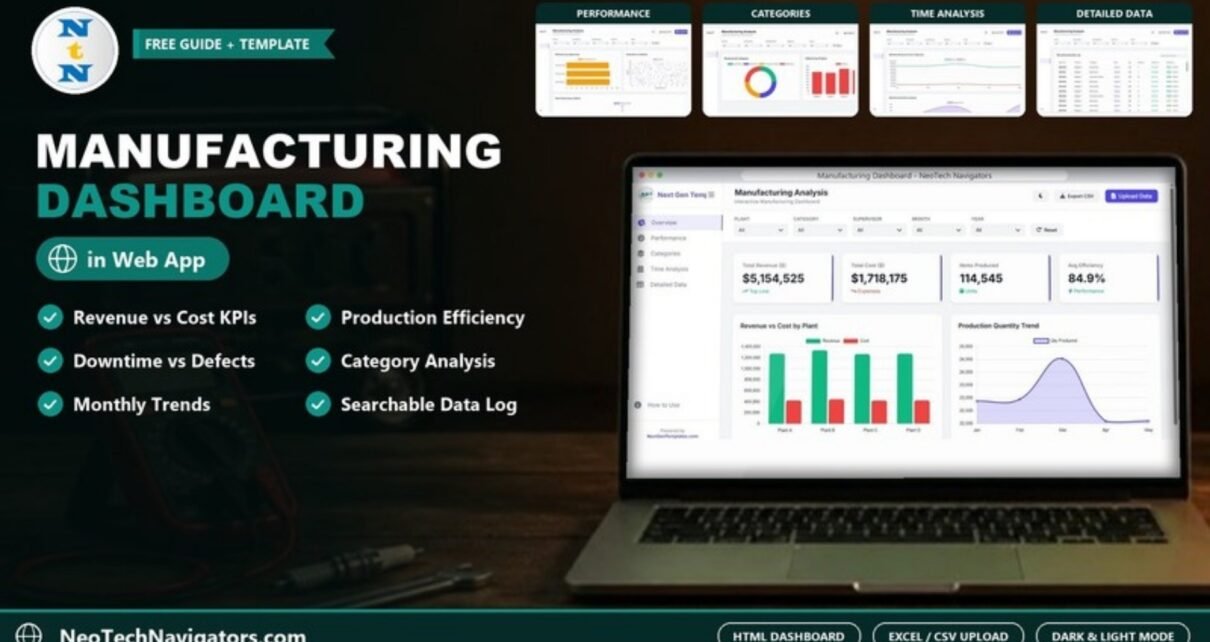
The Manufacturing Dashboard in HTML is a browser-based report that turns a production log into clear charts on revenue, cost, output, efficiency, downtime and defects. You load an Excel or CSV file, and the dashboard shows how each plant, supervisor and product category is performing, with no Excel formulas, Power BI licence or server needed.
It is aimed at plant managers, operations heads, production planners and small manufacturers who still compile weekly reports by hand from several spreadsheets. The dashboard has six pages in its sidebar: Overview, Performance, Categories, Time Analysis, Detailed Data and a How to Use guide, plus global filters, a search box, CSV export, an Upload Data button and a light/dark theme toggle.
This guide explains what each page shows, how the main manufacturing metrics are calculated, how to load your own data and where an HTML dashboard fits compared with Excel or Google Sheets.
🎥 Watch the Video Tutorial
Get the Manufacturing Dashboard in HTML
What Problem Does a Manufacturing Dashboard Solve?
Most factories already record the right data: what was produced, where, by which shift or supervisor, how many units were rejected and how long machines were down. The problem is that this information sits in separate sheets, so by the time someone has combined it into a report the week is already over.
A manufacturing dashboard puts those numbers on one screen and keeps them consistent. Instead of asking “which plant had the most downtime last month?” and waiting a day for an answer, a manager opens the dashboard, picks the plant and month in the filters and sees it immediately. That shortens the gap between a problem appearing on the shop floor and someone acting on it.
The HTML format adds two practical benefits: it opens in any modern browser on a desktop or tablet, and the file can be shared like any other document without installing software.
Dashboard Pages Explained
1. Overview
The Overview page gives the headline view with four KPI cards: Total Revenue ($), Total Cost ($), Items Produced and Avg Efficiency. With the sample data they show $5,154,525, $1,718,175, 114,545 units and 84.9%.
Two charts sit below the cards. Revenue vs Cost by Plant compares Plant A, Plant B, Plant C and Plant D side by side, so a plant whose cost bar is close to its revenue bar stands out at once. Production Quantity Trend shows quantity produced month by month and makes seasonal patterns or sudden drops easy to spot.

2. Performance
The Performance page looks at how well teams and facilities are running. Efficiency by Supervisor ranks supervisors by average efficiency (%). Downtime vs Defects plots each order’s downtime in hours against its defect count, showing whether orders with more machine stoppages also produce more rejects, which often points to a maintenance issue rather than an operator issue. The Plant Performance Matrix is a radar-style chart that compares the plants.

3. Categories
The Categories page breaks results down by product. Revenue by Category is a donut covering the four sample categories (Automotive, Electronics, Consumer Goods and Machinery), while Defects by Product shows the defect total for each product. Reading the two together tells you whether your best-selling category is also your most troublesome one.

4. Time Analysis
The Time Analysis page tracks the business month by month. Monthly Revenue & Cost Trajectory shows whether costs are rising faster than revenue, and Monthly Downtime Analysis charts downtime hours per month, revealing months with unusual stoppages, for example around planned maintenance or supply shortages.

5. Detailed Data
The Detailed Data page holds the full production log in a Manufacturing Data Log table with the columns Order ID, Product, Category, Plant, Qty, Defects, Revenue and Efficiency (shown with a small progress bar). A Search any column box filters the table by any value, for example an order number or plant name, and the dashboard shows how many records are currently displayed.

6. How to Use
A built-in guide page, linked at the bottom of the sidebar, explains how to upload data, use the filters and search, switch themes and export results, so new users can get started without a separate manual.
Interactive Features
- Excel and CSV upload: the Upload Data button loads a
.xlsxor.csvproduction file and every page recalculates. - Global filters: Plant, Category, Supervisor, Month and Year dropdowns plus a Reset button; all charts respond together.
- Search: find any record on the Detailed Data page.
- Export CSV: export the filtered rows for a report or for your ERP team.
- Light and dark themes: switch with the moon icon to suit the screen or the meeting room.
- Responsive layout: works on desktops and tablets, with a collapsible sidebar.
Key Manufacturing Metrics and How to Read Them
The four KPI cards are calculated from your data. The last two rows are ratios you can work out yourself from the same figures; they are not separate cards in the dashboard.
| Metric | What it measures | Formula | Better when |
|---|---|---|---|
| Total Revenue ($) | Value of production in the current filter | Sum of Revenue | Higher |
| Total Cost ($) | Production cost for the same records | Sum of Cost | Lower (relative to revenue) |
| Items Produced | Output volume | Sum of Qty | Higher (against plan) |
| Avg Efficiency | How close lines run to their standard | Average of Efficiency % | Higher |
| Defect rate (your own calculation) | Share of output rejected | Defects ÷ Qty | Lower |
| Gross margin (your own calculation) | What is left after production cost | (Revenue − Cost) ÷ Revenue | Higher |
Worked example with the sample data: Total Revenue is $5,154,525 and Total Cost is $1,718,175, so gross margin is (5,154,525 − 1,718,175) ÷ 5,154,525 ≈ 66.7%. At row level, order ORD1000 produced 320 units with 2 defects, a defect rate of 2 ÷ 320 ≈ 0.6%, while ORD1002 produced 239 units with 16 defects, about 6.7%. If you want to reproduce these checks in a spreadsheet, the formulas are simple:
Defect rate:  =SUM(Defects)/SUM(Qty)
Gross margin: =(SUM(Revenue)-SUM(Cost))/SUM(Revenue)
How to Use It with Your Own Data
- Open the dashboard HTML file in Chrome, Edge or another modern browser and explore the sample data.
- Prepare your production log in Excel or CSV with the same column headers as the sample file, including order, product, category, plant, supervisor, date, quantity, defects, downtime, revenue, cost and efficiency.
- Click Upload Data in the top-right corner and choose your file (the How to Use page explains the steps).
- Check the Overview cards against a total you already know, such as last month’s output, to confirm the columns mapped correctly.
- Apply the Plant, Supervisor or Month filters to answer specific questions, and press Reset to clear them.
- Click Export CSV when you need to share the detail behind a chart.
Real-World Use Cases
- Weekly operations meeting: the plant manager filters to the current month and walks through Efficiency by Supervisor and Downtime vs Defects instead of reading out a spreadsheet.
- Quality review: the QC lead uses Defects by Product to pick the items with the most rejects and searches the Detailed Data page for the orders involved.
- Multi-plant comparison: a group with several facilities uses Revenue vs Cost by Plant to decide where to schedule the next large order.
Best Practices
- Record data at the same grain every time (per order or per shift) so trends stay comparable.
- Standardise plant, product and supervisor names; small spelling differences split one bar into two.
- Read efficiency together with defects. A line running at high speed with rising rejects is not really efficient.
- Review monthly downtime against the maintenance calendar to separate planned from unplanned stoppages.
- Keep one master file and upload it again after each update rather than editing several copies.
Limitations and Who Should Not Use It
- It is not connected to machines, MES or ERP systems; data is loaded from a file, so it is only as current as the last upload.
- It reports on what happened. It does not schedule production or plan capacity.
- Teams that want to edit data together in the browser may prefer the Manufacturing Dashboard in Google Sheets.
- Very large datasets (hundreds of thousands of rows) are better handled in Power BI or a database tool.
HTML vs Excel vs Google Sheets
| Format | Best for | Trade-off |
|---|---|---|
| HTML (this dashboard) | Fast, polished viewing in any browser; file upload and CSV export | Data is edited outside the dashboard |
| Excel | Teams that already work in Excel and pivot tables | Needs Microsoft Excel on each computer |
| Google Sheets | Shared editing and access from anywhere | Slower with large data |
If you track targets as well as actuals, the Manufacturing KPI Dashboard in Google Sheets and the Manufacturing KPI Scorecard add month-to-date and year-to-date comparisons. Outsourced production? See the Contract Manufacturing Dashboard. For another HTML example in an operations setting, have a look at the Construction Dashboard in HTML.
Want to build reports like this yourself? The Excel Pivot Tables & Dashboards course on NextGenTemplates Academy covers the summary tables, KPI cards and charts behind dashboards step by step.
Frequently Asked Questions
Do I need to install anything to use the HTML dashboard?
No. It runs in a modern web browser such as Chrome or Edge. You open the file and upload your data.
Can I load my own Excel data?
Yes. The Upload Data button accepts Excel (.xlsx) and CSV files. Keep the column headers the same as the sample so every chart maps correctly.
Which filters are available?
Plant, Category, Supervisor, Month and Year, plus a Reset button. All pages update together when you change a filter.
Can I export the data?
Yes. The Export CSV button saves the filtered records for further analysis or for sharing with other teams.
Does it connect directly to my machines or ERP?
No. It reads files you upload. Export a production report from your system and load it into the dashboard.
Can I use it on a tablet on the shop floor?
Yes. The layout is responsive and works on tablets as well as desktop screens.
Wrapping Up
The Manufacturing Dashboard in HTML gives production teams a single, browser-based view of revenue, cost, output, efficiency, downtime and defects by plant, supervisor and product. Load last month’s production log, compare your plants on the Overview page, and use the Performance page to decide where your next improvement effort should go.
Get the Manufacturing Dashboard in HTML
📅 Last updated: October 2026