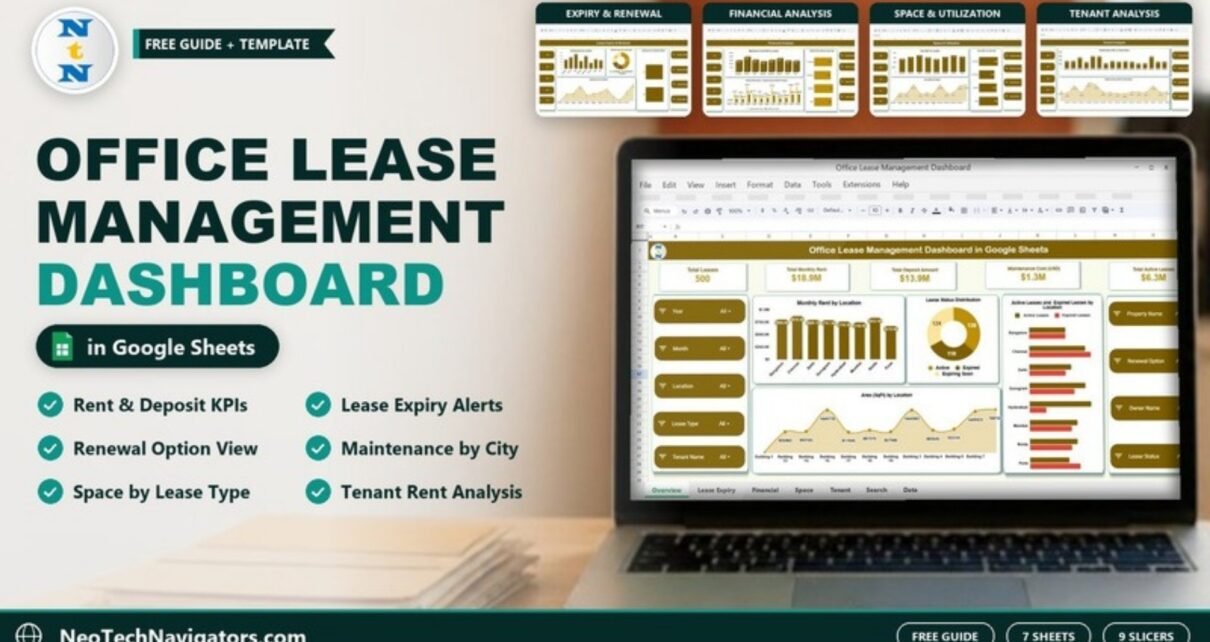
The Office Lease Management Dashboard in Google Sheets brings every office lease into one file and shows you, page by page, what you pay in rent, deposits and maintenance, how much space you hold, which leases are about to expire, and which tenants and properties carry the most cost.
It is designed for corporate real estate, admin and finance teams, facility managers and co-working operators who manage leases across several cities and buildings. This guide walks through all seven sheets – Overview, Lease Expiry & Renewal, Financial Analysis, Space & Utilization, Tenant Analysis, Search and Data – using the real figures from the sample file, then shows how to load your own leases.
🎥 Watch the Video Tutorial
Get the Office Lease Management Dashboard
Why Use an Office Lease Management Dashboard in Google Sheets?
A lease portfolio fails quietly. A renewal date slips past, a deposit is never reclaimed, or one city’s maintenance bill creeps up without anyone noticing. When leases sit in separate agreements and spreadsheets, these problems only surface at audit time. A dashboard puts the money, the dates and the space on the same screen, so you can act before a deadline rather than after it.
Slicers on Every Analysis Page
Each analysis page has the same nine slicers down the left and right sides: Year, Month, Location, Lease Type, Tenant Name, Property Name, Renewal Option, Owner Name and Lease Status. Set Location to Delhi, for example, and every chart on the page shows Delhi leases only. Set them back to All to see the whole portfolio.
1. Overview Sheet
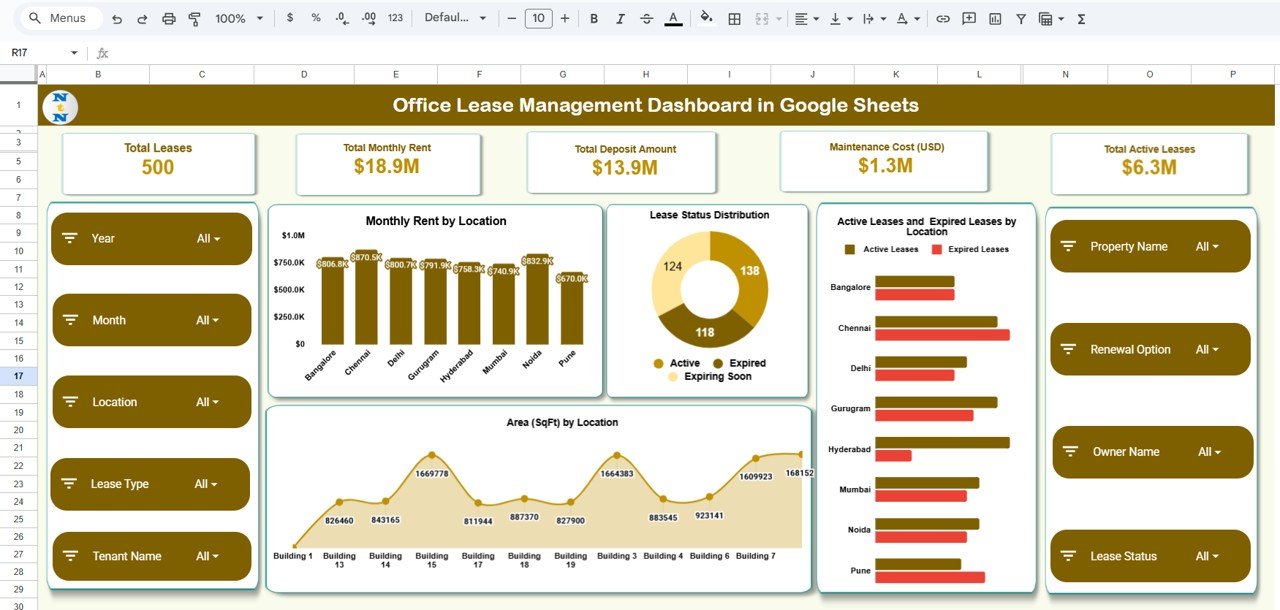
The Overview page combines five KPI cards with four charts.
| KPI card | What it measures | Sample value |
|---|---|---|
| Total Leases | Number of lease records | 500 |
| Total Monthly Rent | Sum of Monthly Rent (USD) | $18.9M |
| Total Deposit Amount | Sum of Deposit Amount (USD) | $13.9M |
| Maintenance Cost (USD) | Sum of Maintenance Cost (USD) | $1.3M |
| Total Active Leases | Card for active leases; the sample file displays it as a dollar value | $6.3M |
The charts are:
- Monthly Rent by Location across eight cities – Bangalore, Chennai, Delhi, Gurugram, Hyderabad, Mumbai, Noida and Pune. Chennai is highest in the sample at $870.5K and Pune lowest at $670.0K.
- Lease Status Distribution – a donut of Active (138), Expiring Soon (124) and Expired (118) leases.
- Active Leases and Expired Leases by Location – side-by-side bars per city.
- Area (SqFt) by Location – an area chart of square footage by building.
2. Lease Expiry & Renewal Sheet
This page is the early-warning screen. It answers one question: which leases need a decision soon?
- Expiring Soon by Location – Delhi has the most leases expiring soon (23), followed by Hyderabad (20) and Chennai (18). The eight city bars add up to 124, matching the Expiring Soon slice on the Overview.
- Expired Leases by Lease Type – Co-working 40, Industrial 25 and Commercial 21.
- Expiring Soon by Renewal Option – leases split into Yes and No, so you know which ones can be renewed under existing terms.
- Expiring Soon by Property – counts by building; Building 15 shows 19 and the highest point on the chart reaches 22.

3. Financial Analysis Sheet
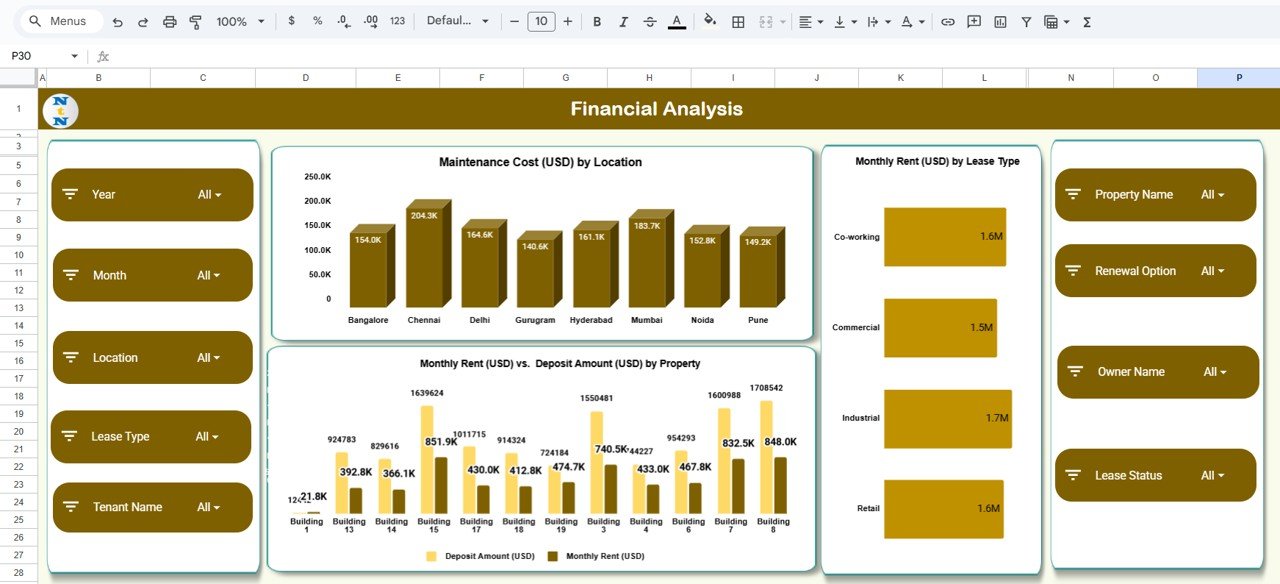
- Maintenance Cost (USD) by Location – Chennai is highest at $204.3K and Gurugram lowest at $140.6K. The eight bars add up to about $1.3M, the same as the Maintenance Cost card.
- Monthly Rent (USD) by Lease Type – Industrial $1.7M, Co-working $1.6M, Retail $1.6M and Commercial $1.5M.
- Monthly Rent (USD) vs Deposit Amount (USD) by Property – paired bars per building, useful for spotting buildings where the deposit is far out of line with the rent.
4. Space & Utilization Sheet
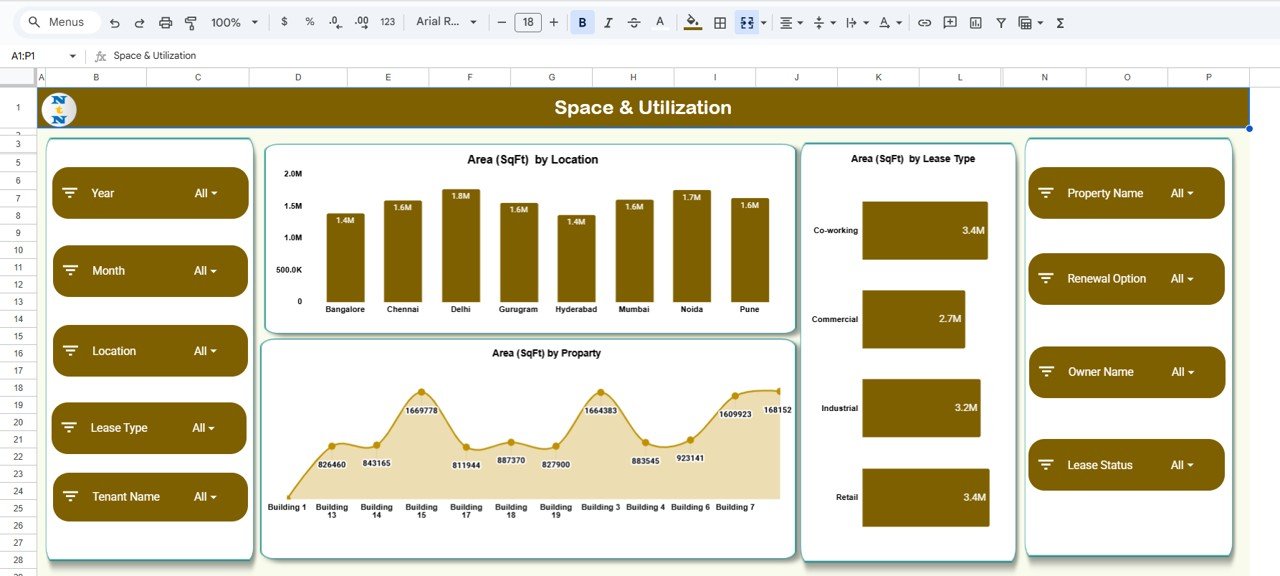
- Area (SqFt) by Location – between 1.4M and 1.8M sqft per city, with Delhi largest at 1.8M.
- Area (SqFt) by Lease Type – Co-working 3.4M, Retail 3.4M, Industrial 3.2M and Commercial 2.7M sqft.
- Area (SqFt) by Property – square footage per building.
Use this page for workspace planning and consolidation: if a city holds a lot of space but little rent or few active leases, it is a candidate for review.
5. Tenant Analysis Sheet
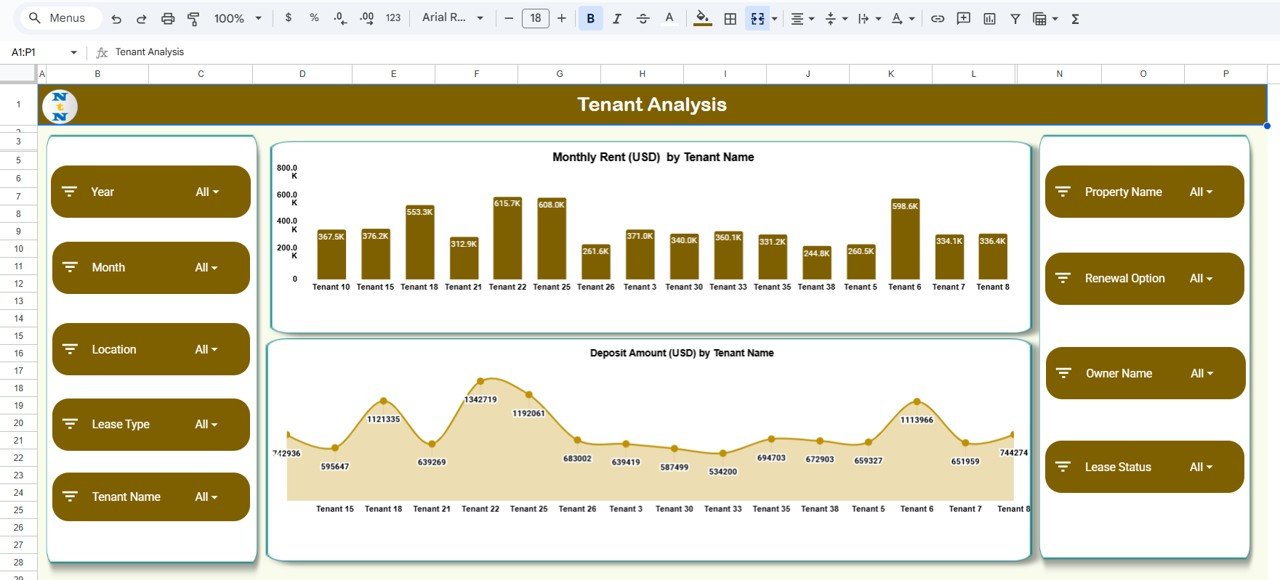
- Monthly Rent (USD) by Tenant Name – Tenant 22 ($615.7K), Tenant 25 ($608.0K) and Tenant 6 ($598.6K) lead in the sample.
- Deposit Amount (USD) by Tenant Name – deposits per tenant, with Tenant 22 again highest at 1,342,719.
6. Search Sheet
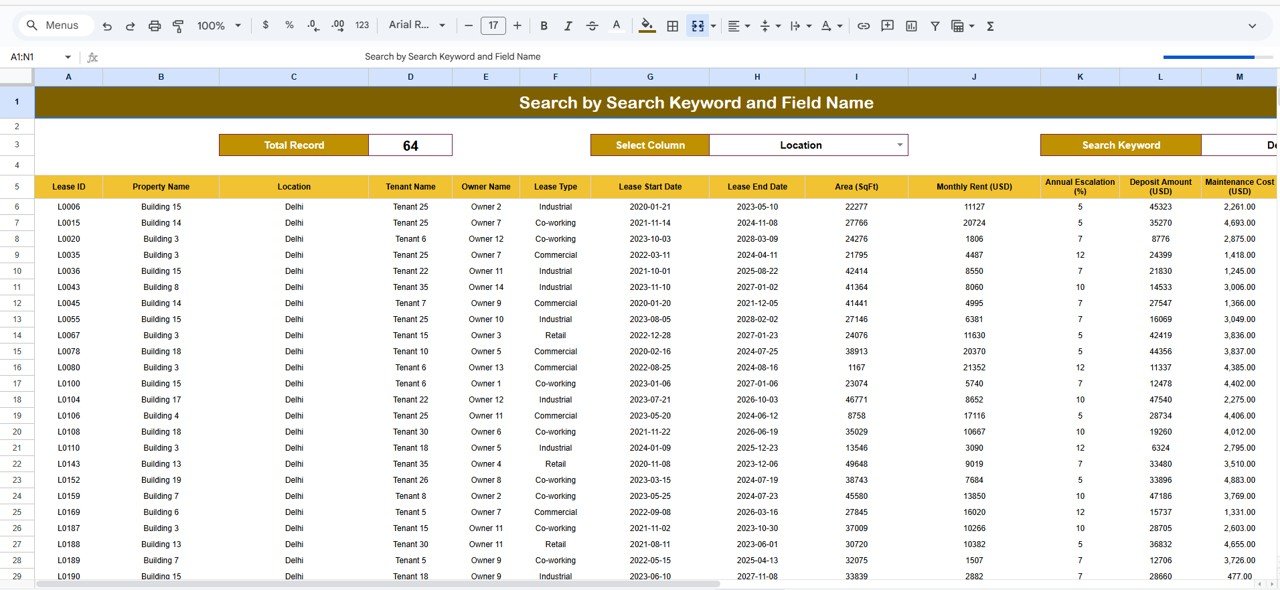
The Search sheet (Search by Search Keyword and Field Name) filters the lease list. Choose a field in Select Column, type a value in Search Keyword, and the matching leases appear with a Total Record count. In the sample, Location = Delhi returns 64 leases. You can search on any column, such as Tenant Name, Lease Type or Owner Name.
7. Data Sheet
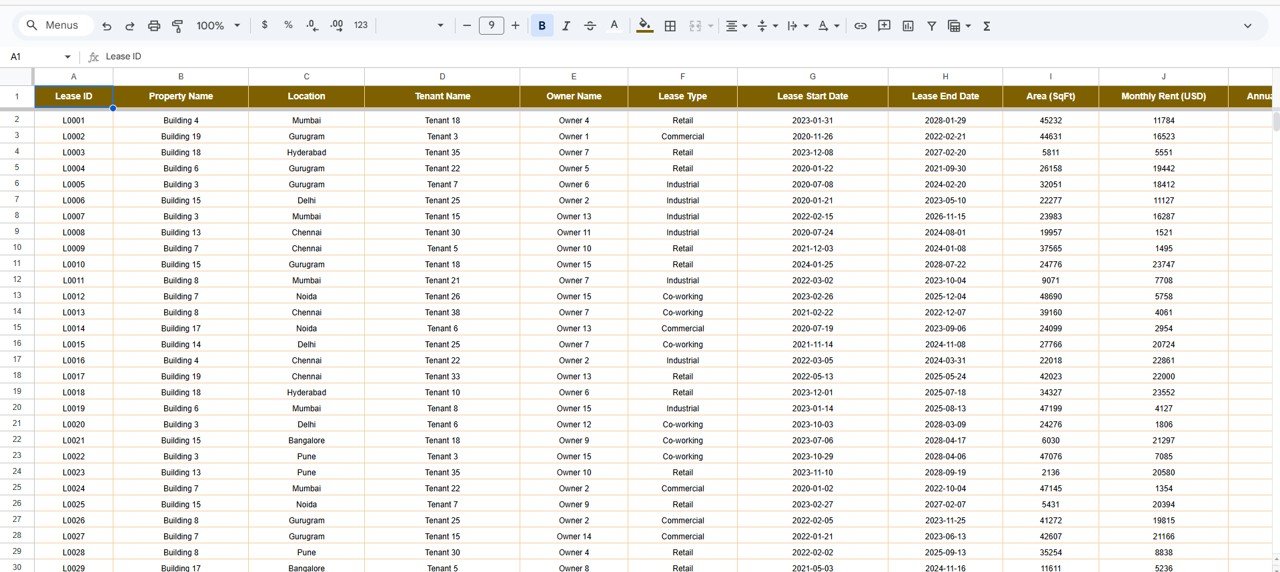
The Data sheet holds one row per lease. Columns include Lease ID (L0001 …), Property Name, Location, Tenant Name, Owner Name, Lease Type (Retail, Commercial, Industrial, Co-working), Lease Start Date, Lease End Date, Area (SqFt), Monthly Rent (USD), Annual Escalation (%), Deposit Amount (USD) and Maintenance Cost (USD), and the Lease Status and Renewal Option values that the slicers filter on. Every page reads from this sheet.
How to Use It With Your Own Leases
- Make a copy of the file (File → Make a copy).
- Clear the sample rows in the Data sheet and keep the headers unchanged.
- Enter one row per lease with a unique Lease ID, the start and end dates from the agreement, and rent, deposit and maintenance in one currency.
- Set the status of each lease (for example Active, Expiring Soon or Expired) and the Renewal Option (Yes or No).
- Record Annual Escalation (%) from each agreement so you can review rent increases.
- Open the Overview and confirm Total Leases equals your row count.
- Check the Lease Expiry & Renewal page monthly and start renewal talks for every lease that appears there.
Real-World Use Cases
1. Multi-city corporate offices
An admin team with offices in eight cities uses the Location slicer and the Expiring Soon chart to plan renewals city by city.
2. Co-working and flexible space operators
An operator compares Area by Lease Type with Rent by Lease Type to see whether co-working space earns enough per square foot compared with commercial leases.
3. Finance and audit reviews
Finance uses the Tenant Analysis and Rent vs Deposit charts to verify deposits held and to flag buildings with unusually high maintenance costs.
Best Practices
- Update lease status on the day an agreement is signed, renewed or terminated.
- Agree on a rule for “Expiring Soon” (for example, within 90 days of the end date) and apply it to every lease.
- Keep one currency across all money columns.
- Review maintenance by location every quarter.
- Store a link to the signed agreement in your own records so each Lease ID can be traced to the document.
Limitations
The dashboard does not send expiry reminders, store lease documents or calculate escalated future rent for you. It reports on what you enter, so its accuracy depends on keeping status and dates current. Organisations with hundreds of properties and legal workflows may eventually need dedicated lease-administration software; this template is ideal before that point, or as a reporting layer next to it.
Related Dashboards and Guides
For a broader property view, see the Lease & Property Insights Dashboard in Google Sheets and the Commercial Lease Analytics Dashboard. To manage renewal requests as a workflow, use the Office Lease Renewal Request Tracker. Landlords and property managers can also look at the Property Management KPI Dashboard in Google Sheets.
Prefer another tool? The same template is available as the Office Lease Management Dashboard in Excel and the Power BI version.
If you want to learn how dashboards like this are built, the Excel Pivot Tables & Dashboards course on NextGenTemplates Academy covers summaries, charts and slicers step by step.
Frequently Asked Questions
What does the Office Lease Management Dashboard in Google Sheets track?
Lease counts, monthly rent, deposits, maintenance cost, leased area, lease status and renewal options, analysed by location, lease type, property, tenant and owner across five analysis pages.
Which lease statuses does it use?
The Lease Status Distribution chart in the sample shows three statuses: Active (138 leases), Expiring Soon (124) and Expired (118). The Lease Status slicer lets you filter every page by status.
Can I filter the dashboard by city or tenant?
Yes. Every analysis page has nine slicers, including Location, Tenant Name, Property Name, Owner Name and Lease Status.
Does it handle different lease types?
Yes. The sample data includes Retail, Commercial, Industrial and Co-working leases, and several charts break rent, area and expiries down by lease type.
Can I see which leases can be renewed?
Yes. The Expiring Soon by Renewal Option chart splits upcoming expiries into Yes and No.
Is there an Excel or Power BI version?
Yes, both are available on NextGenTemplates and are linked in the related templates section above.
Wrapping Up
The Office Lease Management Dashboard in Google Sheets gives you one shared place to see rent, deposits, maintenance, space and expiries across every office. Load your current leases into the Data sheet, mark their status, and make the Lease Expiry & Renewal page part of your monthly review so no renewal date catches you by surprise.
Get the Office Lease Management Dashboard
📅 Last updated: October 2026