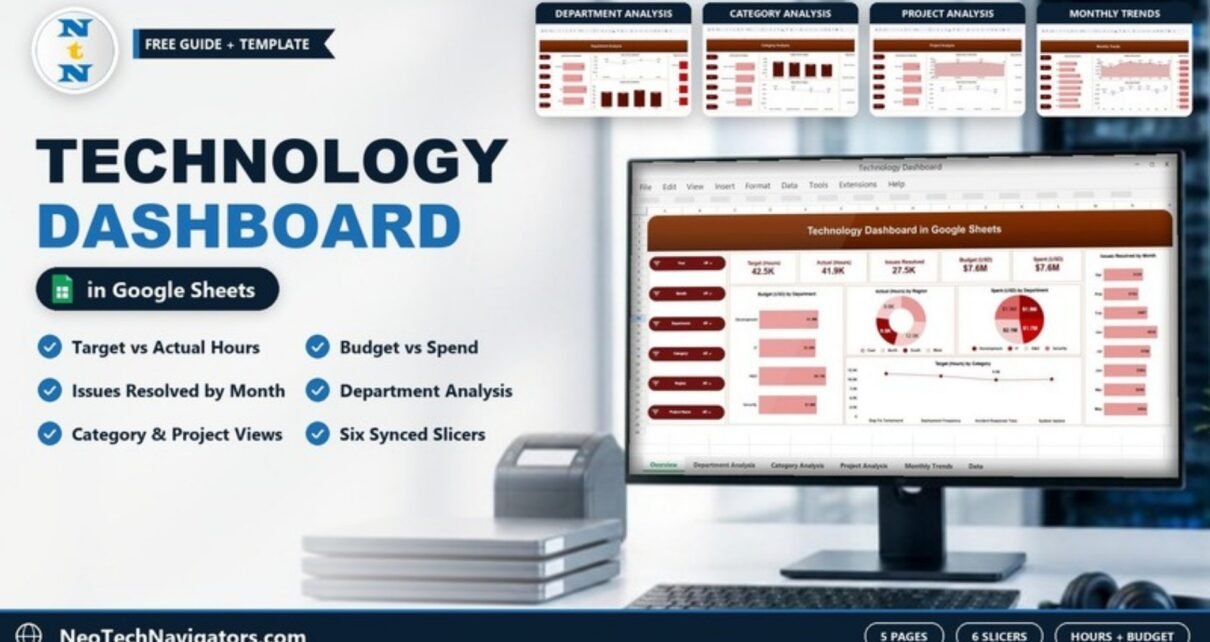
The Technology Dashboard in Google Sheets tracks planned and actual hours, issues resolved, budget and spend for IT and technology teams in one interactive file. It has five pages: Overview, Department Analysis, Category Analysis, Project Analysis and Monthly Trends. Six slicers (Year, Month, Department, Category, Region and Project Name) filter every chart.
It is aimed at IT managers, CTOs, engineering leads and PMOs who need to answer a few recurring questions. Are we working the hours we planned? Is any department or project spending more than its budget? How many issues are we resolving each month? Every page reads from the same dataset, so you update the data once and all five pages refresh.
🎥 Watch the Video Tutorial
What Problem Does It Solve?
Technology teams usually keep hours in a timesheet tool, budgets with finance and issue counts in a ticketing system. Leaders then spend the first part of every review meeting reconciling numbers. This dashboard combines the three views (effort, cost and output) and splits them the way IT leaders usually ask: by department, by type of work, by project and by month.
KPI Cards in the Technology Dashboard in Google Sheets
Five cards run across the top of the Overview page. The sample values below are taken from the template screenshot.
| KPI card | What it shows | Sample value | Better when |
|---|---|---|---|
| Target (Hours) | Total planned hours for the filtered data | 42.5K | Benchmark, used as the reference for Actual |
| Actual (Hours) | Total hours actually worked | 41.9K | Close to target. Far above signals overload, far below signals under-delivery. |
| Issues Resolved | Number of issues closed | 27.5K | Higher |
| Budget (USD) | Total approved budget | $7.6M | Benchmark for Spent |
| Spent (USD) | Total amount spent | $7.6M | At or below Budget |
The Five Pages
1. Overview
Besides the KPI cards and slicers, the Overview page has five charts:
- Budget (USD) by Department: Development $1.9M, IT $1.8M, R&D $2.1M, Security $1.8M.
- Actual (Hours) by Region: a doughnut across East, North, South and West.
- Spent (USD) by Department: a pie showing each department’s share of spend.
- Target (Hours) by Category: planned hours for Bug Fix Turnaround, Deployment Frequency, Incident Response Time and System Uptime.
- Issues Resolved by Month: January is highest at 4,252 and August lowest at 2,765 in the sample.

2. Department Analysis
This page has four charts: Actual (Hours), Spent (USD), Budget (USD) and Target (Hours) by Department. The sample has four departments: Development, IT, R&D and Security. R&D has the most planned hours (11.6K) and worked exactly that. IT worked 9.6K against 9.9K planned.

3. Category Analysis
Work is grouped into four categories: Bug Fix Turnaround, Deployment Frequency, Incident Response Time and System Uptime. The page shows Actual (Hours), Budget (USD), Spent (USD) and Target (Hours) for each one. In the sample, Bug Fix Turnaround takes the most effort (11.4K actual hours) and the largest budget ($2.1M).

4. Project Analysis
The same four measures appear by project: Project Alpha, Beta, Delta and Gamma. Project Delta has the most hours (11.2K actual against 11.5K target). Project Gamma is the smallest (9.5K actual hours, $1.7M spent).

5. Monthly Trends
Actual (Hours), Budget (USD), Spent (USD) and Target (Hours) by month show seasonality and drift. In the sample, January is the busiest month (6.1K actual hours, about $1.1M spent), and August is the quietest (4.1K hours).

Worked Example: Two Checks Worth Doing Every Month
1. Hours delivery. Divide actual hours by target hours:
Hours delivery % = Actual (Hours) / Target (Hours)
Overall: 41.9K / 42.5K = 98.6%
IT:       9.6K /  9.9K = 97.0%
Security: 10.1K / 10.5K = 96.2%
All departments are close to plan. Security is the furthest behind, so it is the first one to ask about.
2. Budget vs. spend. Compare the Budget and Spent charts for the same slice. Using the rounded figures on the charts:
- Project Alpha: $1.8M budget, $1.9M spent, so slightly over.
- Security: $1.8M budget, $1.9M spent, so slightly over.
- August: $736.2K budget, $750.0K spent, so over. March came in under at $891.1K budget and $844.5K spent.
Filter the dashboard with the Project Name or Department slicer to confirm the exact amounts before you raise them in a review. If you want to build these comparisons with your own pivot tables and charts, the Pivot Tables & Dashboards course on NextGenTemplates Academy teaches the method step by step.
How to Use It With Your Own Data
- Make a copy (File > Make a copy) so you can edit it.
- Replace the sample rows in the data sheet with your own records, keeping the existing column layout. The pages group by year, month, department, category, region and project, and add up target hours, actual hours, issues resolved, budget and spent.
- Rename categories and projects to match your organisation, and keep the spelling identical in every row.
- Update weekly or monthly, using the same period length each time so the monthly charts stay comparable.
- Use the slicers to prepare views for each audience, such as one department for its manager or one project for its sponsor.
- Share view-only access with stakeholders, and give edit access only to the person who maintains the data.
Real-World Use Cases
- In-house IT department: report planned vs. actual effort and spend to the finance team every month.
- Software consultancy: track hours and budget for each client project and catch overruns early.
- SRE or operations team: compare effort on Incident Response Time and System Uptime against Bug Fix Turnaround to justify reliability investment.
Best Practices
- Set targets before the month starts. Do not adjust them afterwards to match actuals.
- Read hours and money together. A project that is on budget but far below its planned hours may be under-delivering.
- Review the Issues Resolved trend alongside actual hours to spot productivity changes.
- Keep region and department lists short and fixed so the charts stay readable.
Which Page Answers Which Question?
| Question | Page to open |
|---|---|
| Are we on plan overall this month? | Overview (KPI cards with the Month slicer) |
| Which team is behind on hours or over budget? | Department Analysis |
| Is too much effort going into bug fixing rather than reliability? | Category Analysis |
| Which project needs a budget conversation? | Project Analysis |
| Is our workload seasonal? | Monthly Trends |
Answering one question per page keeps review meetings focused and stops the discussion from jumping between unrelated numbers.
Limitations
The dashboard summarises data you enter. It does not pull hours from Jira or timesheet tools, or spend from your accounting system. It also does not track individual tickets or engineers. If you need SLA timers, per-ticket detail or live DevOps metrics, pair it with a ticket tracker or monitoring tool and use this file for monthly management reporting.
Related Guides and Templates
For a broader IT view, see the IT Dashboard in Google Sheets and the IT KPI Scorecard. Engineering-focused teams may prefer the Software Development KPI Dashboard or the DevOps KPI Dashboard. For infrastructure and operations, read the IT Operations KPI Dashboard.
Related templates: the Technology Dashboard is also available in Excel and in Power BI.
Frequently Asked Questions
What does the Technology Dashboard in Google Sheets track?
It tracks target hours, actual hours, issues resolved, budget and amount spent. You can split these by department, category, region, project and month.
Which filters are included?
Six slicers: Year, Month, Department, Category, Region and Project Name. They appear on every page.
Can I change the departments, categories or projects?
Yes. Replace the values in your data rows. The charts group by whatever names you use, so keep the spelling consistent.
Does it connect to Jira or my timesheet tool?
No. You enter or paste the data yourself. Many teams export a monthly CSV from their tools and paste it into the data sheet.
Is there an Excel or Power BI version?
Yes. NextGenTemplates offers the Technology Dashboard in Excel and in Power BI as well as Google Sheets.
Wrapping Up
When hours, budget and output sit on one page, technology reviews become shorter and more useful. The Technology Dashboard in Google Sheets gives you five KPI cards, five focused pages and six slicers, all fed by one dataset. Load last quarter’s numbers and run the two monthly checks above: hours delivery and budget vs. spend. They will show you where to look first.
📅 Last updated: October 2026