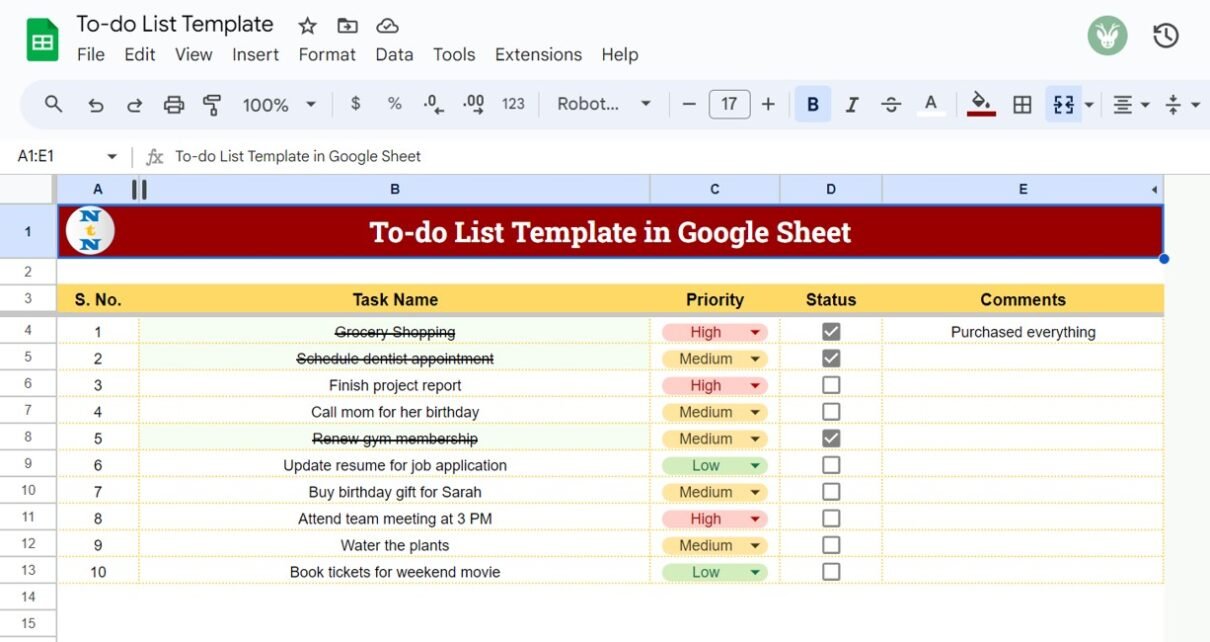
This to-do list template in Google Sheets is a simple, ready-to-use task list with five columns: an automatic serial number, the task name, a colour-coded Priority dropdown, a Status checkbox and a Comments field. When you tick a task, its name is struck through and shaded, so you can see at a glance what is done and what is still open.
It suits anyone who wants a quick personal or household list that works on phone and desktop and can be shared with family or a small team. Below you will find what each column does, how the template is built (dropdown, checkbox and one conditional formatting rule), how to adapt it, and its honest limits.
🎥 Watch the Video Tutorial
Open the Free To-Do List Template
What Is Inside the To-Do List Template in Google Sheets
The sheet is titled “To-do List Template in Google Sheet”. Headers sit in row 3 and tasks start in row 4. The sample holds 10 tasks, such as “Grocery Shopping”, “Finish project report” and “Book tickets for weekend movie”.

| Column | Header | What you do | How it works |
|---|---|---|---|
| A | S. No. | Nothing | Generated automatically |
| B | Task Name | Type the task | Struck through and shaded when Status is ticked |
| C | Priority | Pick from the dropdown | High, Medium or Low, shown as coloured chips (red, amber, green) |
| D | Status | Tick when done | Checkbox (TRUE when ticked) |
| E | Comments | Optional note | Free text, e.g. “Purchased everything” |
How to Use It with Your Own Tasks
- Open the template and choose File > Make a copy to save your own editable version to Google Drive.
- Delete the sample task names in column B and the notes in column E. Leave column A alone, because it numbers itself.
- Type your tasks in column B, one per row.
- Set a Priority for each task from the dropdown in column C.
- Tick the Status checkbox in column D when a task is finished. The task name is struck through and shaded straight away.
- Use Comments for anything that helps, such as who is responsible, a phone number or what is left to do.
- To see open tasks first, turn on a filter (Data > Create a filter) and sort Status so FALSE appears on top.
How the Template Is Built (Build It Yourself)
If you prefer to understand or recreate the template, these are the building blocks.
1. Priority dropdown
- Select C4:C13 (or further down for more tasks).
- Go to Insert > Dropdown (or Data > Data validation > Add rule).
- Enter three options: High, Medium and Low.
- Give each option a colour: red for High, amber for Medium and green for Low. Set the display style to Chip.
2. Status checkbox
Select D4:D13 and choose Insert > Checkbox. A ticked box stores TRUE and an empty box stores FALSE, which is what the formatting rule below checks.
3. Strike-through on completed tasks
- Select the task names, B4:B13.
- Open Format > Conditional formatting and choose Custom formula is.
- Enter the formula below, then pick a light fill colour and the strikethrough (S) button under Formatting style.
=$D4=TRUEThe $ before D locks the rule to the Status column, while the row number changes for each task.
4. Automatic serial number
The template fills S. No. for you. If you are building your own version, one simple way is a formula in A4, copied down, that numbers only rows that have a task:
=IF(B4="","",ROW()-3)ROW() returns 4 in row 4, so subtracting 3 starts the list at 1.
Worked Example: Progress at a Glance
In the sample, three of the ten tasks are ticked: “Grocery Shopping”, “Schedule dentist appointment” and “Renew gym membership”. You can add a one-cell progress figure anywhere above the list:
=COUNTIF(D4:D13,TRUE)/COUNTA(B4:B13)Format it as a percentage (Format > Number > Percent). With the sample data it returns 3 ÷ 10 = 30%. To count open high-priority tasks:
=COUNTIFS(C4:C13,"High",D4:D13,FALSE)In the sample this returns 2: “Finish project report” and “Attend team meeting at 3 PM”. “Grocery Shopping” is also High priority, but it is already done.
Three Real-World Ways to Use It
- Household errands: share the sheet with family members so everyone can see what has been bought, booked or paid.
- Weekly work list: set priorities on Monday, tick tasks through the week and clear the done items on Friday.
- Event or trip checklist: list every booking and purchase and use Comments for confirmation numbers.
Best Practices
- Keep task names short and start them with a verb (“Call”, “Book”, “Send”).
- Limit High priority to a few items. If everything is High, the colour stops meaning anything.
- Review the list at the same time every day or week, and move finished tasks out once the list gets long.
- When you add rows, extend the dropdown, checkbox and conditional formatting ranges to cover them.
Which To-Do List Should You Use?
This simple list is one of several free and paid options. The table compares it with the free To Do List Template on NextGenTemplates and the paid Task Management Tracker, based on what each one actually contains.
| Feature | This simple list | To Do List Template (NextGenTemplates, free) | Task Management Tracker (paid) |
|---|---|---|---|
| Checkbox to mark a task done | Yes, with strike-through | Yes, with strike-through and grey row | Yes |
| Priority dropdown | High, Medium, Low | High, Medium, Low plus a Category dropdown | Priority breakdown on the dashboard |
| Due dates and automatic status | No | Yes: Done, Overdue, Due Soon or Open, plus Days Left | Yes |
| Summary cards | No | 6 KPI cards and a % complete progress bar | Dashboard with priority and status breakdowns |
| Task owners for a team | No | No (single person) | Yes |
| Best for | A quick personal or household list | Personal tasks with deadlines | Teams sharing work |
Who Should Not Use This Template (Limitations)
This is a deliberately simple list. It has no due dates, no task owners, no reminders and no dashboard. If you manage a team, deadlines or many projects, a tracker with dates and statuses will serve you better. Examples include our Task Management Tracker in Google Sheets and the Task Priority Tracker. For a daily routine, the Daily To-Do List Checklist is a better fit.
For a full walkthrough of building a checkbox list from scratch, read how to make a to-do list in Google Sheets with checkboxes. To speed up the dropdowns on larger lists, see these tips for faster dropdowns.
New to spreadsheets? The learning paths on NextGenTemplates Academy give you a structured order of lessons, from basic formatting to formulas and dashboards.
Frequently Asked Questions
Is this to-do list template free?
Yes. Open the link above and use File > Make a copy to save your own editable version to Google Drive.
How do I add more rows?
Right-click a row number and choose Insert 1 row below, or copy the last task row down. Then check that the dropdown, checkbox and conditional formatting ranges include the new rows.
Can I add due dates?
Yes. Insert a column, format it as a date and use Data > Data validation > Is valid date to get a date picker. You can then add a conditional formatting rule such as =AND($D4=FALSE,$F4<TODAY()) (with due dates in column F) to flag overdue tasks.
Does it work on mobile?
Yes. In the Google Sheets app you can tap the checkboxes and the priority dropdowns, and the strike-through appears the same way.
Can several people use the same list?
Yes. Click Share, add people as editors, and everyone sees ticks and comments in real time.
Wrapping Up
A to-do list does not need to be complicated. A priority dropdown, a checkbox and one conditional formatting rule are enough to show what is done and what matters next. Make your copy, replace the sample tasks with your own, and tick off the first one today. If you later need due dates and an automatic status, the free To Do List Template on NextGenTemplates adds both.
Get the Free To Do List Template with Due Dates
📅 Last updated: October 2026