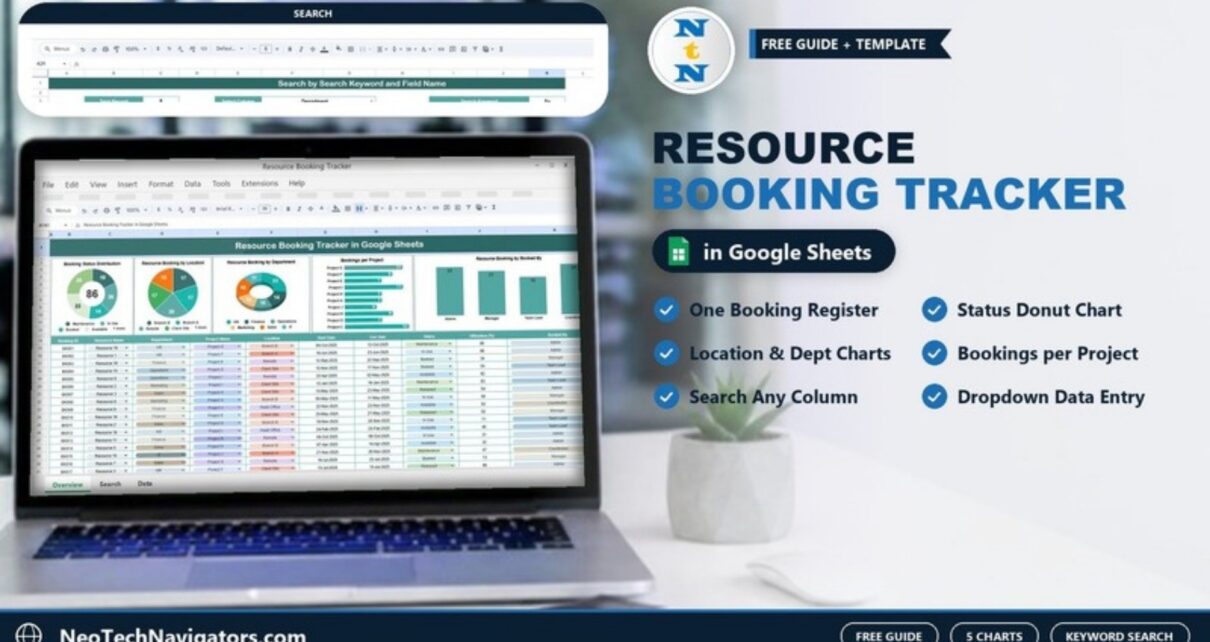
The Resource Booking Tracker in Google Sheets gives you one shared file to log every booking of a room, device, vehicle or tool, and to see at a glance who is using what, where and for which project. Instead of chasing emails and calendar invites, you keep a single booking register and let the charts on top of it do the reporting.
This guide is for office administrators, facilities teams, project coordinators and IT teams who share a pool of resources across departments and locations. Below you will see exactly what is inside the template: the Tracker sheet with five charts and a dropdown-driven booking table, the Search sheet that filters records by any column, and how to set it up with your own data.
🎥 Watch the Video Tutorial
Get the Resource Booking Tracker
What Problem Does a Resource Booking Tracker Solve?
Shared resources cause friction when nobody can see the full picture. Two teams book the same projector, a vehicle sits idle for weeks while another is overused, and nobody can say which department or project actually consumes the most capacity. A booking register in Google Sheets fixes three things:
- Visibility – every booking has an ID, a resource, a department, a project, a location, dates, a status and the person who booked it.
- Accountability – the Booked By field shows which role (Admin, Manager, Team Lead or Coordinator) created each booking.
- Utilization – a Utilization (%) column records how heavily each resource was used during the booking window.
Because the file lives in Google Drive, several people can update it at the same time, and the charts refresh as soon as a row changes.
What Is Inside the Resource Booking Tracker in Google Sheets
You work in two main sheets, summarised in the table below. The product page also lists a separate Data sheet that holds the core booking records behind them.
| Sheet | What it shows | What you do there |
|---|---|---|
| Tracker | Five summary charts above a booking table with colour-coded dropdowns | Add and update bookings, read the charts |
| Search | Records filtered by a chosen column and keyword, with a record count | Pick a column, type a keyword, review the results |
Tracker Sheet: Charts and Booking Table
The top of the Tracker sheet holds five charts that summarise the booking table below them:
- Booking Status Distribution – a donut chart of bookings by status: Maintenance, In Use, Booked, Available and Released.
- Resource Booking by Location – bookings split across Branch A, Branch B, Remote, Client Site and Head Office.
- Resource Booking by Department – usage by HR, Finance, Operations, Marketing, Sales and IT.
- Bookings per Project – a bar chart of booking counts for Project A to Project J.
- Resource Booking by Booked By – a column chart comparing Admin, Manager, Team Lead and Coordinator.
Below the charts, the booking table uses these columns: Booking ID, Resource Name, Department, Project Name, Location, Start Date, End Date, Status, Utilization (%) and Booked By. Resource Name, Department, Project Name, Location, Status and Booked By are dropdown chips, so entries stay consistent and the charts group them correctly.

Search Sheet: Find Any Booking in Seconds
The Search sheet is titled Search by Search Keyword and Field Name. You choose a field in Select Column (for example Department, Location or Status), type a value in Search Keyword, and the sheet lists every matching booking with all ten columns. A Total Record box sits at the top of the results.
In the sample file, choosing Department and typing Sa returns all Sales bookings, such as BK007 (Resource 3, Project H, Client Site, Released) and BK011 (Resource 2, Project H, Branch B, In Use). Typical searches you will run:
- Status = Maintenance – which resources are out of service right now.
- Location = Head Office – everything booked at headquarters.
- Booked By = Coordinator – bookings created by coordinators for review.

Booking Status Values Explained
The five status values in the sample data cover the full life of a resource booking. Keep them as they are so the status chart stays accurate:
| Status | Meaning in practice |
|---|---|
| Booked | Reserved for the date range but not yet in use |
| In Use | Currently being used by the team that booked it |
| Released | Booking finished and the resource has been handed back |
| Available | Free to be booked |
| Maintenance | Temporarily unavailable because of servicing or repair |
How to Use It With Your Own Data
- Make your own copy of the file in Google Drive (File → Make a copy) so you are not editing the master.
- Update the dropdown lists with your real resource names, departments, projects, locations and roles. Keep the spelling consistent, because the charts group by exact text.
- Clear the sample bookings in the Tracker table, keeping the header row and the dropdowns intact.
- Enter one row per booking: a unique Booking ID (BK001, BK002 …), resource, department, project, location, start and end dates, status, utilization and who booked it.
- Update the status as the booking moves from Booked to In Use to Released. The charts update with every change.
- Use the Search sheet before meetings or audits to pull all bookings for one department, location or status.
- Share the file with edit access for the people who make bookings and view-only access for managers who only read the charts.
Real-World Use Cases
1. Multi-branch office administration
An admin team managing Head Office, Branch A and Branch B uses the location chart to see where demand is concentrated and moves spare laptops or projectors to the busiest branch.
2. Project-based equipment pools
A services company tags each booking with a project. The Bookings per Project chart shows which projects tie up the most equipment, which helps when charging internal costs or planning purchases.
3. Field and client-site work
Teams that take equipment to client sites or work remotely use the Client Site and Remote locations, plus the Maintenance status, to know what is out of the office and what is being repaired.
Best Practices
- Use one unique Booking ID per row and never reuse an ID.
- Change the status on the day it changes – stale statuses make the donut chart misleading.
- Agree on what Utilization (%) means for your team (for example, hours used ÷ hours booked) and apply it consistently.
- Review the Booked By and Department charts monthly to spot teams that over-reserve.
- Protect the chart area and header rows (Data → Protect sheets and ranges) so that only the data rows are editable.
Limitations: Who Should Not Use It
This tracker is a register and reporting tool, not a live reservation engine. It does not block double bookings automatically, send reminders or sync with Google Calendar. If you need self-service booking with automatic conflict checks, a dedicated booking app or a calendar-based tool is a better fit. If you need an hour-by-hour room calendar, a calendar-style template will suit you better than a booking list.
Related Templates and Guides
If you manage meeting spaces specifically, see the Meeting Room Booking Tracker in Google Sheets and the Meeting Room Utilization Dashboard. For a calendar-style view of shared spaces, the Facility Booking Calendar in Google Sheets works well alongside this tracker. Teams that plan people as well as equipment can look at the Resource Allocation Dashboard in Google Sheets, and a variant with a different layout is covered in the Resource Booking Management Tracker guide.
Related template: Meeting Room Booking Tracker in Google Sheets.
If you are new to spreadsheet tracking and want structured lessons, the learning paths on NextGenTemplates Academy take you from the basics to building your own trackers and dashboards.
Frequently Asked Questions
What can I track with a Resource Booking Tracker in Google Sheets?
Any shared resource: meeting rooms, laptops, projectors, vehicles, lab equipment or tools. Each booking records the resource, department, project, location, start and end dates, status, utilization and who booked it.
Which status values does the template use?
The sample data uses Booked, In Use, Released, Available and Maintenance. The Booking Status Distribution chart counts bookings in each of these.
Can several people update the tracker at the same time?
Yes. It is a Google Sheets file, so everyone with edit access can add or update bookings at the same time, and the charts refresh automatically.
Does it prevent double bookings?
No, not automatically. Use the Search sheet to check a resource before booking it. If you need hard conflict checks, add conditional formatting to highlight overlapping dates, or use a dedicated booking system.
How do I find all bookings for one department?
Open the Search sheet, choose Department in Select Column, type the department name (or part of it) in Search Keyword, and the matching bookings appear with a record count.
Can I rename locations, projects and roles?
Yes. Update the dropdown lists with your own names and keep the spelling consistent so the charts group bookings correctly.
Wrapping Up
The Resource Booking Tracker in Google Sheets turns scattered booking requests into one clean register with five ready-made charts and a fast search sheet. Start by loading your real resources and locations into the dropdowns, enter this week’s bookings, and check the status and department charts at your next team meeting.
Get the Resource Booking Tracker in Google Sheets
📅 Last updated: October 2026