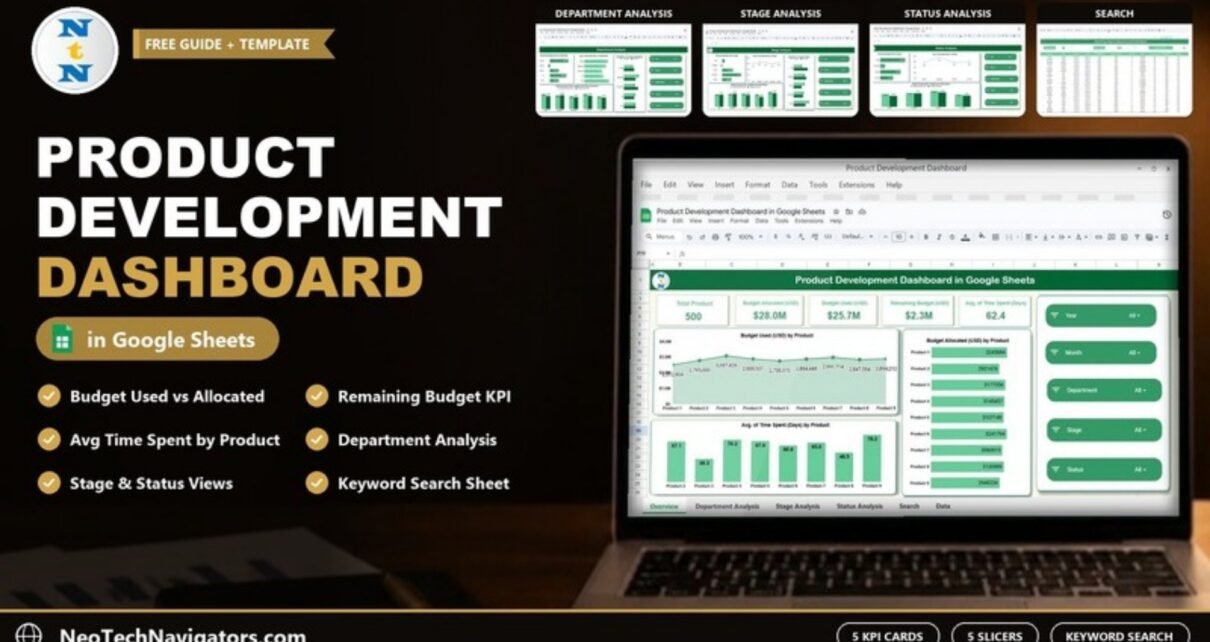
The Product Development Dashboard in Google Sheets puts budget, time and progress for every product in your pipeline on one screen. It is a ready-made template with a main Dashboard, three analysis pages (Department, Stage and Status), a Search sheet and a Data sheet. Five KPI cards sit at the top, and five slicers (Year, Month, Department, Stage and Status) filter every chart at once.
It is built for product managers, R&D leads, founders and PMO teams who need a quick answer to three questions: how much of the budget have we used, which products take the longest, and which stages or teams are falling behind? You add rows to the Data sheet, and the cards, charts and search results update on their own.
🎥 Watch the Video Tutorial
Get the Product Development Dashboard
What Problem Does a Product Development Dashboard Solve?
Product work generates a lot of scattered data: budgets approved by finance, time logged by each team, stage updates from project boards and status notes from weekly meetings. When these live in separate files, nobody can quickly tell whether the pipeline is healthy. Overspending shows up late, and a stalled prototype can go unnoticed for weeks.
This dashboard brings all of it into one Google Sheets file. Each product record carries its department, stage, start and end dates, allocated and used budget, team size, status and time spent. The dashboard pages then turn those rows into totals, averages and comparisons that you can filter in a click.
What Is Inside the Product Development Dashboard in Google Sheets
| Sheet | What it shows |
|---|---|
| Dashboard | 5 KPI cards plus Budget Used, Budget Allocated and Avg. Time Spent by product |
| Department Analysis | Remaining budget, average time, Completed vs. On Track, and allocated vs. used budget for each department |
| Stage Analysis | The same four views split by stage (Idea, Prototype, Testing, Launch, In Market) |
| Status Analysis | Remaining budget, average time, and allocated vs. used budget by status |
| Search | Pick a column, type a keyword, and see the matching records with a record count |
| Data | One row per product record. Every other sheet reads from here. |
1. Dashboard: KPI cards and product charts
The top row has five cards: Total Product, Budget Allocated (USD), Budget Used (USD), Remaining Budget (USD) and Avg. of Time Spent (Days). In the sample file they read 500 (Total Product), $28.0M allocated, $25.7M used, $2.3M remaining and 62.4 days on average.
Below the cards are three charts:
- Budget Used (USD) by Product: an area chart showing spend for Product 1 to Product 9.
- Budget Allocated (USD) by Product: a bar chart showing which products received the most funding.
- Avg. of Time Spent (Days) by Product: a column chart for comparing development duration. In the sample, Product 9 averages 78.2 days and Product 3 averages 38.3 days.
The slicer panel on the right (Year, Month, Department, Stage, Status) filters every card and chart on the page.

2. Department Analysis
This page compares the five sample departments: Design, Marketing, Production, QA and R&D. It contains four charts:
- Remaining Budget (USD) by Department
- Avg. of Time Spent (Days) by Department
- Completed vs. On Track by Department
- Budget Allocated (USD) Vs Budget Used (USD) by Department
The last chart makes overspending easy to spot. In the sample data, Marketing used $5.6M against $5.5M allocated, so it is the only department over budget. R&D has the longest average time at 72.4 days, which is useful context when you plan resourcing.

3. Stage Analysis
Products in the sample move through five stages: Idea, Prototype, Testing, Launch and In Market. This page uses the same four views as the department page: remaining budget, average time spent (shown as a line), Completed vs. On Track, and allocated vs. used budget for each stage.
It shows where money and time build up. In the sample, Prototype holds the largest remaining budget ($1.1M), and Testing has the highest allocation ($6.3M) along with the most completed records (33).

4. Status Analysis
The sample uses four statuses: At Risk, Completed, Delayed and On Track. The page has three charts: Remaining Budget (USD) by Status, Avg. of Time Spent (Days) by Status, and Budget Allocated (USD) Vs Budget Used (USD) by Status. In the sample, At Risk products still hold $919.9K of unused budget. That is a useful prompt to ask whether those funds should be moved to other work.

5. Search by Keyword and Field Name
The Search sheet has a Select Column dropdown, a Search Keyword box and a Total Record counter. In the screenshot, choosing Month and typing jan returns 46 records. The results show the full record: ID, Product Name, Department, Stage, Start Date, End Date, Budget Allocated (USD), Budget Used (USD), Team Size, Status, Time Spent (Days), Remaining Budget (USD) and the Completed / Delayed / On Track flags.

How the Key Numbers Are Calculated
The cards use simple arithmetic, so you can check them yourself. Remaining budget is allocated minus used:
Remaining Budget = Budget Allocated (USD) - Budget Used (USD)
Sample: $28.0M - $25.7M = $2.3M
The same rule works for a single row. In the search results, record 11 has $51,938 allocated and $76,660 used, so its Remaining Budget is -24,722. A negative value means that product is over budget.
If you also want a utilisation percentage (not a card in the template, but easy to add), divide used by allocated:
=Budget_Used / Budget_Allocated → 25.7 / 28.0 = 91.8%If you want to build calculations like these yourself, the Pivot Tables & Dashboards course on NextGenTemplates Academy teaches the summary-and-chart techniques behind this kind of dashboard, step by step.
How to Use It With Your Own Data
- Make your own copy of the file (File > Make a copy) so you can edit it.
- Clear the sample rows in the Data sheet, but keep the header row and any formula columns.
- Enter one row per product record with Product Name, Department, Stage, Start and End Date, Budget Allocated, Budget Used, Team Size and Status.
- Keep the category names consistent. If you rename a department or stage, rename it in every row so the charts group it correctly.
- Open the Dashboard and use the slicers to check that the totals look right.
- Share the file with view access for leadership and edit access only for the people who maintain the data.
Real-World Use Cases
- Hardware or consumer-goods company: track several products moving from Idea to In Market and see which stage takes the most time.
- Software product team: compare Design, QA and R&D effort and spot teams that are consistently over budget.
- Agency or studio: treat each client deliverable as a “product” and review At Risk and Delayed items in your weekly meeting.
Best Practices
- Update weekly at minimum. Stale data makes the status charts misleading.
- Use dropdowns (Data > Data validation) for Department, Stage and Status to prevent typos that split categories.
- Review negative Remaining Budget rows first. They are your overspend list.
- Open the Search sheet before meetings to pull the exact records for a product or month.
- Agree on definitions. Everyone should mean the same thing by “At Risk” and “Delayed”.
Who Should Not Use This Template
This is a reporting dashboard, not a project-management tool. It has no task lists, Gantt bars, dependencies or automatic reminders. If you need sprint planning or resource scheduling, use a dedicated project tool and treat this sheet as the summary layer on top. Very large datasets with many thousands of rows can also make Google Sheets slower to recalculate.
Related Guides and Templates
For a KPI-based view of the same work, see the Product Development KPI Dashboard in Google Sheets and the R&D KPI Dashboard in Google Sheets. If you run many projects at once, the Multiple Project Management Dashboard is a good companion, and the Product Development Calendar helps you plan milestones.
Related templates: the same dashboard is also available in Excel and in Power BI.
Frequently Asked Questions
What does the Product Development Dashboard in Google Sheets track?
It tracks product count, allocated budget, used budget, remaining budget and average time spent. You can split these by product, department, stage and status.
Can I filter the dashboard?
Yes. Five slicers (Year, Month, Department, Stage and Status) filter the charts on each dashboard page.
Can I rename departments or stages?
Yes. Change the values in the Data sheet. Keep the spelling consistent so each name appears as one group in the charts.
Why is a Remaining Budget value negative?
Remaining Budget is Budget Allocated minus Budget Used. A negative number means that record spent more than it was given.
Do I need formulas or scripts to use it?
No. You only enter data in the Data sheet. The pages, charts and search are already built, so no coding is needed.
Is there an Excel version?
Yes. NextGenTemplates also offers the Product Development Dashboard in Excel and in Power BI.
Wrapping Up
A product pipeline is easier to manage when budget, time and status sit on one page. The Product Development Dashboard in Google Sheets gives you five KPI cards, department, stage and status views, and a keyword search, all driven by one Data sheet. Watch the video above, then load your own product list to see where your budget and time are going.
Get the Product Development Dashboard
📅 Last updated: October 2026