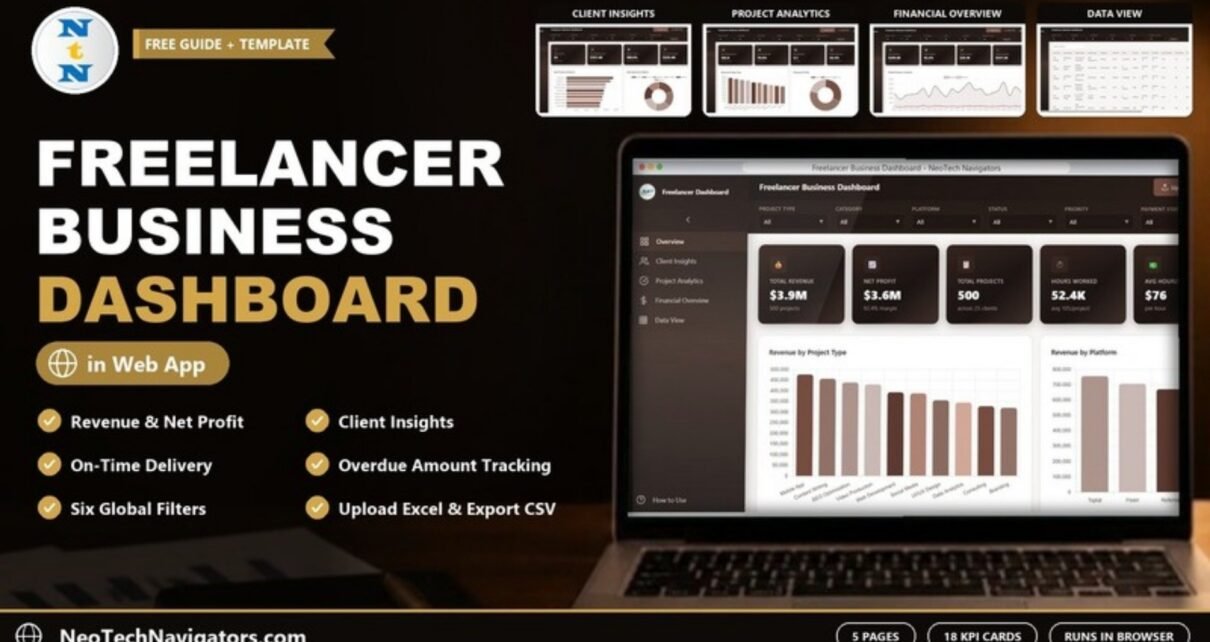
The Freelancer Business Dashboard in HTML turns your project and invoice records into a clear, five-page report on revenue, profit, clients, projects and cash collection. It is built for freelancers, independent consultants and small studios who want to see how the business is really doing without building charts by hand every month.
The dashboard runs as an index.html file in any modern browser, with nothing to install. Inside you get an Overview, Client Insights, Project Analytics, Financial Overview and Data View page, 18 KPI cards across the four analysis pages, six global filters and a searchable record table. An Upload Excel button lets you load your own data, and Export CSV gives you the filtered records back.
🎥 Watch the Video Tutorial
Get the Freelancer Business Dashboard
What the Freelancer Business Dashboard in HTML Solves
Most freelancers track work in a mix of invoices, platform payouts and a spreadsheet that grows a little messier each month. It is easy to know what you billed last week and much harder to answer bigger questions: Which project types pay best? Which platform brings the most revenue? How much money is overdue right now? Are you delivering on time?
This dashboard answers those questions from one table of records. Each row is one invoice or project with its client, project type, category, platform, status, priority, dates, hours, hourly rate and amount. The template rolls that up into KPI cards and charts, and every filter changes all of them at once.
Filters and Toolbar
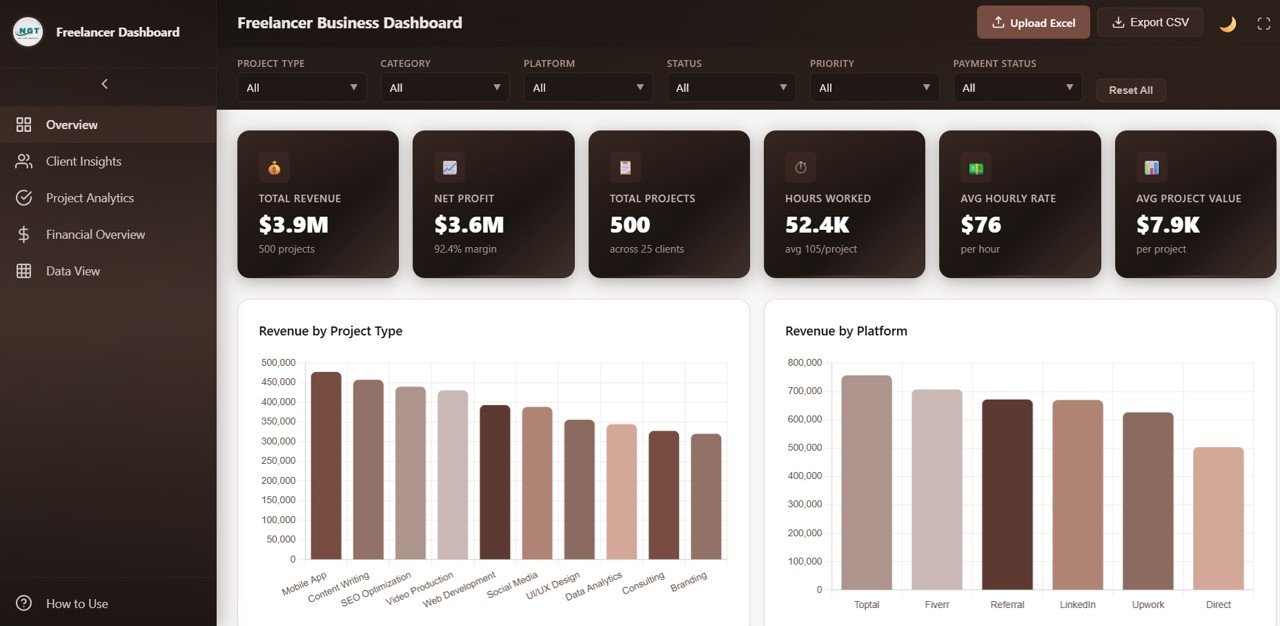
Six dropdown filters sit across the top of every page: Project Type, Category, Platform, Status, Priority and Payment Status, plus a Reset All button. The header holds Upload Excel, Export CSV, a light/dark theme toggle and a full-screen button. The left sidebar switches between the five pages and also opens a How to Use guide.
KPI Cards at a Glance
The values below come from the included sample data (500 projects across 25 clients) with no filters applied.
| Page | KPI card | Sample value | What it tells you |
|---|---|---|---|
| Overview | Total Revenue | $3.9M | Total billed across all 500 projects |
| Overview | Net Profit | $3.6M (92.4% margin) | Revenue minus business expenses |
| Overview | Total Projects | 500 (across 25 clients) | Number of project records in view |
| Overview | Hours Worked | 52.4K (avg 105/project) | Total hours logged |
| Overview | Avg Hourly Rate / Avg Project Value | $76 / $7.9K | Typical rate charged and typical invoice size |
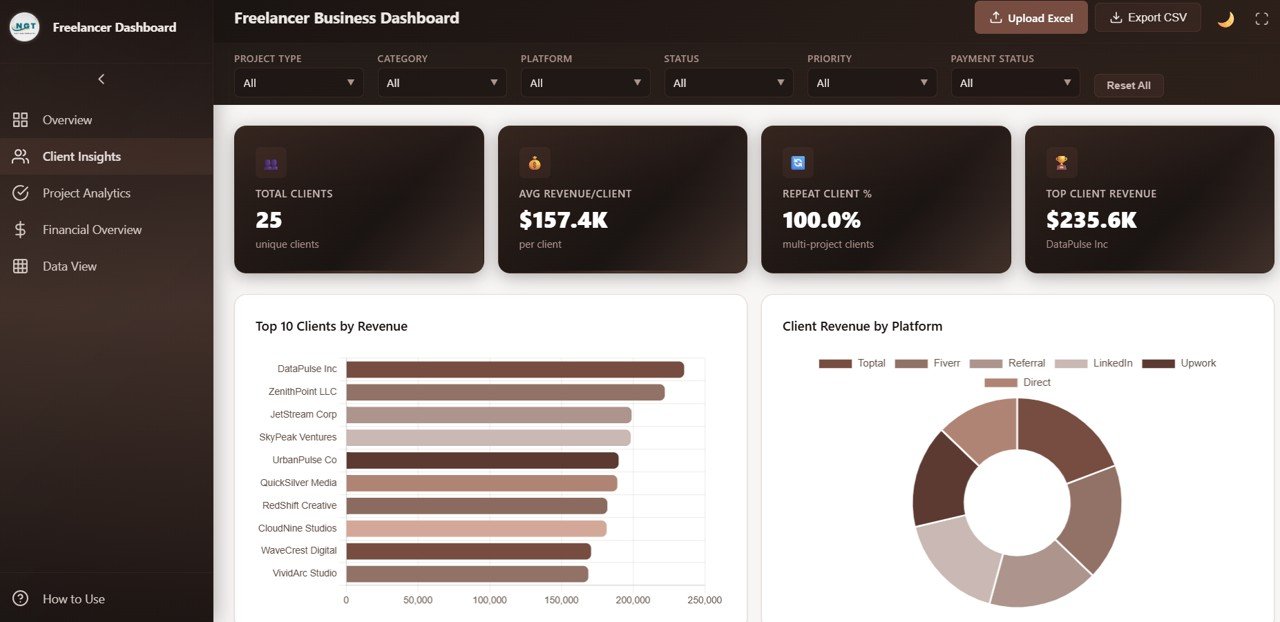
| Client Insights | Total Clients / Avg Revenue/Client | 25 / $157.4K | How many clients you serve and what each is worth on average |
| Client Insights | Repeat Client % / Top Client Revenue | 100.0% / $235.6K (DataPulse Inc) | Share of clients with more than one project, and your biggest account |
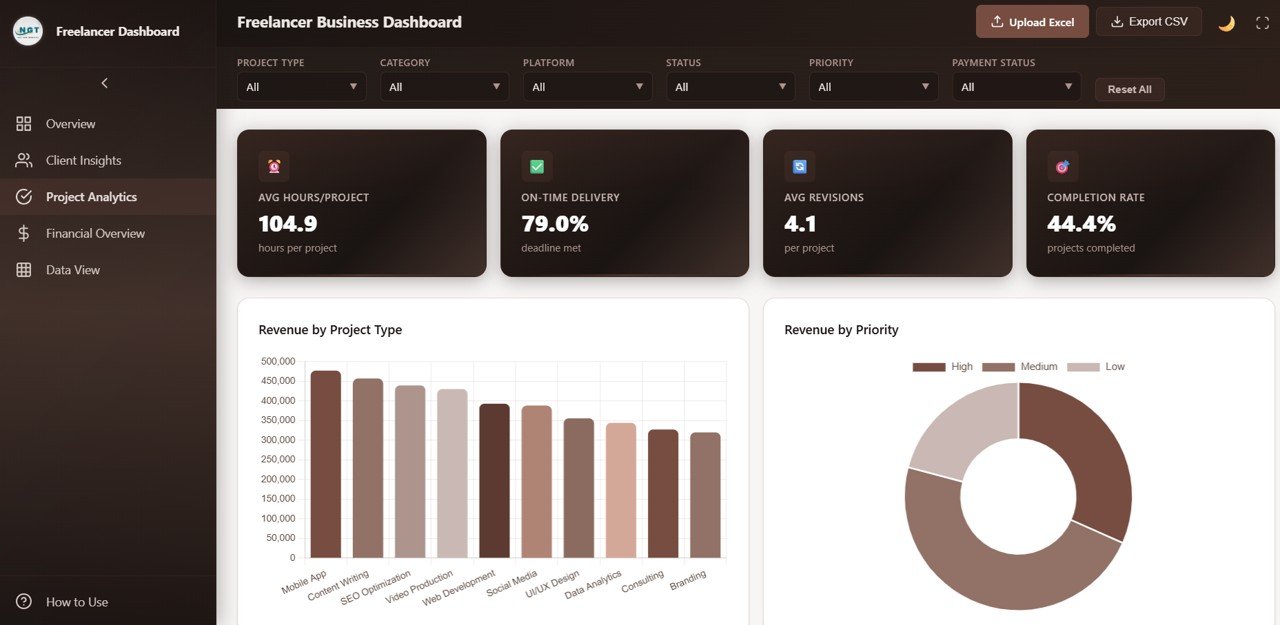
| Project Analytics | Avg Hours/Project, On-Time Delivery | 104.9 hours, 79.0% | Effort per job and how often deadlines are met |
| Project Analytics | Avg Revisions, Completion Rate | 4.1, 44.4% | Rework per project and share of projects completed |
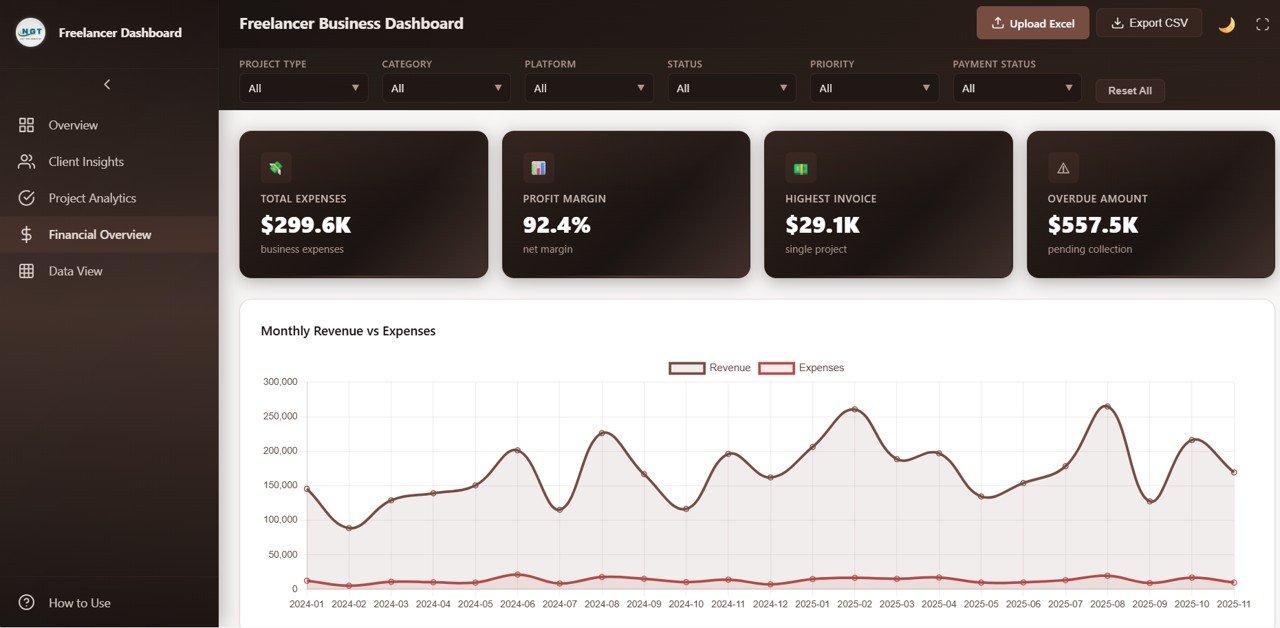
| Financial Overview | Total Expenses, Profit Margin | $299.6K, 92.4% | Business costs and net margin |
| Financial Overview | Highest Invoice, Overdue Amount | $29.1K, $557.5K | Largest single project and money still pending collection |
A few cards are simple checks you can do yourself: $3.9M revenue minus $299.6K expenses leaves about $3.6M net profit, and the unrounded revenue (25 clients × $157.4K ≈ $3.94M) spread over 500 projects gives the $7.9K average project value.
Dashboard Pages Explained
1. Overview
The Overview opens with the six headline cards. Below them, Revenue by Project Type compares Mobile App, Content Writing, SEO Optimization, Video Production, Web Development, Social Media, UI/UX Design, Data Analytics, Consulting and Branding work. Revenue by Platform compares Toptal, Fiverr, Referral, LinkedIn, Upwork and Direct clients. The page continues with Projects by Status, Revenue by Category and a Monthly Revenue Trend.
2. Client Insights
This page shows who your business depends on. Four cards (Total Clients, Avg Revenue/Client, Repeat Client % and Top Client Revenue) sit above Top 10 Clients by Revenue, led by DataPulse Inc, ZenithPoint LLC and JetStream Corp in the sample, and a Client Revenue by Platform donut. Projects per Client and Satisfaction Distribution follow below. If one client is carrying a large share of revenue, this is where you will see it.
3. Project Analytics
Project Analytics focuses on delivery. The cards show Avg Hours/Project, On-Time Delivery, Avg Revisions and Completion Rate. Charts include Revenue by Project Type, a Revenue by Priority donut split into High, Medium and Low, Status by Project Type and Avg Revisions by Project Type. Use it to spot work types that need many revision rounds or often miss deadlines, then price or scope them differently.
4. Financial Overview
The Financial Overview is about money in and money out. Cards show Total Expenses, Profit Margin, Highest Invoice and Overdue Amount. The Monthly Revenue vs Expenses line chart runs from 2024-01 to 2025-11 in the sample, so seasonal peaks and quiet months stand out. Revenue by Payment Status, Revenue by Hourly Rate Tier and Profit Margin by Category complete the page. The Overdue Amount card ($557.5K pending collection in the sample) is the one most freelancers should check every week.
5. Data View
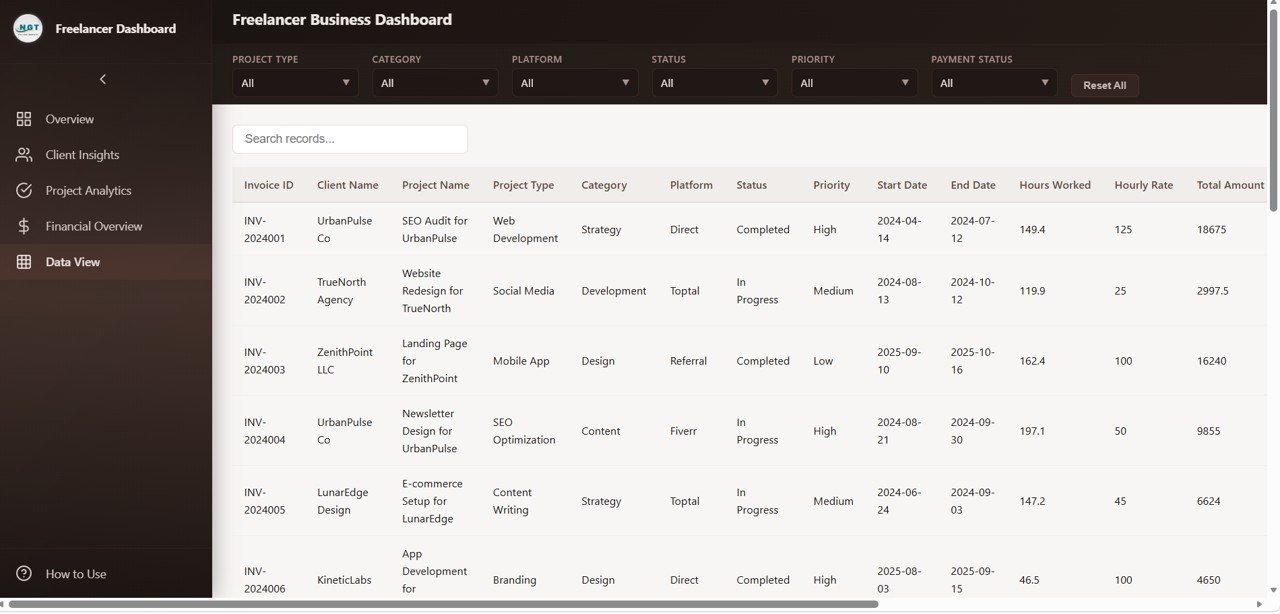
The Data View lists every record with a search box, sorting and pagination. Columns include Invoice ID, Client Name, Project Name, Project Type, Category, Platform, Status, Priority, Start Date, End Date, Hours Worked, Hourly Rate and Total Amount. In the sample, Total Amount equals Hours Worked × Hourly Rate, for example 149.4 hours × 125 = 18,675 for invoice INV-2024001. Filtered rows can be exported to CSV for your accountant or tax records.
How to Use It With Your Own Data
- Unzip the download and open index.html in Chrome, Edge, Firefox or Safari.
- Look at the sample records in the Data View so you know which columns the dashboard expects.
- Prepare your own Excel file with the same column headings: one row per project or invoice, with client, project type, category, platform, status, priority, start and end dates, hours, hourly rate and total amount.
- Click Upload Excel and select your file. All KPI cards and charts recalculate from your rows.
- Use the six filters to answer specific questions, such as “Upwork projects that are still In Progress” or “High-priority Design work”.
- Click Export CSV when you need to share the filtered list, then Reset All to return to the full view.
Real-World Use Cases
- Choosing which platforms to focus on. A designer selling on Fiverr, Upwork and through referrals can compare revenue by platform and average project value, then decide where to spend proposal time.
- Chasing late payments. A consultant can filter by Payment Status, read the Overdue Amount card and export the overdue invoices as a follow-up list.
- Reviewing pricing. A developer can compare Avg Revisions and hours by project type. If one service needs far more revisions for similar revenue, it is a sign to raise the price or tighten the scope.
Best Practices
- Update weekly. Add new projects and payment changes each week so the overdue figure stays accurate.
- Keep names consistent. Use the same spelling for clients, platforms and project types, or the charts will split one item into two bars.
- Log expenses honestly. Net Profit and Profit Margin are only as good as the expense figures you record.
- Review clients monthly. Check the Top 10 Clients chart for concentration risk before a large client leaves.
- Archive with CSV. Export a copy at month end for bookkeeping and year-end tax work.
Who Should Not Use It (Limitations)
- It is a reporting dashboard, not an invoicing or time-tracking app. It does not send invoices, reminders or receipts.
- Data comes from the file you upload; there is no live connection to Upwork, Fiverr, your bank or accounting software.
- It has no tax calculation or revenue goal tracking, so plan those separately.
- If you only run a handful of projects a year, a simple invoice list may be enough.
Free Spreadsheet vs This Dashboard vs Accounting Apps
| Need | Plain spreadsheet | Freelancer Business Dashboard in HTML | Accounting / invoicing app |
|---|---|---|---|
| Ready-made KPIs and charts | Build them yourself | 18 KPI cards plus charts on five pages | Varies by app |
| Filters across all pages | Manual | Six global filters | Usually |
| Send invoices and reminders | No | No | Yes |
| Works offline in a browser | Yes | Yes | Usually online only |
| Ongoing subscription | No | No (one-time purchase) | Usually yes |
Related Guides and Templates
If you track invoices in Google Sheets today, our guide on tracking freelance invoices with payment status shows how to build the source list this dashboard reads. For a household view of money, see the Personal Finance Dashboard in HTML. Growing studios may prefer the Small Business CFO Dashboard in HTML, while agencies with hired talent can compare the Staffing Agency Dashboard in HTML. Consultants who also need billing can look at the Consulting Project and Billing Management System web app.
Related templates: prefer a spreadsheet? The same topic is available as the Freelancer Business Dashboard in Excel and the Freelancer Business Dashboard in Power BI.
If you want to build reports like this yourself in Excel, the Excel Pivot Tables and Dashboards course on NextGenTemplates Academy walks through it step by step.
Frequently Asked Questions
Do I need Excel or any other software to use the dashboard?
No. You open index.html in a web browser. Excel is only useful for preparing the file you upload; you can also create that file in Google Sheets and download it as .xlsx.
How do I load my own freelance data?
Click Upload Excel in the header and choose a file that uses the same column headings as the sample data. Every KPI card, chart and the Data View refresh from your rows.
Can I track several freelance platforms at once?
Yes. The Platform column accepts any platform name. The sample uses Toptal, Fiverr, Referral, LinkedIn, Upwork and Direct, and the Platform filter and Revenue by Platform charts group your revenue by whatever values you enter.
How is the Overdue Amount calculated?
The card shows money still pending collection ($557.5K in the sample), and it is driven by the payment status recorded against each project. Keep that status up to date when clients pay and the figure stays reliable.
Can I export a filtered list of projects?
Yes. Apply the filters you need and click Export CSV. The file opens in Excel or Google Sheets.
Does it work on a phone or tablet?
It opens in mobile browsers, but the charts and the wide Data View table are easiest to read on a laptop or desktop screen.
Wrapping Up
The Freelancer Business Dashboard in HTML gives you one place to see revenue, profit, client concentration, delivery quality and overdue payments, filtered any way you like. Start by uploading last year’s projects, check which platforms and project types earn the most, and make your next pricing decision with numbers in front of you.
Get the Freelancer Business Dashboard in HTML
📅 Last updated: October 2026