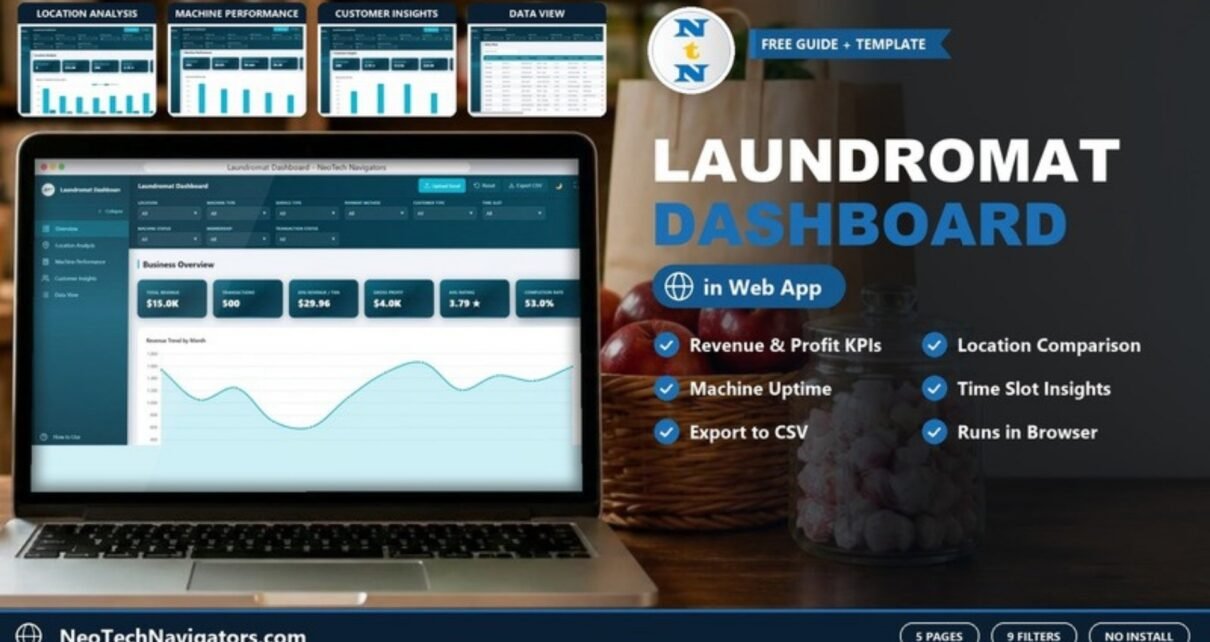
The Laundromat Dashboard in HTML is a browser-based dashboard for laundromat owners and multi-store operators who want to see revenue, transactions, machine performance, customer behaviour and location results in one place. It opens in Chrome, Edge, Firefox or Safari, so there is no Excel, Power BI or monthly software subscription involved.
It has five pages – Overview, Location Analysis, Machine Performance, Customer Insights and Data View – and nine filters that apply across the dashboard: Location, Machine Type, Service Type, Payment Method, Customer Type, Time Slot, Machine Status, Membership and Transaction Status. The header also has Upload Excel, Reset and Export CSV buttons.
This guide explains every page using the template’s sample data, shows how the headline numbers fit together, and walks through loading your own store transactions.
🎥 Watch the Video Tutorial
Get the Laundromat Dashboard in HTML
What the Laundromat Dashboard in HTML Helps You See
A self-service laundry makes money one cycle at a time, across several machine types, service types, payment methods and time slots – and often across more than one store. Card-reader and POS reports record each transaction, but they rarely show the bigger picture: which branch earns the most per transaction, which machine class costs the most to maintain, what share of loads actually complete, and when customers really come in.
The dashboard groups those questions into four analysis pages plus a searchable table. Combine filters – for example a single location and a single machine type – to narrow every card and chart to that slice of the business.
The Five Pages Explained
1. Overview
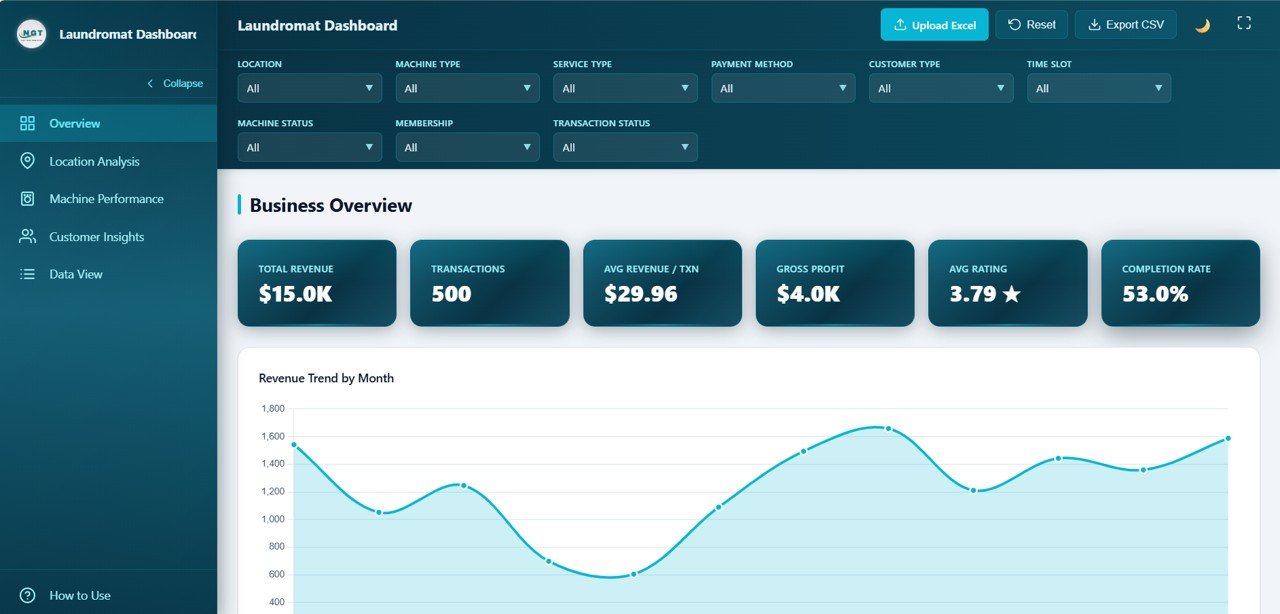
The Business Overview page shows six KPI cards. In the 500-transaction sample they read: Total Revenue $15.0K, Transactions 500, Avg Revenue / Txn $29.96, Gross Profit $4.0K, Avg Rating 3.79 and Completion Rate 53.0%.
The first chart is Revenue Trend by Month, which makes seasonal dips and peaks easy to spot. According to the product listing, the page also covers Revenue by Location, Transactions by Status, Revenue by Service Type and Transactions by Payment Method.
2. Location Analysis
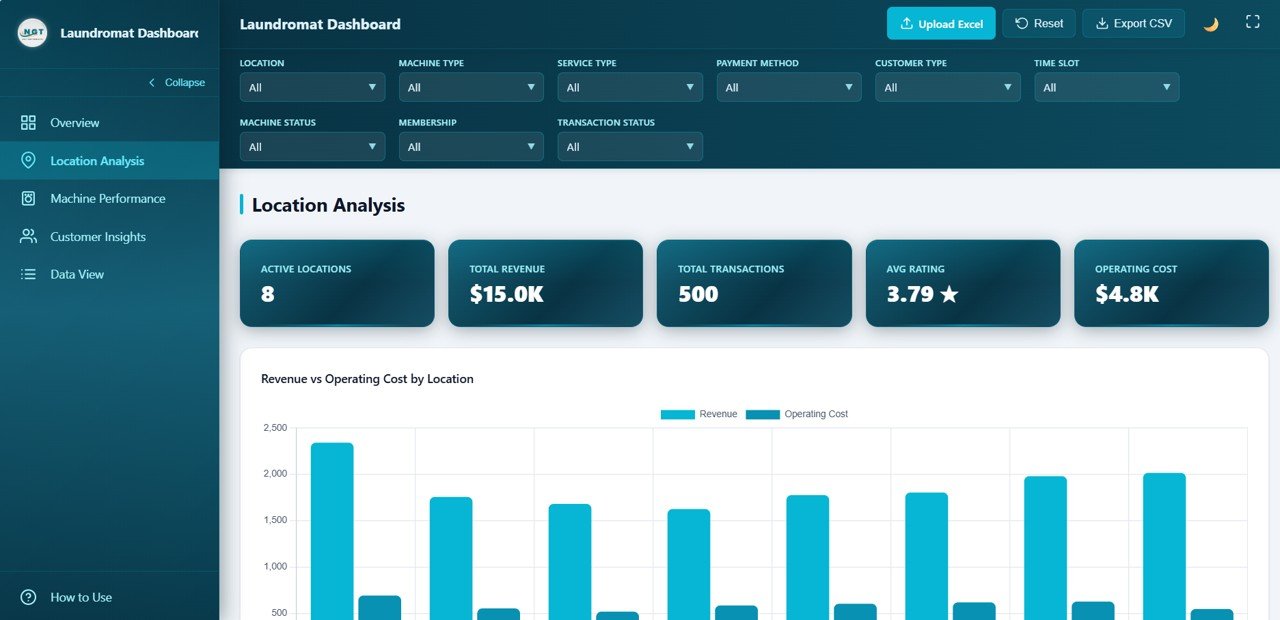
This page is built for owners with more than one store. Its cards show Active Locations (8), Total Revenue ($15.0K), Total Transactions (500), Avg Rating (3.79) and Operating Cost ($4.8K). The sample branches are Westfield Branch, University Area, Mall Location, Eastside Center, Airport Road, Suburban Plaza, Downtown Branch and Industrial Park.
The main chart, Revenue vs Operating Cost by Location, places the two bars side by side for each branch, so you can see at a glance which stores carry the most cost relative to what they bring in. The product listing adds Transactions by Location, Average Rating by Location, Maintenance Cost by Location and Average Revenue per Transaction by Location.
3. Machine Performance
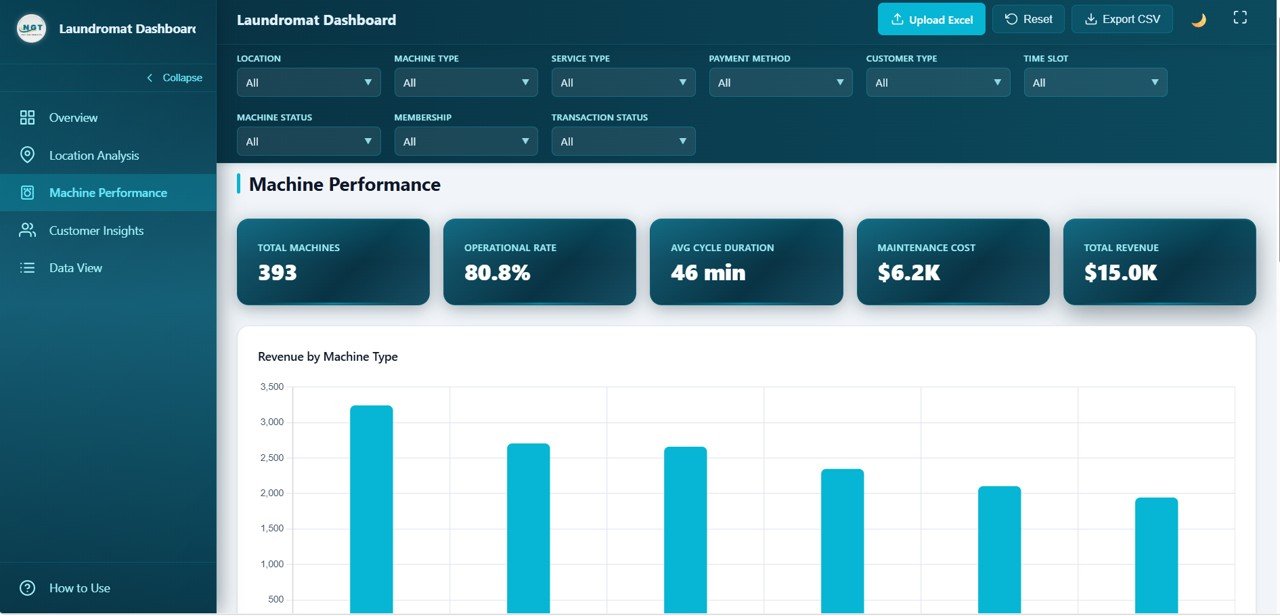
Equipment is where a laundromat’s margin is won or lost. The cards here show Total Machines (393), Operational Rate (80.8%), Avg Cycle Duration (46 min), Maintenance Cost ($6.2K) and Total Revenue ($15.0K).
Revenue by Machine Type compares the machine classes in the data – such as Washer – Large, Washer – Standard, Dryer – Large, Dryer – Standard and Combo Wash & Dry. The product listing also describes Transactions by Machine Status, Average Cycle Duration by Machine Type, Maintenance Cost by Machine Type and Transactions by Machine Type, which together support repair-or-replace decisions.
4. Customer Insights
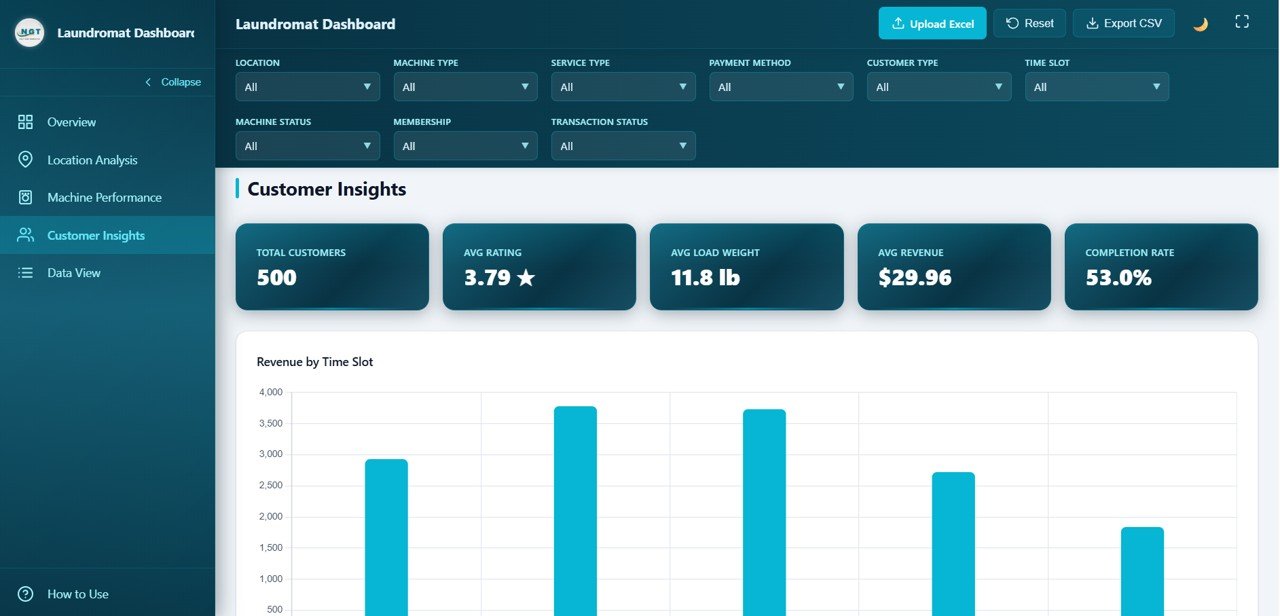
Customer Insights shows who your customers are and when they come in. The cards show Total Customers (500), Avg Rating (3.79), Avg Load Weight (11.8 lb), Avg Revenue ($29.96) and Completion Rate (53.0%).
Revenue by Time Slot splits income across Morning (6AM–10AM), Midday (10AM–2PM), Afternoon (2PM–6PM), Evening (6PM–10PM) and Night (10PM–6AM). That is the chart to use for staffing and off-peak offers. The listing also includes Revenue by Customer Type (Walk-in, Regular and Member in the sample), Transactions by Customer Rating, Transactions by Membership and Average Load Weight by Customer Type.
5. Data View
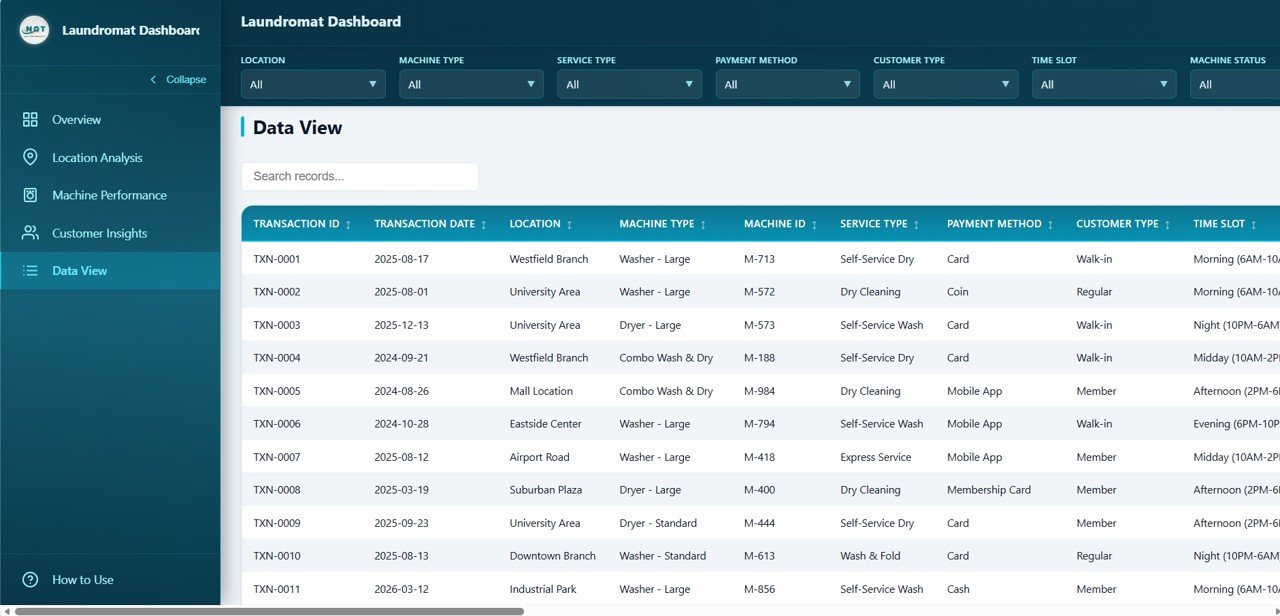
Data View lists every transaction in a sortable table with a Search records box. The visible columns are Transaction ID, Transaction Date, Location, Machine Type, Machine ID, Service Type, Payment Method, Customer Type and Time Slot, and the table scrolls sideways for more fields. Service types in the sample include Self-Service Wash, Self-Service Dry, Wash & Fold, Dry Cleaning and Express Service; payment methods include Card, Coin, Cash, Mobile App and Membership Card. According to the product listing, Export CSV downloads the filtered records for your bookkeeper or for further analysis in a spreadsheet.
Laundromat KPIs at a Glance
| KPI | What it measures | How it fits the sample | Better when |
|---|---|---|---|
| Total Revenue | Income from all transactions | $15.0K across 500 transactions | Higher |
| Avg Revenue / Txn | Average ticket per load | Total Revenue ÷ Transactions ≈ $14,980 ÷ 500 = $29.96 | Higher |
| Gross Profit | What is left after costs | $4.0K – consistent with $15.0K revenue minus $4.8K operating cost and $6.2K maintenance cost (the cards are rounded and the exact formula is not shown) | Higher |
| Completion Rate | Share of transactions that completed | 53.0% in the sample | Higher |
| Operational Rate | Share of machines in working order | 80.8% of 393 machines | Higher |
| Avg Cycle Duration | Average time per cycle | 46 minutes | Lower (faster turnover) |
| Maintenance Cost | Spend on repairs and upkeep | $6.2K | Lower |
| Avg Rating | Customer satisfaction score | 3.79 stars | Higher |
The sample data is illustrative. A 53% completion rate, for instance, is simply what the demo data produces – your own figure will depend on how your POS records cancelled or abandoned loads.
How to Use It With Your Own Data
- Unzip the download and open index.html in your browser.
- Open How to Use in the sidebar for the built-in instructions.
- Export transactions from your card system or POS and arrange them under the same headers as the Data View – Transaction ID, Transaction Date, Location, Machine Type, Machine ID, Service Type, Payment Method, Customer Type, Time Slot and the remaining fields.
- Use one consistent name per branch and per machine type so the location and machine charts group correctly.
- Load your file with Upload Excel. The product listing also describes replacing the included sample data file and refreshing the browser.
- Check the Total Revenue card against your POS total for the same period before you rely on the charts.
- Use the Location filter to review one branch at a time, then set it back to All for the full view.
If you want to build similar location and machine breakdowns from scratch in Excel, the Excel Pivot Tables and Dashboards course on NextGenTemplates Academy covers the summarising and charting skills step by step.
Real-World Use Cases
- Multi-store owner’s weekly review – compare revenue and operating cost by branch every Monday and look into any store whose cost bar is creeping towards its revenue bar.
- Repair or replace decisions – filter by Machine Type and Machine Status to see which equipment class has the lowest operational rate and highest maintenance cost before you spend on repairs.
- Staffing and promotions – use Revenue by Time Slot and Customer Type to schedule attendants for the busiest windows and target quieter slots with member offers.
Best Practices
- Keep column headers unchanged; add rows rather than renaming fields.
- Review the dashboard weekly – a machine that is out of service for a week is easier to fix than one discovered at month-end.
- Combine filters (Location plus Machine Type, or Time Slot plus Customer Type) to find patterns a single filter hides.
- Export a CSV at each month-end so you have a clean record to hand to your accountant.
- Keep a backup of your data file before each refresh.
Limitations and Who Should Not Use It
This is an analytics layer, not a POS or card-reader system: you still need your existing terminals to capture transactions. It does not offer multi-user cloud access with permissions or live feeds from machines, and it is not an accounting ledger. Large chains that need real-time machine telemetry or role-based access across many staff will be better served by dedicated laundromat management software, with this dashboard as an optional reporting view.
Related Templates and Guides
Prefer a spreadsheet? The Laundromat Dashboard in Excel covers the same business in Excel. On this blog, see the Laundromat Business Dashboard in Google Sheets, the Dry Clean Service Management System web app for day-to-day order handling, and other service-business dashboards such as the Salon and Spa Dashboard in HTML and the Restaurant Profit and Loss Dashboard in HTML.
Frequently Asked Questions
What does the Laundromat Dashboard in HTML track?
It tracks revenue, transactions, average revenue per transaction, gross profit, customer rating and completion rate on the Overview, plus location, machine and customer metrics such as operating cost, operational rate, cycle duration, maintenance cost and load weight on the other pages.
Do I need Excel or any other software?
No. You open index.html in a modern browser. Excel is only useful if you want to prepare your data file before uploading it.
Can I compare several laundromat locations?
Yes. The Location Analysis page compares revenue, operating cost and other measures by branch, and the Location filter lets you look at one store at a time.
Which filters are available?
Nine: Location, Machine Type, Service Type, Payment Method, Customer Type, Time Slot, Machine Status, Membership and Transaction Status.
Can I export the data?
Yes. Export CSV downloads the transaction records, and the Data View page has search and sorting to find specific records first.
Does it replace my POS system?
No. It analyses the transactions your POS or card system already records; it does not take payments or control machines.
Wrapping Up
The Laundromat Dashboard in HTML gives owners a clear weekly view of the three things that drive a laundry business: how each location performs, how the machines are holding up, and when and how customers spend. Start by loading one month of transactions from a single store, check the revenue card against your POS, then add the rest of your branches.
Get the Laundromat Dashboard in HTML
📅 Last updated: October 2026