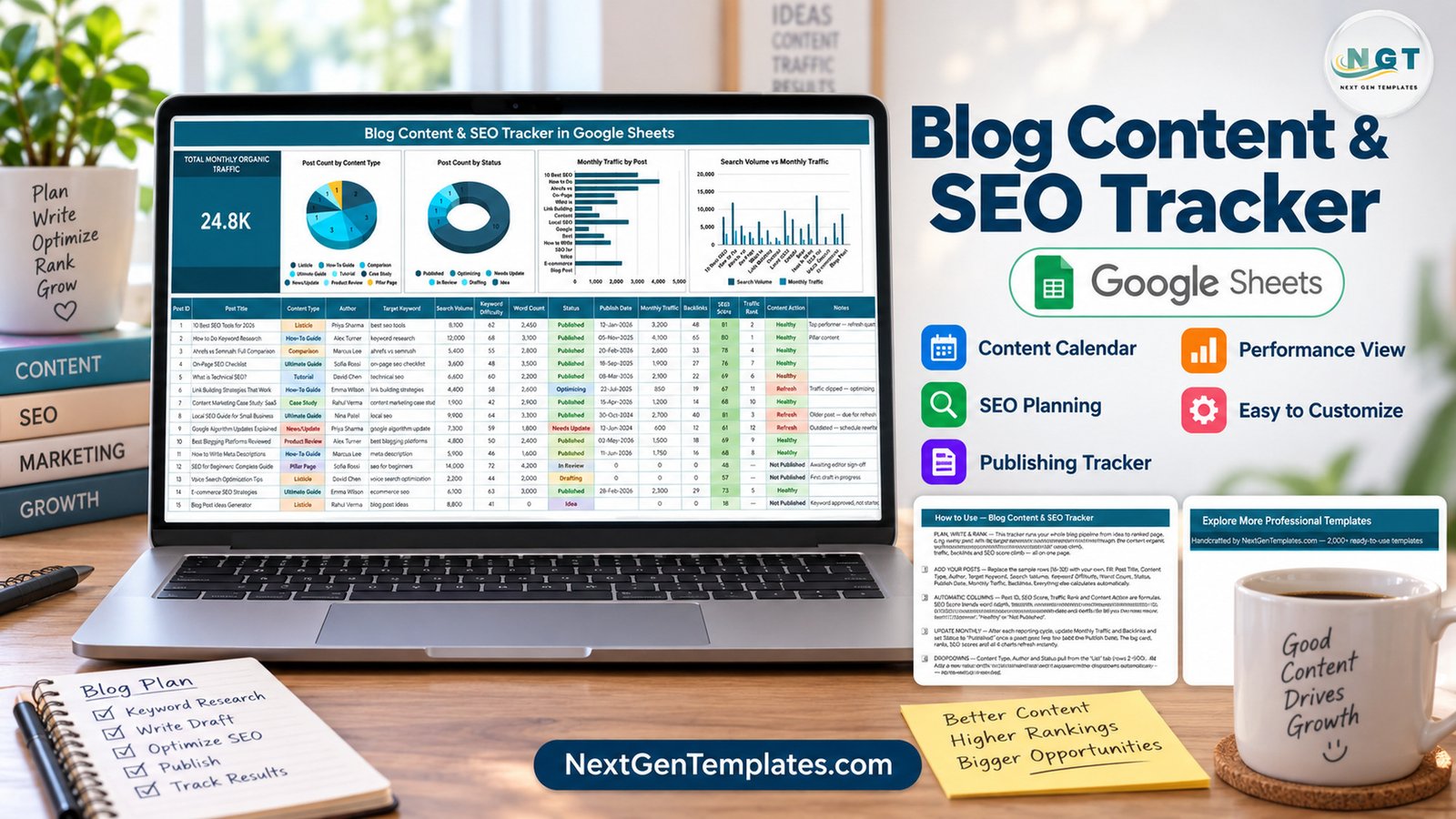
The Blog Content & SEO Tracker in Google Sheets is a blog content SEO tracker that fits a whole blog pipeline on one page: 16 columns per post, 1 Total Monthly Organic Traffic card and 4 charts that read the post list directly. It comes with 15 sample posts spread across 9 content types and 6 workflow statuses, and 4 of its columns calculate themselves.
Most bloggers keep keywords in one tool, drafts in another and traffic numbers in a monthly report, so nobody sees which posts need attention. This tracker puts the target keyword, search volume, keyword difficulty, status, traffic and backlinks on the same row, then tells you whether each post is Healthy, due a Refresh, ready to Optimize or Not Published yet.
Get the Blog Content & SEO Tracker in Google Sheets
Key Features of the Blog Content & SEO Tracker
- Total Monthly Organic Traffic card: adds up Monthly Traffic across every post. The 15 sample posts total 24.8K.
- Four charts with no helper tables: Post Count by Content Type, Post Count by Status, Monthly Traffic by Post and Search Volume vs Monthly Traffic read rows 16-1000 with Google Sheets’ built-in Aggregate option, so new posts appear automatically.
- SEO Score (0-100): a formula that blends word depth, backlink authority and keyword winnability for each post.
- Traffic Rank: orders published posts by monthly traffic; posts that are not live show a dash.
- Content Action: reads the publish date and traffic and returns Refresh, Optimize, Healthy or Not Published.
- Dropdowns fed by a List tab: Content Type, Author and Status options live on the List tab (rows 2-500), so adding a value there updates the dropdown instantly.
- Colour-coded chips: content types and statuses are colour-coded so the table scans quickly.
Three facts worth knowing about this blog content SEO tracker: it records 11 input fields per post, it calculates 4 more (Post ID, SEO Score, Traffic Rank, Content Action), and the charts cover up to 985 post rows without any extra setup.
Tracker Pages Explanation
The file has four tabs: the tracker itself, a List tab for dropdown values, a How to Use tab and an Explore More Templates tab.
Page 1: Blog Content & SEO Tracker Sheet
The top band holds the Total Monthly Organic Traffic card and charts including Post Count by Content Type, Post Count by Status, Monthly Traffic by Post and Search Volume vs Monthly Traffic. Below it is the 16-column table: Post ID, Post Title, Content Type, Author, Target Keyword, Search Volume, Keyword Difficulty, Word Count, Status, Publish Date, Monthly Traffic, Backlinks, SEO Score, Traffic Rank, Content Action and Notes.
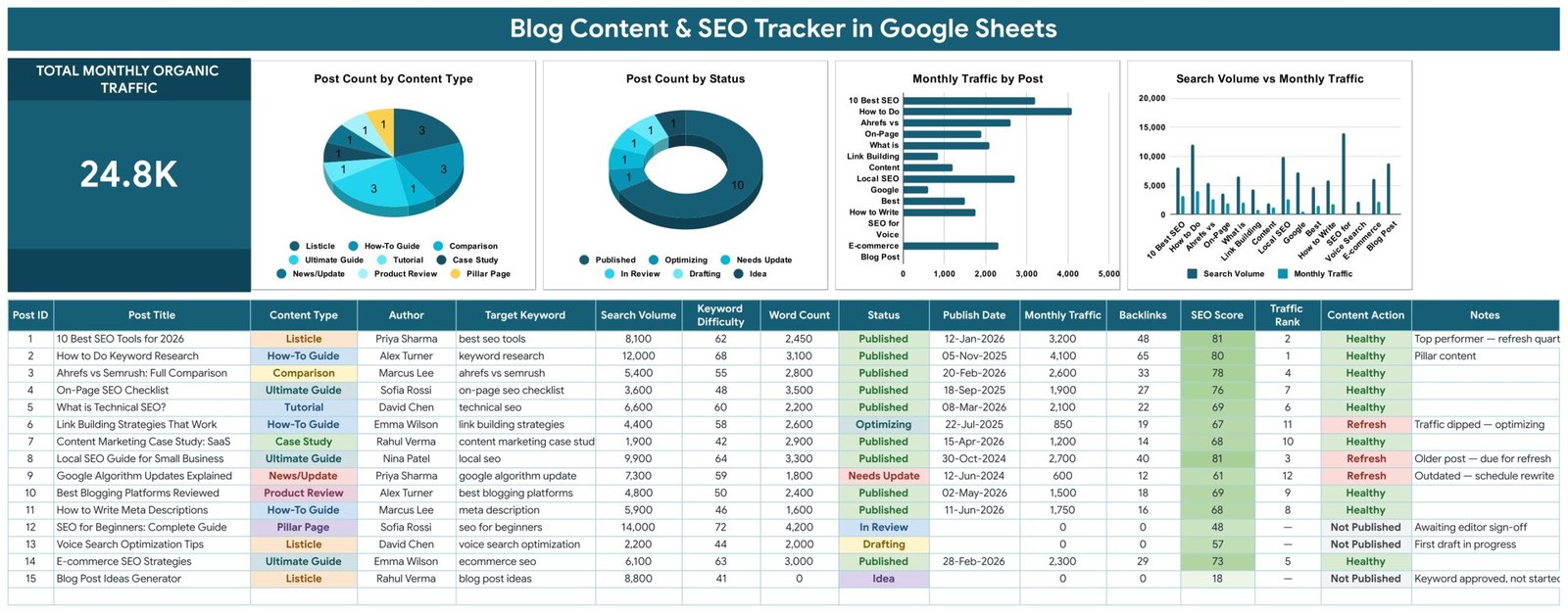
In the sample data, “How to Do Keyword Research” leads with 4,100 monthly visits and Traffic Rank 1, while “Local SEO Guide for Small Business” still earns 2,700 visits but is flagged Refresh because it was published in October 2024. The Post Count by Status donut shows 10 Published posts and one each in Optimizing, Needs Update, In Review, Drafting and Idea.
Page 2: How to Use
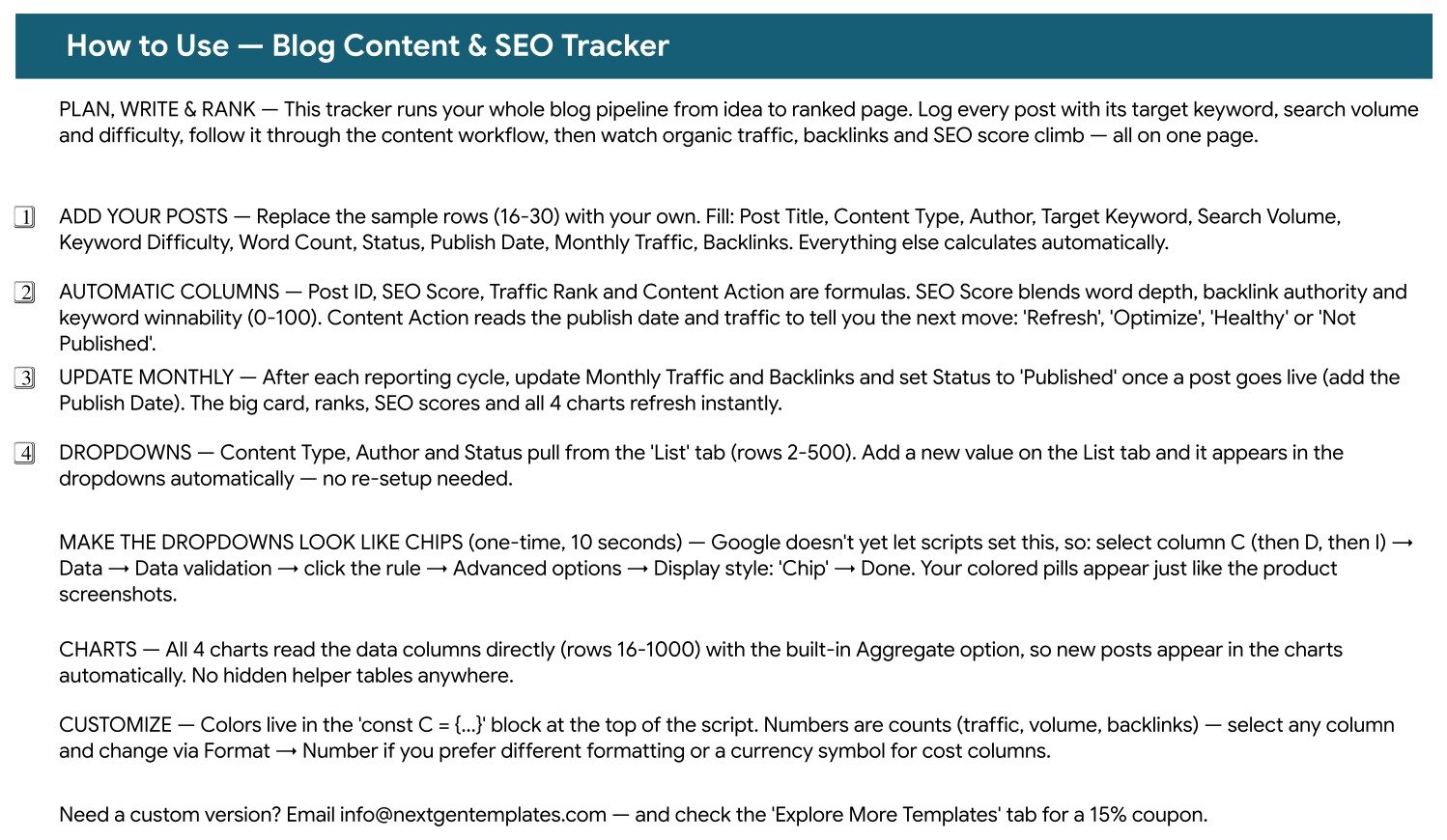
The How to Use tab explains the four steps (add posts, automatic columns, monthly updates, dropdowns), the one-time chip display setting, how the charts read the data columns and where the colour settings live.
Page 3: Explore More Templates
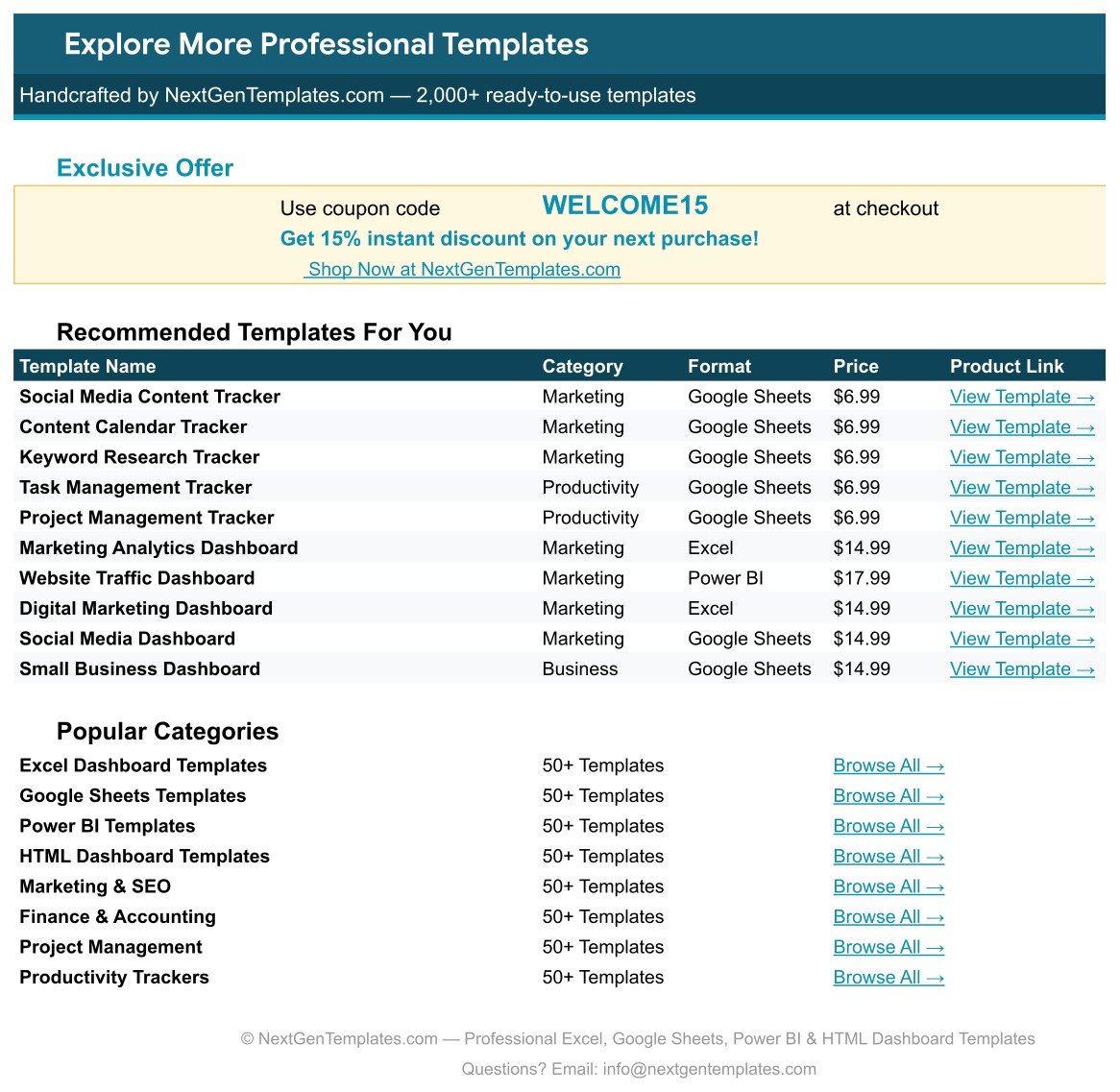
The last tab carries a WELCOME15 coupon for 15% off your next purchase and links to related templates on NextGenTemplates.com.
Blog Content & SEO Tracker vs. Microsoft Excel Content Tracker vs. Paid SEO Suites — Feature Comparison
| Feature | Blog Content & SEO Tracker in Google Sheets | Microsoft Excel Content Tracker | Paid SEO / Content Suites (Semrush, Ahrefs, HubSpot) |
|---|---|---|---|
| Cost | ✅ $6.99 one-time | Varies; Microsoft 365 licence usually needed | Monthly subscription |
| Platform | ✅ Browser, any device with a Google account | Excel desktop or Excel for the web | Vendor web app |
| Setup time | ✅ Minutes: make a copy, replace 15 sample rows | Build or adapt your own sheet | Account setup, projects and onboarding |
| Real-time team collaboration | ✅ Built into Google Sheets | Through OneDrive or SharePoint | ✅ Per paid seat |
| Mobile access | ✅ Google Sheets app | ✅ Excel app | ✅ Vendor app or browser |
| Customizable fields | ✅ Every column, dropdown and colour | ✅ Fully editable | Limited to the vendor’s fields |
| Share with a link | ✅ Yes | ✅ Yes | Invite-based seats |
| Year-1 cost at 5 users | ✅ $6.99 total | Licences per user | Subscription multiplied by seats |
| Built-in keyword and traffic data | ❌ You enter volume, difficulty and traffic | ❌ Manual entry | ✅ Pulled from the vendor’s database |
For bloggers and small content teams who want one clear view of keywords, workflow and traffic without paying per seat every month, the Blog Content & SEO Tracker sits in the sweet spot.
Who Should Use This Template
Perfect for:
- Solo bloggers and niche site owners managing up to a few hundred posts
- Content marketers and SEO leads who report monthly traffic and backlinks
- Small editorial teams with several authors sharing one post pipeline
- Freelance content strategists who keep one copy per client
Not a fit if:
- You need automatic rank tracking or live Google Search Console and Analytics data – every figure is entered by you
- You want keyword research inside the sheet – bring search volume and difficulty from your existing tool
- You need a day-by-day editorial calendar view – this is a table-and-charts tracker
Real-World Use Cases
Maya runs a personal finance blog with 120 posts. She logs every article with its target keyword and monthly traffic, sorts by Traffic Rank to find her top performers, and uses the Refresh flags in Content Action to pick which older guides to update before tax season.
Daniel leads SEO at a 6-person SaaS content team. Each writer is on the Author dropdown, and the Post Count by Status chart shows how many posts sit in Idea, Drafting or In Review. His monthly report starts from the Total Monthly Organic Traffic card instead of a manual tally.
Aisha is a freelance content strategist. She keeps a copy of the tracker per client and compares Search Volume vs Monthly Traffic to spot posts that target big keywords but under-deliver, which become the next month’s optimisation list.
Advantages of the Blog Content SEO Tracker
- One row per post, one page per blog: keyword choice, workflow status and results are never in separate files.
- Clear next steps: Content Action turns raw numbers into Refresh, Optimize, Healthy or Not Published.
- No subscription: a one-time $6.99 purchase covers the whole team, because sharing is built into Google Sheets.
- Charts that maintain themselves: all 4 charts read the data columns directly, so there are no pivot tables to refresh.
- Easy to extend: new authors, content types and statuses go on the List tab and flow into the dropdowns.
Opportunities for Improvement
- Manual data entry: Monthly Traffic, Backlinks, Search Volume and Keyword Difficulty are typed in; there is no connection to Google Search Console, Analytics or an SEO tool.
- Heuristic SEO Score: the score is the sheet’s own blend of word depth, backlinks and keyword winnability. It is useful for comparing your posts, not a Google ranking signal or a plugin score.
- No history per post: each post holds its current traffic figure, so month-over-month trends need a saved copy or an extra column.
- One-time chip setting: Google does not let scripts set the chip display style, so it takes a 10-second manual step per column.
Best Practices
- Pick one reporting day each month and update Monthly Traffic and Backlinks for every published post together.
- Take search volume and difficulty from the same keyword tool every time so SEO Scores stay comparable.
- Use the Notes column to record why a post was refreshed and what changed.
- Review posts flagged Refresh first; they already have traffic to protect.
- Follow Google Search Central’s SEO Starter Guide when you rewrite titles and content for the posts you flag.
- Keep dropdown values tidy on the List tab; Google’s help page on data validation in Google Sheets explains the chip option.
Explore Relevant Templates
For campaign-level reporting, read about the Digital Marketing Campaign Dashboard in Google Sheets. If you track sessions and conversions, the Google Analytics KPI Dashboard in Google Sheets is a natural companion, and writers can measure output with the Copywriting and Content Dashboard in Google Sheets.
On NextGenTemplates you can also get the Search Engine Marketing KPI Dashboard in Google Sheets, the YouTube Channel Performance Tracker in Google Sheets and, for a calendar view in Excel, the Blog Editorial and SEO Calendar in Excel. Need the full marketing stack? The Marketing Manager Toolkit bundles 9 templates.
If you want to build trackers like this yourself, the NextGenTemplates Academy learning paths walk you through the spreadsheet skills, with practice files at each stage.
Get the Blog Content & SEO Tracker in Google Sheets
Frequently Asked Questions
What does the Blog Content & SEO Tracker in Google Sheets track?
It tracks each post’s title, content type, author, target keyword, search volume, keyword difficulty, word count, status, publish date, monthly traffic, backlinks and notes. It then calculates Post ID, SEO Score, Traffic Rank and Content Action, and summarises everything in one traffic card and 4 charts.
Does the tracker connect to Google Search Console or Analytics?
No. The Blog Content & SEO Tracker has no live data connection. You enter Monthly Traffic and Backlinks after each reporting cycle, and the card, ranks, SEO scores and charts update instantly from those figures.
How is the SEO Score worked out?
SEO Score is a 0-100 formula that blends word depth, backlink authority and keyword winnability for each post. Treat it as a way to compare your own posts and prioritise work, not as a Google ranking factor or a score from an SEO plugin.
How long does setup take?
Most users finish in under 15 minutes. Make a copy from the link in the PDF, add your authors and content types on the List tab, then replace sample rows 16-30 with your posts. The formula columns and all 4 charts work without further setup.
How does it compare to Semrush, Ahrefs or HubSpot?
Those suites supply keyword and ranking data for a monthly subscription. The Blog Content & SEO Tracker costs $6.99 once and organises the data you already have into a post pipeline with next actions. Many bloggers use a paid suite for research and this sheet for tracking.
Can I add more posts, authors and statuses?
Yes. Dropdown values come from the List tab rows 2-500, and the charts read post rows 16-1000, so new authors, content types, statuses and posts appear automatically without editing any formula.
About the Author
Built by PK — Microsoft Certified Professional with 15+ years of Excel, Google Sheets and Power BI experience. Founder of NextGenTemplates, reaching 300K+ subscribers across YouTube channels. Every template is hand-built and tested before release.
Conclusion
If your blog has outgrown sticky notes and scattered reports, this blog content SEO tracker gives you keywords, workflow, traffic and next actions on a single Google Sheets page for a one-time price.
✅ Instant download · One-time payment · No subscription
Last updated: September 2026