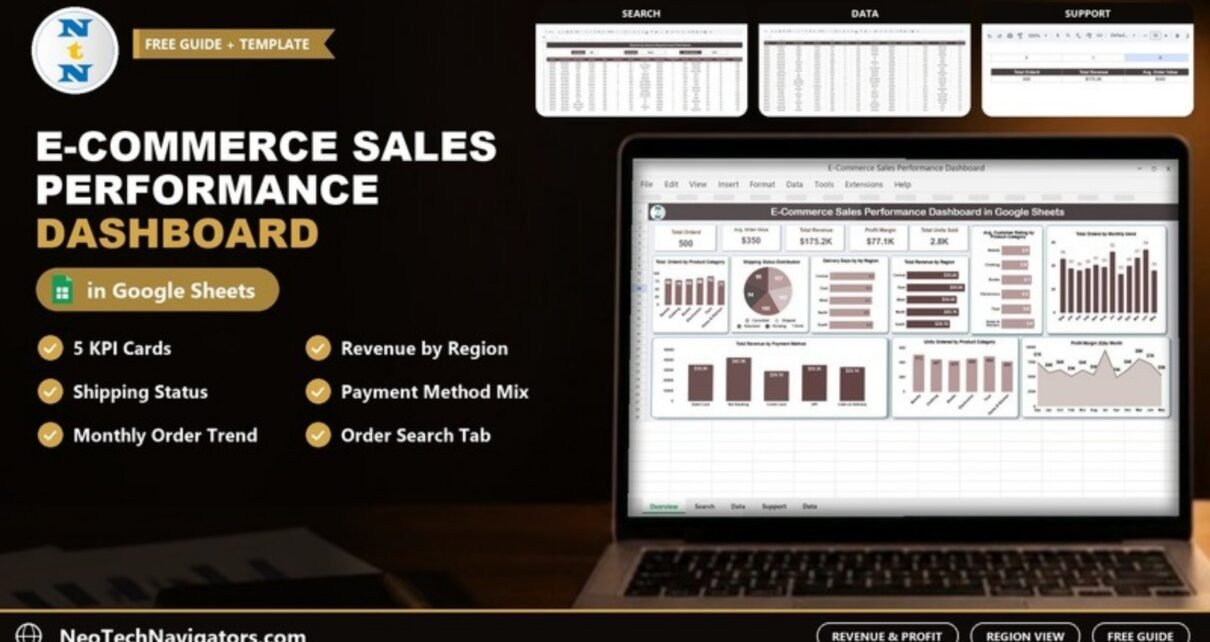
Running an online store means watching orders, revenue, delivery times, customer ratings and profit at the same time, usually across several exports. The E-Commerce Sales Performance Dashboard in Google Sheets turns one order table into five KPI cards and nine charts, so you can see what is selling, where it is delivered slowly and how much profit you are making.
This guide is for small e-commerce owners, marketplace sellers and analysts who want a clear sales report without a BI tool. You will see each of the four tabs, the KPIs and how the numbers are worked out, a worked example from the sample data, how to load your own orders, three use cases, best practices and the honest limits of the template.
🎥 Watch the Video Tutorial
Get the E-Commerce Sales Performance Dashboard
What Problem Does This E-Commerce Dashboard Solve?
Store platforms, payment gateways and courier portals each show part of the story. Pasting them into one spreadsheet still leaves you building pivots and charts every month. This dashboard does that work once: you keep adding rows to the Data sheet and the cards and charts update.
It answers practical questions: Which product categories drive orders and units? Which regions take longest to deliver? Which payment methods bring in the most revenue? How is profit moving month by month? Which categories get the lowest customer ratings?
Inside the Template: Four Tabs
| Tab | Purpose |
|---|---|
| Dashboard | Five KPI cards and nine charts |
| Search | Pick a column, type a keyword and list every matching order with a record count |
| Data | The raw order table that feeds everything |
| Support | Helper table that holds the five KPI card values |
Dashboard Tab
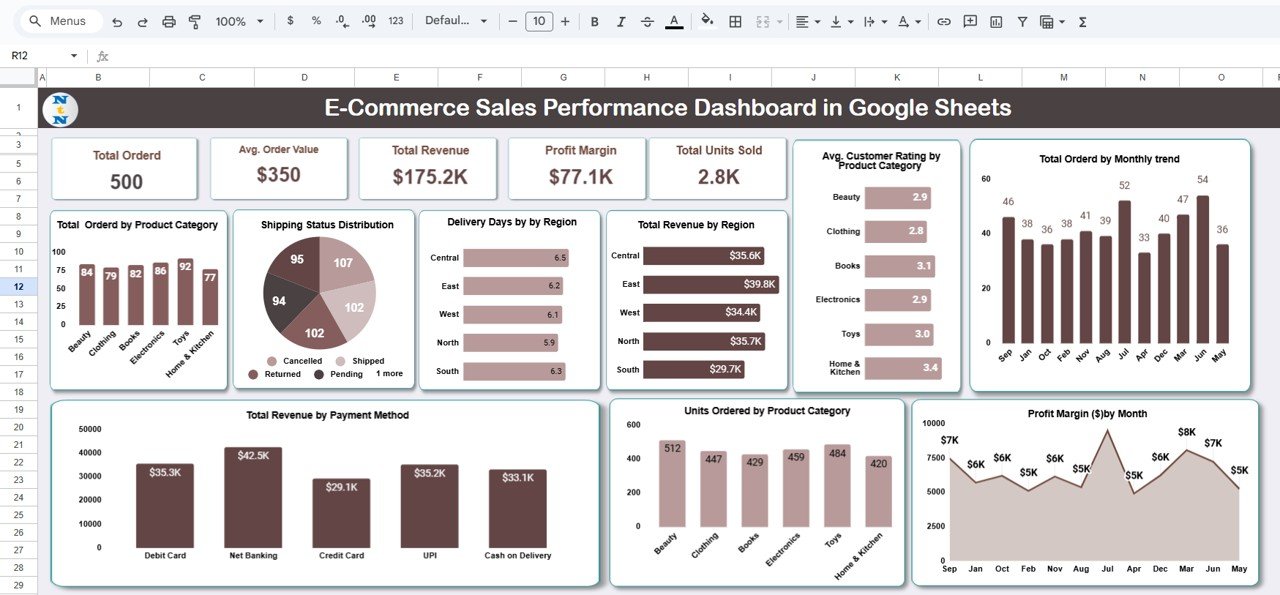
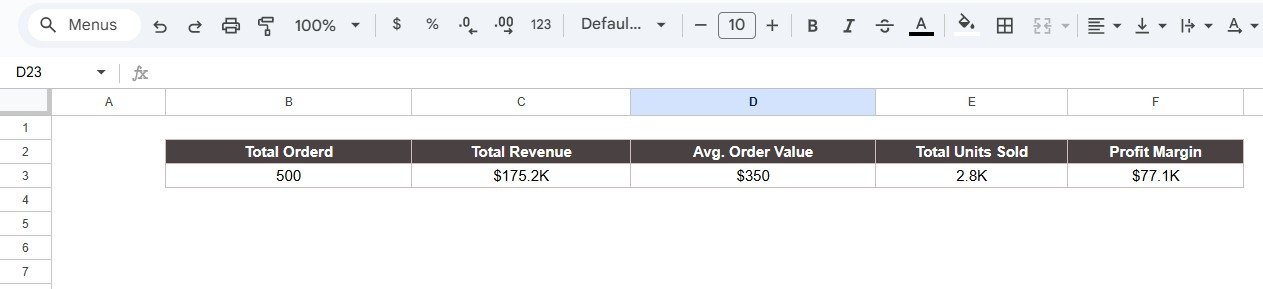
The top row holds the KPI cards. With the 500 sample orders they read: Total Orders 500, Avg. Order Value $350, Total Revenue $175.2K, Profit Margin $77.1K and Total Units Sold 2.8K. Note that Profit Margin is shown as a dollar amount, not a percentage. Below and beside the cards are nine charts:
- Avg. Customer Rating by Product Category: satisfaction for Beauty, Clothing, Books, Electronics, Toys and Home & Kitchen (2.8 to 3.4 in the sample).
- Total Orders by Monthly Trend: order count per month, for growth and seasonality.
- Total Orders by Product Category: your best-selling categories, useful for stock planning.
- Shipping Status Distribution: a pie of Pending, Shipped, Delivered, Returned and Cancelled orders.
- Delivery Days by Region: average delivery time for Central, East, West, North and South, which exposes slow couriers or zones.
- Total Revenue by Region: where your sales come from.
- Total Revenue by Payment Method: Debit Card, Net Banking, Credit Card, UPI and Cash on Delivery.
- Units Ordered by Product Category: volume rather than order count, per category.
- Profit Margin ($) by Month: whether discounts or costs are eating profit.
Search Tab
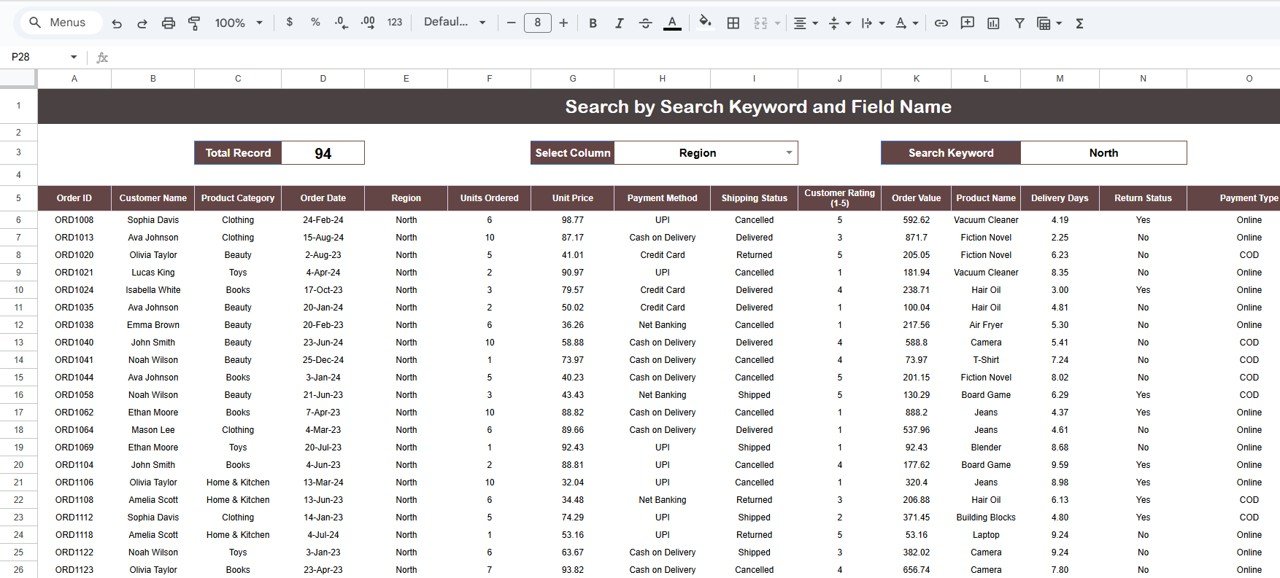
Choose a field in the Select Column dropdown, type a value in Search Keyword, and the sheet lists every matching order with the full row of details and a Total Record count. In the screenshot, Region = North returns 94 orders. It is handy for answering a customer query or auditing a batch of returns without filtering the raw data.
Data Tab
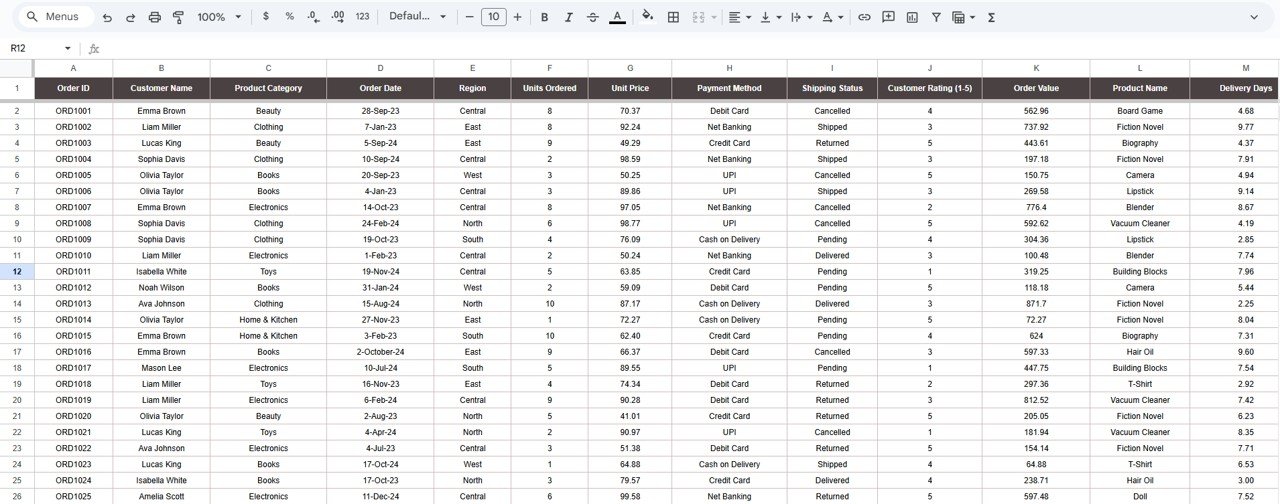
One row per order with Order ID, Customer Name, Product Category, Order Date, Region, Units Ordered, Unit Price, Payment Method, Shipping Status, Customer Rating (1-5), Order Value, Product Name and Delivery Days, followed by further columns such as Return Status (Yes/No) and Payment Type (Online/COD). Order Value is Units Ordered × Unit Price: for ORD1001, 8 × 70.37 = 562.96. This is the only sheet you need to update.
Support Tab
A small helper table that holds the values shown on the five KPI cards: Total Orders, Total Revenue, Avg. Order Value, Total Units Sold and Profit Margin. You do not need to edit it; it recalculates from the Data tab.
E-Commerce KPIs and How They Are Calculated
The formulas below are equivalent Google Sheets formulas you can use to check the cards against the Data tab (Order ID in column A, Product Category in C, Region in E, Units Ordered in F, Customer Rating in J, Order Value in K, Delivery Days in M).
| KPI | What it measures | Equivalent formula | Sample result | Better when |
|---|---|---|---|---|
| Total Orders | Number of orders in the data | =COUNTA(Data!A2:A) |
500 | Higher |
| Total Revenue | Sales value of all orders | =SUM(Data!K2:K) |
$175.2K | Higher |
| Avg. Order Value | Revenue per order | =SUM(Data!K2:K)/COUNTA(Data!A2:A) |
$350 | Higher |
| Total Units Sold | Items ordered across all orders | =SUM(Data!F2:F) |
2.8K | Higher |
| Profit Margin | Total profit, shown in dollars | Calculated by the template from the order data | $77.1K | Higher |
| Delivery Days by Region | Average time to deliver in one region | =AVERAGEIF(Data!E2:E,"North",Data!M2:M) |
5.9 days (North) | Lower |
| Avg. Customer Rating | Average 1-5 rating for one category | =AVERAGEIF(Data!C2:C,"Toys",Data!J2:J) |
3.0 (Toys) | Higher |
Worked Example
The sample file has 500 orders and total revenue of $175.2K, so average order value is 175,200 ÷ 500 ≈ $350, exactly what the card shows. Delivery is slowest in Central at 6.5 days and fastest in North at 5.9 days, so if you ship from one warehouse, Central is the region to raise with your courier first. Home & Kitchen has the best average rating (3.4) and Clothing the lowest (2.8), which points to where product pages or quality checks need work.
How to Use It with Your Own Data
- Make a copy of the template in your Google Drive.
- Export orders from your store platform as CSV for the period you want.
- Match the columns to the Data tab order (Order ID, Customer Name, Product Category, Order Date and so on) and paste them below the headers. Make sure Units Ordered, Unit Price, Order Value and Delivery Days are numbers, not text.
- Use the same spelling for categories, regions, payment methods and shipping statuses every time, so the charts do not split one value into two bars.
- Delete the sample rows so they do not mix with your figures.
- Open Dashboard; the cards and charts recalculate from the new rows.
- Repeat the export weekly or monthly and append the new orders.
Three Real-World Use Cases
- Single-brand online shop: a monthly review of best categories, profit trend and slow-delivery regions to discuss with the courier.
- Marketplace seller: combine orders from several marketplaces by adding a Store column, then compare revenue and ratings by category.
- Agency or freelancer: a clean, shareable sales report for an e-commerce client, built from their platform export.
Best Practices
- Keep category, region and payment method names identical across imports.
- Check for duplicate Order IDs after each import.
- Measure Delivery Days the same way every time (for example, order date to delivery date).
- Read monthly trends rather than reacting to one week.
- Protect the Dashboard and Support ranges so formulas are not overwritten.
Limitations: Who Should Not Use It
The dashboard works from data you paste or import; it does not connect to Shopify, WooCommerce or Amazon automatically. Very large stores with hundreds of thousands of order lines will find Google Sheets slow, and a database with Power BI or Looker Studio is the better route. It also does not calculate customer lifetime value or marketing attribution, and profit is shown as a dollar total rather than a percentage margin.
Related Templates and Learning
For a target-based view, see the E-Commerce KPI Dashboard or the one-page E-Commerce KPI Scorecard. If logistics is your pain point, the Order Fulfillment KPI Dashboard goes deeper, and Etsy sellers can use the Etsy Seller Analytics Dashboard. You may also like the broader E-Commerce Dashboard in Google Sheets.
Need a simpler log instead of charts? The E-Commerce Sales Performance Tracker in Google Sheets is the tracker version. And if you want to build pivot-based dashboards like this yourself, the Excel Pivot Tables and Dashboards course on NextGenTemplates Academy covers the method step by step.
Frequently Asked Questions
Can I track multiple stores or websites?
Yes. Add a Store column to the Data tab and use it to filter or build an extra pivot chart by store.
Does it track profit?
Yes. The Profit Margin card and the Profit Margin ($) by Month chart show profit as a dollar amount ($77.1K across the sample data) rather than as a percentage.
Does it connect directly to Shopify or WooCommerce?
No. Export orders as CSV and paste them in. Automation is possible with Google Apps Script or a connector add-on, but it is not included.
Which shipping statuses does it use?
The sample data uses Pending, Shipped, Delivered, Returned and Cancelled, and the Shipping Status Distribution chart counts each one.
Can I add new charts?
Yes. Insert a pivot table from the Data range and chart it, for example returns by category using the Return Status column.
How many orders can it handle?
Tens of thousands of rows work well. Beyond that, Google Sheets slows down and a database-backed tool is a better fit.
Wrapping Up
The E-Commerce Sales Performance Dashboard gives you one place to see orders, revenue, average order value, units, profit, delivery speed and ratings. Load a month of orders, check the profit and delivery charts first, and use what you find to adjust pricing, stock and courier choices.
Get the E-Commerce Sales Performance Dashboard
📅 Last updated: October 2026