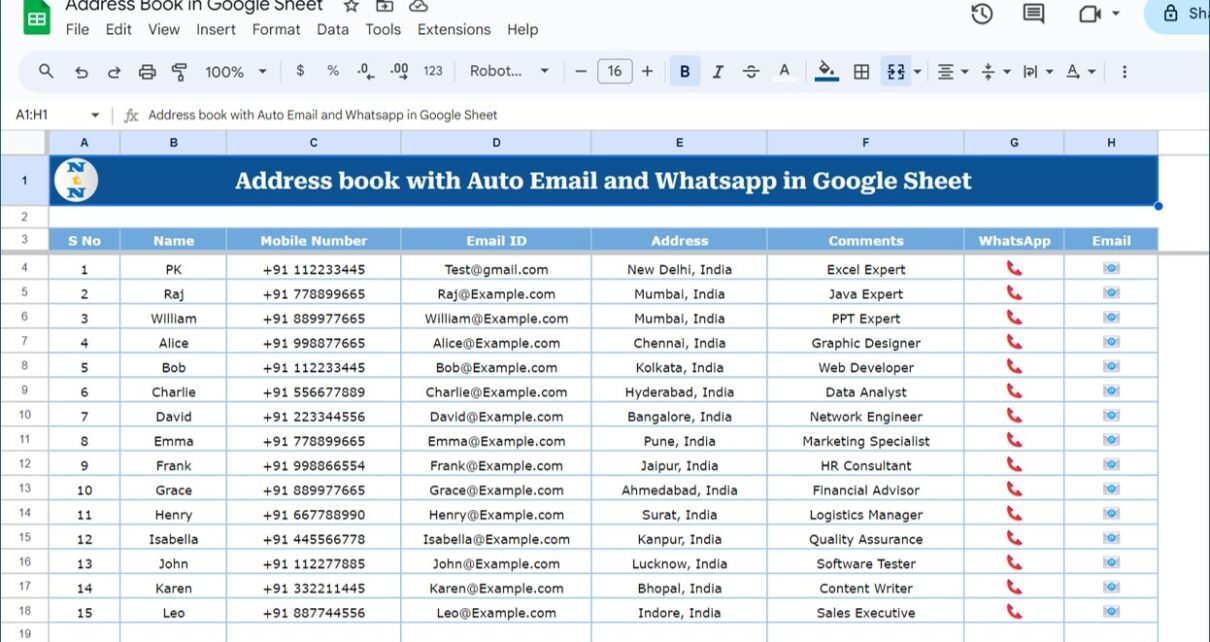
An address book in Google Sheets with auto WhatsApp and email lets you open a WhatsApp chat or a new email for any contact with one click, straight from the row where you keep their details. You do not need to save the number in your phone first, and you do not need to copy and paste email addresses.
This guide explains a ready-to-use template titled “Address book with Auto Email and Whatsapp in Google Sheet”. It is for small business owners, sales and support teams, freelancers and anyone who keeps a contact list in a spreadsheet. You will see the columns it uses, how the WhatsApp and Email icons behave, and the HYPERLINK formulas that make this kind of one-click link work.
🎥 Watch the Video Tutorial
Get the WhatsApp and Email Address Book
What the WhatsApp and Email Address Book in Google Sheets Contains
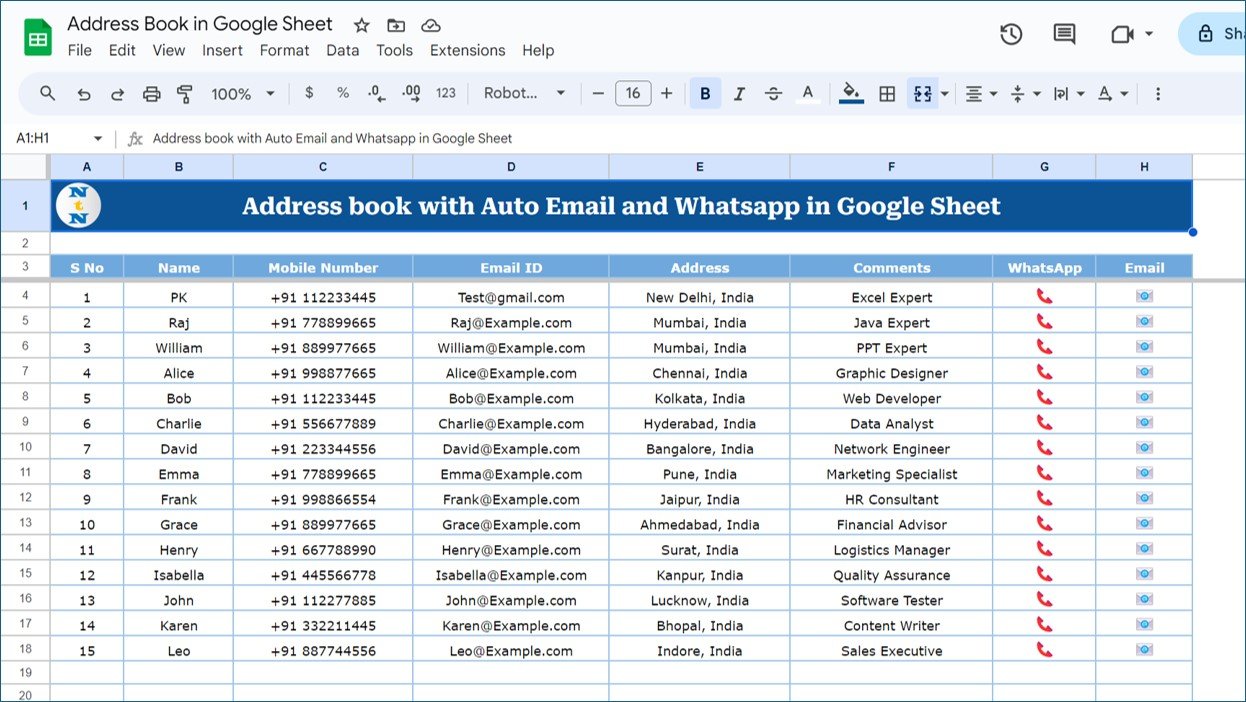
The sheet is one clean table with 15 sample contacts. These are the columns:
| Column | What goes in it | Sample value |
|---|---|---|
| S No | Serial number | 1 |
| Name | Contact name | PK |
| Mobile Number | Number with country code | +91 112233445 |
| Email ID | Email address | Test@gmail.com |
| Address | City and country | New Delhi, India |
| Comments | Role or note | Excel Expert |
| Click to open a WhatsApp chat with this number | Phone icon | |
| Click to start an email to this address | Mail icon |
The sample contacts (Raj, William, Alice, Bob and others) use placeholder numbers and example.com addresses, so replace them with your own before use.
How the One-Click Links Work
WhatsApp Icon
- Click the WhatsApp icon on any row and WhatsApp Web opens a chat with that number.
- The number does not need to be saved in your phone contacts.
- The first time, WhatsApp Web asks you to scan a QR code with WhatsApp on your phone to log in. After that it opens straight to the chat.
- You type the message and press send yourself, so nothing goes out without you seeing it.
Email Icon
- Click the Email icon and your default email application, for example Microsoft Outlook, opens a new message.
- The contact’s address is already in the To field.
- You add the subject and body and send as usual.
The Formulas Behind One-Click WhatsApp and Email Links
If you want to understand the idea or add the same links to another sheet, the HYPERLINK function is the key. It takes a link and a label:
| Argument | Meaning | Example |
|---|---|---|
| url | The address to open when clicked | “mailto:Raj@Example.com” |
| link_label | Text shown in the cell (optional) | “Email” |
Worked Example: WhatsApp Link
Suppose the mobile number is in C5 as +91 778899665 (Raj, row 5). WhatsApp needs the number with country code but without the plus sign or spaces, so clean it first:
=HYPERLINK("https://web.whatsapp.com/send?phone=" & SUBSTITUTE(SUBSTITUTE(C5,"+","")," ",""), "WhatsApp")Result: a cell showing WhatsApp that links to https://web.whatsapp.com/send?phone=91778899665 and opens the chat in WhatsApp Web.
Worked Example: Email Link
With the email address in D5:
=HYPERLINK("mailto:" & D5, "Email")Result: clicking Email opens a new message to Raj@Example.com in your default mail app.
Useful Variations
- Pre-filled WhatsApp text: add a message with ENCODEURL so spaces are handled.
=HYPERLINK("https://web.whatsapp.com/send?phone=" & SUBSTITUTE(SUBSTITUTE(C5,"+","")," ","") & "&text=" & ENCODEURL("Hi " & B5 & ", following up on our call."), "WhatsApp") - Email with a subject:
=HYPERLINK("mailto:" & D5 & "?subject=" & ENCODEURL("Meeting follow-up"), "Email") - Phone app instead of WhatsApp Web: use
https://wa.me/followed by the cleaned number. It opens a page that hands off to the WhatsApp app or WhatsApp Web. - Skip blank rows: wrap the formula in
=IF(C5="", "", ...)so empty rows show nothing.
For a full step-by-step on the WhatsApp part, see how to create WhatsApp links in Google Sheets.
Common Errors and Fixes
| Problem | Cause | Fix |
|---|---|---|
| WhatsApp says the number is invalid | Missing country code, or extra spaces, dashes or brackets | Store numbers as +countrycode number and clean them with SUBSTITUTE |
| Email icon does nothing | No default mail app set on the computer | Set a default email app in your operating system, or use Gmail as the mailto handler in Chrome |
| Wrong person’s chat opens | Formula points to the wrong row | Check the cell references after copying the formula down |
| Message text cut off or garbled | Spaces or symbols not encoded | Wrap the text in ENCODEURL |
It also helps to validate addresses before you rely on them. Our guide on checking if an email is valid in Google Sheets shows a simple formula.
How to Use the Template with Your Own Contacts
- Make a copy of the template in your Google Drive.
- Replace the sample rows with your contacts: Name, Mobile Number (with country code), Email ID, Address and Comments.
- Keep the WhatsApp and Email columns as they are; they follow each row.
- Log in to WhatsApp Web once by scanning the QR code with your phone.
- Click an icon to test with your own number and email first.
Real-World Use Cases
- Sales follow-ups: a salesperson keeps today’s leads in the sheet and opens each WhatsApp chat in one click after a call.
- Customer support: a small team logs customer details and replies by email without hunting for addresses.
- Events and classes: an organiser keeps the attendee list and messages people about timing changes.
Best Practices
- Always store numbers in international format with the country code.
- Use the Comments column for context, such as role or last conversation, so anyone on the team knows who the person is.
- Only message people who expect to hear from you, and respect WhatsApp’s business messaging rules.
- Share the sheet carefully. It contains personal data, so give edit access only to people who need it.
Limitations
The icons open a chat or a draft; you still write and send each message yourself. WhatsApp Web needs an active login on the computer you use, and the Email icon depends on a default mail app being set. If you need a full customer system with follow-up dates and history, a dedicated tool may suit you better. See our Customer Address Book Web App or the Networking and Professional Contacts Tracker.
If you want to get more confident with formulas like HYPERLINK, SUBSTITUTE and ENCODEURL, the Excel AI Mastery: 100 Formulas course on NextGenTemplates Academy covers text and lookup formulas with practice files.
Frequently Asked Questions
Can I send a WhatsApp message from Google Sheets?
Yes. A HYPERLINK to WhatsApp Web with the contact’s number opens the chat in one click. You then type and send the message.
Do I need to save the number in my phone first?
No. The link opens a chat with any valid number that has WhatsApp, saved or not.
Why does WhatsApp Web ask for a QR code?
That is how WhatsApp Web links to your phone. Scan it once with WhatsApp on your mobile and the browser stays logged in.
Which email app opens when I click the Email icon?
Your computer’s default mail application, for example Microsoft Outlook. You can change the default in your system settings.
Does this work on mobile?
Links in the Google Sheets app open on mobile too. A wa.me link is the better choice there, because it opens the WhatsApp app directly.
What format should phone numbers be in?
Country code plus number, for example +91 followed by the mobile number. The formula removes the plus sign and spaces before building the link.
Wrapping Up
A WhatsApp and email address book in Google Sheets saves the small, repeated steps of copying numbers and addresses between apps. Keep your contacts in one table, click to open the chat or email, and stay in control of every message you send. Watch the video above to see it in action, then try it with your own list.
Get the WhatsApp and Email Address Book
📅 Last updated: October 2026