The Coffee Cafe POS Web App runs an entire coffee shop on Google Sheets and Google Apps Script across 20 connected screens, with 6 user roles and nearly 20 built-in reports. It covers billing, tables, counter tickets (KOT), inventory, purchases, suppliers, customers, shifts and administration — the daily workflow of a cafe — in one place you fully own.
Most cafe POS platforms charge monthly per-terminal fees and lock your sales data in a vendor cloud. The Coffee Cafe POS Web App is a one-time purchase that lives in your own Google Drive, deploys as a browser web app, and works on any phone, tablet or laptop. Below is a full walkthrough of every screen, how it compares to alternatives, and how to get the most from it.
Get the Coffee Cafe POS Web App
🚀 Try the Live Demo Before You Buy
We have deployed this web app in our own Google account so you can test every page, every role, and every POS feature — with real sample data — before purchasing. No signup, no email required.
🔑 Test Login Credentials
Sign in as Admin1 for full control over the system, or try any of the other five roles below to see exactly what each staff member can access. All passwords are abcd.
💡 What you get after purchase: The full source code (Code.gs + Index.html) plus a step-by-step deployment guide so you can deploy your own private instance in your own Google account in under 15 minutes.
Key Features of the Coffee Cafe POS Web App
The Coffee Cafe POS Web App connects billing, tables, kitchen tickets, stock, purchasing, customers and cash handling so a barista, cashier and owner all work from the same live data. It supports six roles — Admin, Manager, Cashier, Barista, Inventory User and Viewer — each signing in with their own credentials and seeing only the screens their role allows.
It ships with nearly 20 ready-made reports, from daily and cashier sales to shift closing, low stock, supplier payments and a full audit log. A live dashboard surfaces sales, orders, tips and low-stock cards alongside trend, hourly and payment-mode charts, and every module exports to Excel.
Coffee Cafe POS Web App Screens Explained
1. Login Page
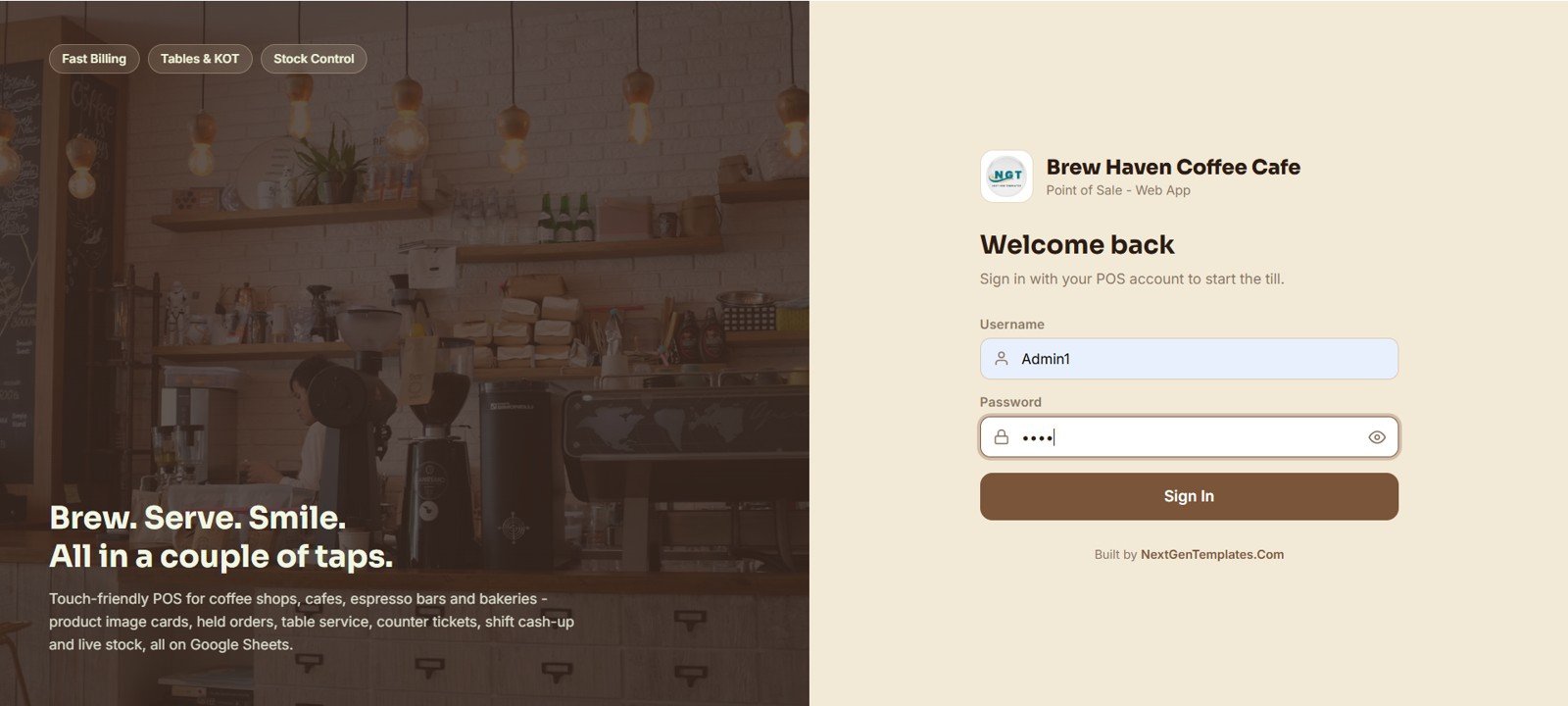
Secure role-based sign-in. Every user logs in with their own username and password, and the screen carries your cafe branding, logo and a touch-friendly welcome.
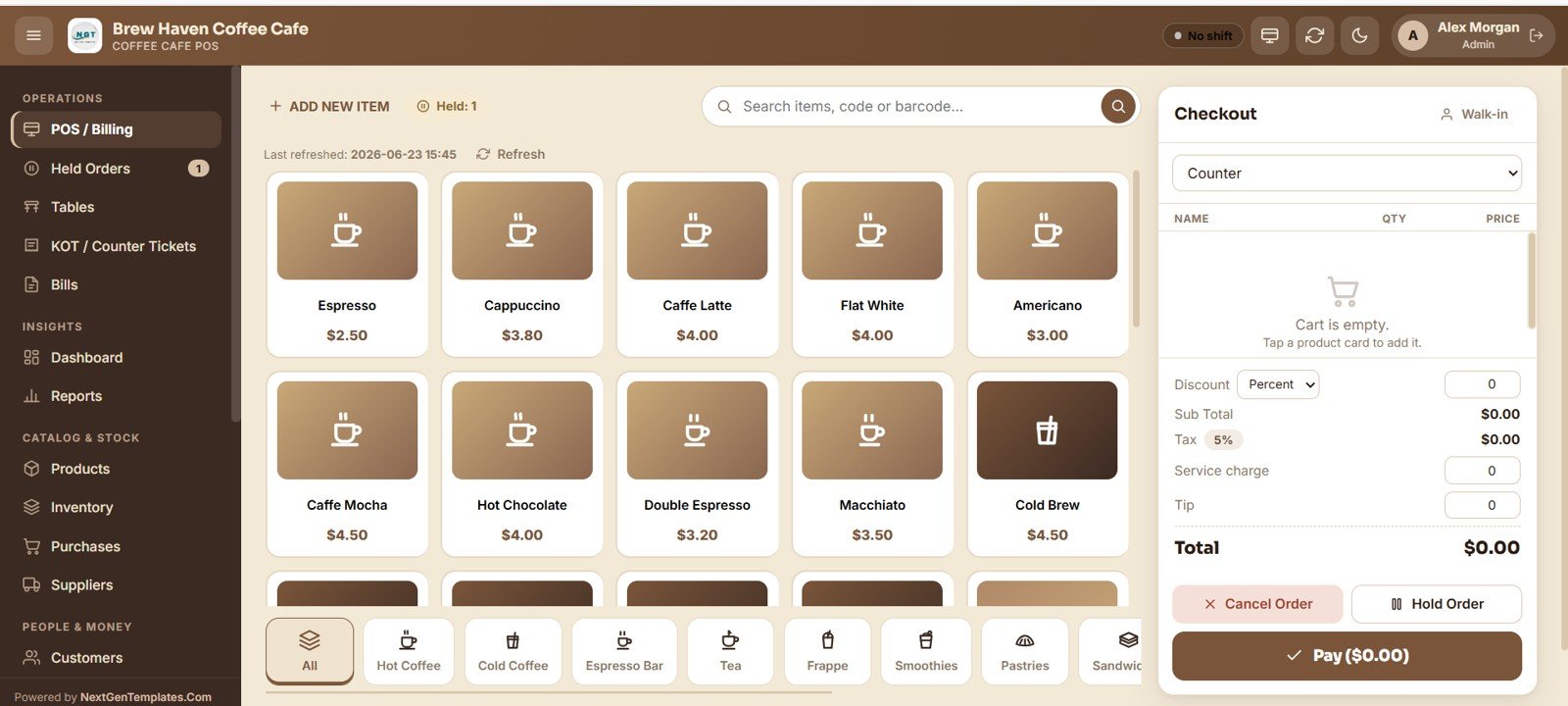
2. POS / Billing
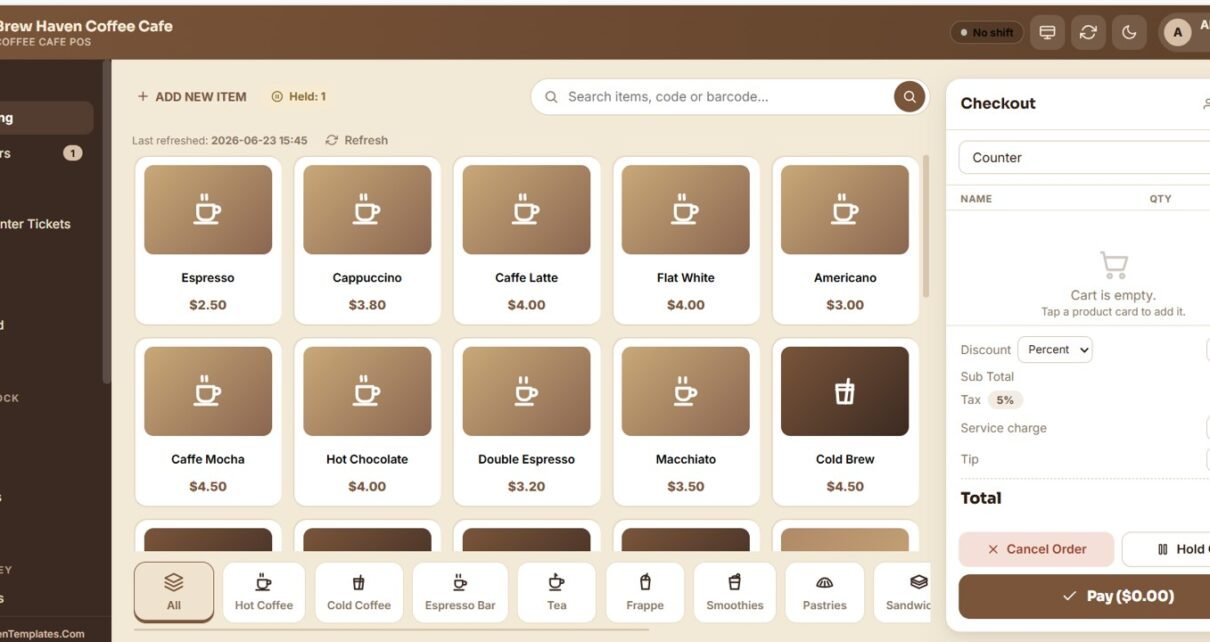
The main point-of-sale screen, where staff build an order from touch-friendly product image cards grouped by category — hot coffee, cold coffee, espresso bar, tea, frappe, smoothies, pastries and sandwiches. The live checkout panel handles order type, discount, tax, service charge, tip, hold order and payment.
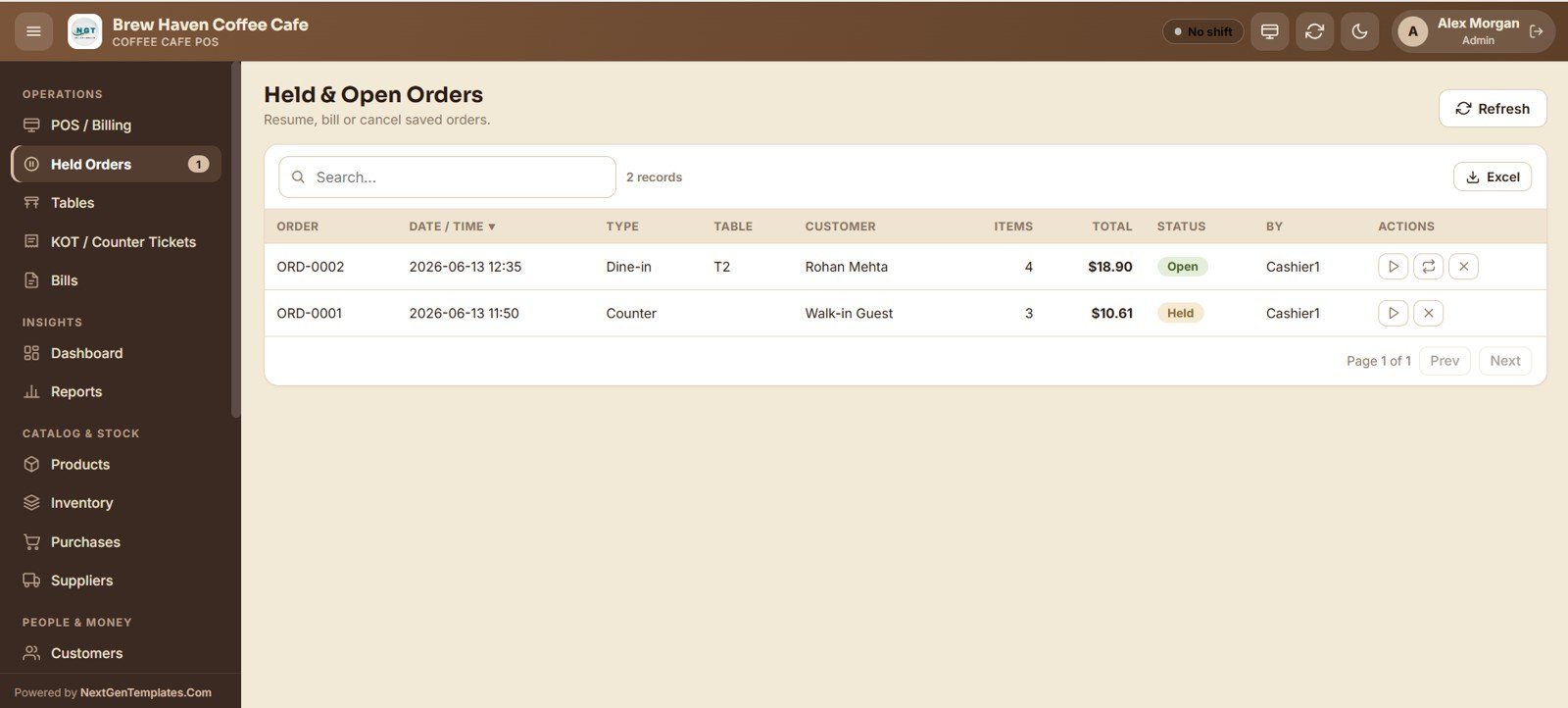
3. Held and Open Orders
Lists every saved or running order with its number, date, type, table, customer, item count, total, status and the staff member who created it. Resume an order to add items, send it to billing, or cancel it.
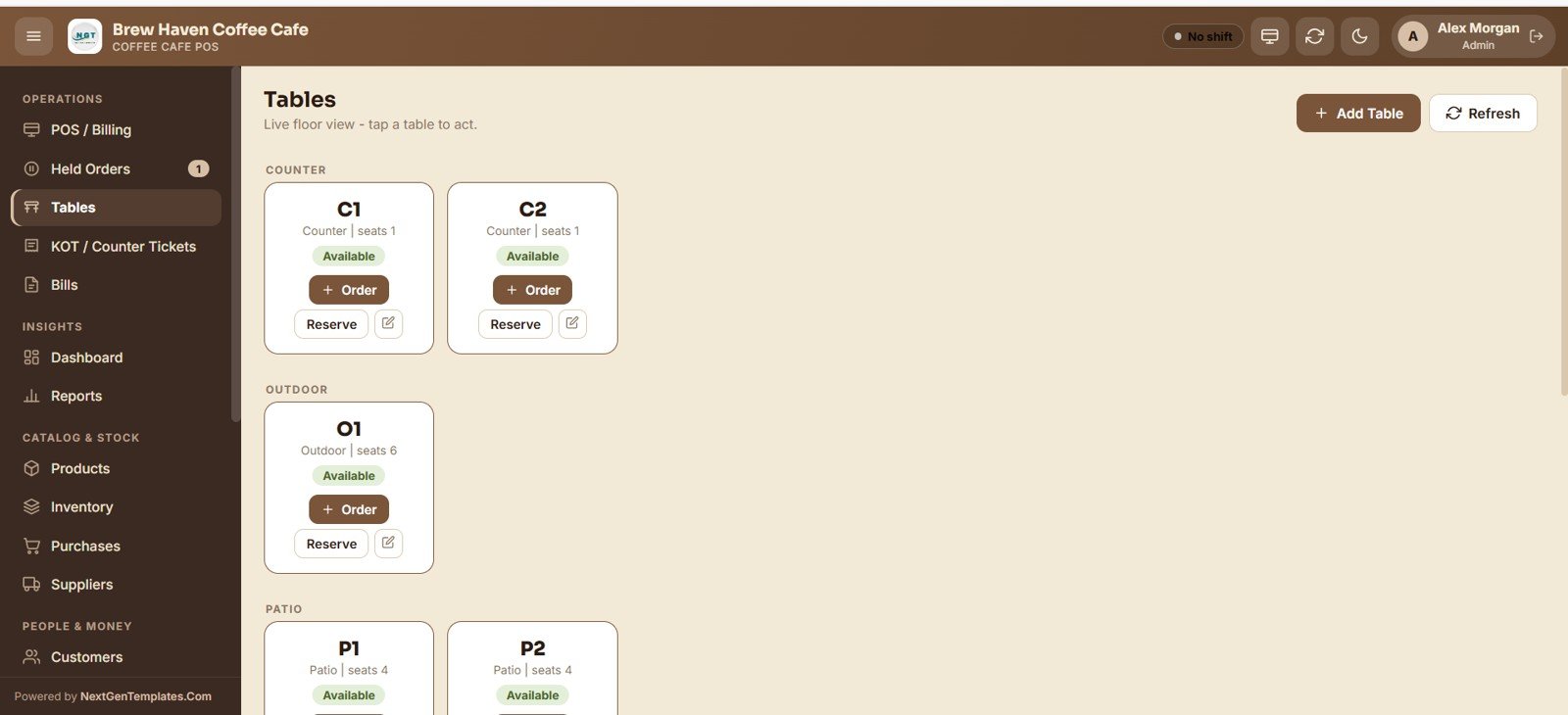
4. Tables
A live floor view grouped by area such as counter, outdoor and patio. Each table card shows its seats and status — available, occupied or reserved — and lets you start an order, reserve the table or generate the bill in one tap.
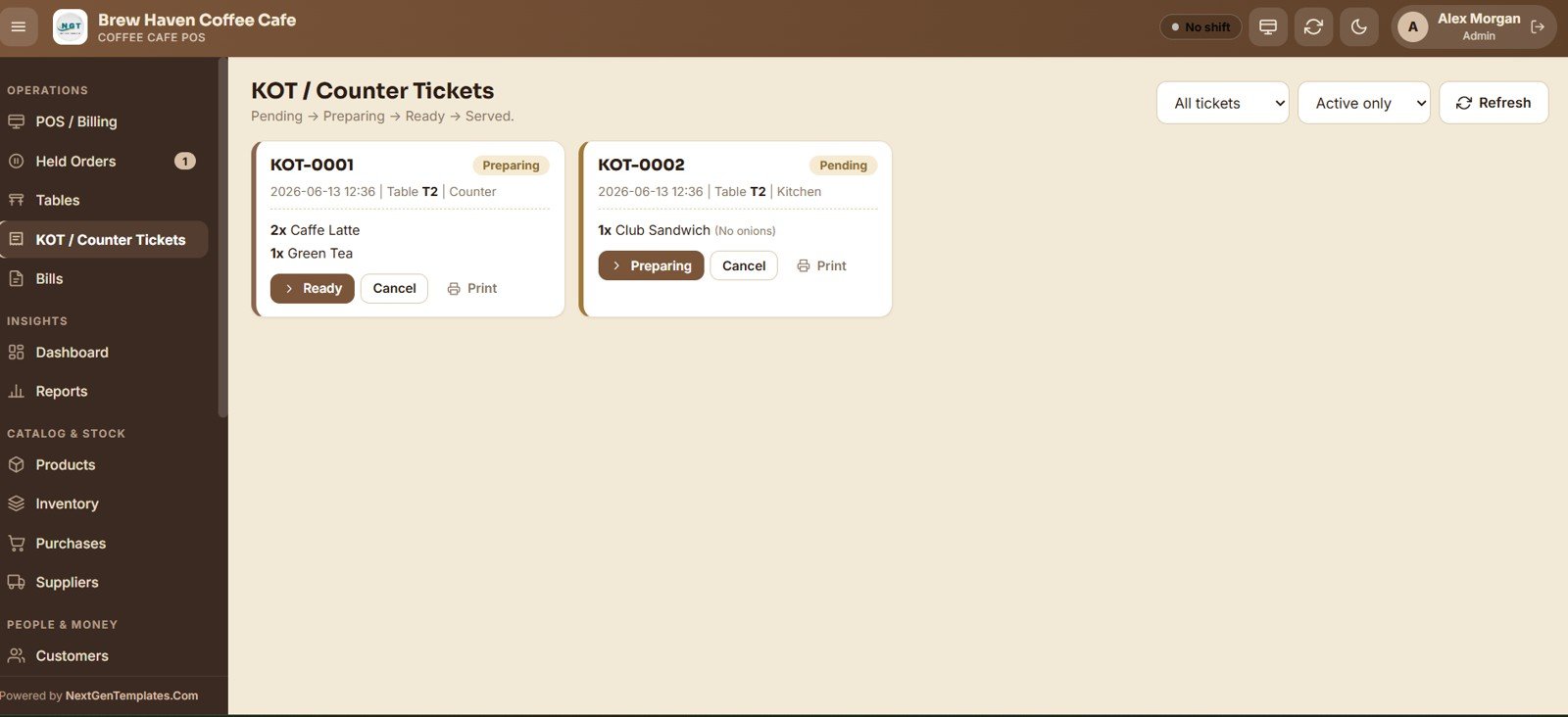
5. KOT / Counter Tickets
The kitchen and barista preparation board that moves each ticket through pending, preparing, ready and served. Staff update the status, print or cancel each ticket, and filter the board to active tickets only.
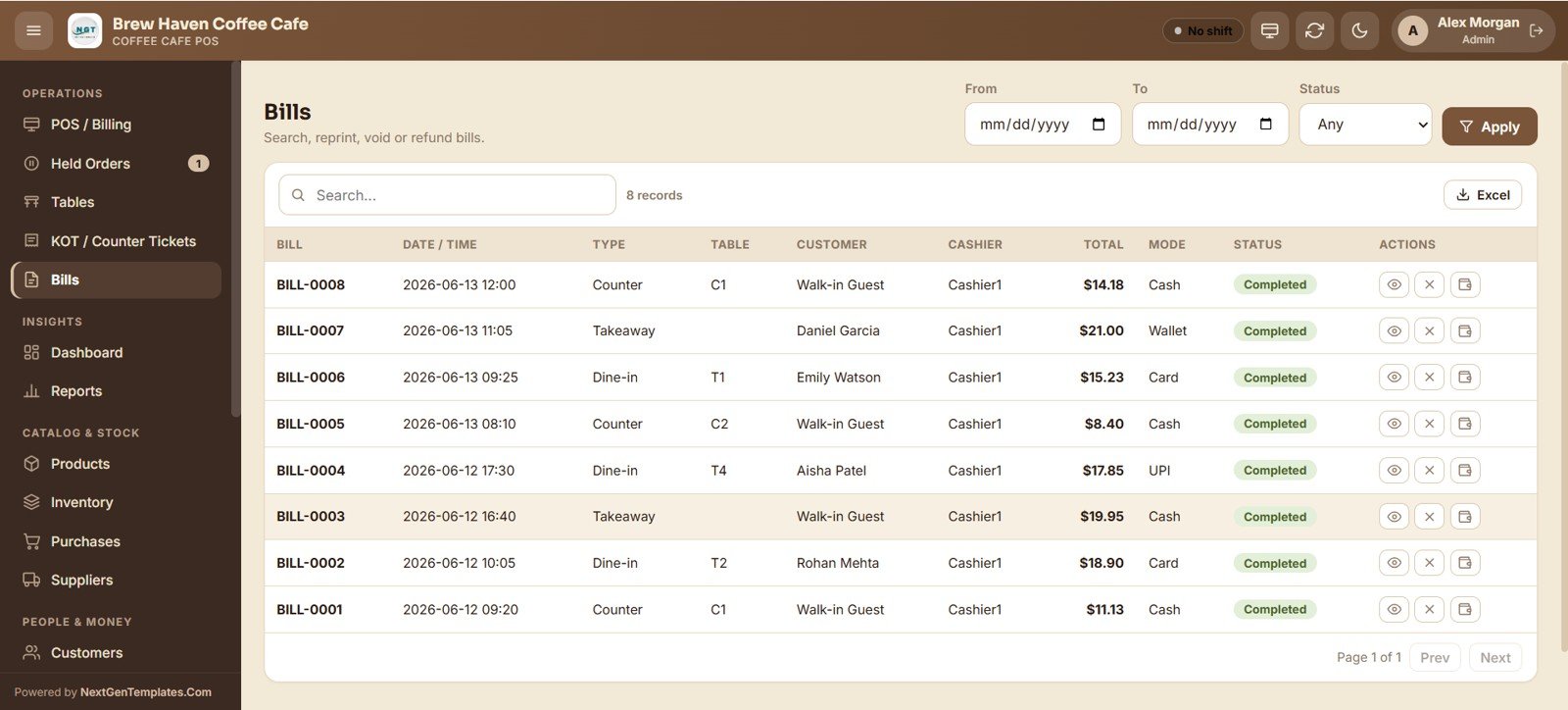
6. Bills
Search, view, reprint, void or refund any completed bill, with date-range and status filters. Each row shows bill number, date, order type, table, customer, cashier, total, payment mode and status, and exports to Excel.
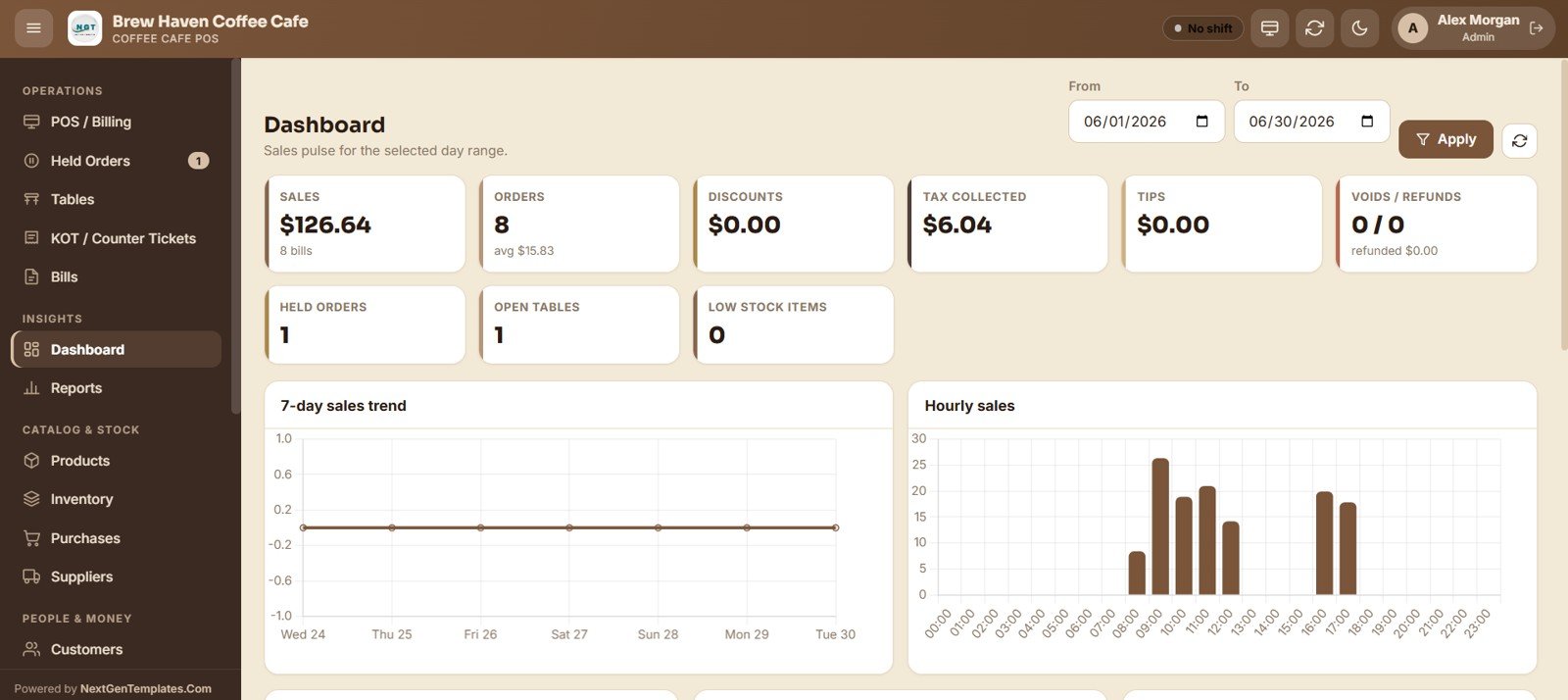
7. Dashboard
Summary cards show Sales, Orders, Discounts, Tax Collected, Tips, Voids/Refunds, Held Orders, Open Tables and Low Stock Items for the selected day range. Charts include 7-Day Sales Trend, Hourly Sales, Sales by Payment Mode, Sales by Top Product and Sales by Category.
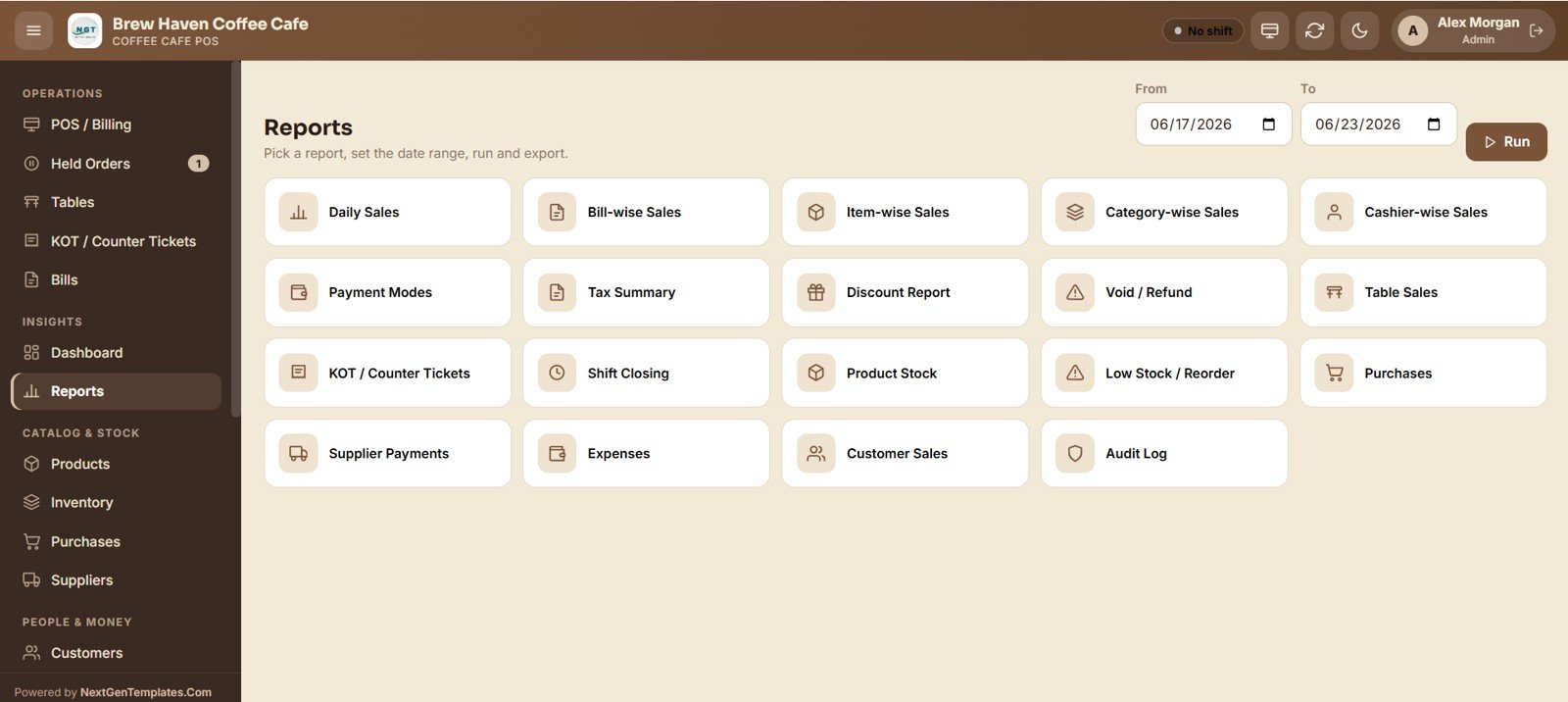
8. Reports
A central report center offering nearly twenty ready-made reports — daily, bill, item, category and cashier sales, payment modes, tax, discounts, voids, table sales, counter tickets, shift closing, product stock, low stock, purchases, supplier payments, expenses, customer sales and the audit log. Pick a report, set a date range, run and export.
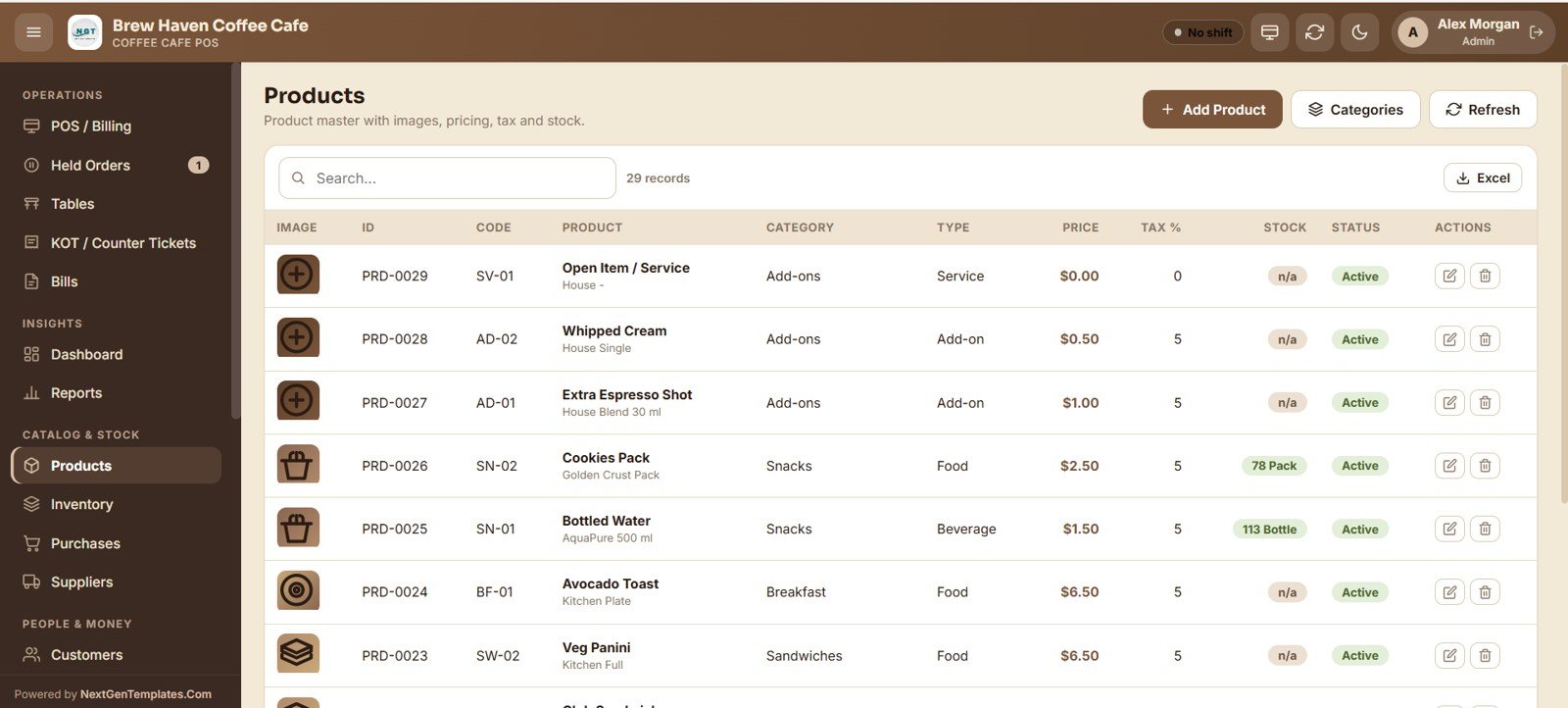
9. Products
The product master holding every drink and food item with its image, code, category, type, price, tax percent, stock and status. Add, edit, import and export products and manage their categories from one place.
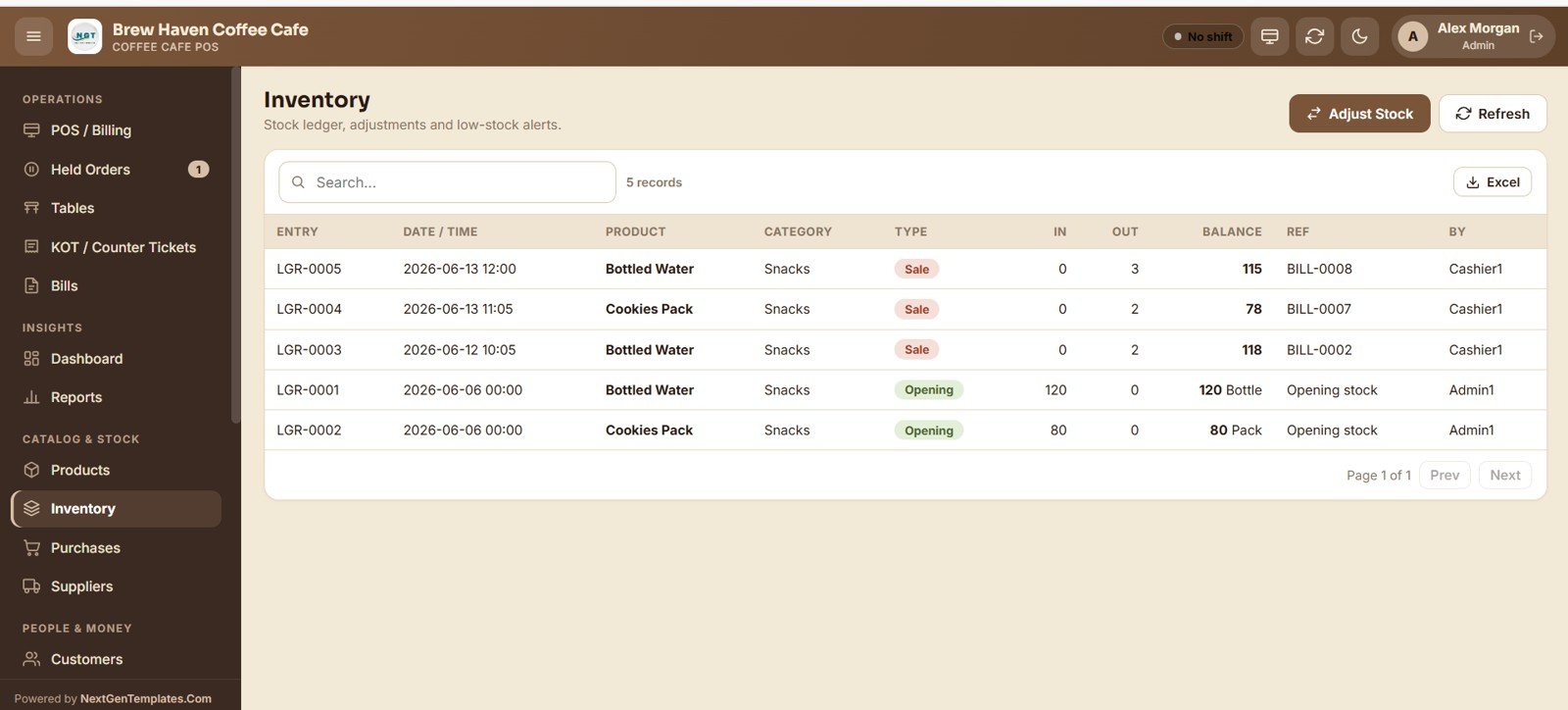
10. Inventory
The stock ledger recording every movement with the entry, date, product, category, type, quantity in, quantity out, running balance and reference bill. It also supports manual stock adjustments and highlights low-stock items.
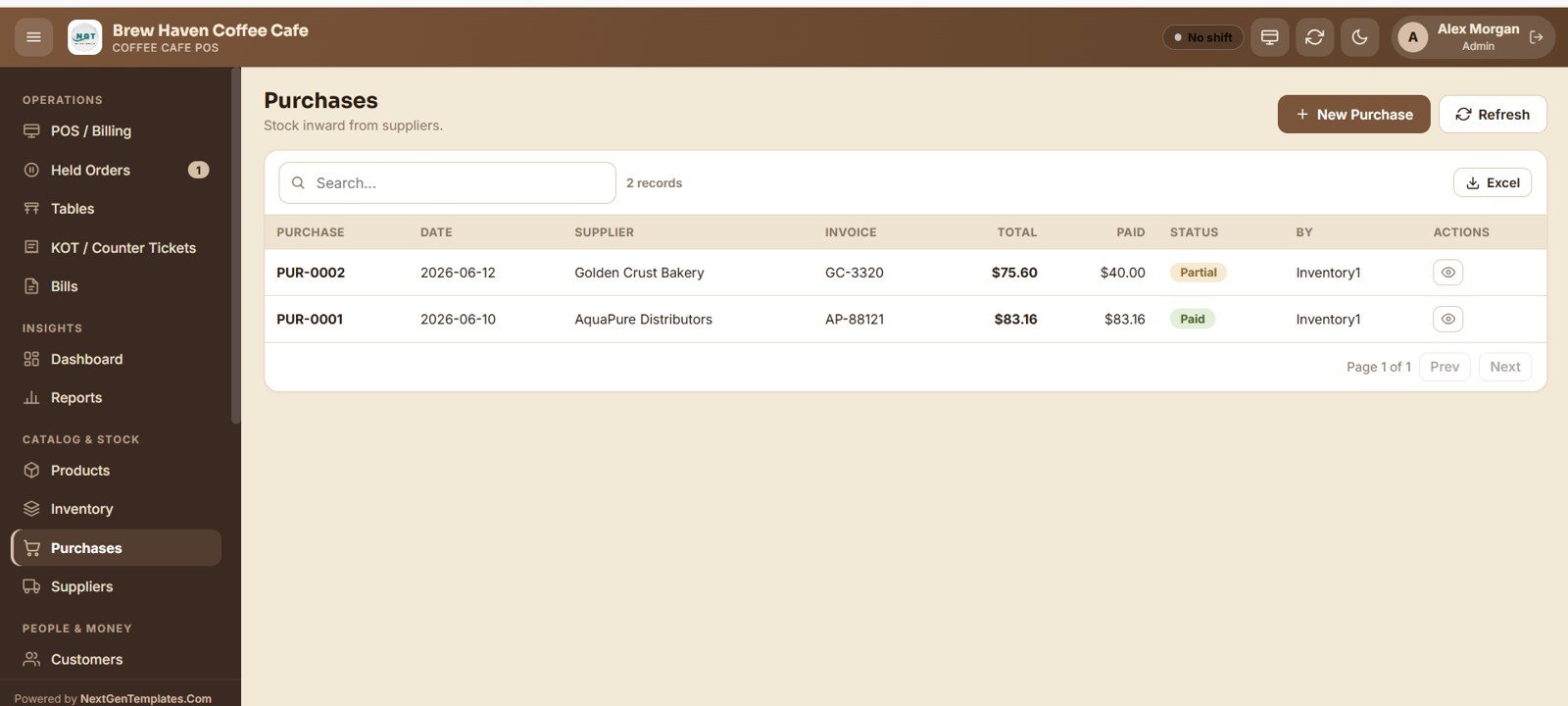
11. Purchases
Records stock inward from suppliers, showing each purchase with its date, supplier, invoice number, total, amount paid and payment status. Raise a new purchase and export the list to Excel.
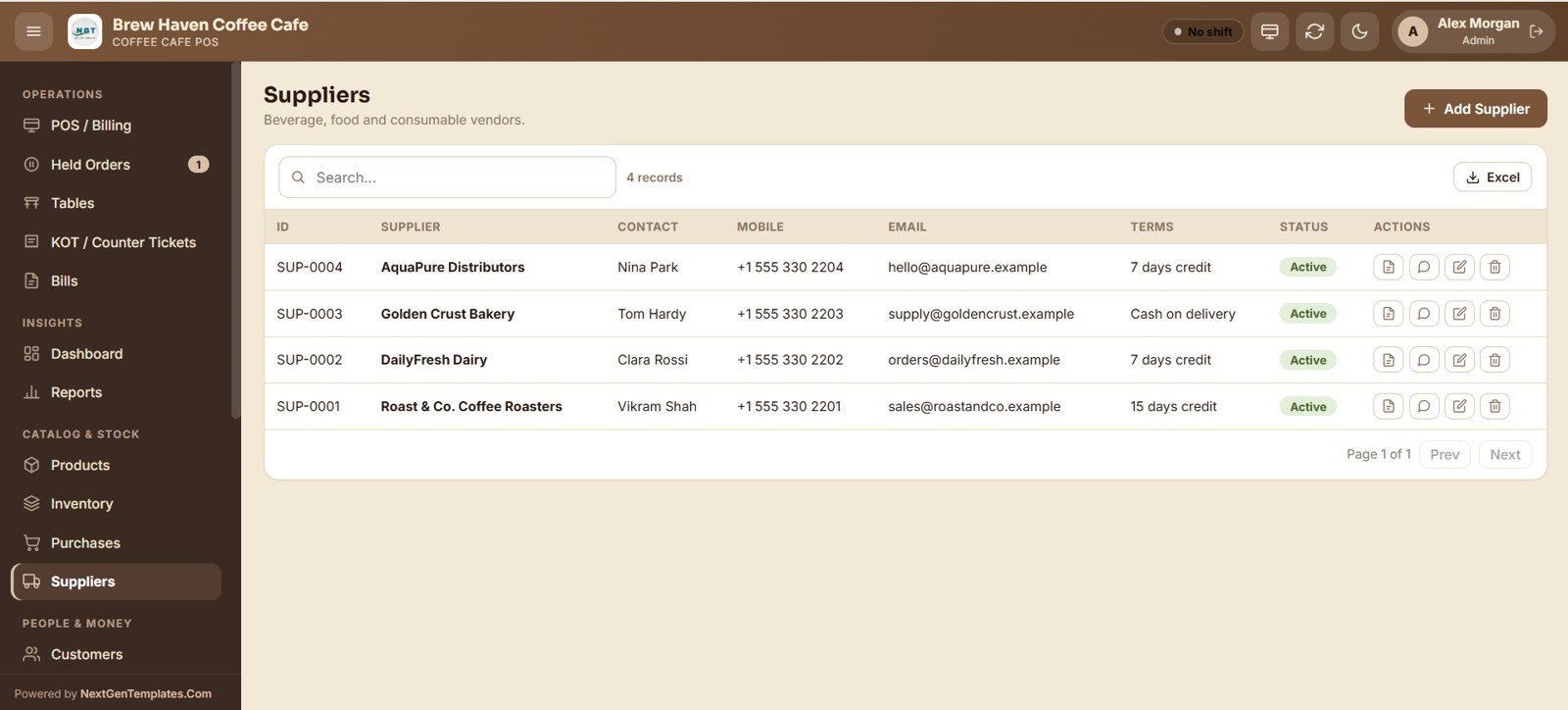
12. Suppliers
Your directory of coffee, dairy, bakery and consumable vendors, holding each supplier with their contact person, mobile, email, payment terms and status. Add suppliers and export the full list.
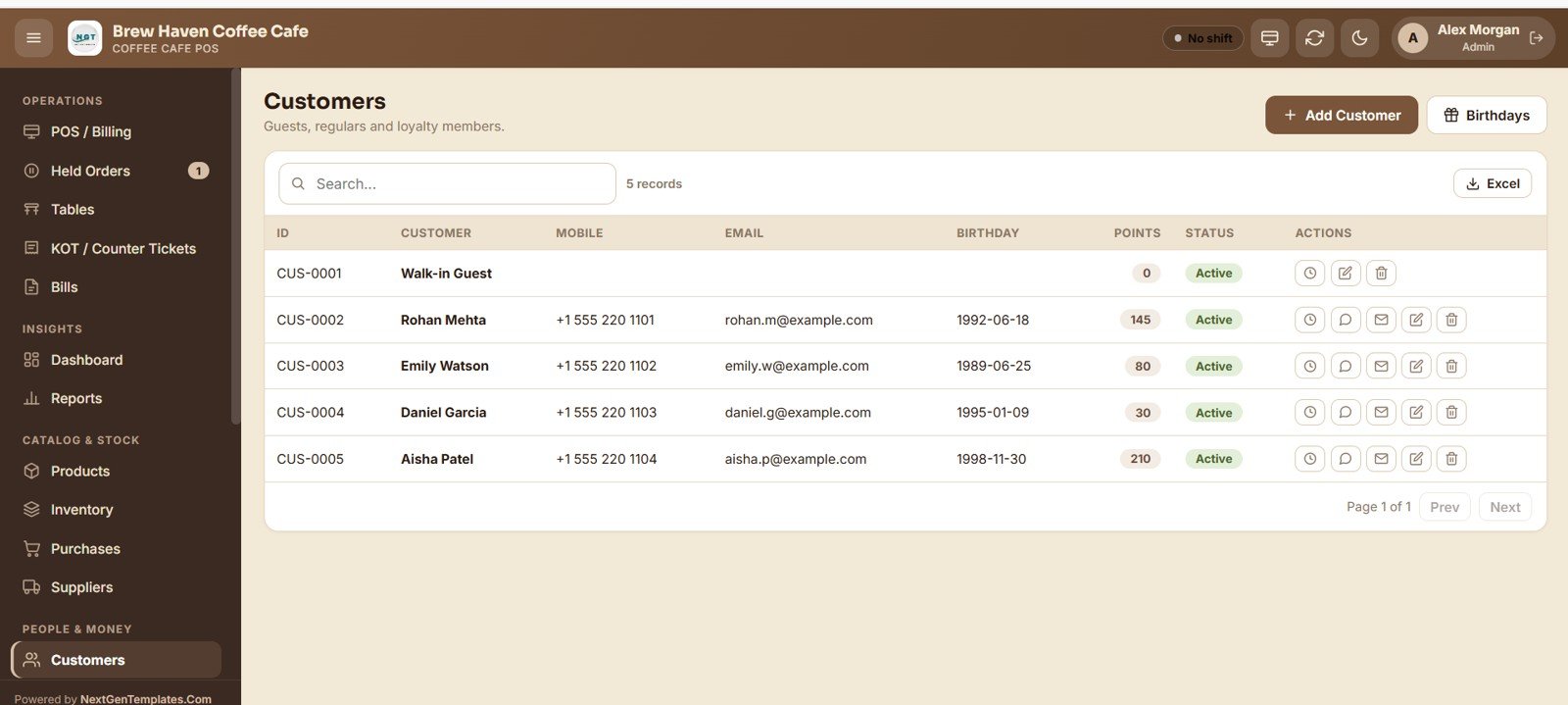
13. Customers
Keeps your guests, regulars and loyalty members with their mobile, email, birthday, loyalty points and status. Add customers, track loyalty points and view upcoming birthdays for marketing.
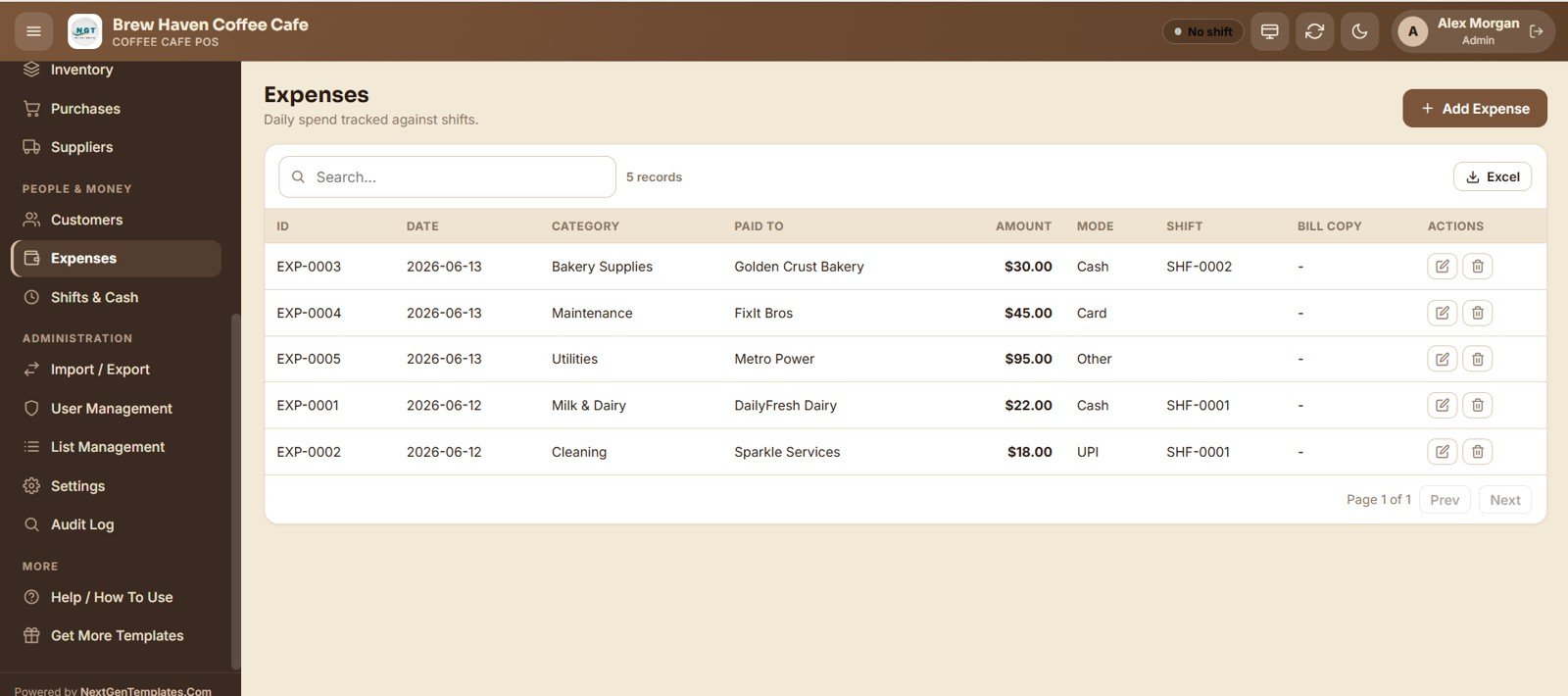
14. Expenses
Tracks daily spend against shifts, recording each expense with its date, category, payee, amount, payment mode, linked shift and bill copy. Add expenses and export them to Excel.
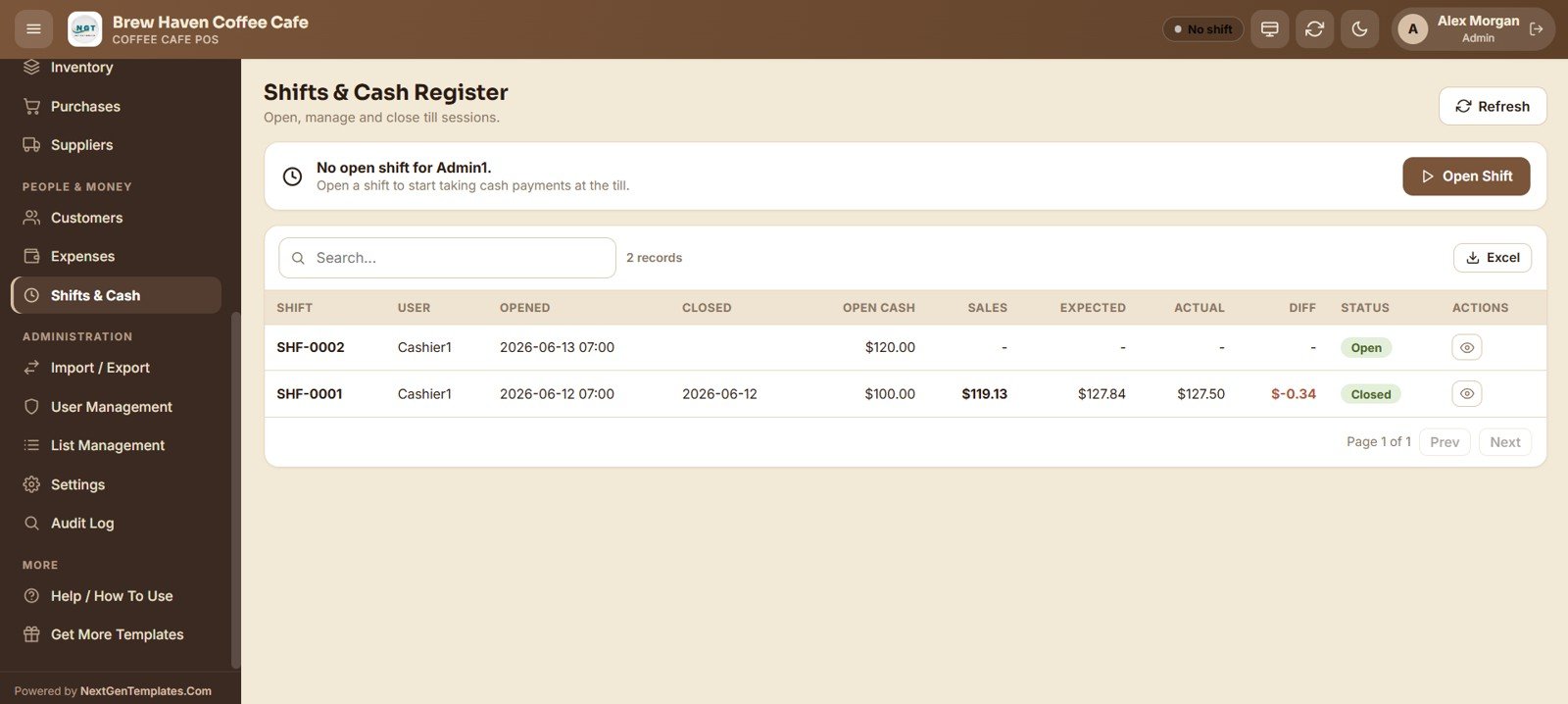
15. Shifts and Cash Register
Cashiers open, manage and close their till sessions. Each shift shows the user, open and close time, opening cash, sales, expected and actual cash and the difference, so the drawer is always reconciled.
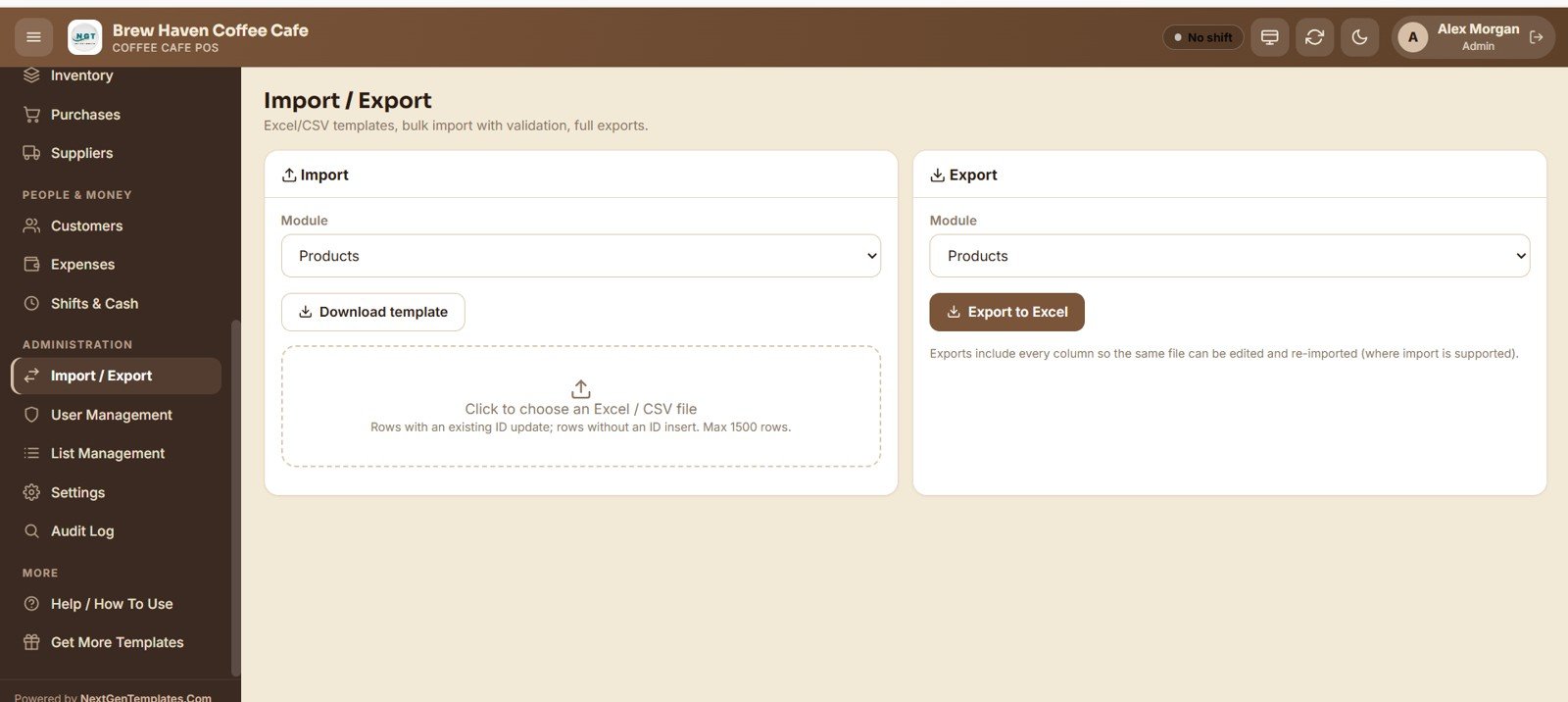
16. Import / Export
Handles bulk data: download an Excel or CSV template for a module, import rows with validation, and export every module to Excel. Rows with an existing ID update and rows without an ID insert.
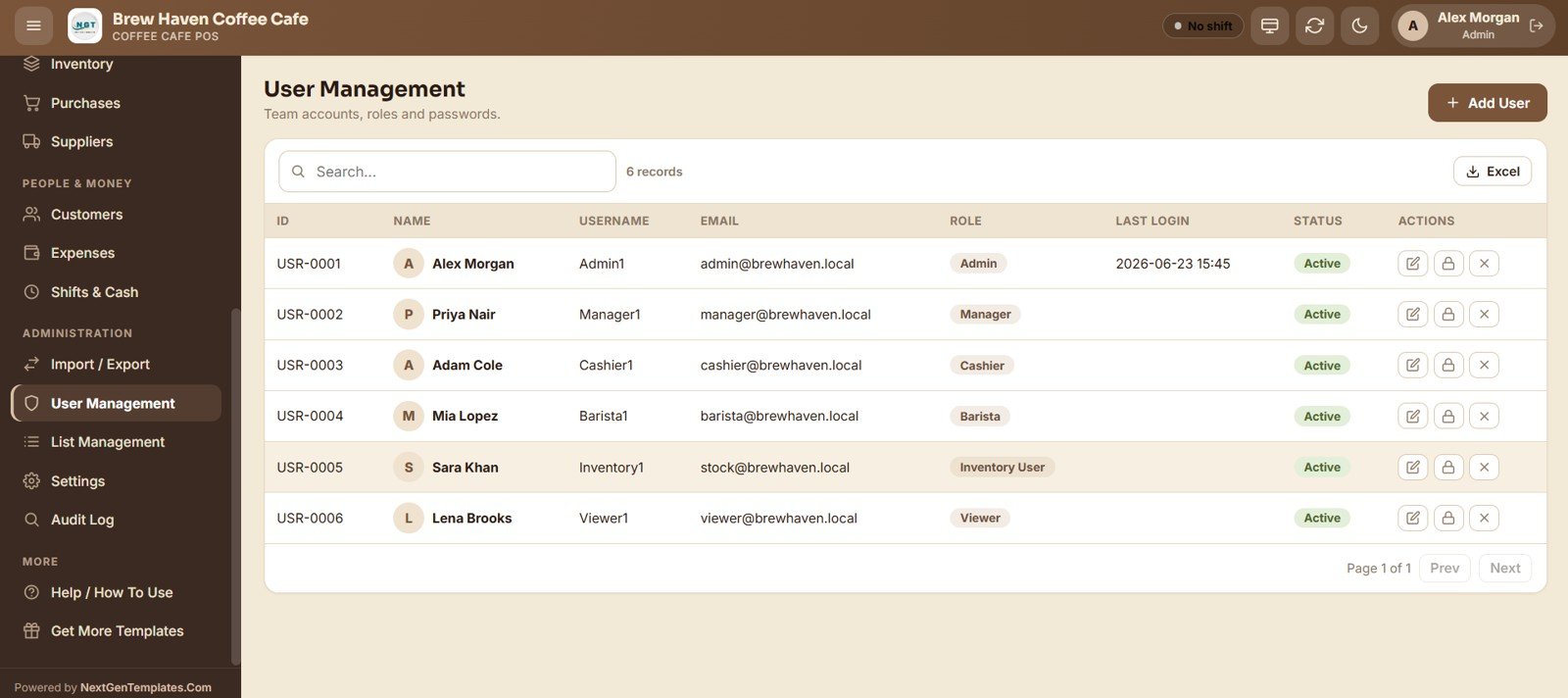
17. User Management
The admin adds team members and assigns roles such as Admin, Manager, Cashier, Barista, Inventory User and Viewer, each with its own access. It also manages usernames, passwords, last login and active status.
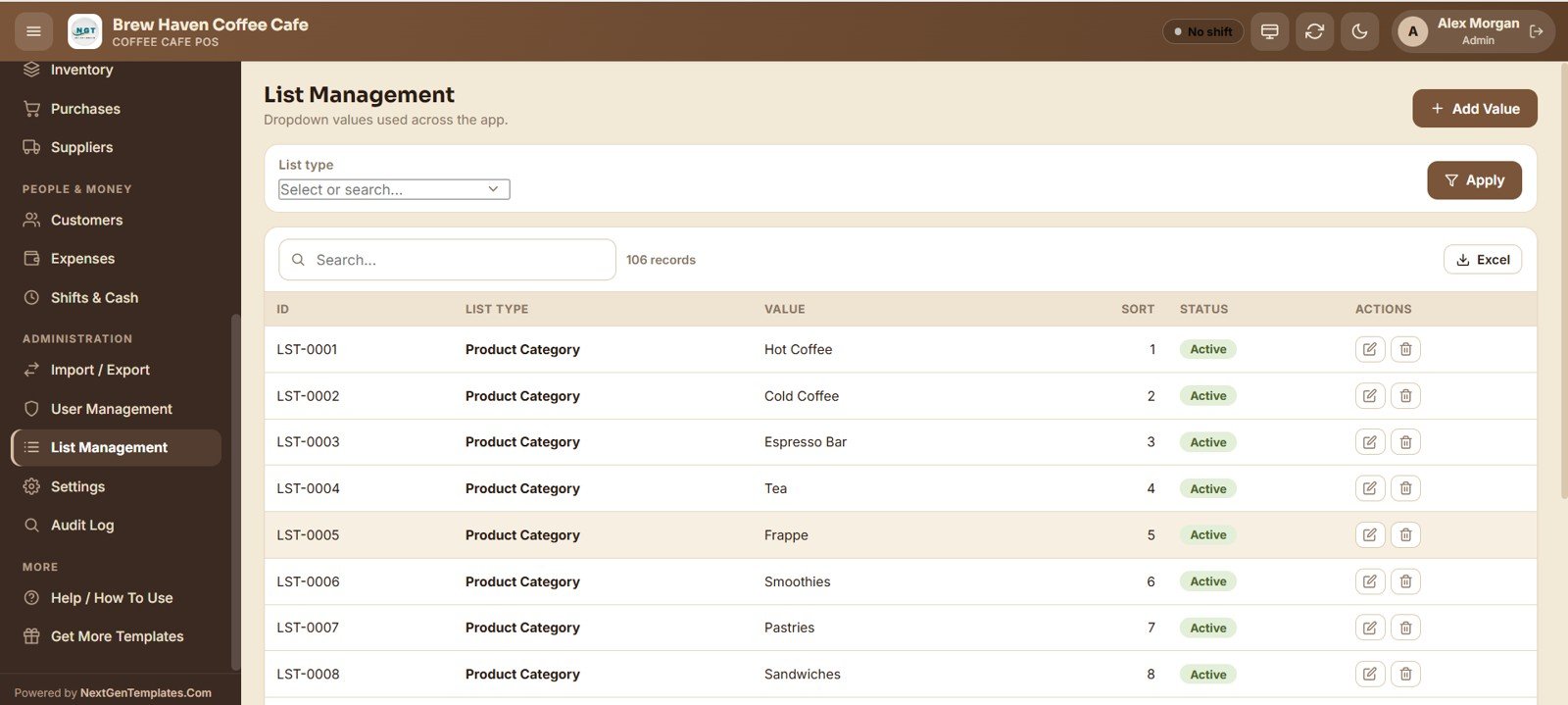
18. List Management
Configure the dropdown master lists used across the app, such as product categories, units, payment modes and table areas, with their display order and status.
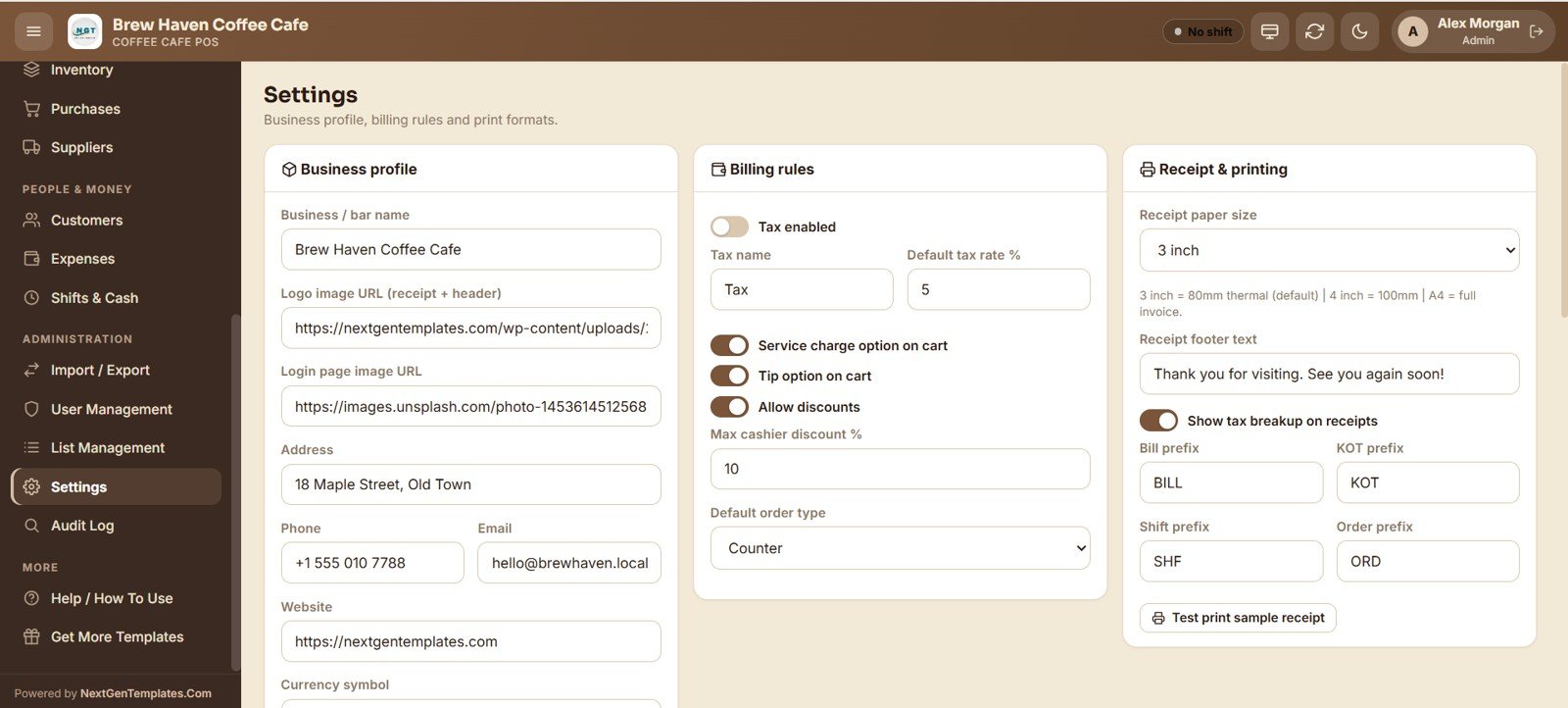
19. Settings
Configure your business profile, billing rules and print formats in one place: cafe name, logo and login image, tax, service charge, tip and discount rules, receipt paper size, and the bill, counter ticket, shift and order prefixes.
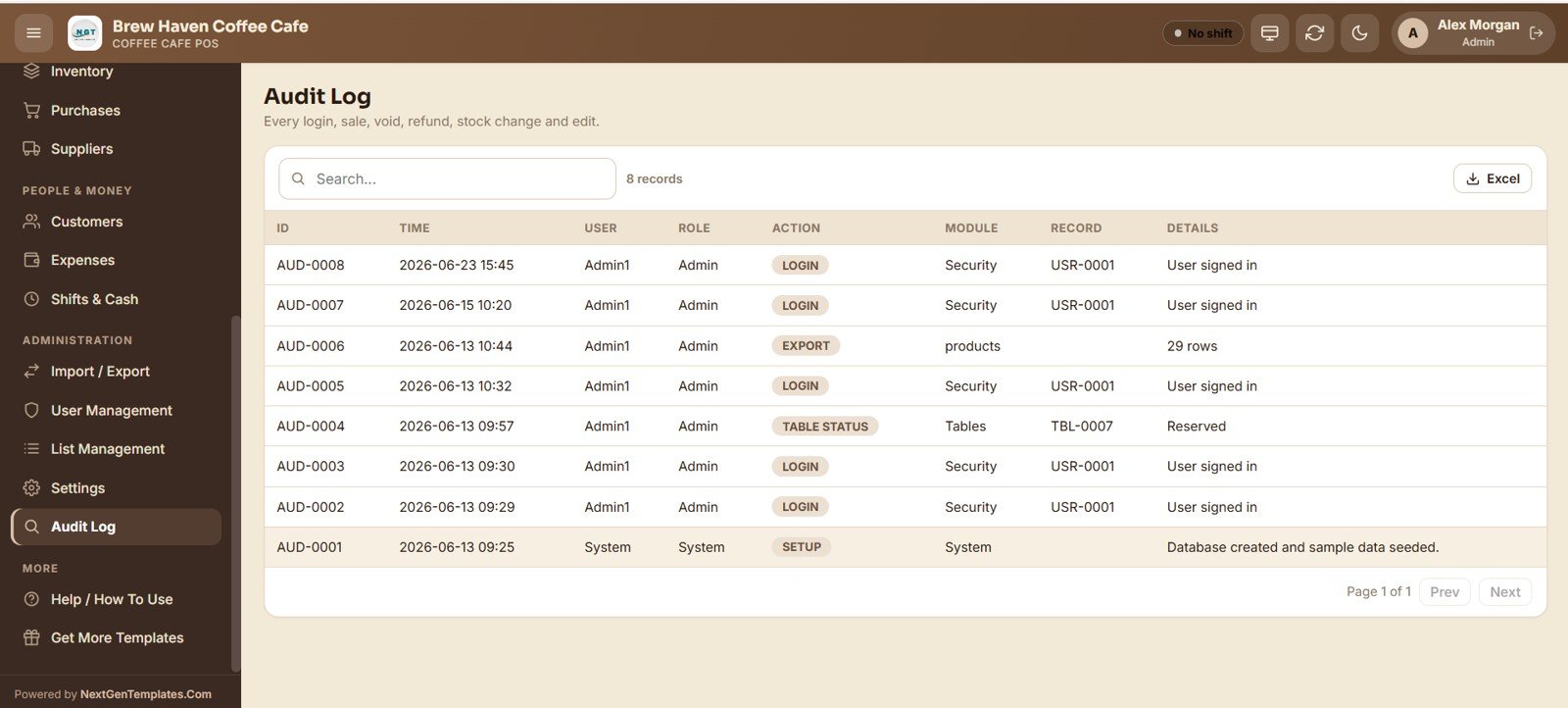
20. Audit Log
Records every important action in the system — logins, sales, voids, refunds, stock changes and edits — showing the time, user, role, action, module, record and details for full transparency.
Coffee Cafe POS Web App vs. Excel POS vs. Cafe POS SaaS — Feature Comparison
| Feature | Coffee Cafe POS Web App | Excel / VBA POS Tool | Square / Toast / Lightspeed |
|---|---|---|---|
| Cost | $39.99 one-time | $20–$60 one-time | $0–$165 / month + 2.6% per swipe |
| Platform | Google Sheets web app (browser) | Desktop Excel only | Proprietary cloud + hardware |
| Setup time | Under 30 minutes | 15 minutes | Days (hardware + onboarding) |
| Multi-user role-based login | ✅ 6 roles built in | Limited (single file) | ✅ |
| Runs on any device | ✅ Phone, tablet, laptop | ❌ Windows desktop | ✅ (their hardware) |
| You own the data | ✅ In your Google Drive | ✅ Local file | ❌ Vendor cloud |
| Export to Excel | ✅ Every module | ✅ | Limited / paid tier |
| Per-terminal fees | ✅ None | None | ❌ Per register / month |
| Year-1 cost at 3 terminals | $39.99 total | ~$40 | $1,800–$6,000+ |
For cafes that want role-based billing, KOT and reporting without paying monthly per-terminal SaaS fees, the Coffee Cafe POS Web App sits in the sweet spot.
Who Should Use This Template
Perfect for:
- Independent coffee shops, cafes, espresso bars and bakeries with 1–3 counters
- Owners who want billing, KOT, stock and shift cash control in one place without monthly fees
- Cafe chains and franchises wanting a low-cost POS they fully own and can customize
- Teams already on Google Workspace who want their data in their own Drive
Not a fit if:
- You run a large multi-branch chain needing real-time central inventory across dozens of outlets
- You require integrated card-terminal payment processing out of the box
- You need offline-first operation with no internet connection
Real-World Use Cases
Aisha owns a 3-table specialty espresso bar. She takes counter orders on a tablet, sends drinks to the barista board, and closes her till each evening with the expected-vs-actual cash check — without paying $69 a month for a cloud POS.
Ravi runs a small bakery-cafe with two cashiers. He assigns Cashier and Barista roles so each person only sees what they need, tracks flour and milk stock on the Inventory ledger, and reviews the 7-day sales trend and low-stock card every morning.
Lena manages a campus coffee kiosk. She uses loyalty points and upcoming-birthday marketing from the Customers screen, exports daily and cashier sales reports for the owner, and relies on the audit log to keep voids and refunds transparent.
Advantages of the Coffee Cafe POS Web App
The biggest advantage is cost structure: a one-time price instead of recurring per-terminal SaaS fees, which can save a small cafe thousands of dollars in the first year alone. Because it is built on Google Sheets and Apps Script, your sales, stock and customer data stay in your own Drive, and the app opens in any browser without dedicated hardware.
Role-based access keeps baristas and cashiers focused on the screens they need while owners retain full visibility, and the built-in reports and audit log give the transparency that cash-heavy businesses depend on. It is also fully editable — you can rename categories, adjust tax and service-charge rules, and extend the sheet structure yourself.
Opportunities for Improvement
The Coffee Cafe POS Web App is intentionally lightweight, so it does not include integrated card-payment processing — payments are recorded by mode rather than captured through a gateway. It also depends on an internet connection, since Apps Script web apps run in the browser, and very high-volume multi-branch chains will outgrow a single-sheet backend. Cafes that need those capabilities should treat this as a starting point and budget for customization.
Best Practices
Set up your Settings, products, suppliers and table areas before going live so the POS screen and reports are accurate from day one. Change the default admin password immediately, give each staff member their own login, and reconcile the cash drawer at the close of every shift. Export your bills and stock to Excel weekly as a backup, and review the low-stock card each morning so you reorder coffee and dairy before you run out.
Explore Relevant Templates
If you run a hospitality business, these related systems pair well with the Coffee Cafe POS Web App:
- Bar POS System Web App — the sister POS built for bars and pubs.
- Restaurant Management System Web App — full-service dining with KOT, tables and billing.
- Food Delivery Dashboard in Google Sheets — track delivery orders and channel performance.
- Receipt Template in Google Sheets — quick printable receipts.
- Franchise Performance Dashboard — compare outlets if you grow into multiple locations.
The web app is built on Google Apps Script; you can read more about how Apps Script web apps are deployed in the official Google Apps Script web apps guide.
New to building spreadsheet systems like this? The NextGenTemplates Academy learning paths take you through trackers and management systems with practice files.
Get the Coffee Cafe POS Web App
Frequently Asked Questions
What does the Coffee Cafe POS Web App run on?
The Coffee Cafe POS Web App runs on Google Sheets and Google Apps Script. You make a copy into your own Google Drive and deploy it as a web app, so it opens in any browser on a phone, tablet or laptop with no extra software to install.
How many user roles does it support?
The Coffee Cafe POS Web App supports six roles — Admin, Manager, Cashier, Barista, Inventory User and Viewer. Each person signs in with their own username and password and sees only the screens their role allows, managed from the User Management screen.
How long does setup take?
Most cafes are live in under 30 minutes. You copy the sheet, deploy the web app, sign in with the default admin login, set your business profile in Settings, then add products, suppliers, tables and staff.
How does this compare to Square or Toast?
Square, Toast and Lightspeed charge monthly fees plus per-terminal and per-swipe costs. The Coffee Cafe POS Web App is a one-time $39.99 purchase you fully own, with role-based billing, KOT, inventory and nearly 20 reports — though it does not include built-in card payment processing.
Can I export my sales and stock data?
Yes. The Coffee Cafe POS Web App exports every module — bills, products, inventory, purchases, suppliers, customers, expenses and reports — to Excel, and the Import/Export screen lets you bulk-import rows with validation.
Does it handle shift and cash reconciliation?
Yes. The Shifts and Cash Register screen lets cashiers open and close till sessions and shows opening cash, sales, expected vs actual cash and the difference, so every drawer is reconciled at the end of a shift.
About the Author
Built by PK — Microsoft Certified Professional with 15+ years of Excel, Google Sheets and Power BI experience. Founder of NextGenTemplates, reaching 300K+ subscribers across YouTube channels. Every template is hand-built and tested before release.
Conclusion
The Coffee Cafe POS Web App gives independent coffee shops a complete, owned point-of-sale and management system — billing, KOT, tables, inventory, shifts and reporting — without monthly per-terminal fees.
Instant download · One-time payment · No subscription.
Last updated: June 2026